
Shape Control for .NET
Shape Control for .NET


- Download source CS V6 - 5.7 MB
- Download source VB V6 - 5.5 MB
- Download source CS V4a - 1.1 MB
- Download source VB V4a - 3.4 MB




Introduction
When Microsoft upgraded Visual Studio 6 to Visual Studio 7 (.NET), many of the familiar graphical controls (Image control, Shape control) were dropped. Although similar functionalities previously achieved by these controls can be attained using appropriate classes in the .NET library, much more effort is required.
After getting familiar with graphical programming in .NET, I am able to port most of my VB6 graphical programs to C#. However, I find that time and again, I need to implement replacement functionalities for the VB6 Shapecontrol in .NET. There are probably already many Shape controls for .NET by third parties, but I could not find one to my satisfaction.
In this article, I would like to share with the readers how I attempted to implement the Shape control for .NET.
Background
In VB6, the Shape control is a graphical light-weight control, it is not a real control and does not have a Hwndproperty. In .NET, all controls are real controls with Hwnd property. Although there is no equivalent Shape control in Visual Studio .NET, there are various classes in the .NET library that can collectively be used to implement the Shape control.
Basically the Shape control is an image with a certain shape. To handle the image functionalities, there are the Image and Bitmap classes. For shapes, there is the GraphicsPath class.
These classes are the key components for implementing the Shape control.
Transparency
In VB6, we can set the DrawMode property to achieve the effect of seeing through the VB6 Shape control. The DrawMode property could still be implemented using GDI/GDI+ functions in .NET, but there is an easier and more elegant way. .NET supports 32 bit ARGB rendering. In VB6, although 32 bit ARGB values can be assigned to colors, the A (Alpha) component of the value is never used.
For any standard control derived from System.Windows.Form.Control, there are at least two properties that take Color values: BackColor and ForeColor. Each of these properties can be assigned ARGB values.
How would you test for transparency? The answer is a background. All controls must reside within a container. For most cases, the form is the container. However, there are also controls that serve as containers, for example the Panel control. To test for transparency, we can set the container's background to an image and the backcolor of the control within the container to a color where the Alpha is less than 255 (maybe 100). You will then be able to see the background image through the control. The lower the Alpha, the more of the background is seen.
Shape
In VB6, we can also create custom controls with different shapes. However, this can only be done by calling Win32 API functions. In .NET, every control has a Region property which can be used to specify its shape. When the control is rendered, Windows will only paint on pixels within the region. A Region can be created by specifying its outline. The outline can be constructed using a GraphicsPath object. The code below creates a GraphicsPath object, adds an ellipse shape to the path and then uses the path to instantiate a new Regionobject to be assigned to a control's Region property. The end result is that the control will take the shape of the Region, which in this case is an ellipse.
GraphicsPath _outline=new GraphicsPath();

_outline.AddEllipse(0,0,100,100);

this.Region=new Region(_outline);
Custom Design-time Editors
When you use Visual Studio .NET IDE to assign Color properties, you can do so using the standard Color Editor where you can select from a series of colors, or you can directly type in the ARGB values. When you use the standard Color Editor, you cannot specify the Alpha values. And when you directly type in the ARGB values, you do not know how the color will appear. Either way, you do not have an ideal way to enter Color values.
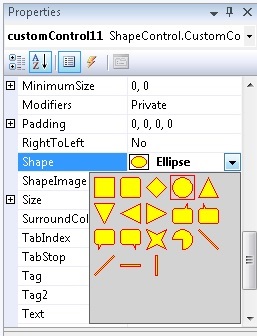
However, Visual Studio .NET allows you to create your own editor to edit property values. For the Shape control, I have created two custom design-time editors. One for editing ARGB values and the other to pick the shape for the Shape control.
In this article, I would not be discussing on how to create a custom design-time editor. You can get more information from the .NET documentation for System.Drawing.Design namespace.

Extending Shape Control
The source code for the Shape control (ShapeControl.cs) allows for easy addition/deletion of shapes. All shapes are enumerated in the ShapeType enum block. You can edit this block to add/delete shapes.
public enum ShapeType{

                Rectangle,

                RoundedRectangle,

                Diamond,

                Ellipse,

                TriangleUp,

                TriangleDown,

                TriangleLeft,

                TriangleRight,

                BallonNE,

                BallonNW,

                BallonSW,

                BallonSE,

                CustomPolygon,

                CustomPie

            }
Correspondingly add/edit the block that creates the outline path for the shape.
 Copy Code
internal static void updateOutline(ref GraphicsPath outline,
ShapeType shape, int width,int height)
{
Switch (Shape)
{
Case ShapeType.CustomPie:
outline.AddPie(0,0,width,height,180,270);
break;
Case ShapeType.CustomPolygon:
outline.AddPolygon(new Point[]{
new Point(0,0),
new Point(width/2,height/4),
new Point(width,0),
new Point((width*3)/4,height/2),
new Point(width,height),
new Point(width/2,(height*3)/4),
new Point(0,height),
new Point(width/4,height/2)
}
);
break;
Case ShapeType.Diamond:
outline.AddPolygon(new Point[]{
new Point(0,height/2),
new Point(width/2,0),
new Point(width,height/2),
new Point(width/2,height)
});
break; Case ShapeType.Rectangle:
outline.AddRectangle(new Rectangle(0,0,width,height));
break;
.....
The shape selection design-time editor is coded in such a way that it queries the ShapeType enum and calls the updateOutline function while rendering the design-time UI. It will automatically display the shapes correctly.
ShapeImage, ShapeImageRotation and ShapeImageTexture Property
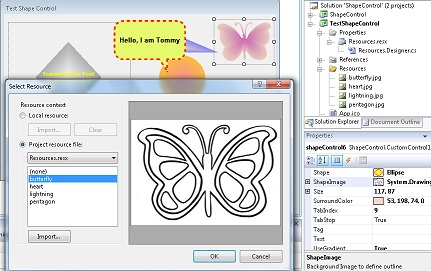
I have added ShapeImage property that allows you to specify an image that you would like to use for generating the outline for the Shape control. A suitable image would be one with clear outline, like those included in the project's resources. The above picture shows the setting of the ShapeImage property of a Shapecontrol to take the shape of a butterfly. Note that the ShapeImage property will override the Shape property. If you want to use the Shape property, first set ShapeImage property to (none).
The outline extraction implementation for the ShapeImage property is based on my article.
Fun with Outlines http://www.codeproject.com/Articles/760660/Fun-with-Outlines
The ShapeImageRotation property allows the image to be rotated before the outline is generated. Valid value for this property is between -180 and 180 degree.
The ShapeImageTexture property allows a texture image to be applied to the shape. Note that a texture image is different from simply a background image. The texture is like a skin on the shape and when the shape is resized, rotated and stretched, the texture will also be resized, rotated and stretched.
Blink, Vibrate, AnimateBorder Property
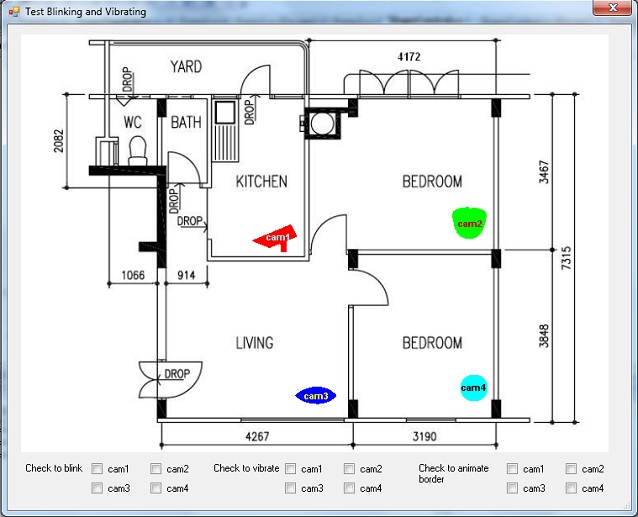
Setting these properties cause the control to blink, vibrate and animate the border respectively. This may be useful if you want to use the shape control as some kind of beacon.
Connecter Property
I have added Connecter property that is used to specify how a Line shape would connect to the Shape control. The values for the Connecter property are Center, Left, Right, Top, Bottom.

The code below shows how to connect a line shape control to 2 shape controls. ctrl1 is the line shape control. The line would extends from source shape control (ctrlsrc) to the destination shape control (ctrldest). ShapeControl.Line.setConnectors() sets the appropriate ConnecterType for the Connector property for the source and destination shape controls. ShapeControl.Line.setConnectorPoint() extracts the coordinates for the anchor points for the source and destination from ctrlsrc and ctrldest respectively. ShapeControl.Line.setLine() set the anchor coordinates for the line shape control.
//default src_cam location

ctrlsrc.Connector =ShapeControl.ConnecterType.Center;

int x0 = ctrlsrc.Location.X +ctrlsrc.Width / 2;

int y0 = ctrlsrc.Location.Y +ctrlsrc.Height / 2;

//default dest_cam location

ctrldest.Connector = ShapeControl.ConnecterType.Center;

int x1 = ctrldest.Location.X + ctrldest.Width / 2;

int y1 = ctrldest.Location.Y + ctrldest.Height / 2;

//re-adjust connection points

ShapeControl.Line.setConnectors(ref ctrlsrc, ref ctrldest);

ShapeControl.Line.setConnectorPoint(ref x0, ref y0, ctrlsrc);

ShapeControl.Line.setConnectorPoint(ref x1, ref y1, ctrldest);

//call the generic function

ShapeControl.Line.setLine(ref ctrl1, x0, y0, x1, y1);
ShapeStorage properties
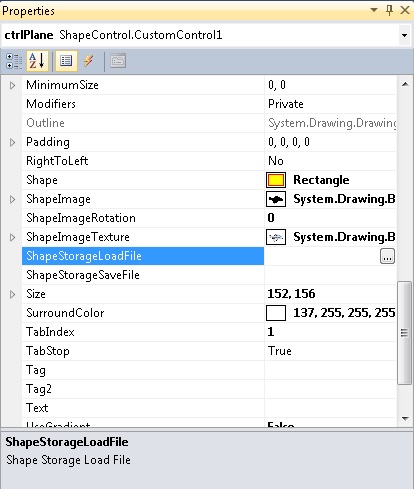

I have added 2 properties to the shape control: ShapeStorageSave and ShapeStorageLoad. The main purpose of these properties is to enable you to save shapes to disk and to load them at design time. When you click on these properties in the properties list, a dialog box will pop up to enable you to view and select the file you want to use. The default extension for the shape files is .shp.jpg. For each .shp.jpg file there would be a corresponding .shp file. The .shp file store all the properties and resources used by the shape control. Note that in the Visual Studio Designer these ShapeStorage properties will always be blank, as their sole purpose is to bring up dialog boxes for you to work on.
Demo Sample Applications
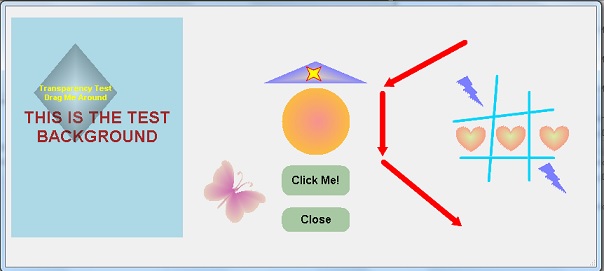
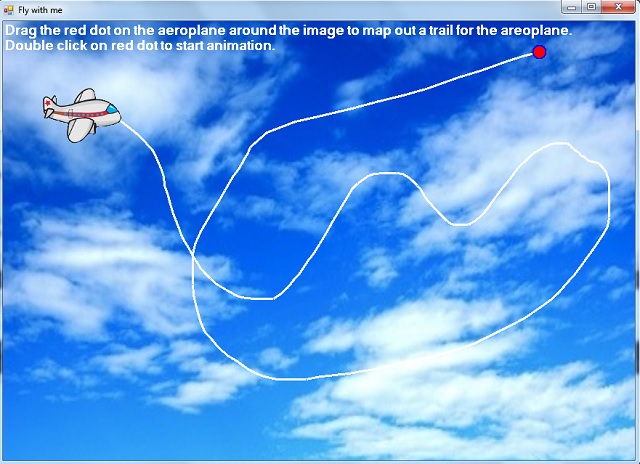
Demo1shows the features of the shape control. The left panel demonstrates transparency as you drag the diamond shape around the panel. The other shape controls show the various different shapes and settings.Demo2shows the use of theBlink,VibrateandAnimateBorderproperty of theshapecontrol in a typical floor plan to flag alarm/alert.Demo3is a more advanced demo, showing a camera placement designer application. You can add cameras, move them around, resize them, change their properties and connect them up via drag and drop. Direction of connection can also be set and changed. You can also test the animation for the cameras and connecting lines. The configurations can be saved and reload.Demo4shows a simple cognitive game, where parts of underlaying images of well known personalities are shown within 2 moving clock hands, and the objective is to identify as many of these personalities as possible. The UI demonstrates a creative use of the shape control.Demo5shows an interesting use of theShapeImageRotationproperty. You can trace out the flight path of a areoplane shape control. The aeroplane shape control would move along the flight path with the correct orientation by rotating to head in the direction of flight.Demo6illustrates the use of theShapeImageTextureproperty. You can see different effects after applying no texture/background, generic texture and specified texture to 2 different shapes.Demo7shows the saving and loading of shape controls from file at run timeDemo8shows the use of theShapeStorageSaveandShapeStorageLoadproperties.
Double Buffering
Double buffering enables smooth rendering of controls on a form or container. Since .NET 2.0, the Control.DoubleBuffered property has been introduced. However, this property is protected. To enable this property in a control, you could create a custom class inheriting from the Control class, and then set the property in your custom class. However, you can still set this property on existing controls using reflection, without subclassing. The code below shows how to set double buffering for a panel control.
//invoke double buffer

typeof(Panel ).InvokeMember(

"DoubleBuffered",

System.Reflection.BindingFlags.NonPublic |

System.Reflection.BindingFlags.Instance |

System.Reflection.BindingFlags.SetProperty,

null,

panel1,

new object[] { true });
Conclusion
I hope that readers would benefit not only from using the shape control to create fanciful UI, but also from their exploration of the various .NET classes used to create the magic of the shape control.
History
- 20th April 2014: Updated
ShapeType (Property) Editor to work correctly in Visual Studio 2008 and later - 29th April 2014: Add in
ShapeImageproperty - 7th May 2016: Add in
BlinkandVibrateproperty - 9th May 2016: Advance demo showing a camera placement designer application
- 10th May 2016: Add in double buffering in the demo for smooth dragging of the control
- 10th May 2016: Add in VB.NET code converted by SharpDevelop (open source IDE)
- 14th May 2016: Add 4 Lines shapes
- 16thMay 2016: Add in
AnimateBorderproperty - 17th May 2016: Enhance
Demo3(Cam Placement Application) to allow cams to be connected up with the Line shape controls via "Drag and Drop" technique - 20th May 2016: Add in
Directionproperty for Line shapes - 24th May 2016: Add in
Connecterproperty - 22nd Feb 2017: Add in
ShapeImageRotationproperty in V4b - 22th Feb 2017: Change the rendering of rotated shape image to get smoother edges in V4b1
- 25th Feb 2017: Add in
Demo5(Tracing the flight path of a butterfly shape control) - 27th Feb 2017: Enhance outline generation for ShapeImage shapes. Fine tuned
Demo5. Add inDemo6to show use ofShapeImageTextureproperty in V5 - 1st March 2017: Corrected
ColorEditorfor VB V4a - 9th March 2017: Add in
ShapeStorageSaveandShapeStorageLoadproperties in V6 - 24th March 2017: Add in VB.NET source for V6
License
This article, along with any associated source code and files, is licensed under The Code Project Open License (CPOL)
Share
About the Author

|
Software Developer (Senior)
|
|
Singapore  |
He likes Graphics, Games, AI and Image Processing.
Shape Control for .NET的更多相关文章
- Interpolation particles In Katana
I write the sphere radius interpolation for katana plugin that can transfer attributes,render attrib ...
- VSTO PowerPoint 代码删除Shape后再恢复出现无法再次获取的问题
做PowerPoint的VSTO插件项目,遇到个很奇怪的问题,当代码执行删除某些Shape时,没问题,但是操作Undo也就是恢复后,无法再次获取到之前删除的对象,这种情况只在Office2007中出现 ...
- Netron开发快速上手(一):GraphControl,Shape,Connector和Connection
版权所有,引用请注明出处:<<http://www.cnblogs.com/dragon/p/5203663.html >> 本文所用示例下载FlowChart.zip 一个用 ...
- 仿iOS Segmented Control样式"
同步发表于http://avenwu.net/2015/02/05/styled_radiogroup_segmented_control Fork on github https://github. ...
- the Linux Kernel: Traffic Control, Shaping and QoS
−Table of Contents Journey to the Center of the Linux Kernel: Traffic Control, Shaping and QoS 1 Int ...
- [RxJS] Using Observable.create for fine-grained control
Sometimes, the helper methods that RxJS ships with such as fromEvent, fromPromise etc don't always p ...
- [UWP]不怎么实用的Shape指南:自定义Shape
1. 前言 这篇文章介绍了继承并自定义Shape的方法,不过,恐怕,事实上,100个xaml的程序员99个都不会用到.写出来是因为反正都学了,当作写个笔记. 通过这篇文章,你可以学到如下知识点: 自定 ...
- 安卓自定义控件(二)BitmapShader、ShapeDrawable、Shape
第一篇博客中,我已经Canvas.Paint.Shader.Xfermode这些对象做了总结,而现在这篇文章主要介绍BitmapShader位图渲染,Xfermode如何实际应用,还有形状的绘制.不过 ...
- PIE SDK Command、Tool、Control的调用和拓展
1.功能简介 在一个项目中,是通过小组成员共同开发的,难以避免的是当项目功能集成的时候会出现很多兼容性问题,开发讲究高内聚低耦合,利用Command.Tool和Control的使用,可以提升集成的效率 ...
随机推荐
- 加解密 3DES AES RSA 简介 示例 MD
Markdown版本笔记 我的GitHub首页 我的博客 我的微信 我的邮箱 MyAndroidBlogs baiqiantao baiqiantao bqt20094 baiqiantao@sina ...
- 设置tomcat配置文件,在Myeclipse中修改jsp文件之后不用重启tomcat
在Myeclipse中创建的Web程序在修改类或者jsp页面后需要重动ttomcat的,要重新加载一次的,即重新启动tomcat一次.重启时比较慢,及浪费资源及时间, 设置tomcat配置文件,在My ...
- 分布式系统漫谈一 —— Google三驾马车: GFS,mapreduce,Bigtable
分布式系统学习必读文章!!!! 原文:http://blog.sina.com.cn/s/blog_4ed630e801000bi3.html 分布式系统漫谈一 —— Google三驾马车: GFS, ...
- T_SQL的 FOR XML PATH 用法
T_SQL的 FOR XML PATH FOR XML PATH 有的人可能知道有的人可能不知道,其实它就是将查询结果集以XML形式展现,有了它我们可以简化我们的查询语句实现一些以前可能需要借助函数活 ...
- Python 面向对象编程 继承 和多态
Python 面向对象编程 继承 和多态 一:多继承性 对于java我们熟悉的是一个类只能继承一个父类:但是对于C++ 一个子类可以有多个父亲,同样对于 Python一个类也可以有多个父亲 格式: c ...
- Unity Web前端研究
原地址:http://blog.csdn.net/libeifs/article/details/7200630 开发环境 Window7 Unity3D 3.4.1 MB525defy Andro ...
- 算法笔记_047:复数运算(Java)
目录 1 问题描述 2 解决方案 1 问题描述 编程实现两个复数的运算.设有两个复数 和 ,则他们的运算公式为: 要求:(1)定义一个结构体类型来描述复数. (2)复数之间的加法.减法.乘法和除法 ...
- 算法笔记_043:最大连续子数组和(Java)
目录 1 问题描述 2 解决方案 2.1 蛮力枚举法 2.2 动态规划法 1 问题描述 给定一个整数数组,数组里可能有正数.负数和零.数组中连续的一个或多个整数组成一个子数组,每个子数组都有一个和 ...
- screen 命令使用及示例
screen 是一个非常有用的命令,提供从单个 SSH 会话中使用多个 shell 窗口(会话)的能力.当会话被分离或网络中断时,screen 会话中启动的进程仍将运行,你可以随时重新连接到 scre ...
- spring.xml从外部文件引入数据库配置信息
<!-- 分散配置 --> <context:property-placeholder location="classpath:jdbc.properties" ...