
digitalocean --- How To Install Apache Tomcat 8 on Ubuntu 16.04
https://www.digitalocean.com/community/tutorials/how-to-install-apache-tomcat-8-on-ubuntu-16-04
Introduction
Apache Tomcat is a web server and servlet container that is used to serve Java applications. Tomcat is an open source implementation of the Java Servlet and JavaServer Pages technologies, released by the Apache Software Foundation. This tutorial covers the basic installation and some configuration of the latest release of Tomcat 8 on your Ubuntu 16.04 server.
Prerequisites
Before you begin with this guide, you should have a non-root user with sudo privileges set up on your server. You can learn how to do this by completing our Ubuntu 16.04 initial server setup guide.
Step 1: Install Java
Tomcat requires Java to be installed on the server so that any Java web application code can be executed. We can satisfy that requirement by installing OpenJDK with apt-get.
First, update your apt-get package index:
- sudo apt-get update
Then install the Java Development Kit package with apt-get:
- sudo apt-get install default-jdk
Now that Java is installed, we can create a tomcat user, which will be used to run the Tomcat service.
Step 2: Create Tomcat User
For security purposes, Tomcat should be run as an unprivileged user (i.e. not root). We will create a new user and group that will run the Tomcat service.
First, create a new tomcat group:
- sudo groupadd tomcat
Next, create a new tomcat user. We'll make this user a member of the tomcat group, with a home directory of /opt/tomcat (where we will install Tomcat), and with a shell of /bin/false (so nobody can log into the account):
- sudo useradd -s /bin/false -g tomcat -d /opt/tomcat tomcat
Now that our tomcat user is set up, let's download and install Tomcat.
Step 3: Install Tomcat
The best way to install Tomcat 8 is to download the latest binary release then configure it manually.
Find the latest version of Tomcat 8 at the Tomcat 8 Downloads page. At the time of writing, the latest version is 8.5.5, but you should use a later stable version if it is available. Under the Binary Distributions section, then under the Core list, copy the link to the "tar.gz".
Next, change to the /tmp directory on your server. This is a good directory to download ephemeral items, like the Tomcat tarball, which we won't need after extracting the Tomcat contents:
- cd /tmp
Use curl to download the link that you copied from the Tomcat website:
- curl -O http://apache.mirrors.ionfish.org/tomcat/tomcat-8/v8.5.5/bin/apache-tomcat-8.5.5.tar.gz
We will install Tomcat to the /opt/tomcat directory. Create the directory, then extract the archive to it with these commands:
- sudo mkdir /opt/tomcat
- sudo tar xzvf apache-tomcat-8*tar.gz -C /opt/tomcat --strip-components=1
Next, we can set up the proper user permissions for our installation.
Step 4: Update Permissions
The tomcat user that we set up needs to have access to the Tomcat installation. We'll set that up now.
Change to the directory where we unpacked the Tomcat installation:
- cd /opt/tomcat
Give the tomcat group ownership over the entire installation directory:
- sudo chgrp -R tomcat /opt/tomcat
Next, give the tomcat group read access to the conf directory and all of its contents, and execute access to the directory itself:
- sudo chmod -R g+r conf
- sudo chmod g+x conf
Make the tomcat user the owner of the webapps, work, temp, and logs directories:
- sudo chown -R tomcat webapps/ work/ temp/ logs/
Now that the proper permissions are set up, we can create a systemd service file to manage the Tomcat process.
Step 5: Create a systemd Service File
We want to be able to run Tomcat as a service, so we will set up systemd service file.
Tomcat needs to know where Java is installed. This path is commonly referred to as "JAVA_HOME". The easiest way to look up that location is by running this command:
- sudo update-java-alternatives -l
java-1.8.0-openjdk-amd64 1081 /usr/lib/jvm/java-1.8.0-openjdk-amd64
The correct JAVA_HOME variable can be constructed by taking the output from the last column (highlighted in red) and appending /jre to the end. Given the example above, the correct JAVA_HOME for this server would be:
/usr/lib/jvm/java-1.8.0-openjdk-amd64/jre
Your JAVA_HOME may be different.
With this piece of information, we can create the systemd service file. Open a file called tomcat.service in the /etc/systemd/system directory by typing:
- sudo nano /etc/systemd/system/tomcat.service
Paste the following contents into your service file. Modify the value of JAVA_HOME if necessary to match the value you found on your system. You may also want to modify the memory allocation settings that are specified in CATALINA_OPTS:
[Unit]

Description=Apache Tomcat Web Application Container

After=network.target

[Service]

Type=forking

Environment=JAVA_HOME=/usr/lib/jvm/java-1.8.0-openjdk-amd64/jre

Environment=CATALINA_PID=/opt/tomcat/temp/tomcat.pid

Environment=CATALINA_HOME=/opt/tomcat

Environment=CATALINA_BASE=/opt/tomcat

Environment='CATALINA_OPTS=-Xms512M -Xmx1024M -server -XX:+UseParallelGC'

Environment='JAVA_OPTS=-Djava.awt.headless=true -Djava.security.egd=file:/dev/./urandom'

ExecStart=/opt/tomcat/bin/startup.sh

ExecStop=/opt/tomcat/bin/shutdown.sh

User=tomcat

Group=tomcat

UMask=0007

RestartSec=10

Restart=always

[Install]

WantedBy=multi-user.target
When you are finished, save and close the file.
Next, reload the systemd daemon so that it knows about our service file:
- sudo systemctl daemon-reload
Start the Tomcat service by typing:
- sudo systemctl start tomcat
Double check that it started without errors by typing:
- sudo systemctl status tomcat
Step 6: Adjust the Firewall and Test the Tomcat Server
Now that the Tomcat service is started, we can test to make sure the default page is available.
Before we do that, we need to adjust the firewall to allow our requests to get to the service. If you followed the prerequisites, you will have a ufw firewall enabled currently.
Tomcat uses port 8080 to accept conventional requests. Allow traffic to that port by typing:
- sudo ufw allow 8080
With the firewall modified, you can access the default splash page by going to your domain or IP address followed by :8080 in a web browser:
http://server_domain_or_IP:8080
You will see the default Tomcat splash page, in addition to other information. However, if you click the links for the Manager App, for instance, you will be denied access. We can configure that access next.
If you were able to successfully accessed Tomcat, now is a good time to enable the service file so that Tomcat automatically starts at boot:
- sudo systemctl enable tomcat
Step 7: Configure Tomcat Web Management Interface
In order to use the manager web app that comes with Tomcat, we must add a login to our Tomcat server. We will do this by editing the tomcat-users.xml file:
- sudo nano /opt/tomcat/conf/tomcat-users.xml
You will want to add a user who can access the manager-gui and admin-gui (web apps that come with Tomcat). You can do so by defining a user, similar to the example below, between the tomcat-users tags. Be sure to change the username and password to something secure:
<tomcat-users . . .>

    <user username="admin" password="password" roles="manager-gui,admin-gui"/>

</tomcat-users>
Save and close the file when you are finished.
By default, newer versions of Tomcat restrict access to the Manager and Host Manager apps to connections coming from the server itself. Since we are installing on a remote machine, you will probably want to remove or alter this restriction. To change the IP address restrictions on these, open the appropriate context.xml files.
For the Manager app, type:
- sudo nano /opt/tomcat/webapps/manager/META-INF/context.xml
For the Host Manager app, type:
- sudo nano /opt/tomcat/webapps/host-manager/META-INF/context.xml
Inside, comment out the IP address restriction to allow connections from anywhere. Alternatively, if you would like to allow access only to connections coming from your own IP address, you can add your public IP address to the list:
<Context antiResourceLocking="false" privileged="true" >

  <!--<Valve className="org.apache.catalina.valves.RemoteAddrValve"

         allow="127\.\d+\.\d+\.\d+|::1|0:0:0:0:0:0:0:1" />-->

</Context>
Save and close the files when you are finished.
To put our changes into effect, restart the Tomcat service:
- sudo systemctl restart tomcat
Step 8: Access the Web Interface
Now that we have create a user, we can access the web management interface again in a web browser. Once again, you can get to the correct interface by entering your server's domain name or IP address followed on port 8080 in your browser:
http://server_domain_or_IP:8080
The page you see should be the same one you were given when you tested earlier:
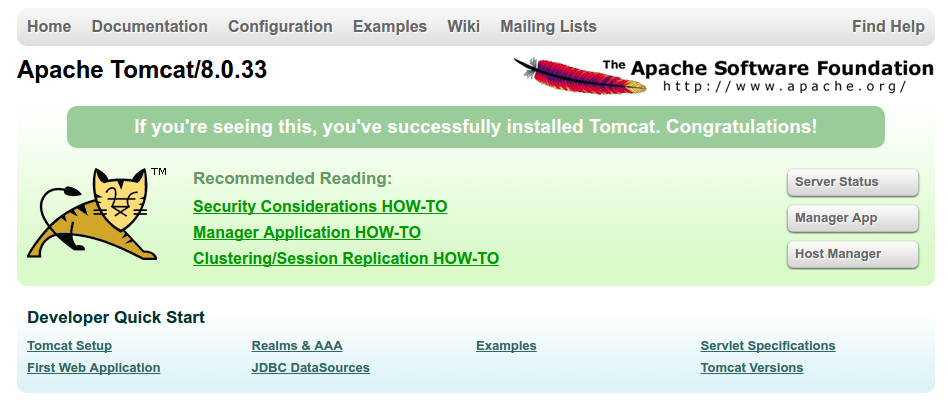
Let's take a look at the Manager App, accessible via the link or http://server_domain_or_IP:8080/manager/html. You will need to enter the account credentials that you added to the tomcat-users.xml file. Afterwards, you should see a page that looks like this:
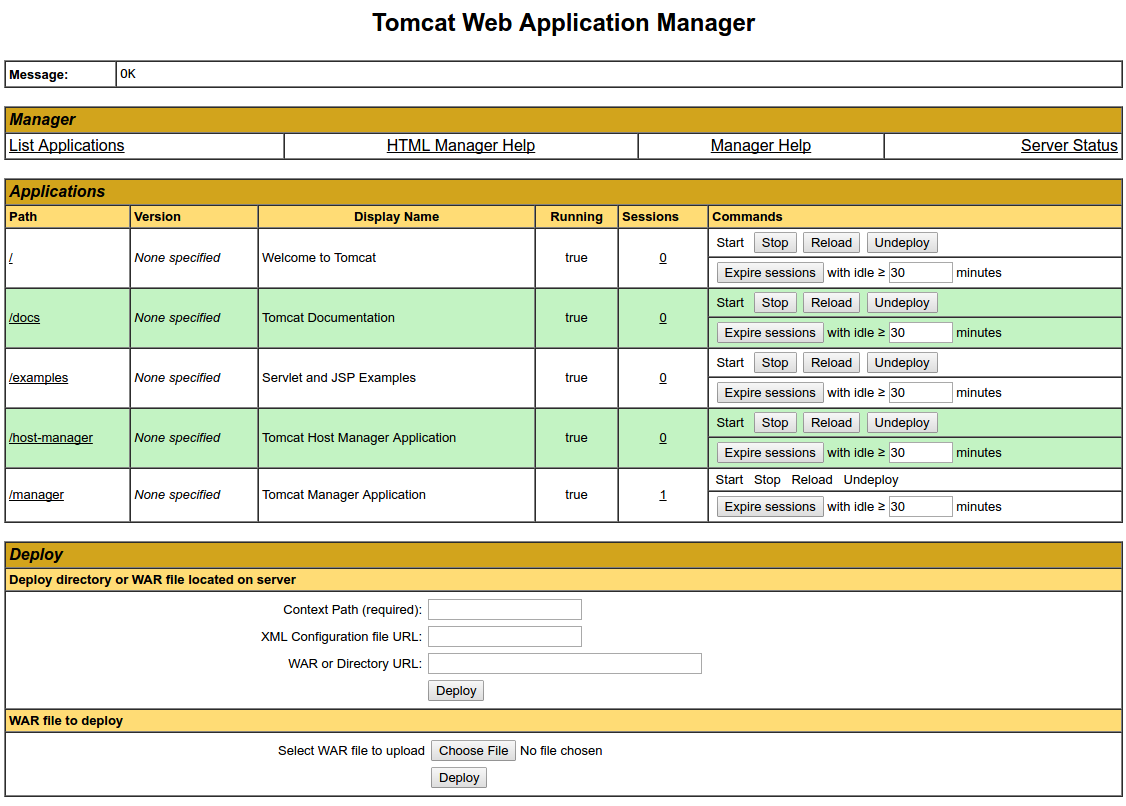
The Web Application Manager is used to manage your Java applications. You can Start, Stop, Reload, Deploy, and Undeploy here. You can also run some diagnostics on your apps (i.e. find memory leaks). Lastly, information about your server is available at the very bottom of this page.
Now let's take a look at the Host Manager, accessible via the link or http://server_domain_or_IP:8080/host-manager/html/:
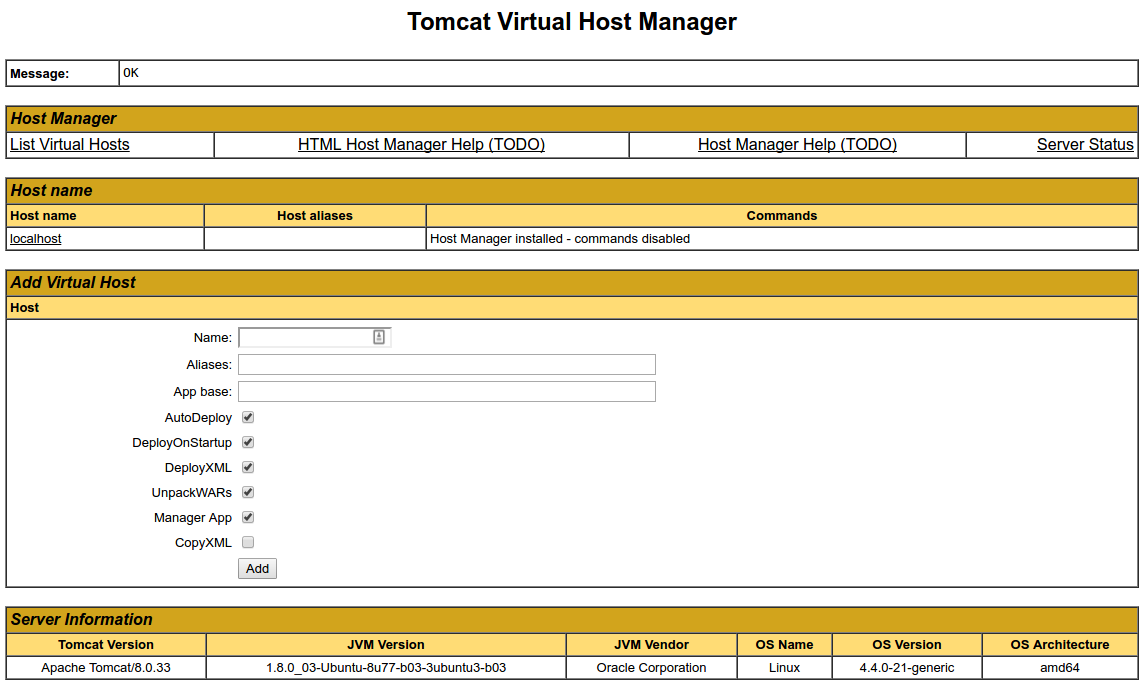
From the Virtual Host Manager page, you can add virtual hosts to serve your applications from.
Conclusion
Your installation of Tomcat is complete! Your are now free to deploy your own Java web applications!
Currently, your Tomcat installation is functional, but entirely unencrypted. This means that all data, including sensitive items like passwords, are sent in plain text that can be intercepted and read by other parties on the internet. In order to prevent this from happening, it is strongly recommended that you encrypt your connections with SSL. You can find out how to encrypt your connections to Tomcat by following this guide.
digitalocean --- How To Install Apache Tomcat 8 on Ubuntu 16.04的更多相关文章
- ubuntu 16.04源码编译和配置caffe详细教程 | Install and Configure Caffe on ubuntu 16.04
本文首发于个人博客https://kezunlin.me/post/b90033a9/,欢迎阅读! Install and Configure Caffe on ubuntu 16.04 Series ...
- Ubuntu 16.04上源码编译Poco并编写cmake文件 | guide to compile and install poco cpp library on ubuntu 16.04
本文首发于个人博客https://kezunlin.me/post/281dd8cd/,欢迎阅读! guide to compile and install poco cpp library on u ...
- [Part 1] Ubuntu 16.04安装和配置QT5 | Part-1: Install and Configure Qt5 on Ubuntu 16.04
本文首发于个人博客https://kezunlin.me/post/91842b71/,欢迎阅读! Part-1: Install and Configure Qt5 on Ubuntu 16.04 ...
- How To Install Java with Apt-Get on Ubuntu 16.04
Introduction Java and the JVM (Java's virtual machine) are widely used and required for many kinds o ...
- How to Install LibreOffice 6.0 on Ubuntu 16.04 LTS +
1. Add the LibreOffice 6.0 PPA The LibreOffice Fresh PPA is maintained by LibreOffice. It provides l ...
- install oh my zsh on ubuntu 16.04
first,install zsh #安装zsh sudo apt-get install zsh #是否安装成功 cat /etc/shells #/bin/sh #/bin/bash #/bin/ ...
- Install and Configure Apache Kafka on Ubuntu 16.04
https://devops.profitbricks.com/tutorials/install-and-configure-apache-kafka-on-ubuntu-1604-1/ by hi ...
- How to Install Apache Tomcat 8.5 on CentOS 7.3
How to Install Apache Tomcat 8.5 on CentOS 7.3 From: https://www.howtoforge.com/tutorial/how-to-inst ...
- Ubuntu 16.04安装Tomcat 8
此篇为http://www.cnblogs.com/EasonJim/p/7139275.html的分支页. 前提:必须正确安装JDK. 一.通过二进制包(tar.gz)安装 下载: https:// ...
随机推荐
- js 向上取整、向下取整、四舍五入
js 向上取整.向下取整.四舍五入 CreateTime--2018年4月14日11:31:21 Author:Marydon // 1.只保留整数部分(丢弃小数部分) parseInt(5.12 ...
- PotPlayer 进度条显示缩略图
PotPlayer设置鼠标放在播放器进度条任意位置显示缩略图 迁移时间--2017年8月9日15:41:27Author:Marydon 右键-->选项(F5)-->点击左侧面板上的“ ...
- Flume日志收集系统介绍
转自:http://blog.csdn.net/a2011480169/article/details/51544664 在具体介绍本文内容之前,先给大家看一下Hadoop业务的整体开发流程: 从Ha ...
- 用vue开发顶端粘滞效果的页面
概述 通常一个长的页面,需要滚动浏览,有部分重要信息会随着滚动而看不见,因此需要粘滞在顶端,而又不影响滚动浏览,这个demo基于vue2,实现这个需求. 详细 代码下载:http://www.demo ...
- Javascript遍历页面控件
function validate(){ //var Elements = document.all; var Elements = document.getElementsByTagName(&q ...
- maven打包到本地仓库里面
mvn install:install-file -Dfile=D:/你的包名 -DgroupId=com.sdk4j -DartifactId=sdk4j -Dversion=1.0 -Dpack ...
- spring 3.0系统集成webservice
spring 3.0系统集成webservice,踩了很多坑以后总算成功了,故写下这篇博客以记录. 1.准备jar包 由于项目是spring3.0,所以应该要使用cxf 2.7版本才可以成功配置,高版 ...
- C# “预先生成事件命令行”和“后期生成事件命令行”
概述 Visual studio 项目允许在项目属性生成事件一栏中指定预先生成和后期生成事件来实现项目生成与部署的自动化. 实例1: 我自己写了一个调试工具,该工具处于一边开发一边使用过程中.实际工作 ...
- 统计重复字符串 如 eeefffkkkhjk 得到如下结果 3e3f3khjk;
//统计重复字符串 如 eeefffkkkhjk 得到如下结果 3e3f3khjk; string zipStr = Console.ReadLine(); var charList = zipStr ...
- 利用国内的源安装 Python第三方库
我们需要安装一些Python的第三方库,但是使用 pip install + 第三方库 的时候,会出现下载速度慢的问题,当然我们也可以使用国内的源安装. 例如: sudo pip install ...