
[UWP]新控件ColorPicker
1. 前言
Fall Creators Update中提供了一个新得ColorPicker控件,解决了以前选择颜色只能用Combo Box的窘境。
2. 一个简单的例子
<ColorPicker x:Name="ColorPicker"

             Margin="5" />

<Grid Margin="5">

    <Grid.Background>

        <SolidColorBrush Color="{x:Bind ColorPicker.Color, Mode=OneWay}" />

    </Grid.Background>

    <TextBlock Text="{x:Bind ColorPicker.Color}" />

</Grid>
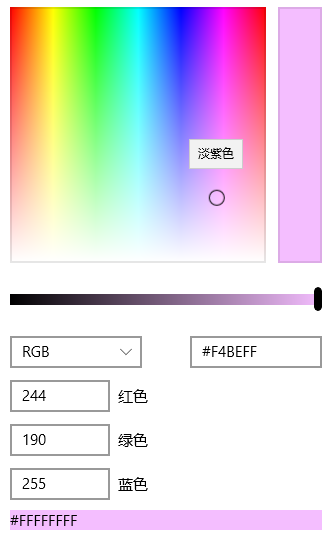
如上所示,ColorPiker可以通过在光谱或色轮上拖动滑块,或者在RGB/HSV及十六进制的TextBox中直接输入颜色的数值改变Color属性。
3. 定制ColorPicker
ColorPicker提供了很多属性以设置它的外观,下面介绍一些常用的属性。
3.1 ColorSpectrumShape
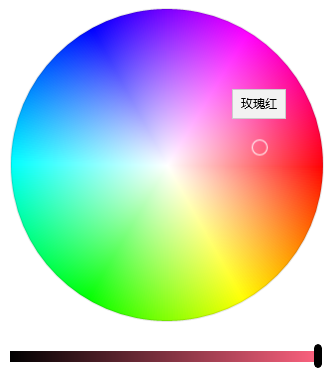
ColorSpectrumShape是定义ColorPicker外观的主要属性。当设置为ColorSpectrumShape.Box时显示正方形的光谱,设置为ColorSpectrumShape.Ring时显示为圆型的HSV色轮。
3.2 最简化显示
完整的ColorPicker实在太占空间,而且整个控件左边高右边低,很不平衡。使用以下设置可以隐藏ColorPreview及其它Text Box以最简化ColorPicker的显示,使它勉强正常一点。
<ColorPicker x:Name="ColorPicker"

             ColorSpectrumShape="Ring"

             IsColorPreviewVisible="False"

             IsColorChannelTextInputVisible="False"

             IsHexInputVisible="False" />
3.3 其它属性
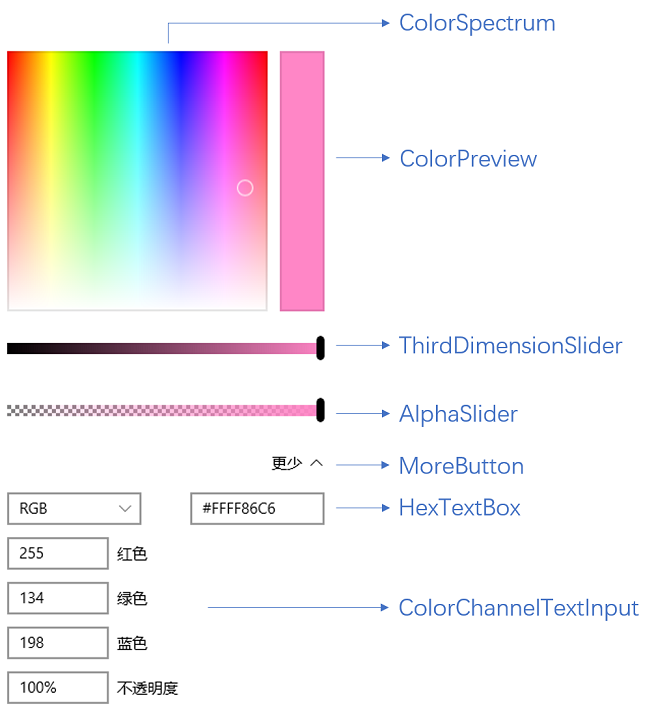
使用如下XAML基本可以将所有元素显示出来:
<ColorPicker x:Name="ColorPicker"

         IsColorPreviewVisible="True"

         IsAlphaEnabled="True"

         IsMoreButtonVisible="True"/>
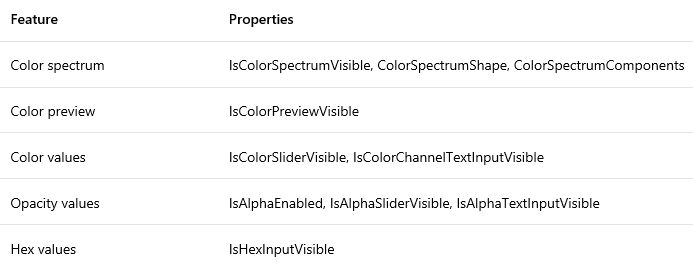
下面列表列出了各元素对应的属性。
4. 封装ColorPicker
ColorPicker难用的地方在于它是个大块头,而且没有Header,摆在表单里面格格不入。官方文档里面还介绍了怎么把ColorPicker放在Button的Flyout里使用,都做到这样了还不如直接提供这个弹出控件。
为了使它更好用我把它简单地封装到一个弹出控件中。由于Picker控件通常都是指点击按钮弹出一个Popup或Flyout通过鼠标点击选择值的控件,例如DatePicker、TimePicker或者Extended WPF Toolkit 中的ColorPicker,UWP中的ColorPicker这个名称让我很为难,只好把自己封装的控件命名为ColorSelector。详细代码请见文章最后给出的Fluent Design System Sample源码。
<Style TargetType="local:ColorSelector">
<Setter Property="IsTabStop"
Value="False" />
<Setter Property="FontFamily"
Value="{ThemeResource ContentControlThemeFontFamily}" />
<Setter Property="FontSize"
Value="{ThemeResource ControlContentThemeFontSize}" />
<Setter Property="Template">
<Setter.Value>
<ControlTemplate TargetType="local:ColorSelector">
<StackPanel x:Name="LayoutRoot"
Margin="{TemplateBinding Padding}">
<VisualStateManager.VisualStateGroups>
<VisualStateGroup x:Name="CommonStates">
<VisualState x:Name="Normal" />
<VisualState x:Name="Disabled">
<Storyboard>
<ObjectAnimationUsingKeyFrames Storyboard.TargetName="HeaderContentPresenter"
Storyboard.TargetProperty="Foreground">
<DiscreteObjectKeyFrame KeyTime="0"
Value="{ThemeResource DatePickerHeaderForegroundDisabled}" />
</ObjectAnimationUsingKeyFrames>
</Storyboard>
</VisualState>
</VisualStateGroup>
<VisualStateGroup x:Name="PopupStates">
<VisualState x:Name="PopupOpened" />
<VisualState x:Name="PopupClosed" />
</VisualStateGroup>
</VisualStateManager.VisualStateGroups>
<local:HeaderedContentControl Header="{TemplateBinding Header}"
HeaderTemplate="{TemplateBinding HeaderTemplate}">
<ToggleButton x:Name="DateButton"
DataContext="{Binding RelativeSource={RelativeSource Mode=TemplatedParent},Path=Color}"
IsEnabled="{TemplateBinding IsEnabled}"
IsChecked="{Binding RelativeSource={RelativeSource Mode=TemplatedParent}, Path=IsDropDownOpen,Mode=TwoWay}"
HorizontalAlignment="Stretch"
HorizontalContentAlignment="Stretch">
<ToggleButton.Content>
<Grid>
<Grid.ColumnDefinitions>
<ColumnDefinition Width="Auto" />
<ColumnDefinition />
</Grid.ColumnDefinitions>
<TextBlock Text="Select A Color:" />
<Rectangle Grid.Column="1"
Margin="5,0,0,0">
<Rectangle.Fill>
<SolidColorBrush Color="{Binding}" />
</Rectangle.Fill>
</Rectangle>
</Grid>
</ToggleButton.Content>
<FlyoutBase.AttachedFlyout>
<Flyout Placement="Bottom"
x:Name="Flyout">
<Flyout.FlyoutPresenterStyle>
<Style TargetType="FlyoutPresenter">
<Setter Property="Padding"
Value="0" />
<Setter Property="BorderThickness"
Value="0" />
<Setter Property="Template">
<Setter.Value>
<ControlTemplate TargetType="FlyoutPresenter">
<ContentPresenter Background="{TemplateBinding Background}"
BorderBrush="{TemplateBinding BorderBrush}"
BorderThickness="{TemplateBinding BorderThickness}"
Content="{TemplateBinding Content}"
ContentTemplate="{TemplateBinding ContentTemplate}"
ContentTransitions="{TemplateBinding ContentTransitions}"
Margin="{TemplateBinding Padding}"
HorizontalAlignment="{TemplateBinding HorizontalContentAlignment}"
VerticalAlignment="{TemplateBinding VerticalContentAlignment}" />
</ControlTemplate>
</Setter.Value>
</Setter>
</Style>
</Flyout.FlyoutPresenterStyle>
<Grid>
<Grid.RowDefinitions>
<RowDefinition />
<RowDefinition Height="Auto" />
</Grid.RowDefinitions>
<ColorPicker x:Name="ColorPicker"
Style="{TemplateBinding ColorPickerStyle}"
IsColorPreviewVisible="False"
IsColorChannelTextInputVisible="False"
IsHexInputVisible="False" />
<Grid Grid.Row="1"
Height="45"
x:Name="AcceptDismissHostGrid">
<Grid.ColumnDefinitions>
<ColumnDefinition Width="*" />
<ColumnDefinition Width="*" />
</Grid.ColumnDefinitions>
<Rectangle Height="2"
VerticalAlignment="Top"
Fill="{ThemeResource DatePickerFlyoutPresenterSpacerFill}"
Grid.ColumnSpan="2" />
<Button x:Name="AcceptButton"
Grid.Column="0"
Content=""
FontFamily="{ThemeResource SymbolThemeFontFamily}"
FontSize="16"
HorizontalAlignment="Stretch"
VerticalAlignment="Stretch"
Style="{StaticResource DateTimePickerFlyoutButtonStyle}"
Margin="0,2,0,0" />
<Button x:Name="DismissButton"
Grid.Column="1"
Content=""
FontFamily="{ThemeResource SymbolThemeFontFamily}"
FontSize="16"
HorizontalAlignment="Stretch"
VerticalAlignment="Stretch"
Style="{StaticResource DateTimePickerFlyoutButtonStyle}"
Margin="0,2,0,0" />
</Grid>
</Grid>
</Flyout>
</FlyoutBase.AttachedFlyout>
</ToggleButton>
</local:HeaderedContentControl>
</StackPanel>
</ControlTemplate>
</Setter.Value>
</Setter>
</Style>

(也许是Flyout没有添加阴影或边框的原因,看起来丑丑的。)
5. 结语
Winform中有ColorDialog:
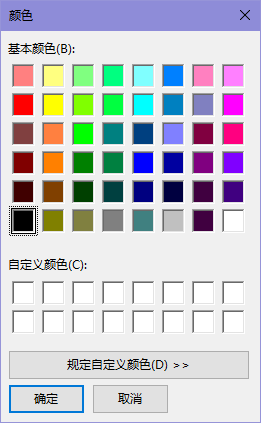
WPF有Extended WPF Toolkit 中的ColorPicker:
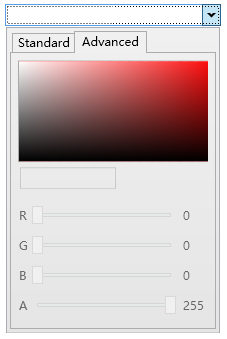
而UWP拖到现在才终于肯提供一个ColorPicker。每次更新技术都扔掉一些常用控件,导致开发者只能选择第三方控件或自己实现,连TreeView都是拖了几年才搞出来。这难道是微软对我们的考验吗?
5. 参考
Color Picker
ColorPicker Class
6. 源码
Fluent Design System Sample
XamlUIBasics
[UWP]新控件ColorPicker的更多相关文章
- UWP开发随笔——UWP新控件!AutoSuggestBox!
摘要 要开发一款优秀的application,控件肯定是必不可少的,uwp就为开发者提供了各种各样的系统控件,AutoSuggestBox就是uwp极具特色的控件之一,也是相对于之前win8.1的ua ...
- WindowsXamlHost:在 WPF 中使用 UWP 的控件(Windows Community Toolkit)
Windows Community Toolkit 再次更新到 5.0.以前可以在 WPF 中使用有限的 UWP 控件,而现在有了 WindowsXamlHost,则可以使用更多 UWP 原生控件了. ...
- 【Android】Anroid5.0+新控件---酷炫标题栏的简单学习
Android5.0+推出的新控件感觉特别酷,最近想模仿大神做个看图App出来,所以先把这些新控件用熟悉了. 新控件的介绍.使用等等网上相应的文章已经特别多了,题主也没那能力去写篇详解出来,本篇随笔记 ...
- Android其它新控件 (转)
原文出处:http://blog.csdn.net/lavor_zl/article/details/51312715 Android其它新控件是指非Android大版本更新时提出的新控件,也非谷歌I ...
- 一个Activity掌握Design新控件 (转)
原文地址:http://blog.csdn.net/lavor_zl/article/details/51295364 谷歌在推出Android5.0的同时推出了全新的设计Material Desig ...
- 一个Activity掌握Android5.0新控件 (转)
原文地址:http://blog.csdn.net/lavor_zl/article/details/51279386 谷歌在推出Android5.0的同时推出了一些新控件,Android5.0中最常 ...
- 一个Activity掌握Android4.0新控件 (转)
原文地址:http://blog.csdn.net/lavor_zl/article/details/51261380 谷歌在推出Android4.0的同时推出了一些新控件,Android4.0中最常 ...
- 【转】Android M新控件之AppBarLayout,NavigationView,CoordinatorLayout,CollapsingToolbarLayout的使用
Android M新控件之AppBarLayout,NavigationView,CoordinatorLayout,CollapsingToolbarLayout的使用 分类: Android UI ...
- 【转】Android M新控件之FloatingActionButton,TextInputLayout,Snackbar,TabLayout的使用
Android M新控件之FloatingActionButton,TextInputLayout,Snackbar,TabLayout的使用 分类: Android UI2015-06-15 16: ...
随机推荐
- 一个vue项目的简单分享
回首用vue已经2个多月了,今年7月底根据vue社区提供的api写了一个小移动端的小dom 通过这个项目也让我更深入的了解了vue(组件之间的通讯,计算属性,数据绑定.数据驱动....),用数据驱动型 ...
- grid搜索最优参数
GridSearchCV 详细地址:http://scikit-learn.org/stable/modules/generated/sklearn.grid_search.GridSearchCV. ...
- 【干货分享】dos命令大全
一般来说dos命令都是在dos程序中进行的,如果电脑中安装有dos程序可以从开机选项中选择进入,在windows 系统中我们还可以从开始运行中输入cmd命令进入操作系统中的dos命令,如下图: 严格的 ...
- Vijos P1035 贪婪的送礼者【模拟】
贪婪的送礼者 描述 对于一群要互送礼物的朋友,你要确定每个人送出的礼物比收到的多多少. 在这一个问题中,每个人都准备了一些钱来送礼物,而这些钱将会被平均分给那些将收到他的礼物的人. 然而,在任何一群朋 ...
- android动画源码合集、动态主题框架、社交app源码等
Android精选源码 仿MIUI果冻视图-BouncingJellyView 一个快速易用的动态主题框架 android动画效果集合源码 android使用Kotlin开发的Dribbb ...
- ubuntu11.0静态IP地址配置
1. 静态IP地址配置 配置文件路径:/etc/network/interfaces auto lo iface lo inet loopback auto eth0 iface eth0 inet ...
- js随机产生区间数
function selectFrom(startNumber, endNumber) { //1.从几开始 2.到几结束 var choice = endNumber - startNumber + ...
- 1.移植3.4内核-分析内核启动过程,重新分区,烧写jffs2文件系统
1.在上章-移植uboot里.我们来分析下uboot是如何进入到内核的 首先,uboot启动内核是通过bootcmd命令行实现的,在我们之前移植的bootcmd命令行如下所示: bootcmd=nan ...
- oracle 数据库——知识点总结(加示例)
新入oracle数据库,把目前学到的知识点记录下来,可能都比较基础,但还是比较全的,里面的示例都是自己在PL/SQL中跑过的,如果有错误,还望各位大侠指出哈. 创建用户 1.创建用户(使用管理员身份创 ...
- VS2008 如何将Release版本设置可以调试的DEBUG版本
VS2008 如何将Release版本设置可以调试的DEBUG版本 只需设置三个部分: 项目->属性->C/C++->General->Debug Information Fo ...