
WPF Good UI
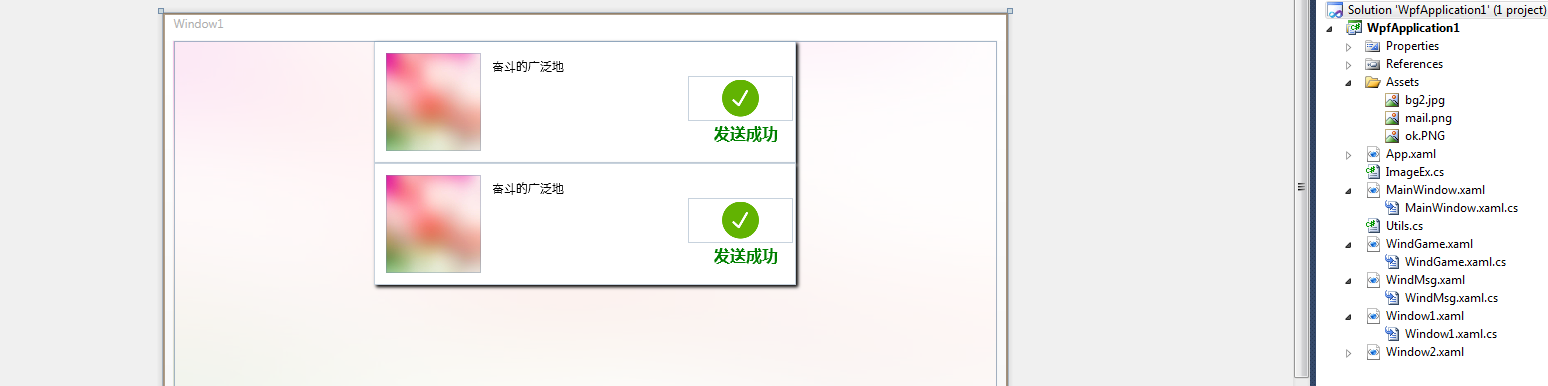
<Window x:Class="WpfApplication1.Window1"
xmlns="http://schemas.microsoft.com/winfx/2006/xaml/presentation"
xmlns:x="http://schemas.microsoft.com/winfx/2006/xaml"
Title="Window1" Height="455" Width="845">
<Grid>
<Grid.Background>
<ImageBrush ImageSource="/WpfApplication1;component/Assets/bg2.jpg" />
</Grid.Background>
<Rectangle Fill="White" Opacity="0.9"/>
<StackPanel>
<Grid Name="gridFrame1" Height="122" Width="422" Margin="0,80,0,0" Background="#2DADD8E6" >
<Grid.Triggers>
<EventTrigger RoutedEvent="Loaded">
<EventTrigger.Actions>
<BeginStoryboard >
<Storyboard>
<DoubleAnimation From="0" To="1" Storyboard.TargetName="gridFrame1" Storyboard.TargetProperty="Opacity"></DoubleAnimation>
<ThicknessAnimation From="0,80,0,0" To="0" Storyboard.TargetName="gridFrame1" Storyboard.TargetProperty="Margin"></ThicknessAnimation>
</Storyboard>
</BeginStoryboard>
</EventTrigger.Actions>
</EventTrigger>
</Grid.Triggers>
<Grid.Effect>
<DropShadowEffect Color="Black" BlurRadius="5" ShadowDepth="3">
</DropShadowEffect>
</Grid.Effect>
<Rectangle Fill="White"></Rectangle>
<Image Margin="314,35,3,42" Source="/WpfApplication1;component/Assets/ok.PNG" />
<Image Margin="12,12,0,12" Source="/WpfApplication1;component/Assets/bg2.jpg" Stretch="Fill" HorizontalAlignment="Left" Width="95">
</Image>
<Label Margin="113,12,109,0" VerticalAlignment="Top" >奋斗的广泛地</Label>
<Label Margin="0,78,3,16" FontSize="16" FontFamily="Microsoft YaHei UI" FontWeight="Bold" Foreground="Green" HorizontalAlignment="Right" Width="84">发送成功</Label>
</Grid>
<Grid Name="gridFrame" Height="122" Width="422" Margin="0,80,0,0" Background="#2DADD8E6" >
<Grid.Triggers>
<EventTrigger RoutedEvent="Loaded">
<EventTrigger.Actions>
<BeginStoryboard >
<Storyboard>
<DoubleAnimation From="0" To="1" Storyboard.TargetName="gridFrame" Storyboard.TargetProperty="Opacity"></DoubleAnimation>
<ThicknessAnimation From="0,80,0,0" To="0" Storyboard.TargetName="gridFrame" Storyboard.TargetProperty="Margin"></ThicknessAnimation>
</Storyboard>
</BeginStoryboard>
</EventTrigger.Actions>
</EventTrigger>
</Grid.Triggers>
<Grid.Effect>
<DropShadowEffect Color="Black" BlurRadius="5" ShadowDepth="3">
</DropShadowEffect>
</Grid.Effect>
<Rectangle Fill="White"></Rectangle>
<Image Margin="314,35,3,42" Source="/WpfApplication1;component/Assets/ok.PNG" />
<Image Margin="12,12,0,12" Source="/WpfApplication1;component/Assets/bg2.jpg" Stretch="Fill" HorizontalAlignment="Left" Width="95">
</Image>
<Label Margin="113,12,109,0" VerticalAlignment="Top" > 奋斗的广泛地 </Label>
<Label Margin="0,78,3,16" FontSize="16" FontFamily="Microsoft YaHei UI" FontWeight="Bold" Foreground="Green" HorizontalAlignment="Right" Width="84">发送成功</Label>
</Grid>
</StackPanel>
</Grid>
</Window>

<Window x:Class="WpfApplication1.MainWindow"
xmlns="http://schemas.microsoft.com/winfx/2006/xaml/presentation"
xmlns:x="http://schemas.microsoft.com/winfx/2006/xaml"
Title="MainWindow" Height="432" Width="815" MinHeight="300" MinWidth="400" WindowStartupLocation="CenterScreen">
<Grid>
<Grid Name="hd" Background="#FFEBEBEB" Height="38" VerticalAlignment="Top">
</Grid>
<Grid Name="bd" Margin="0,94,0,32" Background="White">
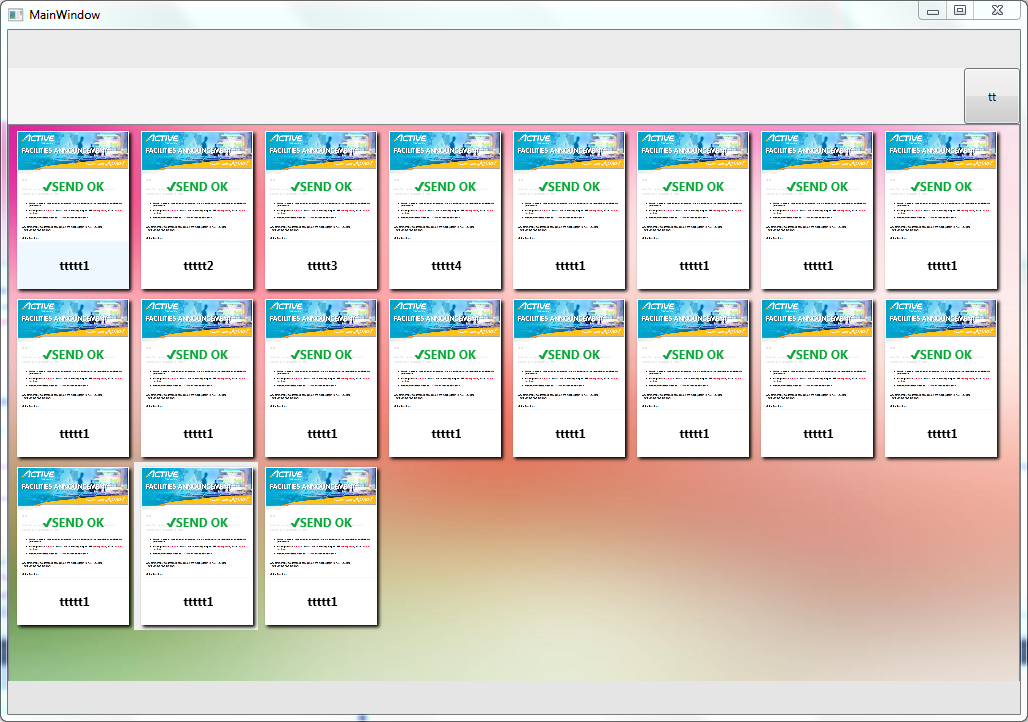
<ListView Name="listView" ItemsSource="{Binding}" ScrollViewer.HorizontalScrollBarVisibility="Disabled" ScrollViewer.VerticalScrollBarVisibility="Auto" SelectionChanged="listView_SelectionChanged">
<ListView.ItemTemplate>
<DataTemplate>
<StackPanel Margin="5" x:Name="stk" Background="AliceBlue">
<Border x:Name="tpbg" Background="White" Opacity="1" BorderBrush="Red" BorderThickness="0">
<Grid >
<Grid.ContextMenu>
<ContextMenu>
<MenuItem Name="menuSelct" Header="select" Click="menuSelct_Click"/>
<Separator></Separator>
<MenuItem Name="menuTest" Header="test2"/>
</ContextMenu>
</Grid.ContextMenu>
<Image Width="111" Height="111" Stretch="Fill" Source="{Binding MovieImageUrl}"></Image>
<Label Width="111" Height="33" FontWeight="Bold" HorizontalContentAlignment="Center" VerticalContentAlignment="Center" Background="#DDFFFFFF" Foreground="#FF09A738">✔SEND OK</Label>
</Grid>
</Border>
<Label MaxWidth="112" Margin="0,10,0,0" >
<TextBlock TextWrapping="Wrap" TextAlignment="Center" FontSize="12" FontWeight="Bold" Text="{Binding MovieTitle}" Height="27" Width="105"></TextBlock>
</Label>
</StackPanel>
<!--添加渐显效果-->
<DataTemplate.Triggers>
<EventTrigger RoutedEvent="Loaded">
<EventTrigger.Actions>
<BeginStoryboard >
<Storyboard>
<DoubleAnimation From="0" To="1" Storyboard.TargetName="tpbg" Storyboard.TargetProperty="Opacity"></DoubleAnimation>
</Storyboard>
</BeginStoryboard>
</EventTrigger.Actions>
</EventTrigger>
<!--添加鼠标移动进的效果-->
<EventTrigger RoutedEvent="Mouse.MouseEnter">
<EventTrigger.Actions>
<BeginStoryboard >
<Storyboard>
<ColorAnimation From="AliceBlue" To="White" Storyboard.TargetName="stk" Storyboard.TargetProperty="(Button.Background).(SolidColorBrush.Color)"></ColorAnimation>
</Storyboard>
</BeginStoryboard>
</EventTrigger.Actions>
</EventTrigger>
</DataTemplate.Triggers>
</DataTemplate>
</ListView.ItemTemplate>
<ListView.ItemsPanel>
<ItemsPanelTemplate>
<WrapPanel IsItemsHost="True" ></WrapPanel>
</ItemsPanelTemplate>
</ListView.ItemsPanel>
</ListView>
<Grid Visibility="Collapsed">
<Image Width="112" Height="167" Stretch="Fill" Source="/Assets/mail.png"></Image>
<Label Width="112" Height="33" FontWeight="Bold" HorizontalContentAlignment="Center" VerticalContentAlignment="Center" Background="#DDFFFFFF" Foreground="#FF09A738">✔SEND OK</Label>
</Grid>
</Grid>
<Grid Name="hdsearch" Margin="0,38,0,0" Background="WhiteSmoke" Height="56" VerticalAlignment="Top">
<Button Width="56" HorizontalAlignment="Right" Click="Button_Click">tt</Button>
</Grid>
<Grid Margin="0,94,0,0" Background="#FFE5E5E5" Height="33" VerticalAlignment="Bottom">
</Grid>
</Grid>
</Window>
<Window x:Class="WpfApplication1.Window1"
xmlns="http://schemas.microsoft.com/winfx/2006/xaml/presentation"
xmlns:x="http://schemas.microsoft.com/winfx/2006/xaml"
Title="Window1" Height="455" Width="845">
<Window.Resources>
<Storyboard x:Key="sb1">
<DoubleAnimation From="0" To="1" Duration="0:0:0.3" Storyboard.TargetName="gridFrame1" Storyboard.TargetProperty="Opacity"></DoubleAnimation>
<ThicknessAnimation From="0,80,0,0" To="0" Duration="0:0:1" Storyboard.TargetName="gridFrame1" Storyboard.TargetProperty="Margin"></ThicknessAnimation>
<DoubleAnimation From="0" To="1" Duration="0:0:0.3" Storyboard.TargetName="trans" Storyboard.TargetProperty="ScaleX"></DoubleAnimation>
<DoubleAnimation From="0" To="1" Duration="0:0:0.3" Storyboard.TargetName="trans" Storyboard.TargetProperty="ScaleY"></DoubleAnimation>
</Storyboard>
</Window.Resources>
<Grid>
<Grid.Background>
<ImageBrush ImageSource="/WpfApplication1;component/Assets/bg2.jpg" />
</Grid.Background>
<Rectangle Fill="White" Opacity="0.9"/>
<StackPanel>
<Button Content="Button" Height="23" Name="button1" Width="75" Click="button1_Click" />
<Grid Name="gridFrame1" Height="122" Width="422" Margin="0,80,0,0" Background="#2DADD8E6" RenderTransformOrigin="0.5,0.5" >
<Grid.RenderTransform>
<ScaleTransform x:Name="trans" ScaleX="1" ScaleY="1"/>
</Grid.RenderTransform>
<!--<Grid.Triggers>
<EventTrigger RoutedEvent="Loaded">
<EventTrigger.Actions>
<BeginStoryboard >
<Storyboard>
<DoubleAnimation From="0" To="1" Storyboard.TargetName="gridFrame1" Storyboard.TargetProperty="Opacity"></DoubleAnimation>
<ThicknessAnimation From="0,80,0,0" To="0" Storyboard.TargetName="gridFrame1" Storyboard.TargetProperty="Margin"></ThicknessAnimation>
</Storyboard>
</BeginStoryboard>
</EventTrigger.Actions>
</EventTrigger>
</Grid.Triggers>-->
<Grid.Effect>
<DropShadowEffect Color="Black" BlurRadius="5" ShadowDepth="3">
</DropShadowEffect>
</Grid.Effect>
<Rectangle Fill="White"></Rectangle>
<Image Margin="314,35,3,42" Source="/WpfApplication1;component/Assets/ok.PNG" />
<Image Margin="12,12,0,12" Source="/WpfApplication1;component/Assets/bg2.jpg" Stretch="Fill" HorizontalAlignment="Left" Width="95">
</Image>
<Label Name="txtTite" Margin="113,12,109,0" VerticalAlignment="Top" Content="{Binding title}" ></Label>
<Label Margin="0,78,3,16" FontSize="16" FontFamily="Microsoft YaHei UI" FontWeight="Bold" Foreground="Green" HorizontalAlignment="Right" Width="84">ok</Label>
</Grid>
<!--<Grid Name="gridFrame" Height="122" Width="422" Margin="0,80,0,0" Background="#2DADD8E6" >
<Grid.Triggers>
<EventTrigger RoutedEvent="Loaded">
<EventTrigger.Actions>
<BeginStoryboard >
<Storyboard>
<DoubleAnimation From="0" To="1" Storyboard.TargetName="gridFrame" Storyboard.TargetProperty="Opacity"></DoubleAnimation>
<ThicknessAnimation From="0,80,0,0" To="0" Storyboard.TargetName="gridFrame" Storyboard.TargetProperty="Margin"></ThicknessAnimation>
</Storyboard>
</BeginStoryboard>
</EventTrigger.Actions>
</EventTrigger>
</Grid.Triggers>
<Grid.Effect>
<DropShadowEffect Color="Black" BlurRadius="5" ShadowDepth="3">
</DropShadowEffect>
</Grid.Effect>
<Rectangle Fill="White"></Rectangle>
<Image Margin="314,35,3,42" Source="/WpfApplication1;component/Assets/ok.PNG" />
<Image Margin="12,12,0,12" Source="/WpfApplication1;component/Assets/bg2.jpg" Stretch="Fill" HorizontalAlignment="Left" Width="95">
</Image>
<Label Margin="113,12,109,0" VerticalAlignment="Top" > 奋斗的广泛地 </Label>
<Label Margin="0,78,3,16" FontSize="16" FontFamily="Microsoft YaHei UI" FontWeight="Bold" Foreground="Green" HorizontalAlignment="Right" Width="84">发送成功</Label>
</Grid>-->
</StackPanel>
</Grid>
</Window>
--------------------------------------------------------------------
code behind:
--------------------------------------------------------------------
using System;
using System.Collections.Generic;
using System.Linq;
using System.Text;
using System.Windows;
using System.Windows.Controls;
using System.Windows.Data;
using System.Windows.Documents;
using System.Windows.Input;
using System.Windows.Media;
using System.Windows.Media.Imaging;
using System.Windows.Shapes;
using System.Threading.Tasks;
using System.Collections.ObjectModel;
using System.Windows.Media.Animation;
namespace WpfApplication1
{
/// <summary>
/// Interaction logic for Window1.xaml
/// </summary>
public partial class Window1 : Window
{
public Window1()
{
InitializeComponent();
ui.title = "yyyyyyyyy";
// gridFrame1.DataContext = ui;
}
UserInfo2 ui = new UserInfo2();
ObservableCollection<string> listData = new ObservableCollection<string>();
bool stopFlag = true;
void DoWork()
{
stopFlag = !stopFlag;
if (stopFlag)
{
button1.Content = "stoping...";
button1.IsEnabled = false;
return;
}
else {
button1.Content = "stop";
button1.IsEnabled = true;
}
Task.Factory.StartNew(new Action(() =>
{
while (!stopFlag)
{
// System.Threading.Thread.Sleep(500);
string s = "";
int i = 0;
DateTime ad = DateTime.Now.AddSeconds(1);
while (true)
{
i++;
if (i > 55555) { i = 0; }
if (DateTime.Now > ad)
{
break;
}
}
Dispatcher.Invoke(new Action(() =>
{
// btn.Content = "" + DateTime.Now.Ticks + " ";
// UpdateLayout();
addData();
}));
}
Dispatcher.Invoke(new Action(() =>
{
// btn.Content = "" + DateTime.Now.Ticks + " ";
// UpdateLayout();
button1.Content = "start";
button1.IsEnabled = true;
}));
}));
}
void addData()
{
ui = new UserInfo2() { age = "", from = "", title = "data" + DateTime.Now.Ticks };
txtTite.Content = ui.title ;
UpdateLayout();
(Resources["sb1"] as Storyboard).Begin();
}
private void button1_Click(object sender, RoutedEventArgs e)
{
DoWork();
}
}
public class UserInfo2 {
public string title { get; set;}
public string age { get; set; }
public string from { get; set; }
}
}
WPF Good UI的更多相关文章
- WPF多线程UI更新——两种方法
WPF多线程UI更新——两种方法 前言 在WPF中,在使用多线程在后台进行计算限制的异步操作的时候,如果在后台线程中对UI进行了修改,则会出现一个错误:(调用线程无法访问此对象,因为另一个线程拥有该对 ...
- WPF Modern UI 主题更换原理
WPF Modern UI 主题更换原理 一 . 如何更换主题? 二 . 代码分析 代码路径 : FirstFloor.ModernUI.App / Content / SettingsAppeara ...
- WPF 模拟UI 键盘录入
原文:WPF 模拟UI 键盘录入 版权声明:本文为博主原创文章,未经博主允许不得转载. https://blog.csdn.net/yangyisen0713/article/details/1835 ...
- (转)基于 WPF + Modern UI 的 公司OA小助手 开发总结
原文地址:http://www.cnblogs.com/rainlam163/p/3365181.html 前言: 距离上一篇博客,整整一个月的时间了.人不能懒下来,必须有个阶段性的总结,算是对我这个 ...
- WPF MVVM UI分离之《交互与数据分离》 基础才是重中之重~delegate里的Invoke和BeginInvoke 将不确定变为确定系列~目录(“机器最能证明一切”) 爱上MVC3系列~全局异常处理与异常日志 基础才是重中之重~lock和monitor的区别 将不确定变成确定~我想监视我的对象,如果是某个值,就叫另一些方法自动运行 将不确定变成确定~LINQ DBML模型可以对
WPF MVVM UI分离之<交互与数据分离> 在我们使用WPF过程中,不可避免并且超级喜欢使用MVVM框架. 那么,使用MVVM的出发点是视觉与业务逻辑分离,即UI与数据分离 诸如下 ...
- 基于 WPF + Modern UI 的 公司OA小助手 开发总结
前言: 距离上一篇博客,整整一个月的时间了.人不能懒下来,必须有个阶段性的总结,算是对我这个阶段的一个反思.人只有在总结的过程中才会发现自己的不足. 公司每天都要在OA系统上上班点击签到,下班点击签退 ...
- 【WPF】UI虚拟化之------自定义VirtualizingWrapPanel
原文:[WPF]UI虚拟化之------自定义VirtualizingWrapPanel 前言 前几天QA报了一个关于OOM的bug,在排查的过程中发现,ListBox控件中被塞入了过多的Item,而 ...
- WPF 自定义UI控件学习
最近项目中运用到了WPF处理三维软件,在C/S结构中WPF做UI还是有很多优越性,简单的学了一点WPF知识,成功的完成项目目标.项目过度阶段对于WPF的一些基本特点有了进一步了解 .至此花费一点时间研 ...
- WPF相关UI库
免费控件库: 1.Extended WPF Toolkit 官方拓展控件 http://wpftoolkit.codeplex.com/ 2.avalondock 可停靠布局(wpf toolkit包 ...
- WPF MVVM UI分离之《交互与数据分离》
在我们使用WPF过程中,不可避免并且超级喜欢使用MVVM框架. 那么,使用MVVM的出发点是视觉与业务逻辑分离,即UI与数据分离 诸如下面的问题: 删除操作,假如需要先执行一部分数据的处理,然后删除界 ...
随机推荐
- npm install、npm init、npm update、npm uninstall和package.json
npm install 安装本地包 npm install <package_name>:这个命令将在当前目录中创建node_modules目录(如果尚不存在),并将该软件包下载到该目录. ...
- 免费的协作和协同办公软件平台onlyoffice轻松部署
一般说,协同和协作是不同的,协同是指文档基于一个版本,大家都是基于这个版本来添加,而且大家只能引用这个文档,却不能在上面直接添加,而且只能一个人添加,即锁住,不让其他人添加了. 而协作就不同了,大家同 ...
- 6.1 函数的返回值、匿名函数lambda、filter函数、map函数、reduce函数
函数的返回值: 函数一旦执行到 return,函数就会结束,并会返回return 后面的值,如果不使用显式使用return返回,会默认返回None . return None可以简写为 r ...
- python 多进程、多线程
1.多线程: 下面讲一个简单用法,这个模块比较简单,但是实际使用中会遇到很多坑 from multiprocessing import process def go(s): print "主 ...
- zabbix系列之九——安装后配置四web监控
1web监控 描述 详细 备注 概要 1) 需要定义 web 场景(包括一个或多个 HTTP请求),zabbix服务器根据预定义的命令周期性的执行这些步骤. 2) Web 场景和 ...
- LeetCode题解之Binary Tree Postorder Traversal
1.题目描述 2.问题分析 递归 3.代码 vector<int> postorderTraversal(TreeNode* root) { vector<int> v; po ...
- linux下安装jdk安装及环境变量配置
1.默认是在windows下载,linux下安装 2.在jdk官网下载相应版本的jdk,这次下载为 jdk-8u161-linux-x64.tar.gz 3.将下载好的文件上传到指定目录,我这次把它放 ...
- Python之聚类(KMeans,KMeans++)
# -*- coding: utf-8 -*- """ Created on Mon Sep 17 16:41:46 2018 @author: zhen "& ...
- JSON教程基础
一.基础简介 二.JSON 语法 三.JSON 使用 一.基础简介 1.JSON:JavaScript 对象表示法(JavaScript Object Notation). JSON 是存储和交换文本 ...
- eclipse在server中tomcat server找不到的问题
想要在eclipse的server新建tomcat服务器然而不知道怎么回事找不到Tomcat 7.0 Server 下面的红圈是tomcat server服务器(更新后才出现) 网上找的很久,只是找到 ...