
selenium+python自动化102-登录页面滑动解锁(ActionChains)
前言
登录页面会遇到滑动解锁,滑动解锁的目的就是为了防止别人用代码登录(也就是为了防止你自动化登录),有些滑动解锁是需要去拼图这种会难一点。
有些直接拖到最最右侧就可以了,本篇讲下使用 selenium web 自动化的时候如何滑动解锁。
滑动解锁场景
看下图,是我本地写的一个 slider.html 网页
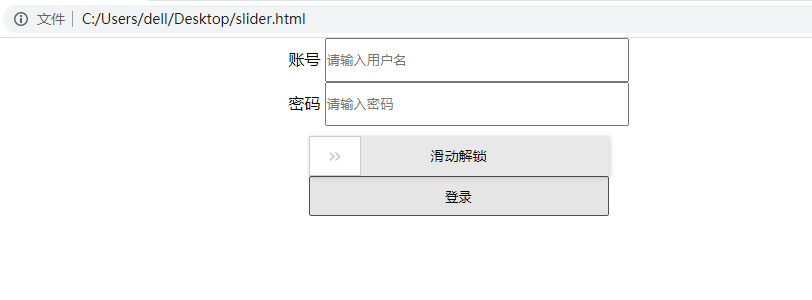
除了输入账号和密码,还需将滑块拖动到最右端才能解锁
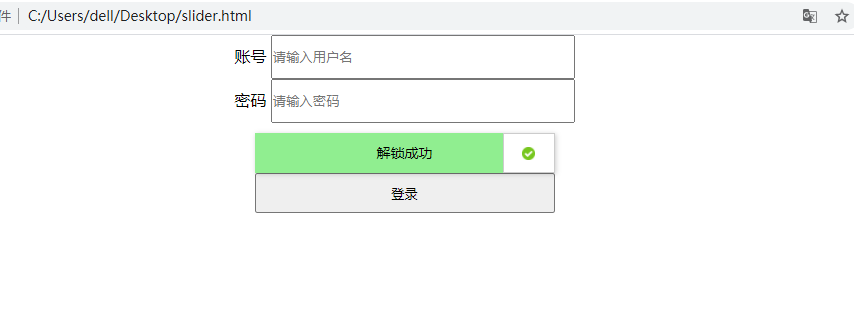
最后才去点登陆按钮
ActionChains 滑动滑块
查看 ActionChains 使用源码,相关介绍
ActionChains是一种自动化低级交互的方法,比如鼠标移动、鼠标按钮操作、按键和上下文菜单交互。这对于执行更复杂的操作(如悬停和拖放)非常有用
在调用ActionChains对象上的操作方法时,这些操作存储在ActionChains对象的队列中。调用perform()时,事件将按其顺序激发排队等候。
使用上有2种实例,一种可用于链模式
menu = driver.find_element_by_css_selector(".nav")

hidden_submenu = driver.find_element_by_css_selector(".nav #submenu1")

ActionChains(driver).move_to_element(menu).click(hidden_submenu).perform()
另外一种方式操作可以一个接一个排队,然后执行
menu = driver.find_element_by_css_selector(".nav")

hidden_submenu = driver.find_element_by_css_selector(".nav #submenu1")

actions = ActionChains(driver)

actions.move_to_element(menu)

actions.click(hidden_submenu)

actions.perform()
不管是哪种方式,动作都是按照调用的顺序执行的,一个接一个另一个。
实现代码
selenium 里面滑动滑块需用到鼠标事件,回放下刚才操作的慢动作:按住 >> 按钮 -> 往右移动鼠标到最右端 -> 释放鼠标 -> 解锁成功
于是会用到click_and_hold move_by_offset release 这三个方法,最后用 perform() 执行
from selenium import webdriver

from selenium.webdriver import ActionChains

# 作者-上海悠悠 QQ交流群:717225969

# blog地址 https://www.cnblogs.com/yoyoketang/

driver = webdriver.Chrome()

driver.get("file:///C:/Users/dell/Desktop/slider.html")

driver.maximize_window()

driver.find_element_by_id('id_username').send_keys("yoyo")

driver.find_element_by_id('id_password').send_keys("123456")

slider = driver.find_element_by_class_name("slider")

# 滑块解锁

action = ActionChains(driver)

action.click_and_hold(slider)    # 按住

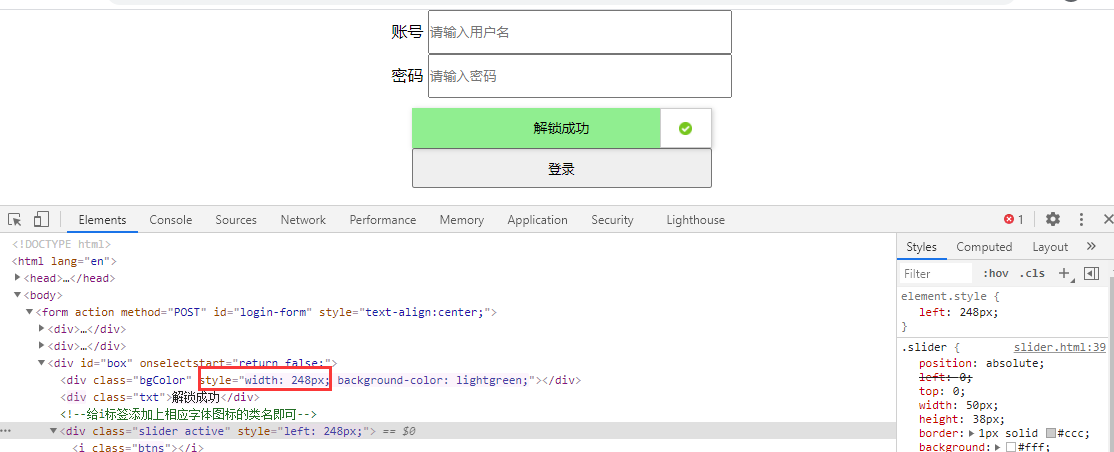
action.move_by_offset(248, 0)    # 往右偏移248个像素

action.release()                 # 释放鼠标

action.perform()                 # 执行

# 点登陆按钮

# driver.find_element_by_xpath('//*[@type="submit"]').click()
具体拖动多少像素,可以拖动鼠标后看偏移量,如下图 248px
ActionChains 相关源码
ActionChains 相关源码和使用说明
class ActionChains(object):

    """

    一种方式操作可以一个接一个排队,然后执行

        menu = driver.find_element_by_css_selector(".nav")

        hidden_submenu = driver.find_element_by_css_selector(".nav #submenu1")

        ActionChains(driver).move_to_element(menu).click(hidden_submenu).perform()

    另外一种方式操作可以一个接一个排队,然后执行

        menu = driver.find_element_by_css_selector(".nav")

        hidden_submenu = driver.find_element_by_css_selector(".nav #submenu1")

        actions = ActionChains(driver)

        actions.move_to_element(menu)

        actions.click(hidden_submenu)

        actions.perform()

   不管是哪种方式,动作都是按照调用的顺序执行的,一个接一个另一个。

    """

    def __init__(self, driver):

    def perform(self):

        """

        执行所有的动作,放到最后

        """

    def reset_actions(self):

        """

            Clears actions that are already stored locally and on the remote end

        """

    def click(self, on_element=None):

        """

        点击元素

        :Args:

         - on_element: The element to click.

           If None, clicks on current mouse position.

        """

    def click_and_hold(self, on_element=None):

        """

        按住鼠标左键

        :Args:

         - on_element: The element to mouse down.

           If None, clicks on current mouse position.

        """

    def context_click(self, on_element=None):

        """

        点击鼠标右键

        :Args:

         - on_element: The element to context-click.

           If None, clicks on current mouse position.

        """

    def double_click(self, on_element=None):

        """

        双击鼠标

        :Args:

         - on_element: The element to double-click.

           If None, clicks on current mouse position.

        """

    def drag_and_drop(self, source, target):

        """

        按住鼠标左键在元素source上,然后拖动元素target位置并释放鼠标

        :Args:

         - source: The element to mouse down.

         - target: The element to mouse up.

        """

    def drag_and_drop_by_offset(self, source, xoffset, yoffset):

        """

        在source元素上按住鼠标左键,然后移动到目标偏移(相对source元素的偏移)并释放鼠标按钮

        :Args:

         - source: The element to mouse down.

         - xoffset: X offset to move to.

         - yoffset: Y offset to move to.

        """

    def key_down(self, value, element=None):

        """

        同时按住几个键不释放,只能与修改键(Control、Alt和Shift)一起使用

        :Args:

         - value: The modifier key to send. Values are defined in `Keys` class.

         - element: The element to send keys.

           If None, sends a key to current focused element.

        Example, pressing ctrl+c::

            ActionChains(driver).key_down(Keys.CONTROL).send_keys('c').key_up(Keys.CONTROL).perform()

        """

    def key_up(self, value, element=None):

        """

        释放按住的键,跟上面一个相对应

        :Args:

         - value: The modifier key to send. Values are defined in Keys class.

         - element: The element to send keys.

           If None, sends a key to current focused element.

        Example, pressing ctrl+c::

            ActionChains(driver).key_down(Keys.CONTROL).send_keys('c').key_up(Keys.CONTROL).perform()

        """

    def move_by_offset(self, xoffset, yoffset):

        """

        将鼠标移动到距当前鼠标位置的偏移位置。

        :Args:

         - xoffset: X offset to move to, as a positive or negative integer.

         - yoffset: Y offset to move to, as a positive or negative integer.

        """

    def move_to_element(self, to_element):

        """

        将鼠标移到元素的中间

        :Args:

         - to_element: The WebElement to move to.

        """

    def move_to_element_with_offset(self, to_element, xoffset, yoffset):

        """

        按指定元素的偏移量移动鼠标。偏移相对于元素的左上角。

        :Args:

         - to_element: The WebElement to move to.

         - xoffset: X offset to move to.

         - yoffset: Y offset to move to.

        """

    def pause(self, seconds):

        """ 在指定的持续时间内暂停所有输入(以秒为单位)"""

    def release(self, on_element=None):

        """

        在元素上释放按住的鼠标按钮。

        :Args:

         - on_element: The element to mouse up.

           If None, releases on current mouse position.

        """

    def send_keys(self, *keys_to_send):

        """

        将键发送到当前聚焦元素。

        :Args:

         - keys_to_send: The keys to send.  Modifier keys constants can be found in the

           'Keys' class.

        """

    def send_keys_to_element(self, element, *keys_to_send):

        """

        向元素发送键。

        :Args:

         - element: The element to send keys.

         - keys_to_send: The keys to send.  Modifier keys constants can be found in the

           'Keys' class.

        """

2021最新《selenium3+pytest视频课程》点我 ->立即参与
selenium+python自动化102-登录页面滑动解锁(ActionChains)的更多相关文章
- selenium+python自动化之登录案例
一.登录 1.先打开浏览器 2.打开论坛主页:http://www.hordehome.com/ 3.查找元素之前可以先设置元素等待:implicitly_wait() 4.点登录按钮,弹出登录框 5 ...
- selenium+python自动化98--文件下载弹窗处理(PyKeyboard)
前言 在web自动化下载操作时,有时候会弹出下载框,这种下载框不属于web的页面,是没办法去定位的(有些同学一说到点击,脑袋里面就是定位!定位!定位!) 有时候我们并不是非要去定位到这个按钮再去点击, ...
- selenium+python自动化79-文件下载(SendKeys)
前言 文件下载时候会弹出一个下载选项框,这个弹框是定位不到的,有些元素注定定位不到也没关系,就当没有鼠标,我们可以通过键盘的快捷键完成操作. SendKeys库是专业的处理键盘事件的,所以这里需要用S ...
- Web自动化---解决登录页面随机验证码问题
一.抛出问题 在日常的测试工作中,遇到了这样一个登录页面,如下图: 像我们之前做过UI自动化的同学就知道,自动输入账号和密码,这个简单,但是怎么样来识别验证码呢?验证码的形式有多种,有纯数字的,纯字母 ...
- Appium python自动化测试系列之页面滑动原理讲解(十)
10.1.1 页面滑动原理分析 在页面滑动查找章节我们就讲了滑动的知识点,只是不知道大家是否有认真练习以及去理解,如果你认真练习.理解了那么我相信这一章节的东西不用看也能够完成,下面我们还是简单分析一 ...
- selenium+python自动化登录脚本
利用selenium+python写的一个关于登录的自动化脚本
- selenium+python自动化105 - selenium 如何在已打开的浏览器上继续运行自动化脚本?
前言 使用selenium 做web自动化的时候,经常会遇到这样一种需求,是否可以在已经打开的浏览器基础上继续运行自动化脚本? 这样前面的验证码登录可以手工点过去,后面页面使用脚本继续执行,这样可以解 ...
- 【python-excel】Selenium+python自动化之读取Excel数据(xlrd)
Selenium2+python自动化之读取Excel数据(xlrd) 转载地址:http://www.cnblogs.com/lingzeng86/p/6793398.html ·········· ...
- selenium+python自动化84-chrome手机wap模式(登录淘宝页面)
前言 chrome手机wap模式登录淘宝页面,点击验证码无效问题解决. 切换到wap模式,使用TouchActions模块用tap方法触摸 我的环境 chrome 62 chromedriver 2. ...
随机推荐
- AOP-操作术语
AOP(术语) 1,连接点 类里面哪些方法可以被增强,这些方法称为连接点 2,切入点 实际被真正增强的方法,称为切入点 3,通知(增强) (1)实际增强的逻辑部分称为通知(增强) (2)通知有多种类型 ...
- python-pip使用出现的问题
总结在pip过程中出现的问题 1.pip 安装指定数据源 默认情况下 pip 使用的是国外的镜像,在下载的时候速度非常慢 可以直接在 pip 命令中使用 -i 参数来指定镜像地址 例如:pip ins ...
- Linux配置zookeeper 和zookeeper简单介绍
一.zookeeper介绍? 一.zookeeper 简单介绍? 1.什么是集群? // 很多台服务器保持连接通讯状态,并且所有的服务器做同一件事就称之为集群 2.什么是zookeeper? 注册中心 ...
- HTML Entry 源码分析
简介 从 HTML Entry 的诞生原因 -> 原理简述 -> 实际应用 -> 源码分析,带你全方位刨析 HTML Entry 框架. 序言 HTML Entry 这个词大家可能比 ...
- https的页面内嵌入http页面报错的问题
1.https的页面内嵌入http页面报错 在HTTPS的页面上嵌入http的页面时,浏览器会直接报错.比如在HTTPS页面上用 iframe 直接嵌入一个 http 页面,比如我们可以在百度上直接嵌 ...
- 使用IndexedDB缓存给WebGL三维程序加速
前言 使用webgl开发三维应用的时候,经常会发现三维场景加载比较慢,往往需要等待挺长时间,这样用户的体验就很不友好. 造成加载慢的原因,主要是三维应用涉及到的资源文件会特别多,这些资源文件主要是模型 ...
- 云服务器的windows系统上部署项目
1.购买云服务器 以百度云服务器为例 https://cloud.baidu.com/campaign/midyear2020/index.html?track=cp:npinzhuan|pf:pc| ...
- js正则表达式 未提交进行验证
转载请注明来源:https://www.cnblogs.com/hookjc/ function SetInputMust(){ /*var varr=idstr.split(','); idstr ...
- 友盟分享,极光推送Demo
友盟分享SDK下载及官方文档 http://dev.umeng.com/social/ios/detail-share 1.注册应用获取App友盟Appkey(556d14ad67e58eb08400 ...
- Mac 屏幕录制Gif 制作 By-胡罗
一.视频录制 1)使用Mac系统自带的QuickTime进行屏幕录像 手动打开(如下图) 详细 Mac 基础教程:如何使用 Mac 系统原生的屏幕录制功能 相关快捷键 option+command+n ...