
Docker 从入门到放弃(一)安装
前言
Docker 是一个开源的应用容器引擎,让开发者可以打包他们的应用以及依赖包到一个可移植的容器中,然后发布到任何流行的Linux机器上,也可以实现虚拟化,容器是完全使用沙箱机制,相互之间不会有任何接口。
Docker采用 C/S架构 Docker daemon 作为服务端接受来自客户的请求,并处理这些请求(创建、运行、分发容器)。 客户端和服务端既可以运行在一个机器上,也可通过 socket 或者RESTful API 来进行通信。
Docker daemon 一般在宿主主机后台运行,等待接收来自客户端的消息。 Docker 客户端则为用户提供一系列可执行命令,用户用这些命令实现跟 Docker daemon 交互。
安装
前提条件 Docker 要求 Ubuntu 系统的内核版本高于 3.10 ,查看本页面的前提条件来验证你的 Ubuntu 版本是否支持 Docker。
通过 uname -r 命令查看你当前的内核版本
# uname -r

4.4.--generic
使用脚本安装 Docker
1、获取最新版本的 Docker 安装包
# wget -qO- https://get.docker.com/ | sh

# Executing docker install script, commit: 11aa13e

+ sh -c apt-get update -qq >/dev/null

+ sh -c apt-get install -y -qq apt-transport-https ca-certificates curl software-properties-common >/dev/null

+ sh -c curl -fsSL "https://download.docker.com/linux/ubuntu/gpg" | apt-key add -qq - >/dev/null

+ sh -c echo "deb [arch=amd64] https://download.docker.com/linux/ubuntu trusty edge" > /etc/apt/sources.list.d/docker.list

+ [ ubuntu = debian ]

+ sh -c apt-get update -qq >/dev/null

+ sh -c apt-get install -y -qq --no-install-recommends docker-ce >/dev/null

+ sh -c docker version

Client:

 Version:      17.11.-ce

 API version:  1.34

 Go version:   go1.8.3

 Git commit:   1caf76c

 Built:        Mon Nov  ::

 OS/Arch:      linux/amd64

Server:

 Version:      17.11.-ce

 API version:  1.34 (minimum version 1.12)

 Go version:   go1.8.3

 Git commit:   1caf76c

 Built:        Mon Nov  ::

 OS/Arch:      linux/amd64

 Experimental: false

If you would like to use Docker as a non-root user, you should now consider

adding your user to the "docker" group with something like:

  sudo usermod -aG docker your-user

Remember that you will have to log out and back in for this to take effect!

WARNING: Adding a user to the "docker" group will grant the ability to run

         containers which can be used to obtain root privileges on the

         docker host.

         Refer to https://docs.docker.com/engine/security/security/#docker-daemon-attack-surface

         for more information.
安装完成后有个提示:
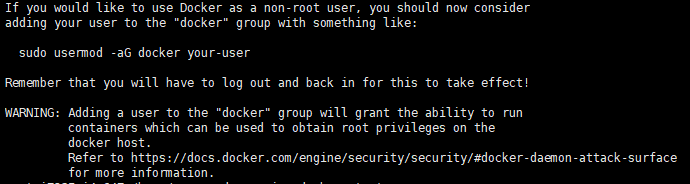
当要以非root用户可以直接运行docker时,需要执行 sudo usermod -aG docker runoob 命令,然后重新登陆,否则会报错
2、启动docker 后台服务
sudo service docker start

start: Job is already running: docker
3、用Hello World校验Docker的安装
用Docker运行Hello World镜像,命令如下:
# docker run hello-world

Unable to find image 'hello-world:latest' locally

latest: Pulling from library/hello-world

ca4f61b1923c: Pull complete

Digest: sha256:be0cd392e45be79ffeffa6b05338b98ebb16c87b255f48e297ec7f98e123905c

Status: Downloaded newer image for hello-world:latest

Hello from Docker!

This message shows that your installation appears to be working correctly.

To generate this message, Docker took the following steps:

 . The Docker client contacted the Docker daemon.

 . The Docker daemon pulled the "hello-world" image from the Docker Hub.

    (amd64)

 . The Docker daemon created a new container from that image which runs the

    executable that produces the output you are currently reading.

 . The Docker daemon streamed that output to the Docker client, which sent it

    to your terminal.

To try something more ambitious, you can run an Ubuntu container with:

 $ docker run -it ubuntu bash

Share images, automate workflows, and more with a free Docker ID:

 https://cloud.docker.com/

For more examples and ideas, visit:

 https://docs.docker.com/engine/userguide/
可见,Docker注册服务器从Docker Hub获取到最新的Hello World镜像,下载到了本地。可以再次运行Hello World镜像。
# docker run hello-world

Hello from Docker!

This message shows that your installation appears to be working correctly.

To generate this message, Docker took the following steps:

 . The Docker client contacted the Docker daemon.

 . The Docker daemon pulled the "hello-world" image from the Docker Hub.

    (amd64)

 . The Docker daemon created a new container from that image which runs the

    executable that produces the output you are currently reading.

 . The Docker daemon streamed that output to the Docker client, which sent it

    to your terminal.

To try something more ambitious, you can run an Ubuntu container with:

 $ docker run -it ubuntu bash

Share images, automate workflows, and more with a free Docker ID:

 https://cloud.docker.com/

For more examples and ideas, visit:

 https://docs.docker.com/engine/userguide/
二、使用
1、Docker Hello World
Docker 允许你在容器内运行应用程序, 使用 docker run 命令来在容器内运行一个应用程序
root@aliyunTinywan:~# docker run ubuntu:15.10 /bin/echo "Hello world"

Unable to find image 'ubuntu:15.10' locally

15.10: Pulling from library/ubuntu

7dcf5a444392: Pull complete

759aa75f3cee: Pull complete

3fa871dc8a2b: Pull complete

224c42ae46e7: Pull complete

Digest: sha256:02521a2d079595241c6793b2044f02eecf294034f31d6e235ac4b2b54ffc41f3

Status: Downloaded newer image for ubuntu:15.10

Hello world
Docker首先从本地主机上查找镜像是否存在,如果不存在,Docker 就会从镜像仓库 Docker Hub 下载公共镜像。这里发现镜像ubuntu:15.10 不存在,正在从镜像仓库下载
参数解析:
docker: Docker 的二进制执行文件。
run:与前面的 docker 组合来运行一个容器。
ubuntu:15.10:指定要运行的镜像,Docker首先从本地主机上查找镜像是否存在,如果不存在,Docker 就会从镜像仓库 Docker Hub 下载公共镜像。
/bin/echo "Hello world": 在启动的容器里执行的命令
root@aliyunTinywan:~# docker run ubuntu:15.10 /bin/echo "Hello world"

Hello world
以上命令完整的意思可以解释为:Docker 以 ubuntu15.10 镜像创建一个新容器,然后在容器里执行 bin/echo "Hello world",然后输出结果。
2、运行交互式的容器
通过docker的两个参数 -i -t,让docker运行的容器实现"对话"的能力
root@aliyunTinywan:~# docker run -i -t ubuntu:15.10 /bin/bash

root@aliyunTinywan:/#
参数解析:
-t:在新容器内指定一个伪终端或终端。
-i:允许你对容器内的标准输入 (STDIN) 进行交互。
此时我们已进入一个 ubuntu15.10系统的容器,尝试在容器中运行命令 cat /proc/version 和 ls 分别查看当前系统的版本信息和当前目录下的文件列表
root@aliyunTinywan:/# cat /proc/version

Linux version 4.4.--generic (buildd@lcy01-) (gcc version 4.8. (Ubuntu 4.8.-2ubuntu1~14.04.) ) #~14.04.-Ubuntu SMP Mon Aug  :: UTC

root@aliyunTinywan:/# cat /etc/issue

Ubuntu 15.10 \n \l

root@aliyunTinywan:/# ls

bin  boot  dev  etc  home  lib  lib64  media  mnt  opt  proc  root  run  sbin  srv  sys  tmp  usr  var
可以通过运行exit命令或者使用CTRL+D来退出容器,查看当前真实的服务器系统版本
root@18c5f2d5476b:/# exit

exit

root@iZ235mi4a64Z:~# cat /etc/issue

Ubuntu 14.04. LTS \n \l
3、启动容器(后台模式)
使用以下命令创建一个以进程方式运行的容器
root@iZ235mi4a64Z:~# docker run -d ubuntu:15.10 /bin/sh -c "while true; do echo hello world; sleep 1; done"

6ddd469230b5402251c4fd3214b63f6a6af7d9e2711f8944a9d74b36346bbd5a
在输出中,我们没有看到期望的"hello world",而是一串长字符 2b1b7a428627c51ab8810d541d759f072b4fc75487eed05812646b8534a2fe63 这个长字符串叫做容器ID,对每个容器来说都是唯一的,我们可以通过容器ID来查看对应的容器发生了什么。
首先,我们需要确认容器有在运行,可以通过 docker ps 来查看
root@iZ235mi4a64Z:~# docker ps

CONTAINER ID        IMAGE               COMMAND                  CREATED              STATUS              PORTS               NAMES

6ddd469230b5        ubuntu:15.10        "/bin/sh -c 'while t…"   About a minute ago   Up About a minute                       romantic_visvesvaraya
CONTAINER ID:容器ID
NAMES:自动分配的容器名称
在容器内使用docker logs命令,查看容器内的标准输出
(1)使用ID
root@iZ235mi4a64Z:~# docker logs 6ddd469230b5

hello world

hello world

hello world

...
(2)使用NAMES
root@iZ235mi4a64Z:~# docker logs romantic_visvesvaraya

hello world

hello world

...
发现结果是一样的,输出了同样的结果
4、停止容器
使用 docker stop 命令来停止容器,让然啦,要指定停止的容器对象啦,不然会这样子
root@iZ235mi4a64Z:~# docker stop

"docker stop" requires at least  argument.

See 'docker stop --help'.

Usage:  docker stop [OPTIONS] CONTAINER [CONTAINER...] [flags]

Stop one or more running containers
指定一个容器
root@iZ235mi4a64Z:~# docker stop 6ddd469230b5

6ddd469230b5
通过 docker ps 查看,容器已经停止工作
root@iZ235mi4a64Z:~# docker ps

CONTAINER ID        IMAGE               COMMAND             CREATED             STATUS              PORTS               NAMES
也可以用下面的NAMES命令来停止
docker stop romantic_visvesvaraya
Docker 从入门到放弃(一)安装的更多相关文章
- Docker从入门到放弃(1) Docker简介与安装
目录 一.Docker简介 1.Docker是什么: 2.为什么有docke的出现: 3.docker与传统容器的区别: 4.docker基本组成 5.docker工作原理: 二.Docker安装 ...
- DOCKER 从入门到放弃(一)
前言 关于docker的各种概念已有各位大神珠玉在前,请各位自行查看,本系列的目的是各种详细操作步骤 各种概念特别推荐CloudMan的3篇blog: http://www.cnblogs.com/C ...
- Docker 从入门到放弃(四)Docker+Jenkins_自动化持续集成
Windows 查看密码 $ cat /var/jenkins_home/secrets/initialAdminPassword 14e14c414f41481aa5955753d3f31f9f 自 ...
- Docker 从入门到放弃(三)镜像使用
当运行容器时,使用的镜像如果在本地中不存在,docker 就会自动从 docker 镜像仓库中下载,默认是从 Docker Hub 公共镜像源下载. 下面我们来学习: 1.管理和使用本地 Docker ...
- CentOS7 下Docker最新入门教程 超级详细 (安装以及简单的使用)
转载https://blog.csdn.net/wzsy_ll/article/details/82866627 1.为什么使用Docker(本人) 最近总是频繁的在新服务器发布项目, 每次发布都需要 ...
- DOCKER 从入门到放弃(二)
搜索镜像 从docker官方镜像仓库搜索镜像 docker search [OPTIONS] TERM OPTIONS: --automated :只显示自动创建的镜像,默认值为fasle --fil ...
- DOCKER 从入门到放弃(三)
使用docker create [image-name] 创建一个容器 创建一个nginx镜像的容器,由于没有指定各项参数,容器实用默认参数,创建后并不会启动,并将容器的ID输出到终端,如果本地没有镜 ...
- Docker 从入门到放弃(二)容器使用
Docker 容器使用 一.Docker 客户端 docker 客户端非常简单 ,我们可以直接输入 docker 命令来查看到 Docker 客户端的所有命令选项. root@iZ235mi4a64Z ...
- docker的入门到放弃--docker基本命令
docker的镜像中国:https://www.docker-cn.com/registry-mirror 1.搜索镜像 [root@localhost ~]# docker search tomca ...
随机推荐
- Python 面试题_未完
基础部分 1. 为什么学习Python 家里有在这个IT圈子里面,也想让我接触这个圈子,然后给我建议学的Python, 然后自己通过百度和向有学过Python的同学了解了Python,Python这门 ...
- jwt实现
<?phpnamespace app\admin\controller;use think\Config;use think\Controller;use think\Request;use t ...
- HDOJ 5667 Sequence//费马小定理 矩阵快速幂
题目:http://acm.hdu.edu.cn/showproblem.php?pid=5667 题意:如题给了一个函数式,给你a,b,c,n,p的值,叫你求f(n)%p的值 思路:先对函数取以a为 ...
- Wannafly挑战赛 22
爆零祭 T1 这题第一反应gcd啊 所以就把每个a[i]对m取模 然后求它们的gcd 即res = gcd(a[1] % m, a[2] % m, ... , a[n] % m) ans = 1 + ...
- Fiddler 安装配置及使用技巧
下载最新版即可: https://www.telerik.com/fiddler pc配置: pc端上的配置较为简单,主要是记录一下遇到的一些bug以及解决方法. options>HTTPS ...
- Python中字符串、列表、元组、字典、集合常用方法总结
- 常用的git操作
(转)仅供自己学习,特此转发记录 链接:Git命令清单
- ubuntu下 pthread_mutex_init man中查不到
问题: 如题所述,包括pthread_mutex_init 和 pthread_mutex_lock 这些函数都找不到 解决办法: 安装manpages:manpages-posix-dev Mint ...
- C++对象作为返回值的问题
#include "stdio.h" class Object{ public: int i; Object& method1(){ return *this; } }; ...
- (字典序问题) nyoj1542-最小字符串
题目描述: 给你一个由小写字母组成的字符串,最多删除其中一个字符,使其字典序最小. 字典序概念在数学中,字典或词典顺序(也称为词汇顺序,字典顺序,字母顺序或词典顺序)是基于字母顺序排列的单词按字母顺序 ...