
React Native(四)——顶部以及底部导航栏实现方式
效果图:
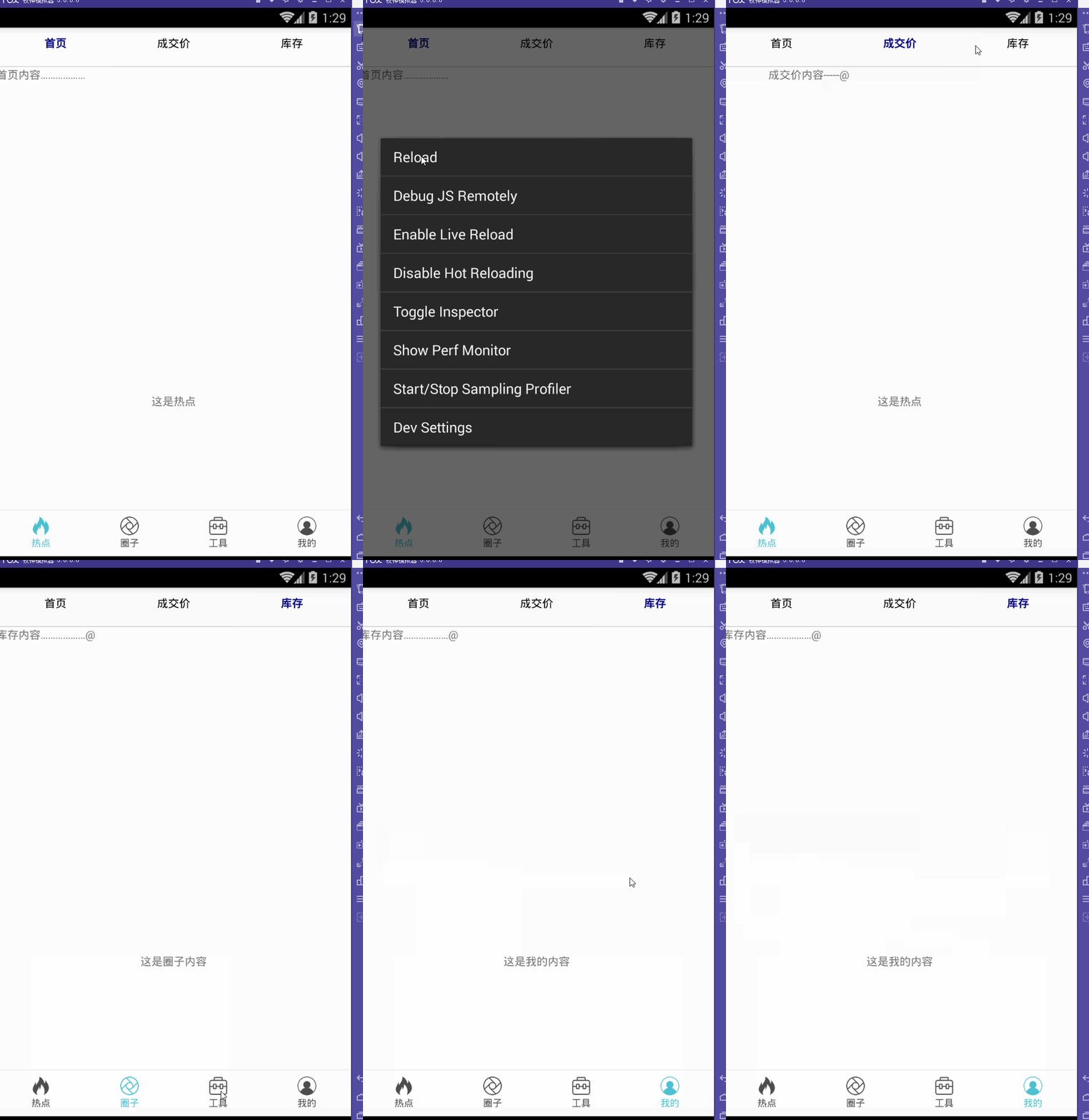
一步一步慢慢来:
其实刚入手做app的时候,就应该做出简单的顶部以及底部导航栏。无奈又在忙其他事情,导致这些现在才整理出来。

1.顶部导航栏:react-native-scrollable-tab-view;文档地址:https://github.com/skv-headless/react-native-scrollable-tab-view
2.底部导航栏:react-navigation中的TabNavigator;文档地址:https://reactnavigation.org/docs/navigators/tab
3.一直想让index.android.js的代码简洁一些,苦思不得其解,直到现在才找到了一点“路径”,看这版的源代码:
index.android.js:
/**

 * Sample React Native App

 * https://github.com/facebook/react-native

 * @flow

 */

import React, { Component } from 'react';

import {

  AppRegistry,

  StyleSheet,

  Text,

  View,

  Image

} from 'react-native';

//顶部导航栏

import TopTabBar from './Views/TopTabBar';

//底部导航栏

import BottomTabBar from './Views/BottomTabBar';

export default class ywg extends Component {

  render() {

    return (

      <View style={{flex:1}}>

        <TopTabBar/>

        <BottomTabBar/>

      </View>

    );

  }

}

AppRegistry.registerComponent('ywg', () => ywg);

怎样?够简单吧……对了,这样的代码看起来才比较“优雅”(容忍zheng小叶正儿八经的胡说八道哦~)而主要的代码就在
//顶部导航栏

import TopTabBar from './Views/TopTabBar';

//底部导航栏

import BottomTabBar from './Views/BottomTabBar';
这两个红色的文件中。
【重点注意】将两个Component同时使用的时候,一定要在最外层的View上定义样式,否则任你怎样摆弄,它们总是不会展现“庐山真面目”,具体的文档在:http://reactnative.cn/docs/0.46/layout-props.html
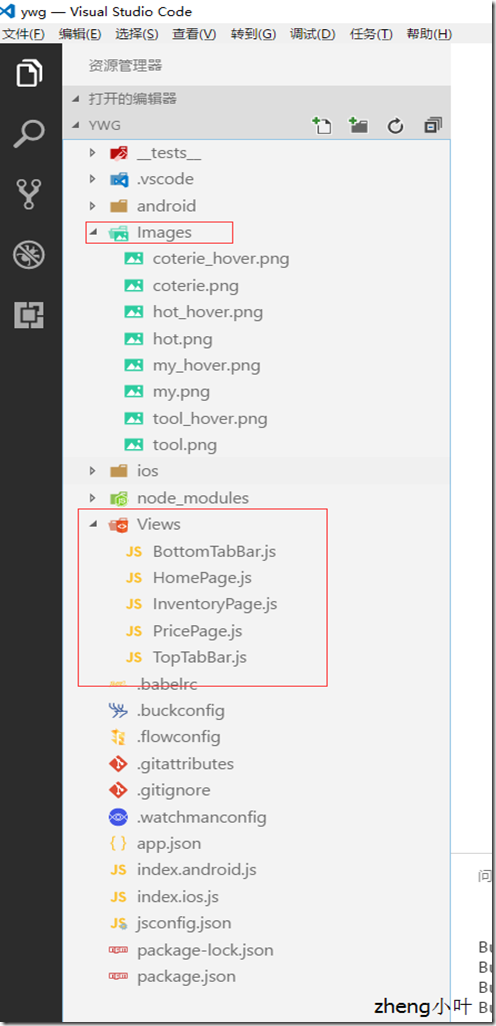
这是项目文件路径。
BottomTabBar.js:
/**

 * Sample React Native App

 * https://github.com/facebook/react-native

 * @flow

 */

import React, { Component } from 'react';

import {

  AppRegistry,

  StyleSheet,

  Text,

  View,

  Image

} from 'react-native';

//底部导航栏

import { TabNavigator } from "react-navigation";

class Home extends React.Component {

  static navigationOptions = {

      tabBarLabel: '热点',

      tabBarIcon: ({ focused, tintColor }) => (

          <Image

              source={focused ? require('../Images/hot_hover.png') : require('../Images/hot.png')}

              style={{ width: 26, height: 26, tintColor: tintColor }}

          />

      )

  };

  render() {

      return (

          <View style={styles.container}>

              <Text>这是热点</Text>

          </View>

      );

  }

}   class Circle extends React.Component {

  static navigationOptions = {

      tabBarLabel: '圈子',

      tabBarIcon: ({ focused, tintColor }) => (

          <Image

              source={focused ? require('../Images/coterie_hover.png') : require('../Images/coterie.png')}

              style={{ width: 26, height: 26, tintColor: tintColor }}

          />

      )

  };

  render() {

      return (

          <View style={styles.container}>

              <Text>这是圈子内容</Text>

          </View>

      );

  }

}   class Tools extends React.Component {

  static navigationOptions = {

      tabBarLabel: '工具',

      tabBarIcon: ({ focused, tintColor }) => (

          <Image

              source={focused ? require('../Images/tool.png') : require('../Images/tool.png')}

              style={{ width: 26, height: 26, tintColor: tintColor }}

          />

      )

  };

  render() {

      return (

          <View style={styles.container}>

              <Text>这是工具内容</Text>

          </View>

      );

  }

}

class Mypage extends React.Component {

    static navigationOptions = {

      tabBarLabel: '我的',

      tabBarIcon: ({ focused, tintColor }) => (

        <Image

          source={focused ? require('../Images/my_hover.png') : require('../Images/my.png')}

          style={{ width: 26, height: 26, tintColor: tintColor }}

        />

      )

    };

    render() {

      return (

        <View style={styles.container}>

          <Text>这是我的内容</Text>

        </View>

      );

    }

}

const BottomTabBar = TabNavigator(

  {

    Home: {

      screen: Home,

    },

    Circle: {

      screen: Circle,

    },

    Tools: {

      screen: Tools,

    },

    Mypage: {

      screen: Mypage,

    },

  },

  {

    tabBarOptions: {

      activeTintColor: '#4BC1D2',

      inactiveTintColor: '#000',

      showIcon: true,

      showLabel: true,

      upperCaseLabel: false,

      pressColor: '#823453',

      pressOpacity: 0.8,

      style: {

        backgroundColor: '#fff',

        paddingBottom: 0,

        borderTopWidth: 0.5,

        borderTopColor: '#ccc',

      },

      labelStyle: {

        fontSize: 12,

        margin: 1

      },

      indicatorStyle: { height: 0 }, //android 中TabBar下面会显示一条线,高度设为 0 后就不显示线了

    },

    tabBarPosition: 'bottom',

    swipeEnabled: false,

    animationEnabled: false,

    lazy: true,

    backBehavior: 'none',

  });

const styles = StyleSheet.create({

  container: {

    flex: 1,

    justifyContent: 'center',

    alignItems: 'center',

    backgroundColor: '#fff',

  }

});

module.exports = BottomTabBar;
TopTabBar.js:
/**

 * Sample React Native App

 * https://github.com/facebook/react-native

 * @flow

 */

import React, { Component } from 'react';

import {

  AppRegistry,

  StyleSheet,

  Text,

  View,

  Image

} from 'react-native';

import HomePage from '../Views/HomePage';

import PricePage from '../Views/PricePage';

import InventoryPage from '../Views/InventoryPage';

//顶部导航

var ScrollableTabView = require('react-native-scrollable-tab-view');

export default class TopTabBar extends Component {

  render() {

    return (

      <ScrollableTabView

       tabBarUnderlineStyle={{backgroundColor:'#fff'}}

      >

        <HomePage tabLabel="首页" />

        <PricePage tabLabel="成交价" />

        <InventoryPage tabLabel="库存" />

      </ScrollableTabView>

    );

  }

}

module.exports = TopTabBar;
而关于这些的详细介绍可以参考这里(老大的小结):http://www.cnblogs.com/vipstone/p/7516115.html?utm_source=tuicool&utm_medium=referral;
美中不足:
怎样才能实现顶部栏、底部栏控制各自部分功能呢?留下来的~~~

PS:尴尬的事情猝不及防的发生了……
一直想不明白,顶部导航栏跟底部导航栏同时存在的情况下,怎样控制各自的功能呢?于是再请教完做手机开发的同事后才恍然大悟,原来自己想的顶部导航栏根本不是顶部导航栏,简言之就是自己把布局搞错了!明明只是有底部导航栏,而所谓的“顶部导航栏”也只是底部导航栏中的第一小部分里面嵌套着一个轮播组件,才会给人以错觉,啊啊啊……事实真相居然是这样的~

React Native(四)——顶部以及底部导航栏实现方式的更多相关文章
- React Native 的组件之底部导航栏 TabBarIOS(一)
import React,{Component}from 'react'; import { AppRegistry, StyleSheet, Text, View, TabBarIOS, } fro ...
- React native中DrawerNavigator,StackNavigator,TabNavigator导航栏使用
import React from 'react'; import { View, Text,Button } from 'react-native'; import { DrawerNavigato ...
- Android学习笔记- Fragment实例 底部导航栏的实现
1.要实现的效果图以及工程目录结构: 先看看效果图吧: 接着看看我们的工程的目录结构: 2.实现流程: Step 1:写下底部选项的一些资源文件 我们从图上可以看到,我们底部的每一项点击的时候都有不同 ...
- Flutter - 创建底部导航栏
之前写过的一篇文章介绍了 Flutter - 创建横跨所有页面的侧滑菜单, 这次就一起来学习一下底部导航栏. 底部导航栏在ios平台上非常常见,app store就是这样的风格.还有就是大家最常用的微 ...
- TextView+Fragment实现底部导航栏
前言:项目第二版刚上线没多久,产品又对需求进行了大改动,以前用的是左滑菜单,现在又要换成底部导航栏,于是今天又苦逼加班了.花了几个小时实现了一个底部导航栏的demo,然后总结一下.写一篇博客.供自己以 ...
- iOS开发笔记13:顶部标签式导航栏及下拉分类菜单
当内容及分类较多时,往往采用顶部标签式导航栏,例如网易新闻客户端的顶部分类导航,最近刚好有这样的应用场景,参考网络上一些demo,实现了这种导航效果,记录一些要点. 效果图(由于视频转GIF掉帧,滑动 ...
- Android底部导航栏——FrameLayout + RadioGroup
原创文章,转载请注明出处http://www.cnblogs.com/baipengzhan/p/6285881.html Android底部导航栏有多种实现方式,本文详细介绍FrameLayout ...
- Android底部导航栏创建——ViewPager + RadioGroup
原创文章,引用请注明出处:http://www.cnblogs.com/baipengzhan/p/6270201.html Android底部导航栏有多种实现方式,本文详解其中的ViewPager ...
- 二、Fragment+RadioButton实现底部导航栏
在App中经常看到这样的tab底部导航栏 那么这种效果是如何实现,实现的方式有很多种,最常见的就是使用Fragment+RadioButton去实现.下面我们来写一个例子 首先我们先在activi ...
随机推荐
- c语言for循环等语句详解
循环结构有: . goto语句和if语句构成循环 .while语句 .do-while语句 .for语句 goto语句 goto语句是一种无条件转移语句, 与Basic中的goto语句相似.goto语 ...
- SSH框架环境搭建问题:Line: 230 - com/opensymphony/xwork2/spring/SpringObjectFactory.java:230:-1
只是通过myeclipse搭建一个框架而已 启动tomcat时报错信息: File: SpringObjectFactory.java Method: getClassInstance Line: 2 ...
- vb.net与c#相互转换工具
vb.net与c#相互转换工具: http://www.developerfusion.co.uk/utilities/convertvbtocsharp.aspx http://www.dotne ...
- 2016年第七届蓝桥杯C/C++B组省赛题目解析
题目1:煤球数目 有一堆煤球,堆成三角棱锥形.具体:第一层放1个,第二层3个(排列成三角形),第三层6个(排列成三角形),第四层10个(排列成三角形),....如果一共有100层,共有多少个煤球?请填 ...
- e816. 创建工具栏
A toolbar can be either horizontal or vertical. When the orientation is horizontal, the objects in t ...
- C# 无法在发送 HTTP 标头之后进行重定向
在调试中发现错误如下: Response.Redirect引起的“无法在发送HTTP标头之后进行重定向” 跳转失败 解决方案如下: 使用js方法来跳转地址 const string url=" ...
- 转:关于VS2012连接MySql数据库时无法选择数据源
原文来自 http://www.cnblogs.com/sanduo8899/p/3698617.html 您的C#开发工具是用VS2012吗? No! return; 您的数据库用的 ...
- 如何在linux中批量建立用户并设置随机密码
Ubuntu是基于linux的免费开源操作系统,同时也是真正意义上的“多任务多用户”操作系统,既然是多用户系统,自然就涉及到创建多个用户的问题.同时由于Ubuntu系统中的root用户具有最高权限,无 ...
- php写文件操作
function writeLog($file, $msg, $mode='a+') { $fp = fopen($file, $mode); if(flock($fp, LOCK_EX)) { fw ...
- 利用jQuery实现回收站删除效果
jQuery是一款非常强大的Javascript脚本库,我们开发者喜欢jQuery的原因除了它代码简洁外,更多的是因为jQuery插件非常丰富.今天我们用一个示例来解说jQuery是如何实现拖拽的. ...