
Windows Community Toolkit 4.0 - DataGrid - Part03
概述
在上面一篇 Windows Community Toolkit 4.0 - DataGrid - Part02 中,我们针对 DataGrid 控件的 Utilities 部分做了详细分享。而在本篇,我们会对控件中最重要的 DataGrid 文件夹中的类做详细的分享。
下面是 Windows Community Toolkit Sample App 的示例截图和 code/doc 地址:

Windows Community Toolkit Doc - DataGrid
Windows Community Toolkit Source Code - DataGrid
Namespace: Microsoft.Toolkit.Uwp.UI.Controls; Nuget: Microsoft.Toolkit.Uwp.UI.Controls.DataGrid;
开发过程
DataGrid 文件夹中是 DataGrid 控件最重要的功能,首先我们还是先来看一下类结构:
包括了 Automation;DataGrid,DataGridColumn,DataGridRow,DataGridCell 控件实现,事件处理参数类和数据类等;

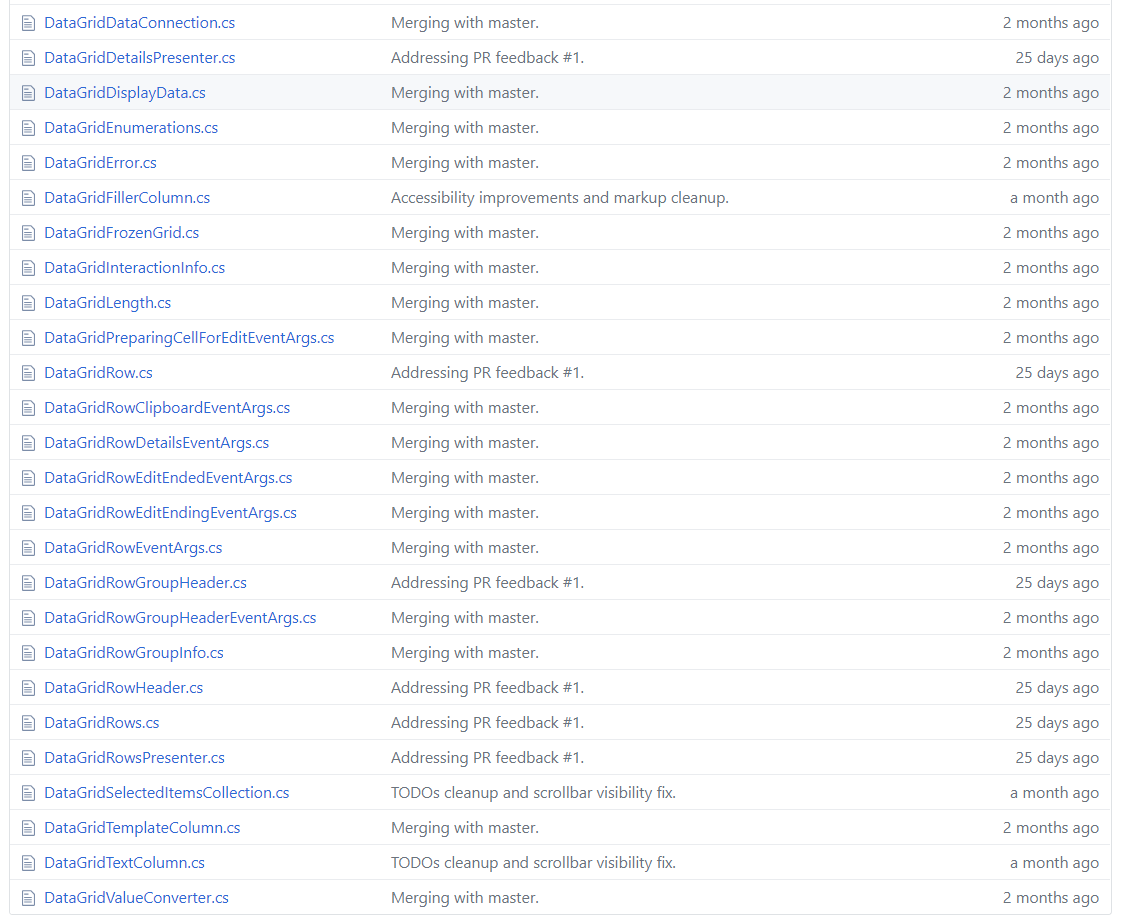
接着我们看几个重要的类和方法:
1. DataGrid.cs
这个类是 DataGrid 控件的主要处理类,功能也是比较复杂,单个类的代码行数是 9001 行,我们只挑两个方法来看一下。其他方法大家有兴趣或用到时可以在 DataGrid.cs 中查阅。
1) DataGrid()
首先看一下 DataGrid 类的构造方法,之所以看这个方法,是想让大家可以更了解 DataGrid 类中变量的初始化方式,这些变量在不同的交互场景下会被赋予不同的值。
public DataGrid()
{
    this.TabNavigation = KeyboardNavigationMode.Once;

    _loadedRows = new List<DataGridRow>();
    _lostFocusActions = new Queue<Action>();
    _selectedItems = new DataGridSelectedItemsCollection(this);
    _rowGroupHeaderPropertyNameAlternative = Properties.Resources.DefaultRowGroupHeaderPropertyNameAlternative;
    _rowGroupHeaderStyles = new ObservableCollection<Style>();
    _rowGroupHeaderStyles.CollectionChanged += RowGroupHeaderStyles_CollectionChanged;
    _rowGroupHeaderStylesOld = new List<Style>();
    this.RowGroupHeadersTable = new IndexToValueTable<DataGridRowGroupInfo>();

    _collapsedSlotsTable = new IndexToValueTable<Visibility>();
    _validationItems = new Dictionary<INotifyDataErrorInfo, string>();
    _validationResults = new List<ValidationResult>();
    _bindingValidationResults = new List<ValidationResult>();
    _propertyValidationResults = new List<ValidationResult>();
    _indeiValidationResults = new List<ValidationResult>();

    this.ColumnHeaderInteractionInfo = new DataGridColumnHeaderInteractionInfo();
    this.DisplayData = new DataGridDisplayData(this);
    this.ColumnsInternal = CreateColumnsInstance();

    this.RowHeightEstimate = DATAGRID_defaultRowHeight;
    ;
    _rowHeaderDesiredWidth = ;

    this.DataConnection = new DataGridDataConnection(this);
    _showDetailsTable = new IndexToValueTable<Visibility>();

    _focusInputDevice = FocusInputDeviceKind.None;
    _proposedScrollBarsState = ScrollBarVisualState.NoIndicator;
    _proposedScrollBarsSeparatorState = ScrollBarsSeparatorVisualState.SeparatorCollapsed;

    ;
    _lastEstimatedRow = -;
    _editingColumnIndex = -;
    , -);

    this.RowGroupHeaderHeightEstimate = DATAGRID_defaultRowHeight;

    this.LastHandledKeyDown = VirtualKey.None;

    this.DefaultStyleKey = typeof(DataGrid);

    HookDataGridEvents();
}
2) ShowScrollBars()
DataGrid 控件中滚动条的处理方法。如果 AreAllScrollBarsCollapsed 为 true,则按照该规则简单处理;如果为 false,先按照 mouse 和 touch 的类型进行判断处理,再根据 UI 设置里的 AreSettingsEnablingAnimations 和 AreSettingsAutoHidingScrollBars 属性来切换滚动条的状态,调用 SwitchScrollBarsVisualStates 方法。
private void ShowScrollBars()
{
    if (this.AreAllScrollBarsCollapsed)
    {
        _proposedScrollBarsState = ScrollBarVisualState.NoIndicator;
        _proposedScrollBarsSeparatorState = ScrollBarsSeparatorVisualState.SeparatorCollapsedWithoutAnimation;
        SwitchScrollBarsVisualStates(_proposedScrollBarsState, _proposedScrollBarsSeparatorState, false /*useTransitions*/);
    }
    else
    {
        if (_hideScrollBarsTimer != null && _hideScrollBarsTimer.IsEnabled)
        {
            _hideScrollBarsTimer.Stop();
            _hideScrollBarsTimer.Start();
        }

        // Mouse indicators dominate if they are already showing or if we have set the flag to prefer them.
        if (_preferMouseIndicators || _showingMouseIndicators)
        {
            if (this.AreBothScrollBarsVisible && (_isPointerOverHorizontalScrollBar || _isPointerOverVerticalScrollBar))
            {
                _proposedScrollBarsState = ScrollBarVisualState.MouseIndicatorFull;
            }
            else
            {
                _proposedScrollBarsState = ScrollBarVisualState.MouseIndicator;
            }

            _showingMouseIndicators = true;
        }
        else
        {
            _proposedScrollBarsState = ScrollBarVisualState.TouchIndicator;
        }

        // Select the proper state for the scroll bars separator square within the GroupScrollBarsSeparator group:
        if (UISettingsHelper.AreSettingsEnablingAnimations)
        {
            // When OS animations are turned on, show the square when a scroll bar is shown unless the DataGrid is disabled, using an animation.
            _proposedScrollBarsSeparatorState =
                this.IsEnabled &&
                _proposedScrollBarsState == ScrollBarVisualState.MouseIndicatorFull ?
                ScrollBarsSeparatorVisualState.SeparatorExpanded : ScrollBarsSeparatorVisualState.SeparatorCollapsed;
        }
        else
        {
            // OS animations are turned off. Show or hide the square depending on the presence of a scroll bars, without an animation.
            // When the DataGrid is disabled, hide the square in sync with the scroll bar(s).
            if (_proposedScrollBarsState == ScrollBarVisualState.MouseIndicatorFull)
            {
                _proposedScrollBarsSeparatorState = this.IsEnabled ? ScrollBarsSeparatorVisualState.SeparatorExpandedWithoutAnimation : ScrollBarsSeparatorVisualState.SeparatorCollapsed;
            }
            else
            {
                _proposedScrollBarsSeparatorState = this.IsEnabled ? ScrollBarsSeparatorVisualState.SeparatorCollapsedWithoutAnimation : ScrollBarsSeparatorVisualState.SeparatorCollapsed;
            }
        }

        if (!UISettingsHelper.AreSettingsAutoHidingScrollBars)
        {
            if (this.AreBothScrollBarsVisible)
            {
                if (UISettingsHelper.AreSettingsEnablingAnimations)
                {
                    SwitchScrollBarsVisualStates(ScrollBarVisualState.MouseIndicatorFull, this.IsEnabled ? ScrollBarsSeparatorVisualState.SeparatorExpanded : ScrollBarsSeparatorVisualState.SeparatorCollapsed, true /*useTransitions*/);
                }
                else
                {
                    SwitchScrollBarsVisualStates(ScrollBarVisualState.MouseIndicatorFull, this.IsEnabled ? ScrollBarsSeparatorVisualState.SeparatorExpandedWithoutAnimation : ScrollBarsSeparatorVisualState.SeparatorCollapsed, true /*useTransitions*/);
                }
            }
            else
            {
                if (UISettingsHelper.AreSettingsEnablingAnimations)
                {
                    SwitchScrollBarsVisualStates(ScrollBarVisualState.MouseIndicator, ScrollBarsSeparatorVisualState.SeparatorCollapsed, true /*useTransitions*/);
                }
                else
                {
                    SwitchScrollBarsVisualStates(ScrollBarVisualState.MouseIndicator, this.IsEnabled ? ScrollBarsSeparatorVisualState.SeparatorCollapsedWithoutAnimation : ScrollBarsSeparatorVisualState.SeparatorCollapsed, true /*useTransitions*/);
                }
            }
        }
        else
        {
            SwitchScrollBarsVisualStates(_proposedScrollBarsState, _proposedScrollBarsSeparatorState, true /*useTransitions*/);
        }
    }
}
2. DataGridCellEditEndedEventArgs.cs
DataGrid 控件中有很多事件处理参数类,我们只看其中一个 DataGridCellEditEndedEventArgs 吧。很显然这个事件包含了 column row 和 editAction 三个变量,大家看到其他时间参数时,可以具体再分析。
public class DataGridCellEditEndedEventArgs : EventArgs
{
   public DataGridCellEditEndedEventArgs(DataGridColumn column, DataGridRow row, DataGridEditAction editAction)
    {
        this.Column = column;
        this.Row = row;
        this.EditAction = editAction;
    }

    public DataGridColumn Column
    {
        get;
        private set;
    }

     public DataGridEditAction EditAction
    {
        get;
        private set;
    }

    public DataGridRow Row
    {
        get;
        private set;
    }
}
3. DataGridCellCollection.cs
DataGrid 控件中有很多数据类,我们看一个单元格集合类,可以看到集合中有 _cells,Count 变量,Insert 和 RemoveAt 方法等,处理逻辑都比较简单。
internal class DataGridCellCollection
{
    private List<DataGridCell> _cells;
    private DataGridRow _owningRow;

    internal event EventHandler<DataGridCellEventArgs> CellAdded;

    internal event EventHandler<DataGridCellEventArgs> CellRemoved;

    public DataGridCellCollection(DataGridRow owningRow)
    {
        _owningRow = owningRow;
        _cells = new List<DataGridCell>();
    }

    public int Count
    {
        get
        {
            return _cells.Count;
        }
    }

    public IEnumerator GetEnumerator()
    {
        return _cells.GetEnumerator();
    }

    public void Insert(int cellIndex, DataGridCell cell)
    {
        Debug.Assert(cellIndex >=  && cellIndex <= _cells.Count, "Expected cellIndex between 0 and _cells.Count inclusive.");
        Debug.Assert(cell != null, "Expected non-null cell.");

        cell.OwningRow = _owningRow;
        _cells.Insert(cellIndex, cell);

        if (CellAdded != null)
        {
            CellAdded(this, new DataGridCellEventArgs(cell));
        }
    }

    public void RemoveAt(int cellIndex)
    {
        DataGridCell dataGridCell = _cells[cellIndex];
        _cells.RemoveAt(cellIndex);
        dataGridCell.OwningRow = null;
        if (CellRemoved != null)
        {
            CellRemoved(this, new DataGridCellEventArgs(dataGridCell));
        }
    }

    public DataGridCell this[int index]
    {
        get
        {
             || index >= _cells.Count)
            {
                , true, _cells.Count, false);
            }

            return _cells[index];
        }
    }
}
4. DataGridCell.cs
DataGrid 控件的单元格类,处理比较简单,我们通过构造方法来看一下类中都涉及到哪些事件的处理;可以看到,光标的一系列处理都有涉及。
public DataGridCell()
{
    this.IsTapEnabled = true;
    this.AddHandler(UIElement.TappedEvent, new TappedEventHandler(DataGridCell_PointerTapped), true /*handledEventsToo*/);

    this.PointerCanceled += new PointerEventHandler(DataGridCell_PointerCanceled);
    this.PointerCaptureLost += new PointerEventHandler(DataGridCell_PointerCaptureLost);
    this.PointerPressed += new PointerEventHandler(DataGridCell_PointerPressed);
    this.PointerReleased += new PointerEventHandler(DataGridCell_PointerReleased);
    this.PointerEntered += new PointerEventHandler(DataGridCell_PointerEntered);
    this.PointerExited += new PointerEventHandler(DataGridCell_PointerExited);
    this.PointerMoved += new PointerEventHandler(DataGridCell_PointerMoved);

    DefaultStyleKey = typeof(DataGridCell);
}
总结
这里我们把 DataGrid 的 DataGrid 相关类介绍完成了,代码部分的 CollectionView,Utilities 和 DataGrid 就介绍完了。因为代码本身比较复杂,量也很大,所以我们只挑选了一小部分代码来分享,大家具体用到时可以再具体分析。
接下来我们会就 DataGrid 控件的各种编辑功能,各种自定义功能等做进一步的使用方式的分享。
最后,再跟大家安利一下 WindowsCommunityToolkit 的官方微博:https://weibo.com/u/6506046490, 大家可以通过微博关注最新动态。
衷心感谢 WindowsCommunityToolkit 的作者们杰出的工作,感谢每一位贡献者,Thank you so much, ALL WindowsCommunityToolkit AUTHORS !!!
Windows Community Toolkit 4.0 - DataGrid - Part03的更多相关文章
- Windows Community Toolkit 4.0 - DataGrid - Part02
概述 在上面一篇 Windows Community Toolkit 4.0 - DataGrid - Part01 中,我们针对 DataGrid 控件的 CollectionView 部分做了详细 ...
- Windows Community Toolkit 4.0 - DataGrid - Part01
概述 在上面一篇 Windows Community Toolkit 4.0 - DataGrid - Overview 中,我们对 DataGrid 控件做了一个概览的介绍,今天开始我们会做进一步的 ...
- Windows Community Toolkit 4.0 - DataGrid - Overview
概述 Windows Community Toolkit 4.0 于 2018 月 8 月初发布:Windows Community Toolkit 4.0 Release Note. 4.0 版本相 ...
- Windows Community Toolkit 3.0 - UniformGrid
概述 UniformGrid 控件是一个响应式的布局控件,允许把 items 排列在一组均匀分布的行或列中,以填充整体的可用显示空间,形成均匀的多个网格.默认情况下,网格中的每个单元格大小相同. 这是 ...
- Windows Community Toolkit 3.0 - InfiniteCanvas
概述 InfiniteCanvas 是一个 Canvas 控件,它支持无限画布的滚动,支持 Ink,文本,格式文本,画布缩放操作,撤销重做操作,导入和导出数据. 这是一个非常实用的控件,在“来画视频” ...
- Windows Community Toolkit 3.0 - Gaze Interaction
概述 Gaze Input & Tracking - 也就是视觉输入和跟踪,是一种和鼠标/触摸屏输入非常不一样的交互方式,利用人类眼球的识别和眼球方向角度的跟踪,来判断人眼的目标和意图,从而非 ...
- Windows Community Toolkit 3.0 - CameraPreview
概述 Windows Community Toolkit 3.0 于 2018 年 6 月 2 日 Release,同时正式更名为 Windows Community Toolkit,原名为 UWP ...
- Windows Community Toolkit 3.0 新功能 在WinForms 和 WPF 使用 UWP 控件
本文告诉大家一个令人震惊的消息,Windows Community Toolkit 有一个大更新,现在的版本是 3.0 .最大的提升就是 WinForm 和 WPF 程序可以使用部分 UWP 控件. ...
- 与众不同 windows phone (44) - 8.0 位置和地图
[源码下载] 与众不同 windows phone (44) - 8.0 位置和地图 作者:webabcd 介绍与众不同 windows phone 8.0 之 位置和地图 位置(GPS) - Loc ...
随机推荐
- SQL Server如何用触发器捕获DML操作的会话信息
需求背景 上周遇到了这样一个需求,维护人员发现一个表的数据经常被修改,由于历史原因:文档缺少:以及维护人员的经常变更,导致他们对系统也业务也不完全熟悉,他们也不完全清楚哪些系统和应用程序会对这个表的数 ...
- [20190312]视图v$datafile字段OFFLINE_CHANGE#, ONLINE_CHANGE#.txt
[20190312]视图v$datafile字段OFFLINE_CHANGE#, ONLINE_CHANGE#.txt --//视图v$datafile存在2个字段OFFLINE_CHANGE#, O ...
- 洗礼灵魂,修炼python(82)--全栈项目实战篇(10)—— 信用卡+商城项目(模拟京东淘宝)
本次项目相当于对python基础做总结,常用语法,数组类型,函数,文本操作等等 本项目在博客园里其他开发者也做过,我是稍作修改来的,大体没变的 项目需求: 信用卡+商城: A.信用卡(类似白条/花呗) ...
- Microsoft .NET Framework 3.5 离线安装方法 (仅适用于Win8以上的系统)
所需工具:本系统对应原版镜像或Win8以上操作系统原版ISO镜像 操作: 1.利用Windows资源管理器挂载 ISO 镜像,或其他虚拟光驱工具挂载镜像,记住挂载的盘符 2.打开Windows命令提示 ...
- C语言 用π/4=1-1/3+1/5-1/7+... 求π的近似值
//凯鲁嘎吉 - 博客园 http://www.cnblogs.com/kailugaji/ #include<stdio.h> #include<math.h> void m ...
- 019_删除链表的倒数第N个节点
//使用两次遍历 ListNode* removeNthFromEnd(ListNode* head, int n) { if (!head->next) return NULL; ; List ...
- Photoshop怎么破解?PS怎么破解?
Photoshop和PS这两个软件可以说是十分常见的图片处理软件了,Photoshop主要处理以像素所构成的数字图像进行图片编辑工作,而PS就更加强大了,它有很多功能,在图像.图形.文字.视频.出版等 ...
- JSX格式化代码,你值得拥有!
ext install prettier-vscode https://segmentfault.com/q/1010000014822745
- java访问mysql数据库
package com.mysql.test; import java.sql.Connection; import java.sql.DriverManager; import java.sql.R ...
- nginx学习笔记(三)
浏览器缓存