
Windows Community Toolkit 3.0 - Gaze Interaction
概述
Gaze Input & Tracking - 也就是视觉输入和跟踪,是一种和鼠标/触摸屏输入非常不一样的交互方式,利用人类眼球的识别和眼球方向角度的跟踪,来判断人眼的目标和意图,从而非常方便的完成对设备的控制和操作。这种交互方式,应用场景非常广泛,比如 AR/VR/MR 中,利用视觉追踪,来判断 Reaility 中场景物体的方向和展示;再比如阅读中,根据视觉输入和追踪,来自动滚动和翻页等;再比如游戏中依靠视觉追踪来决定人物的走位等,让游戏控制变得非常简单。
Windows 10 秋季创意者更新公布了对视觉追踪的原生支持,而在 Windows 10 四月更新中为开发者增加了 Windows Gaze Input API 来支持视觉追踪开发,让开发者可以在应用中加入视觉追踪的交互方式来处理视觉输入和跟踪。
而在 Windows Community Toolkit 3.0 中,也加入了 Gaze Interaction Library,它基于 Windows Gaze Input API 创建,提供了一系列的开发者帮助类,帮助开发者可以更容易的实现对用户视觉的追踪。它旨在把通过 Windows API 来处理眼球追踪的原始数据流的负责过程封装处理,让开发者可以更方便的在 Windows App 中集成。
下面是 Windows Community Toolkit Sample App 的示例截图和 code/doc 地址:
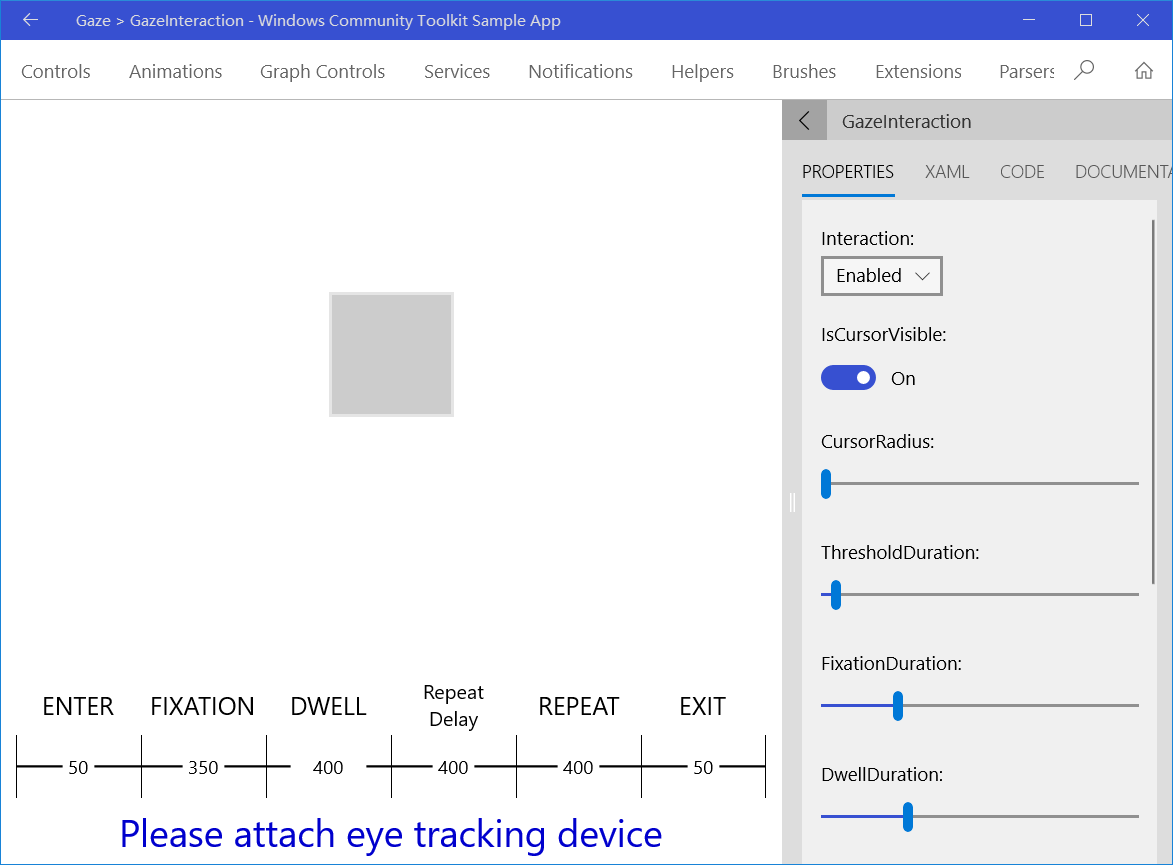
Windows Community Toolkit Doc - Gaze Interaction
Windows Community Toolkit Source Code - Gaze Interaction
Namespace: Microsoft.Toolkit.Uwp.Input.GazeInteraction; Nuget: Microsoft.Toolkit.Uwp.Input.GazeInteraction;
开发过程
代码结构分析
首先来看 GazeInteraction 的代码结构,通过类的命名可以看出,开发语言使用的是 C++,而且类结构和数量都比较复杂。可以看到 GazeInteraction 的代码在 Microsoft.Toolkit.Uwp.Input namespace 下,这也意味着 GazeInteraction 会被作为一种 Input 方式来做处理。

来看一下在 Visual Studio 中打开的目录,会更清晰一些:
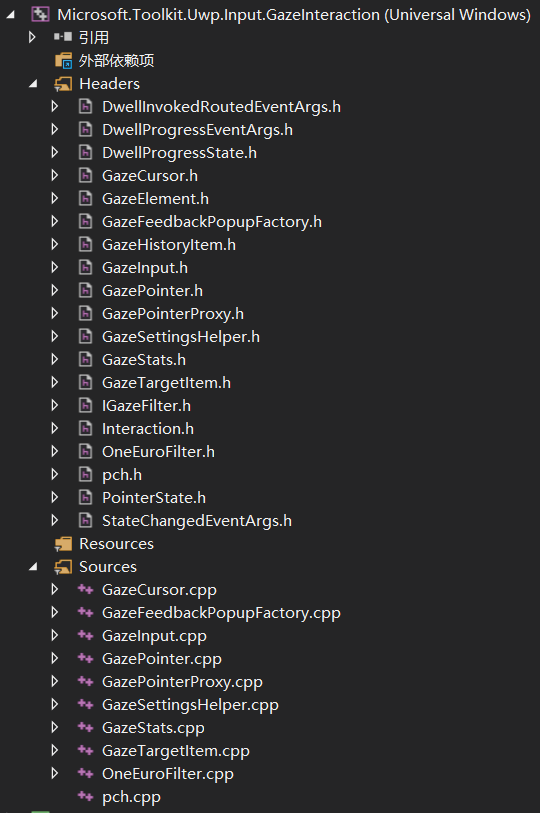
因为是 C++ 语言编写的库,所以可以很清楚的看到,主要功能被划分在 Headers 和 Sources 中,Headers 中主要是 cpp 对应的头文件,以及一些枚举类,变量定义类;Sources 中就是整个 GazeInteraction 的主要代码处理逻辑;
我们挑选其中比较重要的几个类来讲解:
- GazeInput.cpp - Gaze 输入的主要处理逻辑
- GazePointer.cpp - Gaze 指针的主要处理逻辑
- GazePointerProxy.cpp - Gaze 指针的代理处理逻辑
- GazeTargetItem.cpp - Gaze 操作目标的主要处理逻辑
1. GazeInput.cpp
在 GazeInput.h 中可以看到,定义了很多 public 的依赖属性,主要针对的是 GazeInput 的光标属性,以及很多 get/set 方法,以及 propertychanged 通知事件。
GazeInput 中定义的依赖属性有:
- Interaction - 获取和设置视觉交互属性,它有三个枚举值:Enabled/Disabled/Inherited;
- IsCursorVisible - 视觉交互的光标是否显示,布尔值,默认为 false;
- CursorRadius - 获取和设置视觉光标的半径;
- GazeElement - 视觉元素,附加到控件的代理对象允许订阅每个视觉事件;
- FixationDuration - 获取和设置从 Enter 状态到 Fixation 状态的转换所需时间跨度,当 StateChanged 时间被触发,PointerState 被设置为 Fixation,单位是 ms,默认为 350 ms;
- DwellDuration - 获取和设置从 Fixation 状态到 DWell 状态的转换所需时间跨度,当 StateChanged 时间被触发,PointerState 被设置为 DWell,单位是 ms,默认为 400 ms;
- RepeatDelayDuration - 获取和设置第一次重复发生的持续时间,可以防止无意的重复调用;
- DwellRepeatDuration - 获取和设置 Dwell 重复驻留调用的持续时间;
- ThresholdDuration - 获取和设置从 Enter 状态到 Exit 状态的转换所需时间跨度,当 StateChanged 时间被触发,PointerState 被设置为 Exit,单位是 ms,默认为 50 ms;
- MaxDwellRepeatCount - 控件重复调用的最大次数,用户的视觉不需要离开并重新进入控件。默认值为 0,禁用重复调用,开发者可以设置为 >0 的值来启用重复调用;
- IsSwitchEnabled - 标识切换是否可用,布尔值;
这些属性的定义让视觉输入可以作为一种输入方式,实现对系统界面元素的操作。
2. GazePointer.cpp
GazePointer 类主要处理的是 GazeInput 的定位和相关功能,代码量比较大,不过每个方法功能都比较容易懂,我们通过几个方法来看一些重要信息:
1). GazePointer 构造方法,看到方法中初始化了 NullFilter 和 GazeCursor,还定义了一段时间接收不到视觉输入的定时处理,以及观察器;
GazePointer::GazePointer()
{
    _nonInvokeGazeTargetItem = ref new NonInvokeGazeTargetItem();

    // Default to not filtering sample data
    Filter = ref new NullFilter();

    _gazeCursor = ref new GazeCursor();

    // timer that gets called back if there gaze samples haven't been received in a while
    _eyesOffTimer = ref new DispatcherTimer();
    _eyesOffTimer->Tick += ref new EventHandler<Object^>(this, &GazePointer::OnEyesOff);

    // provide a default of GAZE_IDLE_TIME microseconds to fire eyes off
    EyesOffDelay = GAZE_IDLE_TIME;

    InitializeHistogram();

    _watcher = GazeInputSourcePreview::CreateWatcher();
    _watcher->Added += ref new TypedEventHandler<GazeDeviceWatcherPreview^, GazeDeviceWatcherAddedPreviewEventArgs^>(this, &GazePointer::OnDeviceAdded);
    _watcher->Removed += ref new TypedEventHandler<GazeDeviceWatcherPreview^, GazeDeviceWatcherRemovedPreviewEventArgs^>(this, &GazePointer::OnDeviceRemoved);
    _watcher->Start();
}
2). GetProperty 方法,这里我们主要看看 PointerState,主要有 Fixation/DWell/DWellRepeat/Enter 和 Exit;
static DependencyProperty^ GetProperty(PointerState state)
{
    switch (state)
    {
    case PointerState::Fixation: return GazeInput::FixationDurationProperty;
    case PointerState::Dwell: return GazeInput::DwellDurationProperty;
    case PointerState::DwellRepeat: return GazeInput::DwellRepeatDurationProperty;
    case PointerState::Enter: return GazeInput::ThresholdDurationProperty;
    case PointerState::Exit: return GazeInput::ThresholdDurationProperty;
    default: return nullptr;
    }
}
3). GetElementStateDelay 方法,因为 GazePointer 有很多不同的状态,我们看一个典型的获取某个 state delay 的逻辑;根据用户设置或默认设置的值,再根据 pointer state 和是否 repeat 来判断 ticks 的值;
TimeSpan GazePointer::GetElementStateDelay(UIElement ^element, PointerState pointerState)
{
    auto property = GetProperty(pointerState);
    auto defaultValue = GetDefaultPropertyValue(pointerState);
    auto ticks = GetElementStateDelay(element, property, defaultValue);

    switch (pointerState)
    {
    case PointerState::Dwell:
    case PointerState::DwellRepeat:
        _maxHistoryTime = max(_maxHistoryTime,  * ticks);
        break;
    }

    return ticks;
}
TimeSpan GazePointer::GetElementStateDelay(UIElement ^element, DependencyProperty^ property, TimeSpan defaultValue)
{
    UIElement^ walker = element;
    Object^ valueAtWalker = walker->GetValue(property);

    while (GazeInput::UnsetTimeSpan.Equals(valueAtWalker) && walker != nullptr)
    {
        walker = GetInheritenceParent(walker);

        if (walker != nullptr)
        {
            valueAtWalker = walker->GetValue(property);
        }
    }

    auto ticks = GazeInput::UnsetTimeSpan.Equals(valueAtWalker) ? defaultValue : safe_cast<TimeSpan>(valueAtWalker);

    return ticks;
}
4). GetHitTarget 方法,获取击中的目标,根据指针的位置,和每个 target 在视觉树中的位置,以及层级关系,来判断该次击中是否可用,应该产生什么后续事件;
GazeTargetItem^ GazePointer::GetHitTarget(Point gazePoint)
{
    GazeTargetItem^ invokable;

    switch (Window::Current->CoreWindow->ActivationMode)
    {
    default:
        invokable = _nonInvokeGazeTargetItem;
        break;

    case CoreWindowActivationMode::ActivatedInForeground:
    case CoreWindowActivationMode::ActivatedNotForeground:
        auto elements = VisualTreeHelper::FindElementsInHostCoordinates(gazePoint, nullptr, false);
        auto first = elements->First();
        auto element = first->HasCurrent ? first->Current : nullptr;

        invokable = nullptr;

        if (element != nullptr)
        {
            invokable = GazeTargetItem::GetOrCreate(element);

            while (element != nullptr && !invokable->IsInvokable)
            {
                element = dynamic_cast<UIElement^>(VisualTreeHelper::GetParent(element));

                if (element != nullptr)
                {
                    invokable = GazeTargetItem::GetOrCreate(element);
                }
            }
        }
        ...break;
    }

    return invokable;
}
GazePointer 类中处理方法非常多,这里不一一列举,大家可以详细阅读源代码去理解每一个方法的书写方法。
3. GazePointerProxy.cpp
GazePointerProxy 类主要是为 GazePointer 设立的代理,包括 Loaded 和 UnLoaded 事件的代理,以及 Enable 状态和处理的代理;比较典型的 OnLoaded 事件处理:
void GazePointerProxy::OnLoaded(Object^ sender, RoutedEventArgs^ args)
{
    assert(IsLoadedHeuristic(safe_cast<FrameworkElement^>(sender)));

    if (!_isLoaded)
    {
        // Record that we are now loaded.
        _isLoaded = true;

        // If we were previously enabled...
        if (_isEnabled)
        {
            // ...we can now be counted as actively enabled.
            GazePointer::Instance->AddRoot(sender);
        }
    }
    else
    {
        Debug::WriteLine(L"Unexpected Load");
    }
}
4. GazeTargetItem.cpp
Gaze 视觉输入的 Target Item 类,针对不同类型的 Target,进行不同的交互和逻辑处理,比较典型的 PivotItemGazeTargetItem 类,会根据 PivotItem 的组成:headerItem 和 headerPanel,设置选中的 Index;
ref class PivotItemGazeTargetItem sealed : GazeTargetItem
{
internal:

    PivotItemGazeTargetItem(UIElement^ element)
        : GazeTargetItem(element)
    {
    }

    void Invoke() override
    {
        auto headerItem = safe_cast<PivotHeaderItem^>(TargetElement);
        auto headerPanel = safe_cast<PivotHeaderPanel^>(VisualTreeHelper::GetParent(headerItem));
        unsigned index;
        headerPanel->Children->IndexOf(headerItem, &index);

        DependencyObject^ walker = headerPanel;
        Pivot^ pivot;
        do
        {
            walker = VisualTreeHelper::GetParent(walker);
            pivot = dynamic_cast<Pivot^>(walker);
        } while (pivot == nullptr);

        pivot->SelectedIndex = index;
    }
};
调用示例
<Page
    xmlns="http://schemas.microsoft.com/winfx/2006/xaml/presentation"
    xmlns:x="http://schemas.microsoft.com/winfx/2006/xaml"
    xmlns:d="http://schemas.microsoft.com/expression/blend/2008"
    xmlns:mc="http://schemas.openxmlformats.org/markup-compatibility/2006"
    mc:Ignorable="d"
    xmlns:g="using:Microsoft.Toolkit.Uwp.Input.GazeInteraction"
    g:GazeInput.Interaction="Enabled"
    g:GazeInput.IsCursorVisible="True"
    g:GazeInput.CursorRadius="5">
  <Grid Background="{ThemeResource ApplicationPageBackgroundThemeBrush}">
        <Button x:Name="TargetButton" HorizontalAlignment="Center" BorderBrush="#7FFFFFFF"
                    g:GazeInput.ThresholdDuration="00:00:00.0500000"
                    g:GazeInput.FixationDuration="00:00:00.3500000"
                    g:GazeInput.DwellDuration="00:00:00.4000000"
                    g:GazeInput.RepeatDelayDuration="00:00:00.4000000"
                    g:GazeInput.DwellRepeatDuration="00:00:00.4000000"
                    g:GazeInput.MaxDwellRepeatCount="0"
                    Width="100"
                    Height="100"
                    />
  </Grid>
</Page>
private void GazeButtonControl_StateChanged(object sender, GazePointerEventArgs ea)
{
    if (ea.PointerState == GazePointerState.Enter)
    {
    }
    if (ea.PointerState == GazePointerState.Fixation)
    {
    }
    if (ea.PointerState == GazePointerState.Dwell)
    {
        )
        {
            dwellCount = ;
        }
        else
        {
            dwellCount += ;
        }
    }
    if (ea.PointerState == GazePointerState.Exit)
    {
    }
}

// You can respond to dwell progress in the ProgressFeedback handler
private void OnProgressFeedback(object sender, GazeProgressEventArgs e){}private void OnGazeInvoked(object sender, GazeInvokedRoutedEventArgs e){}
总结
到这里我们就把 Windows Community Toolkit 3.0 中的 Gaze Interation 的源代码实现过程讲解完成了,希望能对大家更好的理解和使用这个功能有所帮助。同时这一功能,对于开发 AR/VR/MR 和基于其他视觉追踪设备的应用,会非常有想象空间,希望大家能有很多很好玩的想法,也欢迎和我们交流。
最后,再跟大家安利一下 WindowsCommunityToolkit 的官方微博:https://weibo.com/u/6506046490, 大家可以通过微博关注最新动态。
衷心感谢 WindowsCommunityToolkit 的作者们杰出的工作,感谢每一位贡献者,Thank you so much, ALL WindowsCommunityToolkit AUTHORS !!!
Windows Community Toolkit 3.0 - Gaze Interaction的更多相关文章
- Windows Community Toolkit 3.0 新功能 在WinForms 和 WPF 使用 UWP 控件
本文告诉大家一个令人震惊的消息,Windows Community Toolkit 有一个大更新,现在的版本是 3.0 .最大的提升就是 WinForm 和 WPF 程序可以使用部分 UWP 控件. ...
- Windows Community Toolkit 4.0 - DataGrid - Part02
概述 在上面一篇 Windows Community Toolkit 4.0 - DataGrid - Part01 中,我们针对 DataGrid 控件的 CollectionView 部分做了详细 ...
- Windows Community Toolkit 4.0 - DataGrid - Part03
概述 在上面一篇 Windows Community Toolkit 4.0 - DataGrid - Part02 中,我们针对 DataGrid 控件的 Utilities 部分做了详细分享.而在 ...
- Windows Community Toolkit 4.0 - DataGrid - Part01
概述 在上面一篇 Windows Community Toolkit 4.0 - DataGrid - Overview 中,我们对 DataGrid 控件做了一个概览的介绍,今天开始我们会做进一步的 ...
- Windows Community Toolkit 4.0 - DataGrid - Overview
概述 Windows Community Toolkit 4.0 于 2018 月 8 月初发布:Windows Community Toolkit 4.0 Release Note. 4.0 版本相 ...
- Windows Community Toolkit 3.0 - UniformGrid
概述 UniformGrid 控件是一个响应式的布局控件,允许把 items 排列在一组均匀分布的行或列中,以填充整体的可用显示空间,形成均匀的多个网格.默认情况下,网格中的每个单元格大小相同. 这是 ...
- Windows Community Toolkit 3.0 - InfiniteCanvas
概述 InfiniteCanvas 是一个 Canvas 控件,它支持无限画布的滚动,支持 Ink,文本,格式文本,画布缩放操作,撤销重做操作,导入和导出数据. 这是一个非常实用的控件,在“来画视频” ...
- Windows Community Toolkit 3.0 - CameraPreview
概述 Windows Community Toolkit 3.0 于 2018 年 6 月 2 日 Release,同时正式更名为 Windows Community Toolkit,原名为 UWP ...
- 与众不同 windows phone (44) - 8.0 位置和地图
[源码下载] 与众不同 windows phone (44) - 8.0 位置和地图 作者:webabcd 介绍与众不同 windows phone 8.0 之 位置和地图 位置(GPS) - Loc ...
随机推荐
- java国际化
import java.util.Locale; import org.junit.Test; /** * 使用指定的国际化文件 */ public class Demo { @Test public ...
- 同一个菜品商家中心和erp价格显示不一致解决方案FAQ
1.适用场景: 2.问题原因:子账号在商家中心改了价格 3.解决办法: (1).子账号登录商家后台修改 再同步(2).ERP上商品管理 修改价格
- Oracle EBS compile PLD PLL files.
PLL->PLX:frmcmp_batch module_type=library userid=apps/apps module=$1.pll output_file=$1.plx compi ...
- 在泛微系统中修改AD密码的配置
参照文档: Windows server 2008 R2 安装AD域证书:https://blog.csdn.net/zhuyongru/article/details/81107839 配置泛微OA ...
- Windows Server 2016-清理残留域控信息
本章紧接上文,当生产环境中域控出现问题无法修复以后,一方面我们需要考虑抢夺FSMO角色,另一方面我们需要考虑的问题是清理当前域控的残留信息,以防止残留数据信息导致用户验证或者解析异常等问题.本章讲到如 ...
- win8.1安装win64_11gR2_database_2of2 【INS-13001]】环境不满足最低要求问题
1. 如图问题: 2. 修改 database\stage\cvu\cvu_prereq.xml, 添加windows 8.1 <OPERATING_SYSTEM RELEASE="6 ...
- Windows重启显卡驱动热键说明
Windows 有一个秘密的快捷键,可以重启显卡驱动程序.如果你的电脑经常“冻屏”,可以在重启电脑之前试试这个快捷键,它可以修复冻屏,否则就只能强制重启电脑了. 这个组合快捷键将重启 Win10 和 ...
- windows下安装consul
Consul 是一个支持多数据中心分布式高可用的服务发现和配置共享的服务软件, 由 HashiCorp 公司用 Go 语言开发, 基于 Mozilla Public License 2.0 的协议进行 ...
- Boolean类型在EF和MySql中的映射关系
MySQL没有Boolean类型.这也是比较奇怪的现象.例: create table xs ( id int primary key, bl boolean ) 这样是可以创建成功,但查看一下建表后 ...
- rem实现自适应
总结一下,rem实现自适应:用rem代替px,配合媒体查询设置font-size:n%. 首先,px是死的.若一律用px,那就会大的显得小,小的屏幕显得大.其次,rem是活的,通过设置字体大小可以引起 ...