
Android之ProgressBar
今天复习一下以前的知识,补充一下ProgressBar控件
progressBar是进度条组件,通常用于用户展示某个耗时操作完成的进度,而不让用户感觉是程序失去了响应,从而更好地提升用户界面的友好性。
1)制定ProgressBar显示风格
2)ProgressBar的分类
3)标题上ProgressBar的设置
4)ProgressBar的关键属性
5)ProgressBar的关键方法
6)ProgressDialog的基础使用
7)自定义ProgressBar样式
1)制定ProgressBar显示风格
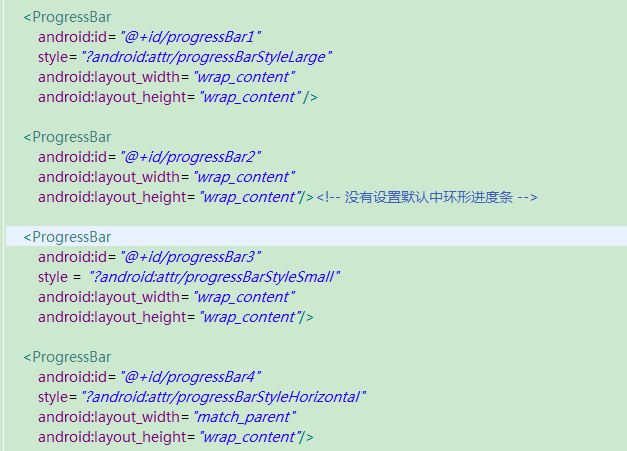
style = "?android:attr/progressBarStyleLarge" 大环形进度条
style = "?android:attr/progressBarStyleSmall" 小环形进度条
style = "?android:attr/progressBarStyleHorizontal" 水平进度条

2)ProgressBar的分类
1.可以精确显示进度(可以显示刻度或者百分比)
2.不可以精确显示精度(一直转啊转,类似于一个过场动画)
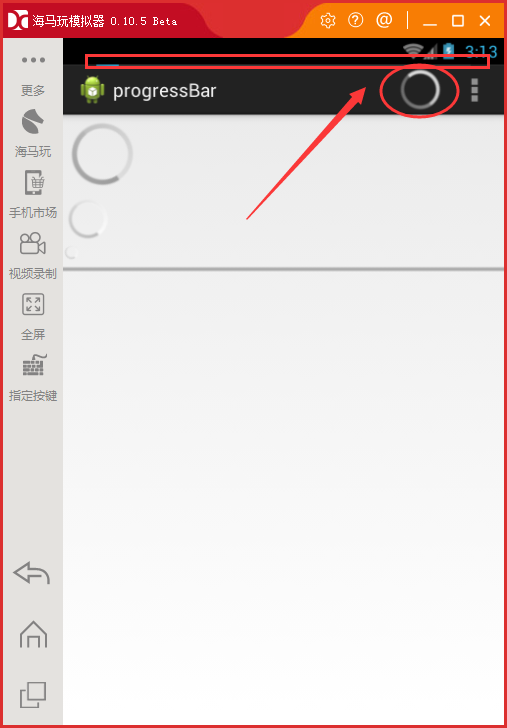
3)标题上ProgressBar的设置
4)ProgressBar的关键属性
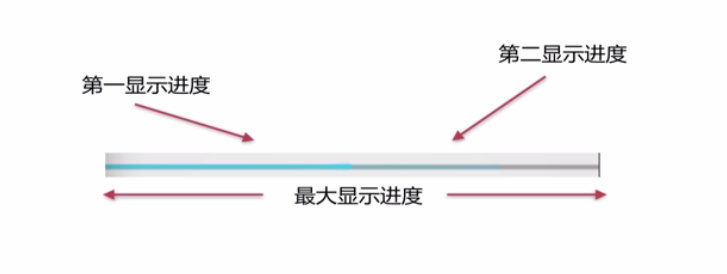
android:max = "100" ——最大显示进度
android:progress = "50" ——第一显示进度
android:secondaryProgress = "80" ——第二显示进度
android:indeterminate = "true" ——设置是否精确显示
(true表示不精确显示进度,false表示精确显示进度)
5)ProgressBar的关键方法
1)setProgress(int) 设置第一进度
2)setSecondaryProgress(int) 设置第二进度
3)getProgress() 获取第一进度
4)getSecondaryProgress() 获取第二进度
5)incrementProgressBy(int) 增加或减少第一进度
6)incrementSecondaryProgressBy(int) 增加或减少第二进度
7)getMax() 获取最大进度
案例:
 <LinearLayout xmlns:android="http://schemas.android.com/apk/res/android"

     xmlns:tools="http://schemas.android.com/tools"

     android:layout_width="match_parent"

     android:layout_height="match_parent"

     android:orientation="vertical"

     tools:context="com.example.progressbar.MainActivity" >

     <ProgressBar

         android:id="@+id/progressBar1"

         style="?android:attr/progressBarStyleLarge"

         android:layout_width="wrap_content"

         android:layout_height="wrap_content" />

     <ProgressBar

         android:id="@+id/progressBar2"

         android:layout_width="wrap_content"

         android:layout_height="wrap_content"/><!-- 没有设置默认中环形进度条 -->

     <ProgressBar

         android:id="@+id/progressBar3"

         style = "?android:attr/progressBarStyleSmall"

         android:layout_width="wrap_content"

         android:layout_height="wrap_content"/>

     <ProgressBar

         android:secondaryProgress="80"

         android:progress="50"

         android:max="100"

         android:id="@+id/horiz"

         style="?android:attr/progressBarStyleHorizontal"

         android:layout_width="match_parent"

         android:layout_height="wrap_content"/>

     <Button

         android:id="@+id/add"

         android:layout_width="wrap_content"

         android:layout_height="wrap_content"

         android:text="增加" />

     <Button

         android:id="@+id/reduce"

         android:layout_width="wrap_content"

         android:layout_height="wrap_content"

         android:text="减少" />

     <Button

         android:id="@+id/reset"

         android:layout_width="wrap_content"

         android:layout_height="wrap_content"

         android:text="重置" />

     <TextView

         android:id="@+id/text"

         android:layout_width="wrap_content"

         android:layout_height="wrap_content"/>

 </LinearLayout>
activity_main.xml
 package com.example.progressbar;

 import android.app.Activity;

 import android.os.Bundle;

 import android.view.View;

 import android.view.View.OnClickListener;

 import android.view.Window;

 import android.widget.Button;

 import android.widget.ProgressBar;

 import android.widget.TextView;

 public class MainActivity extends Activity implements OnClickListener {

     private ProgressBar progress ;

     private Button add;

     private Button reduce;

     private Button reset;

     private TextView text;

     @Override

     protected void onCreate(Bundle savedInstanceState) {

         super.onCreate(savedInstanceState);

         //启用窗口特征,启用带进度和不带进度的进度条

         requestWindowFeature(Window.FEATURE_PROGRESS);

         requestWindowFeature(Window.FEATURE_INDETERMINATE_PROGRESS);

         setContentView(R.layout.activity_main);

         //显示两种进度条

         setProgressBarVisibility(true);//水平进度条

         setProgressBarIndeterminateVisibility(true);//环形进度条

         //Max = 10000

         setProgress(9999);

         init();

     }

     private void init() {

         progress = (ProgressBar) findViewById(R.id.horiz);

         add = (Button) findViewById(R.id.add);

         reduce = (Button) findViewById(R.id.reduce);

         reset = (Button) findViewById(R.id.reset);

         text = (TextView) findViewById(R.id.text);

         //getPeogress()获取第一进度

         int first = progress.getProgress();

         //获取第二进度

         int second = progress.getSecondaryProgress();

         //获取最大进度

         int max = progress.getMax();

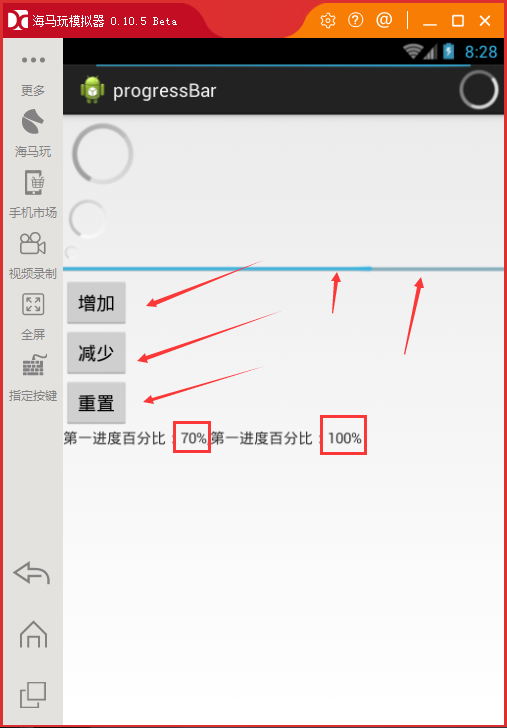
         text.setText("第一进度百分比:"+(int)(first/(float)max*100)+"%,第一进度百分比:"+(int)(second/(float)max*100)+"%");

         add.setOnClickListener(this);

         reduce.setOnClickListener(this);

         reset.setOnClickListener(this);

     }

     @Override

     public void onClick(View v) {

         switch(v.getId()){

             case R.id.add :{

                 //增加第一进度第二进度10个刻度

                 progress.incrementProgressBy(10);

                 progress.incrementSecondaryProgressBy(10);

                 break ;

             }

             case R.id.reduce :{

                 progress.incrementProgressBy(-10);

                 progress.incrementSecondaryProgressBy(-10);

                 break ;

             }

             case R.id.reset :{

                 progress.setProgress(50);

                 progress.setSecondaryProgress(80);

                 break ;

             }

         }

         text.setText("第一进度百分比:"+(int)(progress.getProgress()/(float)progress.getMax()*100)+"%,第一进度百分比:"+(int)(progress.getSecondaryProgress()/(float)progress.getMax() * 100)+"%");

     }

 }
MainActivity.java
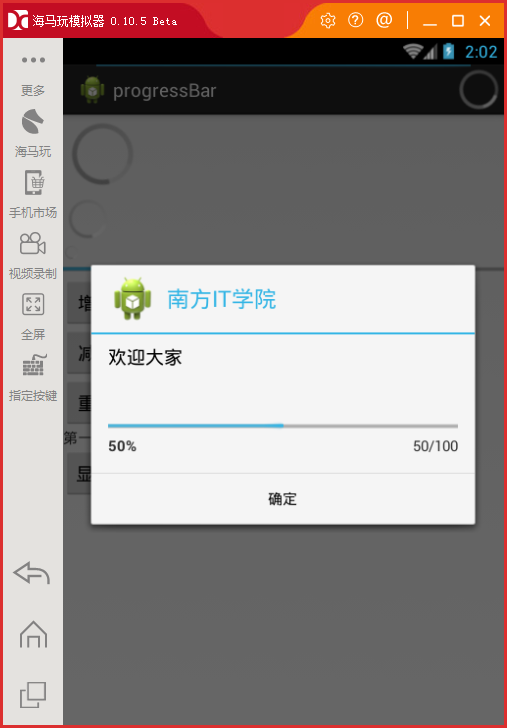
6)ProgressDialog的基础使用
 private ProgressDialog prodialog ;

 private Button show;

 show = (Button) findViewById(R.id.show);

 show.setOnClickListener(this);

 case R.id.show :{

 /**

 * 页面显示风格

 */

 //新建ProgressDialog对象

 prodialog = new ProgressDialog(MainActivity.this);

 //设置显示风格

 prodialog.setProgressStyle(ProgressDialog.STYLE_HORIZONTAL);

 //设置标题

 prodialog.setTitle("南方IT学院");

 //设置对话框文字信息

 prodialog.setMessage("欢迎大家");

 //设置图标

 prodialog.setIcon(R.drawable.ic_launcher);

 /**

 * 设置关于ProgressBar属性

 */

 //设置最大进度

 prodialog.setMax(100);

 //设定初始化已经增长到的进度

 prodialog.incrementProgressBy(50);

 //进度条是明显显示进度的

 prodialog.setIndeterminate(false);

 /**

 * 设定一个确定按钮

 */

 prodialog.setButton(DialogInterface.BUTTON_POSITIVE, "确定", new DialogInterface.OnClickListener() {

 @Override

 public void onClick(DialogInterface dialog, int which) {

 Toast.makeText(MainActivity.this, "欢迎", Toast.LENGTH_LONG).show();

 }

 });

 //是否可以通过返回按钮退出对话框

 prodialog.setCancelable(true);

 //显示ProgressDialog

 prodialog.show();

 break ;

 }
MainActivity
7)自定义ProgressBar样式

style="@android:style/Widget.ProgressBar.Horizontal"
android:progressDrawable="@drawable/progress_bar"
 <?xml version="1.0" encoding="utf-8"?>

 <layer-list xmlns:android="http://schemas.android.com/apk/res/android" >

     <item android:id="@android:id/background">

         <shape>

             <corners android:radius="5dip" />

         <solid android:color="#88000000"/>

         </shape>

     </item>

     <item android:id="@android:id/secondaryProgress">

         <clip>

             <shape>

                 <corners android:radius="5dip" />

                 <gradient

                     android:angle="270"

                     android:centerColor="#C6B7FF"

                     android:centerY="0.75"

                     android:endColor="#C3B2FF"

                     android:startColor="#B9A4FF" />

             </shape>

         </clip>

     </item>

     <item android:id="@android:id/progress">

         <clip>

             <shape>

                 <corners android:radius="5dip" />

             <gradient

                 android:angle="270"

                 android:centerColor="#74EBFF"

                 android:centerY="0.75"

                 android:endColor="#8EEFFF"

                 android:startColor="#57E8FF" />

             </shape>

         </clip>

     </item>

 </layer-list>
progress_bar.xmml
Android之ProgressBar的更多相关文章
- Android之ProgressBar初步应用
这里利用 ProgressBar 即时显示下载进度. 途中碰到的问题: 1.主线程中不能打开 URL,和只能在主线程中使用 Toast 等 2.子线程不能修改 UI 3.允许网络协议 4.暂停下载和继 ...
- java.lang.ClassCastException: android.view.AbsSavedState$1 cannot be cast to android.widget.ProgressBar$SavedState
java.lang.ClassCastException: android.view.AbsSavedState$1 cannot be cast to android.widget.Progress ...
- Android自定义progressBar
通过继承系统ProgressBar实现 效果图 实现 HorizontalProgressBarWithNumber 自定义属性 <?xml version="1.0" en ...
- Android的ProgressBar以及自定义进度条
1.xml文件 activity_main.xml <LinearLayout xmlns:android="http://schemas.android.com/apk/res/an ...
- Android的ProgressBar
注意点: 必须在setContentView 前面设置,否则会报错. 重要的方法: progress.incrementProgressBy(int diff);//参数为进度数,进度满了为100.不 ...
- Android的ProgressBar进度条-android学习之旅(三十一)
ProgressBar 简介 ProgressBar是一种很常用的Ui,用于给复杂的操作显示进度,提供更好的用户相应.使用setProgress()incrementProgressBy()来设置进度 ...
- Android自定义ProgressBar样式
我们使用的进度条多种多样,下面有几种自定义的进度条的样式,下面介绍几个. 进度条的有基本的四种样式: 默认风格的进度条: android:progressBarStyle 水平长型进度条: andro ...
- Android 使用ProgressBar实现进度条
ProgressBar简介ProgressBar是进度条组件,通常用于向用户展示某个耗时操作完成的进度,而不让用户感觉是程序失去了响应,从而更好地提升用户界面的友好型. 课程目标(1)制定Progre ...
- android 自定义progressbar 样式
在res下创建drawable文件夹,新建文件drawable/progressbar_color.xml <layer-list xmlns:android="http://sche ...
随机推荐
- VMware Workstation 11, 客户机Ubuntu14.04.1 LTS 64bit,宿主机Windows 8.1 64bit,剪贴板共享(copy and paste)失效问题
Ubuntu14.04是从12.04升级上来的,因为GUI性能的原因相继装了Xubunbu和Lubuntu的包(Lubuntu的桌面果然轻量级,但是请神容易送神难,卸载Xubuntu很麻烦,就先放下了 ...
- UDP/TCP
转载地址http://blog.csdn.net/wwmusic/article/details/8875748 Socket 是一套建立在TCP/IP协议上的接口不是一个协议 应用层: HTTP ...
- Visual Studio 2012 trial version
Update: vs2012.5.iso http://download.microsoft.com/download/9/F/1/9F1DEA0F-97CC-4CC4-9B4D-0DB45B8261 ...
- Oracle 常见函数
1.把数字转换为字符串:To_char(数字) 2.Oracle 拼接字符串: || ':' || select 字段1 || ':' || 字段2 from table :字段1:字段2 3. ...
- Flex数据交互之Remoting
一 前言 Flex数据交互常用的有三种方式:WebService.HttpService以及Remoting. WebService方式已在这篇文章中给出,这篇文章主要讲解以Remoting方式进行数 ...
- tomcat出现的PermGen Space问题
java.lang.OutOfmemoryError: PermGen Space 的错误,导致项目无法正常运行. 出现这个错误的原因,总结一下: PermGen Space指的是内存的永久保存区,该 ...
- jQuery检测滚动条(scroll)是否到达底部
一.jQuery检测浏览器window滚动条到达底部 jQuery获取位置和尺寸相关函数: $(document).height() 获取整个页面的高度 $(window).height() ...
- react在jsx语法中实现for循环
<!DOCTYPE html> <html> <head> <meta charset="utf-8"> <script sr ...
- Windows程序设再读笔记03-窗口与消息
1.关于LoadIcon/LoadCursor,这两个函数,第一个参数为实例句柄,如果是从保存在磁盘中的可执行文件中加载资源,则需要则需要指定可执行文件的hInstance,如果是系统资源,该句柄为N ...
- 用CMake设置Visual Studio工程中第三方库
较大的工程文件中一般会调用动态库或者静态库,如果这些库文件是当前工程包含的项目,CMake会自动识别并添加Debug和Release编译时需要的库文件路径和文件名,可以使用命令: Target_Lin ...