
WPF 使用动画绘制一个点赞大拇指
效果图
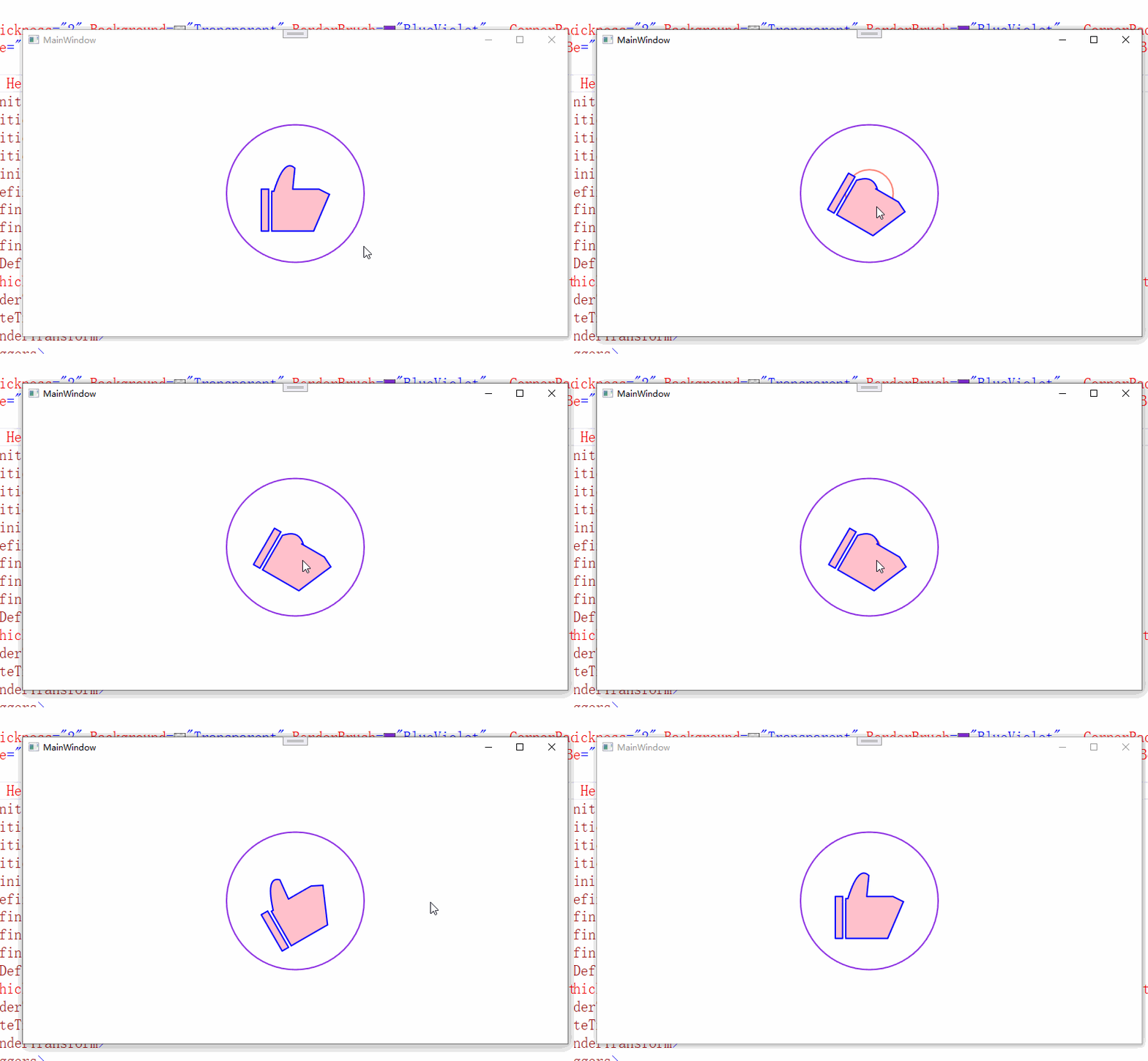
好久没有写wpf了。
最近看到飞书的点赞动画非常有意思,决定试试,虽然不及飞书那样的绚丽,但是练手还是可以的,希望自己的手艺还在!
那么如何写一个这样的动画呢?
首先需要刨析这个动画的构成:
外圈圆
大拇指-1竖着
大拇指-2握着
颤动动画
中心旋转动画
展开中心旋转动画
当我们分析这些东西剩下的就好办了。
首先我们先办了这个最难的东西大拇指。
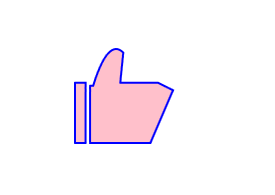
这个东西的构成,我们使用Path 直接去写。显然我们就会得到这样的代码
  <Geometry  x:Key="t1">

            M 20 40

                v 0 40

                h 0 7

                v 0 -40

                z

                M 30 42

                v 0  38

                h 40 0

                l 15 -35

                l -10 -5

                h -25 0

                l 2 -20

            <!--小褶皱-->

            q -10 -10, -20 22

               z

  </Geometry>
当我们在path 100*100的大小的时候使用脑补进行绘制就就可以了。
至于这个小褶皱我曾经不想要,但是看到了自己的猪爪...还是决定加上了。
这代码的原理非常简单,基本都是基本的直线绘制,最难的就是用了个贝塞尔来制造大拇指背部的弧度.
不管咋样还是弄出来个简单的赞。
剩下就是握着的状态了
那么我们只需要修改部分代码就可以达到了~
也就是
 <Geometry  x:Key="t2">

            M 20 40

                v 0 40

                h 0 7

                v 0 -40

                z

                M 30 42

                v 0  38

                h 40 0

                l 15 -35

                l -10 -5

                h -25 0

                l 2  0

            <!--小褶皱-->

            q -10 -10, -20 0

                z

        </Geometry>
我们修改了最后两行代码的 l 的y参数和q最后的end point参数的y的值都是降到0了 这样会形成一个简单的弧度

哈 这样子 我们就是得到了两个手掌的不同状态了。
剩下的事情就是来组装吧~~~~
首先是大拇指张开和大拇指握住的状态转换。
做到这事情最简单的动画就是使用eventtigger来做,我们使用简单的鼠标按下事件作为启动,当然了 想要丰富过程也是可以使用鼠标浮动事件作为启动事件之一。
          <Path.Triggers>

                    <EventTrigger  RoutedEvent="MouseLeftButtonDown">

                        <BeginStoryboard x:Name="Bs1">

                            <Storyboard>

                                <ObjectAnimationUsingKeyFrames BeginTime="0:0:0" Storyboard.TargetProperty="Data">

                                    <DiscreteObjectKeyFrame KeyTime="0:0:0.01">

                                        <DiscreteObjectKeyFrame.Value>

                                            <StaticResource ResourceKey="t2"/>

                                        </DiscreteObjectKeyFrame.Value>

                                    </DiscreteObjectKeyFrame>

                                </ObjectAnimationUsingKeyFrames>

                 </Storyboard>

                        </BeginStoryboard>

             </EventTrigger>

                </Path.Triggers>
为了做件事 ,我们把geometry作为window的资源 所以子啊写动画的时候 用离弦值就非常方便了。
观察代码,我们仅仅只是在点下的时候让path转换为握住的data,因为我们需要在松开左键的时候才让拇指竖起来。
所以还需要补上一个MouseLeftButtonUp的动画
这最终的代码就是
 <Path.Triggers>

                    <EventTrigger  RoutedEvent="MouseLeftButtonDown">

                        <BeginStoryboard x:Name="Bs1">

                            <Storyboard>

                                <ObjectAnimationUsingKeyFrames BeginTime="0:0:0" Storyboard.TargetProperty="Data">

                                    <DiscreteObjectKeyFrame KeyTime="0:0:0.01">

                                        <DiscreteObjectKeyFrame.Value>

                                            <StaticResource ResourceKey="t2"/>

                                        </DiscreteObjectKeyFrame.Value>

                                    </DiscreteObjectKeyFrame>

                                </ObjectAnimationUsingKeyFrames>

                 </Storyboard>

                        </BeginStoryboard>

             </EventTrigger>

             <EventTrigger RoutedEvent="MouseLeftButtonUp">

                        <RemoveStoryboard BeginStoryboardName="Bs1"/>

                    </EventTrigger>

                </Path.Triggers>
效果图
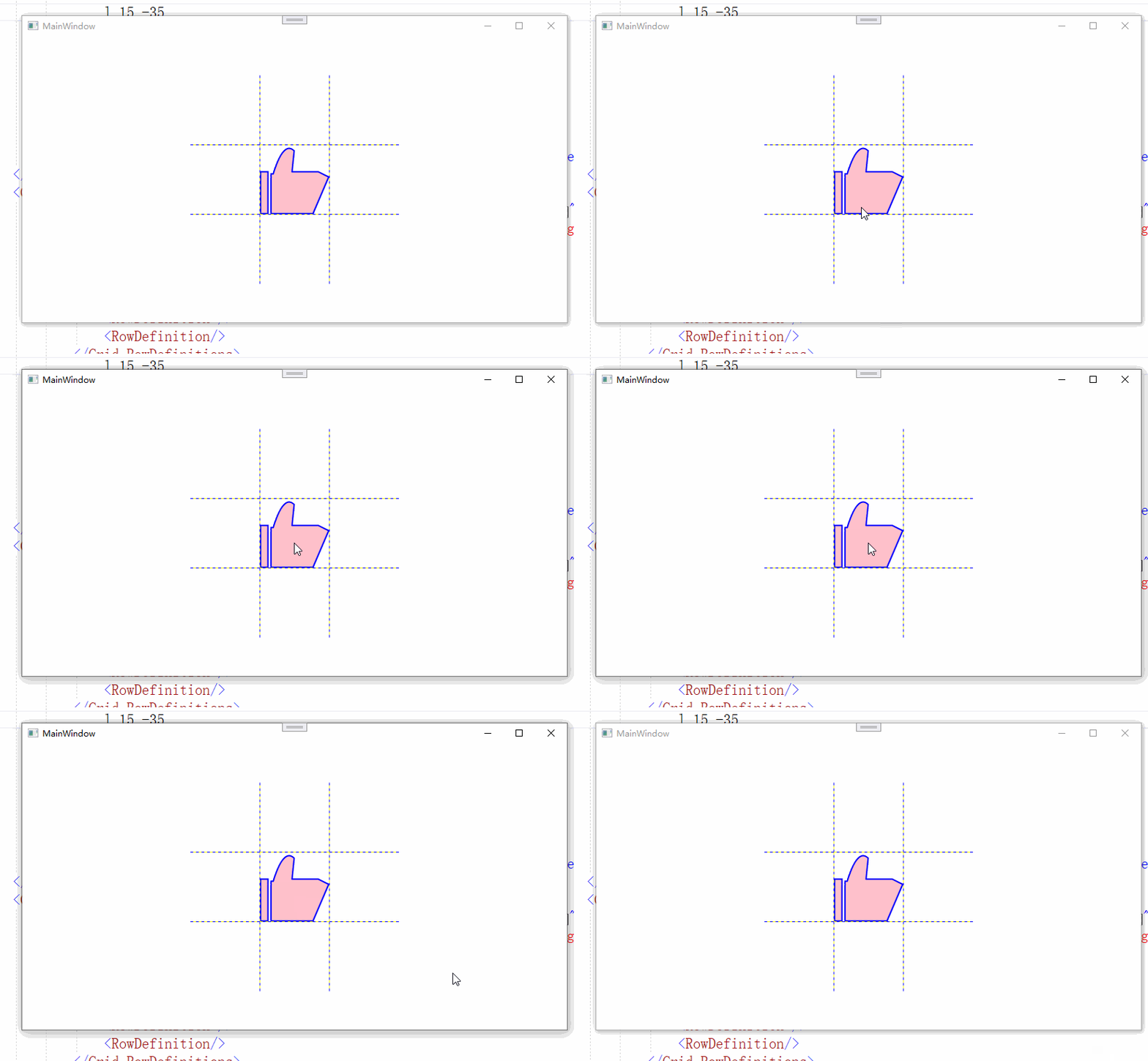
莫名的搞笑....
基础的东西我们构建好了,剩下就是补全了。
不全颤抖啊,补全中心旋转动画,也就是手指握住后有一个向下的动画。
首先这个颤动 我们可以简单的理解为位移,一个快速的上下左右的位移
正好WPF有这种动画 所以我们就可以得到如下的代码
                  <ThicknessAnimationUsingKeyFrames RepeatBehavior="Forever" Duration="0:0:0.4"  Storyboard.TargetProperty="Margin" >

                                    <SplineThicknessKeyFrame KeyTime="0:0:0.0" Value="4,3,0,0"/>

                                    <SplineThicknessKeyFrame KeyTime="0:0:0.2" Value="3,4,0,0"/>

                                    <SplineThicknessKeyFrame KeyTime="0:0:0.3" Value="0,0,4,0"/>

                                    <SplineThicknessKeyFrame KeyTime="0:0:0.35" Value="0,0,4,3"/>

                                    <SplineThicknessKeyFrame KeyTime="0:0:0.4" Value="4,3,0,0"/>

                                </ThicknessAnimationUsingKeyFrames>
我们可以直代码放到path的eventtriger中
看得出来 离散动画的值就是简单的marigin的位移,代码非常简单。
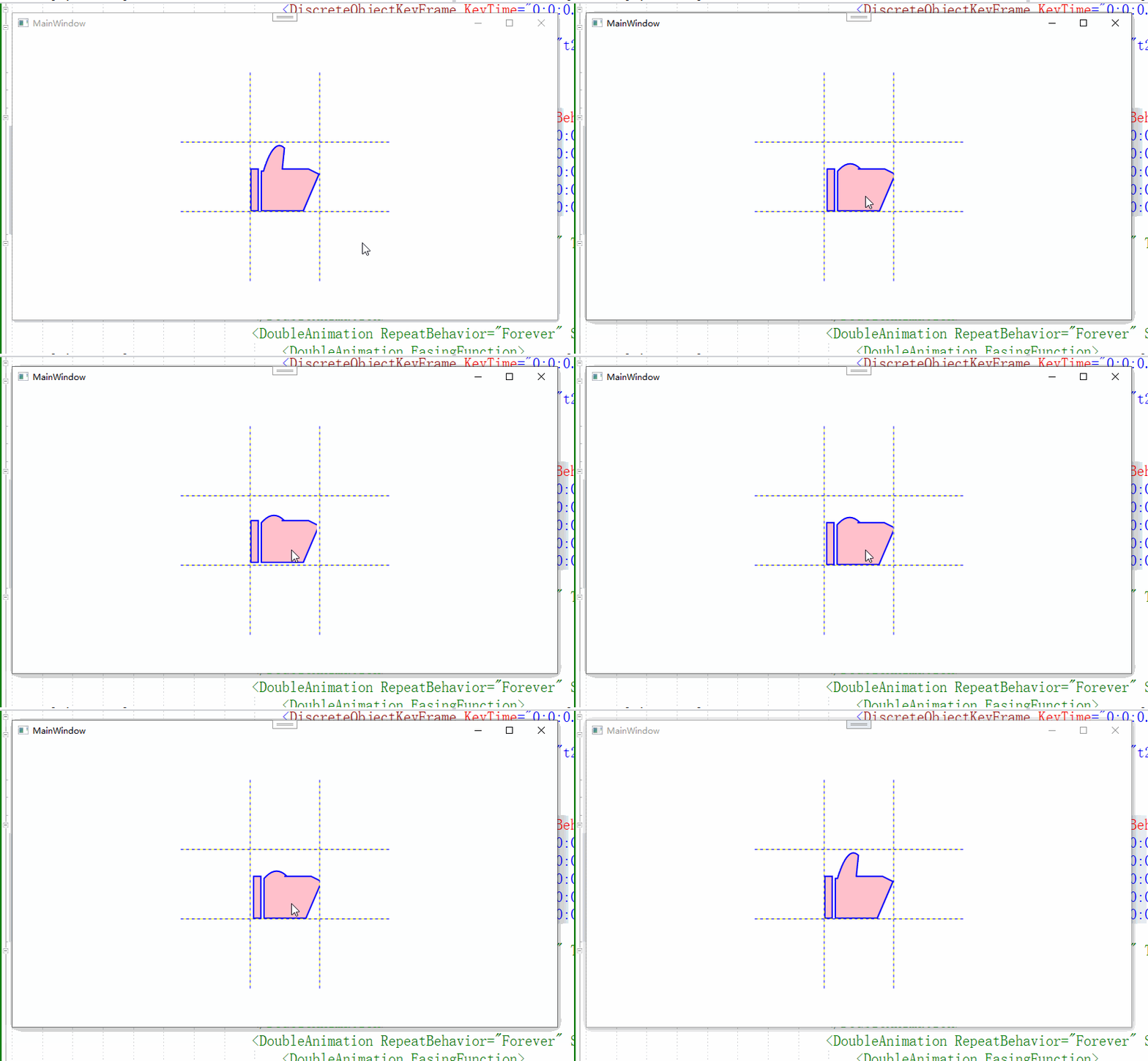
就是在这里颤抖...
虽然看上去不是很好看,但是我们结合下一个动画,也就是手掌向下就会好很多了
这个动画很明显是一个旋转动画,所以我们需要提前准备一个roteate的transofrom
代码如下
 <Path.RenderTransform>

                    <RotateTransform x:Name="rote" Angle="0"/>

  </Path.RenderTransform>
动画代码如下
   <DoubleAnimation   Duration="0:0:0.1" To="30" Storyboard.TargetName="rote" Storyboard.TargetProperty="Angle">

                                    <DoubleAnimation.EasingFunction>

                                        <CubicEase/>

                                    </DoubleAnimation.EasingFunction>

       </DoubleAnimation>
我们简单的使用了一个函数,提升一下效果的动感...
但是感觉没啥用
效果图就是这样的了
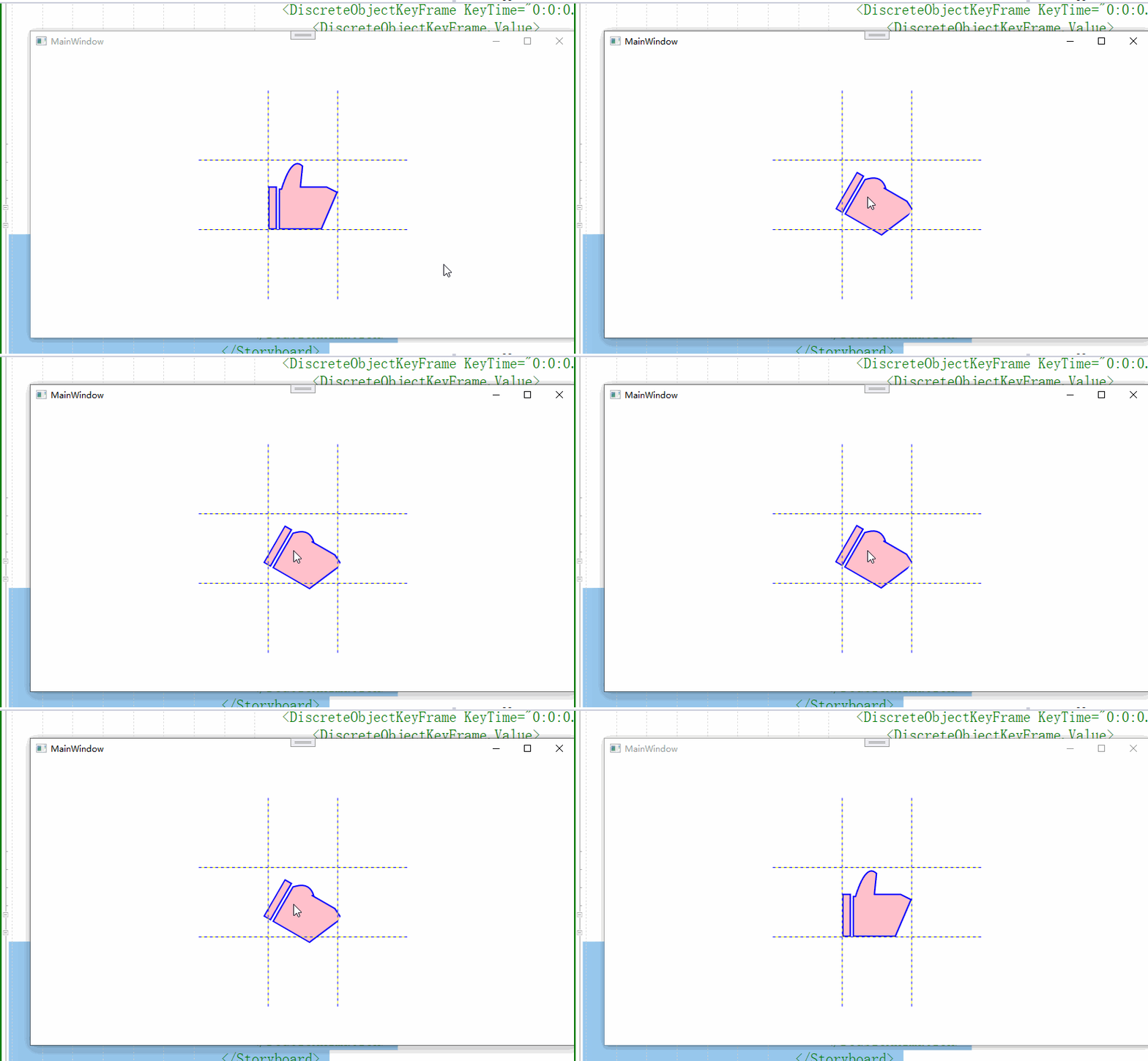
虽然看上去已经非常不错了,但是还有些不做,想想 我们的手都朝下了 松开之后为啥没有一个向上的弹簧动作呢?
也就是
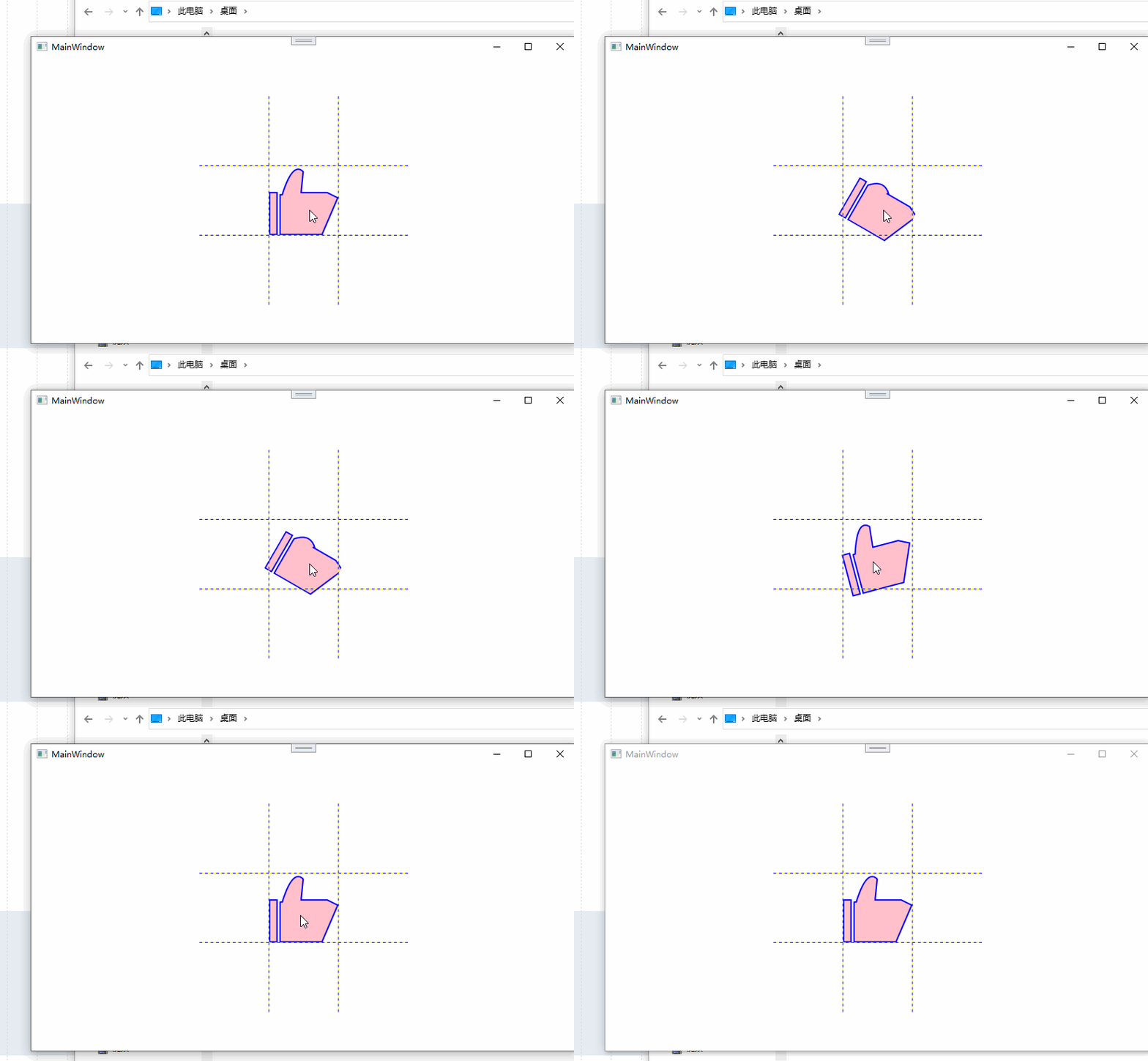
我们需要在抬起时加上一个角度的旋转。
也就是
 <EventTrigger RoutedEvent="MouseLeftButtonUp">

                        <BeginStoryboard x:Name="Bs2">

                            <Storyboard>

                                <DoubleAnimation  FillBehavior="Stop"  Duration="0:0:0.5" To="-30" Storyboard.TargetName="rote" Storyboard.TargetProperty="Angle">

                                    <DoubleAnimation.EasingFunction>

                                        <CubicEase EasingMode="EaseOut"/>

                                    </DoubleAnimation.EasingFunction>

                                </DoubleAnimation>

                            </Storyboard>

                        </BeginStoryboard>

                        <RemoveStoryboard BeginStoryboardName="Bs1"/>

                    </EventTrigger>
代码可以说手掌向下的反向操作。
顺便播放完把bs1动画解除掉。
剩下的就是圈的构造和动画。
圆圈呢,我们可以是直接的圆圈,也可以是broder,看个人喜欢了。
我就不罗嗦直接上代码
  <Border  BorderThickness="2" Background="Transparent" BorderBrush="Transparent"   CornerRadius="100" Width="200" Height="{Binding  RelativeSource={RelativeSource Mode=Self}, Path=Width}" Grid.Column="1" Grid.Row="1">

            <Border x:Name="sor" Visibility="Hidden" BorderThickness="2" Background="Transparent" BorderBrush="Transparent"   CornerRadius="100" Width="200" Height="{Binding  RelativeSource={RelativeSource Mode=Self}, Path=Width}" Grid.Column="1" Grid.Row="1"/>

        </Border>
构造了两个嵌套的borderr,宽度其实可以随意,只是演示的时候放大的大小而已。
动画则是放到了path的启动动画之中
也就是
      <DoubleAnimation RepeatBehavior="Forever" SpeedRatio="1.2" Duration="0:0:1.5" To="0" Storyboard.TargetName="sor" Storyboard.TargetProperty="Width">

                                    <DoubleAnimation.EasingFunction>

                                        <CubicEase/>

                                    </DoubleAnimation.EasingFunction>

                                </DoubleAnimation>

                                <ObjectAnimationUsingKeyFrames BeginTime="0:0:0" Storyboard.TargetName="sor" Storyboard.TargetProperty="Visibility">

                                    <DiscreteObjectKeyFrame KeyTime="0:0:0.1">

                                        <DiscreteObjectKeyFrame.Value>

                                            <Visibility>

                                                Visible

                                            </Visibility>

                                        </DiscreteObjectKeyFrame.Value>

                                    </DiscreteObjectKeyFrame>

                                </ObjectAnimationUsingKeyFrames>
代码非常简单,控制下内圈的大小,还有是否隐藏而已。
这样子我们就最终得到了头图的效果了
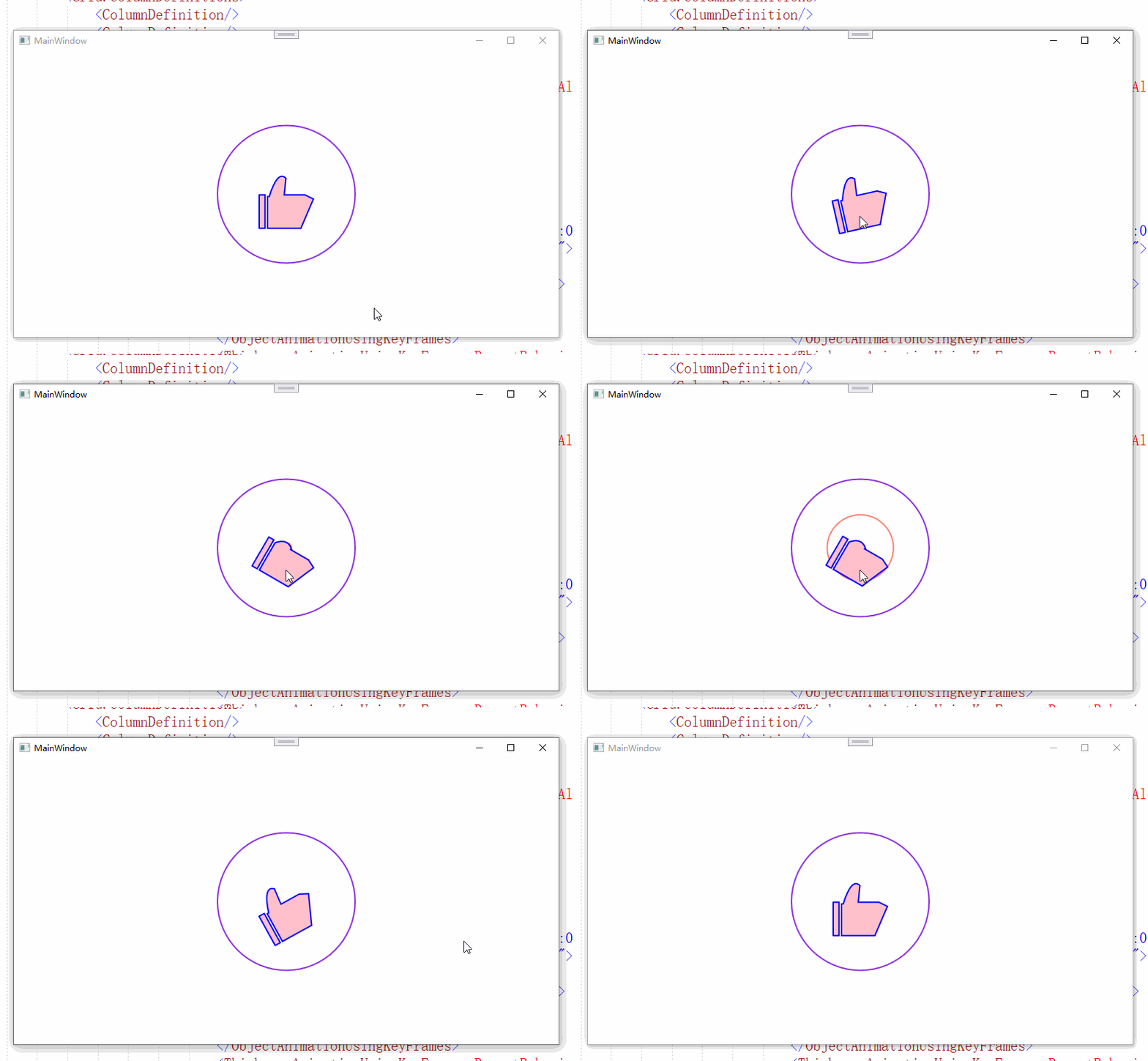
总的过程还是比较简单的。
下面是全部的代码
 <Window.Resources>

        <Geometry  x:Key="t1">

            M 20 40

                v 0 40

                h 0 7

                v 0 -40

                z

                M 30 42

                v 0  38

                h 40 0

                l 15 -35

                l -10 -5

                h -25 0

                l 2 -20

            <!--小褶皱-->

            q -10 -10, -20 22

                z

        </Geometry>

        <Geometry  x:Key="t2">

            M 20 40

                v 0 40

                h 0 7

                v 0 -40

                z

                M 30 42

                v 0  38

                h 40 0

                l 15 -35

                l -10 -5

                h -25 0

                l 2  0

            <!--小褶皱-->

            q -10 -10, -20 0

                z

        </Geometry>

        <PathGeometry  Figures="   M 20 40 l 2 -5 v 0 5 h -2 0  z" x:Key="roue"/>

    </Window.Resources>

    <Grid>

        <Border  BorderThickness="2" Background="Transparent" BorderBrush="BlueViolet"   CornerRadius="100" Width="200" Height="{Binding  RelativeSource={RelativeSource Mode=Self}, Path=Width}" Grid.Column="1" Grid.Row="1">

            <Border x:Name="sor" Visibility="Hidden" BorderThickness="2" Background="Transparent" BorderBrush="Salmon"   CornerRadius="100" Width="200" Height="{Binding  RelativeSource={RelativeSource Mode=Self}, Path=Width}" Grid.Column="1" Grid.Row="1"/>

        </Border>

        <Grid Width="300" Height="300"   ShowGridLines="False">

            <Grid.RowDefinitions>

                <RowDefinition/>

                <RowDefinition />

                <RowDefinition/>

            </Grid.RowDefinitions>

            <Grid.ColumnDefinitions>

                <ColumnDefinition/>

                <ColumnDefinition/>

                <ColumnDefinition/>

            </Grid.ColumnDefinitions>

            <Path StrokeThickness="2"   Grid.Column="1" Grid.Row="1" VerticalAlignment="Bottom" Stretch="Uniform" Fill="Pink" Width="80" Height="80" Stroke="Blue" Data="{StaticResource t1}" RenderTransformOrigin="0.5,0.5">

                <Path.RenderTransform>

                    <RotateTransform x:Name="rote" Angle="0"/>

                </Path.RenderTransform>

                <Path.Triggers>

                    <EventTrigger  RoutedEvent="MouseLeftButtonDown">

                        <BeginStoryboard x:Name="Bs1">

                            <Storyboard>

                                <ObjectAnimationUsingKeyFrames BeginTime="0:0:0" Storyboard.TargetProperty="Data">

                                    <DiscreteObjectKeyFrame KeyTime="0:0:0.01">

                                        <DiscreteObjectKeyFrame.Value>

                                            <StaticResource ResourceKey="t2"/>

                                        </DiscreteObjectKeyFrame.Value>

                                    </DiscreteObjectKeyFrame>

                                </ObjectAnimationUsingKeyFrames>

                                <ThicknessAnimationUsingKeyFrames RepeatBehavior="Forever" Duration="0:0:0.4"  Storyboard.TargetProperty="Margin" >

                                    <SplineThicknessKeyFrame KeyTime="0:0:0.0" Value="4,3,0,0"/>

                                    <SplineThicknessKeyFrame KeyTime="0:0:0.2" Value="3,4,0,0"/>

                                    <SplineThicknessKeyFrame KeyTime="0:0:0.3" Value="0,0,4,0"/>

                                    <SplineThicknessKeyFrame KeyTime="0:0:0.35" Value="0,0,4,3"/>

                                    <SplineThicknessKeyFrame KeyTime="0:0:0.4" Value="4,3,0,0"/>

                                </ThicknessAnimationUsingKeyFrames>

                                <DoubleAnimation   Duration="0:0:0.1" To="30" Storyboard.TargetName="rote" Storyboard.TargetProperty="Angle">

                                    <DoubleAnimation.EasingFunction>

                                        <CubicEase/>

                                    </DoubleAnimation.EasingFunction>

                                </DoubleAnimation>

                                <DoubleAnimation RepeatBehavior="Forever" SpeedRatio="1.2" Duration="0:0:1.5" To="0" Storyboard.TargetName="sor" Storyboard.TargetProperty="Width">

                                    <DoubleAnimation.EasingFunction>

                                        <CubicEase/>

                                    </DoubleAnimation.EasingFunction>

                                </DoubleAnimation>

                                <ObjectAnimationUsingKeyFrames BeginTime="0:0:0" Storyboard.TargetName="sor" Storyboard.TargetProperty="Visibility">

                                    <DiscreteObjectKeyFrame KeyTime="0:0:0.1">

                                        <DiscreteObjectKeyFrame.Value>

                                            <Visibility>

                                                Visible

                                            </Visibility>

                                        </DiscreteObjectKeyFrame.Value>

                                    </DiscreteObjectKeyFrame>

                                </ObjectAnimationUsingKeyFrames>

                            </Storyboard>

                        </BeginStoryboard>

                    </EventTrigger>

                    <EventTrigger RoutedEvent="MouseLeftButtonUp">

                        <BeginStoryboard x:Name="Bs2">

                            <Storyboard>

                                <DoubleAnimation  FillBehavior="Stop"  Duration="0:0:0.5" To="-30" Storyboard.TargetName="rote" Storyboard.TargetProperty="Angle">

                                    <DoubleAnimation.EasingFunction>

                                        <CubicEase EasingMode="EaseOut"/>

                                    </DoubleAnimation.EasingFunction>

                                </DoubleAnimation>

                            </Storyboard>

                        </BeginStoryboard>

                        <RemoveStoryboard BeginStoryboardName="Bs1"/>

                    </EventTrigger>

                </Path.Triggers>

            </Path>

        </Grid>
WPF 使用动画绘制一个点赞大拇指的更多相关文章
- Android 利用属ObjectAnimator,AnimatorSet性动画绘制一个弹球,加速下落,到底部时挤压,然后减速上弹
属性动画主要的几个类介绍: 1.ValueAnimator:这个类提供了一个简单的计时引擎运行动画动画计算值和设置目标对象.注意:使用该类时一般都是用:ObjectAnimator,而基于Object ...
- WPF 3D:简单的Point3D和Vector3D动画创造一个旋转的正方体
原文:WPF 3D:简单的Point3D和Vector3D动画创造一个旋转的正方体 运行结果: 事实上很简单,定义好一个正方体,处理好纹理.关于MeshGeometry3D的正确定义和纹理这里就不多讲 ...
- iOS 动画绘制线条颜色渐变的折线图
效果图 .................... 概述 现状 折线图的应用比较广泛,为了增强用户体验,很多应用中都嵌入了折线图.折线图可以更加直观的表示数据的变化.网络上有很多绘制折线图的demo,有 ...
- WPF利用动画实现圆形进度条
原文:WPF利用动画实现圆形进度条 这是我的第一篇随笔,最近因为工作需要,开始学习WPF相关技术,自己想实现以下圆形进度条的效果,逛了园子发现基本都是很久以前的文章,实现方式一般都是GDI实现的,想到 ...
- WPF弹性模拟动画
原文:WPF弹性模拟动画 我们此次将要制作模拟物理中的弹性现象的交互动画,我们让一个小球向鼠标点击位置移动,这个移动的轨迹不是简单的位移,而是根据胡克定律计算得出的. 胡克定律:F=-kd F代表弹性 ...
- WPF中自定义绘制内容
先说结论:实现了在自定义大小的窗口中,加载图片,并在图片上绘制一个矩形框:且在窗口大小改变的情况,保持绘制的矩形框与图片的先对位置不变. 在WinForm中,我们可以很方便地绘制自己需要的内容,在WP ...
- WPF控制动画开始、停止、暂停和恢复
1.闲言 好久也没更新一博客了,自己有点发懒,同时确实这几个月来也有点忙.风机监测软件,项目中,有这样一个小需求:正常风机在旋转的时候,上位机软要做一个风机的图片,让它不停地旋转,一但检测到下面风机停 ...
- WPF实现动画的几种方式及其小案例
WPF实现动画的方式: 基于计时器的动画 建立一个定时器,然后根据其频率循环调用函数或者一个事件处理函数,在这个函数中可以手工更新目标属性,直到达到最终值,这时可以停止计时器. 案例: 效果图: XA ...
- WPF GDI+字符串绘制成图片(二)
原文:WPF GDI+字符串绘制成图片(二) 版权声明:本文为博主原创文章,未经博主允许不得转载. https://blog.csdn.net/BYH371256/article/details/83 ...
- WPF 使用鼠标拖动一个控件的实现[2018.7.15]
原文:WPF 使用鼠标拖动一个控件的实现[2018.7.15] Q:已经把一个Shape和一个TextBlock组合起来放到了一个Grid中,现在想要实现用鼠标拖动这个Grid到任意位置的功能,如何做 ...
随机推荐
- Idea在windows和mac中的一些快捷指令
从 Windows 过度到 Mac 必备快捷键对照表 Mac 键盘符号说明 ⌘ == Command ⇧ == Shift ⇪ == Caps Lock ⌥ == Option ⌃ == Contro ...
- Hashcat使用指南
Hashcat使用指南 免责声明: 0×01 Hashcat破解linux shadow的密码-首先了解shadow文件到底是什么? 0×02 hashcat的使用 参数补充: -m 参数 -a 参数 ...
- 数电第8周周结_by_yc
基本知识: 1.有限状态机的分类: Moore型:输出仅与电路的状态有关: Mealy型:输出与当前电路状态和当前电路输入有关. 2.有限状态机的描述方法: 状态转换图:节点:状态(Moore输出): ...
- WEB入门——爆破21-28
WEB21 首先尝试网站后台常见登陆的弱口令,发现错误 则使用burp suite抓包试试看 通过分析,在未填入账号密码时,响应头如下所示: 填入弱口令账号密码,发现响应头如下: 则对应可知账号密 ...
- 通过启动脚本控制PHP-FPM开关
vi /etc/init.d/php-fpm 复制粘贴以下内容: #! /bin/sh# Comments to support chkconfig on CentOS# chkconfig: 234 ...
- Java实现Excel批量导入数据库
场景说明 在实际开发中,经常需要解析Excel数据来插入数据库,而且通常会有一些要求,比如:全部校验成功才入库.校验成功入库,校验失败返回提示(总数.成功数.失败数.失败每行明细.导出失败文件明细-) ...
- 【大数据】kafka-02:Kafka Connect内容、原理及使用
〇.概述 1.常见资料 (1)confluent https://docs.confluent.io/5.4.0/connect/kafka-connect-jdbc/sink-connector/s ...
- JavaScript入门⑥-WEB浏览器API
JavaScript入门系列目录 JavaScript入门①-基础知识筑基 JavaScript入门②-函数(1)基础{浅出} JavaScript入门③-函数(2)原理{深入}执行上下文 JavaS ...
- 大数据-业务数据采集-FlinkCDC
CDC CDC 是 Change Data Capture(变更数据获取)的简称.核心思想是,监测并捕获数据库的变动(包括数据或数据表的插入.更新以及删除等),将这些变更按发生的顺序完整记录下来,写入 ...
- Go语言Golang DevOps运维开发实战
Go语言Golang DevOps运维开发实战 提高运维意识.从下到上,从上到下的工作都要做好,对上运维工作的价值和含金量可以得到认可,对下我们的工作能够提高效率解放运维.运维意识是很重要,并不是你技 ...