
nginx+php-fpm docker镜像合二为一
一、概述
在上一篇文章介绍了nginx+php-fpm,链接如下:
https://www.cnblogs.com/xiao987334176/p/12918413.html
nginx和php-fpm是2个独立的镜像,在实际环境部署过程中,发现配置比较麻烦,排错比较耗费实际。
因此,需要将nginx和php-fpm 这2个镜像合并为一个。
二、nginx+php-fpm封装
目录结构
由于crunchgeek/php-fpm:7.3-r7 镜像比较大,有1.08GB。
因此需要使用alpine:3.11重新封装才行。
在dockerhub上面,php已经有官方的镜像了,php:7.3-fpm-alpine3.11。
由于项目php7cms依赖于组件mysqli,因此需要额外安装才行。
新建目录/opt/alpine_nginx_php7.3,结构如下:
./

├── default.conf

├── dockerfile

├── index.html

├── php.ini

├── repositories

└── run.sh
default.conf
server {

  listen 80;

  server_name localhost;

  root /var/www/html;

  index index.html index.htm index.nginx-debian.html;

  location / {

    try_files $uri $uri/ =404;

  }

  location ~ \.php$ {

    fastcgi_pass 127.0.0.1:9000;

    fastcgi_index index.php;

    fastcgi_param SCRIPT_FILENAME $document_root$fastcgi_script_name;

    include fastcgi_params;

  }

}
dockerfile
FROM php:7.3-fpm-alpine3.11

ADD repositories /etc/apk/repositories

ADD default.conf /

ADD index.html /

ADD run.sh /

ADD php.ini /usr/local/etc/php/

RUN apk update && apk add nginx && \

    apk add m4 autoconf make gcc g++ linux-headers && \

    docker-php-ext-install pdo_mysql opcache mysqli && \

    mkdir /run/nginx && \

    mv /default.conf /etc/nginx/conf.d && \

    mv /index.html /var/www/html && \

    touch /run/nginx/nginx.pid && \

    chmod 755 /run.sh && \

    apk del m4 autoconf make gcc g++ linux-headers

EXPOSE 80

EXPOSE 9000

ENTRYPOINT ["/run.sh"]
注意:这里我额外安装了pdo_mysql,因为某些php项目用的是这个模块。opcache是用来做性能加速的。
index.html
<!DOCTYPE html>

<html>

<head>

<title>Welcome to nginx!</title>

<style>

    body {

        width: 35em;

        margin: 0 auto;

        font-family: Tahoma, Verdana, Arial, sans-serif;

    }

</style>

</head>

<body>

<h1>Welcome to nginx!</h1>

<p>If you see this page, the nginx web server is successfully installed and

working. Further configuration is required.</p>

<p>For online documentation and support please refer to

<a href="http://nginx.org/">nginx.org</a>.<br/>

Commercial support is available at

<a href="http://nginx.com/">nginx.com</a>.</p>

<p><em>Thank you for using nginx.</em></p>

</body>

</html>
php.ini


[PHP]

engine = On

short_open_tag = Off

precision = 14

output_buffering = 4096

zlib.output_compression = Off

implicit_flush = Off

unserialize_callback_func =

serialize_precision = -1

disable_functions =

disable_classes =

zend.enable_gc = On

expose_php = On

max_execution_time = 30

max_input_time = 60

memory_limit = 128M

error_reporting = E_ALL & ~E_DEPRECATED & ~E_STRICT

display_errors = Off

display_startup_errors = Off

log_errors = On

log_errors_max_len = 1024

ignore_repeated_errors = Off

ignore_repeated_source = Off

report_memleaks = On

html_errors = On

variables_order = "GPCS"

request_order = "GP"

register_argc_argv = Off

auto_globals_jit = On

post_max_size = 8M

auto_prepend_file =

auto_append_file =

default_mimetype = "text/html"

default_charset = "UTF-8"

doc_root =

user_dir =

enable_dl = Off

cgi.fix_pathinfo=0

file_uploads = On

upload_max_filesize = 2M

max_file_uploads = 20

allow_url_fopen = On

allow_url_include = Off

default_socket_timeout = 60

[CLI Server]

cli_server.color = On

[Date]

[filter]

[iconv]

[imap]

[intl]

[sqlite3]

[Pcre]

[Pdo]

[Pdo_mysql]

pdo_mysql.default_socket=

[Phar]

[mail function]

SMTP = localhost

smtp_port = 25

mail.add_x_header = Off

[ODBC]

odbc.allow_persistent = On

odbc.check_persistent = On

odbc.max_persistent = -1

odbc.max_links = -1

odbc.defaultlrl = 4096

odbc.defaultbinmode = 1

[Interbase]

ibase.allow_persistent = 1

ibase.max_persistent = -1

ibase.max_links = -1

ibase.timestampformat = "%Y-%m-%d %H:%M:%S"

ibase.dateformat = "%Y-%m-%d"

ibase.timeformat = "%H:%M:%S"

[MySQLi]

mysqli.max_persistent = -1

mysqli.allow_persistent = On

mysqli.max_links = -1

mysqli.default_port = 3306

mysqli.default_socket =

mysqli.default_host =

mysqli.default_user =

mysqli.default_pw =

mysqli.reconnect = Off

[mysqlnd]

mysqlnd.collect_statistics = On

mysqlnd.collect_memory_statistics = Off

[OCI8]

[PostgreSQL]

pgsql.allow_persistent = On

pgsql.auto_reset_persistent = Off

pgsql.max_persistent = -1

pgsql.max_links = -1

pgsql.ignore_notice = 0

pgsql.log_notice = 0

[bcmath]

bcmath.scale = 0

[browscap]

[Session]

session.save_handler = files

session.use_strict_mode = 0

session.use_cookies = 1

session.use_only_cookies = 1

session.name = PHPSESSID

session.auto_start = 0

session.cookie_lifetime = 0

session.cookie_path = /

session.cookie_domain =

session.cookie_httponly =

session.cookie_samesite =

session.serialize_handler = php

session.gc_probability = 1

session.gc_divisor = 1000

session.gc_maxlifetime = 1440

session.referer_check =

session.cache_limiter = nocache

session.cache_expire = 180

session.use_trans_sid = 0

session.sid_length = 26

session.trans_sid_tags = "a=href,area=href,frame=src,form="

session.sid_bits_per_character = 5

[Assertion]

zend.assertions = -1

[COM]

[mbstring]

[gd]

[exif]

[Tidy]

tidy.clean_output = Off

[soap]

soap.wsdl_cache_enabled=1

soap.wsdl_cache_dir="/tmp"

soap.wsdl_cache_ttl=86400

soap.wsdl_cache_limit = 5

[sysvshm]

[ldap]

ldap.max_links = -1

[dba]

[opcache]

[curl]

[openssl]
此文件是从容器里面copy出来的,路径为:/usr/local/etc/php/php.ini-production
去除了注释和多余的空行。
此配置文件,修改了cgi.fix_pathinfo=0
如果需要更改其他配置,修改此文件即可。
repositories
https://mirrors.aliyun.com/alpine/v3.11/main/

https://mirrors.aliyun.com/alpine/v3.11/community/
这个是阿里云的alpine更新源
run.sh
#!/bin/sh

# 后台启动

php-fpm -D

# 关闭后台启动,hold住进程

nginx -g 'daemon off;'
封装镜像
cd /opt/alpine_nginx_php7.3

docker build -t alpine_nginx_php7.3:1 .
查看镜像大小
# docker images|grep alpine_nginx_php7.3

alpine_nginx_php7.3       1                    927ddfbdd027        14 minutes ago      78.4MB
可以看到这个镜像只有78.4MB。
运行镜像
docker run -it --name alpine_nginx_php7.3 -p 80:80 alpine_nginx_php7.3:1 .
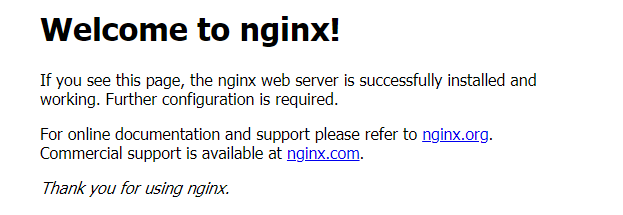
访问首页
http://ip地址/
效果如下:
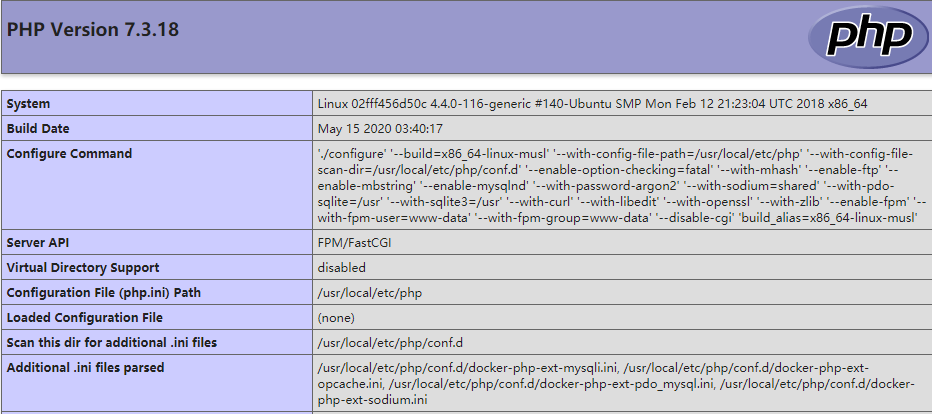
phpinfo页面
新建test.php
cd /opt/alpine_nginx_php7.3

vi test.php
内容如下:
<?php

   phpinfo();

?>
拷贝到容器中
docker cp test.php alpine_nginx_php7.3:/var/www/html/
访问test.php
http://ip地址/test.php
效果如下:
三、运行PHP7CMS
下载源代码
源代码下载地址:
http://down.chinaz.com/soft/38829.htm
下载完成后,在windows10电脑中解压。
进入linux系统,创建空目录/opt/php7cms,将解压文件夹PHP7CMS的所有内容上传到/opt/php7cms中。
此时/opt/php7cms目录结构如下:
# tree -L 1

.

├── admin.php

├── api

├── cache

├── config

├── index.php

├── install.php

├── LICENSE

├── php7cms

├── README.md

├── static

├── template

├── uploadfile

├── 安装方法.txt

└── 安装环境.docx
-L 参数表示控制深度,这里只展示第一层。
在此目录新建dockerfile
FROM alpine_nginx_php7.3:1

ADD default.conf /etc/nginx/conf.d

ADD . /var/www/html/PHP7CMS

RUN chown www-data:www-data -R /var/www/html
在此目录新建default.conf
server {

  listen 80;

  server_name localhost;

  root /var/www/html/PHP7CMS;

  index index.php index.html index.htm;

  location ~ \.php$ {

    fastcgi_pass 127.0.0.1:9000;

    fastcgi_index index.php;

    fastcgi_param SCRIPT_FILENAME $document_root$fastcgi_script_name;

    include fastcgi_params;

  }

}
这个文件用来将nginx默认的配置覆盖掉
封装镜像
cd /opt/php7cms

docker build -t php7cms:1 .
运行docker
先将之前运行的nginx_php删除掉,再运行php7cms。否则会端口冲突
docker rm -f alpine_nginx_php7.3

docker run -d -it --restart=always --name php7cms -p 80:80 php7cms:1
由于php7cms依赖于mysql,还得运行一个mysql才行。
mkdir -p /data/mysql/data

docker run -d --name mysql5.7 --restart=always -e MYSQL_ROOT_PASSWORD=abcd@1234  -p 3306:3306 -v /data/mysql/data:/var/lib/mysql mysql:5.7 --character-set-server=utf8mb4 --collation-server=utf8mb4_unicode_ci
新建空的数据库cms
# docker exec -it mysql5.7 /bin/bash

# mysql -u root -pabcd@1234

mysql> create database cms default character set utf8mb4 collate utf8mb4_unicode_ci;
安装向导
我的服务器ip地址为:10.212.20.213
访问安装页面
http://10.212.20.213/install.php
输入数据库连接信息
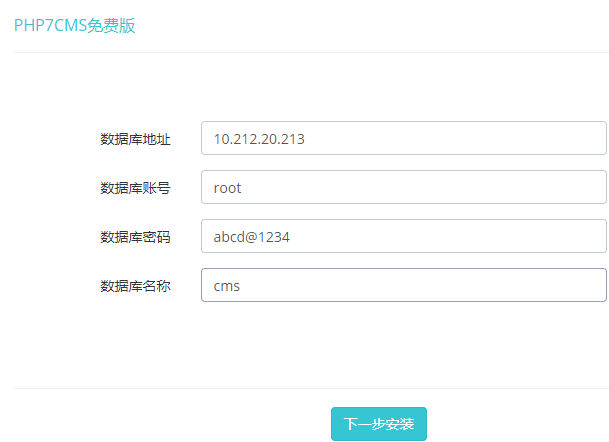
点击下一步后,提示安装完成。

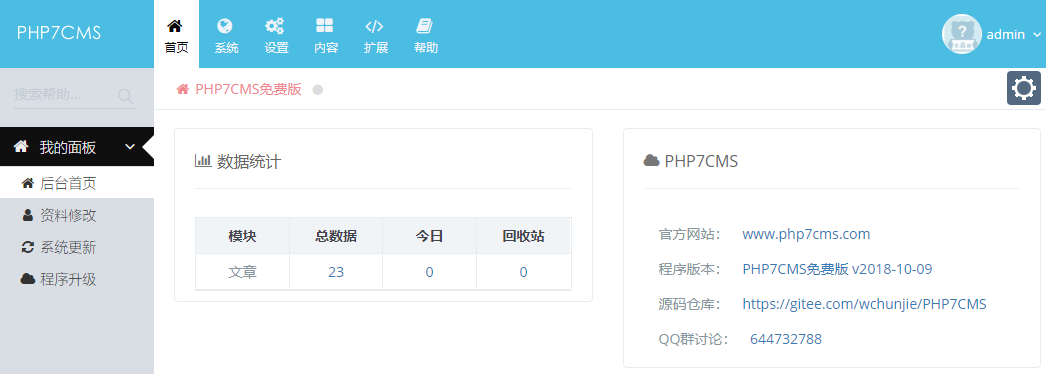
登录后台页面
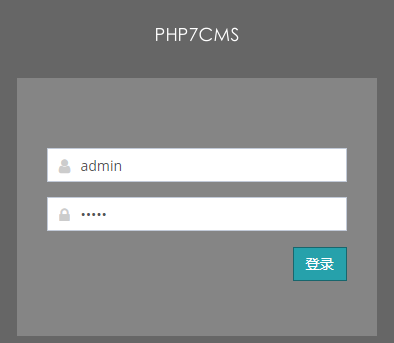
默认用户名和密码都是admin
登录成功后,效果如下:
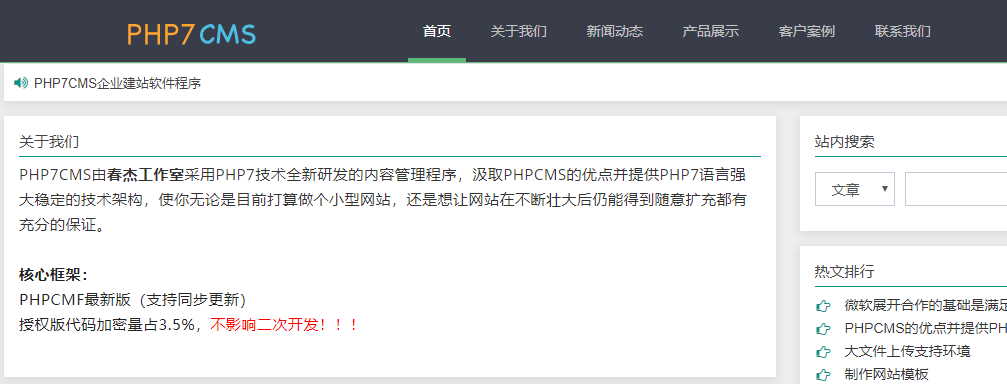
访问首页
http://10.212.20.213/
效果如下:
nginx+php-fpm docker镜像合二为一的更多相关文章
- 制作nginx+php的docker镜像方法
制作nginx+php的docker镜像方法一.准备安装的工具工具:docker-17.06.0-ce.nginx-1.13.2.PHP-5.5.38 .supervisor配置思路:1.安装dock ...
- Nginx+PHP7.3.9 Docker镜像制作
最近因项目需要制作了多个版本的php docker镜像,制作过程可谓是一波三折,因基于yum的方式安装php的方式在安装扩展插件时很不方便,不容易找到插件对应的yum源,所以PHP在docker镜像中 ...
- jenkins自动打包生成docker镜像后自动发布并nginx代理访问
之前曾写过docker及jenkins基础使用 https://www.cnblogs.com/xiaochangwei/category/816943.html 现在搭建环境的功能为: 1.jen ...
- Docker镜像+nginx 部署 vue 项目
一.打包vue项目 在开发完的vue项目输入如下命名,打包生成dist文件夹 yarn build / npm run build 此时根目录会多出一个文件夹:dist文件夹,里面就是我们要发布的东西 ...
- Docker镜像实战(ssh、systemctl、nginx、tomcat、mysql)
Docker镜像实战 1.构建ssh镜像 2.构建systemctl 镜像 3.构建nginx镜像 4.构建tomcat镜像 5.构建mysql镜像 1.构建ssh镜像: 创建镜像目录 mkdir / ...
- 理解Docker(2):Docker 镜像
本系列文章将介绍Docker的有关知识: (1)Docker 安装及基本用法 (2)Docker 镜像 (3)Docker 容器的隔离性 - 使用 Linux namespace 隔离容器的运行环境 ...
- 第四章 使用Docker镜像和仓库(二)
第四章 使用Docker镜像和仓库(二) 回顾: 开始学习之前,我先pull下来ubuntu和fedora镜像 [#9#cloudsoar@cloudsoar-virtual-machine ~]$s ...
- 第四章 使用Docker镜像和仓库
第4章 使用Docker镜像和仓库 回顾: 回顾如何使用 docker run 创建最基本的容器 $sudo docker run -i -t --name another_container_mum ...
- 《第一本docker书》第4章 使用docker镜像和仓库 读书笔记
docker最底端是一个引导文件系统,即bootfs. 第二层是root文件系统rootfs,位于引导文件系统之上. 在传统的Linux引导过程中,root文件系统会最先以只读的方式加载,当引导结束并 ...
随机推荐
- Hadoop----hdfs dfs常用命令的使用
用法 -mkdir 创建目录 Usage:hdfs dfs -mkdir [-p] < paths> 选项:-p 很像Unix mkdir -p,沿路径创建父 ...
- P2762 太空飞行计划问题 (最小割)
题意:n个实验 每个实验可获利ai元 做每个实验需要几个仪器 购买每个仪器有不同的花费 不同实验可能会用到同一个仪器 只用购买一次 求最大收益 题解:......................... ...
- HihoCoder - 1110
题意: 您的任务是判断输入是否是合法的正则表达式.正则表达式定义如下: 1: 0和1都是正则表达式. 2:如果P和Q是正则表达式,那么PQ就是正则表达式. 3:如果P是正则表达式,(P)就是正则表达式 ...
- Codeforces Round #649 (Div. 2) B. Most socially-distanced subsequence (数学,差分)
题意:有一长度为\(n\)的数组,求一子序列,要求子序列中两两差的绝对值最大,并且子序列尽可能短. 题解:将数组看成坐标轴上的点,其实就是求每个单调区间的端点,用差分数组来判断单调性. 代码: #in ...
- PowerShell启用多跳远程控制
有些场景下,我们使用远程连接了某个Server,在远程Server中再想进行远程操作,就会提示错误.因为默认的认证信息只会传递一跳. 对此,微软官方文档给出的解决方案是:https://docs.mi ...
- 计算文件MD5
计算文件MD5 def get_md5(file_path): md5 = None if os.path.exists(file_path): f = open(file_path, 'rb') m ...
- MDN All In One
MDN All In One https://github.com/mdn/ https://wiki.mozilla.org/MDN MDN 要凉了 https://developer.mozill ...
- Kotlin 入门教程
Kotlin 入门教程 Android / Java https://developer.android.com/kotlin?hl=zh-cn 使用 Kotlin 开发 Android 应用 使用 ...
- C++ 0LL
C++ 0LL C plus plus L / l means long LL === long long int countDigitOne(int n) { int countr = 0; for ...
- code to markdown auto converter
code to markdown auto converter code => markdown how to import a js file to a markdown file? // a ...