
How to setup Active Directory (AD) In Windows Server 2016
Windows Server 2016 is the newest server operating system released by Microsoft in October 12th, 2016. In this tutorial I will go through step by step on how to install the Active Directory ( AD ) role on Windows Server 2016. If you are setting up the server for production is recommended to set a static IP address on the server before you start the AD installation. Also before you start the AD installation, rename the server now if you need to, once you have installed the AD role on the server, it is not easy to change the name without breaking a lots of things.
Table of contents
Note: You need to have administrator privileges on the server to install AD
Install Active Directory
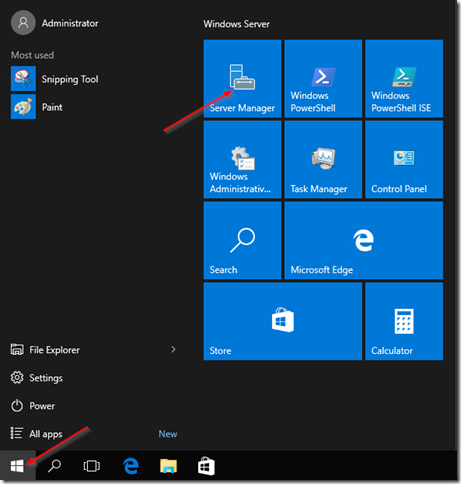
Login to the server, and click on the Start button, and then click on Server Manager:
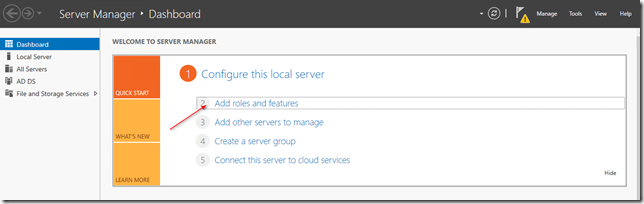
On the Server Manager Dashboard, click on Add roles and features:
The Add role and features wizard will come up:
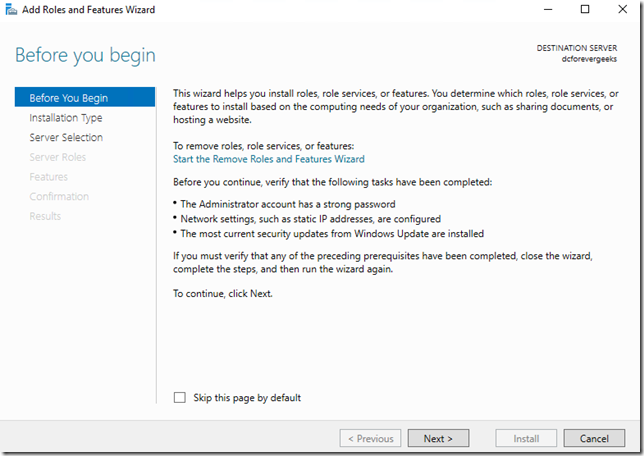
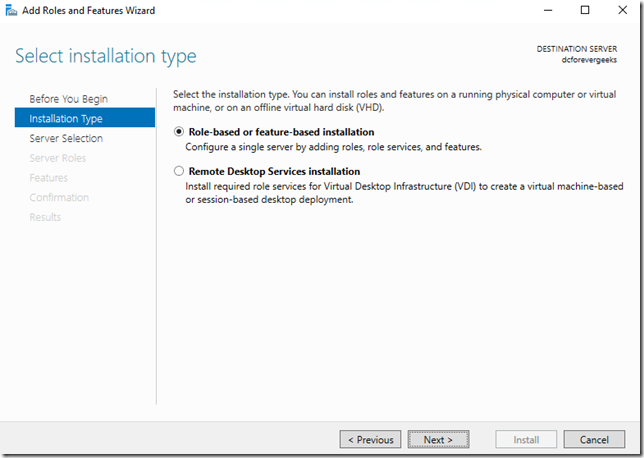
Click on Next. On the following Installation type screen, choose the first option “Role-based or feature-based installation:
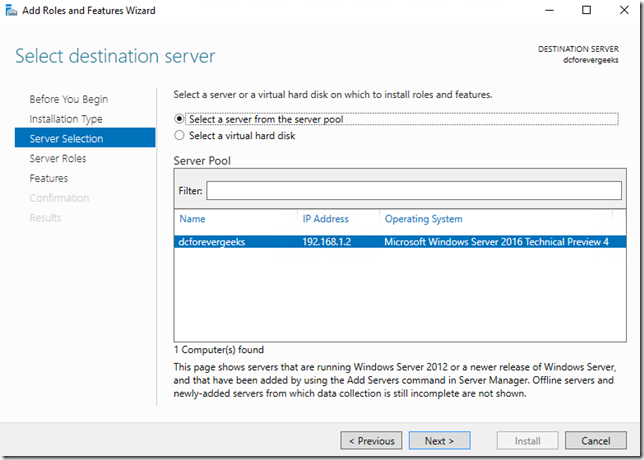
Click on Next. On the following screen select a server from the server pool. your local server should be listed:
On the following screen click on Active Directory Domain Services and the Add features window will pop-up:
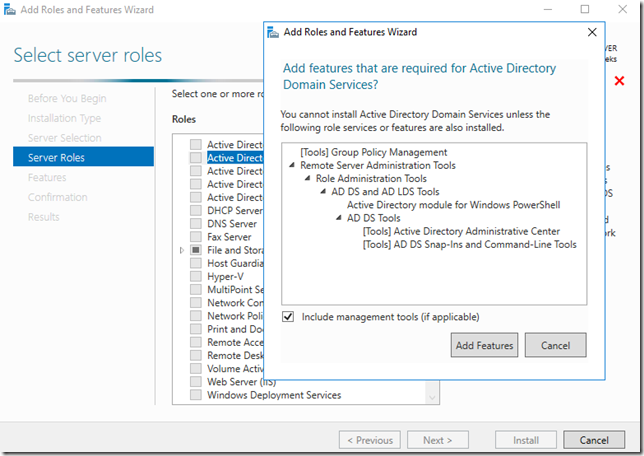
Click on Add Features and then click on Next. Make sure .NET 4.6 Features are checked on the following screen:
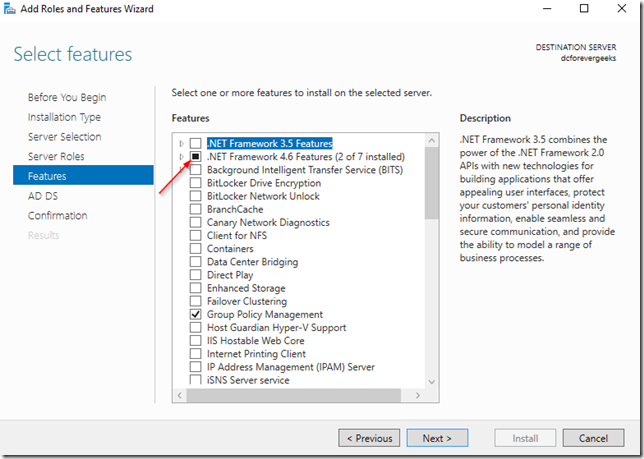
Then click on Next. On the following screen you will get a short overview of what a domain controller does, and the services that get installed. if this is your first domain controller you will be prompted to install the DNS service which is required on a domain controller:
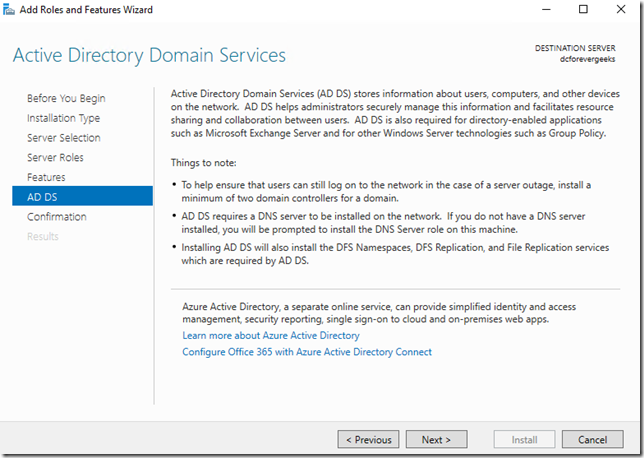
Click on Next. click on Install on the confirmation window:
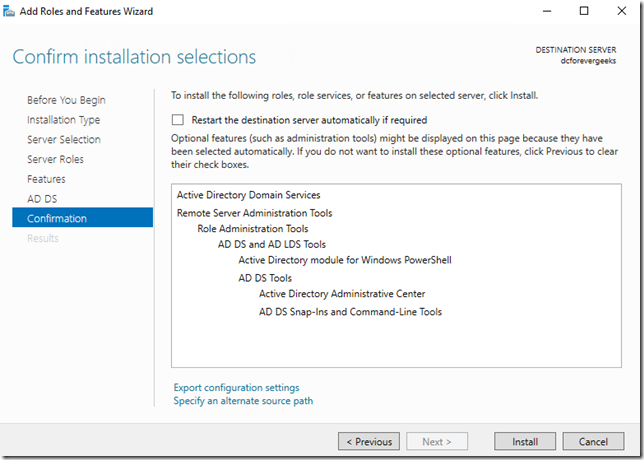
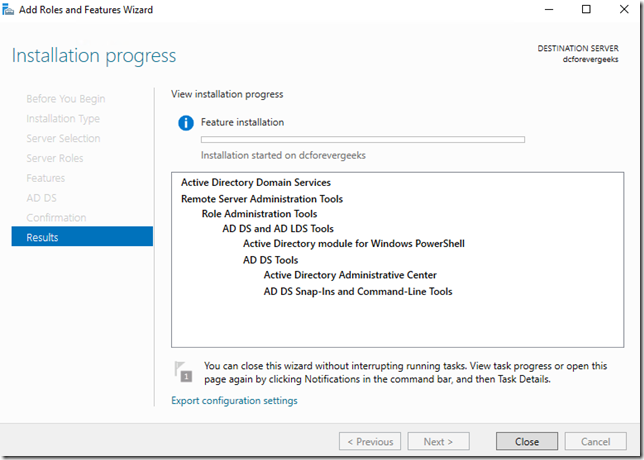
The Installation will begin:
Setup Domain Controller
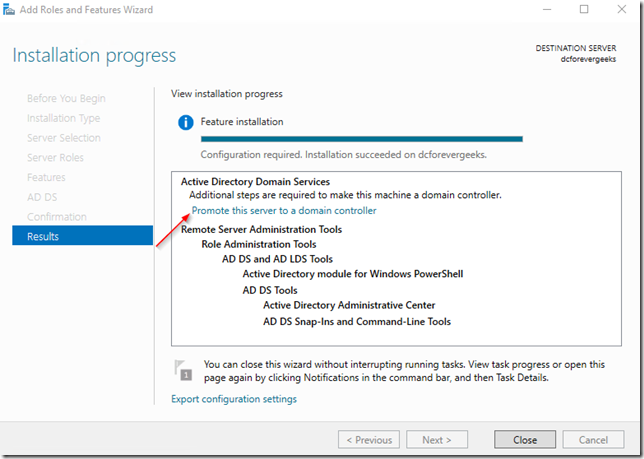
Once the AD role has been installed. click on Promote this server to a domain controller:
And the deployment configuration wizard will come up. Select Add new forest and choose your Root domain name:
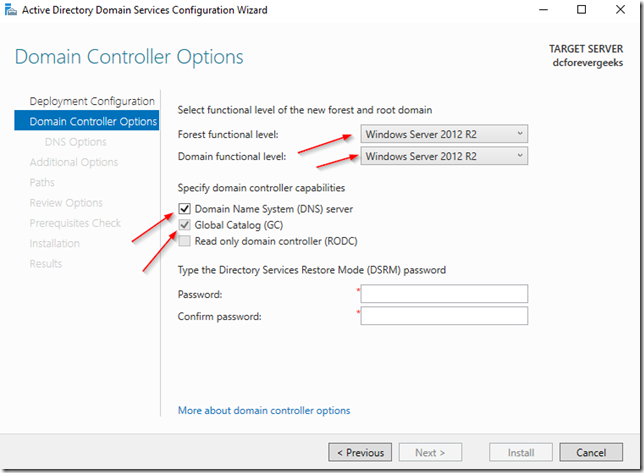
click on Next. on the next screen choose your Forest functional level and enter the Directory Service Restore Mode password: If this is your first domain controller choose “Windows Server 2016” as the Forest and Domain functional level. make sure the DNS option is checked, and because this is my first server, the Global Catalog ( GC) is already checked. click on Next:
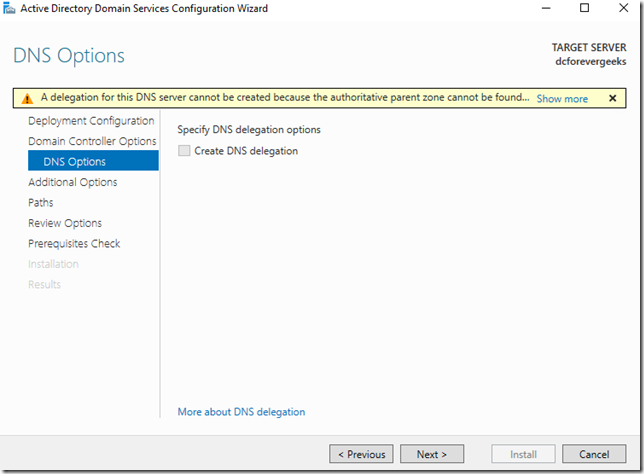
Because we are installing a forest root domain controller that is using Active Directory-integrated DNS, we are not going to worry about this warning message, click on Next:
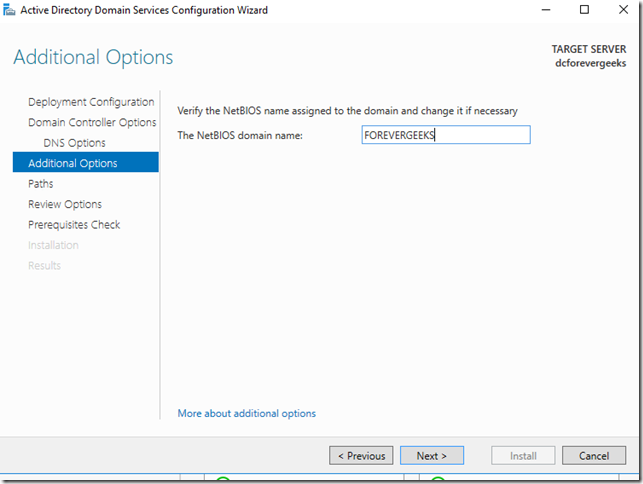
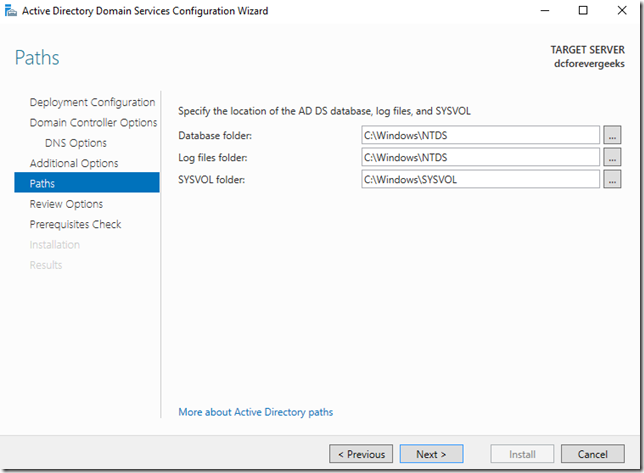
Choose the NetBIOS domain name (already selected ) and click Next choose the paths for the the AD database, normally the defaults are OK
Review Options:
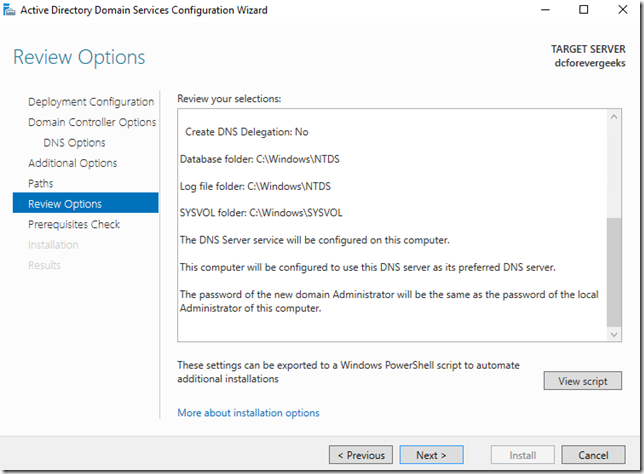
Click on Next.
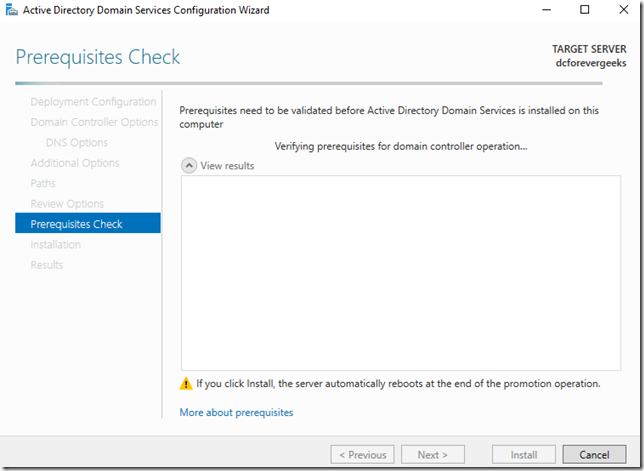
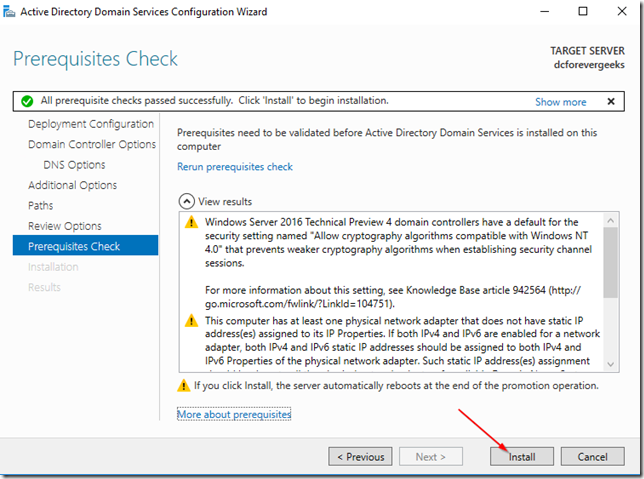
Do the Prerequisites check. if all the prerequisites check successfully. click on Install
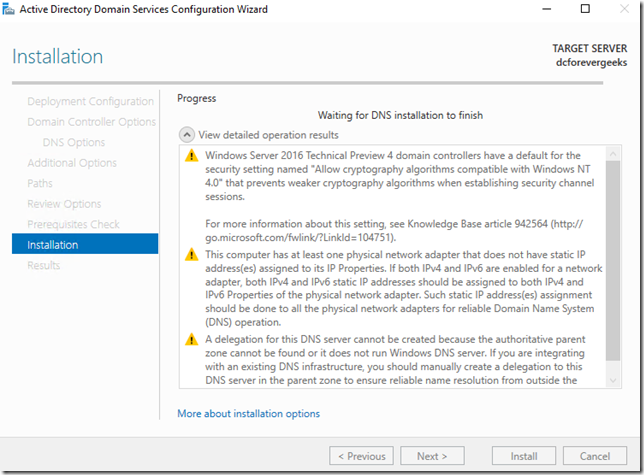
The Installation should begin. the server will reboot automatically when the installation finishes:
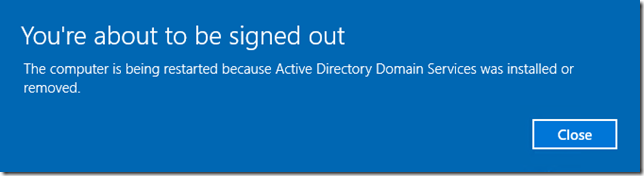
This message will pop-up on your screen when Windows Server 2016 is about reboot:
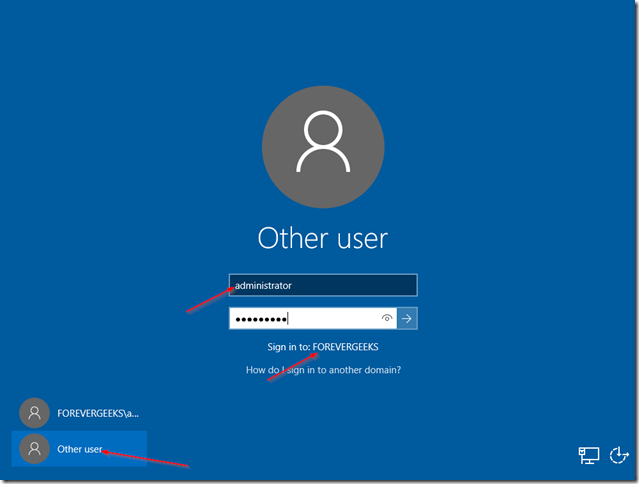
After your server reboots, you will have the option to login to your newly created network:
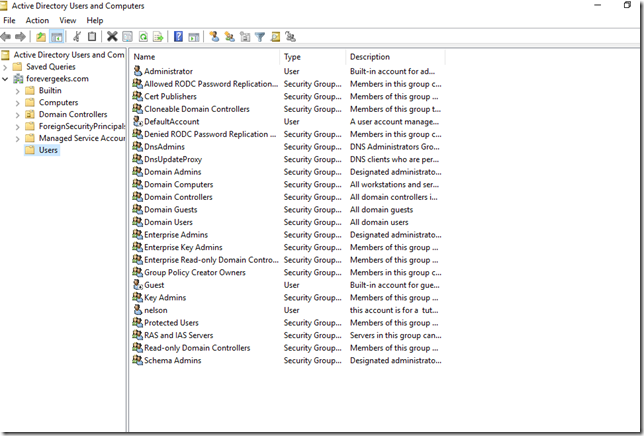
after you’re logged using your domain credentials, go to Administrative tools and open Active Directory Users and Computers to make sure your AD is working:
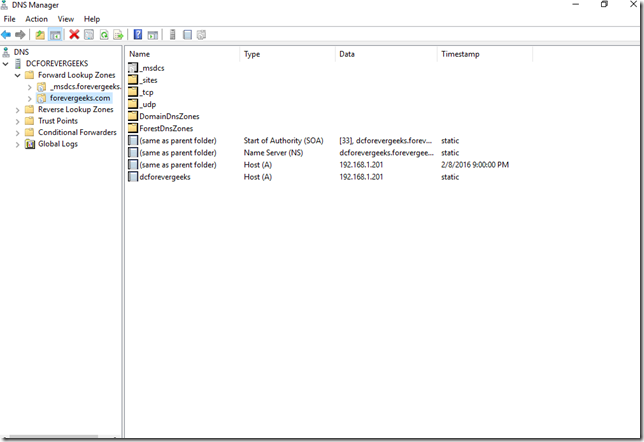
DNS
Conclusion
As you can see, installing Active Directory (AD) in Windows server 2016 is not much different than Installing AD in previous Windows server releases. I hope you found this guide useful. If you have any question please use the comments section below.
https://ittutorials.net/microsoft/windows-server-2016/setting-up-active-directory-ad-in-windows-server-2016/
How to setup Active Directory (AD) In Windows Server 2016的更多相关文章
- Delphi访问活动目录(使用COM,活动目录Active Directory是用于Windows Server的目录服务)
活动目录Active Directory是用于Windows Server的目录服务,它存储着网络上各种对象的有关信息,并使该信息易于管理员和用户查找及使用.Active Directory使用结构化 ...
- Enabling Active Directory Authentication for VMWare Server running on Linux《转载》
Enabling Active Directory Authentication for VMWare Server running on Linux Version 0.2 - Adam Breid ...
- Step-By-Step: Setting up Active Directory in Windows Server 2016
There are interesting new features now made available in Windows Server 2016 such as time based grou ...
- Active Directory Domain Services in Windows Server 2016/2012
Applies To: Windows Server 2016, Windows Server 2012 R2, Windows Server 2012 You will find links to ...
- Prepare and Deploy Windows Server 2016 Active Directory Federation Services
https://docs.microsoft.com/en-us/windows/security/identity-protection/hello-for-business/hello-key-t ...
- 一、Windows Server 2016 AD服务器搭建
简介: AD是Active Directory的简写,中文称活动目录.活动目录(Active Directory)主要提供以下功能: 1)服务器及客户端计算机管理 2)用户服务 3)资源管理 4)桌面 ...
- Windows Server 2016 主域控制器搭建
基本上微软产品都需要依附于域控制器做身份认证,接下来我们一起来对Windows Server 2016 进行AD活动目录功能添加.1.更改服务器IP地址2.修改计算机名称(重新启动计算机)3.打开服务 ...
- Upgrade Windows Server 2016 to Windows Server 2019
Pre-Upgrade Upgrade path: Windows Server 2016 can be upgraded to Windows 2019 in a single upgrade pr ...
- Windows Server 2016介绍与安装
版本介绍 Windows Server 2016 Essentials edition Windows Server 2016 Essentials版是专为小型企业而设计的.它对应于Windows S ...
随机推荐
- 初步学习pg_control文件之十四
接前文 初步学习pg_control文件之十三 看如下几个: /* * Parameter settings that determine if the WAL can be used for arc ...
- 创龙DSP6748开发板SYS/BIOS的LED闪烁-第2篇
1. 作为1个456MHz的处理器,不跑个操作系统说不过去,直接打开工程\Demo\SYSBIOS\Application\GPIO_LED,主函数比较简单 // 创建任务 Task_create(t ...
- C# String函数
public static bool IsNullOrEmpty(string value) 如果 true 参数为 value 或空字符串 (""),则为 null:否则为 fa ...
- **leetcode笔记--4 Sum of Two Integers
question: Calculate the sum of two integers a and b, but you are not allowed to use the operator + a ...
- 【算法】 string 转 int
[算法] string 转 int 遇到的一道面试题, 当时只写了个思路, 现给出具体实现 ,算是一种比较笨的实现方式 public class StringToInt { /// <summa ...
- OpenCV入门:(六:基础画图函数)
有时程序中需要画一些基础的图形,例如直线,矩形,椭圆以及多边形.OpenCV中当然有此类函数. 1.函数介绍 直线line: , , ) img – 图像 pt1 – 直线起点 pt2 – 直线终点 ...
- nginx启动和配置
1.命令行参数 -c </path/to/config> 为 Nginx 指定一个配置文件,来代替缺省的.路径应为绝对路径 -t 不运行,而仅仅测试配置文件.nginx 将检查配置文件的语 ...
- 在阿里云上遇见更好的Oracle(二)
从上一篇文章的反馈来看,大家还是喜欢八卦多过技术细节,那这一篇继续一些题外话,说说我对“去IOE”的看法. 对同一件事情,参与的没参与的人,讨论起来,都会有各自的立场.所以这里先申明一下,以下内容只是 ...
- LeetCode - 35. Search Insert Position(48ms)
Given a sorted array and a target value, return the index if the target is found. If not, return the ...
- 机器学习 (二) 多变量线性回归 Linear Regression with Multiple Variables
文章内容均来自斯坦福大学的Andrew Ng教授讲解的Machine Learning课程,本文是针对该课程的个人学习笔记,如有疏漏,请以原课程所讲述内容为准.感谢博主Rachel Zhang 的个人 ...