
virtualbox+vagrant学习-3-Vagrant Share-3-SSH Sharing
SSH Sharing
vagrant share通过向vagrant share提供--SSH标志,使远程SSH访问vagrant环境变得非常容易。
如果你想让同事访问你的SSH,以便对ops问题进行故障排除,那么简单的SSH共享是非常有用的。此外,如果你愿意,它还支持使用vagrant环境进行结对编程!
作为安全措施,SSH共享在默认情况下是禁用的。要启用SSH共享,只需在调用vagrant share时提供--SSH标志。
1.Usage使用
即运行vagrant share --ssh命令
当启用SSH共享时,Vagrant为SSH访问生成一个全新的密钥对。公钥部分自动插入到vagrant中,私钥部分提供给连接到vagrant share的用户。此私钥使用将提示你输入密码进行加密。这个密码永远不会通过vagrant在网络上传输,它是一个额外的安全层,可以防止任何可能知道你的共享名的人轻易访问你的计算机。
当你运行vagrant share --ssh命令后,它将输出你共享的名字
userdeMBP:~ user$ vagrant share --ssh

Vagrant Share now defaults to using the `ngrok` driver.

The `classic` driver has been deprecated.

For more information about the `ngrok` driver, please

refer to the documentation:

  https://www.vagrantup.com/docs/share/

==> default: Detecting network information for machine...

    default: Local machine address: 127.0.0.1

    default:

    default: Note: With the local address (127.0.0.1), Vagrant Share can only

    default: share any ports you have forwarded. Assign an IP or address to your

    default: machine to expose all TCP ports. Consult the documentation

    default: for your provider ('virtualbox') for more information.

    default:

    default: An HTTP port couldn't be detected! Since SSH is enabled, this is

    default: not an error. If you want to share both SSH and HTTP, please set

    default: an HTTP port with `--http`.

    default:

==> default: Generating new SSH key...

    default: Please enter a password to encrypt the key: //输入密码

    default: Repeat the password to confirm:

/Users/user/.vagrant.d/gems/2.4./gems/vagrant-share-1.1./lib/vagrant-share/activate.rb:: warning: constant OpenSSL::Cipher::Cipher is deprecated

    default: Inserting generated SSH key into machine...

    default: Local HTTP port: disabled

    default: Local HTTPS port: disabled

    default: SSH Port:

    default: Port:

==> default: Creating Vagrant Share session...

    share: Box 'hashicorp/vagrant-share' could not be found. Attempting to find and install...

    share: Box Provider: virtualbox

    share: Box Version: >=

    share: Loading metadata for box 'hashicorp/vagrant-share'

    share: URL: https://vagrantcloud.com/hashicorp/vagrant-share

    share: Adding box 'hashicorp/vagrant-share' (v0.1.0) for provider: virtualbox

    share: Downloading: https://vagrantcloud.com/hashicorp/boxes/vagrant-share/versions/0.1.0/providers/virtualbox.box

    share: Download redirected to host: s3.amazonaws.com

    share: Successfully added box 'hashicorp/vagrant-share' (v0.1.0) for 'virtualbox'!  //默认打开的是该虚拟机,进行下载即配置

    share: Importing base box 'hashicorp/vagrant-share'...

    share: Matching MAC address for NAT networking...

    share: Setting the name of the VM: share-0524aac2-590a-4caf-af81-0fb8f5025e88

    share: Fixed port collision for  => . Now on port .

    share: Vagrant has detected a configuration issue which exposes a

    share: vulnerability with the installed version of VirtualBox. The

    share: current guest is configured to use an E1000 NIC type for a

    share: network adapter which is vulnerable in this version of VirtualBox.

    share: Ensure the guest is trusted to use this configuration or update

    share: the NIC type using one of the methods below:

    share:

    share:   https://www.vagrantup.com/docs/virtualbox/configuration.html#default-nic-type

    share:   https://www.vagrantup.com/docs/virtualbox/networking.html#virtualbox-nic-type

    share: Clearing any previously set network interfaces...

    share: Preparing network interfaces based on configuration...

    share: Adapter : nat

    share: Forwarding ports...

    share:  (guest) =>  (host) (adapter )

    share:  (guest) =>  (host) (adapter )

    share: Running 'pre-boot' VM customizations...

    share: Booting VM...

    share: Waiting for machine to boot. This may take a few minutes...

    share: SSH address: 127.0.0.1:

    share: SSH username: tc

    share: SSH auth method: password

    share:

    share: Inserting generated public key within guest...

    share: Removing insecure key from the guest if it's present...

    share: Key inserted! Disconnecting and reconnecting using new SSH key...

    share: Machine booted and ready!

==> share: Halting Vagrant share!

==> share: TCP tunnels are only available after you sign up. //失败的原因是我没有在ngrox上注册或者是没有添加授权码

==> share: Sign up at: https://ngrok.com/signup

==> share:

==> share: If you have already signed up, make sure your authtoken is installed.

==> share: Your authtoken is available on your dashboard: https://dashboard.ngrok.com

==> share:

==> share: ERR_NGROK_302

==> share: Forcing shutdown of VM...

==> share: Destroying VM and associated drives...
我已经使用GitHub的账户登录了ngrox官网,那么就是还没有授权的原因,到该网址https://dashboard.ngrok.com查看你自己的授权码:
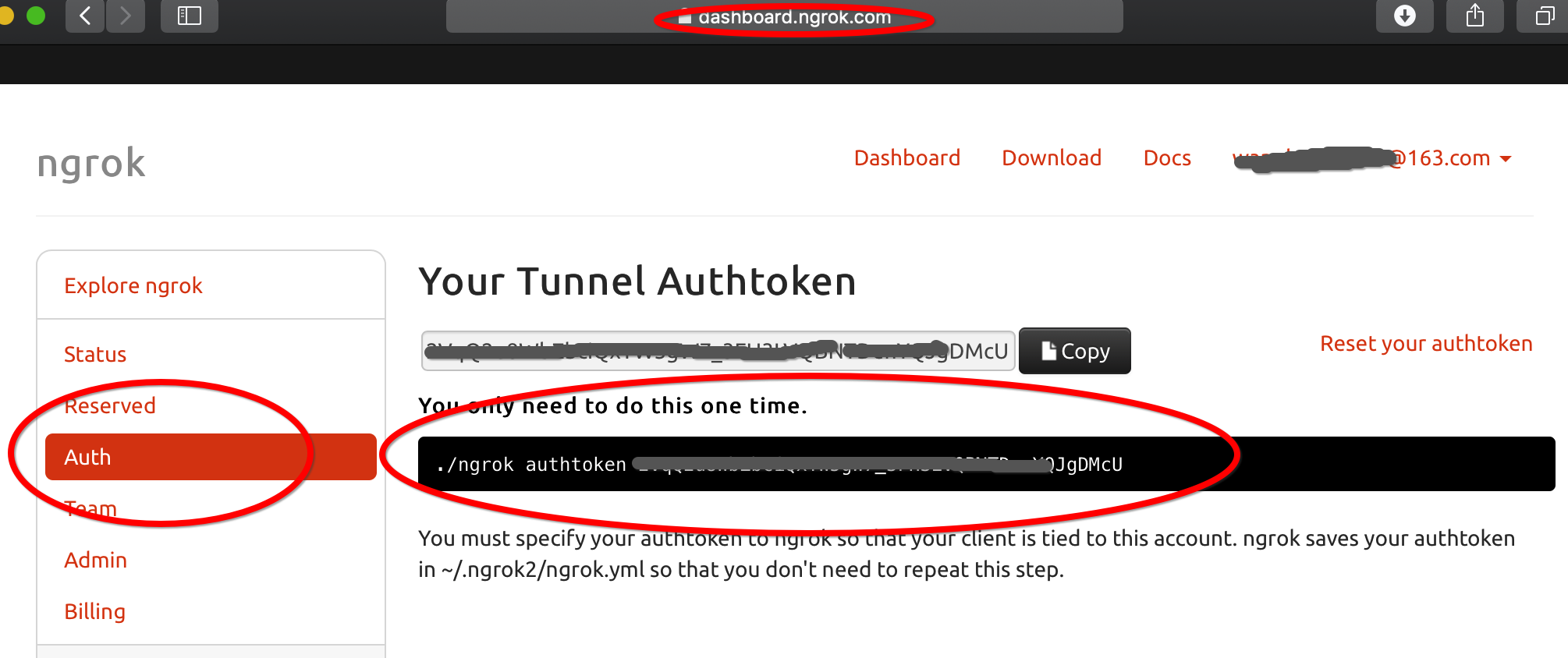
然后运行命令./ngrok authtoken 授权码 来进行授权
userdeMBP:~ user$ ./ngrok authtoken 我的授权码DMcU

Authtoken saved to configuration file: /Users/user/.ngrok2/ngrok.yml
然后再运行一次,果然就成功了:
userdeMBP:~ user$ vagrant share --ssh

Vagrant Share now defaults to using the `ngrok` driver.

The `classic` driver has been deprecated.

For more information about the `ngrok` driver, please

refer to the documentation:

  https://www.vagrantup.com/docs/share/

==> default: Detecting network information for machine...

    default: Local machine address: 127.0.0.1

    default:

    default: Note: With the local address (127.0.0.1), Vagrant Share can only

    default: share any ports you have forwarded. Assign an IP or address to your

    default: machine to expose all TCP ports. Consult the documentation

    default: for your provider ('virtualbox') for more information.

    default:

    default: An HTTP port couldn't be detected! Since SSH is enabled, this is

    default: not an error. If you want to share both SSH and HTTP, please set

    default: an HTTP port with `--http`.

    default:

==> default: Generating new SSH key...

    default: Please enter a password to encrypt the key: //设置你的密码

    default: Repeat the password to confirm:

/Users/user/.vagrant.d/gems/2.4./gems/vagrant-share-1.1./lib/vagrant-share/activate.rb:: warning: constant OpenSSL::Cipher::Cipher is deprecated

    default: Inserting generated SSH key into machine...

    default: Local HTTP port: disabled

    default: Local HTTPS port: disabled

    default: SSH Port:

    default: Port:

==> default: Creating Vagrant Share session...

    share: Importing base box 'hashicorp/vagrant-share'...

    share: Matching MAC address for NAT networking...

    share: Setting the name of the VM: share-93a8bbdb-abd3--ac8d-bae03a558ada

    share: Fixed port collision for  => . Now on port .

    share: Vagrant has detected a configuration issue which exposes a

    share: vulnerability with the installed version of VirtualBox. The

    share: current guest is configured to use an E1000 NIC type for a

    share: network adapter which is vulnerable in this version of VirtualBox.

    share: Ensure the guest is trusted to use this configuration or update

    share: the NIC type using one of the methods below:

    share:

    share:   https://www.vagrantup.com/docs/virtualbox/configuration.html#default-nic-type

    share:   https://www.vagrantup.com/docs/virtualbox/networking.html#virtualbox-nic-type

    share: Clearing any previously set network interfaces...

    share: Preparing network interfaces based on configuration...

    share: Adapter : nat

    share: Forwarding ports...

    share:  (guest) =>  (host) (adapter )

    share:  (guest) =>  (host) (adapter )

    share: Running 'pre-boot' VM customizations...

    share: Booting VM...

    share: Waiting for machine to boot. This may take a few minutes...

    share: SSH address: 127.0.0.1:

    share: SSH username: tc

    share: SSH auth method: password

    share:

    share: Inserting generated public key within guest...

    share: Removing insecure key from the guest if it's present...

    share: Key inserted! Disconnecting and reconnecting using new SSH key...

    share: Machine booted and ready!

==> share:

==> share: Your Vagrant Share is running! Name: budget_status:chapter_insect

==> share:

==> share: You're sharing with SSH access. This means that another can SSH to

==> share: your Vagrant machine by running:

==> share:

==> share:   vagrant connect --ssh budget_status:chapter_insect //这就是时候连接该共享时使用的名称

==> share:
然后任何人都可以通过运行vagrant connect --ssh 名称(其中名称是前面运行vagrant share --ssh命令输出的共享的名称)直接连接到你的vagrant环境。
$ vagrant connect --ssh budget_status:chapter_insect
如果私钥已加密(默认行为),则会提示连接的人输入解密私钥的密码。
同时,可以看见virtualBox果然新打开了一个虚拟机:
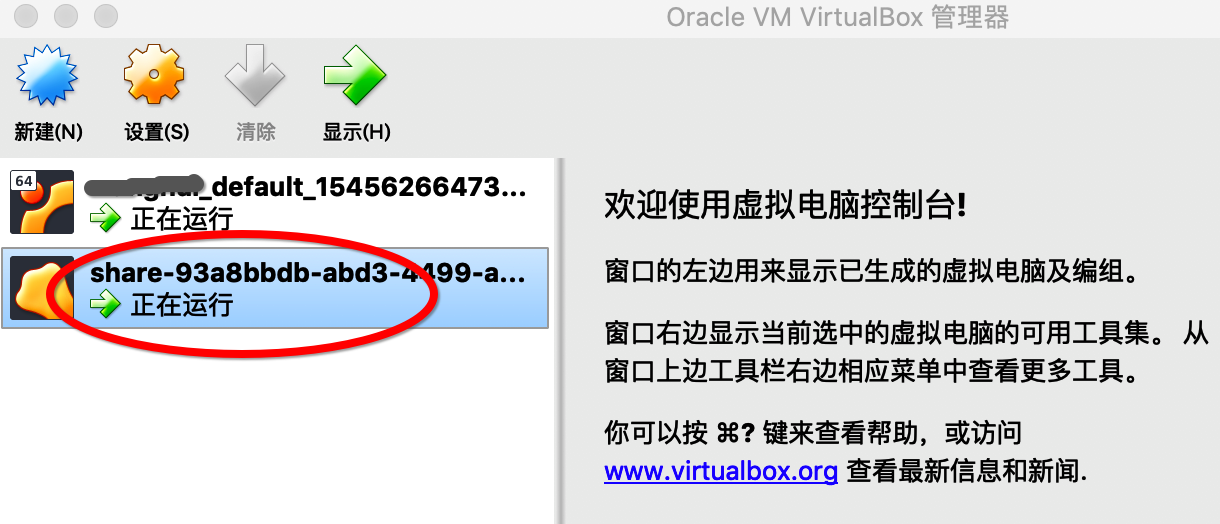
当使用ctrl-C关闭vagrant share时,该虚拟机机器相关的驱动都会自动关闭并删除:
^C==> share: Halting Vagrant share!

==> share: Forcing shutdown of VM...

==> share: Destroying VM and associated drives...
virtualbox+vagrant学习-3-Vagrant Share-3-SSH Sharing的更多相关文章
- virtualbox+vagrant学习-2(command cli)-17-vagrant ssh命令
SSH 格式: vagrant ssh [options] [name|id] [-- extra ssh args] 这将SSH导入正在运行的vagrant机器,并允许你访问机器的shell. us ...
- virtualbox+vagrant学习-4-Vagrantfile-3-Minimum Vagrant Version
Minimum Vagrant Version 可以在Vagrantfile中指定一组vagrant版本需求,以强制人们使用带有Vagrantfile文件的vagrant特定版本.这可以帮助解决使用带 ...
- virtualbox+vagrant学习-2(command cli)-26-vagrant share命令
Share share命令初始化了一个vagrant share会话,允许你与世界上任何一个人共享vagrant环境,允许在几乎任何网络环境中直接在vagrant环境中进行协作. 你可以在本博客的vi ...
- virtualbox+vagrant学习-1-环境安装及vagrantfile的简单配置-Mac系统
在学习docker-machine时,发现需要使用到虚拟化平台,所以选择了使用virtualBox. 然后后面发现需要使用vagrant来在mac系统中作为虚拟机管理软件,所以下面将会简述我自己学习使 ...
- virtualbox+vagrant学习-3-Vagrant Share-2-HTTP Sharing
HTTP Sharing Vagrant Share可以创建一个可公开访问的URL端点来访问在Vagrant环境中运行的HTTP服务器.这被称为“HTTP共享”,在使用Vagrant Share时默认 ...
- virtualbox+vagrant学习-3-Vagrant Share-1-简介
Vagrant Share 通过 ngrok 内网穿透功能实现让全世界人可以访问虚拟机的服务 Vagrant Share允许你与世界上的任何人共享您的Vagrant环境,几乎支持你在任何网络环境中使用 ...
- virtualbox+vagrant学习-3-Vagrant Share-4-Vagrant Connect
Vagrant Connect vagrant可以共享到vagrant环境的任何或每个端口,而不仅仅是SSH和HTTP.“vagrant connect”命令为连接人员提供一个静态IP,他们可以使用该 ...
- virtualbox+vagrant学习-2(command cli)-7-vagrant login命令
Login ⚠️该命令已经弃用了,别名为vagrant cloud auth login.看本博客的 格式: vagrant cloud auth login [options] 登录命令用于使用Ha ...
- virtualbox+vagrant学习-2(command cli)-2-vagrant cloud命令--有问题
Cloud https://www.vagrantup.com/docs/cli/cloud.html 命令: vagrant cloud 这是用来管理与vagrant相关的任何东西的命令. 该命令的 ...
随机推荐
- 前端(九):react生命周期
一.组件渲染 当组件的props或者state发生改变时,组件会自动调用render方法重新渲染.当父组件被重新渲染时,子组件也会被递归渲染.那么组件是如何渲染的呢? # 方案一 1.state数据 ...
- windows下生成上传git时需要用的SSH密钥
参考:Windows上传代码到Github 打开“Git Bash” 输入 ssh-keygen -C "your email" -t rsa 出现如下结果: 成功后,信息里会显示 ...
- html打造动画【系列3】- 小猫笑脸动画
猫咪容器 咱们每次画一个图片,肯定先要确定一个容器,几确定一下图形的位置和大小. <div class="mao_box"> <div class="m ...
- 2016最新Java学习计划
一.Java学习路线图 二.Java学习路线图--视频篇 六大阶段 学完后目标 知识点 配套免费资源(视频+笔 记+源码+模板) 密码 第一阶段 Java基础 入门 学习周期: 35天 ...
- TCP报文发送工具
该工具用于向Socket服务端发送XML报文,软件功能界面如下图所示: 配置好IP和端口后,单击"载入报文文件"按钮,在文件选择对话框中选择报文文件,如图: 报文文件打开后,可在右 ...
- Ubuntu VNC 打开spyder无法输入(检测不到键盘配置)解决方法
在ubuntu中安装好spyder后, 打开spyder发现无法输入. 在打开spyder的终端窗口,有如下提示: QXcbConnection: Failed to initialize XRand ...
- 【Android】RxJava的使用(三)转换——map、flatMap
前两篇Android RxJava的使用(一)基本用法.Android RxJava的使用(二)Action介绍了RxJava的基本用法,对Rxjava还不了解的请先看以上两篇.这篇为大家讲解RxJa ...
- Android开发使用软件
开发环境搭建顺序: 1.安装开发工具 1).安装java 2).安装as 3).安装myeclipse 4).安装np++ md 5).安装svn git 2.配置环境变量 1).配置java jav ...
- redis 迭代命令SCAN、SSCAN、HSCAN、ZSCAN
SCAN 命令用于迭代当前数据库中的数据库键.SSCAN 命令用于迭代集合键中的元素.HSCAN 命令用于迭代哈希键中的键值对.ZSCAN 命令用于迭代有序集合中的元素(包括元素成员和元素分值). S ...
- apache ftp server的简单入门(java应用内嵌ftp server)
Apache Ftp Server:(强调) Apache Ftp Server 是100%纯Java的FTP服务器软件,它采用MINA网络框架开发具有非常好的性能.Apache FtpServer ...