
微信小程序商品发布
<!--pages/good/good.wxml-->

<!--商品发布-->

<form bindsubmit="formSubmit">

  <!--商品名称-->

  <view class='title'>

    <view class='title_text'>

      <text>商品名称:</text>

      <input name="title" type='text' value='{{title}}' bindblur='titleBlur'></input>

    </view>

  </view>

  <!--商品价格-->

  <view class='title'>

    <view class='title_text'>

      <text>商品价格:</text>

      <input name="price" type='number' value='{{price}}' bindblur='priceBlur'></input>

    </view>

  </view>

  <!--商品信息-->

  <view class='info-point'>

    <view class='title_text'>

      <text>商品属性:</text>

      <textarea name="info" class='textarea' value='{{info}}' bindblur='infoBlur'></textarea>

    </view>

  </view>

  <!--商品类型-->

  <view class='title'>

    <view class='title_text'>

      <text>商品类型:</text>

      <picker name="type" mode="selector" range="{{type}}" range-key="name" value="{{typeInd}}" bindchange="type">

        <input id='{{type[typeInd].id}}' name="type" type='text' value='{{type[typeInd].name}}'disabled='true'></input>

      </picker>

      <span class='icon iconfont icon-weibiaoti34'></span>

    </view>

  </view>

    <view class='upImv_text'>商品图片上传</view>

    <view class="addImv">

      <!--这个是已经选好的图片-->

      <view wx:for="{{detail}}" wx:key="key" class="upFile" bindtap="showImageDetail" style="border-radius: 5px" data-id="{{index}}">

        <image class="itemImv" src="{{item}}" name="img"></image>

        <image class="closeImv" src="../../resources/images/delect.png" mode="scaleToFill" catchtap="deleteImvDetail" data-id="{{index}}" name="img"></image>

      </view>

      <!--这个是选择图片-->

      <view class="chooseView" bindtap="chooseDetail" wx:if="{{chooseViewShowDetail}}">

        <image class="chooseImv"  name="img" src="../../resources/images/add.png"></image>

      </view>

    </view>

<!-- 点击按钮 -->

  <button form-type='submit' class='sureRelease'>确认发布</button>

</form>
wxjs:
// pages/productReleased/productReleased.js

var app = getApp();

Page({

  /**

   * 页面的初始数据

   */

  data: {

    title: "",

    info: "",

    point: "",

    price: "",

    type: [{

      name: "实物",

      id: 0

    }, {

      name: "虚拟",

      id: 1

    }],

    productID: 0,

    category: [],

    typeInd: 0, //类型

    detail: [], //详情图片

    detailNew: [],

    detailAll: [],

    checkUp: true, //判断从编辑页面进来是否需要上传图片

    chooseViewShowDetail: true,

    chooseViewShowBanner: true,

    params: {

      productID: 0,

      contentFile: "",

      bannerFile: "",

      check: false,

    },

    dis: false,

  },

  /**

   * 生命周期函数--监听页面加载

   */

  onLoad: function(options) {

  },

  /**

   * 获取标题

   */

  titleBlur(e) {

    this.setData({

      title: e.detail.value

    })

  },

  /**

   * 获取商品价格

   */

  priceBlur(e) {

    this.setData({

      price: e.detail.value

    })

  },

  /**

   * 获取商品信息

   */

  infoBlur(e) {

    this.setData({

      info: e.detail.value

    })

  },

  /**

   * 商品价格

   */

  price(e) {

    this.setData({

      price: e.detail.value

    })

  },

  /**

   * 商品类型

   */

  type(e) {

    this.setData({

      typeInd: e.detail.value

    })

  },

  /**发布提交 */

  formSubmit(e) {

//   获取商品名称

     var title=e.detail.value.title;

    //  商品价格

     var price=e.detail.value.price;

    //  商品类型

     var type=e.detail.value.type;

    //  商品属性

     var info=e.detail.value.info;

     let that=this

    var priceTF = /^\d+(\.\d{1,2})?$/

    // 验证非空

    if (e.detail.value.title === "") {

      wx.showToast({

        title: '请输入商品名称',

        icon: "none",

        duration: 1000,

        mask: true,

      })

    } else if (e.detail.value.title.length > 60) {

      wx.showToast({

        title: '商品名称不得大于60字',

        icon: "none",

        duration: 1000,

        mask: true,

      })

    } else if (e.detail.value.title.length === "") {

      wx.showToast({

        title: '请输入商品价格',

        icon: "none",

        duration: 1000,

        mask: true,

      })

    } else if (!priceTF.test(e.detail.value.price)) {

      wx.showToast({

        title: '商品价格精确到两位',

        icon: "none",

        duration: 1000,

        mask: true,

      })

    } else if (e.detail.value.info === "") {

      wx.showToast({

        title: '请输入商品信息',

        icon: "none",

        duration: 1000,

        mask: true,

      })

    } else if (e.detail.value.point === "") {

      wx.showToast({

        title: '请输入商品卖点',

        icon: "none",

        duration: 1000,

        mask: true,

      })

    }

     else if (that.data.typeInd === -1) {

      wx.showToast({

        title: '请选择商品类型',

        icon: "none",

        duration: 1000,

        mask: true,

      })

    }

   else if (that.data.detail.length === 0) {

      wx.showToast({

        title: '请选择图片',

        icon: "none",

        duration: 1000,

        mask: true,

      })

    }

    // 发送Ajax请求,进行入库

    wx.request({

      url: 'http://www.yan.com/api/xcx/getData',

      data: {

        title:title,

        price :price,

        type:type,

        info:info,

      },

      header: {

        'content-type': 'application/json' // 默认值

      },

      method:'POST',

      success (res) {

        //   提示发布成功

       if(res.data.code==200){

           wx.showToast({

             title: res.data.meg,

           })

       }

      }

    })

  },

  /** 选择图片detail */

  chooseDetail: function() {

    var that = this;

    if (that.data.detail.length < 3) {

      wx.chooseImage({

        count: 3,

        sizeType: [ 'compressed'],

        sourceType: ['album', 'camera'],

        success: function(photo) {

          //detail中包含的可能还有编辑页面下回显的图片,detailNew中包含的只有所选择的图片

          let detail = that.data.detail;

          detail = detail.concat(photo.tempFilePaths);

          let detailNew = that.data.detailNew

          detailNew = detailNew.concat(photo.tempFilePaths)

          that.setData({

            detail: detail,

            detailNew: detailNew,

            checkUp: false

          })

          that.chooseViewShowDetail();

          if (that.data.productID != 0) {

            let params = {

              productID: that.data.productID,

              isBanner: false,

              index: -1,

            }

            app.deleteProductImage(params).then(res => {

              //判断不为空防止将原有图片全删除后文件夹名返回空

              if (res.data.fileContent !== "" && res.data.fileBanner !== "") {

                that.data.params.contentFile = res.data.fileContent

                that.data.params.bannerFile = res.data.fileBanner

              }

            })

          }

        }

      })

    } else {

      wx.showToast({

        title: '限制选择3个文件',

        icon: 'none',

        duration: 1000

      })

    }

  },

  /** 删除图片detail */

  deleteImvDetail: function(e) {

    var that = this;

    var detail = that.data.detail;

    var itemIndex = e.currentTarget.dataset.id;

    if (that.data.productID != 0) {

      wx.showModal({

        title: '提示',

        content: '删除不可恢复,请谨慎操作',

        success(res) {

          if (res.confirm) {

            detail.splice(itemIndex, 1);

            that.setData({

              detail: detail,

              checkUp: false

            })

            that.chooseViewShowDetail();

            let params = {

              productID: that.data.productID,

              isBanner: false,

              index: itemIndex,

            }

            app.deleteProductImage(params).then(res => {

              if (res.data.fileContent !== "" && res.data.fileBanner !== "") {

                that.data.params.contentFile = res.data.fileContent

                that.data.params.bannerFile = res.data.fileBanner

              }

            })

          }

        }

      })

    } else {

      detail.splice(itemIndex, 1);

      that.setData({

        detail: detail,

        checkUp: false

      })

      that.chooseViewShowDetail();

    }

  },

  /** 是否隐藏图片选择detail */

  chooseViewShowDetail: function() {

    if (this.data.detail.length >= 3) {

      this.setData({

        chooseViewShowDetail: false

      })

    } else {

      this.setData({

        chooseViewShowDetail: true

      })

    }

  },

  /** 查看大图Detail */

  showImageDetail: function(e) {

    var detail = this.data.detail;

    var itemIndex = e.currentTarget.dataset.id;

    wx.previewImage({

      current: detail[itemIndex], // 当前显示图片的http链接

      urls: detail // 需要预览的图片http链接列表

    })

  },

  /** 选择图片Banner */

  chooseBanner: function() {

    var that = this;

    if (that.data.banner.length < 2) {

      wx.chooseImage({

        count: 2, //最多选择4张图片- that.data.imgArr.length,

        sizeType: ['compressed'], // 可以指定是原图还是压缩图,默认二者都有

        sourceType: ['album', 'camera'], // 可以指定来源是相册还是相机,默认二者都有

        success: function(photo) {

          var banner = that.data.banner;

          banner = banner.concat(photo.tempFilePaths);

          var bannerNew = that.data.bannerNew;

          bannerNew = bannerNew.concat(photo.tempFilePaths);

          that.setData({

            banner: banner,

            bannerNew: bannerNew,

            checkUp: false

          })

          that.chooseViewShowBanner();

          if (that.data.productID != 0) {

            let params = {

              productID: that.data.productID,

              isBanner: false,

              index: -1,

            }

            app.deleteProductImage(params).then(res => {

              if (res.data.fileContent !== "" && res.data.fileBanner !== "") {

                that.data.params.contentFile = res.data.fileContent

                that.data.params.bannerFile = res.data.fileBanner

              }

            })

          }

        }

      })

    } else {

      wx.showToast({

        title: '限制选择2个文件',

        icon: 'none',

        duration: 1000

      })

    }

  },

  /** 删除图片Banner */

  deleteImvBanner: function(e) {

    var that = this

    var banner = that.data.banner;

    var itemIndex = e.currentTarget.dataset.id;

    if (that.data.productID != 0) {

      wx.showModal({

        title: '提示',

        content: '删除不可恢复,请谨慎操作',

        success(res) {

          if (res.confirm) {

            banner.splice(itemIndex, 1);

            that.setData({

              banner: banner,

              checkUp: false

            })

            that.chooseViewShowBanner();

            let params = {

              productID: that.data.productID,

              isBanner: true,

              index: itemIndex,

            }

            app.deleteProductImage(params).then(res => {

              if (res.data.fileContent !== "" && res.data.fileBanner !== "") {

                that.data.params.contentFile = res.data.fileContent

                that.data.params.bannerFile = res.data.fileBanner

              }

            })

          }

        }

      })

    } else {

      banner.splice(itemIndex, 1);

      that.setData({

        banner: banner,

        checkUp: false

      })

      that.chooseViewShowBanner();

    }

  },

  /** 是否隐藏图片选择Banner*/

  chooseViewShowBanner() {

    if (this.data.banner.length >= 2) {

      this.setData({

        chooseViewShowBanner: false

      })

    } else {

      this.setData({

        chooseViewShowBanner: true

      })

    }

  },

  /** 查看大图Banner */

  showImageBanner: function(e) {

    var banner = this.data.banner;

    var itemIndex = e.currentTarget.dataset.id;

    wx.previewImage({

      current: banner[itemIndex], // 当前显示图片的http链接

      urls: banner // 需要预览的图片http链接列表

    })

  },

})
页面效果图:
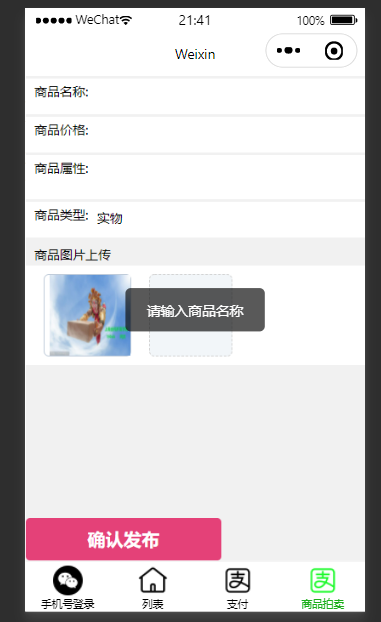
点击发布按钮将数据发布至laravel7进行添加入库
首先laravel7,api.php定义一个路由:
Route::group(['namespace'=>'xcx'],function (){

//商品发布

    Route::post('xcx/getData','LoginController@getData');

});
控制器代码:
   public function getData(Request $request)

    {

        $data = $request->post();

        $validator = Validator::make($data, ['title' => 'required', 'price' => 'required', 'type' => 'required', 'info' => 'required'],

            ['title.required' => '商品名称不可以为空', 'price.required' => '商品价格不可以为空', 'type.required' => '商品类型不可以为空', 'info.required' => '商品属性不可以为空',]);

        if ($validator->fails()) {

            return ['code' => 501, 'meg' => $validator->errors()->first(), 'data' => ''];

        }

        $res = GoodRelease::create($data);

        if (!$res) {

            return ['code' => 500, 'meg' => '发布失败', 'data' => ''];

        }

        return ['code' => 200, 'meg' => '发布成功', 'data' => $data];

    }
模型代码:
<?php

namespace App\Models;

use Illuminate\Database\Eloquent\Model;

class GoodRelease extends Model

{

    //

    public $timestamps=false;

    protected $table='good_release';

    protected $guarded=[];

}
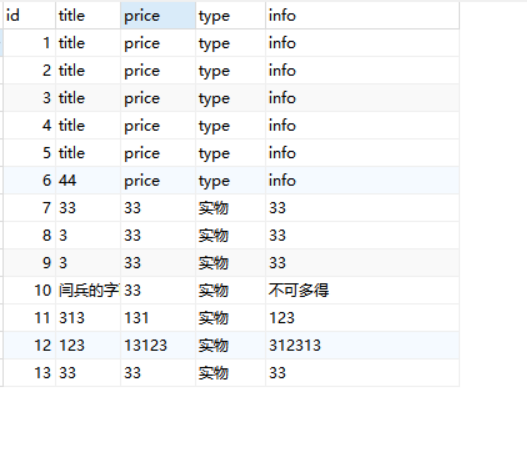
数据库字段
微信小程序商品发布的更多相关文章
- 微信小程序的发布流程
一.背景 在中大型的公司里,人员的分工非常仔细,一般会有不同岗位角色的员工同时参与同一个小程序项目.为此,小程序平台设计了不同的权限管理使得项目管理者可以更加高效管理整个团队的协同工作 以往我们在开发 ...
- 微信小程序已发布版本vconsole仍出现问题解决办法
解决办法很简单,进入小程序的体验或者开发版,点击关闭调试,再次进入小程序,就不会出现了
- 微信小程序商品筛选,侧方弹出动画选择页面
https://blog.csdn.net/qq_36538012/article/details/85110641
- 微信小程序商品详情 + 评论功能实现
这是一个商品展示并能进行评论和答复的功能页面, 遇到的问题有: 分享功能没有办法将json数据写在地址中,只能传id来进行获取 这里必须新加一个状态用来判断是否显示x回复@x,因为我以前的判断这个依据 ...
- 像VUE一样写微信小程序-深入研究wepy框架
像VUE一样写微信小程序-深入研究wepy框架 微信小程序自发布到如今已经有半年多的时间了,凭借微信平台的强大影响力,越来越多企业加入小程序开发. 小程序于M页比相比,有以下优势: 1.小程序拥有更多 ...
- 微信小程序学习指南
作者:初雪链接:https://www.zhihu.com/question/50907897/answer/128494332来源:知乎著作权归作者所有.商业转载请联系作者获得授权,非商业转载请注明 ...
- 如何为你的微信小程序体积瘦身?
众所周知,微信小程序在发布的时候,对提交的代码有1M大小的限制!所以,如果你正在写一个功能稍微复杂一点的小程序,就必须得时刻小心注意你的代码是不是快触及这个底线了. 在设计一个小程序之初,我们就需要重 ...
- 用微信小程序做H5游戏尝试
微信小程序发布后,公司虽然没有拿到第一批内测资格,但作为微信亲密合作伙伴,一定要第一时间去尝试啦.现在微信小程序刚发布还在测试阶段,可以说是1.0版本,所以框架和结构内容都还不多,相关的文档跟微信AP ...
- 微信小程序入门学习
前(che)言(dan): 近几天,微信小程序的内测引起了众多开发人员的热议,很多人都认为这将会成为一大热门,那么好吧,虽然我是一个小白,但这是个新玩意,花点时间稍稍钻研一下也是无妨的,谁让我没有女朋 ...
随机推荐
- react-(错误代码#31----Minified React error #31)
错误描述:Uncaught Invariant Violation: Minified React error #31; visit http://facebook.github.io/react/d ...
- mac每次打开终端都需要source ~/.bashrc以及~/.bash_profile问题
问题描述 在学习git的时候在~/.bashrc下面配置了git log命令的别名 #用于输出git提交日志 alias git-log='git log --pretty=oneline --all ...
- elasticsearch之mappings parameters
目录 ignore_above 返回elasticsearch目录 ignore_above#top 长度超过ignore_above设置的字符串将不会被索引或存储(个人认为会存储,但不会为该字段建立 ...
- JavaWeb编码浅解
感谢原文作者:少年无形 原文链接:https://blog.csdn.net/dl18215164175/article/details/72512131?depth_1-utm_source=dis ...
- Java--面向对象设计
[转载自本科老师上课课件] 问题一: 在一个软件的功能模块中,需要一种图像处理的功能.该图像处理的策略(如何处理)与图像的内容是相关的.如:卫星的运行图片,使用策略A处理方式,如果是卫星内云图片,则需 ...
- H5架构和原生架构的区别
1.App的3种开发方式 表面上看,手机App都是同样的东西,就是手机上的应用程序,点击图标就能运行,但是它们的底层技术不一样.按照开发技术,App可以分成三大类.原生应用(简称nativeApp), ...
- Kubernetes家族容器小管家Pod在线答疑?
Kubernetes家族容器小管家Pod在线答疑 不知道学习k8s的小伙伴们有没有跟我一样的疑问? k8s为什么不是直接运行容器,而是让Pod介入? Pod又是什么?为什么在应用容器化如此普遍的情况下 ...
- 十年OI一场空,不开long long见祖宗
//线段树:单点修改+区间求和 #include<bits/stdc++.h> #define ll unsigned long long using namespace std; ll ...
- 3、Linux基础--cp、mv、rm、alias、vi/vim命令
笔记 1.考试 1.判断网络是否通畅的命令 ping 2.定义系统提示组成的变量 PS1 3.Linux中目录从什么开始 根(/) 4.系统中目录路径类型有哪些,解释一下 绝对路径:以根目录作为参照物 ...
- pytest(10)-常用执行参数说明
pytest单元测试框架中可以使用命令行及代码pytest.main()两种方式执行测试,且可以加入各种参数来组织执行测试.接下来我们来了解常用的执行参数的含义及其用法. pytest中的执行参数根据 ...