
WPF C#仿ios 安卓 红点消息提示
先把效果贴出来,大家看看。
代码下载地址:
http://download.csdn.net/detail/candyvoice/9730751
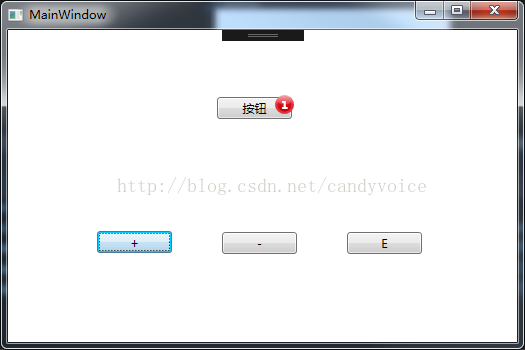
点击+,按钮上的红点提示会增加1,点击-,按钮上的红点提示会减去1;点击E,显示或者隐藏红点提示。
这里主要利用了自定义装饰件(Adorner)。
参考的主要文章是下面这个文章,这里由于我只需要在自己已有的button上添加一个红点提示,所以精简了下面的内容。
http://blog.csdn.net/kongxh_1981/article/details/48955693
我的理解是,PromptAdorner(继承Adroner)管理PromptChrome(继承Control)。说白了就是PromptAdorner负责装饰,装饰些什么东西则交给PromptChrome来完成。
具体的理论请参考下面
http://blog.csdn.net/kongxh_1981/article/details/48955497
说一下具体的做法。
首先添加PromptChrome.cs和PromptAdorner.cs。代码如下
using System;

using System.Collections.Generic;

using System.Linq;

using System.Text;

using System.Threading.Tasks;

using System.Windows;

using System.Windows.Data;

using System.Windows.Controls;

using System.Windows.Media;

namespace WpfApplication2

{

    internal class PromptChrome : Control

    {

        static PromptChrome()

        {

            DefaultStyleKeyProperty.OverrideMetadata(typeof(PromptChrome), new FrameworkPropertyMetadata(typeof(PromptChrome)));

        }

        protected override Size ArrangeOverride(Size arrangeBounds)

        {

            this.Width = 25;

            this.Height = 25;

            this.HorizontalAlignment = System.Windows.HorizontalAlignment.Right;

            this.VerticalAlignment = System.Windows.VerticalAlignment.Top;

            TranslateTransform tt = new TranslateTransform();

            tt.X = 5;

            tt.Y = 5;

            this.RenderTransform = tt;

            return base.ArrangeOverride(arrangeBounds);

        }

    }

}
using System;

using System.Collections.Generic;

using System.Linq;

using System.Text;

using System.Threading.Tasks;

using System.Windows;

using System.Windows.Controls;

using System.Windows.Data;

using System.Windows.Documents;

using System.Windows.Input;

using System.Windows.Media;

using System.Windows.Media.Imaging;

using System.Windows.Navigation;

using System.Windows.Shapes;

namespace WpfApplication2

{

    public class PromptAdorner : Adorner

    {

        public static readonly DependencyProperty PromptCountProperty =

            DependencyProperty.RegisterAttached("PromptCount", typeof(int), typeof(PromptAdorner),

            new FrameworkPropertyMetadata(0, new PropertyChangedCallback(PromptCountChangedCallBack), new CoerceValueCallback(CoercePromptCountCallback)));

        public static int GetPromptCount(DependencyObject obj)

        {

            return (int)obj.GetValue(PromptCountProperty);

        }

        public static void SetPromptCount(DependencyObject obj, int value)

        {

            obj.SetValue(PromptCountProperty, value);

        }

        public static readonly DependencyProperty IsPromptEnabledProperty =

            DependencyProperty.RegisterAttached("IsPromptEnabled", typeof(bool), typeof(PromptAdorner),

            new FrameworkPropertyMetadata(false, new PropertyChangedCallback(IsPromptEnabledChangedCallBack), null));

        public static bool GetIsPromptEnabled(DependencyObject obj)

        {

            return (bool)obj.GetValue(IsPromptEnabledProperty);

        }

        public static void SetIsPromptEnabled(DependencyObject obj, bool value)

        {

            obj.SetValue(IsPromptEnabledProperty, value);

        }

        private static object CoercePromptCountCallback(DependencyObject d, object value)

        {

            int promptCount = (int)value;

            promptCount = Math.Max(0, promptCount);

            return promptCount;

        }

        public static void PromptCountChangedCallBack(DependencyObject d, DependencyPropertyChangedEventArgs e) { }

        public static void IsPromptEnabledChangedCallBack(DependencyObject d, DependencyPropertyChangedEventArgs e)

        {

            var source = d as FrameworkElement;

            bool isEnabled = (bool)e.NewValue;

            if (isEnabled)

            {

                //装饰件可用,添加装饰件

                AdornerLayer layer = AdornerLayer.GetAdornerLayer(source);

                if (layer != null)

                {

                    //能够获取装饰层,说明已经load过了,直接生成装饰件

                    var adorner = new PromptAdorner(source);

                    layer.Add(adorner);

                }

                else

                {

                    //layer为null,说明还未load过(整个可视化树中没有装饰层的情况不考虑)

                    //在控件的loaded事件内生成装饰件

                    source.Loaded += (s1, e1) =>

                    {

                        var adorner = new PromptAdorner(source);

                        AdornerLayer.GetAdornerLayer(source).Add(adorner);

                    };

                }

            }

            else

            {

                //装饰件不可用,移除装饰件

                AdornerLayer layer = AdornerLayer.GetAdornerLayer(source);

                if (layer != null)

                {

                    Adorner[] AllAdorners = layer.GetAdorners(source);

                    if (AllAdorners != null)

                    {

                        IEnumerable<Adorner> desAdorners = AllAdorners.Where(p => p is PromptAdorner);

                        if (desAdorners != null && desAdorners.Count() > 0)

                        {

                            desAdorners.ToList().ForEach(p => layer.Remove(p));

                        }

                    }

                }

            }

        }

        protected override int VisualChildrenCount

        {

            get { return 1; }

        }

        public PromptAdorner(UIElement adornedElement)

            : base(adornedElement)

        {

            _chrome = new PromptChrome();

            _chrome.DataContext = adornedElement;

            this.AddVisualChild(_chrome);

        }

        protected override Visual GetVisualChild(int index)

        {

            return _chrome;

        }

        protected override Size ArrangeOverride(Size arrangeBounds)

        {

            _chrome.Arrange(new Rect(arrangeBounds));

            return arrangeBounds;

        }

        PromptChrome _chrome;

    }

}
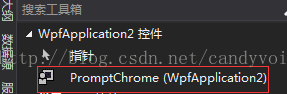
2 添加好之后,先编译一下程序,再 在MainWindow里拖上三个button,先拖一个PromptChrome控件到窗口的任意位置
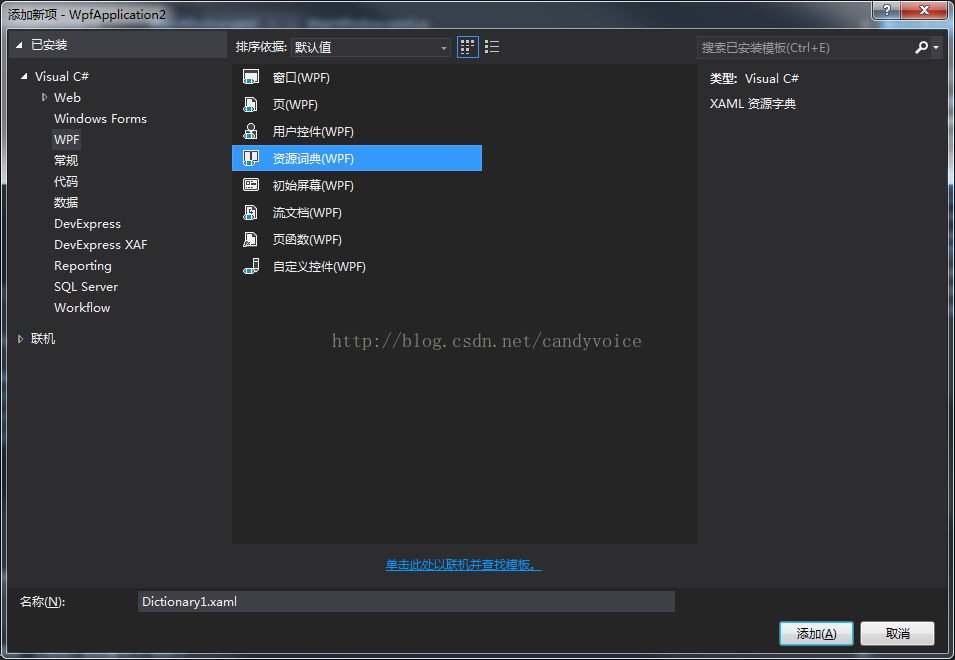
新建一个Themes文件夹,添加资源词典,Generic.xaml
定义样式PromptChrome,Generic.xaml具体代码如下:
<ResourceDictionary xmlns="http://schemas.microsoft.com/winfx/2006/xaml/presentation"

                    xmlns:x="http://schemas.microsoft.com/winfx/2006/xaml"

                    xmlns:local="clr-namespace:WpfApplication2">

    <Style TargetType="{x:Type local:PromptChrome}">

        <Setter Property="Template">

            <Setter.Value>

                <ControlTemplate TargetType="{x:Type local:PromptChrome}">

                    <Grid x:Name="container">

                        <!--最外圈的白色圆框,并对其作阴影效果-->

                        <!--<Ellipse Fill="White">

                            <Ellipse.Effect>

                                <DropShadowEffect BlurRadius="6"

                                                  ShadowDepth="6"

                                                  Opacity="0.8"

                                                  Direction="270"

                                                  RenderingBias="Performance"/>

                            </Ellipse.Effect>

                        </Ellipse>-->

                        <!--内部的上半圆-->

                        <Ellipse Margin="3">

                            <Ellipse.Fill>

                                <LinearGradientBrush StartPoint="0,0" EndPoint="0,1">

                                    <GradientStop Offset="0" Color="#FFF4AEB1"/>

                                    <GradientStop Offset="0.5" Color="#FFE3313A"/>

                                    <GradientStop Offset="1" Color="#FFE3313A"/>

                                </LinearGradientBrush>

                            </Ellipse.Fill>

                        </Ellipse>

                        <!--内部的下半圆,通过采用Exclude模式合并上下两个圆来完成-->

                        <Path  HorizontalAlignment="Center" VerticalAlignment="Center">

                            <Path.Data>

                                <CombinedGeometry GeometryCombineMode="Exclude" >

                                    <CombinedGeometry.Geometry1>

                                        <EllipseGeometry Center="7 7"  RadiusX="7" RadiusY="7" />

                                    </CombinedGeometry.Geometry1>

                                    <CombinedGeometry.Geometry2>

                                        <EllipseGeometry Center="7 0"  RadiusX="9" RadiusY="7"/>

                                    </CombinedGeometry.Geometry2>

                                </CombinedGeometry>

                            </Path.Data>

                            <Path.Fill>

                                <LinearGradientBrush StartPoint="0,0" EndPoint="0,1">

                                    <GradientStop Offset="0" Color="#FFDF151F"/>

                                    <GradientStop Offset="1" Color="#FFBA0004"/>

                                </LinearGradientBrush>

                            </Path.Fill>

                        </Path>

                        <Viewbox Stretch="Uniform" >

                            <!--绑定上文中的PromptCount属性-->

                            <Label Content="{Binding Path=(local:PromptAdorner.PromptCount)}"

                                   x:Name="label"

                                   Foreground="White"

                                   FontWeight="Bold"

                                   FontSize="10"

                                   HorizontalAlignment="Center"

                                   VerticalAlignment="Center"/>

                        </Viewbox>

                    </Grid>

                    <ControlTemplate.Triggers>

                        <!--使用数据触发器,当PromptCount为0时,隐藏提示-->

                        <DataTrigger Binding="{Binding Path=(local:PromptAdorner.PromptCount)}" Value="0">

                            <Setter TargetName="container" Property="Visibility" Value="Hidden"/>

                        </DataTrigger>

                    </ControlTemplate.Triggers>

                </ControlTemplate>

            </Setter.Value>

        </Setter>

    </Style>

</ResourceDictionary>
3编辑MainWindow.xaml中的代码
<Window x:Class="WpfApplication2.MainWindow"

        xmlns="http://schemas.microsoft.com/winfx/2006/xaml/presentation"

        xmlns:x="http://schemas.microsoft.com/winfx/2006/xaml"

        xmlns:d="http://schemas.microsoft.com/expression/blend/2008"

        xmlns:mc="http://schemas.openxmlformats.org/markup-compatibility/2006"

        xmlns:local="clr-namespace:WpfApplication2"

        mc:Ignorable="d"

        Title="MainWindow" Height="350" Width="525">

    <Grid>

        <Button x:Name="button" Content="按钮" HorizontalAlignment="Left" Margin="209,67,0,0" VerticalAlignment="Top" Width="75"

                local:PromptAdorner.IsPromptEnabled="True"

                local:PromptAdorner.PromptCount="0" Click="button_Click" IsHitTestVisible="True"/>

        <Button x:Name="button1" Content="+" HorizontalAlignment="Left" Margin="89,201,0,0" VerticalAlignment="Top" Width="75" Click="button1_Click"/>

        <Button x:Name="button2" Content="-" HorizontalAlignment="Left" Margin="214,202,0,0" VerticalAlignment="Top" Width="75" Click="button2_Click"/>

        <Button x:Name="button3" Content="E" HorizontalAlignment="Left" Margin="339,202,0,0" VerticalAlignment="Top" Width="75" Click="button3_Click"/>

    </Grid>

</Window>
实现+、-、E按钮的作用,MainWindow.xaml.cs代码如下
using System;

using System.Collections.Generic;

using System.Linq;

using System.Text;

using System.Threading.Tasks;

using System.Windows;

using System.Windows.Controls;

using System.Windows.Data;

using System.Windows.Documents;

using System.Windows.Input;

using System.Windows.Media;

using System.Windows.Media.Imaging;

using System.Windows.Navigation;

using System.Windows.Shapes;

namespace WpfApplication2

{

    /// <summary>

    /// MainWindow.xaml 的交互逻辑

    /// </summary>

    public partial class MainWindow : Window

    {

        public MainWindow()

        {

            InitializeComponent();

        }

        private void button1_Click(object sender, RoutedEventArgs e)

        {

            int promptCount = (int)button.GetValue(PromptAdorner.PromptCountProperty);

            button.SetValue(PromptAdorner.PromptCountProperty, ++promptCount);

        }

        private void button2_Click(object sender, RoutedEventArgs e)

        {

            int promptCount = (int)button.GetValue(PromptAdorner.PromptCountProperty);

            button.SetValue(PromptAdorner.PromptCountProperty, --promptCount);

        }

        private void button3_Click(object sender, RoutedEventArgs e)

        {

            bool isEnable = (bool)button.GetValue(PromptAdorner.IsPromptEnabledProperty);

            button.SetValue(PromptAdorner.IsPromptEnabledProperty, !isEnable);

        }

        private void button_Click(object sender, RoutedEventArgs e)

        {

        }

    }

}
编译通过后,删掉之前拖动到窗口任意位置的PromptChrome控件,再次编译通过,就可以实现在普通的button上添加红点提示信息。
中间犯过几个错误,就是在编辑Generic.xaml的时候,总是出现Binding="{Binding Path=(local:PromptAdorner.PromptCount)}无法找到的情况,这里应该是先拖一个自定义PromptChrome控件到窗口,后面删掉即可。
代码下载地址:
http://download.csdn.net/detail/candyvoice/9730751
WPF C#仿ios 安卓 红点消息提示的更多相关文章
- wpf实现仿qq消息提示框
原文:wpf实现仿qq消息提示框 版权声明:本文为博主原创文章,未经博主允许不得转载. https://blog.csdn.net/huangli321456/article/details/5052 ...
- 【WPF】屏幕右下角消息提示框
WPF做一个仿QQ的右下角消息提示窗,网上找到几个Demo后,选了一个比较好用的. 博客 http://blog.csdn.net/huangli321456/article/details/5052 ...
- (转载) Android 带清除功能的输入框控件ClearEditText,仿IOS的输入框
Android 带清除功能的输入框控件ClearEditText,仿IOS的输入框 标签: Android清除功能EditText仿IOS的输入框 2013-09-04 17:33 70865人阅读 ...
- react-native自定义Modal模态框|仿ios、微信弹窗RN版
前序 纵观每个优质项目,无论web端还是native原生应用开发,弹窗都是不可忽视的一环,能很大程度上直接决定用户体验.如:微信.支付宝.ios都有很成熟的一套弹窗UI展示场景. 最近一直沉迷在rea ...
- SignalR快速入门 ~ 仿QQ即时聊天,消息推送,单聊,群聊,多群公聊(基础=》提升)
SignalR快速入门 ~ 仿QQ即时聊天,消息推送,单聊,群聊,多群公聊(基础=>提升,5个Demo贯彻全篇,感兴趣的玩才是真的学) 官方demo:http://www.asp.net/si ...
- 自定义iOS 中推送消息 提示框
看到标题你可能会觉得奇怪 推送消息提示框不是系统自己弹出来的吗? 为什么还要自己自定义呢? 因为项目需求是这样的:最近需要做 远程推送通知 和一个客服系统 包括店铺客服和官方客服两个模块 如果有新的消 ...
- Html - 仿Ios assistiveTouch 悬浮辅助球工具
仿Ios assistiveTouch 悬浮辅助球工具 <!DOCTYPE html> <html> <head> <meta charset="u ...
- Android仿IOS回弹效果 ScrollView回弹 总结
Android仿IOS回弹效果 ScrollView回弹 总结 应项目中的需求 须要仿IOS 下拉回弹的效果 , 我在网上搜了非常多 大多数都是拿scrollview 改吧改吧 试了一些 发现总 ...
- Ion-affix & Ion-stick 仿IOS悬浮列表插件
Ion-affix & Ion-stick 仿IOS悬浮列表插件 Ion-affix 1.相关网页 Ion-affix 2.环境准备: 执行命令 bower install ion-affix ...
随机推荐
- Ubuntu 中卸载软件的几种命令
1.在终端里 apt-get安装的软件:安装软件sudo apt-get install softname1 softname2softname3--卸载软件 sudo apt-get remove ...
- MVC与单元测试实践之健身网站(完)-备案与部署
主页-http://www.zhixin9001.cn/Home/Introduce GitHub- https://github.com/zhixin9001/Fitness 这是关于Fit网站的最 ...
- @DateTimeFormat(pattern = "yyyy-MM-dd HH:mm:ss") 前台request 获取body的格式是正确的 (2018-03-23 16:44:22) 但是Java 后台却格式化成了yyyy-MM-dd的格式 巨坑(@InitBinder搞得贵)
最近做项目时,同事写的功能总是格式化时间不正确,Java类属性明明注解了@DateTimeFormat(pattern = "yyyy-MM-dd HH:mm:ss") 但就是硬 ...
- python2 与 python3 如何实现共存
1.现在我本机系统已内置python2.6 2.下载进行源码安装 复制链接下载到 /root/mypackage,解压 接着 mkdir /usr/local/python3 然后在解压后的文件夹内执 ...
- python自动化报告的输出
1.设计简单的用例 2.设计用例 以TestBaiduLinks.py命名 # coding:utf-8 from selenium import webdriver import unittest ...
- TERADATA数据库操作
1.创建一个数据库的命令举例: ,spool; 注释:该命令创建了一个测试数据库testbase,其永久表空间为200mb,spool空间不能超过100mb.在teradata数据库系统的缺省方式下, ...
- 浅谈C#依赖注入
什么是依赖注入?不管是js中的一些前端框架还是,java,C#,php等中的一些后端开发框架中,都会涉及这个看着逼格略高的词语:依赖注入,越是看着好像很厉害的东西越是会让许多人学习产生恐惧,好像很厉害 ...
- Visual Stuido插件大全
JS Enhancements 使用JS能像C#代码一样折叠成块 Code Compare Code Compare is a powerful file and folder comparison ...
- Centos7.5.1804永久生效修改主机名
原来主机名 [root@node1 ~]# 查看Centos的版本: [root@node1 ~]# cat /etc/redhat-release CentOS Linux release (Cor ...
- Solr全文检索
1.Solr的安装 .环境要求 jdk1.+tomcat8+solr5.5.0 .将以上的软件包上传到服务器 . 安装tomcat8(解压文件) tar -zxvf apache-tomcat-.ta ...