
Step by step guide to set up master and slave machines on Windows
Note: There is no need to install Jenkins on the slave machine.
- On your master machine go to Manage Jenkins > Manage Nodes.

- New Node --> Enter Node Name.
- Select Dumb Slave --> Press OK.

- Fill out the following:
- Set a number of executors (one or more) as needed.
- Set a Remote FS Root, a home directory for the master on the slave machine.
- For a Windows slave, use something like: "C:\Jenkins\"
- TODO: add details.
- Select the appropriate Usage setting:
- For an additional worker: Utilize this slave as much as possible
- For specialized jobs: Leave this machine for tied jobs only
- Launch Method:
- An easy way to control a Windows slave is by using Launch slave agents via Java Web Start (Recommended for Windows)
- TODO: add steps for other methods.
- Availability --> Keep this slave online as much as possible
- TODO: add details for each option.
- Press OK.

- Now you need to connect your slave machine to the master using the following steps.
- Open a browser on the slave machine and go to the Jenkins master server url (http://yourjenkinsmaster:8080).
- Go to Manage Jenkins > Manage Nodes, Click on the newly created slave machine. You will need to login as someone that has the "Connect" Slave permission if you have configured global security.
- Click on the Launch button to launch agent from browser on slave.

- Run the program.
 ### If you encounter connection issue, then you could enlarge the popup windows to see the master port used and check your network configuration (firewall, port forward, ...)
- Now you should see the Slave machine connected under Nodes.
- If you want the service to run on start-up of the slave machine do the following (Windows only directions):
- In the Slave agent program running on your slave machine,
- click File --> Install as Windows Service.

Note that this feature requires ".Net Framework 3.5"
- Start, type Services and Select the Services program.
- Find Jenkins Slave in the list, Double click to open.
- Select Startup type --> Automatic.
- Go to the Log On tab, change the Log on as to a user of your choice (Special user account Jenkins recommended).
- Make sure that auto login is set for the slave machine for the user account, then the VM (or physical computer) should connect and be available when needed.

Also: take a look at Distributed builds
https://wiki.jenkins-ci.org/display/JENKINS/Step+by+step+guide+to+set+up+master+and+slave+machines+on+Windows
slave节点机器配置
创建jenkins用户
用root用户登录slave节点,首先创建jenkins用户,并指定主目录
$ useradd -m jenkins -d /home/jenkins查看jenkins用户及组的信息
$ id jenkins

uid=500(jenkins) gid=500(jenkins) 组=500(jenkins)
再修改jenkins密码,若不修改是未知的
$ passwd jenkins再切换到jenkins用户,确保jdk已安装
$ su - jenkins同时确保slave已安装jdk
$ java -version且sshd正确运行
$ service --status-all | grep ssh创建公钥私钥,实现免用户密码登录
使用jenkins用户登录到jenkins master机器
使用jenkins用户登录时若发现连接失败(lost connection),可以先用root用户登录,打开/etc/passwd,找到
jenkins:x:498:499:Jenkins Continuous Integration Server:/var/lib/jenkins:/bin/false将最后的/bin/false改为/bin/bash,便可以登录。记得使用完改回去,猜测是安全限制。
jenkins用户登录后执行以下命令,生成公私钥
$ ssh-keygen

Generating public/private rsa key pair.

Enter file in which to save the key (/root/.ssh/id_rsa): /var/lib/jenkins/.ssh/id_rsa将公钥和私钥保存到jenkins主目录下,注意确保.ssh目录和id_rsa都是jenkins用户所拥有或者有可读写权限
然后会要求输入passphrase(密码),这里还是不设置,直接两次enter
进入/var/lib/jenkins/.ssh,使用scp命令将生成的公钥id_rsa.pub拷贝到各个slave节点,并命名为authorized_keys
$ scp id_rsa jenkins@xxx.xxx.xxx.xxx:~/.ssh/authorized_keys同时要修改authorized_keys的权限,
$ chmod 700 authorized_keysJenkins控制台slave配置
回到jenkins控制台,打开以下页面,添加credentials,以下配置页面是添加slave的jenkins用户密码

另一种ssh免密码登录配置(基于公开密钥的认证),可指定jenkins master私钥的路径或者选择第三个From the Jenkins master ~./ssh,我们选择/var/lib/jenkins/.ssh/id_rsa,这是在上一节创建的私钥

创建slave
进入“系统管理>管理节点>新建节点”,输入节点名称,我已经建了一个节点,所以可以选择复制

进入配置页面,按要求填写,credentialsp这里选择用户密码登录,免密码登录需要指定一个属于它的id_rsa。

保存之后,点击Relaunch agent,启动节点
https://segmentfault.com/a/1190000008369457
作为slave的Linux机器为centos系统。
1) Linux 的 Slave机器设置
创建jenkins用户sudo /usr/sbin/useradd -m jenkins -d /home/jenkins;
查看jenkins用户及组的信息id jenkins :
uid=506(jenkins) gid=506(jenkins) groups=506(jenkins) ;
使用sudo /usr/bin/passwd jenkins来设置用户jenkins的密码为0;
切换到用户jenkins环境下su - jenkins;
确保java安装正确:java --version;
确保sshd正确运行: /sbin/service --status-all | grep ssh;
安装ant,在root下运行yum install ant;
2) 在Slave的linux机器上创建public/private key pair:
确保当前用户为jenkins;
执行ssh-keygen来创建public/private key pair,直接enter,表示key将存储在/home/jenkins/.ssh/id_rsa下,再直接enter,表示不设置密码,再次enter确认密码为空;
创建authorized_keys:
cd .ssh
cat id_rsa.pub > authorized_keys
chmod 700 authorized_keys
;
将id_rsa(相当于privatekey)拷贝到jenkins master机器上,例如c:\jenkins\id_rsa下。
3)创建Slave(note),配置如下:
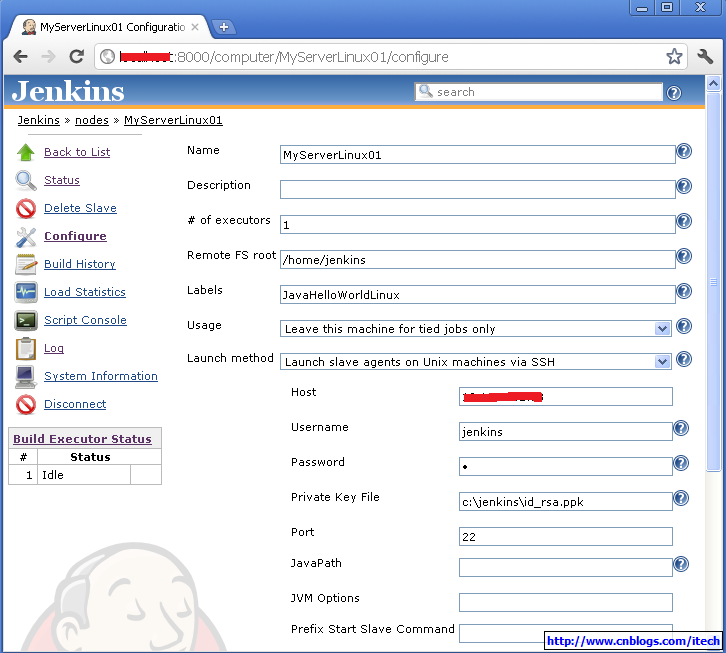
确保jenkins 中ssh slave plugin正确安装,一般默认安装。
然后lunch slave,使得master和slave通过ssh成功连接。其实launch的时候jenkins自动地从http://yourserver:port/jnlpJars/slave.jar拷贝slave.jar到slave,然后运行通过命令java -jar slave.jar来运行slave。
4)在新建的Linux的Slave上运行上节中的JavaHelloWorld(Jenkins 构建JavaHelloWorld),且需要修改JavaHelloWorld job的Label为JavaHelloWorldLinux来使用此slave,运行如下:

完!
http://www.cnblogs.com/itech/archive/2011/11/10/2244690.html
Step by step guide to set up master and slave machines on Windows的更多相关文章
- Step by step guide to set up master and slave machines(转)
Note: There is no need to install Jenkins on the slave machine. On your master machine go to Manage ...
- Tomcat Clustering - A Step By Step Guide --转载
Tomcat Clustering - A Step By Step Guide Apache Tomcat is a great performer on its own, but if you'r ...
- Step by Step use OBD2 Scanner Guide
Learning to use a good automotive OBD2 code reader is one of the best ways you can continually inves ...
- Step by step Dynamics CRM 2011升级到Dynamics CRM 2013
原创地址:http://www.cnblogs.com/jfzhu/p/4018153.html 转载请注明出处 (一)检查Customizations 从2011升级到2013有一些legacy f ...
- [转]Bootstrap 3.0.0 with ASP.NET Web Forms – Step by Step – Without NuGet Package
本文转自:http://www.mytecbits.com/microsoft/dot-net/bootstrap-3-0-0-with-asp-net-web-forms In my earlier ...
- Devops step by step
接着上次分享的devops历程[Followme Devops实践之路], 大家希望能够出一个step by step手册, 那今天我就来和手把手来一起搭建这么一套环境, 演示整个过程! 实验环境需要 ...
- PyTorch in Action: A Step by Step Tutorial
PyTorch in Action: A Step by Step Tutorial PyTorch in Action: A Step by Step Tutorial Installation ...
- Git Step by Step – (8) Git的merge和rebase
前面一篇文章中提到了"git pull"等价于"git fetch"加上"git merge",然后还提到了pull命令支持rebase模式 ...
- Step by Step Process of Migrating non-CDBs and PDBs Using ASM for File Storage (Doc ID 1576755.1)
Step by Step Process of Migrating non-CDBs and PDBs Using ASM for File Storage (Doc ID 1576755.1) AP ...
随机推荐
- ORACLE ERP各模块会计分录
ORACLE ERP各模块会计分录 第一章 采购模块 一.资产采购(科目来源:库存组织) 1.物料接收 借 材料采购 接收数量*采购单价 贷 应计暂估 接收数量*采购单价 2 ...
- OpenCV——PS滤镜, 碎片特效
// define head function #ifndef PS_ALGORITHM_H_INCLUDED #define PS_ALGORITHM_H_INCLUDED #include < ...
- javac编译同一个包内的java文件
问题描述:包a.b.c里有d.java e.java f.java三个文件,其中d中包含main. 错误: 第一种:javac d.java 报错:里面用到其他类,找不到 第二种:javac *.ja ...
- 软件开发顶尖高手的杀手锏SQL语句
软件开发顶尖高手的杀手锏SQL语句 ...
- obj-c编程13:归档
这篇归档内容的博文也挺有趣的,笨猫对好玩的东西一向感兴趣啊!如果用过ruby就会知道,obj-c里的归档类似于ruby中的序列化概念,不过从语法的简洁度来说,我只能又一次呵呵了. 下面大家将会看到2种 ...
- javascript内置对象速查(二)
Window对象 每个浏览器窗口或框架都对应于一个Window对象,它是随body或frameset元素的每个实例一起创建的对象. function status_text(){ window.sta ...
- ubuntu14.04下安装rubinius测试原生线程
因为CRuby(MRI)本身不支持原生多线程,所以想试一下其他ruby解释器实现对原生多线程的支持.于是安装rubinius折腾一下:) 在rubinius官网下载2.4.1源代码,然后驾轻就熟首先b ...
- Java 8 Stream
1.关于Java8部分新特性介绍 Java8的新特性很多,在此就不一一介绍了,这里只说一下我自己在工作用用得比较多的几点: 1.1.Lambda表达式 Lambda允许把函数作为一个方法的参数(函数作 ...
- Oracle官方文档学习路线图
- ffmpeg转换参数和压缩输出大小的比率 参考 最新版本FFMPEG
https://blog.cnlabs.NET/3668.html ffmpeg 转换压缩比例 FFMPEG如果是压缩为FLV文件 3个编码可选1. -c:v flv 标准FLV编码 这个好处是速度快 ...