
Uniapp简易使用canvas绘制分享海报
使用UniApp Canvas实现分享海报
一、分享海报
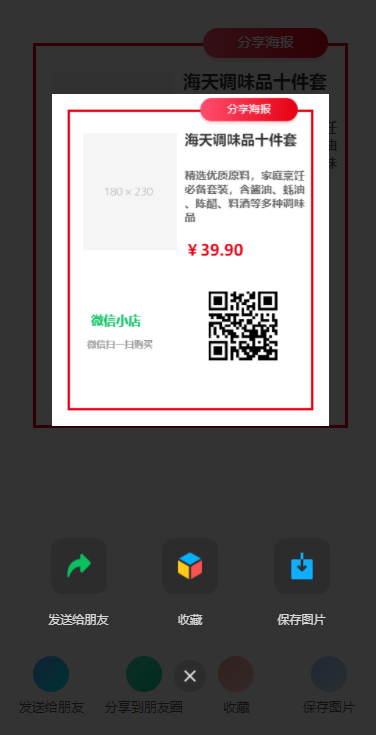
现在使用 Uniapp 中的 canvas 简单实现下商品的分享海报,附上二维码(这个可以附上各种信息例如分享绑定下单等关系),开箱即用。
- 动态生成包含商品信息、用户二维码的分佣海报
- 一键保存到手机相册
- 支持App原生分享和小程序分享
- 打通社交裂变传播路径
注:这里的分享功能用了微信的 showShareImageMenu,会调起朋友分享、朋友圈分享、收藏、保存图片等,会跟页面功能重复,并且使用这个接口记得绑定项目的 appid,否则会报错。
二、技术支持(使用 Uniapp canvas,直接复制进行更改就行)
<template>

	<view class="container">

		<!-- 商品展示区域 -->

		<view class="product-canvas">

			<canvas canvas-id="productCanvas" :style="{ width: canvasWidth + 'px', height: canvasHeight + 'px' }"

				id="productCanvas" class="canvas" />

			<loading v-if="loading"></loading>

		</view>

		<!-- 四个功能按钮 -->

		<view class="functions">

			<view class="function-item" @tap="shareToFriend">

				<view class="icon-circle icon-share"></view>

				<text class="function-text">发送给朋友</text>

			</view>

			<view class="function-item" @tap="shareToMoments">

				<view class="icon-circle icon-moments"></view>

				<text class="function-text">分享到朋友圈</text>

			</view>

			<view class="function-item" @tap="collectProduct">

				<view class="icon-circle icon-collect"></view>

				<text class="function-text">收藏</text>

			</view>

			<view class="function-item" @tap="savePoster">

				<view class="icon-circle icon-save"></view>

				<text class="function-text">保存图片</text>

			</view>

		</view>

<!-- 		<view class="" @click="close" style="

        position: absolute;

        left: 50%;

        bottom: 50rpx;

        transform: translateX(-50%);

      ">

			<image src="作为组件底部叉叉" mode="widthFix" style="width: 50rpx; height: auto"></image>

		</view> -->

	</view>

</template>

<script>

	export default {

		data() {

			return {

				canvasWidth: 355, // px

				canvasHeight: 425,

				loading: false,

				canvasPath: "",

				product: {

					name: "海天调味品十件套",

					desc_text: "精选优质原料,家庭烹饪必备套装,含酱油、蚝油、陈醋、料酒等多种调味品",

					market_price: 39.9,

					pic: "https://dummyimage.com/180x230/f5f5f5/999",

				},

				qrcode: "https://api.qrserver.com/v1/create-qr-code/?size=100x100&data=https://shop.example.com",

			};

		},

		onLoad() {

			this.open()

		},

		methods: {

			open() {

				this.drawCanvas();

			},

			close() {

				this.$emit("update:show", !this.show);

			},

			shareToFriend() {

				const that = this;

				// #ifdef APP

				uni.share({

					provider: "weixin",

					scene: "WXSceneSession",

					type: 2,

					imageUrl: that.canvasPath,

					success(res) {

						console.log("分享给朋友成功", res);

						uni.showToast({

							title: "已分享给朋友",

							icon: "success",

						});

					},

					fail(err) {

						console.log("分享给朋友失败", err);

						uni.showToast({

							title: "分享失败,请重试",

							icon: "none",

						});

					},

				});

				// #endif

				// #ifdef MP-WEIXIN

				uni.showShareImageMenu({

					path: that.canvasPath,

					success() {},

					fail(err) {

						console.log(err)

					}

				});

				// #endif

			},

			shareToMoments() {

				const that = this;

				// #ifdef APP

				uni.share({

					provider: "weixin",

					scene: "WXSceneTimeline",

					type: 2,

					imageUrl: that.canvasPath,

					success(res) {

						console.log("分享到朋友圈成功", res);

						uni.showToast({

							title: "已分享到朋友圈",

							icon: "success",

						});

					},

					fail(err) {

						console.log("分享到朋友圈失败", err);

						uni.showToast({

							title: "分享失败,请重试",

							icon: "none",

						});

					},

				});

				// #endif

				// #ifdef MP-WEIXIN

				wx.showShareImageMenu({

					path: that.canvasPath,

					success() {},

				});

				// #endif

			},

			collectProduct() {

				// #ifdef MP-WEIXIN

				const that = this;

				wx.addFileToFavorites({

					filePath: that.canvasPath,

					success: function() {

						console.log("收藏成功");

						uni.showToast({

							title: "收藏成功",

							icon: "success",

						});

					},

					fail: function(err) {

						console.error("收藏失败:", err);

						uni.showToast({

							title: "收藏失败",

							icon: "error",

						});

					},

				});

				// #endif

			},

			savePoster() {

				const that = this;

				uni.saveImageToPhotosAlbum({

					filePath: that.canvasPath,

					success(res) {

						uni.showToast({

							title: "保存成功",

							icon: "success",

						});

					},

				});

			},

			async drawCanvas() {

				this.loading = true;

				const that = this;

				const dpr = uni.getSystemInfoSync().pixelRatio;

				const width = this.canvasWidth;

				const height = this.canvasHeight;

				const ctx = uni.createCanvasContext("productCanvas", this);

				// ctx.canvas.width = width * dpr;

				// ctx.canvas.height = height * dpr;

				// ctx.scale(dpr, dpr);

				const {

					pic: image,

					name: title,

					desc_text: desc,

					market_price: price,

				} = this.product;

				const qrcode = this.qrcode;

				// 背景白色 + 红色边框

				const borderMargin = 20;

				const borderWidth = 3;

				ctx.setFillStyle("#fff");

				ctx.fillRect(0, 0, width, height);

				ctx.setStrokeStyle("#e60012");

				ctx.setLineWidth(borderWidth);

				// 边框内缩绘制

				ctx.strokeRect(

					borderMargin + borderWidth / 2,

					borderMargin + borderWidth / 2,

					this.canvasWidth - 2 * (borderMargin + borderWidth / 2),

					this.canvasHeight - 2 * (borderMargin + borderWidth / 2)

				);

				// 徽章

				const badgeX = 190;

				const badgeY = 5;

				const badgeW = 125;

				const badgeH = 30;

				const badgeRadius = 15;

				// 阴影模拟(底层填充深色模糊)

				ctx.setFillStyle("rgba(230, 0, 18, 0.1)");

				ctx.beginPath();

				ctx.moveTo(badgeX + badgeRadius, badgeY + 4);

				ctx.arcTo(

					badgeX + badgeW,

					badgeY + 4,

					badgeX + badgeW,

					badgeY + badgeH + 4,

					badgeRadius

				);

				ctx.arcTo(

					badgeX + badgeW,

					badgeY + badgeH + 4,

					badgeX,

					badgeY + badgeH + 4,

					badgeRadius

				);

				ctx.arcTo(badgeX, badgeY + badgeH + 4, badgeX, badgeY + 4, badgeRadius);

				ctx.arcTo(badgeX, badgeY + 4, badgeX + badgeW, badgeY + 4, badgeRadius);

				ctx.closePath();

				ctx.fill();

				// 绘制渐变圆角背景

				const gradient = ctx.createLinearGradient(badgeX, 0, badgeX + badgeW, 0);

				gradient.addColorStop(0, "#ff4d6d");

				gradient.addColorStop(1, "#e60012");

				ctx.setFillStyle(gradient);

				ctx.beginPath();

				ctx.moveTo(badgeX + badgeRadius, badgeY);

				ctx.arcTo(

					badgeX + badgeW,

					badgeY,

					badgeX + badgeW,

					badgeY + badgeH,

					badgeRadius

				);

				ctx.arcTo(

					badgeX + badgeW,

					badgeY + badgeH,

					badgeX,

					badgeY + badgeH,

					badgeRadius

				);

				ctx.arcTo(badgeX, badgeY + badgeH, badgeX, badgeY, badgeRadius);

				ctx.arcTo(badgeX, badgeY, badgeX + badgeW, badgeY, badgeRadius);

				ctx.closePath();

				ctx.fill();

				// 白色文字

				ctx.setFontSize(14);

				ctx.setFillStyle("#fff");

				ctx.setTextAlign("center");

				ctx.setTextBaseline("middle");

				ctx.fillText("分享海报", badgeX + badgeW / 2, badgeY + badgeH / 2);

				// 商品图

				await this.drawImage(ctx, image, 40, 50, 120, 150);

				// 标题

				ctx.setFontSize(18);

				ctx.setFillStyle("#333");

				ctx.setTextAlign("left");

				ctx.font = "bold 18px sans-serif";

				const titleLines = this.splitText(title, 160, ctx);

				titleLines.forEach((line, index) => {

					ctx.fillText(line, 170, 60 + index * 20);

				});

				// 描述(多行)

				ctx.setFontSize(14);

				ctx.setFillStyle("#666");

				const lines = this.splitText(desc, 160, ctx);

				lines.forEach((line, index) => {

					ctx.fillText(line, 170, 85 + titleLines.length * 20 + index * 18);

				});

				// 价格

				ctx.setFontSize(20);

				ctx.setFillStyle("#e60012");

				ctx.fillText(

					"¥" + price.toFixed(2),

					170,

					110 + titleLines.length * 20 + lines.length * 18

				);

				// 小店名

				ctx.setFontSize(16);

				ctx.setFillStyle("#07c160");

				ctx.fillText(

					"微信小店",

					50,

					200 + titleLines.length * 20 + lines.length * 18

				);

				// 提示

				ctx.setFontSize(12);

				ctx.setFillStyle("#999");

				ctx.fillText(

					"微信扫一扫购买",

					45,

					230 + titleLines.length * 20 + lines.length * 18

				);

				// 二维码

				await this.drawImage(

					ctx,

					qrcode,

					200,

					160 + titleLines.length * 20 + lines.length * 18,

					90,

					90

				);

				ctx.draw(true, () => {

					setTimeout(() => {

						uni.canvasToTempFilePath({

								destWidth: that.canvasWidth,

								destHeight: that.canvasHeight,

								canvasId: "productCanvas",

								success: (res) => {

									console.log("临时图片路径:", res.tempFilePath);

									that.canvasPath = res.tempFilePath;

								},

							},

							that

						);

					}, 100);

				});

			},

			// 远程图片绘制

			drawImage(ctx, src, x, y, w, h) {

				return new Promise((resolve) => {

					uni.getImageInfo({

						src,

						success: (res) => {

							ctx.drawImage(res.path, x, y, w, h);

							this.loading = false;

							resolve();

						},

						fail: () => {

							console.warn("图片加载失败", src);

							this.loading = false;

							resolve();

						},

					});

				});

			},

			// 文本换行

			splitText(text, maxWidth, ctx) {

				const result = [];

				let temp = "";

				for (let char of text) {

					const testLine = temp + char;

					const {

						width

					} = ctx.measureText(testLine);

					if (width > maxWidth) {

						result.push(temp);

						temp = char;

					} else {

						temp = testLine;

					}

				}

				if (temp) result.push(temp);

				return result;

			},

		},

	};

</script>

<style scoped>

	.container {

		height: 100vh;

		width: 100%;

		display: flex;

		flex-direction: column;

		justify-content: space-between;

	}

	/* 商品展示区域 - Canvas */

	.product-canvas {

		width: 100%;

		background: linear-gradient(135deg, #fff8f8, #fff);

		position: relative;

		display: flex;

		flex-direction: column;

		justify-content: center;

		align-items: center;

		padding: 50rpx 0;

	}

	.canvas {

		width: 315px;

		height: 425px;

	}

	.canvas-content {

		width: 90%;

		height: 85%;

		background: #fff;

		border: 3px solid #e60012;

		border-radius: 12px;

		box-shadow: 0 8px 20px rgba(230, 0, 18, 0.1);

		padding: 20rpx;

		position: relative;

	}

	.badge {

		position: absolute;

		top: -16px;

		right: 20px;

		background: linear-gradient(to right, #ff4d6d, #e60012);

		color: white;

		padding: 8px 16px;

		border-radius: 20px;

		font-weight: bold;

		font-size: 14px;

		box-shadow: 0 4px 10px rgba(230, 0, 18, 0.3);

	}

	.product-info {

		display: flex;

		height: 100%;

	}

	.product-image {

		flex: 1;

		background: #f9f9f9;

		border-radius: 8px;

		display: flex;

		justify-content: center;

		align-items: center;

		overflow: hidden;

	}

	.product-image img {

		width: 100%;

		height: 100%;

		object-fit: contain;

	}

	.product-details {

		flex: 1;

		padding: 20rpx;

		display: flex;

		flex-direction: column;

		justify-content: space-between;

	}

	.product-title {

		font-size: 32rpx;

		font-weight: bold;

		color: #333;

		margin-bottom: 10px;

	}

	.product-desc {

		font-size: 14px;

		color: #666;

		line-height: 1.5;

	}

	.price {

		margin: 15px 0;

		color: #e60012;

		font-weight: bold;

		font-size: 38rpx;

	}

	.qrcode-section {

		display: flex;

		align-items: center;

		justify-content: space-between;

		margin-top: 20px;

		padding-top: 15px;

		border-top: 1px dashed #eee;

	}

	.qrcode {

		width: 100px;

		height: 100px;

		background: #f5f5f5;

		display: flex;

		justify-content: center;

		align-items: center;

		margin-bottom: 8px;

	}

	.qrcode-hint {

		color: #999;

		font-size: 12px;

	}

	.wx-store {

		color: #07c160;

		font-weight: bold;

		font-size: 15px;

		margin-top: 5px;

	}

	/* 功能区样式 */

	.functions {

		display: flex;

		flex-direction: row;

		background-color: #fff;

		padding: 25px 10px;

		border-top: 1px solid #f0f0f0;

	}

	.function-item {

		flex: 1;

		display: flex;

		flex-direction: column;

		align-items: center;

		padding: 10px 0;

		transition: all 0.3s;

	}

	.function-item:active {

		background-color: #f9f9f9;

		transform: translateY(2px);

	}

	.icon-circle {

		width: 70rpx;

		height: 70rpx;

		border-radius: 50%;

		display: flex;

		justify-content: center;

		align-items: center;

		margin-bottom: 12rpx;

	}

	.icon-share {

		background: linear-gradient(135deg, #4facfe 0%, #00f2fe 100%);

	}

	.icon-moments {

		background: linear-gradient(135deg, #3ae7b1 0%, #00d2a9 100%);

	}

	.icon-collect {

		background: linear-gradient(135deg, #ff9a9e 0%, #fad0c4 100%);

	}

	.icon-save {

		background: linear-gradient(135deg, #a1c4fd 0%, #c2e9fb 100%);

	}

	.function-text {

		font-size: 26rpx;

		color: #555;

	}

</style>
三、性能优化与注意事项
1. 使用问题
- Canvas 问题:这里的 canvas 宽高使用固定的px格式,这里没做过多的适配,需要各位自己进行适配,并且绘制的时候 canvas 的背景设置的是白色,因为要作为图片进行保存,如果对其分装为组件的时候要注意层级关系并且白色背景跟 mask 背景和组件背景要做好适配兼容。还有 canvas 顶部的徽章在真机可能没有那么好看,自己再进行优化吧。
- 模糊问题:使用
pixelRatio适配高分屏,上面没做,注释了 - 文字溢出:这里的文字有做分割,如果过长可能还需进行优化
2. 性能优化建议
- 预加载网络图片
- 对绘制操作进行节流控制
- 使用离屏Canvas处理复杂图形
四、效果展示

五、扩展思路
- 动态模板:配置不同风格的海报模板
- 海报审核:对接内容安全API
- 数据分析:跟踪海报分享转化率
- 裂变激励:如有是有自己的一些模式的话,可以分享后给予佣金奖励
Uniapp简易使用canvas绘制分享海报的更多相关文章
- 使用Canvas绘制分享海报
这几天接到一个需求,需要将一个邀请链接转换为一个带有二维码并且能够分享出去的海报图,网上找了很多的方法,也踩了不少的坑,希望大家遇到类似的需求能够少走弯路.. 具体效果图如下: 效果图 首先我采用了 ...
- 微信小程序之canvas绘制海报分享到朋友圈
绘制canvas内容 首先,需要写一个canvas标签,给canvas-id命名为shareBox <canvas canvas-id="shareBox"></ ...
- 小程序利用canvas 绘制图案 (生成海报, 生成有特色的头像)
小程序利用canvas 绘制图案 (生成海报, 生成有特色的头像) 微信小程序生成特色头像,海报等是比较常见的.下面我来介绍下实现该类小程序的过程. 首先选择前端来通过 canvas 绘制.这样比较节 ...
- 用canvas绘制一个简易时钟
在见识了html5中canvas的强大,笔者准备制作一个简易时钟. 下面就是成果啦,制作之前我们先分析一下,绘制一个时钟需要做哪些准备. 一 . 1.首先这个时钟分为表盘,指针(时针,分针,秒针)和数 ...
- canvas绘制简易动画
在canvas画布中制作动画相对来说很简单,实际上就是不断变化的坐标.擦除.重绘的过程 1.使用setInterval方法设置动画的间隔时间. setInterval(code,millisec) s ...
- 前端生成分享海报兼容H5和小程序
### 移动端分享海报生成 最近做项目需求是生成商品分享海报,并且保存到手机中要兼容H5和小程序<br> 与后端同学沟通后,海报在前端生成最省性能和有较好的交互体验,先看做好的效果
- 使用 HTML5 Canvas 绘制出惊艳的水滴效果
HTML5 在不久前正式成为推荐标准,标志着全新的 Web 时代已经来临.在众多 HTML5 特性中,Canvas 元素用于在网页上绘制图形,该元素标签强大之处在于可以直接在 HTML 上进行图形操作 ...
- 开源)嗨,Java,你可以生成金山词霸的二维码分享海报吗?
As long as you can still grab a breath, you fight.只要一息尚存,就不得不战. 有那么一段时间,我特别迷恋金山词霸的每日一句分享海报.因为不仅海报上的图 ...
- 微信小程序绘制分享图
微信小程序绘制分享图例子: demo下载地址:https://gitee.com/v-Xie/wxCanvasShar 大致代码会再以下说明 实际开发项目: 基础知识点: 了解canvas基础知识 w ...
- canvas 绘制双线技巧
楔子 最近一个项目,需要绘制双线的效果,双线效果表示的是轨道(类似铁轨之类的),如下图所示: 负责这块功能开发的小伙,姑且称之为L吧,最开始是通过数学计算的方式来实现这种双线,也就是在原来的路径的基础 ...
随机推荐
- 手写数字识别实战教程:从零实现MNIST分类器(完整代码示例)
引言:数字识别的魔法世界 在人工智能的奇妙宇宙中,手写数字识别堪称经典中的经典.这个看似简单的任务--让电脑像人一样"认数字",背后蕴含着模式识别的核心思想.本文将带领你亲手实现一 ...
- 网络开发中的Reactor(反应堆模式)和Proacrot(异步模式)
服务器程序重点处理IO事件,即:用户的请求读出来,反序列化,回调业务处理,回写.如果在按照面向过程的思路去写,就发挥不出CPU并发优势.那么有没有更优雅的设计方式呢? 有的兄弟,有的. Reactor ...
- 做个小实验,帮你理解 Git 工作区与暂存区
做个小实验,帮你理解 Git 工作区与暂存区 Git 很重要,本文将通过实验的方式,带你理解 Git 的工作区.暂存区以及相关命令的使用. 1. 什么是工作区和暂存区? 在 Git 中,工作区和暂存区 ...
- thinkphp里__PUBLIC__的使用
1.默认值 __PUBLIC__常量默认指向当前项目根目录下的pulic目录, 例如:www下有一个blog项目目录,blog下一般有application.Home.public.Thinkphp ...
- 有的时候,需要利用UserControl占位模板,动态替换的情况,绑定后无法获取DataContext的问题
有的时候,需要利用UserControl占位模板,动态替换的情况,绑定后无法获取DataContext的问题,特此备注下 效果如下: 关键的地方是,下面第3行,需要把当前的上下文传递到Content, ...
- 开发者专用部署工具PasteSpider的V5正式版发布啦!(202504月版),更新说明一览
PasteSpider是一款以开发者角度设计的部署工具,支持把你的项目部署到Windows或者Linux服务器,支持5大模式Windows(IIS/Service),Linux(systemd),Do ...
- Java---switch...case中case可以匹配些什么
switch-case语句 case 标签可以是 : •类型为 char.byte.short 或 int 的常量表达式. •枚举常量. •从 Java SE 7 开始,case 标签还可以是字符串字 ...
- [随记]-SpringMVC中的handler到底是什么东西
HandlerMapping 初始化时候的 HandlerMapping 有,按顺序排列: requestMappingHandlerMapping beanNameHandlerMapping -& ...
- [HTB] 靶机学习(一)Heal
[HTB] 靶机学习(一)Heal 概要 学习hackthebox的第一天,本人为初学者,将以初学者的角度对靶机渗透进行学习,中途可能会插入一些跟实操关系不大的相关新概念的学习和解释,尽量做到详细,不 ...
- Form验证笔记
views request.body request.POST(request.body) request.FILES(request.body) re ...