
[转]UiPath State Machines
本文转自:https://docs.uipath.com/studio/docs/state-machines
A state machine is a type of automation that uses a finite number of states in its execution. It can go into a state when it is triggered by an activity, and it exits that state when another activity is triggered.
Another important aspect of state machines are transitions, as they also enable you to add conditions based on which to jump from one state to another. These are represented by arrows or branches between states.
There are two activities that are specific to state machines, namely State and Final State, found under Workflow > State Machine.
Note:
You can only create one initial state, yet it is possible to have more than one Final State.
The State activity contains three sections, Entry, Exit and Transition(s), while the Final State only contains one section, Entry. Both of these activities can be expanded by double-clicking them, to view more information and edit them.
The Entry and Exit sections enable you to add entry and exit triggers for the selected state, while the Transition(s) section displays all the transitions linked to the selected state.
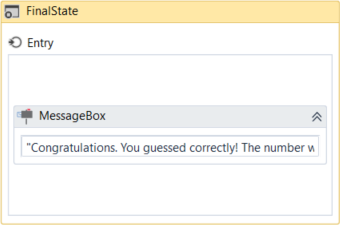
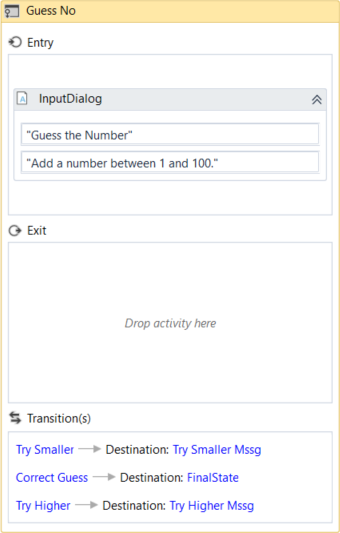
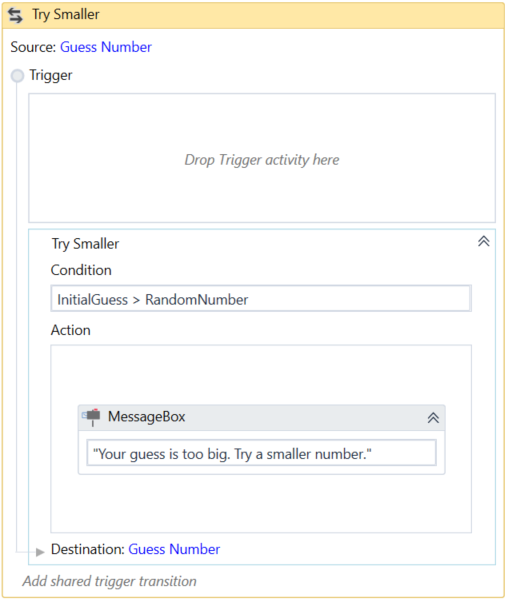
Transitions are expanded when you double-click them, just like the State activity. They contain three sections, Trigger, Condition and Action, that enable you to add a trigger for the next state, or add a condition under which an activity or sequence is to be executed.
Example of How to Use a State Machine
To exemplify how to use a state machine, we are going to build the guessing game we did in the previous chapter, the only difference being that we will try to guess a number between 1 and 100.
- Create a blank process and, on the Design tab, in the File group, select New > State Machine. The New State Machine window is displayed.
Note:
You can also add a State Machine activity to the Designer panel to create a new state machine automation.
- In the Name field type a name for the automation, such as "First State Machine", and leave the default project location or add a subfolder. Click Create. The Designer panel is updated accordingly.
- Create two integer variables,
InitialGuessandRandomNumber. The first variable stores your guess, while the second stores the random number. - Add a State activity to the Designer panel and connect it to the Start node. This is the initial state, and it is used to generate a random number.
- Double-click the activity. This State activity is displayed expanded in the Designer panel.
- In the Properties panel, in the DisplayName field, type Initializing Random Number. This enables you to easily tell states apart.
- In the Entry section, add an Assign activity.
- In the To field, add the
RandomNumbervariable. - In the Value field, type
new Random().Next(1,100). This expression generates a random number. - Return to the main project view and add a new State activity.
- Connect it to the previously added activity.
- Double-click the last added State activity. This activity is displayed expanded in the Designer panel.
- In the Properties panel, in the DisplayName field, type Guess Number. This state is used to prompt the user to guess a number.
- In the Entry section, add an Input Dialog activity.
- Select the Input Dialog, and in the Properties panel, add an appropriate Label and Title to prompt the user to guess a number between 1 and 100.
- In the Result field, add the
InitialGuessvariable. This variable stores the user’s guess. - Return to the main project view and create a transition that points from the Guess Number state to itself.
- Double-click the transition. The transition is displayed expanded in the Designer panel.
- In the Properties panel, in the DisplayName field, type Try Smaller. This message is displayed on the arrow, enabling you to run through your automation easier.
- In the Condition section, type
InitialGuess>RandomNumber. This verifies if the user’s guess is bigger than the random number. - In the Action section, add a Message Box activity.
- In the Text field, type something similar to "Your guess is too big. Try a smaller number." This message is displayed when the user’s guess is bigger than the random number.
- Return to the main project view and create a new transition that points from the Guess Number state to itself.
- Double-click the transition. The transition is displayed expanded in the Designer panel.
- In the Properties panel, in the DisplayName field, type "Try Bigger". This message is displayed on the arrow, enabling you to run through your automation easier.
- In the Condition section, type
InitialGuess<RandomNumber. This verifies if the guess is smaller than the random number. - In the Action section, add a Message Box activity.
- In the Text field, type something similar to "Your guess is too small. Try a bigger number." This message is displayed when the users guess is smaller than the random number.
- Return to main project view and add a Final State activity to the Designer panel.
- Connect a transition from the Guess Number activity to the Final State.
- In the Properties panel, in the DisplayName field, type "Correct Guess".
- In the Condition field, type
InitialGuess=RandomNumber. This is the condition on which this automation steps to the final state and end. - Double-click the Final State activity. It is displayed expanded in the Designer panel.
- In the Entry section, add a Message Box activity.
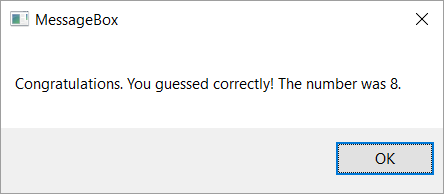
- In the Text field, type something similar to "Congratulations. You guessed correctly! The number was " +
RandomNumber.ToString+ "." This is the final message that is to be displayed, when the user correctly guesses the number.
The final project should look as in the following screenshot.
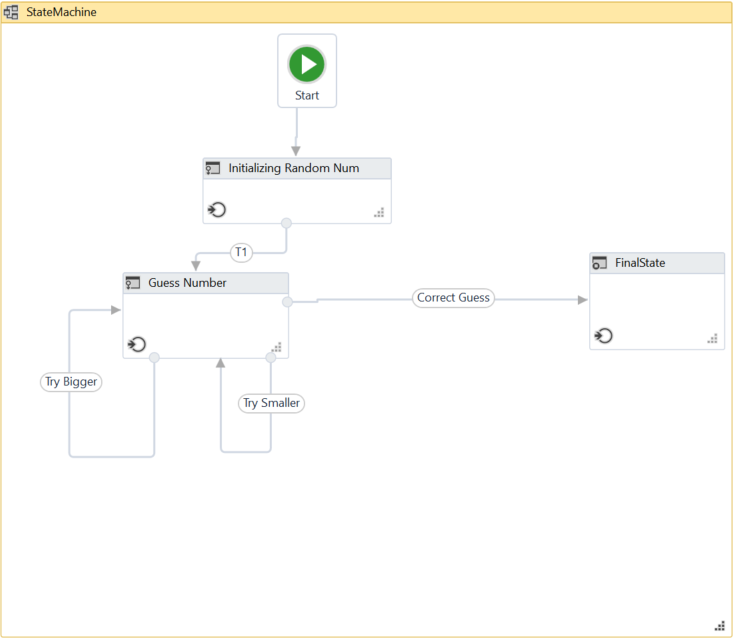
- Press F5. The automation is executed correctly.
另:
https://www.jianshu.com/p/8d77459c69d2?from=timeline&isappinstalled=0
【UiPath Studio 中文文档】10 项目类型 - 状态机 (State Machine)
[转]UiPath State Machines的更多相关文章
- Important Programming Concepts (Even on Embedded Systems) Part V: State Machines
Earlier articles in this series: Part I: Idempotence Part II: Immutability Part III: Volatility Part ...
- [翻译]:Artificial Intelligence for games 5.3 STATE MACHINES:状态机
目录 Chapter 5 Decision Making 5.3 STATE MACHINES:状态机 Chapter 5 Decision Making 5.3 STATE MACHINES:状态机 ...
- UIPath RPA 自动化脚本 机器人从入门到精通
本文链接:https://blog.csdn.net/qq_27256783/article/details/93619818 一.UiPath介绍 UiPath 是RPA(Robotic Proce ...
- State Machine.(状态机)
What is a State Machine? Any device that changes its state from one to another due to some actions a ...
- reactjs入门到实战(四)---- state详解
this.props 表示那些一旦定义,就不再改变的特性,而 this.state 是会随着用户互动而产生变化的特性. 组件免不了要与用户互动,React 的一大创新,就是将组件看成是一个状态机,一开 ...
- Qt: The State Machine Framework 学习
State Machine,即为状态机,是Qt中一项非常好的框架.State Machine包括State以及State间的Transition,构成状态和状态转移.通过状态机,我们可以很方便地实现很 ...
- 【翻译】What is State Machine Diagram(什么是状态机图)?
[翻译]What is State Machine Diagram(什么是状态机图)? 写在前面 在上一篇学习类图的时候将这个网站上的类图的一篇文章翻译了出来,感觉受益良多,今天来学习UML状态机图, ...
- React基础篇(2) -- state&props&refs
内容简介 state props refs 行内样式及动态类名 state 基本介绍 React 把组件看成是一个状态机(State Machines).通过与用户的交互,实现不同状态,然后渲染 UI ...
- 创建组件的方法,组件的props属性、state属性的用法和特点,父子组件传值,兄弟组件传值
1.创建组件的方法 函数组件 class组件 1.1 函数组 无状态函数式组件形式上表现为一个只带有一个 `render()` 方法的组件类,通过函数形式或者 `ES6` 箭头 `functi ...
随机推荐
- Python中的Tcp协议的应用之Tcp服务端程序开发
TCP通信协议是面向连接的可靠的网络通信协议. 网络间想要进行数据传输必须要用到socket,socket翻译过来叫做套接字,其主要作用是不同设备或同一台设备之间的进程通信工具. Python中的Tc ...
- luogu P1336 最佳课题选择 |背包dp
题目描述 Matrix67要在下个月交给老师n篇论文,论文的内容可以从m个课题中选择.由于课题数有限,Matrix67不得不重复选择一些课题.完成不同课题的论文所花的时间不同.具体地说,对于某个课题i ...
- 在phpstudy集成环境下的nginx服务器下配置url重写
直接在对应的vhosts.conf配置文件的location / {}中添加以下内容: location / { index index.html index.htm index.php; #auto ...
- 鲲鹏来了,在EulerOS试用.NETCore-3.1
在EulerOS试用.NETCore-3.1 前言 EulerOS其实出来有一段时间了,一直在关注,单是仅仅也只是停留在观望的阶段,目前还没有接入的打算:正好看到园子里的兄弟分享了华为云免费试用的活动 ...
- Zabbix通过与微信、钉钉整合实现实时告警
abbix可以通过多种方式把告警信息发送到指定人,常用的有邮件,短信报警方式,但是越来越多的企业开始使用zabbix结合微信.钉钉作为主要的告警方式,这样可以及时有效的把告警信息推送到接收人,方便告警 ...
- ARTS-S gitlab与jenkins实现持续集成
jenkins配制 系统管理->管理插件->可选插件->选择安装 Gitlab Hook Plugin和Build Authorization Token Root Plugin插件 ...
- 模拟摄像头解码模块最新测试 TVP5150模块 FPGA+SDRAM+TVP5150+VGA 实现PAL AV输入 VGA视频输出
模拟摄像头解码模块最新测试 TVP5150模块 FPGA+SDRAM+TVP5150+VGA 实现PAL AV输入 VGA视频输出 测试使用电视机顶盒的AV模拟信号输入,VGA显示器输出测试,效 ...
- Happy Birthday! 今天我 1 周岁生日啦!
2018.09.28,我第 1 天分享文章. 2019.09.28,我连续分享的第 365 天. 今天我 1 周岁啦! 生日意味着一个新的开端, 意味着重新把握生活的机会. 新的一岁,从新头像开始 愿 ...
- 【hibernate】映射继承关系
[hibernate]映射继承关系 转载:https://www.cnblogs.com/yangchongxing/p/10405151.html ========================= ...
- 曹工说Spring Boot源码(4)-- 我是怎么自定义ApplicationContext,从json文件读取bean definition的?
写在前面的话 相关背景及资源: 曹工说Spring Boot源码系列开讲了(1)-- Bean Definition到底是什么,附spring思维导图分享 工程代码地址 思维导图地址 工程结构图: 大 ...