
react-native 项目实战 -- 新闻客户端(2) -- 完善TabBar
1.创建 drawable-xxhdpi 文件夹,保存 TabBar 的 icon图标
android -- app -- src -- main -- res -- drawable-xxhdpi
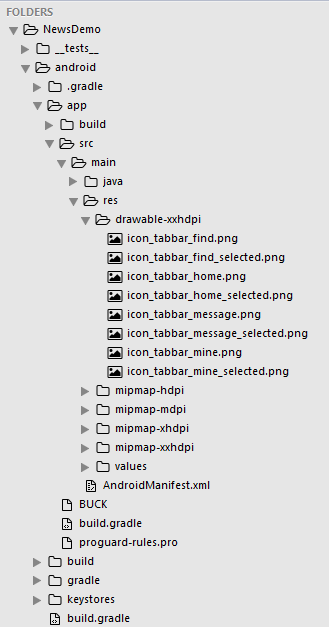
2.修改后的 Main.js
/**

 * 主页面

 */

import React, { Component } from 'react';

import {

    StyleSheet,

    Text,

    View,

    Image,

    Platform,  //判断当前运行的系统

} from 'react-native';

/*=============导入外部组件类==============*/

import TabNavigator from 'react-native-tab-navigator';

// 引入外部的组件(此处注意是相当于了项目根目录)

var Home = require('../Component/Home');

var Message = require('../Component/Message');

var Find = require('../Component/Find');

var Mine = require('../Component/Mine');

// ES5

var Main = React.createClass({

    // 初始化函数(变量是可以改变的,充当状态机的角色)

    getInitialState(){

        return{

            selectedTab:'home' // 默认选中的tabBar

        }

    },

    render() {

        return (

            <TabNavigator>

                {/*--首页--*/}

                <TabNavigator.Item

                    title="首页"

                    renderIcon={() => <Image source={{uri:"icon_tabbar_home"}} style={styles.iconStyle} />}

                    renderSelectedIcon={() => <Image source={{uri:"icon_tabbar_home_selected"}} style={styles.iconStyle} />}

                    selected={this.state.selectedTab === "home"}

                    onPress={() => this.setState({ selectedTab: "home" })}

                    selectedTitleStyle={styles.selectedTitleStyle} //tabBarItem选中的文字样式

                    badgeText="1"

                >

                    <Home />

                </TabNavigator.Item>

                {/*--消息--*/}

                <TabNavigator.Item

                    title="消息"

                    renderIcon={() => <Image source={{uri:"icon_tabbar_message"}} style={styles.iconStyle} />}

                    renderSelectedIcon={() => <Image source={{uri:"icon_tabbar_message_selected"}} style={styles.iconStyle} />}

                    selected={this.state.selectedTab === "message"}

                    onPress={() => this.setState({ selectedTab: "message" })}

                    selectedTitleStyle={styles.selectedTitleStyle} //tabBarItem选中的文字样式

                    badgeText="2"

                >

                    <Message />

                </TabNavigator.Item>

                {/*--发现--*/}

                <TabNavigator.Item

                    title="发现"

                    renderIcon={() => <Image source={{uri:"icon_tabbar_find"}} style={styles.iconStyle} />}

                    renderSelectedIcon={() => <Image source={{uri:"icon_tabbar_find_selected"}} style={styles.iconStyle} />}

                    selected={this.state.selectedTab === "find"}

                    onPress={() => this.setState({ selectedTab: "find" })}

                    selectedTitleStyle={styles.selectedTitleStyle} //tabBarItem选中的文字样式

                >

                    <Find />

                </TabNavigator.Item>

                {/*--我的--*/}

                <TabNavigator.Item

                    title="我的"

                    renderIcon={() => <Image source={{uri:"icon_tabbar_mine"}} style={styles.iconStyle} />}

                    renderSelectedIcon={() => <Image source={{uri:"icon_tabbar_mine_selected"}} style={styles.iconStyle} />}

                    selected={this.state.selectedTab === "mine"}

                    onPress={() => this.setState({ selectedTab: "mine" })}

                    selectedTitleStyle={styles.selectedTitleStyle} //tabBarItem选中的文字样式

                >

                    <Mine />

                </TabNavigator.Item>

            </TabNavigator>

        );

    },

});

const styles = StyleSheet.create({

    // icon默认样式

    iconStyle:{

        width: Platform.OS === 'ios' ? 30 : 25,

        height:Platform.OS === 'ios' ? 30 : 25,

    },

    // tabBarItem选中的文字样式

    selectedTitleStyle:{

        color: 'rgba(212,97,0,1)',

    }

});

// 输出

module.exports = Main;
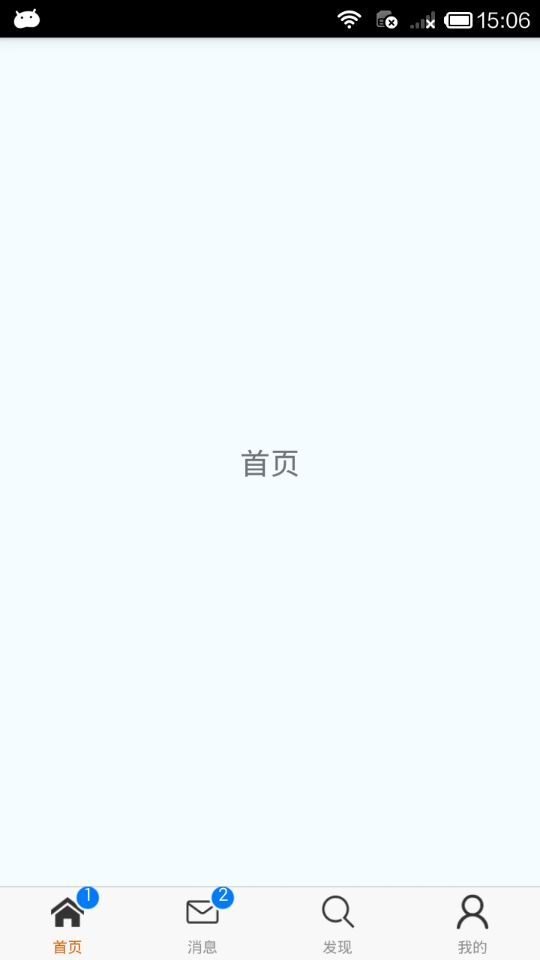
3.效果图
.
react-native 项目实战 -- 新闻客户端(2) -- 完善TabBar的更多相关文章
- 【腾讯Bugly干货分享】React Native项目实战总结
本文来自于腾讯bugly开发者社区,非经作者同意,请勿转载,原文地址:http://dev.qq.com/topic/577e16a7640ad7b4682c64a7 “8小时内拼工作,8小时外拼成长 ...
- React Native 项目实战-Tamic
layout: post title: React Native 项目实战 date: 2016-10-18 15:02:29 +0800 comments: true categories: Rea ...
- React Native 项目实战 -- DoubanProject
引言:本文是我研究react-native时写的一个简单的demo,代码里有详细的注释,好废话不多说,直接上代码. 1.项目目录 2.index.android.js /** * index.andr ...
- React Native项目实战
算是学习React Native的一次项目总结吧,目的还是提高自己. 包含的内容: 1>仿"美团"页面的实现; 2>封装项目中和自己常用的一些组件; 3>学习别人 ...
- react-native 项目实战 -- 新闻客户端(6) -- 完善ListView头部视图
1.因为需要定时器,所以我们要cd到当前项目根目录下安装这个类库: $ npm i react-timer-mixin --save 2.Component/ScrollImage.js /** * ...
- react-native 项目实战 -- 新闻客户端(5) -- 完善首页列表数据
1.Home.js: /** * 首页 */ import React, { Component } from 'react'; import { AppRegistry, StyleSheet, T ...
- react-native 项目实战 -- 新闻客户端(7) -- 新闻详情页
http://c.3g.163.com/nc/article/BUH64L0J00031H2L/full.html 观察这个地址,BUH64L0J00031H2L 就是每条新闻数据里的postid. ...
- react-native 项目实战 -- 新闻客户端(4) -- 请求网络数据
1.Home.js /** * 首页 */ import React, { Component } from 'react'; import { AppRegistry, StyleSheet, Te ...
- react-native 项目实战 -- 新闻客户端(3) -- 包装导航控制器
1.修改后的 Main.js /** * 主页面 */ import React, { Component } from 'react'; import { StyleSheet, Text, Vie ...
随机推荐
- poj 1061 青蛙的约会 (扩展欧几里得模板)
青蛙的约会 Time Limit:1000MS Memory Limit:10000KB 64bit IO Format:%I64d & %I64u Submit Status ...
- Html5学习进阶一 视频和音频
HTML5 规定了一种通过 video 元素来包含视频的标准方法. 视频格式 当前,video 元素支持两种视频格式: Internet Explorer Firefox 3.5 Opera 10 ...
- SQL联合查询(内联、左联、右联、全联)语法
SQL联合查询(内联.左联.右联.全联)语法 概述: 联合查询效率较高,举例子来说明联合查询:内联inner join .左联left outer join .右联right outer join ...
- [HNOI2002] 公交车路线
题目背景 在长沙城新建的环城公路上一共有8个公交站,分别为A.B.C.D.E.F.G.H.公共汽车只能够在相邻的两个公交站之间运行,因此你从某一个公交站到另外一个公交站往往要换几次车,例如从公交站A到 ...
- Application binary interface and method of interfacing binary application program to digital computer
An application binary interface includes linkage structures for interfacing a binary application pro ...
- iOS开发者证书申请及应用上线发布详解
一个小教程登录开发者中心:http://developer.apple.com/ 第零部分:本地生成密钥1.打开mac的钥匙串访问 2.选择钥匙串的证书助理(有些可能是英文的) 3.点击继续后存 ...
- django使用mysql的设置与迁移
1.创建数据库 create database django_lianxi charset=utf8; 2.django项目文件夹的setting.py设置 Django项目默认 sqlite3 数据 ...
- 使用Laravel将数据Excel导出的方法
1.copmposer下载maatwebsite/excel 2.在控制器引入:use Excel; 3.将要导出的数据处理成数组,第一组数据为表的字段名,如图 4.导出成表格 Excel::crea ...
- 我只能说,Spring Data REST真的很燥辣
我自己写REST,到一半了,突然想试一下Spring Data REST,还真不是乱说, 燥辣得很,短时间全生成,快赶上DJANGO的速度了.怕了我. 参考文档: Spring Data REST入门 ...
- (8)oracle 表的增删改
表的命名 表需要字母开头 只能用如下字符 A-Z,a-z,0-9,$,#. 不能使用oracle保留字 长度不能超过30 创建一张表 create table 表名(字段名 数据类型,字段名 数据类型 ...