
react-native 项目实战 -- 新闻客户端(2) -- 完善TabBar
1.创建 drawable-xxhdpi 文件夹,保存 TabBar 的 icon图标
android -- app -- src -- main -- res -- drawable-xxhdpi
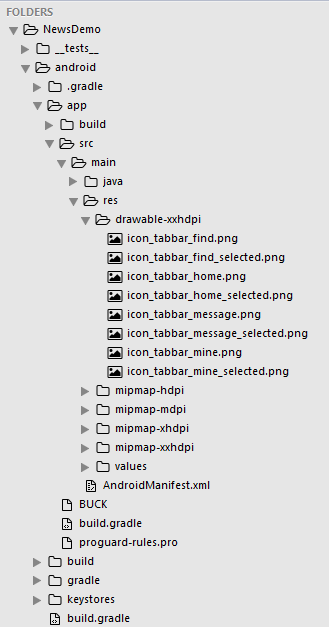
2.修改后的 Main.js
/**

 * 主页面

 */

import React, { Component } from 'react';

import {

    StyleSheet,

    Text,

    View,

    Image,

    Platform,  //判断当前运行的系统

} from 'react-native';

/*=============导入外部组件类==============*/

import TabNavigator from 'react-native-tab-navigator';

// 引入外部的组件(此处注意是相当于了项目根目录)

var Home = require('../Component/Home');

var Message = require('../Component/Message');

var Find = require('../Component/Find');

var Mine = require('../Component/Mine');

// ES5

var Main = React.createClass({

    // 初始化函数(变量是可以改变的,充当状态机的角色)

    getInitialState(){

        return{

            selectedTab:'home' // 默认选中的tabBar

        }

    },

    render() {

        return (

            <TabNavigator>

                {/*--首页--*/}

                <TabNavigator.Item

                    title="首页"

                    renderIcon={() => <Image source={{uri:"icon_tabbar_home"}} style={styles.iconStyle} />}

                    renderSelectedIcon={() => <Image source={{uri:"icon_tabbar_home_selected"}} style={styles.iconStyle} />}

                    selected={this.state.selectedTab === "home"}

                    onPress={() => this.setState({ selectedTab: "home" })}

                    selectedTitleStyle={styles.selectedTitleStyle} //tabBarItem选中的文字样式

                    badgeText="1"

                >

                    <Home />

                </TabNavigator.Item>

                {/*--消息--*/}

                <TabNavigator.Item

                    title="消息"

                    renderIcon={() => <Image source={{uri:"icon_tabbar_message"}} style={styles.iconStyle} />}

                    renderSelectedIcon={() => <Image source={{uri:"icon_tabbar_message_selected"}} style={styles.iconStyle} />}

                    selected={this.state.selectedTab === "message"}

                    onPress={() => this.setState({ selectedTab: "message" })}

                    selectedTitleStyle={styles.selectedTitleStyle} //tabBarItem选中的文字样式

                    badgeText="2"

                >

                    <Message />

                </TabNavigator.Item>

                {/*--发现--*/}

                <TabNavigator.Item

                    title="发现"

                    renderIcon={() => <Image source={{uri:"icon_tabbar_find"}} style={styles.iconStyle} />}

                    renderSelectedIcon={() => <Image source={{uri:"icon_tabbar_find_selected"}} style={styles.iconStyle} />}

                    selected={this.state.selectedTab === "find"}

                    onPress={() => this.setState({ selectedTab: "find" })}

                    selectedTitleStyle={styles.selectedTitleStyle} //tabBarItem选中的文字样式

                >

                    <Find />

                </TabNavigator.Item>

                {/*--我的--*/}

                <TabNavigator.Item

                    title="我的"

                    renderIcon={() => <Image source={{uri:"icon_tabbar_mine"}} style={styles.iconStyle} />}

                    renderSelectedIcon={() => <Image source={{uri:"icon_tabbar_mine_selected"}} style={styles.iconStyle} />}

                    selected={this.state.selectedTab === "mine"}

                    onPress={() => this.setState({ selectedTab: "mine" })}

                    selectedTitleStyle={styles.selectedTitleStyle} //tabBarItem选中的文字样式

                >

                    <Mine />

                </TabNavigator.Item>

            </TabNavigator>

        );

    },

});

const styles = StyleSheet.create({

    // icon默认样式

    iconStyle:{

        width: Platform.OS === 'ios' ? 30 : 25,

        height:Platform.OS === 'ios' ? 30 : 25,

    },

    // tabBarItem选中的文字样式

    selectedTitleStyle:{

        color: 'rgba(212,97,0,1)',

    }

});

// 输出

module.exports = Main;
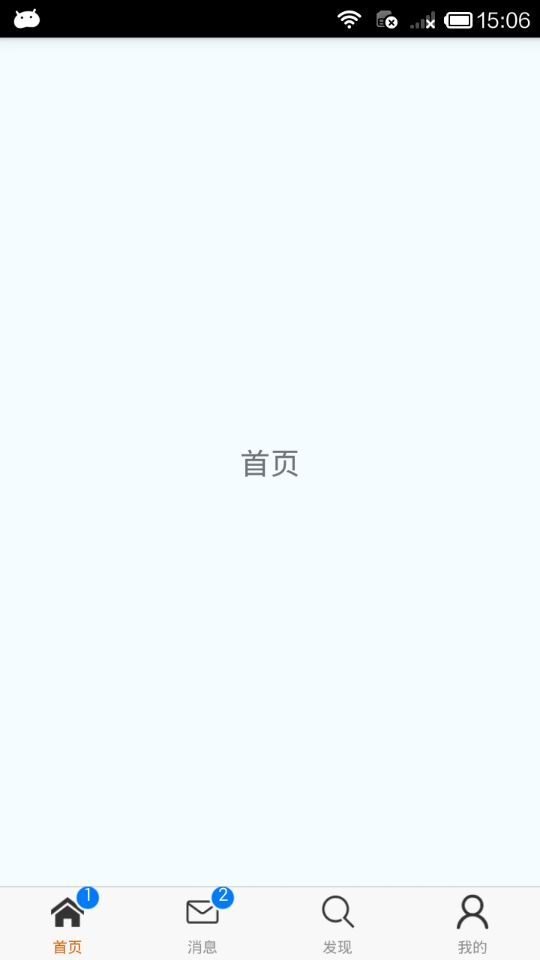
3.效果图
.
react-native 项目实战 -- 新闻客户端(2) -- 完善TabBar的更多相关文章
- 【腾讯Bugly干货分享】React Native项目实战总结
本文来自于腾讯bugly开发者社区,非经作者同意,请勿转载,原文地址:http://dev.qq.com/topic/577e16a7640ad7b4682c64a7 “8小时内拼工作,8小时外拼成长 ...
- React Native 项目实战-Tamic
layout: post title: React Native 项目实战 date: 2016-10-18 15:02:29 +0800 comments: true categories: Rea ...
- React Native 项目实战 -- DoubanProject
引言:本文是我研究react-native时写的一个简单的demo,代码里有详细的注释,好废话不多说,直接上代码. 1.项目目录 2.index.android.js /** * index.andr ...
- React Native项目实战
算是学习React Native的一次项目总结吧,目的还是提高自己. 包含的内容: 1>仿"美团"页面的实现; 2>封装项目中和自己常用的一些组件; 3>学习别人 ...
- react-native 项目实战 -- 新闻客户端(6) -- 完善ListView头部视图
1.因为需要定时器,所以我们要cd到当前项目根目录下安装这个类库: $ npm i react-timer-mixin --save 2.Component/ScrollImage.js /** * ...
- react-native 项目实战 -- 新闻客户端(5) -- 完善首页列表数据
1.Home.js: /** * 首页 */ import React, { Component } from 'react'; import { AppRegistry, StyleSheet, T ...
- react-native 项目实战 -- 新闻客户端(7) -- 新闻详情页
http://c.3g.163.com/nc/article/BUH64L0J00031H2L/full.html 观察这个地址,BUH64L0J00031H2L 就是每条新闻数据里的postid. ...
- react-native 项目实战 -- 新闻客户端(4) -- 请求网络数据
1.Home.js /** * 首页 */ import React, { Component } from 'react'; import { AppRegistry, StyleSheet, Te ...
- react-native 项目实战 -- 新闻客户端(3) -- 包装导航控制器
1.修改后的 Main.js /** * 主页面 */ import React, { Component } from 'react'; import { StyleSheet, Text, Vie ...
随机推荐
- HDU 4549 (费马小定理+矩阵快速幂+二分快速幂)
M斐波那契数列 Time Limit: 1000MS Memory Limit: 32768KB 64bit IO Format: %I64d & %I64u Submit Statu ...
- 给dedeCMS自定义模型添加图片集字段
1.先找到dedecms图片集模型的templets生成图片集的html代码(album_add.htm) <tr> <td height="24" ...
- Linux虚拟地址空间布局以及进程栈和线程栈总结
原文链接:http://blog.csdn.net/freeelinux/article/details/53782986[侵删] 本文转自多个博客,以及最后有我的总结.我没有单独从头到尾写一个总结的 ...
- 关于backBarButtonItem的N种方法
替换返回按钮的文字 很多app的要求所有的返回按钮的title都是“返回”,如果上一层题目文字太多,下一层的返回按钮文字就会显示不完全,而且这样可以使软件显得整洁. 方法一: 最普通的想法,A界面的n ...
- 关闭vs警告
禁用所有编译器警告 当“解决方案资源管理器”中有项目选中时,在“项目”菜单上单击“属性”. 单击“编译”选项卡. 选中“禁用所有警告”复选框. 禁用单个编译器警告 在“解决方案资源管理器”中选定一个项 ...
- HTML5 canvas上画文字出现乱码
不是这个的问题, <html> <head> <meta charset="utf-8"/> </head> 是因为从网上复制粘贴下 ...
- cloudflare 301 重定向设置
https://support.cloudflare.com/hc/en-us/articles/218411427#redirects 将 https://dfg.com/* 设置301重定向到 h ...
- 字符串进行富文本操作后末尾emoji表情显示会乱码
问题描述: 1.UIlabel展示的text中包含emoji表情 2.emoji表情作为最后一个字符 在满足以上条件的前提下末尾的emoji会乱码. 寻找问题过程: 因为是在单独的机型上出现的问题,所 ...
- 蓝桥杯模拟赛 引爆炸弹-并查集+DFS
引爆炸弹 在一个 n×m的方格地图上,某些方格上放置着炸弹.手动引爆一个炸弹以后,炸弹会把炸弹所在的行和列上的所有炸弹引爆,被引爆的炸弹又能引爆其他炸弹,这样连锁下去. 现在为了引爆地图上的所有炸弹, ...
- Codeforces Round #445 B. Vlad and Cafes【时间轴】
B. Vlad and Cafes time limit per test 2 seconds memory limit per test 256 megabytes input standard i ...