
添加Usb3.0驱动到win7/8/10的usb安装光盘
文章中所有需要使用到的软件和资源在文章末尾的网盘连接中有下载
Run the DISM GUI Tool
Right-click on DISM GUI.exe and select Run as Administrator. Follow these steps:
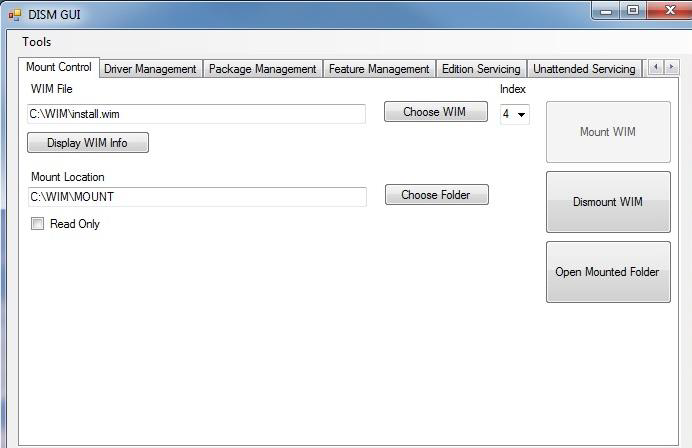
1. Mount install.wim Image
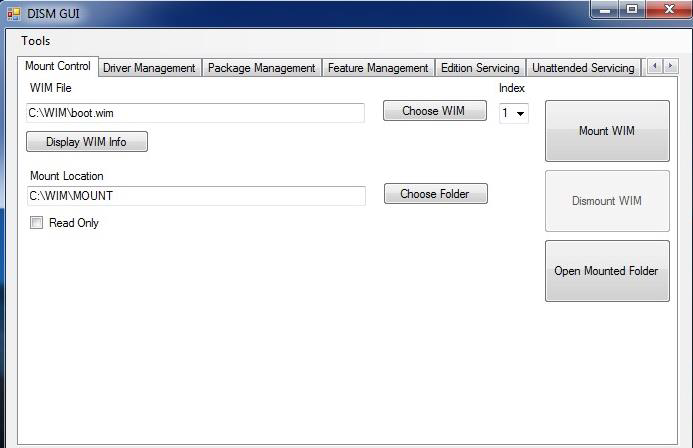
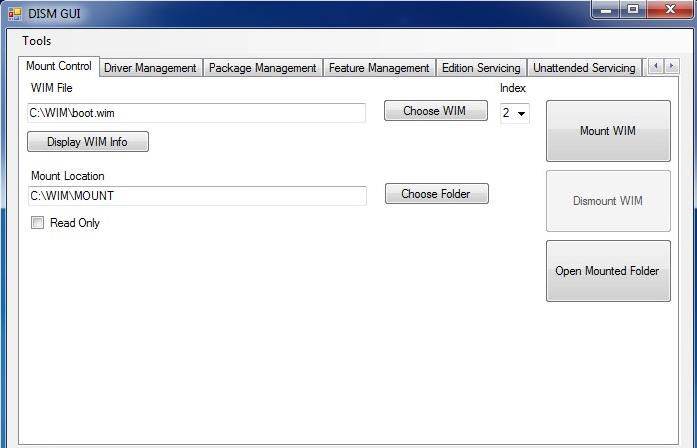
a) On the Mount Control tab, click the Choose WIM button.
b) Navigate to where you copied install.wim (C:\WIM, for example) and click Open.
c) Choose the index number for the version of Windows 7 you have from the drop-down list under Index.
1 = Home Basic
2 = Home Premium
3 = Professional
4 = Ultimate
(ps:windows这部分的索引可以无视)
d) Click the Choose Folder button for the Mount Location. Browse to the proper folder (C:\WIM\MOUNT, for example) and click OK.
e) Verify the Read Only checkbox is clear and click the Mount WIM button.(ps:注意Read Only按钮需要取消勾选)
The mounting process may take a few minutes, depending upon the speed of the Admin system and the size of the install.wim file.
2. Add USB 3.0 Drivers to install.wim Image
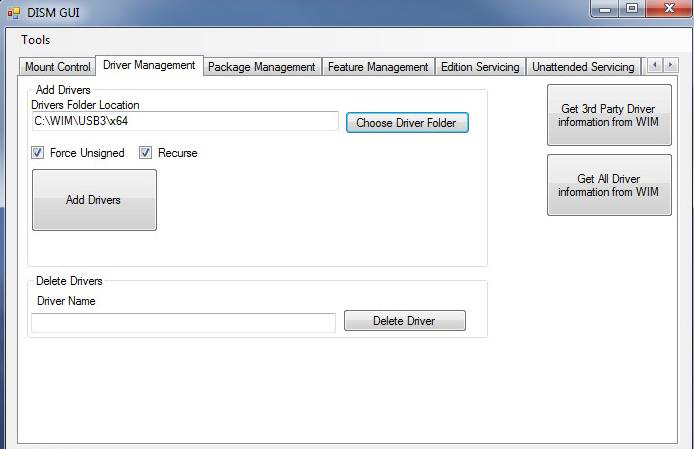
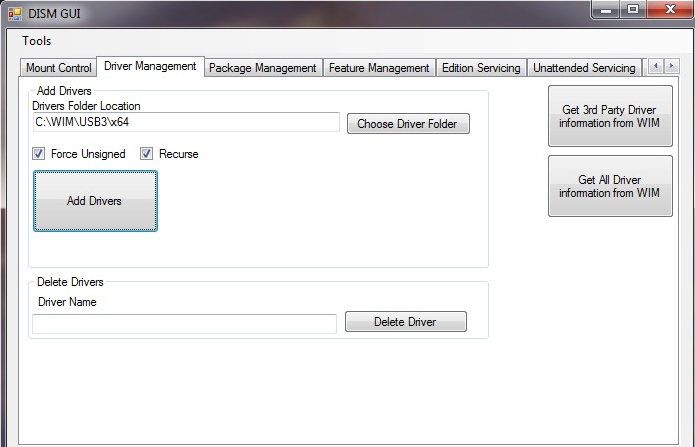
a) On the Driver Management tab, click the Choose Driver Folder button.
b) Select the location of your USB 3.0 drivers and click OK.
c) Verify the Recurse checkbox is selected.
d) If your drivers are unsigned or reported to be unsigned, select the Force Unsigned checkbox.(如果不是第三方未签名的驱动Force Unsigned按钮不需要勾选)
e) Click the Add Drivers button.
3. Commit Changes to install.wim Image and Unmount
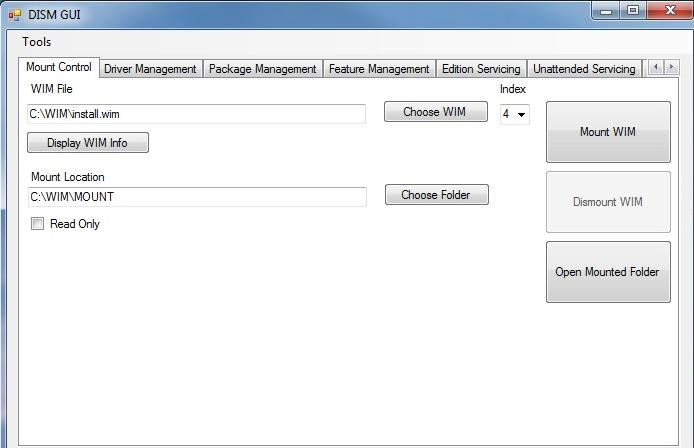
a) On the Mount Control tab, click the Dismount WIM button.
b) Select Yes to commit the changes. This may take a few minutes.
4. Mount boot.wim Image Index 1 (Windows PE)
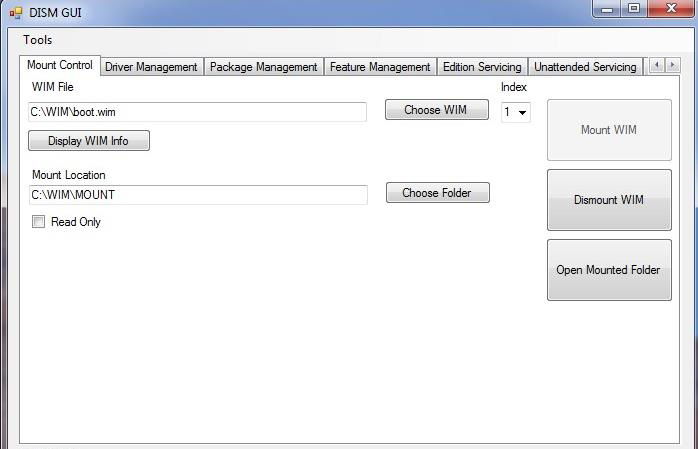
a) On the Mount Control tab, click the Choose WIM button.
b) Navigate to where you copied boot.wim (C:\WIM in the example) and click Open.
c) Choose index number 1 (for Windows PE) from the drop-down list under Index.
d) The Mount Location should still contain the appropriate folder. If not, click the Choose Folder button for the Mount Location. Browse to the proper folder (C:\WIM\MOUNT, for example) and click OK.
e) Verify the Read Only checkbox is clear and click the Mount WIM button.
5. Add USB 3.0 Drivers to boot.wim Image
a) On the Driver Management tab, all options should still be set up from adding them to the previous image. If not, click the Choose Driver Folder button. Select the location of your USB 3.0 drivers and click OK.
b) Verify the Recurse checkbox is selected.
c) If your drivers are unsigned or reported to be unsigned, select the Force Unsigned checkbox.
d) Click the Add Drivers button.
6. Commit Changes to boot.wim Image and Unmount
a) On the Mount Control tab, click the Dismount WIM button.
b) Select Yes to commit the changes. This will take about 30 seconds to finish.
7. Mount boot.wim Image Index 2 (Windows Setup)
a) On the Mount Control tab, you should see boot.wim still listed as the WIM file from the previous step. If not, click the Choose WIM button. Navigate to where you copied boot.wim (C:\WIM, for example) and click Open.
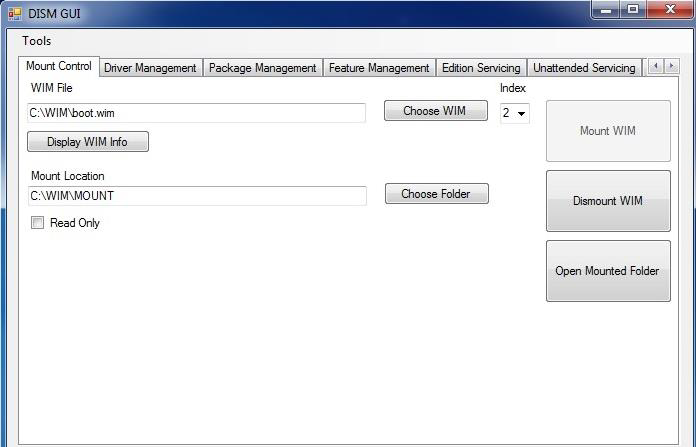
b) Choose index number 2 (for Windows Setup) from the drop-down list under Index.
c) The Mount Location should still contain the appropriate folder. If not, click the Choose Folder button for the Mount Location. Browse to the proper folder (C:\WIM\MOUNT, for example) and click OK.
d) Verify the Read Only checkbox is clear and click the Mount WIM button.
8. Add USB 3.0 Drivers to boot.wim Image
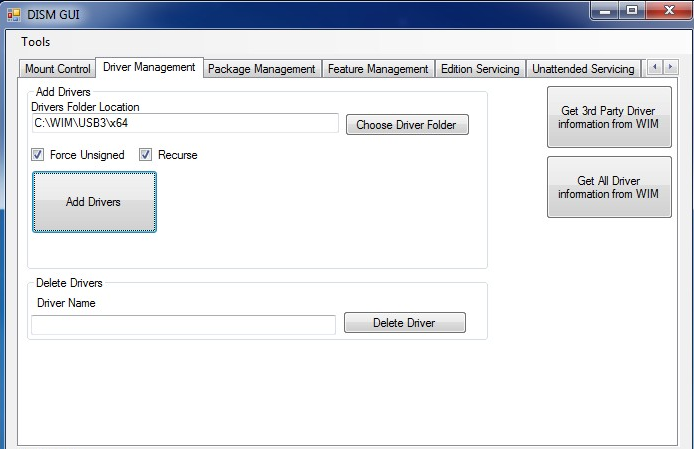
a) On the Driver Management tab, all options should still be set up from adding them to the previous image. If not, click the Choose Driver Folder button. Select the location of your USB 3.0 drivers and click OK.
b) Verify the Recurse checkbox is selected.
c) If your drivers are unsigned or reported to be unsigned, select the Force Unsigned checkbox.
d) Click the Add Drivers button.
9. Commit Changes to boot.wim Image and Unmount
a) On the Mount Control tab, click the Dismount WIM button.
b) Select Yes to commit the changes. This will take about 30 seconds to finish.
10. Copy Modified WIM files Back to the USB Flash Drive Installer
a) Copy the newly-modified install.wim and boot.wim files back to the \sources directory of the Windows 7 USB Flash Drive Installer, overwriting the original files.
b) Eject and remove the USB Flash Drive from the Admin system.
链接:https://pan.baidu.com/s/1ZASrZC0AykafdrrMUnb50g 密码:1xoz
添加Usb3.0驱动到win7/8/10的usb安装光盘的更多相关文章
- 如何向 Windows 7 镜像中添加 USB3.0 驱动
如何向 Windows 7 镜像中添加 USB3.0 驱动 1. Microsoft 在 Windows 7 的安装光盘并没有集成各个厂商的 USB3.0 驱动,可 以使用下面方法添加 USB3.0 ...
- win7添加usb3.0驱动(错误代码1392,文件或目录损坏且无法读取)
Win7添加usb3.0驱动 之前一直按照网上的方法执行dism命令挂载时,总是失败,错误代码1392,显示原因是文件或目录损坏且无法读取.这个错误以前在装机时老是出现导致系统安装不成功,在BIOS中 ...
- win7原版映像中添加usb3.0驱动
最近用软碟通制作了一个win7原版映像,但是在装新系统的时候发现了一个问题,进入安装界面后,显示没有找到驱动器,但是明明是差了U盘的,通过“shift+f12”调出命令行窗口,输入disk list命 ...
- 给windows 7安装文件添加USB3.0驱动
给Air安装win7进入语言与区域选择之后,发现键盘触摸板都失灵. 原因:新款的 Macbook Air 2013 因为使用了 USB3.0 端口键盘和触摸板设备,所以在安装 Windows 7 ...
- Windows OS添加USB3.0驱动!
原因:现在的win7.win2008等一些早期的系统在安装时无法使USB鼠标和键盘... 1. 素材(dism64工具.UltraISO工具.U盘一个) 2. 先使用UltrISO工具制作一个wi ...
- Windows 7原版映像中添加usb3.0驱动
最近用软碟通制作了一个win7原版映像,但是在装新系统的时候发现了一个问题,进入安装界面后,显示没有找到驱动器,但是明明是差了U盘的,通过“shift+f12”调出命令行窗口,输入disk list命 ...
- 如何在Win7安装U盘中加入USB3.0驱动的支持
U盘安装系统出现鼠标键盘不能使用,在intel六代处理器平台,安装过程中会出现安装原生镜像不能识别或者鼠标键盘不能使用等情况,可以参考以下方法进行. 风险提示:重装或升级系统会导致系统盘数据丢失,建议 ...
- U盘安装Win7系统,遇到硬盘鼠标键盘失灵等情况,如何安装U盘中加入USB3.0驱动的支持
U盘安装系统出现鼠标键盘不能使用,在intel六代处理器平台,安装过程中会出现安装原生镜像不能识别或者鼠标键盘不能使用等情况,可以参考以下方法进行. 风险提示:重装或升级系统会导致系统盘数据丢失,建议 ...
- 关于在win7内集成usb3.0驱动。
mac air 装了win7但是折腾良久还是无法升级,只能是重新安装. 很蛋疼.bootcamp 老是找不到驱动.只能是手动分区后U盘引导安装. 驱动的下载,直接在Os x 下用bootcamp 下载 ...
随机推荐
- js增删class的方法
接下来我来介绍两种方法 我们先来一段HTMl代码 <div id="bb"> 你好呀 </div> 接下来我们再来一段css样式 .ob { color:r ...
- sql server通过临时存储过程实现使用参数添加文件组脚本复用
create procedure #pr_CreateFileGroup @dbname nvarchar(max), @filegroupname nvarchar(max) as begin /* ...
- 纪中20日c组T2 2122. 【2016-12-31普及组模拟】幸运票
2122. 幸运票 (File IO): input:tickets.in output:tickets.out 时间限制: 1000 ms 空间限制: 262144 KB 具体限制 Goto P ...
- git commond 详解
Git commit git commit 主要是将暂存区里的改动给提交到本地的版本库.每次使用git commit 命令我们都会在本地版本库生成一个40位的哈希值,这个哈希值也叫commit-id, ...
- 【python基础语法】第2天作业练习题
""" 1.用户输入一个数值,请判断用户输入的是否为偶数?是偶数输出True,不是输出False(提示:input输入的不管是什么,都会被转换成字符串,自己扩展,想办法将 ...
- c++多线程编程互斥锁初步
上一次讲述了多线程编程,但是由于线程是共享内存空间和资源的,这就导致:在使用多线程的时候,对于共享资源的控制要做的很好.先上程序: #include <iostream> #include ...
- Spring学习笔记-面向切面(AOP)-04
什么是面向切面编程 先大概了解一下部分术语 横切关注点:软件开发中,散布于多出的功能称为横切关注点(cross-cutting concern),简单的可以描述为可以影响应用多处的功能,比如日志.安全 ...
- 手动安装 saltshaker-plus 版本选择特别说明(后期重点讲解Docker安装方式)
前后端都建议使用1.12版本
- jQuery笔记(二)jQuery中DOM操作
前言 本篇主要介绍DOM操作,在说DOM操作之前,首先我们应该熟悉DOM树,以一个例子为例来说明DOM树.首先看这段HTML代码.(本文后面的代码如果没有特别指出,都是针对下述HTML代码进行操作) ...
- canvas-画圆心的算法
公式为x=16sin~3t,y=(13cost-5cos2t-2cos3t-cos4t) x+r(16Math.pow(Math.sin(t),3)) y-r(13Math.cos(t)-5Math. ...