
Geek to Live: Set up your personal Wikipedia
http://lifehacker.com/163707/geek-to-live--set-up-your-personal-wikipedia
Filed to: Wikipedia
- Capture tools
- Downloads
- Feature
- Geek to Live
- Home server
- How To
- Screencasts
- Top
- Video Demonstration
- Wiki
- Wikimedia
- Windows
- Edit
- Delete
- Invite manually
- Promote
- XDismissXUndismiss
- Block for lifehacker
- Hide
- Share to Kinja
- Share to Facebook
- Share to Pinterest
- Share to Twitter
- Go to permalink

by Gina Trapani
The collaboratively-edited Wikipedia is a vast, searchable repository of information, constantly written and re-written over time by its readers. Don't you wish you or your group could have your own editable encyclopedia of braindumps and documentation like Wikipedia? Well, you can. The software that runs Wikipedia, called MediaWiki, is freely available for anyone to install. Today we'll set up MediaWiki on your Windows PC and get started with a video demonstration on how to add, edit and compare page revisions in your new, local personalpedia.
Note: MediaWiki is advanced wiki software that requires Apache web server, the PHP scripting language and the MySQL database server installed to run. If this makes your tummy hurt, a simpler (and less-featured) alternative to MediaWiki is the excellent Instiki. See previous feature How to host a personal wiki on your home computer for more on installing Instiki. As always, know that setting up a server on your personal computer can be a security risk. Make sure you are behind a firewall that prevents unauthorized access to your server.

Geek to Live: How to host a personal wiki on your home computerGeek to Live: How to host a personal wiki on your home computerGeek to Live: How to host a personal wiki on your
by Gina TrapaniRead more Read more
What you'll need
- A Windows XP computer
(Not already running Apache web server) - Free WAMP server software and MediaWiki
(Available for download)
Set up your local installation of MediaWiki
- Install WAMP.
WAMP is an all-in-one PHP/MySQL/Apache installation for Windows. Download WAMP from here. Install WAMP in the C:\wamp\ directory. (If you must install it elsewhere, make sure the folder you choose has no spaces or special characters in its name.) Check the Autostart option. When the installation is complete, visit http://localhost/ in your web browser to see the front page of your new web server.
- Change your MySQL database server password.
You're already running a firewall (right?) but just to be on the safe side, we're going to assign a password to your new database server because we're healthily paranoid like that. From the homepage of your WAMP installation (http://localhost/), go to the link on the page on the left under Tools that reads "PHPmyadmin 2.7.0-pl2." From there click on the "Privileges" link. Check all users besides "root" and choose Delete. Then, click the edit button next to the root user, and change the password to something you'll remember and save. Once that's done, PHPmyadmin will no longer be able to access your database because it doesn't have your new password. We can remedy that easily.
Open the C:\wamp\phpmyadmin\config.inc.php file in a text editor. Change the line that reads:
$cfg['Servers'][$i]['password'] = '';to
$cfg['Servers'][$i]['password'] = 'yournewpassword';Where yournewpassword is the password you just set up in PHPmyadmin. See more on changing your db password here.
- Install MediaWiki, the software that powers Wikipedia.
Download MediaWiki from here. Unzip and untar the package using a utility like 7-Zip. Rename the resulting folder from "media-wiki-1.5.8" to "mywikipedia" and move the entire directory to c:\wamp\www\mywikipedia\.
- Configure MediaWiki.
Access your new MediaWiki installation at http://localhost/mywikipedia/. Click on the "set the wiki up!" link. The next screen requires all of MediaWiki's configuration options. Be sure to choose a site name (mine is "Ginapedia") and a WikiSysOp password. Under the Database Configuration, set the Database User to root and the password to whatever you chose in step 2. This seems like a long and complicated questionnaire, but it's not. Click here to see my full configuration screen all filled in.
Then click the "Install!" button and let MediaWiki work its magic. All goes well, you'll get a message at the bottom of the screen that reads, "Move the config/LocalSettings.php file into the parent directory, then follow this link to your wiki." So let's do just that: Cut and paste the c:\wamp\www\mywikipedia\config\LocalSettings.php file to c:\wamp\www\mywikipedia\LocalSettings.php.
- Visit your brand, spankin' new personal wiki at http://localhost/mywikipedia/.
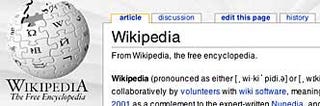
Congratulations! You got MediaWiki up and running, you big tech stud. You'll notice that the image in the upper lefthand corner isn't very personal. To set it to something prettier than this:
Crop and resize an image of your choice to 135x135 pixels (72 dpi), and save it in C:\wamp\www\mywikipedia\skins\common\images\mywikilogo.jpg. Then, open the c:\wamp\www\mywikipedia\LocalSettings.php file and change the line that reads:
$wgLogo = "$wgStylePath/common/images/wiki.png";to:
$wgLogo = "$wgStylePath/common/images/mywikilogo.jpg";Refresh the page to see your new logo.

Now you've got a clean, new, customized local installation of MediaWiki all ready for you to use how you please. As evidenced by Wikipedia, the best application of a wiki is open, group collaboration on a set of documents. However, wiki's come in handy for individual use as well, to track lists, notes, links, images, or anything else you want to search or reference over time. Wiki's are especially good for writing projects, as they keep multiple version history and allow for very easy adding and editing of pages. Keith, Adam and I use a Lifehacker MediaWiki installation to collaborate on site ideas and drafts, and I use a wiki to keep personal notes on programming techniques, to track software serial numbers, quotes I like, and other relevant links and articles.
The main learning curve with MediaWiki is the special markup (Wikitext) that it uses to format a page. However, using Wikitext to author and add pages is very easy. Here's a quick video demonstration of using my new personalpedia to start writing a novel. (Warning: audio of my not-made-for-TV voice ahead.)
Geek to Live: Set up your personal Wikipedia的更多相关文章
- 极客”一词,来自于美国俚语“geek”的音译,一般理解为性格古怪的人
起源 “ 极客”一词,来自于美国俚语“ geek”的音译,一般理解为性格古怪的人.数学“极客”大多是指,并不 一定是数学专业但又对数学等技术有狂热的兴趣并投入大量时间钻研的人.又 译作“ 奇客”.以前 ...
- Michael Kors - Wikipedia, the free encyclopedia
Michael Kors - Wikipedia, the free encyclopedia Michael Kors From Wikipedia, the free encyclopedia ...
- [wikipedia] List of free and open-source software packages
List of free and open-source software packages From Wikipedia, the free encyclopedia This articl ...
- 利用wikipedia 的API实现对其内容的查询
wikipedia提供了api可以供我们对其内容进行操作.其API文档地址为: http://en.wikipedia.org/w/api.php 列举一些常见用法: 1.全文搜索 http://en ...
- blade and soul Personal Combos
Personal Combos Since Blade and Soul is mainly based on skills, the game is more interesting after y ...
- Ubuntu 之 Personal Package Archive (PPA)
How do I use software from a PPA? To start installing and using software from a Personal Package Arc ...
- How To Create a Personal Balance Sheet
Calculating your personal net worth is the best way to know exactly what your starting point is, in ...
- A Personal Selection of Books on E lectromagnetics and Computational E lectromagnetics---David B. Davidson
链接. General Books on Electromagnetics When our department recently reviewed our junior-level text, w ...
- Wikipedia : OIT history
http://en.wikipedia.org/wiki/Order-independent_transparency Order-independent transparency From Wiki ...
随机推荐
- recommonmark
一 简要介绍 recommonmark是个到commonMark文档的兼容性桥,那么什么是commonMark是什么的呢?CommonMark是规范版的markdown,下边是部分commonmark ...
- [Algorithm]栈和队列
一.栈和队列综合(算法) 1.判断单链表(带头结点)的结点值(字符型)是否中心对称 1 bool IsSymmetry( LinkList& L ) 2 { 3 char S[MAXSIZE] ...
- [CentOS7] timedatectl设置时区
查看当前时区日期等配置 显示可选时区 选择时区
- 安卓--ListView
实验目的: 学习使用ListView 实验要求: 实现一个列表,其中显示班级学号姓名,提供添加功能,如需要删去某一项,长按该项,通过弹出菜单显示删除功能. package com.flyuz.app3 ...
- 从理论认识J2EE
前言 在学习J2EE这块,看了成套的视频,感觉,感觉,感觉收获不是特别大,没用马老师讲得好,但是多少还是和J2EE打了个招呼,比如J2EE著名的十三个规范,他们有的人说不算什么规范,顶多可以理解为十三 ...
- github 的使用步骤
1. github是一个git项目托管网站 注册地址:https://github.com/signup/free 2. 安装git程序,执行下面操作 $ cd ~/.ssh //检查计算机ssh密钥 ...
- ios配置xmpp即时聊天-服务器端
一.安装 到MySQL官网上http://dev.mysql.com/downloads/mysql/,下载mysql可安装dmg版本 比如:Mac OS X ver. 10.7 (x86, 64-b ...
- P4234 最小差值生成树 LCT维护边权
\(\color{#0066ff}{ 题目描述 }\) 给定一个标号为从 \(1\) 到 \(n\) 的.有 \(m\) 条边的无向图,求边权最大值与最小值的差值最小的生成树. \(\color{#0 ...
- matplotlib类
1.plt.subplot 在matplotlib下,一个Figure对象可以包含多个子图(Axes),可以使用subplot()快速绘制,其调用形式如下:subplot(numRows, numCo ...
- UVa 11292 勇者斗恶龙(The Dragon of Loowater)
首先先看一下这道题的英文原版... 好吧,没看懂... 大体意思就是: 有一条n个头的恶龙,现在有m个骑士可以雇佣去杀死他,一个能力值为x的勇士可以砍掉直径不超过x的头,而且需要支付x个金币.如何雇佣 ...