
Android项目实战(十七):QQ空间实现(二)—— 分享功能 / 弹出PopupWindow
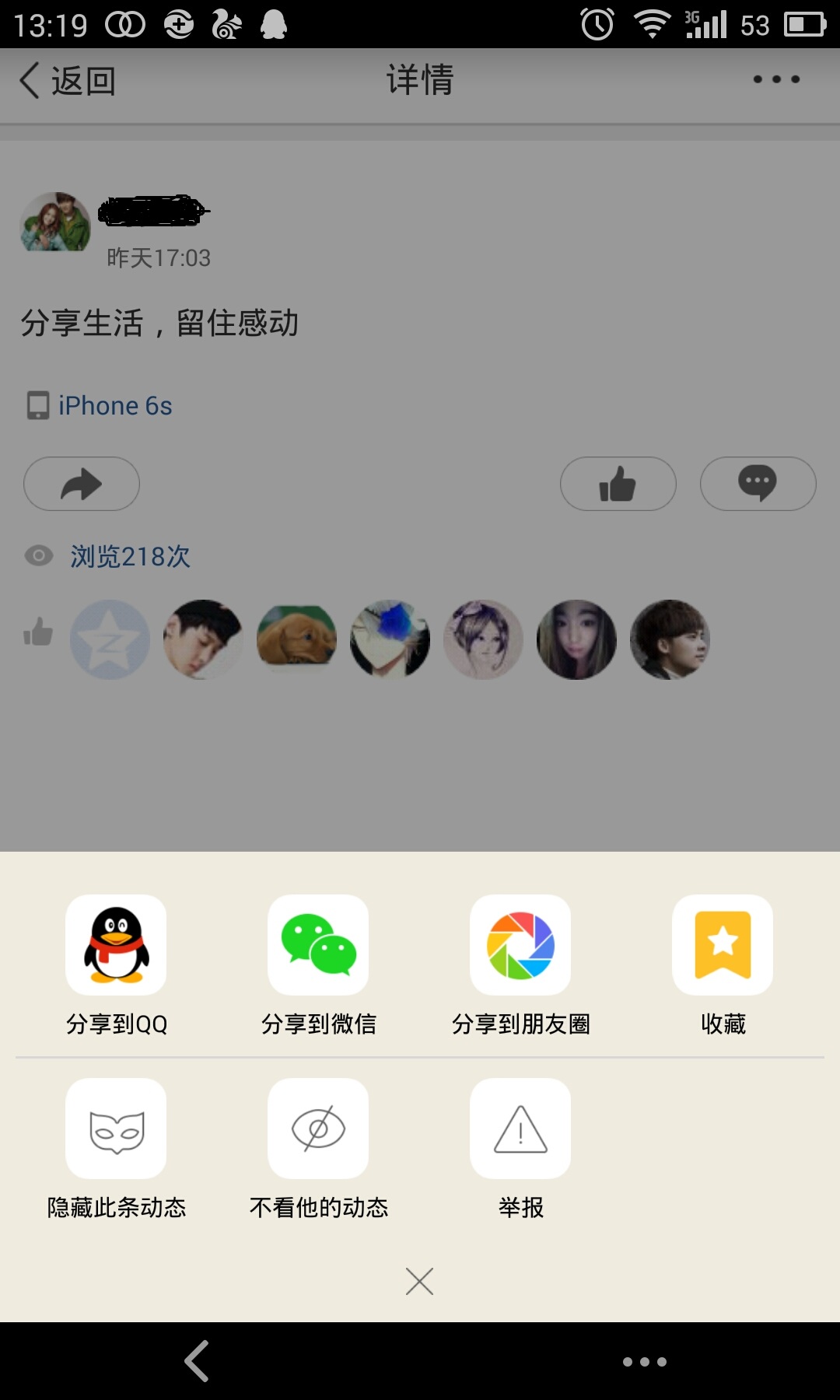
这是一张QQ空间说说详情的截图。
分析:
、点击右上角三个点的图标,在界面底部弹出一个区域,这个区域有一些按钮提供给我们操作

、当该区域出现的时候,详情界面便灰了,也说成透明度变化了

、当任意选了一个按钮或者点击了该区域以外的部分,该区域消失,灰色界面变回亮白色,并执行点击的按钮对应的操作
显然,这个功能我们需要用PopupWindow实现更好~
--------------------------------------------------------------------------------------
下面通过一个Demo来实现这个需求~~
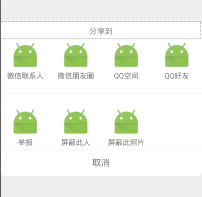
效果图:

首先还是布局文件:
1、主界面:
我们只需要在界面的右上角放一个按钮来弹出PopupWindow ,注意 父容器需要有一个id,因为我们需要它来给PopupWindow设置弹出的位置
<RelativeLayout xmlns:android="http://schemas.android.com/apk/res/android"

    xmlns:tools="http://schemas.android.com/tools"

    android:layout_width="match_parent"

    android:layout_height="match_parent"

    tools:context=".MainActivity"

    android:id="@+id/mainlayout"

    >

    <ImageButton

        android:id="@+id/btn_more"

        android:layout_width="wrap_content"

        android:layout_height="wrap_content"

        android:src="@mipmap/btn_more"

        android:background="#0000"

        android:layout_alignParentRight="true"

        android:layout_margin="5dp"

        />

</RelativeLayout>
2、PopupWindow界面
<?xml version="1.0" encoding="UTF-8"?>

<RelativeLayout xmlns:android="http://schemas.android.com/apk/res/android"

    android:layout_width="wrap_content"

    android:layout_height="wrap_content"

    android:layout_gravity="center"

    android:orientation="vertical"

    >

    <LinearLayout

        android:layout_width="match_parent"

        android:layout_height="wrap_content"

        android:layout_centerVertical="true"

        android:layout_gravity="center_vertical|center"

        android:background="@drawable/shape_rectangle_white"

        android:orientation="vertical" >

        <TextView

            android:id="@+id/shareto"

            android:layout_width="match_parent"

            android:layout_height="35dp"

            android:gravity="center"

            android:layout_gravity="center_horizontal"

            android:text="分享到"

            android:textSize="15sp"

             />

            <LinearLayout

                android:id="@+id/fp_linear_share"

                android:layout_width="match_parent"

                android:layout_height="wrap_content"

                android:orientation="horizontal"

                android:layout_marginBottom="5dp">

                <LinearLayout

                    android:id="@+id/fp_linear_sharetoWeixin"

                    android:layout_weight=""

                    android:layout_width="fill_parent"

                    android:layout_height="wrap_content"

                    android:orientation="vertical"

                    android:gravity="center_horizontal"

                    >

                    <ImageView

                        android:layout_width="55dp"

                        android:layout_height="55dp"

                        android:background="@mipmap/ic_launcher"

                        android:layout_gravity="bottom|center_horizontal"/>

                    <TextView

                        android:layout_marginTop="4dp"

                        android:layout_width="wrap_content"

                        android:layout_height="wrap_content"

                        android:text="微信联系人"

                        android:gravity="center"

                        />

                </LinearLayout>

                <LinearLayout

                    android:id="@+id/fp_linear_sharetoquan"

                    android:layout_weight=""

                    android:layout_width="fill_parent"

                    android:layout_height="wrap_content"

                    android:orientation="vertical"

                    android:gravity="center_horizontal"

                    >

                    <ImageView

                        android:layout_width="55dp"

                        android:layout_height="55dp"

                        android:background="@mipmap/ic_launcher"

                        android:layout_gravity="bottom|center_horizontal"/>

                    <TextView

                        android:layout_marginTop="4dp"

                        android:layout_width="wrap_content"

                        android:layout_height="wrap_content"

                        android:text="微信朋友圈"

                        android:gravity="center"

                        />

                </LinearLayout>

                <LinearLayout

                    android:id="@+id/fp_linear_sharetoQzone"

                    android:layout_weight=""

                    android:layout_width="fill_parent"

                    android:layout_height="wrap_content"

                    android:orientation="vertical"

                    android:gravity="center_horizontal"

                    >

                    <ImageView

                        android:layout_width="55dp"

                        android:layout_height="55dp"

                        android:background="@mipmap/ic_launcher"

                        android:layout_gravity="bottom|center_horizontal"/>

                    <TextView

                        android:layout_marginTop="4dp"

                        android:layout_width="wrap_content"

                        android:layout_height="wrap_content"

                        android:text="QQ空间"

                        android:gravity="center"

                        />

                </LinearLayout>

                <LinearLayout

                    android:id="@+id/fp_linear_sharetoQQ"

                    android:layout_weight=""

                    android:layout_width="fill_parent"

                    android:layout_height="wrap_content"

                    android:orientation="vertical"

                    android:gravity="center_horizontal"

                    >

                    <ImageView

                        android:layout_width="55dp"

                        android:layout_height="55dp"

                        android:background="@mipmap/ic_launcher"

                        android:layout_gravity="bottom|center_horizontal"/>

                    <TextView

                        android:layout_marginTop="4dp"

                        android:layout_width="wrap_content"

                        android:layout_height="wrap_content"

                        android:text="QQ好友"

                        android:gravity="center"

                        />

                </LinearLayout>

            </LinearLayout>

            <View

                android:layout_marginTop="20dp"

                android:layout_width="match_parent"

                android:layout_height="1dp"

                android:background="#e8e8e8" />

        <LinearLayout

            android:id="@+id/fp_other"

            android:layout_width="match_parent"

            android:layout_height="wrap_content"

            android:orientation="horizontal"

            android:layout_marginTop="25dp"

            android:layout_marginBottom="5dp">

            <LinearLayout

                android:id="@+id/fp_report"

                android:layout_weight=""

                android:layout_width="fill_parent"

                android:layout_height="wrap_content"

                android:orientation="vertical"

                android:gravity="center_horizontal"

                >

                <ImageView

                    android:layout_width="55dp"

                    android:layout_height="55dp"

                    android:background="@mipmap/ic_launcher"

                    android:layout_gravity="bottom|center_horizontal"/>

                <TextView

                    android:layout_marginTop="4dp"

                    android:layout_width="wrap_content"

                    android:layout_height="wrap_content"

                    android:text="举报"

                    android:gravity="center"

                    />

            </LinearLayout>

            <LinearLayout

                android:id="@+id/fp_hide_all"

                android:layout_weight=""

                android:layout_width="fill_parent"

                android:layout_height="wrap_content"

                android:orientation="vertical"

                android:gravity="center_horizontal"

                >

                <ImageView

                    android:layout_width="55dp"

                    android:layout_height="55dp"

                    android:background="@mipmap/ic_launcher"

                    android:layout_gravity="bottom|center_horizontal"/>

                <TextView

                    android:layout_marginTop="4dp"

                    android:layout_width="wrap_content"

                    android:layout_height="wrap_content"

                    android:text="屏蔽此人"

                    android:gravity="center"

                    />

            </LinearLayout>

            <LinearLayout

                android:id="@+id/fp_hide_pic"

                android:layout_weight=""

                android:layout_width="fill_parent"

                android:layout_height="wrap_content"

                android:orientation="vertical"

                android:gravity="center_horizontal"

                >

                <ImageView

                    android:layout_width="55dp"

                    android:layout_height="55dp"

                    android:background="@mipmap/ic_launcher"

                    android:layout_gravity="bottom|center_horizontal"/>

                <TextView

                    android:layout_marginTop="4dp"

                    android:layout_width="wrap_content"

                    android:layout_height="wrap_content"

                    android:text="屏蔽此照片"

                    android:gravity="center"

                    />

            </LinearLayout>

            <LinearLayout

                android:layout_weight=""

                android:layout_width="fill_parent"

                android:layout_height="wrap_content"

                android:orientation="vertical"

                android:gravity="center_horizontal"

                >

                <ImageView

                    android:layout_width="55dp"

                    android:layout_height="55dp"

                    android:layout_gravity="bottom|center_horizontal"/>

                <TextView

                    android:layout_marginTop="4dp"

                    android:layout_width="wrap_content"

                    android:layout_height="wrap_content"

                    android:gravity="center"

                    />

            </LinearLayout>

        </LinearLayout>

            <View

                android:layout_width="match_parent"

                android:layout_height="0.5dp"

                android:background="#e8e8e8" />

            <TextView

                android:id="@+id/fp_cancel"

                android:layout_width="fill_parent"

                android:layout_height="50dp"

                android:gravity="center"

                android:text="取消"

                android:textSize="17sp" />

    </LinearLayout>

</RelativeLayout>
popupwindow
--------------------------------------------------------------------------------------
java代码部分:
1、首先我们要自定义一个继承PopupWindow的类(根据项目需求决定定义的内容)/**
 * 自定义PopupWindow , 实现仿QQ空间分享效果

 */

public class SelectPopupWindow extends PopupWindow {

    //一个LinearLayout 表示一个可选操作

    private LinearLayout fp_hide_all,fp_hide_pic,fp_report,fp_linear_sharetoWeixin,fp_linear_sharetoquan,fp_linear_sharetoQzone,fp_linear_sharetoQQ;

    //popupWindow 取消文本按钮

    private TextView fp_cancel;

    private View mMenuView;

    public SelectPopupWindow(Activity context, OnClickListener itemsOnClick) {

        super(context);

        LayoutInflater inflater = (LayoutInflater) context

                .getSystemService(Context.LAYOUT_INFLATER_SERVICE);

        mMenuView = inflater.inflate(R.layout.feed_popuwindow, null);

        fp_hide_pic = (LinearLayout) mMenuView.findViewById(R.id.fp_hide_pic);

        fp_hide_all = (LinearLayout) mMenuView.findViewById(R.id.fp_hide_all);

        fp_report = (LinearLayout) mMenuView.findViewById(R.id.fp_report);

        fp_linear_sharetoWeixin = (LinearLayout) mMenuView.findViewById(R.id.fp_linear_sharetoWeixin);

        fp_linear_sharetoquan = (LinearLayout) mMenuView.findViewById(R.id.fp_linear_sharetoquan);

        fp_linear_sharetoQzone = (LinearLayout) mMenuView.findViewById(R.id.fp_linear_sharetoQzone);

        fp_linear_sharetoQQ = (LinearLayout) mMenuView.findViewById(R.id.fp_linear_sharetoQQ);

        fp_cancel = (TextView) mMenuView.findViewById(R.id.fp_cancel);

        //点击取消按钮,关闭popupWindow

        fp_cancel.setOnClickListener(new OnClickListener() {

            @Override

            public void onClick(View v) {

                dismiss();

            }

        });

        fp_hide_pic.setOnClickListener(itemsOnClick);

        fp_hide_all.setOnClickListener(itemsOnClick);

        fp_report.setOnClickListener(itemsOnClick);

        fp_linear_sharetoWeixin.setOnClickListener(itemsOnClick);

        fp_linear_sharetoquan.setOnClickListener(itemsOnClick);

        fp_linear_sharetoQzone.setOnClickListener(itemsOnClick);

        fp_linear_sharetoQQ.setOnClickListener(itemsOnClick);

        this.setContentView(mMenuView);

        this.setWidth(LayoutParams.MATCH_PARENT);

        this.setHeight(LayoutParams.WRAP_CONTENT);

        ColorDrawable dw = new ColorDrawable(0x000000);

        this.setBackgroundDrawable(dw);

        this.setFocusable(true);

        //点击popupWindow之外的部分  关闭popupWindow

        mMenuView.setOnTouchListener(new OnTouchListener() {

            public boolean onTouch(View v, MotionEvent event) {

                int height = mMenuView.findViewById(R.id.fp_linear_share).getTop();

                int y = (int) event.getY();

                if (event.getAction() == MotionEvent.ACTION_UP){

                    if(y<height){

                        dismiss();

                    }

                }

                return true;

            }

        });

    }

    // 可自主添加其他功能需求方法

}
最后看MainActivity.java
public class MainActivity extends Activity implements View.OnClickListener {
    // 自定义PopupWindow
    private SelectPopupWindow feedSelectPopupWindow;
    // 界面父容器
    private RelativeLayout relativeLayout;
    // 打开popupWindow的按钮
    private ImageButton btn_more;

    @Override
    protected void onCreate(Bundle savedInstanceState) {
        super.onCreate(savedInstanceState);
        setContentView(R.layout.activity_main);
        relativeLayout = (RelativeLayout) findViewById(R.id.mainlayout);
        btn_more = (ImageButton) findViewById(R.id.btn_more);
        btn_more.setOnClickListener(this);
    }

    // popupWindow 点击事件监听
    private View.OnClickListener selectItemsOnClick = new View.OnClickListener() {
        public void onClick(View v) {
            switch (v.getId()) {
                //根据popupWindow 布局文件中的id 来执行相应的点击事件
                case R.id.fp_linear_sharetoWeixin:
                    Toast.makeText(MainActivity.this,"点击了微信分享",Toast.LENGTH_SHORT).show();
                    break;
                // ....
            }
            //每次点击popupWindow中的任意按钮,记得关闭此popupWindow,
            feedSelectPopupWindow.dismiss();
        }
    };

    /**
     * 设置添加屏幕的背景透明度
     * @param bgAlpha
     */
    public void backgroundAlpha(float bgAlpha)
    {
        WindowManager.LayoutParams lp = getWindow().getAttributes();
        lp.alpha = bgAlpha; //0.0-1.0
        getWindow().setAttributes(lp);
    }

    @Override
    public void onClick(View v) {
        switch (v.getId()) {
            //点击分享按钮,弹出PopupWindow
            case R.id.btn_more:
                feedSelectPopupWindow = new SelectPopupWindow(this, selectItemsOnClick);
                // 设置popupWindow显示的位置
                // 此时设在界面底部并且水平居中
                feedSelectPopupWindow.showAtLocation(relativeLayout,
                        Gravity.BOTTOM| Gravity.CENTER_HORIZONTAL, 0, 0);
                // 当popupWindow 出现的时候 屏幕的透明度  ,设为0.5 即半透明 灰色效果
                backgroundAlpha(0.5f);
                // 设置popupWindow取消的点击事件,即popupWindow消失后,屏幕的透明度,全透明,就回复原状态
                feedSelectPopupWindow.setOnDismissListener(new PopupWindow.OnDismissListener() {
                    @Override
                    public void onDismiss() {
                        backgroundAlpha(1f);
                    }
                });
                break;
        }
    }
}
注意点:
如果你在你自己的项目中使用了弹出PopupWindow,报错如下:
Unable to add window -- token null is not valid; is your activity running?
一般是错误在 .showAtLocation()方法上,那么要注意PopupWindow和Dialog一样是需要依赖于Activity存在的
所以不要在onCreate()方法中使用 .showAtLocation()方法 ,因为这个时候Activity还没有Create()完成
--------------------------------------------------------------------------------------
相关知识:
QQ空间实现(一)—— 展示说说中的评论内容并有相应点击事件
博主现在从事社交类社区类APP开发,有同领域的朋友欢迎关注交流~~~
Android项目实战(十七):QQ空间实现(二)—— 分享功能 / 弹出PopupWindow的更多相关文章
- (转载)Android项目实战(十七):QQ空间实现(二)—— 分享功能 / 弹出PopupWindow
Android项目实战(十七):QQ空间实现(二)—— 分享功能 / 弹出PopupWindow 这是一张QQ空间说说详情的截图. 分析: 1.点击右上角三个点的图标,在界面底部弹出一个区域,这个 ...
- Android项目实战(十六):QQ空间实现(一)—— 展示说说中的评论内容并有相应点击事件
大家都玩QQ空间客户端,对于每一个说说,我们都可以评论,那么,对于某一条评论: 白雪公主 回复 小矮人 : 你们好啊~ 我们来分析一下: .QQ空间允许我们 点击 回复人和被回复人的名字就可以进入对于 ...
- Android项目实战--手机卫士开发系列教程
<ignore_js_op> banner131010.jpg (71.4 KB, 下载次数: 0) 下载附件 保存到相册 2 分钟前 上传 Android项目实战--手机卫士01- ...
- (转载)Android项目实战(二十七):数据交互(信息编辑)填写总结
Android项目实战(二十七):数据交互(信息编辑)填写总结 前言: 项目中必定用到的数据填写需求.比如修改用户名的文字编辑对话框,修改生日的日期选择对话框等等.现总结一下,方便以后使用. 注: ...
- Android项目实战(二十七):数据交互(信息编辑)填写总结
前言: 项目中必定用到的数据填写需求.比如修改用户名的文字编辑对话框,修改生日的日期选择对话框等等.现总结一下,方便以后使用. 注: 先写实现过程,想要学习的同学可以看看,不需要的同学可以直接拉到最下 ...
- (转载)Android项目实战(二十八):Zxing二维码实现及优化
Android项目实战(二十八):Zxing二维码实现及优化 前言: 多年之前接触过zxing实现二维码,没想到今日项目中再此使用竟然使用的还是zxing,百度之,竟是如此牛的玩意. 当然,项目中 ...
- (转载)Android项目实战(三十二):圆角对话框Dialog
Android项目实战(三十二):圆角对话框Dialog 前言: 项目中多处用到对话框,用系统对话框太难看,就自己写一个自定义对话框. 对话框包括:1.圆角 2.app图标 , 提示文本,关闭对话 ...
- (转载)Android项目实战(二十八):使用Zxing实现二维码及优化实例
Android项目实战(二十八):使用Zxing实现二维码及优化实例 作者:听着music睡 字体:[增加 减小] 类型:转载 时间:2016-11-21我要评论 这篇文章主要介绍了Android项目 ...
- Android项目实战(四十四):Zxing二维码切换横屏扫描
原文:Android项目实战(四十四):Zxing二维码切换横屏扫描 Demo链接 默认是竖屏扫描,但是当我们在清单文件中配置横屏显示的时候: <activity android:name=&q ...
随机推荐
- javascrpt插入html中中文字符乱码问题记录
问题就是我使用js做这么个事情: var description = [ '你好', '你好', '你好', '你好' ]; var link = ''; var logLink = ''; ; i ...
- MVC导出数据到EXCEL新方法:将视图或分部视图转换为HTML后再直接返回FileResult
导出EXCEL方法总结 MVC导出数据到EXCEL的方法有很多种,常见的是: 1.采用EXCEL COM组件来动态生成XLS文件并保存到服务器上,然后转到该文件存放路径即可: 优点:可设置丰富的EXC ...
- 意译:《JVM Internals》
译者语 为加深对JVM的了解和日后查阅时更方便,于是对原文进行翻译.内容是建立在我对JVM的认识的基础上翻译的,加上本人的英语水平有限,若有纰漏请大家指正,谢谢. 原文地址:http://blog.j ...
- OpenJudge2728:摘花生 解题报告
2728:摘花生 总时间限制: 1000ms 内存限制: 65536kB 描述 Hello Kitty 想摘点花生送给她喜欢的米老鼠.她来到一片有网格状道路的矩形花生地(如下图),从西北角进去,东南 ...
- Akka to .NET
Akka.NET Current Roadmap Akka.NET is a community-driven port of the popular Java/Scala framework Akk ...
- 安装windows系统的installutil
/// 该服务必须在它可以执行之前安装. /// 服务的安装和卸载“installutil.exe”“installutil.exe / U”的服务可执行文件作为最后一个参数. /// ...
- C语言学习018:strdup复制字符串数组
在C语言学习005:不能修改的字符串中我们知道字符串是存储在常量区域的,将它赋值给数组实际是将常量区的字符串副本拷贝到栈内存中,如果将这个数组赋值给指针,我们可以改变数组中的元素,就像下面那样 int ...
- 使用DevExpress官方汉化文件对界面进行汉化的过程
在较早期的Dev开发中,基本上都是在使用一个DLL包的汉化文件,如基于13.1的汉化包文件Dxper.LocalizationCHS.Win.v13.1.5.dll,这个汉化包也比较方便,大多数时候复 ...
- RabbitMQ框架学写笔记-20161130
- 新平台,新版本,ComponentOne 持续发力
我们很高兴宣布2016年 V1 版本发布了,可免费下载试用. 今年ComponentOne 将聚焦WinForm.WPF.MVC.UWP平台和核心控件Flex家族. 本次发布主要包括UWP平台:Win ...