
[翻译] PPiAwesomeButton
PPiAwesomeButton
https://github.com/pepibumur/PPiAwesomeButton
UIButton category with new methods to setup a button with text + FontAwesome Icon. Open App
UIButton的category,添加了新的方法,用文本格式的图标设置button.
Updates - 更新
28 -June-2014 - Cocoapods version - 1.3.7
- Updated demo project that didn't work due to UIView+Autolayout category 更新了demo项目解决了这个category不能工作的问题
26-March-2014 - Cocoapods version - 1.3.7
Added the feature to set the icon passing an UIImageView 添加了新的属性,可以用UIImageView来设置icon
-(void)setIconImageView:(UIImageView *)iconImageView;
Fixed issue related with vertical size of subviews 修复了部分的bug
25-March-2014 - Cocoapods version - 1.3.7
Added the possibility to set the icon in UIImage format. The way to do that is just using the methods:
+(UIAwesomeButton*)buttonWithType:(UIButtonType)type text:(NSString *)text icon:(NSString *)icon attributes:(NSDictionary *)attributes andIconPosition:(IconPosition)position;

-(id)initWithFrame:(CGRect)frame text:(NSString *)text iconImage:(UIImage *)icon attributes:(NSDictionary *)attributes andIconPosition:(IconPosition)position;
Features - 特性
- Background color can be setup dependending on the UIButton State thanks to its new method:
-(void)setBackgroundColor:(UIColor*)color forUIControlState:(UIControlState)state; - UIButton can be initialized using following
+(UIButton*)buttonWithType:(UIButtonType)type text:(NSString*)text icon:(NSString*)icon textAttributes:(NSDictionary*)attributes andIconPosition:(IconPosition)position;-(id)initWithFrame:(CGRect)frame text:(NSString*)text icon:(NSString*)icon textAttributes:(NSDictionary*)attributes andIconPosition:(IconPosition)position;where you can specify text/icon attributes using an NSDictionary ( you'll find more information in Apple Documentation. Moreover you can specify position of Icon inside UIButton thanks to parameter IconPosition (Left or Right )) - Anytime you can change following properties of UIButton: textAttributes-
-(void)setTextAttributes:(NSDictionary*)attributes forUIControlState:(UIControlState)state;backgroundColor--(void)setBackgroundColor:(UIColor*)color forUIControlState:(UIControlState)state;iconPosition--(void)setIconPosition:(IconPosition)position;buttonText--(void)setButtonText:(NSString*)text;buttonIcon--(void)setButtonIcon:(NSString*)icon;buttonRadius--(void)setRadius:(CGFloat)radius; - 可以设置UIButton的背景颜色
- UIButton可以通过简易的方法来设置
- 任何时候,你都可以设置UIButton的以下属性
Install - 安装
The easiest way to install PPiAwesomeButton is using CocoaPods:
1) Add the pod to podfile
pod 'PPiAwesomeButton'

pod 'FontAwesome+iOS', :git => 'git@github.com:alexdrone/ios-fontawesome.git'
2) Refresh your project pods pod install
3) Add awesome font to your Info.plists setting UIAppFonts entry as array and addingFontAwesome.ttf to this array.
Example of using - 使用示例
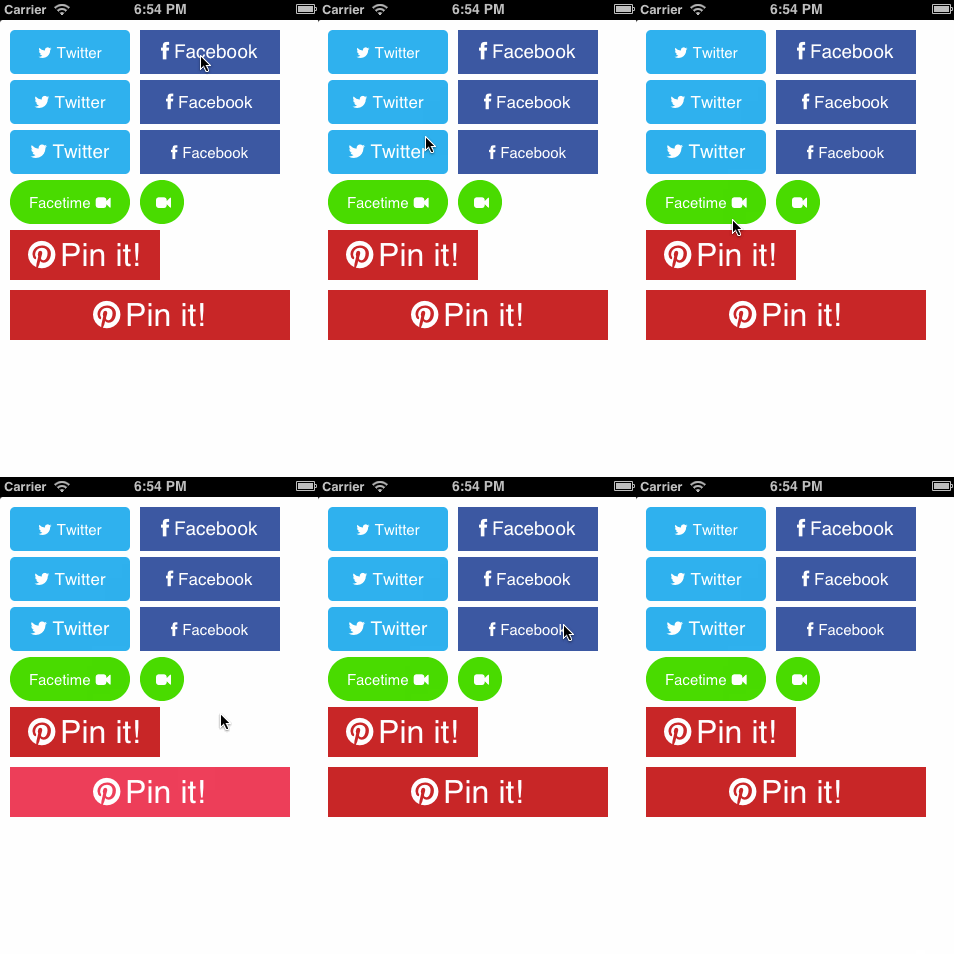
Here is an example of using for generate an UIButton with Twitter design
下面是一个例子,用来生成Twitter设计样式的UIButton
UIButton *twitter1=[UIButton buttonWithType:UIButtonTypeCustom text:@"Twitter" icon:@"icon-twitter" textAttributes:@{NSFontAttributeName:[UIFont systemFontOfSize:15],NSForegroundColorAttributeName:[UIColor whiteColor]} andIconPosition:IconPositionLeft];

    [twitter1 setBackgroundColor:[UIColor colorWithRed:27.0f/255 green:178.0f/255 blue:233.0f/255 alpha:1.0] forUIControlState:UIControlStateNormal];

    [twitter1 setBackgroundColor:[UIColor colorWithRed:60.0f/255 green:89.0f/255 blue:157.0f/255 alpha:1.0] forUIControlState:UIControlStateHighlighted];

twitter1.frame=CGRectMake(10, 10, 120, 44);

[twitter1 setRadius:5.0];

[self.view addSubview:twitter1];
Here another one for a Pinterest button
以下是另外一个Pinterest样式的按钮
UIButton *pinterest2=[UIButton buttonWithType:UIButtonTypeCustom text:@"Pin it!" icon:@"icon-pinterest" textAttributes:@{NSFontAttributeName:[UIFont systemFontOfSize:32],NSForegroundColorAttributeName:[UIColor whiteColor]} andIconPosition:IconPositionLeft];

    [pinterest2 setBackgroundColor:[UIColor colorWithRed:205.0f/255 green:35.0f/255 blue:44.0f/255 alpha:1.0] forUIControlState:UIControlStateNormal];

    [pinterest2 setBackgroundColor:[UIColor colorWithRed:244.0f/255 green:61.0f/255 blue:91.0f/255 alpha:1.0] forUIControlState:UIControlStateHighlighted];

    pinterest2.frame=CGRectMake(10, 270, 280, 50);

    [pinterest2 setRadius:0.0];

    [self.view addSubview:pinterest2];
And for Facetime too:
以及Facetime样式的按钮
UIButton *facetime1=[UIButton buttonWithType:UIButtonTypeCustom text:@"Facetime" icon:@"icon-facetime-video" textAttributes:@{NSFontAttributeName:[UIFont systemFontOfSize:15],NSForegroundColorAttributeName:[UIColor whiteColor]} andIconPosition:IconPositionRight];

    [facetime1 setBackgroundColor:[UIColor colorWithRed:40.0f/255 green:219.0f/255 blue:31.0f/255 alpha:1.0] forUIControlState:UIControlStateNormal];

    facetime1.frame=CGRectMake(10, 160, 120, 44);

    [facetime1 setRadius:22.0];

    [self.view addSubview:facetime1];

--- Extra - UIAwesomeButton ---
If you've detected some misalignments in icon and text I've created a new class calledUIAwesomeButton (UIView subclass) that has the same behaviour an UIButton has but implemented from zero ( and without misalignments between elements ). Here's an example of implementation into your project:
如果你发现了一些未匹配的图标或者文本,我创建了一个新的类叫UIAwesomeButton(UIView的子类),它与之前的button的功能一致,但是没有实现匹配性,以下是使用示例.
UIAwesomeButton *button4 = [[UIAwesomeButton alloc] initWithFrame:CGRectMake(10, 400, 280, 50) text:@"Test" icon:nil textAttributes:@{NSFontAttributeName:[UIFont systemFontOfSize:15],NSForegroundColorAttributeName:[UIColor whiteColor],@"IconFont":[UIFont fontWithName:@"fontawesome" size:40]} andIconPosition:IconPositionLeft];

    [button4 setBackgroundColor:[UIColor colorWithRed:205.0f/255 green:35.0f/255 blue:44.0f/255 alpha:1.0] forUIControlState:UIControlStateNormal];

    [button4 setBackgroundColor:[UIColor colorWithRed:244.0f/255 green:61.0f/255 blue:91.0f/255 alpha:1.0] forUIControlState:UIControlStateHighlighted];

    [button4 setRadius:3.0];

    [button4 setSeparation:10];

    [button4 setTextAlignment:NSTextAlignmentLeft];

    [button4 setActionBlock:^{

        NSLog(@"Working!");

    }];

    [self.view addSubview:button4];
Screenshot - 截图
Attributed Strings : Attributes List - 富文本
Attributes that you can apply to text in an attributed string.
NSString *const NSFontAttributeName;

NSString *const NSParagraphStyleAttributeName;

NSString *const NSForegroundColorAttributeName;

NSString *const NSBackgroundColorAttributeName;

NSString *const NSLigatureAttributeName;

NSString *const NSKernAttributeName;

NSString *const NSStrikethroughStyleAttributeName;

NSString *const NSUnderlineStyleAttributeName;

NSString *const NSStrokeColorAttributeName;

NSString *const NSStrokeWidthAttributeName;

NSString *const NSShadowAttributeName;

NSString *const NSVerticalGlyphFormAttributeName;
Full list here
Font Awesome Icons - Font Awesome 图标
You'll find the list of Awesome Icons here. Each icon has an identifier that you have to use in UIButton to add an Icon to your UIButton.
你会在这里找到Awesome Icons,每一个icon都有一个id,可以在UIButton中调用.
[翻译] PPiAwesomeButton的更多相关文章
- 《Django By Example》第五章 中文 翻译 (个人学习,渣翻)
书籍出处:https://www.packtpub.com/web-development/django-example 原作者:Antonio Melé (译者@ucag注:大家好,我是新来的翻译, ...
- 《Django By Example》第四章 中文 翻译 (个人学习,渣翻)
书籍出处:https://www.packtpub.com/web-development/django-example 原作者:Antonio Melé (译者注:祝大家新年快乐,这次带来<D ...
- [翻译]开发文档:android Bitmap的高效使用
内容概述 本文内容来自开发文档"Traning > Displaying Bitmaps Efficiently",包括大尺寸Bitmap的高效加载,图片的异步加载和数据缓存 ...
- 【探索】机器指令翻译成 JavaScript
前言 前些时候研究脚本混淆时,打算先学一些「程序流程」相关的概念.为了不因太枯燥而放弃,决定想一个有趣的案例,可以边探索边学. 于是想了一个话题:尝试将机器指令 1:1 翻译 成 JavaScript ...
- 《Django By Example》第三章 中文 翻译 (个人学习,渣翻)
书籍出处:https://www.packtpub.com/web-development/django-example 原作者:Antonio Melé (译者注:第三章滚烫出炉,大家请不要吐槽文中 ...
- 《Django By Example》第二章 中文 翻译 (个人学习,渣翻)
书籍出处:https://www.packtpub.com/web-development/django-example 原作者:Antonio Melé (译者注:翻译完第一章后,发现翻译第二章的速 ...
- 《Django By Example》第一章 中文 翻译 (个人学习,渣翻)
书籍出处:https://www.packtpub.com/web-development/django-example 原作者:Antonio Melé (译者注:本人目前在杭州某家互联网公司工作, ...
- 【翻译】Awesome R资源大全中文版来了,全球最火的R工具包一网打尽,超过300+工具,还在等什么?
0.前言 虽然很早就知道R被微软收购,也很早知道R在统计分析处理方面很强大,开始一直没有行动过...直到 直到12月初在微软技术大会,看到我软的工程师演示R的使用,我就震惊了,然后最近在网上到处了解和 ...
- ASP.NET MVC with Entity Framework and CSS一书翻译系列文章之第一章:创建基本的MVC Web站点
在这一章中,我们将学习如何使用基架快速搭建和运行一个简单的Microsoft ASP.NET MVC Web站点.在我们马上投入学习和编码之前,我们首先了解一些有关ASP.NET MVC和Entity ...
随机推荐
- centos7-安装mysql5.6.36
本地安装了mysql5.7, 但和springboot整合jpa时会出现 hibernateException, 不知道为什么, 换个mysql5.6版本的mysql, 源码安装, cmake一直过 ...
- Shiro的Filter机制详解---源码分析
Shiro的Filter机制详解 首先从spring-shiro.xml的filter配置说起,先回答两个问题: 1, 为什么相同url规则,后面定义的会覆盖前面定义的(执行的时候只执行最后一个). ...
- 【设计模式】工厂模式 Factory Pattern
1)简单工厂(不是模式) 简单工厂只是一种变成习惯,并非23种设计模式之一. 简单工厂提供将实例话那种类型留给运行时判断,而非编译时指定.简单工厂模式就是由一个工厂类根据传入的参数决定创建出哪一个类的 ...
- The best career advice I’ve received --转载
http://www.nczonline.net/blog/2013/10/15/the-best-career-advice-ive-received/ The best career advice ...
- Polymorphic form--多态表单
一个ruby on rails项目,用户和公司的模型都有地址. 我要创建一个地址表,包含用户和公司表的引用,比直接做下去要好一点,这回让我的数据库设计保持干净. 我的第一印象是,这似乎很难实现,外面所 ...
- Chrome 谷歌如何快速实现跨域
第一步:在你的E盘或者其他盘新建一个文件夹,命名为:E:\MyChromeDevUserData 第二步:找到你的谷歌浏览器快捷图标,鼠标右键选择属性,出现以下界面: 第三步:在目标选项的最后添加: ...
- 如何找出长时间未提交的事务session ID
收到报警某台mysql数据库慢查询数量超过5,登录上去看,发现阻塞的SQL全部是update,处于Updating状态 +---------+------+-----------+------+--- ...
- [转] Lodop、C-Lodop使用说明及样例
本文转自:http://www.lodop.net/LodopDemo.html Lodop(标音:劳道谱,俗称:露肚皮)是专业WEB控件,用它既可裁剪输出页面内容,又可用程序代码直接实现 复杂打印. ...
- [转]Using Browser Link in Visual Studio 2013
本文转自:https://docs.microsoft.com/en-us/aspnet/visual-studio/overview/2013/using-browser-link Browser ...
- c#基础学习(0703)之string.Format格式化日期
C# string.Format格式化日期 DateTime dt = ,,,,,,); string.Format("{0:y yy yyy yyyy}",dt); //17 1 ...