
学习ASP.NET Core Blazor编程系列二十八——JWT登录(3)
十二、实现登入
在学习ASP.NET Core Blazor编程系列二十二——登录(1)至学习ASP.NET Core Blazor编程系列二十六——登录(5)
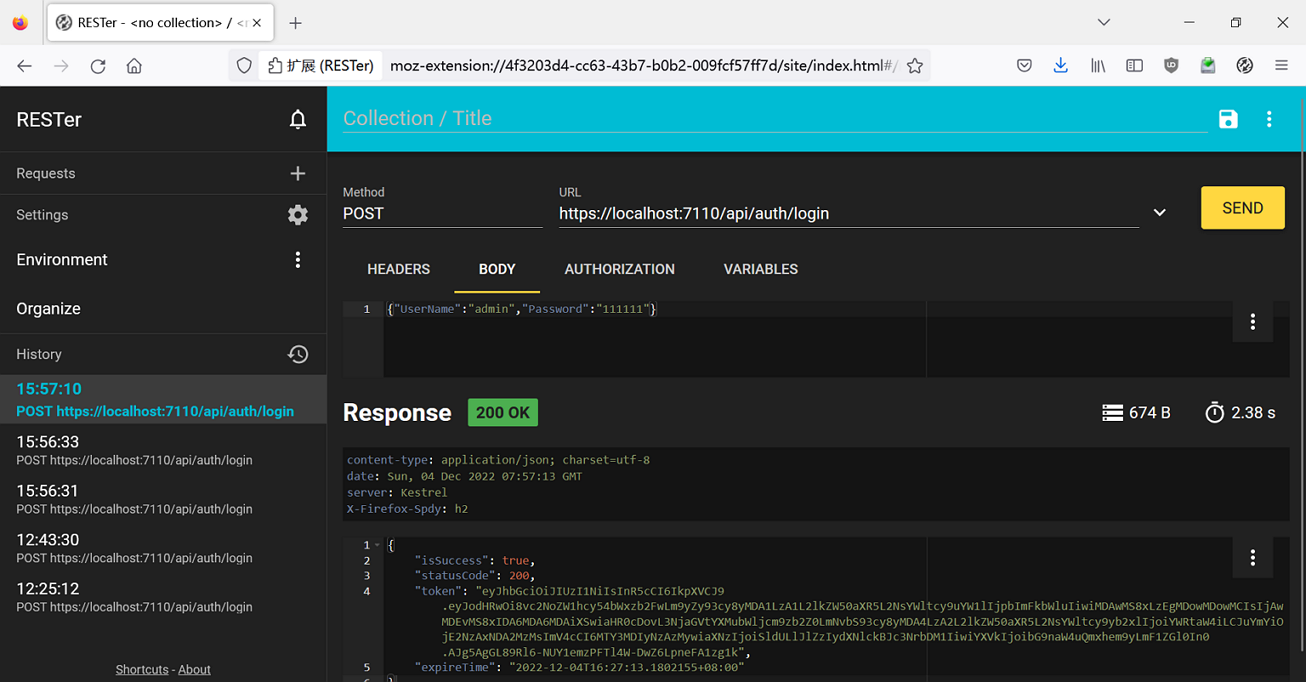
系列文章中学习了使用AuthenticationStateProvider实现模拟登录。今天的文章实现JWT登录,使用WebAPI接口来实现通过JWT令牌登录。
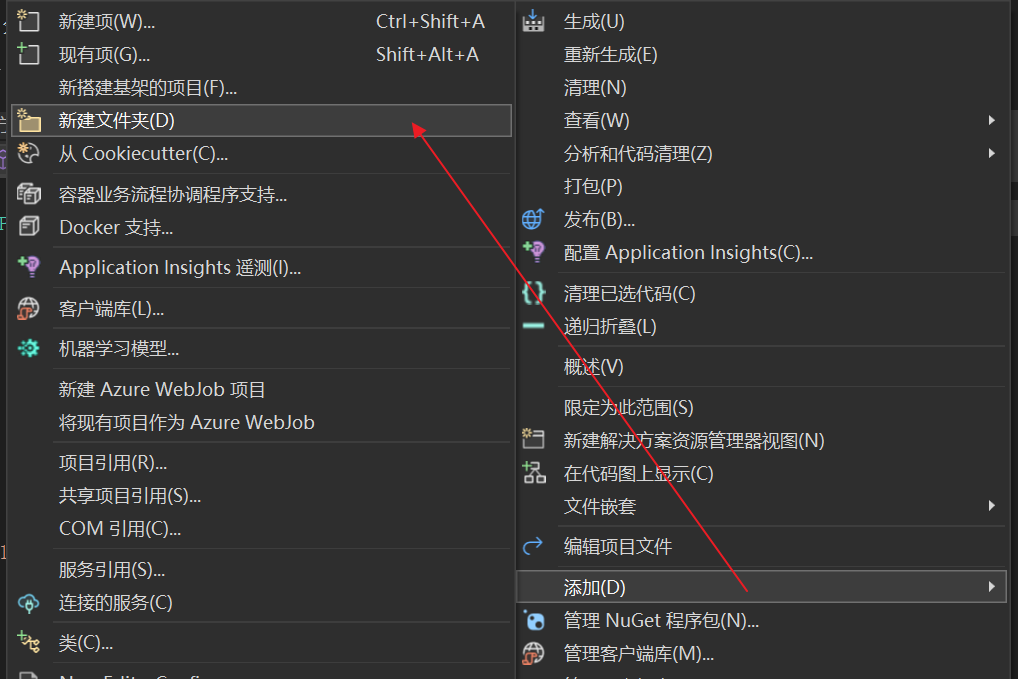
- 在Visual Studio 2022的解决方案资源管理器中,鼠标右键单击“BlazorAppDemo”项目名称,在弹出菜单中选择 “添加—>新建文件夹”,并将新建文件夹改为“Api”。如下图。
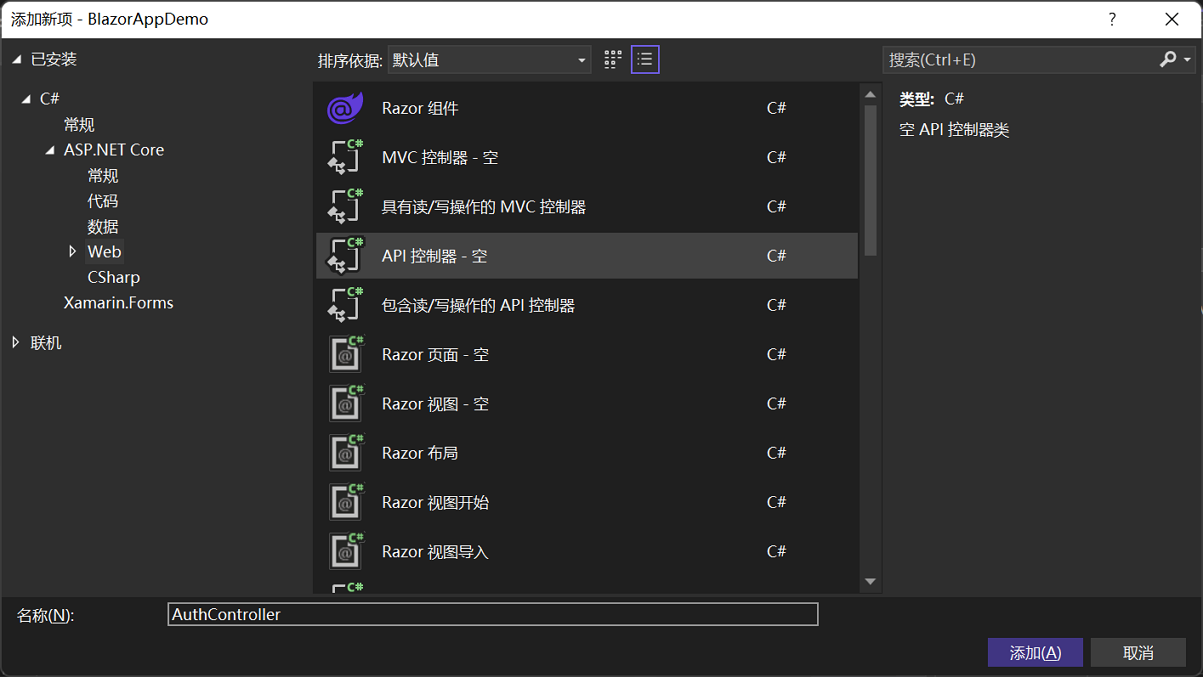
2.在Visual Studio 2022的解决方案资源管理器中,鼠标左键选中“Api”文件夹,右键单击,在弹出菜单中选择“添加—>新建项”,在弹出对话框中,选择“API控制器-空”,并将控制器命名为“AuthController”。如下图。并添加如下代码:
using BlazorAppDemo.Models;

using BlazorAppDemo.Utils;

using Microsoft.AspNetCore.Http;

using Microsoft.AspNetCore.Identity;

using Microsoft.AspNetCore.Mvc;

using Microsoft.Extensions.Configuration;

using Microsoft.IdentityModel.Tokens;

using Newtonsoft.Json.Linq;

using System.IdentityModel.Tokens.Jwt;

using System.Security.Claims;

using System.Text;

namespace BlazorAppDemo.Api

{

    [Route("api/[controller]")]

    [ApiController]

    public class AuthController : ControllerBase

    {

        private readonly IJWTHelper jwtHelper;

        public AuthController(IJWTHelper _IJWTHelper)

        {

            this.jwtHelper = _IJWTHelper;

            }

        [HttpPost("Login")]

            public async Task<ActionResult<UserToken>> Login(UserInfo userInfo)

        {

            //Demo用,更好的做法是查询用户表来实现

            if (userInfo.UserName == "admin" && userInfo.Password == "111111")

            {

                return BuildToken(userInfo);

            }

            else

            {

                UserToken userToken = new UserToken()

                {

                    StatusCode = System.Net.HttpStatusCode.Unauthorized,

                    IsSuccess = false

                };

                return userToken;

            }

        }

        /// <summary>

        /// 建立Token

        /// </summary>

        /// <param name="userInfo"></param>

        /// <returns></returns>

        private UserToken BuildToken(UserInfo userInfo)

        {

            string jwtToken = jwtHelper.CreateJwtToken<UserInfo>(userInfo);

            //建立UserToken,回传客户端

            UserToken userToken = new UserToken()

            {

                StatusCode = System.Net.HttpStatusCode.OK,

                Token = jwtToken,

                ExpireTime = DateTime.Now.AddMinutes(30),

                IsSuccess= true

            };

            return userToken;

        }

    }

}
3.在Visual Studio 2022的解决方案资源管理器中,鼠标左键选中“Models”文件夹,右键单击,在弹出菜单中选择“添加—>类”,在弹出对话框中,将类命名为“UserToken”。并添加如下代码:
using System.Net;

namespace BlazorAppDemo.Models

{

    public class UserToken

    {

        public bool IsSuccess { get ; set; }

        public HttpStatusCode StatusCode { get; set; }

        public string Token { get; set; }

        public DateTime ExpireTime { get; set; }

     }

}
4.在Visual Studio 2022的解决方案资源管理器中,鼠标左键选中“Utils”文件夹,右键单击,在弹出菜单中选择“添加—>类”,在弹出对话框中,将类命名为“TokenManager”。并添加如下代码:
using BlazorAppDemo.Models;

using System.Collections.Concurrent;

namespace BlazorAppDemo.Utils

{

    public class TokenManager

    {

        private const string TOKEN = "authToken";

        private static readonly ConcurrentDictionary<string, UserToken> tokenManager;

         static TokenManager()

        {

            tokenManager=new ConcurrentDictionary<string, UserToken>();

        }

        public static ConcurrentDictionary<string, UserToken> Instance { get { return tokenManager; } }

        public static string Token { get { return TOKEN; } }

    }

}
using BlazorAppDemo.Models;

namespace BlazorAppDemo.Auth

{

    public interface IAuthService

    {

        Task<UserToken> LoginAsync(UserInfo userInfo);

        Task<UserToken> LogoutAsync();

    }

}
using BlazorAppDemo.Models;

using BlazorAppDemo.Utils;

using Microsoft.AspNetCore.Components.Authorization;

using Microsoft.AspNetCore.Identity;

using Newtonsoft.Json;

using Newtonsoft.Json.Linq;

using System.Collections.Concurrent;

using System.Net.Http;

using System.Text;

namespace BlazorAppDemo.Auth

{

    public class AuthService : IAuthService

    {

        private readonly HttpClient httpClient;

        private readonly AuthenticationStateProvider authenticationStateProvider;

        private readonly IConfiguration configuration;

        private readonly Api.AuthController authController;

        private readonly string currentUserUrl, loginUrl, logoutUrl;

        public AuthService( HttpClient httpClient, AuthenticationStateProvider authenticationStateProvider, IConfiguration configuration,Api.AuthController authController)

        {

            this.authController = authController;

            this.httpClient = httpClient;

            this.authenticationStateProvider = authenticationStateProvider;

            this.configuration = configuration;

            currentUserUrl = configuration["AuthUrl:Current"] ?? "Auth/Current/";

            loginUrl = configuration["AuthUrl:Login"] ?? "api/Auth/Login";

            logoutUrl = configuration["AuthUrl:Logout"] ?? "/api/Auth/Logout/";

        }

        public async Task<UserToken> LoginAsync(UserInfo userInfo)

        {

            var result = authController.Login(userInfo);

            var loginResponse =  result.Result.Value;

            if (loginResponse != null && loginResponse.IsSuccess)

                {

                    TokenManager.Instance.TryAdd(TokenManager.Token, loginResponse);

                   ((ImitateAuthStateProvider)authenticationStateProvider).NotifyUserAuthentication(loginResponse.Token);

                    httpClient.DefaultRequestHeaders.Authorization = new System.Net.Http.Headers.AuthenticationHeaderValue("bearer", loginResponse.Token);

                     return loginResponse;

                }

            return new UserToken() { IsSuccess = false };

        }

        public Task<UserToken> LogoutAsync()

        {

            throw new NotImplementedException();

        }

    }

}
- 將账号与密码,发送到AuthController做验证,验证成功生成UserToken实例
- 将token写到TokenManger实例中
- 通知前面页面更新登录状态
- 每次request的header将bearer token都带上。
7. 在Visual Studio 2022的解决方案管理器中,使用鼠标左键,双击ImitateAuthStateProvider.cs文件,对代码进行修改。具体代码如下:
using BlazorAppDemo.Models;

using BlazorAppDemo.Utils;

using Microsoft.AspNetCore.Components.Authorization;

using System.Net.Http;

using System.Security.Claims;

namespace BlazorAppDemo.Auth

{

    public class ImitateAuthStateProvider : AuthenticationStateProvider

    {

        private readonly IJWTHelper jwt;

        private AuthenticationState anonymous;

        private readonly HttpClient httpClient;

        public ImitateAuthStateProvider(IJWTHelper _jwt, HttpClient httpClient)

        {

            anonymous = new AuthenticationState(new ClaimsPrincipal(new ClaimsIdentity()));

            jwt = _jwt;

            this.httpClient = httpClient;

        }

        bool isLogin = false;

        string token = string.Empty;

        public override Task<AuthenticationState> GetAuthenticationStateAsync()

        {

            //确认是否已经登录

            UserToken userToken;

                TokenManager.Instance.TryGetValue(TokenManager.Token,out userToken);

            string tokenInLocalStorage=string.Empty;

            if (userToken != null)

            {

                tokenInLocalStorage = userToken.Token;

            }

            if (string.IsNullOrEmpty(tokenInLocalStorage))

            {

                //沒有登录,则返回匿名登录者

                return Task.FromResult(anonymous);

            }

            //將token取出转换为claim

            var claims = jwt.ParseToken(tokenInLocalStorage);

            //在每次request的header中都将加入bearer token

            httpClient.DefaultRequestHeaders.Authorization = new System.Net.Http.Headers.AuthenticationHeaderValue("bearer",
tokenInLocalStorage);

            //回传带有user claim的AuthenticationState

            return Task.FromResult(new AuthenticationState(new ClaimsPrincipal(new ClaimsIdentity(claims, "jwt"))));

        }

        public void Login(UserInfo request)

        {

            //1.验证用户账号密码是否正确

            if (request == null)

            {

                isLogin=false;

            }

            if (request.UserName == "user" && request.Password == "111111")

            {

                isLogin = true;

               token= jwt.CreateJwtToken<UserInfo>(request);

                Console.WriteLine($"JWT Token={token}");

            }

            NotifyAuthenticationStateChanged(GetAuthenticationStateAsync());

        }

        public void NotifyUserAuthentication(string token)

        {

            var claims = jwt.ParseToken(token);

            var authenticatedUser = new ClaimsPrincipal(new ClaimsIdentity(claims, "jwt"));

            var authState = Task.FromResult(new AuthenticationState(authenticatedUser));

            NotifyAuthenticationStateChanged(authState);

       }

    }

}
using BlazorAppDemo.Data;

using BlazorAppDemo.Models;

using Microsoft.AspNetCore.Components;

using Microsoft.AspNetCore.Components.Web;

using Microsoft.Extensions.Configuration;

using Microsoft.EntityFrameworkCore;

using Microsoft.Extensions.Hosting;

using Microsoft.AspNetCore.Components.Authorization;

using BlazorAppDemo.Auth;

using Microsoft.AspNetCore.Authentication.JwtBearer;

using Microsoft.IdentityModel.Tokens;

using System.Text;

using System.IdentityModel.Tokens.Jwt;

using BlazorAppDemo.Utils;

using BlazorAppDemo.Api;

var builder = WebApplication.CreateBuilder(args);

// Add services to the container.

builder.Services.AddRazorPages();

builder.Services.AddServerSideBlazor();

builder.Services.AddSingleton<WeatherForecastService>();

IConfiguration config = ConfigHelper.Configuration;

System.Console.WriteLine(config["ConnectionStrings:BookContext"]);

builder.Services.AddDbContextFactory<BookContext>(opt =>

   opt.UseSqlServer(ConfigHelper.Configuration["ConnectionStrings:BookContext"]));

builder.Services.AddScoped<ImitateAuthStateProvider>();

builder.Services.AddScoped<AuthenticationStateProvider>(implementationFactory =>

implementationFactory.GetRequiredService<ImitateAuthStateProvider>());

builder.Services.AddScoped<JwtSecurityTokenHandler>();

//此处的url地址改成自己实际的地址

builder.Services.AddScoped(sp => new HttpClient { BaseAddress = new Uri("http://localhost:7110") });

builder.Services.AddScoped<IAuthService, AuthService>();

builder.Services.AddScoped<AuthController>();

//JWT

//JWT认证

builder.Services.AddAuthentication(JwtBearerDefaults.AuthenticationScheme).AddJwtBearer(options =>

{

    //取出私钥

    var secretByte = Encoding.UTF8.GetBytes(builder.Configuration["Authentication:SecretKey"]);

    options.TokenValidationParameters = new TokenValidationParameters()

    {

        //验证发布者

        ValidateIssuer = true,

        ValidIssuer = builder.Configuration["Authentication:Issuer"],

        //验证接收者

        ValidateAudience = true,

        ValidAudience = builder.Configuration["Authentication:Audience"],

        //验证是否过期

        ValidateLifetime = true,

        //验证私钥

        IssuerSigningKey = new SymmetricSecurityKey(secretByte)

    };

});

;

builder.Services.AddScoped<IJWTHelper,JWTHelper>();

var app = builder.Build();

// Configure the HTTP request pipeline.

if (!app.Environment.IsDevelopment())

{

    app.UseExceptionHandler("/Error");

    // The default HSTS value is 30 days. You may want to change this for production scenarios, see https://aka.ms/aspnetcore-hsts.

    app.UseHsts();

}

using (var scope = app.Services.CreateScope())

{

    var services = scope.ServiceProvider;

    try

    {

        Console.WriteLine("数据库开始初始化。");

        var context = services.GetRequiredService<BookContext>();

        // requires using Microsoft.EntityFrameworkCore;

        context.Database.Migrate();

        // Requires using RazorPagesMovie.Models;

        SeedData.Initialize(services);

        Console.WriteLine("数据库初始化结束。");

    }

    catch (Exception ex)

    {

        var logger = services.GetRequiredService<ILogger<Program>>();

        logger.LogError(ex, "数据库数据初始化错误.");

    }

}

app.UseHttpsRedirection();

app.UseStaticFiles();

app.UseRouting();

app.MapControllers();

app.MapBlazorHub();

app.MapFallbackToPage("/_Host");

app.UseAuthentication();

app.UseAuthorization();

app.Run();
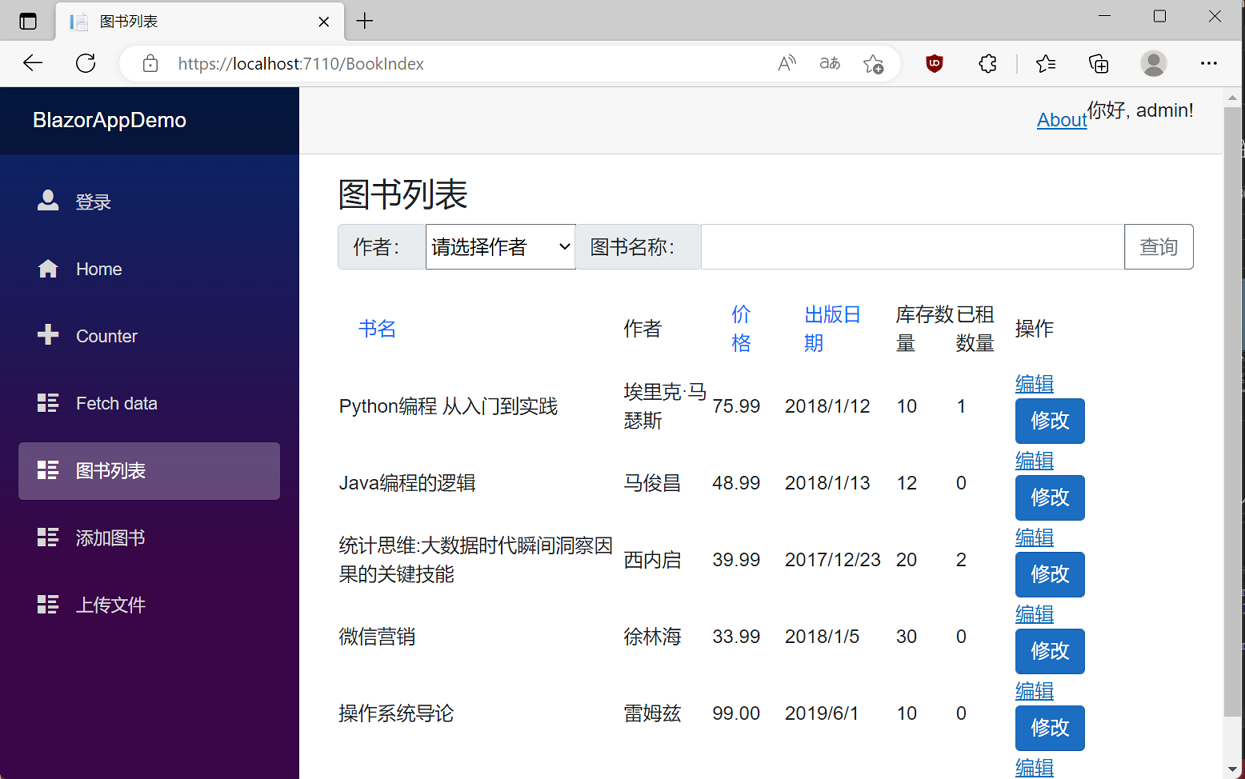
10.我们在用户名输入框中输入用户名"admin",在密码输入框中输入密码"111111",点击“登录”按钮,进行登录。我们进入了系统。如下图。
学习ASP.NET Core Blazor编程系列二十八——JWT登录(3)的更多相关文章
- 学习ASP.NET Core Blazor编程系列二十二——登录(1)
学习ASP.NET Core Blazor编程系列文章之目录 学习ASP.NET Core Blazor编程系列一--综述 学习ASP.NET Core Blazor编程系列二--第一个Blazor应 ...
- 学习ASP.NET Core Blazor编程系列二十——文件上传(完)
学习ASP.NET Core Blazor编程系列文章之目录 学习ASP.NET Core Blazor编程系列一--综述 学习ASP.NET Core Blazor编程系列二--第一个Blazor应 ...
- 学习ASP.NET Core Blazor编程系列二十一——数据刷新
学习ASP.NET Core Blazor编程系列文章之目录 学习ASP.NET Core Blazor编程系列一--综述 学习ASP.NET Core Blazor编程系列二--第一个Blazor应 ...
- 学习ASP.NET Core Blazor编程系列二十三——登录(2)
学习ASP.NET Core Blazor编程系列文章之目录 学习ASP.NET Core Blazor编程系列一--综述 学习ASP.NET Core Blazor编程系列二--第一个Blazor应 ...
- 学习ASP.NET Core Blazor编程系列二十三——登录(3)
学习ASP.NET Core Blazor编程系列文章之目录 学习ASP.NET Core Blazor编程系列一--综述 学习ASP.NET Core Blazor编程系列二--第一个Blazor应 ...
- 学习ASP.NET Core Blazor编程系列二——第一个Blazor应用程序(中)
学习ASP.NET Core Blazor编程系列一--综述 学习ASP.NET Core Blazor编程系列二--第一个Blazor应用程序(上) 四.创建一个Blazor应用程序 1. 第一种创 ...
- 学习ASP.NET Core Blazor编程系列二——第一个Blazor应用程序(下)
学习ASP.NET Core Blazor编程系列一--综述 学习ASP.NET Core Blazor编程系列二--第一个Blazor应用程序(上) 学习ASP.NET Core Blazor编程系 ...
- 学习ASP.NET Core Blazor编程系列二——第一个Blazor应用程序(完)
学习ASP.NET Core Blazor编程系列一--综述 学习ASP.NET Core Blazor编程系列二--第一个Blazor应用程序(上) 学习ASP.NET Core Blazor编程系 ...
- 学习ASP.NET Core Blazor编程系列二——第一个Blazor应用程序(上)
学习ASP.NET Core Blazor编程系列一--综述 一.概述 Blazor 是一个生成交互式客户端 Web UI 的框架: 使用 C# 代替 JavaScript 来创建信息丰富的交互式 U ...
- 022年9月12日 学习ASP.NET Core Blazor编程系列三——实体
学习ASP.NET Core Blazor编程系列一--综述 学习ASP.NET Core Blazor编程系列二--第一个Blazor应用程序(上) 学习ASP.NET Core Blazor编程系 ...
随机推荐
- 检测sqlserver数据库是否能远程连通
建立一个.udl的文件夹,双击打开.输入相关的连接字符串点击测试即可.
- Redis设计实现-学习笔记
最近在准备面试,问到redis相关知识,只能说个皮毛,说的既不深入也不全面,所以抓紧突击一下,先学<redis设计与实现>. 选择看书的原因是: 书中全面深入,且能出书一定十分用心: 搜博 ...
- C# 调用https接口 安全证书问题 解决方法
原文链接: https://blog.csdn.net/lizaijinsheng/article/details/127321758 说明: 如果是用https的话,由于没有证书,会报错:基础连接已 ...
- windows系统PC设置多ip
1. 打开 "[打开网络和共享中心]" 2 "更改适配器设置" 3."[本地连接]"-- "[属性]" 4.打开 [ ...
- ssh免密码登录服务器
A机为本地主机(即用于控制其他主机的机器) B机为远程主机(即被控制的机器server)B机:192.168.3.145 假如A机无密码登录B机器 A机上的命令: 1,ssh-keygen - ...
- 查看Linux 日志
# 直接定位到第100行 less +100g xx.log # 定位到最后一行 less +GG xx.log # 定位到第100个字节的位置 less +100P xx.log # 直 ...
- 如何服务好B端客户
核心价值: 2B公司的核心价值在于服务.如何服务好客户,需要的是了解客户,与客户共赢. 一.客户信任度的建立 服务:不是口头说说,是要落地与实践. 对于客户的承诺至关重要,承诺的时间点.承诺的事情要保 ...
- 如何简单使用Git
Git基本功能 Git基本功能 在具体介绍Git能做什么之前,先来了解下Git里的四个角色: workspace: 本地的工作空间. index:缓存区域,临时保存本地改动. local reposi ...
- Sql Server新建一个只读权限的用户
1,新建只能访问某一个表的只读用户. --添加只允许访问指定表的用户: exec sp_addlogin '用户名','密码','默认数据库名' --添加到数据库 exec sp_grantdbacc ...
- 实验二 实验二 Linux系统简单文件操作命令
项目 内容 这个作业属于哪个课程 <班级课程的主页链接> 这个作业的要求在哪里 <作业要求链接接地址> 学号-姓名 15043109吴小怀 作业学习目标 学习在Linux系统终 ...