
pyautogui介绍
https://pyautogui.readthedocs.io/en/latest/introduction.html
Introduction
Purpose
The purpose of PyAutoGUI is to provide a cross-platform Python module for GUI automation for human beings. The API is designed to be as simple as possible with sensible defaults.
For example, here is the complete code to move the mouse to the middle of the screen on Windows, OS X, and Linux:
>>> import pyautogui

>>> screenWidth, screenHeight = pyautogui.size()

>>> pyautogui.moveTo(screenWidth / 2, screenHeight / 2)
And that is all.
PyAutoGUI can simulate moving the mouse, clicking the mouse, dragging with the mouse, pressing keys, pressing and holding keys, and pressing keyboard hotkey combinations.
Examples
>>> import pyautogui

>>> screenWidth, screenHeight = pyautogui.size()

>>> currentMouseX, currentMouseY = pyautogui.position()

>>> pyautogui.moveTo(100, 150)

>>> pyautogui.click()

>>> pyautogui.moveRel(None, 10)  # move mouse 10 pixels down

>>> pyautogui.doubleClick()

>>> pyautogui.moveTo(500, 500, duration=2, tween=pyautogui.easeInOutQuad)  # use tweening/easing function to move mouse over 2 seconds.

>>> pyautogui.typewrite('Hello world!', interval=0.25)  # type with quarter-second pause in between each key

>>> pyautogui.press('esc')

>>> pyautogui.keyDown('shift')

>>> pyautogui.press(['left', 'left', 'left', 'left', 'left', 'left'])

>>> pyautogui.keyUp('shift')

>>> pyautogui.hotkey('ctrl', 'c')
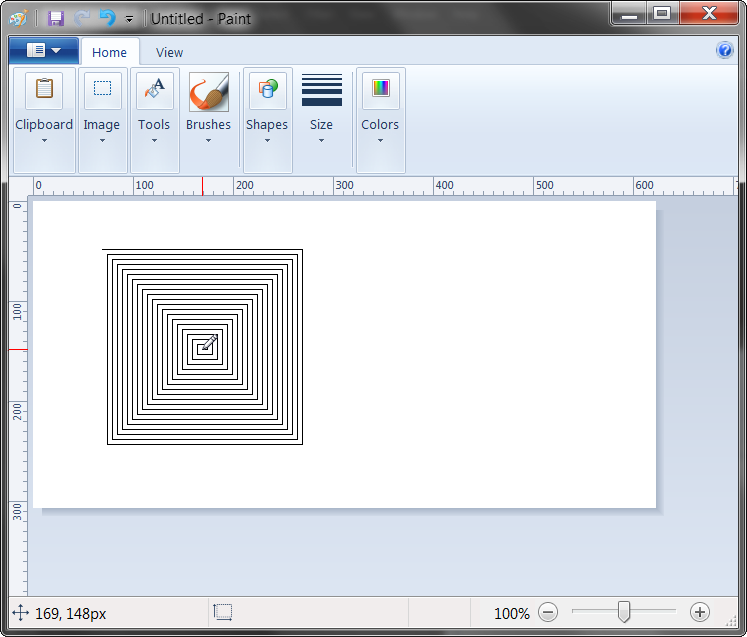
This example drags the mouse in a square spiral shape in MS Paint (or any graphics drawing program):
>>> distance = 200

>>> while distance > 0:

        pyautogui.dragRel(distance, 0, duration=0.5)   # move right

        distance -= 5

        pyautogui.dragRel(0, distance, duration=0.5)   # move down

        pyautogui.dragRel(-distance, 0, duration=0.5)  # move left

        distance -= 5

        pyautogui.dragRel(0, -distance, duration=0.5)  # move up
Dependencies
On Windows, PyAutoGUI has no dependencies (other than Pillow and some other modules, which are installed by pip along with PyAutoGUI). It does not need the pywin32 module installed since it uses Python’s own ctypes module.
On OS X, PyAutoGUI requires PyObjC installed for the AppKit and Quartz modules. The module names on PyPI to install are pyobjc-core and pyobjc (in that order).
On Linux, PyAutoGUI requires python-xlib (for Python 2) or python3-Xlib (for Python 3) module installed.
Fail-Safes
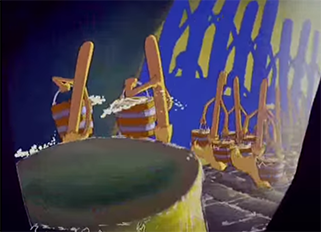
Like the enchanted brooms from the Sorcerer’s Apprentice programmed to keep filling (and then overfilling) the bath with water, your program could get out of control (even though it is following your instructions) and need to be stopped. This can be difficult to do if the mouse is moving around on its own, preventing you from clicking on the program’s window to close it down.
As a safety feature, a fail-safe feature is enabled by default. When pyautogui.FAILSAFE = TruePyAutoGUI functions will raise a pyautogui.FailSafeException if the mouse cursor is in the upper left corner of the screen. If you lose control and need to stop the current PyAutoGUI function, keep moving the mouse cursor up and to the left. To disable this feature, set FAILSAFE to False:
>>> import pyautogui

>>> pyautogui.FAILSAFE = False # disables the fail-safe
You can add delays after all of PyAutoGUI’s functions by setting the pyautogui.PAUSE variable to a float or integer value of the number of seconds to pause. By default, the pause is set to 0.1 seconds. This can be helpful when interacting with other applications so that PyAutoGUI doesn’t move too fast for them. For example:
>>> import pyautogui

>>> pyautogui.PAUSE = 2.5

>>> pyautogui.moveTo(100, 100); pyautogui.click()   # there will be a two and a half second pause after moving and another after the click
All PyAutoGUI functions will block until they complete. (It is on the roadmap to add an optional non-blocking way to call these functions.)
It is advised to use FAILSAFE along with setting PAUSE.
pyautogui介绍的更多相关文章
- PyAutoGUI 简介
转载来自: https://muxuezi.github.io/posts/doc-pyautogui.html http://blog.topspeedsnail.com/archives/5373 ...
- PyAutoGUI使用
PyAutoGUI是一个纯Python的GUI自动化工具,其目的是可以用程序自动控制鼠标和键盘操作,利用它可以实现自动化任务,再也不用担心有重复枯燥的任务了. 安装: pip install pyau ...
- 可以用py库: pyautogui (自动测试模块,模拟鼠标、键盘动作)来代替pyuserinput
PyAutoGUI 是一个人性化的跨平台 GUI 自动测试模块 pyUserInput模块安装前需要安装pywin32和pyHook模块.(想要装的看https://www.cnblogs.com/m ...
- py库: pyautogui (自动测试模块,模拟鼠标、键盘动作)
PyAutoGUI 是一个人性化的跨平台 GUI 自动测试模块 pyautogui 库 2017-10-4 pip install pyautogui python pip.exe install p ...
- Python之Pyautogui模块20180125《PYTHON快速上手让繁琐的工作自动化》18章
复习 PyAutoGUI 的函数本章介绍了许多不同函数,下面是快速的汇总参考:moveTo(x,y)将鼠标移动到指定的 x.y 坐标.moveRel (xOffset,yOffset)相对于当前位置移 ...
- pyautogui 模块学习
在日常实施中,我们用控件对大部分的网页和客户端都能进行拾取操作.但是仍有一小部分的应用无法进行操作.这里我常用到 pyautogui 这个模块.下面做个分享. Python 的 pyautogui 模 ...
- 详解pyautogui模块
一.安装 pip install pyautogui 或者 pip install -i https://pypi.tuna.tsinghua.edu.cn/simple pyautogui 二.全 ...
- CSS3 background-image背景图片相关介绍
这里将会介绍如何通过background-image设置背景图片,以及背景图片的平铺.拉伸.偏移.设置大小等操作. 1. 背景图片样式分类 CSS中设置元素背景图片及其背景图片样式的属性主要以下几个: ...
- MySQL高级知识- MySQL的架构介绍
[TOC] 1.MySQL 简介 概述 MySQL是一个关系型数据库管理系统,由瑞典MySQL AB公司开发,目前属于Oracle公司. MySQL是一种关联数据库管理系统,将数据保存在不同的表中,而 ...
随机推荐
- centos虚拟机Ping不通网关
centos虚拟机Ping不通网关 今天在VMware中安装了centos mini版本,安装完成后,用xshell连接一直连不上,本来以为是mini版本没有安装ssh server,于是就用命令: ...
- 【Kubernetes】创建Pod并分配到指定节点
一.编辑yaml文件 [root@K8s-Master Tools]# cat hello-world-pod.yaml apiVersion: v1 kind: Pod metadata: name ...
- EF 配置多个数据库
1.先创建两个DbContext using System; using System.Data.Common; using System.Data.Entity; using System.Data ...
- Avram Joel Spolsky给计算机系学生的建议
Avram Joel Spolsky给计算机系的学生给了如下建议: (1)毕业前练好写作 (2)毕业前学好C语言 (3)毕业前学好微观经济学 (4)不要因为枯燥就不选修 ...
- Object 与 Function那神奇而混乱的搞基关系
// Object 与 Function神奇而混乱的搞基关系... Object.__proto__ === Function.prototype; // true Object.__proto__ ...
- Python实现截图功能
Python实现截图功能 Windows环境下需要用到PIL库,使用pip安装PIL库: pip install Pillow 安装完成,截图方法代码: from PIL import ImageGr ...
- ASP.Net MVC SignalR的应用
ASP.Net MVC SignalR的应用 最近做的一个MVC项目有个模块是要使用即时通信实现弹幕效果.既要考虑通信的实时性也要考虑服务器性能和资源消耗,所幸项目对浏览器的版本没有要求.所以我最先想 ...
- ELK学习实验011:Logstash工作原理
Logstash事件处理管道包括三个阶段:输入→过滤器→输出.输入会生成事件,过滤器会对其进行修改,输出会将它们发送到其他地方.输入和输出支持编解码器,使您可以在数据进入或退出管道时对其进行编码或解码 ...
- 洛谷$P3756\ [CQOI2017]$老$C$的方块 网络流
正解:网络流 解题报告: 传送门$QwQ$ 看到不能出现给定的讨厌的图形,简单来说就,特殊边两侧的方格不能同时再连方格. 所以如果出现,就相当于是四种方案?就分别炸四个格子. 然后冷静分析一波之后发现 ...
- JVM探秘:垃圾收集器
本系列笔记主要基于<深入理解Java虚拟机:JVM高级特性与最佳实践 第2版>,是这本书的读书笔记. 垃圾收集器 垃圾收集算法是是内存回收的方法论,垃圾收集器是内存回收的具体实现.不同的虚 ...