
GUI学习之二十八—QMessageBox
今天来学习下QMessageBox。
QMessageBox主要用来通知用户或者请求用户提问和接收应答一个模态对话框。
一.对话框的构成
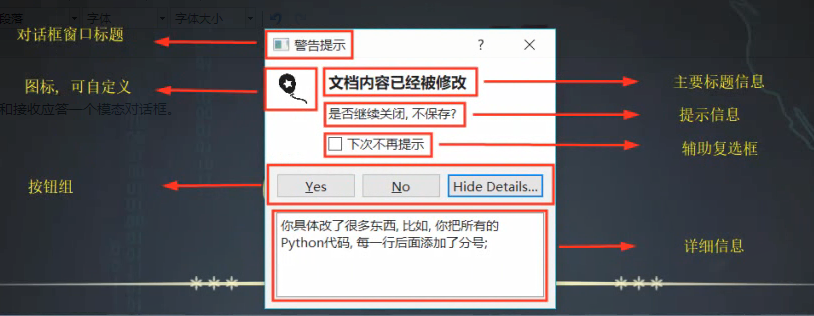
图标是有标准图标的,可以直接调用。
我们声明的消息框,初始状态都是模态的(阻塞程序,这里就不演示了),如果想把它变成非模态的,可以直接设置
mb = QMessageBox(self)

# mb.setModal(False)                #方法1

mb.setWindowModality(Qt.NonModal)   #方法2

mb.show()
上面两个方法都是可以的,但是必须是窗口级别的控件(show()方法调用的,open和exec是不可以的。)
二.内容展示
1.图标
标准图标的展示方法
QMessageBox.setIcon(self, a0: 'QMessageBox.Icon')

#图标枚举值type: 'QMessageBox.Icon'

NoIcon = ... # 无图标

Information = ... # 信息图标(也可以表示消息无异常)

Warning = ... # 警告图标

Critical = ... # 严重警告图标

Question = ... # 提问图标
此外还可以添加自定义图标
QMessageBox.setIconPixmap(self, a0: QtGui.QPixmap)
2.内容
消息框的内容是支持富文本的,我们可以用setText()函数直接设置其提示内容,此外还有一个setInformativeText(),是用来显示提示文本的
mb = QMessageBox(self)

mb.setText('<h2>文件已被修改</h2>'

           '<h3>是否保存</h3>')

mb.setInformativeText('点击是保存文件')

mb.show()
出来的效果就是这样的
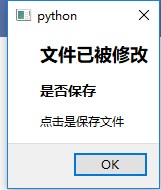
其实这里没有演示,提示文本也是支持富文本的。
有些时候在提示文本位置还有一个复选按钮(类似于下次不再提示的功能),是这么实现的
QMessageBox.setCheckBox()
在上面的效果加个案例
mb = QMessageBox(self)

mb.setText('<h2>文件已被修改</h2>'

           '<h3>是否保存</h3>')

mb.setCheckBox(QCheckBox('下次不再提示',mb))

mb.setInformativeText('点击是保存文件')

mb.show()
效果:
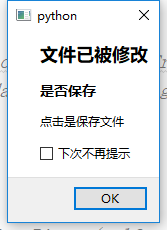
还有展示详情文本
QMessageBox.setDetailedText()
详情文本设置后会有个显示详细内容的按钮,点击按钮会显示详情。可以从案例中看出来,这个是不支持富文本的
mb = QMessageBox(self)

mb.setText('<h2>文件已被修改</h2>'

           '<h3>是否保存</h3>')

mb.setCheckBox(QCheckBox('下次不再提示',mb))

mb.setInformativeText('点击是保存文件')

mb.setDetailedText('<h3>详情文本</h3>')

mb.show()
效果
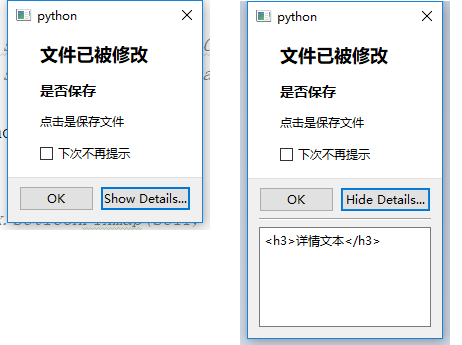
对了,补充一点,如果我们不想让文本显示支持富文本格式也是可以定义的
QMessageBox.setTextFormat(self, a0: QtCore.Qt.TextFormat)

# type: 'Qt.TextFormat'

PlainText = ...  # type: 'Qt.TextFormat'

RichText = ...  # type: 'Qt.TextFormat'

AutoText = ...  # type: 'Qt.TextFormat'
设置的位置也是没有强制要求的
2.按钮
按钮的定义有些复杂,分很多种,我们一步步来看
a.按钮的角色
按钮在对话框中是有角色分工的(ButtonRole)。在了解按钮的配置时我们要先了解按钮有哪些角色分工
# type: 'QMessageBox.ButtonRole'

InvalidRole = ...  # type: 'QMessageBox.ButtonRole'

AcceptRole = ...  # type: 'QMessageBox.ButtonRole'

RejectRole = ...  # type: 'QMessageBox.ButtonRole'

DestructiveRole = ...  # type: 'QMessageBox.ButtonRole'

ActionRole = ...  # type: 'QMessageBox.ButtonRole'

HelpRole = ...  # type: 'QMessageBox.ButtonRole'

YesRole = ...  # type: 'QMessageBox.ButtonRole'

NoRole = ...  # type: 'QMessageBox.ButtonRole'

ResetRole = ...  # type: 'QMessageBox.ButtonRole'

ApplyRole = ...  # type: 'QMessageBox.ButtonRole'
如果我们需要自定义个按钮,这个按钮是起了哪个角色的作用,我们就可以给出相应的定义
a.添加移除自定义按钮
QMessageBox.addButton(self, button: QAbstractButton, role: 'QMessageBox.ButtonRole')

QMessageBox.addButton(self, text: str, role: 'QMessageBox.ButtonRole')-> QPushButton

QMessageBox.addButton(self, button: 'QMessageBox.StandardButton')-> QPushButton

QMessageBox.removeButton(self, button: QAbstractButton)
如果想要移除按钮的话可以直接删除按钮控件,要注意的是后面两个添加自定义按钮的方法是有个返回值的,因为我们并不是先实例一个按钮在添加在对话框中而是直接在添加的时候定义,那么添加的这个按钮控件作为返回值被返回。
b.默认按钮设置
有些时候我们想弹出的对话框某一个按钮是在焦点上的,那么我们就可以直接通过键盘的回车键对其进行操作,那么就用到下面的方法:设置默认按钮
标准按钮定义
QMessageBox.setDefaultButton(self, button: QPushButton)

QMessageBox.setDefaultButton(self, button: 'QMessageBox.StandardButton')
c.关联退出按钮(键盘Esc)
我们可以把键盘Esc键关联给某个按钮,当键盘Esc键被按下时对话框退出,并且关联的按钮会触发clicked事件。
QMessageBox.setEscapeButton(self, button: QAbstractButton)
d.按钮获取
正常情况下对话框都是有几个按钮的,如果我们可以通过下面的代码获取一个按钮
QMessageBox.button(self, which: 'QMessageBox.StandardButton') -> QAbstractButton
这种情况只适用于标准的按钮控件
也可以通过下面的方法获取按钮的角色
QMessageBox.buttonRole(self, button: QAbstractButton) -> 'QMessageBox.ButtonRole'
最后,我们也可以通过一个信号来获取被点击的按钮
QMessageBox.buttonClicked(self, button: QAbstractButton)
这个信号是可以有参数传递的(按钮对象)。
3.文本交互标志
默认情况下消息框里的文本是不能被选中的,详情是可以选中并复制。我们可以通过下面的方法改变其状态
QMessageBox.setTextInteractionFlags(self, flags: typing.Union[QtCore.Qt.TextInteractionFlags, QtCore.Qt.TextInteractionFlag])

# type: 'Qt.TextInteractionFlag'

NoTextInteraction = ...  # type: 'Qt.TextInteractionFlag'

TextSelectableByMouse = ...  # type: 'Qt.TextInteractionFlag'

TextSelectableByKeyboard = ...  # type: 'Qt.TextInteractionFlag'

LinksAccessibleByMouse = ...  # type: 'Qt.TextInteractionFlag'

LinksAccessibleByKeyboard = ...  # type: 'Qt.TextInteractionFlag'

TextEditable = ...  # type: 'Qt.TextInteractionFlag'

TextEditorInteraction = ...  # type: 'Qt.TextInteractionFlag'

TextBrowserInteraction = ...  # type: 'Qt.TextInteractionFlag'
这里的枚举值比较多,就不一一演示了。
4.主要静态方法
有些静态方法是很好用的,我们可以直接弹出个消息框用来给出提示信息。也就是说直接给封装好的消息界面,只要把关键的提示字在初始化的时候定义,就可以直接用了。
QMessageBox.about(parent: QWidget, caption: str, text: str)   #提示消息对话框

QMessageBox.question(parent: QWidget,

                        title: str, text: str,

                        buttons: typing.Union['QMessageBox.StandardButtons', 'QMessageBox.StandardButton'] = ...,

                        defaultButton: 'QMessageBox.StandardButton' = ...)

QMessageBox.warning(parent: QWidget,

                    title: str, text: str,

                    buttons: typing.Union['QMessageBox.StandardButtons', 'QMessageBox.StandardButton'] = ...,

                    defaultButton: 'QMessageBox.StandardButton' = ...)
这些对话框方法基本一样,就是图标不同。并且这种方法是有返回值的(返回值为每个StandardButton所对应的枚举值)下面的表就给出了各种按键所对应的枚举值。
| Constant | Value | Description |
|---|---|---|
| QDialogButtonBox.Ok | 0x00000400 | An "OK" button defined with the AcceptRole. |
| QDialogButtonBox.Open | 0x00002000 | A "Open" button defined with the AcceptRole. |
| QDialogButtonBox.Save | 0x00000800 | A "Save" button defined with the AcceptRole. |
| QDialogButtonBox.Cancel | 0x00400000 | A "Cancel" button defined with the RejectRole. |
| QDialogButtonBox.Close | 0x00200000 | A "Close" button defined with the RejectRole. |
| QDialogButtonBox.Discard | 0x00800000 | A "Discard" or "Don't Save" button, depending on the platform, defined with the DestructiveRole. |
| QDialogButtonBox.Apply | 0x02000000 | An "Apply" button defined with the ApplyRole. |
| QDialogButtonBox.Reset | 0x04000000 | A "Reset" button defined with the ResetRole. |
| QDialogButtonBox.RestoreDefaults | 0x08000000 | A "Restore Defaults" button defined with the ResetRole. |
| QDialogButtonBox.Help | 0x01000000 | A "Help" button defined with the HelpRole. |
| QDialogButtonBox.SaveAll | 0x00001000 | A "Save All" button defined with the AcceptRole. |
| QDialogButtonBox.Yes | 0x00004000 | A "Yes" button defined with the YesRole. |
| QDialogButtonBox.YesToAll | 0x00008000 | A "Yes to All" button defined with the YesRole. |
| QDialogButtonBox.No | 0x00010000 | A "No" button defined with the NoRole. |
| QDialogButtonBox.NoToAll | 0x00020000 | A "No to All" button defined with the NoRole. |
| QDialogButtonBox.Abort | 0x00040000 | An "Abort" button defined with the RejectRole. |
| QDialogButtonBox.Retry | 0x00080000 | A "Retry" button defined with the AcceptRole. |
| QDialogButtonBox.Ignore | 0x00100000 | An "Ignore" button defined with the AcceptRole. |
| QDialogButtonBox.NoButton | 0x00000000 | An invalid button. |
GUI学习之二十八—QMessageBox的更多相关文章
- Java学习笔记二十八:Java中的接口
Java中的接口 一:Java的接口: 接口(英文:Interface),在JAVA编程语言中是一个抽象类型,是抽象方法的集合,接口通常以interface来声明.一个类通过继承接口的方式,从而来继承 ...
- Java基础学习笔记二十八 管家婆综合项目
本项目为JAVA基础综合项目,主要包括: 熟练View层.Service层.Dao层之间的方法相互调用操作.熟练dbutils操作数据库表完成增删改查. 项目功能分析 查询账务 多条件组合查询账务 添 ...
- GUI学习之二十九—QFileDialog学习总结
今天学习的是文件对话框——QFileDialog 一.描述 QFileDialog提供了一个对话框,允许用户选择文件或者目录,也允许用户遍历文件系统,用以选择一个或多个文件或者目录. QFileDia ...
- GUI学习之二十五——QFontDialog学习总结
今天学习字体对话框——QFontDialog()控件. QFontDialog()是继承自QDialog()的一个子类,用来选择给定的字体(包括字体.字号.样式等) 一.构造函数 QFontDialo ...
- GUI学习之二十四——QDialog学习总结
今天学习对话框输入控件的基类(QDialog). 一.描述 是对话类窗口(字体框.颜色选择.文件选择框等)的基类. 对话框窗口是顶级窗口(就是说不包含于哪个父类的显示界面里),主要用于短期任务和与用户 ...
- GUI学习之二十二——QRubberBand学习总结
今天学习一种全新的输入控件——QRubberBand()控件(橡皮筋选中) 一.描述 QRubberBand()提供了一个矩形或西安来只是选择或边界的效果(就像在桌面上点击鼠标后拖拽拉出来的框一样), ...
- GUI学习之二十——QAbstractSlider学习总结
今天学习一种全新的输入控件——QAbstractSlider()滑块控件的基础控件. 一.描述: QAbstractSlider()是QWidget()的子类,提供了一个范围内的整数值.它是QSlid ...
- java web学习总结(二十八) -------------------JSP中的JavaBean
一.什么是JavaBean JavaBean是一个遵循特定写法的Java类,它通常具有如下特点: 这个Java类必须具有一个无参的构造函数 属性必须私有化. 私有化的属性必须通过public类型的方法 ...
- salesforce 零基础学习(二十八)使用ajax方式实现联动
之前的一篇介绍过关于salesforce手动配置关联关系实现PickList的联动效果,但是现实的开发中,很多数据不是定死的,应该通过ajax来动态获取,本篇讲述通过JavaScript Remoti ...
随机推荐
- UNITY ET 框架
GITHUB上近3000星的开源框架,包括了服务器客户端,IL RUNTIME热等特点,对于新项目,值得拥有
- Spring的Aop理解
主要作用:解决代码复用,避免重复性编写代码. 比较典型的场景:日志打印,权限验证,事务处理 参考网址为:http://moon-walker.iteye.com/blog/2381532 spring ...
- xsens melodic ros driver
sudo apt-get update sudo apt-get install ros-melodic-xsens-driver 设置数据输出: // 输出四元数,加速度.角速度.地磁 python ...
- 如何解决excel工作簿保护密码
自己的excel文档设置了“保护工作簿”密码,但是密码又忘记了,怎么办? 如果你会编写代码,那么这个问题非常好解决.Excel内置功能不能解决的事儿,自己编写一段代码或许就可以搞定了. 第一步,大家已 ...
- Lombok 注解简介
Lombok @AllArgsConstructor /** * 生成一个包含所有属性的构造函数 */ @Target(ElementType.TYPE) @Retention(RetentionPo ...
- C# 自定义集合类
.NET中提供了一种称为集合的类型,类似于数组,将一组类型化对象组合在一起,可通过遍历获取其中的每一个元素 本篇记录一个自定义集合的小实例.自定义集合需要通过实现System.Collections命 ...
- 阶段3 1.Mybatis_11.Mybatis的缓存_6 Mybatis中的一级缓存
Mybatis中的一级缓存和二级缓存 一级缓存: 它指的是Mybatis中SqlSession对象的缓存. 当我们执行查询之后,查询的结 ...
- 三:flask-配置文件的两种方式
项目中,配置的参数一般采用配置文件的形式,方便统一管理 第一种方式:模块的形式:使用app.config.from_object(config)的方式加载配置文件,此方式需要导入配置文件视为模块 第二 ...
- Dataframe的索引问题
1 两个Dataframe相加时,一定要注意索引是否对应再相加,利用这个特点有时可以先用set_index()将某些列置为索引列,再进行相加. import pandas as pd df1 = pd ...
- 3D聚类
1 3D聚类和普通的二维聚类实质一样,只不过维数太高了,用三维图来表示了. 下面将官网的改成只生成一个图了 #!/usr/bin/python # -*- coding:utf-8 -*- print ...