
Selenium&EmguCV实现爬虫图片识别
概述
爬虫需要抓取网站价格,与一般抓取网页区别的是抓取内容是通过AJAX加载,并且价格是通过CSS背景图片显示的。
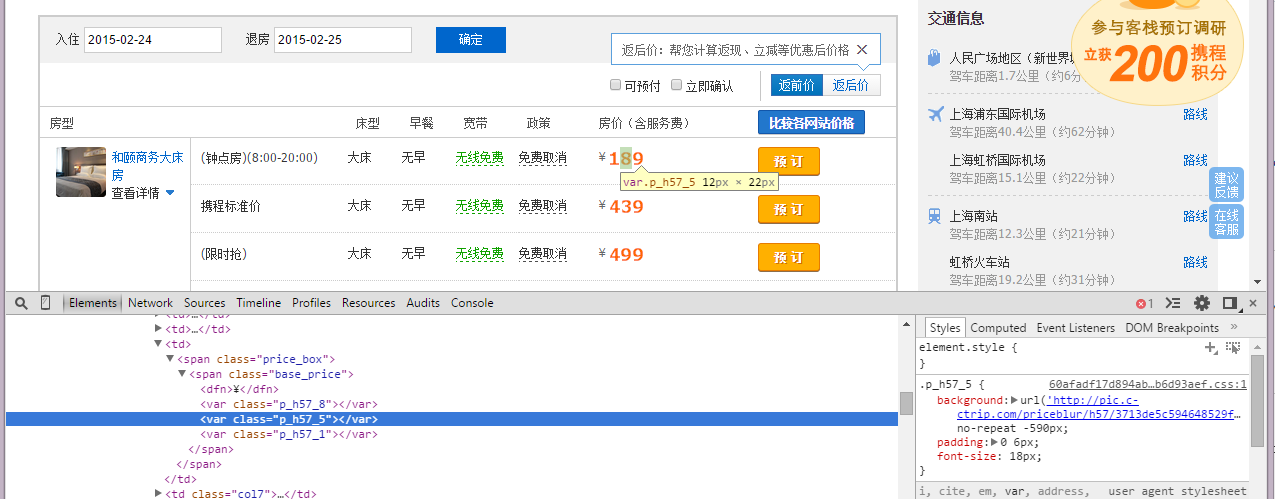
每一个数字对应一个样式,如'p_h57_5'
.p_h57_5 {

background: url('http://pic.c-ctrip.com/priceblur/h57/3713de5c594648529f39d031243966dd.gif') no-repeat -590px;

padding: 0 6px;

font-size: 18px;

}
数字对应的样式和对应的backgroundimg都是动态改变的,需要获取到每一个房型的房价。虽然后来有了其它渠道获取房价,这里记录一下用Selenium&Emgu抓取的方式。
流程:
1.Selenium访问网址

2.全屏截图

3.Selenium选择器获取房型等信息

4.Selenium选择器获取价格DOM元素,计算出价格元素的相对位置,截取价格图片,使用Emgu识别价格并且输出
实现
static void Main(string[] args)

        {

            //访问网址

            ChromeOptions options = new ChromeOptions();

            options.AddArguments("--start-maximized --disable-popup-blocking");

            var driver = new ChromeDriver(options);

            driver.Navigate().GoToUrl("http://hotels.ctrip.com/hotel/992765.html");

       try

            {

                new WebDriverWait(driver, TimeSpan.FromSeconds(1)).Until(

                    ExpectedConditions.ElementExists((By.ClassName("htl_room_table")))); //表示已加载完毕

            }

            finally

            {

            }

            //删除价格的¥符号

            ReadOnlyCollection<IWebElement> elementsList = driver.FindElementsByCssSelector("tr[expand]");

            driver.ExecuteScript(@"

                var arr =  document.getElementsByTagName('dfn');

                for(var i=0;i<arr.length;i++){

                    arr[i].style.display = 'none';

                }

            ");

            //全屏截图

            var image2 = GetEntereScreenshot(driver);

            image2.Save(@"Z:\111.jpg");

            //输出

            Console.WriteLine("{0,-20}{1,-20}{2,-20}", "房型", "类型", "房价");

            foreach (IWebElement _ in elementsList)

            {

                //var image = _.Snapshot();

                //image.Save(@"Z:\" + Guid.NewGuid() + ".jpg");

                //var str = ORC_((Bitmap)image);

                var roomType = "";

                try

                {

                    roomType = _.FindElement(By.CssSelector(".room_unfold")).Text;

                }

                catch (Exception)

                {

                }

                var roomTypeText = regRoomType.Match(roomType);

                var roomTypeName = _.FindElement(By.CssSelector("span.room_type_name")).Text;

                //价格元素生成图片

                var image = _.FindElement(By.CssSelector("span.base_price")).SnapshotV2(image2);

                //识别

                var price = ORC_((Bitmap)image);

                Console.WriteLine("{0,-20}{1,-20}{2,-20}", roomTypeText.Value, roomTypeName, price);

            }

            Console.Read();

        }
图片识别方法
static Program()

        {

            _ocr.SetVariable("tessedit_char_whitelist", "0123456789");

        }

        private static Tesseract _ocr = new Tesseract(@"C:\Emgu\emgucv-windows-universal-cuda 2.9.0.1922\bin\tessdata", "eng", Tesseract.OcrEngineMode.OEM_TESSERACT_CUBE_COMBINED);

        //传入图片进行识别

        public static string ORC_(Bitmap img)

        {

            //""标示OCR识别调用失败

            string re = "";

            if (img == null)

                return re;

            else

            {

                Bgr drawColor = new Bgr(Color.Blue);

                try

                {

                    Image<Bgr, Byte> image = new Image<Bgr, byte>(img);

                    using (Image<Gray, byte> gray = image.Convert<Gray, Byte>())

                    {

                        _ocr.Recognize(gray);

                        Tesseract.Charactor[] charactors = _ocr.GetCharactors();

                        foreach (Tesseract.Charactor c in charactors)

                        {

                            image.Draw(c.Region, drawColor, 1);

                        }

                        re = _ocr.GetText();

                    }

                    return re;

                }

                catch (Exception ex)

                {

                    return re;

                }

            }

        }
Selenium内置了截图方法,只能截取浏览器中显示的内容,找到一个全屏截图的方式(内置截图+控制滚动条,图片拼接)
 public static Bitmap GetEntereScreenshot(IWebDriver _driver)

        {

            Bitmap stitchedImage = null;

            try

            {

                long totalwidth1 = (long)((IJavaScriptExecutor)_driver).ExecuteScript("return document.body.offsetWidth");//documentElement.scrollWidth");

                long totalHeight1 = (long)((IJavaScriptExecutor)_driver).ExecuteScript("return  document.body.parentNode.scrollHeight");

                int totalWidth = (int)totalwidth1;

                int totalHeight = (int)totalHeight1;

                // Get the Size of the Viewport

                long viewportWidth1 = (long)((IJavaScriptExecutor)_driver).ExecuteScript("return document.body.clientWidth");//documentElement.scrollWidth");

                long viewportHeight1 = (long)((IJavaScriptExecutor)_driver).ExecuteScript("return window.innerHeight");//documentElement.scrollWidth");

                int viewportWidth = (int)viewportWidth1;

                int viewportHeight = (int)viewportHeight1;

                // Split the Screen in multiple Rectangles

                List<Rectangle> rectangles = new List<Rectangle>();

                // Loop until the Total Height is reached

                for (int i = 0; i < totalHeight; i += viewportHeight)

                {

                    int newHeight = viewportHeight;

                    // Fix if the Height of the Element is too big

                    if (i + viewportHeight > totalHeight)

                    {

                        newHeight = totalHeight - i;

                    }

                    // Loop until the Total Width is reached

                    for (int ii = 0; ii < totalWidth; ii += viewportWidth)

                    {

                        int newWidth = viewportWidth;

                        // Fix if the Width of the Element is too big

                        if (ii + viewportWidth > totalWidth)

                        {

                            newWidth = totalWidth - ii;

                        }

                        // Create and add the Rectangle

                        Rectangle currRect = new Rectangle(ii, i, newWidth, newHeight);

                        rectangles.Add(currRect);

                    }

                }

                // Build the Image

                stitchedImage = new Bitmap(totalWidth, totalHeight);

                // Get all Screenshots and stitch them together

                Rectangle previous = Rectangle.Empty;

                foreach (var rectangle in rectangles)

                {

                    // Calculate the Scrolling (if needed)

                    if (previous != Rectangle.Empty)

                    {

                        int xDiff = rectangle.Right - previous.Right;

                        int yDiff = rectangle.Bottom - previous.Bottom;

                        // Scroll

                        //selenium.RunScript(String.Format("window.scrollBy({0}, {1})", xDiff, yDiff));

                        ((IJavaScriptExecutor)_driver).ExecuteScript(String.Format("window.scrollBy({0}, {1})", xDiff, yDiff));

                        System.Threading.Thread.Sleep(200);

                    }

                    // Take Screenshot

                    var screenshot = ((ITakesScreenshot)_driver).GetScreenshot();

                    // Build an Image out of the Screenshot

                    Image screenshotImage;

                    using (MemoryStream memStream = new MemoryStream(screenshot.AsByteArray))

                    {

                        screenshotImage = Image.FromStream(memStream);

                    }

                    // Calculate the Source Rectangle

                    Rectangle sourceRectangle = new Rectangle(viewportWidth - rectangle.Width, viewportHeight - rectangle.Height, rectangle.Width, rectangle.Height);

                    // Copy the Image

                    using (Graphics g = Graphics.FromImage(stitchedImage))

                    {

                        g.DrawImage(screenshotImage, rectangle, sourceRectangle, GraphicsUnit.Pixel);

                    }

                    // Set the Previous Rectangle

                    previous = rectangle;

                }

            }

            catch (Exception ex)

            {

                // handle

            }

            return stitchedImage;

        }
最后的是根据传入的元素和全屏截图,获取到价格元素的图片
 public static Image SnapshotV2(this IWebElement element, Bitmap bitmap)

        {

            Size size = new Size(

                   Math.Min(element.Size.Width, bitmap.Width),

                   Math.Min(element.Size.Height, bitmap.Height));

            Rectangle crop = new Rectangle(element.Location, size);

            return bitmap.Clone(crop, bitmap.PixelFormat);

        }
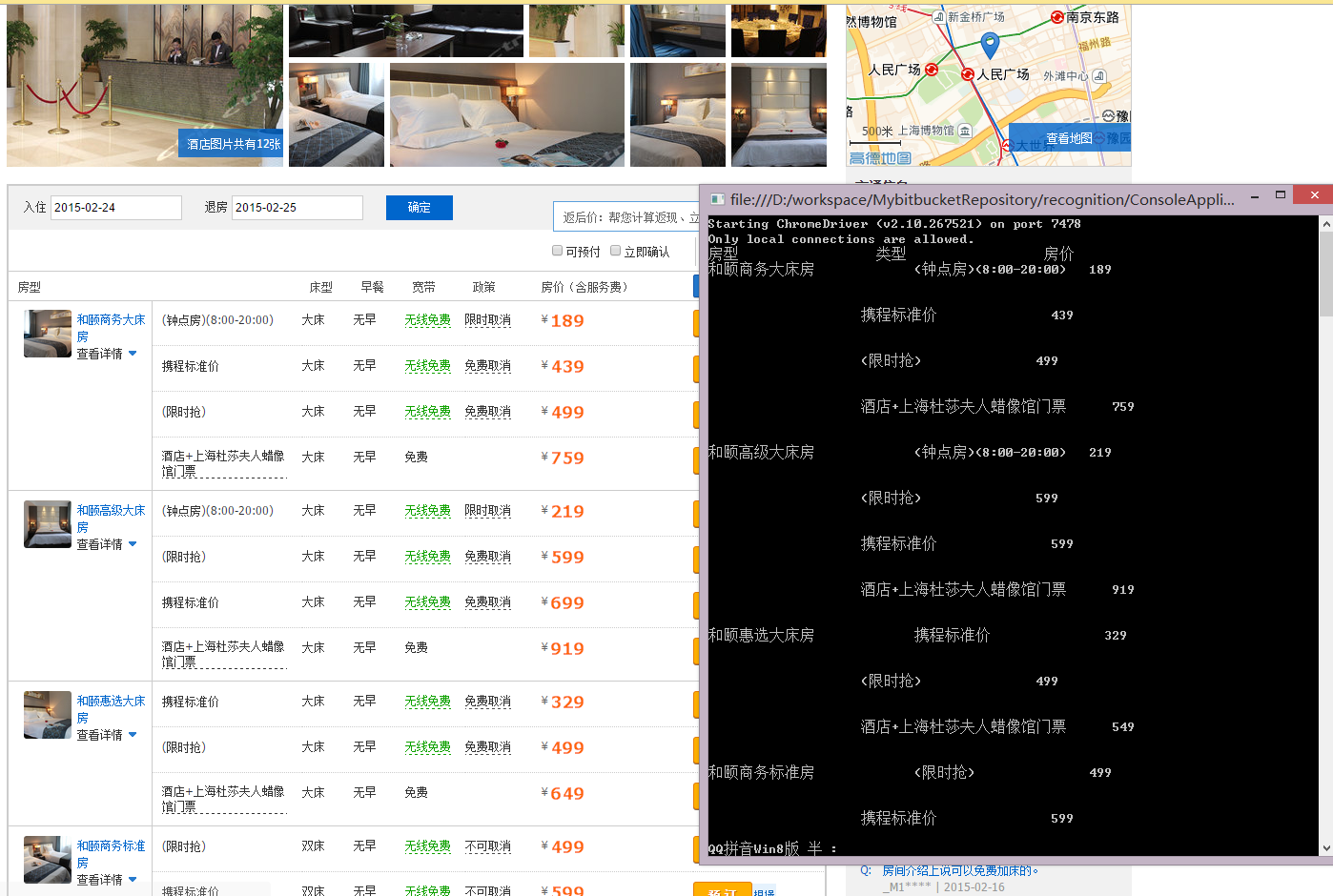
运行效果如下
Selenium&EmguCV实现爬虫图片识别的更多相关文章
- 爬虫笔记之自如房屋价格图片识别(价格字段css背景图片偏移显示)
一.前言 自如房屋详情页的价格字段用图片显示,特此破解一下以丰富一下爬虫笔记系列博文集. 二.分析 & 实现 先打开一个房屋详情页观察一下: 网页的源代码中没有直接显示价格字段,价格的显示是使 ...
- 【Selenium-WebDriver实战篇】selenium之使用Tess4J进行验证码图片识别内容
==================================================================================================== ...
- Selenium&Pytesseract模拟登录+验证码识别
验证码是爬虫需要解决的问题,因为很多网站的数据是需要登录成功后才可以获取的. 验证码识别,即图片识别,很多人都有误区,觉得这是爬虫方面的知识,其实是不对的. 验证码识别涉及到的知识:人工智能,模式识别 ...
- Selenium&Pytesseract模拟登录+验证码识别
验证码是爬虫需要解决的问题,因为很多网站的数据是需要登录成功后才可以获取的. 验证码识别,即图片识别,很多人都有误区,觉得这是爬虫方面的知识,其实是不对的. 验证码识别涉及到的知识:人工智能,模式识别 ...
- 使用Python + Selenium打造浏览器爬虫
Selenium 是一款强大的基于浏览器的开源自动化测试工具,最初由 Jason Huggins 于 2004 年在 ThoughtWorks 发起,它提供了一套简单易用的 API,模拟浏览器的各种操 ...
- 1个小时!从零制作一个! AI图片识别WEB应用!
0 前言 近些年来,所谓的人工智能也就是AI. 在媒体的炒作下,变得神乎其神,但实际上,类似于图片识别的AI,其原理只不过是数学的应用. 线性代数,概率论,微积分(著名的反向传播算法). 大家觉得这些 ...
- 【Machine Learning】KNN算法虹膜图片识别
K-近邻算法虹膜图片识别实战 作者:白宁超 2017年1月3日18:26:33 摘要:随着机器学习和深度学习的热潮,各种图书层出不穷.然而多数是基础理论知识介绍,缺乏实现的深入理解.本系列文章是作者结 ...
- 【基于WPF+OneNote+Oracle的中文图片识别系统阶段总结】之篇一:WPF常用知识以及本项目设计总结
篇一:WPF常用知识以及本项目设计总结:http://www.cnblogs.com/baiboy/p/wpf.html 篇二:基于OneNote难点突破和批量识别:http://www.cnblog ...
- 【基于WPF+OneNote+Oracle的中文图片识别系统阶段总结】之篇二:基于OneNote难点突破和批量识别
篇一:WPF常用知识以及本项目设计总结:http://www.cnblogs.com/baiboy/p/wpf.html 篇二:基于OneNote难点突破和批量识别:http://www.cnblog ...
随机推荐
- UNIX环境高级编程笔记之进程控制
本章重点介绍了进程控制的几个函数:fork.exec族._exit.wait和waitpid等,主要需要掌握的是父进程和子进程之间的运行机制,怎么处理进程的正常和异常终止.以及怎么让进程执行不同的程序 ...
- shell 常用命令
Terminal是Mac OS X系统中的字符控制界面,可以更灵活地控制苹果电脑以下看到 “>“ 就是打指令的地方,prompt,指令列>pwd列出路径>ls列出此档案夹里所有的东西 ...
- 使用UIKit制作卡牌游戏(三)ios游戏篇
译者: Lao Jiang | 原文作者: Matthijs Hollemans写于2012/07/13 转自朋友Tommy 的翻译,自己只翻译了这第三篇教程. 原文地址: http://www.ra ...
- [原]零基础学习视频解码之android篇系列文章
截止今天,<零基础学习视频解码系列文章>.<零基础学习在Android进行SDL开发系列文章>以及<零基础学习视频解码之android篇>系列文章基本算是告一段落了 ...
- 【转载】C#之int与Java之Integer的区别
本文涉及到一些JVM原理和Java的字节码指令,推荐感兴趣的读者阅读一本有关JVM的经典书籍<深入Java虚拟机(第2版)>,将它与我在<.NET 4.0面向对象编程漫谈>中介 ...
- CSS3实现倒计时
CSS3实现倒计时小程序,界面如下: 代码如下: <style> body,html{ margin:0px; height:100%; } body{background: #000; ...
- IntelliJ IDEA 我的配置--留个脚印
PS:先PS一下汉化包,导致版本从2016.2无法升级到2016.2.1. 卸载!重新从官网下载最新安装包来安装! https://www.jetbrains.com/ 官方有Community和Ul ...
- JavaScript Scoping and Hoisting
JavaScript中所有变量及函数名会自动提升 http://www.cnblogs.com/betarabbit/archive/2012/01/28/2330446.html
- Linux 下 Shell 命令的分类及用法
当你打算真正操纵好你的 Linux 系统,没有什么能比命令行界面更让你做到这一点.为了成为一个 Linux 高手,你必须能够理解 Shell命令的不同类型,并且会在终端下正确的使用它们. 在 Linu ...
- JS对象的几个方法介绍
1.hasOwnProperty 判断是不是对象自身的属性,如果是继承的返回false否则true function Fn(){ } Fn.prototype.num = 10; var obj = ...