
iOS 转场动画探究(二)
这篇文章是接着第一篇写的,要是有同行刚看到的话建议从前面第一篇看,这是第一篇的地址:iOS 转场动画探究(一)
接着上一篇写的内容:
上一篇iOS 转场动画探究(一)我们说到了转场要素的第四点,把那个小实例解释完,这篇还有一点我们接着总结:
Demo的下载地址这里再发一次: 这里是Demo的下载地址
5、 转场协调器协议 UIViewControllerTransitionCoordinator
可以通过需要产生动画效果的视图控制器的transitionCoordinator属性来获取转场协调器,转场协调器只在转场动画的执行过程中存在。也正是因为有了UIViewControllerTransitionCoordinator ,我们才可在转场动画发生的同时并行执行其他的动画。比如像我们第三个小例子里面后面半透明背景动画,就是通过这个UIViewControllerTransitionCoordinator我们来做的,主要在 Modal 转场和交互转场取消时使用,其他时候很少用到,我们看看它里面的几个方法:
// Any animations specified will be run in the same animation context as the

// transition. If the animations are occurring in a view that is a not

// descendent of the containerView, then an ancestor view in which all of the

// animations are occuring should be specified.  The completionBlock is invoked

// after the transition completes. (Note that this may not be after all the

// animations specified by to call complete if the duration is not inherited.)

// It is perfectly legitimate to only specify a completion block. This method

// returns YES if the animations are successfully queued to run. The completions

// may be run even if the animations are not. Note that for transitioning

// animators that are not implemented with UIView animations, the alongside

// animations will be run just after their animateTransition: method returns.

//

- (BOOL)animateAlongsideTransition:(void (^ __nullable)(id <UIViewControllerTransitionCoordinatorContext>context))animation

                        completion:(void (^ __nullable)(id <UIViewControllerTransitionCoordinatorContext>context))completion;

// This alternative API is needed if the view is not a descendent of the container view AND you require this animation

// to be driven by a UIPercentDrivenInteractiveTransition interaction controller.

- (BOOL)animateAlongsideTransitionInView:(nullable UIView *)view

                               animation:(void (^ __nullable)(id <UIViewControllerTransitionCoordinatorContext>context))animation

                              completion:(void (^ __nullable)(id <UIViewControllerTransitionCoordinatorContext>context))completion;

// When a transition changes from interactive to non-interactive then handler is

// invoked. The handler will typically then do something depending on whether or

// not the transition isCancelled. Note that only interactive transitions can

// be cancelled and all interactive transitions complete as non-interactive

// ones. In general, when a transition is cancelled the view controller that was

// appearing will receive a viewWillDisappear: call, and the view controller

// that was disappearing will receive a viewWillAppear: call.  This handler is

// invoked BEFORE the "will" method calls are made.

- (void)notifyWhenInteractionEndsUsingBlock: (void (^)(id <UIViewControllerTransitionCoordinatorContext>context))handler NS_DEPRECATED_IOS(7_0, 10_0,"Use notifyWhenInteractionChangesUsingBlock");

// This method behavior is identical to the method above. On 10.0, however, the behavior has

// changed slightly to account for the fact that transitions can be interruptible. For interruptible transitions

// The block may be called multiple times. It is called each time the transition moves from an interactive to a

// non-interactive state and vice-versa. The block is now also retained until the transition has completed.

- (void)notifyWhenInteractionChangesUsingBlock: (void (^)(id <UIViewControllerTransitionCoordinatorContext>context))handler NS_AVAILABLE_IOS(10_0);
结合上面的英文注释看看这几个方法,在博客上看到关于这个协议的翻译,肯定翻译,再吧一些地方自己总结了一下,直接写出来,对照着上面的理解一下这个协议:
1、 你可以使用一个转场协调器对象执行一个与转场相关的任务,它将分离动画控制器正在做的事。在转场期间,动画控制器对象负责把视图控制器的内容呈现在屏幕上,但是可能也有一些其他的可视元素同样需要被展示。比如,一个显示控制器可能想执行显示或者使一些装饰视图消失从视图控制器内容里分离出的动画。这种情况下,可以使用转场协调器来执行这些动画。
2、转场协调器和动画控制器对象一块工作,确保任何额外动画被执行在同样的动画组中,就像转场动画一样。在一样的组拥有动画,意味着它们在同样的时间执行,并且可以响应一个动画控制器对象提出的任何时间改变。这些时间调整会自动发生,不需要写额外的代码在你的项目中。
3、使用转场协调器处理视图层次动画比在viewWillappear:方法中做出同样的改变,或者相同的方法在你的视图控制器中要好很多。你用这个协议中的方法所注册的block会确保执行一样的转场动画。更重要的是,转场协调器会提供重要的信息关于转场的状态,比如是否它会被取消,对于你的动画block而言,通过
UIViewControllerTransitionCoordinatorContext对象。
4、除了在转场期间执行注册动画,你可以调用notifyWhenInteractionChangesUsingBlock: 方法注册一个block来清理和用户交互的转场动画。清理非常重要,当用户取消转场交互时,当取消的时候,你需要返回一个原始的视图层次状态,就像之前转场存在的一样。
我们在协议的最上面会看到这样一句话:

翻译说明:一个采用UIViewControllerTransitionCoordinator协议的对象可以给控制器转场动画提供相关支持。一般情况下,你不需要采用这个协议在自己定义的类中。当presentation/dismissal一个视图控制器时,UIKit会自动创建一个转场协调器对象,并且给视图控制器的transitionCoordinator属性赋值(这一点在接下来的实例中,你会看的到的),这个转场协调器对象是短暂的,并且延续到转场动画的结束。
说第三个小例子之前我们还得熟悉一下这个:UIPresentationController,它提供了四个函数来定义present和dismiss动画开始前后的操作:
1、presentationTransitionWillBegin: present将要执行时
2、presentationTransitionDidEnd: present执行结束后
3、dismissalTransitionWillBegin: dismiss将要执行时
4、dismissalTransitionDidEnd: dismiss执行结束后
这四个方法在我们的实例中有用到,我们在下面代码里面还会说。
EXAMPLE-THREE:
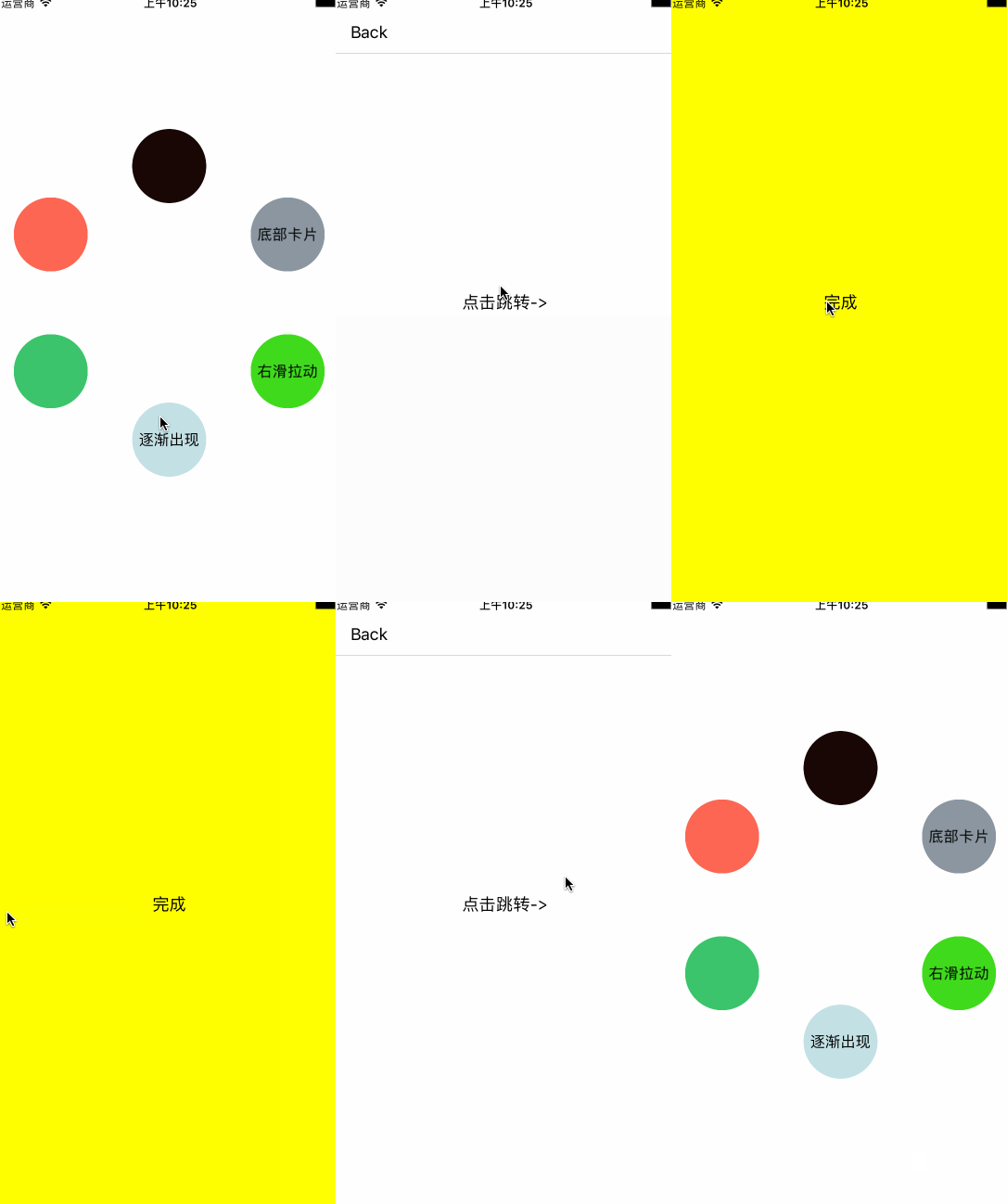
看上面效果图的第三个实例:
在第三个Demo中,也就是底部卡片的呈现形式中,我们把UIViewControllerTransitioningDelegate和UIViewControllerAnimatedTransitioning都写在了CustomPresentationController当中,这个CustomPresentationController就是集成与我们前面提到过的UIPresentationController,这个UIPresentationController前面提到的时候说的什么可以回忆一下,再在代码中去理解:
从初始化方法开始了解,说说我们需要注意的地方:
1、初始化
/**

 初始化

 @param  presentedViewController  presentedViewController  跳转到这个控制器

 @param  presentingViewController presentingViewController 由这个控制器开始跳转

 @return return value description

 */

- (instancetype)initWithPresentedViewController:(UIViewController *)presentedViewController presentingViewController:(nullable UIViewController *)presentingViewController{

        self =[super initWithPresentedViewController:presentedViewController presentingViewController:presentingViewController];

        if (self) {

                // 自定义modalPresentationStyle

                presentedViewController.modalPresentationStyle= UIModalPresentationCustom;

        }

        return self;

}
这里主要的只有一点:presentedViewController.modalPresentationStyle= UIModalPresentationCustom
2、presentationTransitionWillBegin 这个方法
在这个方法里面背景图的动画就是在我们第五点强调的UIViewControllerTransitionCoordinator当中
/* present将要执行时 */

- (void)presentationTransitionWillBegin

{

        // 设置presentationWrappingView和dimmingView的UI效果

        UIView * presentedViewControllerView = [super presentedView];

        presentedViewControllerView.autoresizingMask = UIViewAutoresizingFlexibleWidth | UIViewAutoresizingFlexibleHeight;

        {

                //

                UIView *presentationWrapperView = [[UIView alloc] initWithFrame:self.frameOfPresentedViewInContainerView];

                presentationWrapperView.layer.shadowOpacity = 0.44f;  //设置阴影的透明度(0~1之间,0表示完全透明)

                presentationWrapperView.layer.shadowRadius  = 13.f;   //设置阴影的圆角

                //设置阴影的偏移量,如果为正数,则代表为往右边偏移

                presentationWrapperView.layer.shadowOffset  = CGSizeMake(0, -6.f);

                self.presentationWrappingView = presentationWrapperView;

                // 圆角View

                UIView *presentationRoundedCornerView = [[UIView alloc] initWithFrame:UIEdgeInsetsInsetRect(presentationWrapperView.bounds, UIEdgeInsetsMake(0, 0, -CORNER_RADIUS, 0))];

                // autoresizingMask 这个属性 自动调整与父视图之间的边界距离

                presentationRoundedCornerView.autoresizingMask = UIViewAutoresizingFlexibleWidth | UIViewAutoresizingFlexibleHeight;

                presentationRoundedCornerView.layer.cornerRadius = CORNER_RADIUS;

                presentationRoundedCornerView.layer.masksToBounds = YES;

                [presentationRoundedCornerView addSubview:presentedViewControllerView];

                //*** presentedViewControllerView

                presentedViewControllerView.frame = UIEdgeInsetsInsetRect(presentationRoundedCornerView.bounds, UIEdgeInsetsMake(0, 0, CORNER_RADIUS, 0));

                // ******************

                [presentationWrapperView addSubview:presentationRoundedCornerView];

        }

        {

                // 背景图

                UIView *dimmingView = [[UIView alloc] initWithFrame:self.containerView.bounds];

                dimmingView.backgroundColor = [UIColor blackColor];

                dimmingView.opaque = NO;

                dimmingView.autoresizingMask = UIViewAutoresizingFlexibleWidth | UIViewAutoresizingFlexibleHeight;

                [dimmingView addGestureRecognizer:[[UITapGestureRecognizer alloc] initWithTarget:self action:@selector(dimmingViewTapped:)]];

                self.dimmingView = dimmingView;

                [self.containerView addSubview:dimmingView];

                id<UIViewControllerTransitionCoordinator> transitionCoordinator = self.presentingViewController.transitionCoordinator;

                self.dimmingView.alpha = 0.f;

                [transitionCoordinator animateAlongsideTransition:^(id<UIViewControllerTransitionCoordinatorContext> context) {

                        self.dimmingView.alpha = 0.5f;

                } completion:NULL];

        }

}
剩下的UIViewControllerAnimatedTransitioning和UIViewControllerTransitioningDelegate里面的东西我们就不在重复去说。
我们多看几个例子:
EXAMPLE-FOUR
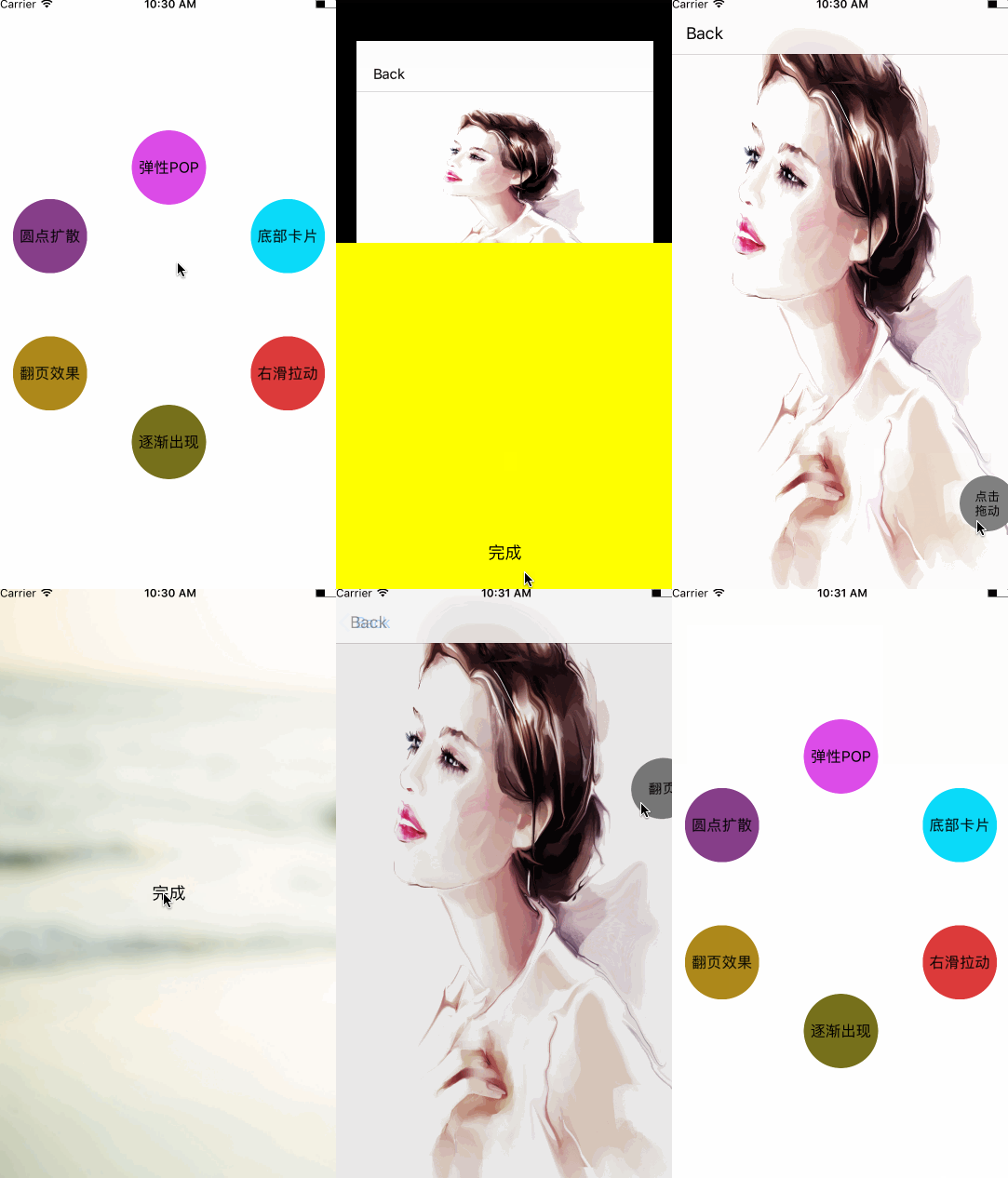
这个弹性POP的例子主要是根据 CGAffineTransform 这个属性来展开的,你要了解这个就比较好写了,主要的全都在代码注释里面,效果图就在下面:
这个例子我就强调下面这一个地方,下面这段代码:
 BOOL isPresent   = (toViewController.presentingViewController == fromViewController);

        UIView *tempView = nil;

        if (isPresent) {

           tempView = [fromViewController.view snapshotViewAfterScreenUpdates:NO];

           tempView.frame = fromViewController.view.frame;

           fromViewController.view.hidden = YES;

           [contextView addSubview:tempView];

           [contextView addSubview:toViewController.view];

           toViewController.view.frame = CGRectMake(0, contextView.frame.size.height, contextView.frame.size.width, 400);

        }else{

                //参照present动画的逻辑,present成功后,containerView的最后一个子视图就是截图视图,我们将其取出准备动画

                NSArray *subviewsArray = contextView.subviews;

                tempView = subviewsArray[MIN(subviewsArray.count, MAX(0, subviewsArray.count - 2))];

        }
注意一下这个方法: snapshotViewAfterScreenUpdates: 剩下的看代码就OK了,这几个例子我感觉其实带的框架都是一样的,不一样的就是里面的动画具体的实现,先看看我们4、5、6说的这几个Demo的效果:
EXAMPLE-FIVE
圆点扩散这个Demo主要的就是灵活的使用了UIBezierPath 和 CABasicAnimation,其实还要掌握了转场的本质,感觉剩下的真的就看你能想到哪里了!哈哈.....
这个Demo所有的核心都在下面两个方法里面:
-(void)presentViewController:(id <UIViewControllerContextTransitioning>)transitionContext
-(void)dismissViewController:(id <UIViewControllerContextTransitioning>)transitionContext
具体的代码我就不再说了,代码上面的注释是足够了的,很详细.....还是看代码吧。
EXAMPLE-SIX
导航控制器的转场
最后的这个翻页效果的Demo,其实你看着它像3D的感觉,你想起了 CATransform3D 感觉就够了,通过下面这个方法来开始我们的导航转场:
-(void)presentNextControllerClicked{

    // 既然这里是导航控制器的转场,就要给导航设置代理。然后在第二个控制器遵守相应的协议之后,判断

    // 是Push还是Pop,执行相应的动画

    PageToViewController * pushVC = [PageToViewController new];

    self.navigationController.delegate = pushVC;

    [self.navigationController pushViewController:pushVC animated:YES];

}
下面要注意的就是导航操作的判断,是Push还是Pop,我们就在导航代理的下面方法里面判断,重点应用的就是代理方法里面的operation参数:
#pragma mark - UINavigationControllerDelegate

- (id<UIViewControllerAnimatedTransitioning>)navigationController:(UINavigationController *)navigationController animationControllerForOperation:(UINavigationControllerOperation)operation fromViewController:(UIViewController *)fromVC toViewController:(UIViewController *)toVC{

    //分pop和push两种情况分别返回动画过渡代理相应不同的动画操作

    return [[PageAnimation alloc]initWith:operation == UINavigationControllerOperationPush ? Push_type : Pop_type];

}
注意到上面说的两点,剩下的又回到我们最开始的--动画了!动画部分的代码就不粘贴出来占用篇幅了,还是那句下载下来自己去看看!
你看着上面给的效果图,要有兴趣就去下载代码看看,源码当中还是有很多的细节的,我也加了注释,希望上面所有的东西以及源码里面的内容能帮助到大家!
最后:
这个上面的暂时就告一段落了,后面有新的动向我会在接着更新,下面是我学习的过程中,看过的相关的博客!感谢作者......
Demo的下载地址这里再发一次: 这里是Demo的下载地址
WWDC 2013 Session笔记 - iOS7中的ViewController切换
iOS 转场动画探究(二)的更多相关文章
- iOS 转场动画探究(一)
什么是转场动画: 转场动画说的直接点就是你常见的界面跳转的时候看到的动画效果,我们比较常见的就是控制器之间的Push和Pop,还有Present和Dismiss的时候设置一下系统给我们的modalTr ...
- iOS转场动画
文顶顶 最怕你一生碌碌无为 还安慰自己平凡可贵 iOS开发UI篇—核心动画(转场动画和组动画) iOS开发UI篇—核心动画(转场动画和组动画) 一.转场动画简单介绍 CAAnimation的子类,用于 ...
- iOS - 转场动画
苹果在 iOS7 定制了 ViewController 的切换效果 一 在iOS5和iOS6之前,ViewController的切换主要有4种 Push/Pop,NavigationViewCotnr ...
- iOS转场动画封装
写在前面 iOS在modal 或push等操作时有默认的转场动画,但有时候我们又需要特定的转场动画效果,从iOS7开始,苹果就提供了自定义转场的API,模态推送present和dismiss.导航控制 ...
- iOS 转场动画核心内容
CATransition——转场动画 CATransition是CAAnimation的子类,用于做转场动画,能够为层提供移出屏幕和移入屏幕的动画效果.iOS比Mac OS X的转场动画效果少一点. ...
- iOS转场动画初探
一般我们就用两种转场push和present present /** 1.设置代理 - (instancetype)init { self = [super init]; if (self) { se ...
- 一步一步教你实现iOS音频频谱动画(二)
如果你想先看看最终效果再决定看不看文章 -> bilibili 示例代码下载 第一篇:一步一步教你实现iOS音频频谱动画(一) 本文是系列文章中的第二篇,上篇讲述了音频播放和频谱数据计算,本篇讲 ...
- IOS 转场动画二和透明控制器视图
一.透明视图控制器 WJListMenuViewController *VC = [[WJListMenuViewController alloc]init]; VC.modalPresentatio ...
- 一步一步教你实现iOS音频频谱动画(一)
如果你想先看看最终效果再决定看不看文章 -> bilibili 示例代码下载 第二篇:一步一步教你实现iOS音频频谱动画(二) 基于篇幅考虑,本次教程分为两篇文章,本篇文章主要讲述音频播放和频谱 ...
随机推荐
- js 检测浏览器
首先还是IE浏览器的检测,一般我们在写代码的时候,出现的兼容性bug几乎都来自IE.从IE10以后,IE还算有点良心,支持了大部门的CSS3及H5的新特性.那么在IE10之前呢,就要才去别的手段来代替 ...
- 遇见未知的CSS
1.1 CSS中你可能会疑问的几个问题 1.1.1 在CSS中为什么要有层叠 在CSS中可能会有多个样式表同时影响同一个元素的某个属性,设计这个功能的主要原因有两个,解决模块化和作者.用户.用户代理样 ...
- Hive的分区操作~~~~~~
一.Hive分区(一).分区概念:为什么要创建分区:单个表数据量越来越大的时候,在Hive Select查询中一般会扫描整个表内容,会消耗很多时间做没必要的工作.有时候只需要扫描表中关心的一部分数据, ...
- Lua学习(5)——迭代器与泛型for
1. 迭代器 2. 泛型for语义 所谓迭代器就是一种可以遍历一种集合中所有元素的机制.在lua中,迭代器通常表示为函数,每调用依次函数就返回集合中的下一个元素.泛型for 内部保存了迭代器函数 实际 ...
- iOS学习之应用之间的操作(转发)
首先要说的是每一个APP都可以设置一个自己独有的URL,APP应用之间的操作就是通过这个URL来实现的! 1.如何配置自己应用的URL? 关于自己的URL,作为资深的程序猿都会想到 Info.plis ...
- php implode()函数详解
php implode()函数的作用? php 中implode() 函数是返回一个由数组元素组合成的字符串,它与php explode()函数的作用是相反的,php explode() 函数是:使用 ...
- CMT2300 收发一体 SUB 1G 支持灵活选频
CMT2300A 是一款超低功耗,高性能,适用于各种140 至1020 MHz 无线应用的OOK,(G)FSK 射频收发器.它是CMOSTEK NextGenRFTM 射频产品线的一部分,这条产品线包 ...
- Python教程(1.1)——配置Python环境
在正式开始学习Python之前我们需要先配置好Python环境. Python Python可以从Python官方网站上,选择适合你的操作系统的版本下载.下载完之后,运行下载的可执行文件进行安装. 这 ...
- OpenGL教程(2)——第一个窗口
OpenGL环境终于配置好了,现在我们可以开始学习OpenGL了. 首先,创建一个.cpp文件,然后打上几行#include指令: #include <iostream> using st ...
- FFmpeg安装(windows环境)
♣FFmpeg是什么? ♣FFmpeg组成 ♣下载工具 ♣安装FFmpeg ♣应用到j2ee项目 前言:学习视频编码,一定要知道雷霄骅(leixiaohua1020)的专栏 ,伟大的程序员,26岁去世 ...