
Visual Studio Code创建C#项目
Visual Studio Code是一个支持跨平台的文本编辑器,同其他文本文本编辑器一样,不但占用磁盘空间小,性能也比较快;近几年由于不断的升级和许多开发者提供大量的插件,它已经成为了一个非常强大的代码编辑器。所以当我们创建一些中小型项目或者需要修改项目中的某个文件,直接使用vscode是非常方便的。
安装vscode
安装C#语言的运行环境,当然安装过Visual Studio编辑器的话是不需要再安装了
然后在vscode中安装C#语言的插件
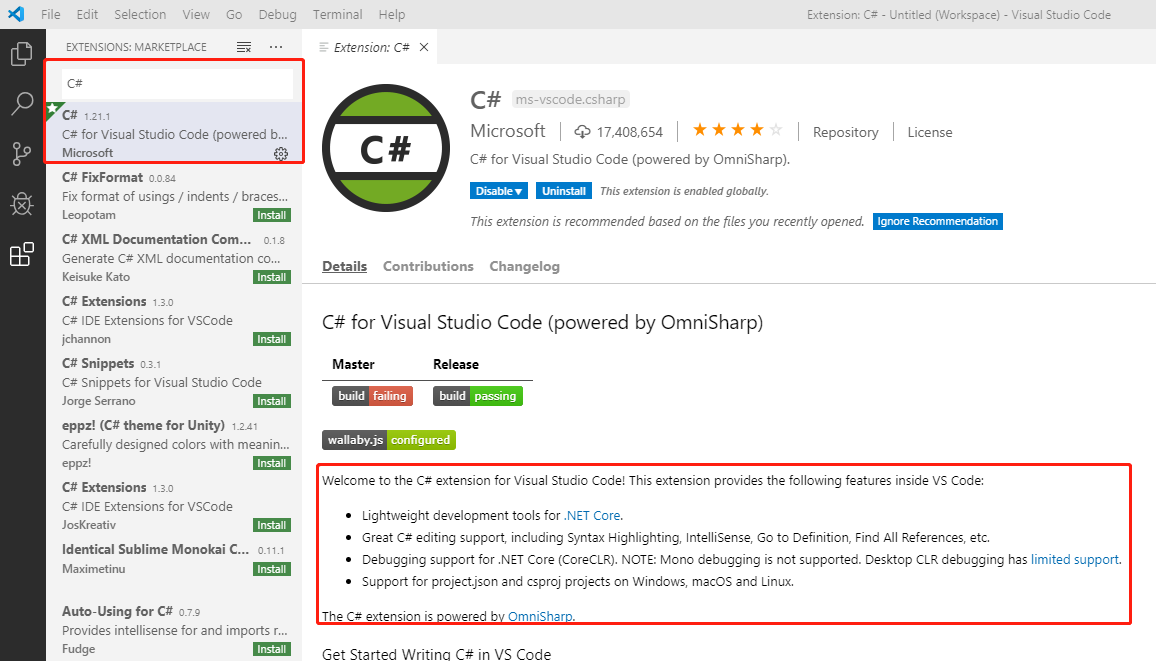
> [相关的文档:https://code.visualstudio.com/docs/languages/csharp](https://code.visualstudio.com/docs/languages/csharp)
> [视频介绍:https://channel9.msdn.com/Blogs/dotnet/Get-started-VSCode-Csharp-NET-Core-Windows](https://channel9.msdn.com/Blogs/dotnet/Get-started-VSCode-Csharp-NET-Core-Windows)
创建C#项目
打开vscode,然后添加一个工作空间
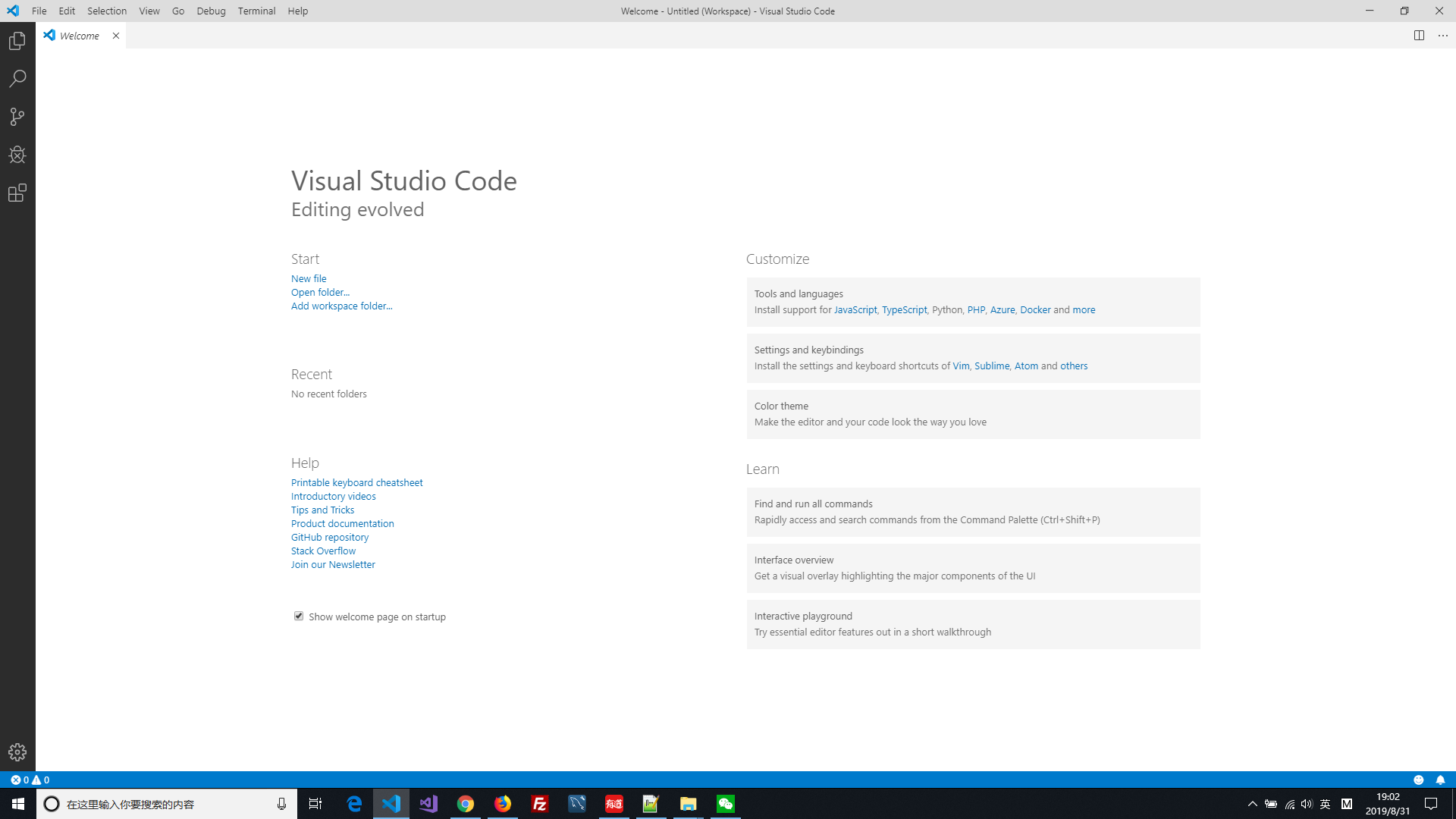
添加工作空间之后,通过vscode菜单新建一个终端(快捷键Ctrl+Shift+`)
```
dotnet --help //查看dotnet相关的帮助命令
```
####创建解决方案
```
PS D:\Projects\CSharp> dotnet new sln -o MyApp
已成功创建模板“Solution File”。
```
####创建项目类库
首相进入项目目录,然后再创建对应的主程序和类库
```
PS D:\Projects\CSharp> cd .\MyApp\
PS D:\Projects\CSharp\MyApp> dotnet new classlib -o MyApp.Model
已成功创建模板“Class library”。
正在处理创建后操作...
正在 MyApp.Model\MyApp.Model.csproj 上运行 "dotnet restore"...
正在还原 D:\Projects\CSharp\MyApp\MyApp.Model\MyApp.Model.csproj 的包...
正在生成 MSBuild 文件 D:\Projects\CSharp\MyApp\MyApp.Model\obj\MyApp.Model.csproj.nuget.g.props。
正在生成 MSBuild 文件 D:\Projects\CSharp\MyApp\MyApp.Model\obj\MyApp.Model.csproj.nuget.g.targets。
D:\Projects\CSharp\MyApp\MyApp.Model\MyApp.Model.csproj 的还原在 210.35 ms 内完成。
还原成功。
PS D:\Projects\CSharp\MyApp> dotnet new console -o MyApp.HelloWorld
已成功创建模板“Console Application”。
正在处理创建后操作...
正在 MyApp.HelloWorld\MyApp.HelloWorld.csproj 上运行 "dotnet restore"...
正在还原 D:\Projects\CSharp\MyApp\MyApp.HelloWorld\MyApp.HelloWorld.csproj 的包...
正在生成 MSBuild 文件 D:\Projects\CSharp\MyApp\MyApp.HelloWorld\obj\MyApp.HelloWorld.csproj.nuget.g.props。
正在生成 MSBuild 文件 D:\Projects\CSharp\MyApp\MyApp.HelloWorld\obj\MyApp.HelloWorld.csproj.nuget.g.targets。
D:\Projects\CSharp\MyApp\MyApp.HelloWorld\MyApp.HelloWorld.csproj 的还原在 201.45 ms 内完成。
还原成功。
####将类库添加到项目中
PS D:\Projects\CSharp\MyApp> dotnet sln add .\MyApp.HelloWorld\MyApp.HelloWorld.csproj
已将项目“MyApp.HelloWorld\MyApp.HelloWorld.csproj”添加到解决方案中。
PS D:\Projects\CSharp\MyApp> dotnet sln add .\MyApp.Model\MyApp.Model.csproj
已将项目“MyApp.Model\MyApp.Model.csproj”添加到解决方案中。
####项目中类库间的引用

首先需要进入到要添加引用的程序集目录中,然后执行引用命令
PS D:\Projects\CSharp\MyApp> cd .\MyApp.HelloWorld
PS D:\Projects\CSharp\MyApp\MyApp.HelloWorld> dotnet add reference ../MyApp.Model/MyApp.Model.csproj
已将引用“..\MyApp.Model\MyApp.Model.csproj”添加到项目。
####编译和运行代码
PS D:\Projects\CSharp\MyApp> dotnet build
PS D:\Projects\CSharp\MyApp> dotnet run --project MyApp.HelloWorld
###代码调试

vscode同时支持友好的界面代码调试,通过F5启动调试;启动调试时还需要我们添加调试的一些配置,可以通过vscode自动创建配置模板(launch.json和task.json),然后我们再对应进行修改
{
// Use IntelliSense to learn about possible attributes.
// Hover to view descriptions of existing attributes.
// For more information, visit: https://go.microsoft.com/fwlink/?linkid=830387
"version": "0.2.0",
"configurations": [
{
"name": ".NET Core Launch (console)",
"type": "coreclr",
"request": "launch",
"preLaunchTask": "build",
"program": "${workspaceFolder}\MyApp\MyApp.HelloWorld\bin\Debug\netcoreapp2.2\MyApp.Apps.dll",
"args": [],
"cwd": "${workspaceFolder}",
"stopAtEntry": false,
"console": "internalConsole"
}
]
}
{
// See https://go.microsoft.com/fwlink/?LinkId=733558
// for the documentation about the tasks.json format
"version": "2.0.0",
"tasks": [
{
"label": "build",
"command": "dotnet",
"type": "shell",
"args": [
"build",
// Ask dotnet build to generate full paths for file names.
"${workspaceRoot}\MyApp",
"/property:GenerateFullPaths=true",
// Do not generate summary otherwise it leads to duplicate errors in Problems panel
"/consoleloggerparameters:NoSummary"
],
"group": "build",
"presentation": {
"reveal": "silent"
},
"problemMatcher": "$msCompile"
}
]
}
<div id="cnblogs_post_img"><img  src="https://img2018.cnblogs.com/blog/1735495/201908/1735495-20190831193750321-935813428.png"  alt=""  />

<img src="https://img2018.cnblogs.com/blog/1735495/201908/1735495-20190831201159417-1332105030.png"  alt=""  /></div>
Visual Studio Code创建C#项目的更多相关文章
- 如何使用Visual Studio Code开发Django项目
如何获得 Visual Studio Code 访问 http://code.visualstudio.com 下载并安装. 前提条件 安装Python 2.7 及 Python 3.5,Window ...
- 使用Visual Studio Code创建第一个ASP.NET Core应用程序
全文翻译自:Your First ASP.NET Core Application on a Mac Using Visual Studio Code 这篇文章将向你展示如何在Mac上写出你的第一个A ...
- Python_教程_使用Visual Studio Code开发Django项目
如何获得 Visual Studio Code 访问 http://code.visualstudio.com 下载并安装. 前提条件 安装Python 2.7 及 Python 3.5,Window ...
- 根据官方文档使用Visual Studio Code创建代码组件的一些总结
1.安装组件Visual Studio Code Download Visual Studio Code - Mac, Linux, Windows 2.安装Node.js Download | No ...
- 总结在Visual Studio Code创建Node.js+Express+handlebars项目
一.安装node.js环境. Node.js安装包及源码下载地址为:https://nodejs.org/en/download/ 32 位安装包下载地址 : https://nodejs.org/d ...
- Visual Studio Code create the aps.net core project(Visual Studio Code 创建asp.net core项目)
Install the C# plug-in as shown below: Perfom the dotnet new --help command as shown below: Enter a ...
- 开发者说 | 使用Visual Studio Code编译、调试Apollo项目
转载地址:https://mp.weixin.qq.com/s?__biz=MzI1NjkxOTMyNQ==&mid=2247484266&idx=1&sn=d6bcd4842 ...
- 在Visual Studio Code中开发Office Add-in
作者:陈希章 发表于 2017年7月13日 上一篇 我介绍了如何在Visual Studio中开发Office Add-in,因为有标准的项目模板,一系列配套的工具,尤其是自带的一键调试功能,可以让开 ...
- 1 分钟上手,在容器中运行 Visual Studio Code
https://marketplace.visualstudio.com/items?itemName=ms-vscode-remote.remote-containers 这个插件允许我们在容器中运 ...
随机推荐
- Linux命令——ethtool
转自:https://www.cnblogs.com/kelamoyujuzhen/p/10116423.html 参考:9 Linux ethtool Examples to Manipulate ...
- 如何下载windows版的kubectl.exe文件
github上的下载链接,不能直接下载. https://github.com/kubernetes/kubernetes/blob/master/CHANGELOG-1.14.md#client-b ...
- JS高阶---this对象
this对象指向 重点:谁调用this,则指向谁 (1)案例代码: (2)分析: (3)案例2 (4)相关问题 .
- Portainer
docker search portainer docker pull portainer/portainer docker run -it \ --name prtainer \ -p 9000:9 ...
- 史上最全的CSP-J/S 第一轮知识点
CSP-J/S 第一轮知识点选讲 \(NOIP\)(全国青少年信息学奥林匹克竞赛)于2019年取消.取而代之的是由\(CCF\)推出的非专业级软件能力认证,也就是现在的\(CSP-J/S\).作为一名 ...
- 【CF438D】The Child and Sequence(线段树)
点此看题面 大致题意: 给你一个序列,让你支持区间求和.区间取模.单点修改操作. 区间取模 区间求和和单点修改显然都很好维护吧,难的主要是区间取模. 取模标记无法叠加,因此似乎只能暴力搞? 实际上,我 ...
- 教你查阅Java API 英文文档(JDK 11)
JAVA Document:https://docs.oracle.com/en/java/javase/11/ 然后找到“Specifications”并点击 API Documentation 比 ...
- uni-app调用支付宝、微信支付
项目中要用到支付功能,现在来看支付宝.微信应该是必选的两个方式了. uni-app 文档中要求:APP端 微信 和 支付宝的 orderInfo 必须是 字符串. 调用支付宝时,支付宝直接返回的 or ...
- K8s 集群安装(一)
01,集群环境 三个节点 master node1 node2 IP 192.168.0.81 192.168.0.82 192.168.0.83 环境 centos 7 centos 7 cen ...
- jmeter和ab的对比
压测比较常用的工具:ab,webbench,jmeter ab和webbench作为shell模式下轻量级的测试工具,ab比webbench功能更多一些 jmeter作为有GUI界面的更高级测试工具 ...