
pygame系列_小球完全弹性碰撞游戏
之前做了一个基于python的tkinter的小球完全碰撞游戏:
今天利用业余时间,写了一个功能要强大一些的小球完全碰撞游戏:
游戏名称:
小球完全弹性碰撞
游戏规则:
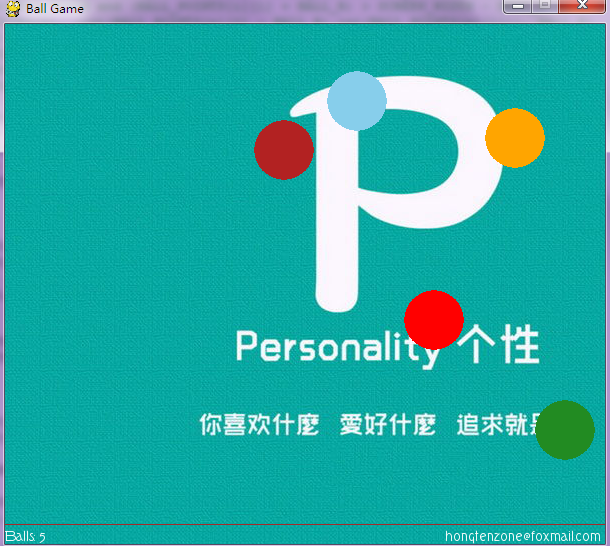
1.游戏初始化的时候,有5个不同颜色的小球进行碰撞
2.玩家可以通过在窗口中单击鼠标左键进行增加小球个数
3.玩家可以通过在窗口中单击鼠标右键进行删减小球个数
4.玩家可以通过键盘的方向键:上,右键进行对小球加速
5.玩家可以通过键盘的方向键:下,左键进行对小球减速
6.玩家可以按键盘:f键实现全屏显示
7.玩家可以按键盘:Esc键实现退出全屏操作
8.窗口左下角显示小球个数,右下角显示作者邮箱
先看看图:

=======================================================
源码部分:
=======================================================

  1 #pygame draw

  2

  3 import pygame

  4 from pygame.locals import *

  5 from sys import exit

  6 from random import *

  7

  8 '''

  9     游戏名称:

 10         小球完全弹性碰撞

 11     游戏规则:

 12         1.游戏初始化的时候,有5个不同颜色的小球进行碰撞

 13         2.玩家可以通过在窗口中单击鼠标左键进行增加小球个数

 14         3.玩家可以通过在窗口中单击鼠标右键进行删减小球个数

 15         4.玩家可以通过键盘的方向键:上,右键进行对小球加速

 16         5.玩家可以通过键盘的方向键:下,左键进行对小球减速

 17         6.玩家可以按键盘:f键实现全屏显示

 18         7.玩家可以按键盘:Esc键实现退出全屏操作

 19         8.窗口左下角显示小球个数,右下角显示作者邮箱

 20

 21 '''

 22 __author__ = {'name' : 'Hongten',

 23               'mail' : 'hongtenzone@foxmail.com',

 24               'blog' : 'http://www.cnblogs.com/hongten',

 25               'version' : '1.0'}

 26

 27 pygame.init()

 28 pygame.display.set_caption('Ball Game')

 29

 30 SCREEN_WIDTH = 600

 31 SCREEN_HEIGHT = 500

 32 SPEED = 1

 33 SCREEN_DEFAULT_SIZE = (SCREEN_WIDTH, SCREEN_HEIGHT + 20)

 34 SCREEN_DEFAULT_COLOR = (255, 255 ,255)

 35 READY = 0

 36

 37 screen = pygame.display.set_mode(SCREEN_DEFAULT_SIZE, 0, 32)

 38 screen.fill(SCREEN_DEFAULT_COLOR)

 39 bg = pygame.image.load('data\\image\\bg.jpg').convert()

 40 font = pygame.font.Font('data\\font\\TORK____.ttf', 14)

 41

 42 balls = []

 43 BALL_R = 30

 44 BALL_COLORS = [(255,165,0),(255,0,0),(135,206,235),(178,34,34),(34,139,34)]

 45 BALL_POINTS = [[40, 40],[40, 300],[400, 200],[150, 150],[80, 400]]

 46 BALL_VELOCITY = [[1.5, 1.2],[1.4, -1.3],[-1.5, -1.1],[-1.2, 1.5],[1.3, 1.1]]

 47

 48 for i in range(len(BALL_COLORS)):

 49     screen.fill(SCREEN_DEFAULT_COLOR)

 50     b = pygame.draw.circle(screen, BALL_COLORS[i], (int(BALL_POINTS[i][0]),int(BALL_POINTS[i][1])), BALL_R)

 51     balls.append(b)

 52

 53 while 1:

 54     for event in pygame.event.get():

 55         if event.type ==  QUIT:

 56             exit()

 57         elif event.type == KEYDOWN:

 58             if event.key == K_UP:

 59                 SPEED += 0.1

 60             elif event.key == K_DOWN:

 61                 SPEED -= 0.1

 62             elif event.key == K_LEFT:

 63                 SPEED -= 0.1

 64             elif event.key == K_RIGHT:

 65                 SPEED += 0.1

 66             elif event.key == K_f:

 67                 pygame.display.set_mode(SCREEN_DEFAULT_SIZE, FULLSCREEN, 32)

 68             elif event.key == 27:

 69                 pygame.display.set_mode(SCREEN_DEFAULT_SIZE, 0, 32)

 70         elif event.type == MOUSEBUTTONDOWN:

 71             pressed_array = pygame.mouse.get_pressed()

 72             for index in range(len(pressed_array)):

 73                 if pressed_array[index]:

 74                     if index == 0:

 75                         c_color = (randint(0, 255), randint(0, 255), randint(0, 255))

 76                         x, y = (BALL_R+1, BALL_R+1)

 77                         c_r = randint(10, 100)

 78                         c_v = [randint(11, 19)* 0.1, randint(11, 19) * 0.1]

 79                         c = pygame.draw.circle(screen, c_color, (x, y), BALL_R)

 80                         BALL_COLORS.append(c_color)

 81                         BALL_POINTS.append([x, y])

 82                         BALL_VELOCITY.append(c_v)

 83                         balls.append(c)

 84                     elif index == 2:

 85                         if len(balls) > 1:

 86                             balls.pop(0)

 87                             BALL_COLORS.pop(0)

 88                             BALL_POINTS.pop(0)

 89                             BALL_VELOCITY.pop(0)

 90

 91     #print(balls)

 92     for i in range(len(balls)):

 93         screen.blit(bg, (-300, -100))

 94         for n in range(len(balls)):

 95             '''

 96             if ((BALL_POINTS[i][0] - BALL_R) > 0 and (BALL_POINTS[i][0] - BALL_R) < BALL_R):

 97                 pygame.draw.circle(screen, BALL_COLORS[n], (int(BALL_POINTS[n][0] + BALL_R),int(BALL_POINTS[n][1])), BALL_R)

 98             elif ((BALL_POINTS[i][1] + BALL_R) < SCREEN_WIDTH and (BALL_POINTS[i][1] + BALL_R) > SCREEN_WIDTH - BALL_R):

 99                 pygame.draw.circle(screen, BALL_COLORS[n], (int(BALL_POINTS[n][0] - BALL_R),int(BALL_POINTS[n][1])), BALL_R)

100             elif ((BALL_POINTS[i][1] - BALL_R) > 0 and (BALL_POINTS[i][1] - BALL_R) < BALL_R):

101                 pygame.draw.circle(screen, BALL_COLORS[n], (int(BALL_POINTS[n][0]),int(BALL_POINTS[n][1] + BALL_R)), BALL_R)

102             elif ((BALL_POINTS[i][1] + BALL_R) < SCREEN_HEIGHT and  (BALL_POINTS[i][1] + BALL_R) > SCREEN_HEIGHT - BALL_R):

103                 pygame.draw.circle(screen, BALL_COLORS[n], (int(BALL_POINTS[n][0]),int(BALL_POINTS[n][1] - BALL_R)), BALL_R)

104             '''

105             pygame.draw.circle(screen, BALL_COLORS[n], (int(BALL_POINTS[n][0]),int(BALL_POINTS[n][1])), BALL_R)

106         if ((((BALL_POINTS[i][0] - BALL_R) < 0) or ((BALL_POINTS[i][0] + BALL_R) > SCREEN_WIDTH))):

107             BALL_VELOCITY[i][0] = -1 * BALL_VELOCITY[i][0]

108         if ((((BALL_POINTS[i][1] - BALL_R) < 0) or ((BALL_POINTS[i][1] + BALL_R) > SCREEN_HEIGHT))):

109             BALL_VELOCITY[i][1] = -1 * BALL_VELOCITY[i][1]

110

111     for j in range(len(balls)):

112         for k in range(len(balls)):

113             b_x = (BALL_POINTS[j][0] - BALL_POINTS[k][0])**2

114             b_y = (BALL_POINTS[j][1] - BALL_POINTS[k][1])**2

115             b_r =(BALL_R*2)**2

116             if (round((b_x + b_y), 2) <= round(b_r, 2)):

117                 temp_x = BALL_VELOCITY[j][0]

118                 temp_y = BALL_VELOCITY[j][1]

119                 BALL_VELOCITY[j][0] = BALL_VELOCITY[k][0]

120                 BALL_VELOCITY[j][1] = BALL_VELOCITY[k][1]

121                 BALL_VELOCITY[k][0] = temp_x

122                 BALL_VELOCITY[k][1] = temp_y

123

124         BALL_POINTS[j][0] += SPEED * BALL_VELOCITY[j][0]

125         BALL_POINTS[j][1] += SPEED * BALL_VELOCITY[j][1]

126

127     pygame.draw.line(screen, (165,42,42),(0, SCREEN_HEIGHT), (SCREEN_WIDTH,SCREEN_HEIGHT))

128     game_info = 'Balls: ' + str(len(balls))

129     text = font.render(game_info, True, (255,255,255))

130     author_info = font.render('hongtenzone@foxmail.com', True, (255,255,255))

131     screen.blit(text, (0, SCREEN_HEIGHT+5))

132     screen.blit(author_info, (SCREEN_WIDTH - 160, SCREEN_HEIGHT+5))

133

134     pygame.display.update()
源码下载:http://files.cnblogs.com/liuzhi/pygame_pong_v1.0.zip
============================================
v1.1 Edit by Hongten
v1.1修改如下:
1.增加了背景音乐
2.增加小球的时候,会伴随音乐产生
3.窗口左下角显示小球个数,速度,以及最后一个小球的位置
============================================
  1 #pygame draw

  2

  3 import pygame

  4 from pygame.locals import *

  5 from sys import exit

  6 from random import *

  7

  8 '''

  9     游戏名称:

 10         小球完全弹性碰撞

 11     游戏规则:

 12         1.游戏初始化的时候,有5个不同颜色的小球进行碰撞

 13         2.玩家可以通过在窗口中单击鼠标左键进行增加小球个数

 14         3.玩家可以通过在窗口中单击鼠标右键进行删减小球个数

 15         4.玩家可以通过键盘的方向键:上,右键进行对小球加速

 16         5.玩家可以通过键盘的方向键:下,左键进行对小球减速

 17         6.玩家可以按键盘:f键实现全屏显示

 18         7.玩家可以按键盘:Esc键实现退出全屏操作

 19         8.窗口左下角显示小球个数,右下角显示作者邮箱

 20

 21         v1.1修改如下:

 22         1.增加了背景音乐

 23         2.增加小球的时候,会伴随音乐产生

 24         3.窗口左下角显示小球个数,速度,以及最后一个小球的位置

 25

 26 '''

 27 __author__ = {'name' : 'Hongten',

 28               'mail' : 'hongtenzone@foxmail.com',

 29               'blog' : 'http://www.cnblogs.com/hongten',

 30               'version' : '1.1'}

 31

 32 if not pygame.font: print('Warning, fonts disabled')

 33 if not pygame.mixer: print('Warning, sound disabled')

 34

 35 pygame.init()

 36 pygame.display.set_caption('Ball Game')

 37

 38 SCREEN_WIDTH = 600

 39 SCREEN_HEIGHT = 500

 40 SPEED = 1

 41 SCREEN_DEFAULT_SIZE = (SCREEN_WIDTH, SCREEN_HEIGHT + 20)

 42 SCREEN_DEFAULT_COLOR = (255, 255 ,255)

 43 READY = 0

 44

 45 screen = pygame.display.set_mode(SCREEN_DEFAULT_SIZE, 0, 32)

 46 screen.fill(SCREEN_DEFAULT_COLOR)

 47 bg = pygame.image.load('data\\image\\bg.jpg').convert()

 48 font = pygame.font.Font('data\\font\\TORK____.ttf', 14)

 49 new_sound = pygame.mixer.Sound('data\\sound\\new.wav')

 50 bg_sound = pygame.mixer.Sound('data\\sound\\bg.ogg')

 51 bg_sound.set_volume(0.5)

 52 bg_sound.play(-1)

 53 new_sound.set_volume(1.0)

 54

 55

 56 balls = []

 57 BALL_R = 30

 58 BALL_COLORS = [(255,165,0),(255,0,0),(135,206,235),(178,34,34),(34,139,34)]

 59 BALL_POINTS = [[40, 40],[40, 300],[400, 200],[150, 150],[80, 400]]

 60 BALL_VELOCITY = [[1.5, 1.2],[1.4, -1.3],[-1.5, -1.1],[-1.2, 1.5],[1.3, 1.1]]

 61

 62 for i in range(len(BALL_COLORS)):

 63     screen.fill(SCREEN_DEFAULT_COLOR)

 64     b = pygame.draw.circle(screen, BALL_COLORS[i], (int(BALL_POINTS[i][0]),int(BALL_POINTS[i][1])), BALL_R)

 65     balls.append(b)

 66

 67 while 1:

 68     for event in pygame.event.get():

 69         if event.type ==  QUIT:

 70             bg_sound.stop()

 71             exit()

 72         elif event.type == KEYDOWN:

 73             if event.key == K_UP:

 74                 SPEED += 0.1

 75             elif event.key == K_DOWN:

 76                 SPEED -= 0.1

 77             elif event.key == K_LEFT:

 78                 SPEED -= 0.1

 79             elif event.key == K_RIGHT:

 80                 SPEED += 0.1

 81             elif event.key == K_f:

 82                 pygame.display.set_mode(SCREEN_DEFAULT_SIZE, FULLSCREEN, 32)

 83             elif event.key == 27:

 84                 pygame.display.set_mode(SCREEN_DEFAULT_SIZE, 0, 32)

 85         elif event.type == MOUSEBUTTONDOWN:

 86             pressed_array = pygame.mouse.get_pressed()

 87             for index in range(len(pressed_array)):

 88                 if pressed_array[index]:

 89                     if index == 0:

 90                         new_sound.play(-1)

 91                         c_color = (randint(0, 255), randint(0, 255), randint(0, 255))

 92                         x, y = (BALL_R+1, BALL_R+1)

 93                         c_r = randint(10, 100)

 94                         c_v = [randint(11, 19)* 0.1, randint(11, 19) * 0.1]

 95                         c = pygame.draw.circle(screen, c_color, (x, y), BALL_R)

 96                         BALL_COLORS.append(c_color)

 97                         BALL_POINTS.append([x, y])

 98                         BALL_VELOCITY.append(c_v)

 99                         balls.append(c)

100                     elif index == 2:

101                         if len(balls) > 1:

102                             balls.pop(0)

103                             BALL_COLORS.pop(0)

104                             BALL_POINTS.pop(0)

105                             BALL_VELOCITY.pop(0)

106         elif event.type == MOUSEBUTTONUP:

107             new_sound.stop()

108

109     #print(balls)

110     for i in range(len(balls)):

111         screen.blit(bg, (-300, -100))

112         for n in range(len(balls)):

113             '''

114             if ((BALL_POINTS[i][0] - BALL_R) > 0 and (BALL_POINTS[i][0] - BALL_R) < BALL_R):

115                 pygame.draw.circle(screen, BALL_COLORS[n], (int(BALL_POINTS[n][0] + BALL_R),int(BALL_POINTS[n][1])), BALL_R)

116             elif ((BALL_POINTS[i][1] + BALL_R) < SCREEN_WIDTH and (BALL_POINTS[i][1] + BALL_R) > SCREEN_WIDTH - BALL_R):

117                 pygame.draw.circle(screen, BALL_COLORS[n], (int(BALL_POINTS[n][0] - BALL_R),int(BALL_POINTS[n][1])), BALL_R)

118             elif ((BALL_POINTS[i][1] - BALL_R) > 0 and (BALL_POINTS[i][1] - BALL_R) < BALL_R):

119                 pygame.draw.circle(screen, BALL_COLORS[n], (int(BALL_POINTS[n][0]),int(BALL_POINTS[n][1] + BALL_R)), BALL_R)

120             elif ((BALL_POINTS[i][1] + BALL_R) < SCREEN_HEIGHT and  (BALL_POINTS[i][1] + BALL_R) > SCREEN_HEIGHT - BALL_R):

121                 pygame.draw.circle(screen, BALL_COLORS[n], (int(BALL_POINTS[n][0]),int(BALL_POINTS[n][1] - BALL_R)), BALL_R)

122             '''

123             pygame.draw.circle(screen, BALL_COLORS[n], (int(BALL_POINTS[n][0]),int(BALL_POINTS[n][1])), BALL_R)

124         if ((((BALL_POINTS[i][0] - BALL_R) < 0) or ((BALL_POINTS[i][0] + BALL_R) > SCREEN_WIDTH))):

125             BALL_VELOCITY[i][0] = -1 * BALL_VELOCITY[i][0]

126         if ((((BALL_POINTS[i][1] - BALL_R) < 0) or ((BALL_POINTS[i][1] + BALL_R) > SCREEN_HEIGHT))):

127             BALL_VELOCITY[i][1] = -1 * BALL_VELOCITY[i][1]

128

129     for j in range(len(balls)):

130         for k in range(len(balls)):

131             b_x = (BALL_POINTS[j][0] - BALL_POINTS[k][0])**2

132             b_y = (BALL_POINTS[j][1] - BALL_POINTS[k][1])**2

133             b_r =(BALL_R*2)**2

134             if (round((b_x + b_y), 2) <= round(b_r, 2)):

135                 temp_x = BALL_VELOCITY[j][0]

136                 temp_y = BALL_VELOCITY[j][1]

137                 BALL_VELOCITY[j][0] = BALL_VELOCITY[k][0]

138                 BALL_VELOCITY[j][1] = BALL_VELOCITY[k][1]

139                 BALL_VELOCITY[k][0] = temp_x

140                 BALL_VELOCITY[k][1] = temp_y

141

142         BALL_POINTS[j][0] += round(SPEED, 1) * BALL_VELOCITY[j][0]

143         BALL_POINTS[j][1] += round(SPEED, 1) * BALL_VELOCITY[j][1]

144

145     pygame.draw.line(screen, (165,42,42),(0, SCREEN_HEIGHT), (SCREEN_WIDTH,SCREEN_HEIGHT))

146     game_info = 'Balls: ' + str(len(balls)) + '     Speed: ' + str(round(SPEED, 2)) + '   LastBall: ' + str(round(BALL_POINTS[-1][0])) + ',' + str(round(BALL_POINTS[-1][1]))

147     text = font.render(game_info, True, (255,255,255))

148     author_info = font.render('hongtenzone@foxmail.com', True, (255,255,255))

149     screen.blit(text, (0, SCREEN_HEIGHT+5))

150     screen.blit(author_info, (SCREEN_WIDTH - 160, SCREEN_HEIGHT+5))

151

152     pygame.display.update()
源码下载:http://files.cnblogs.com/liuzhi/pygame_pong_v1.1.rar
==================================================
Edit By Hongten
v1.2修改如下:
1.修改键盘方向键:左,右键为调节音量(0, 10)
2.在状态栏添加音量状态信息:数字和图形显示
==================================================
  1 #pygame draw

  2

  3 import pygame

  4 from pygame.locals import *

  5 from sys import exit

  6 from random import *

  7

  8 '''

  9     游戏名称:

 10         小球完全弹性碰撞

 11     游戏规则:

 12         1.游戏初始化的时候,有5个不同颜色的小球进行碰撞

 13         2.玩家可以通过在窗口中单击鼠标左键进行增加小球个数

 14         3.玩家可以通过在窗口中单击鼠标右键进行删减小球个数

 15         4.玩家可以通过键盘的方向键:上,右键进行对小球加速

 16         5.玩家可以通过键盘的方向键:下,左键进行对小球减速

 17         6.玩家可以按键盘:f键实现全屏显示

 18         7.玩家可以按键盘:Esc键实现退出全屏操作

 19         8.窗口左下角显示小球个数,右下角显示作者邮箱

 20

 21         v1.1修改如下:

 22         1.增加了背景音乐

 23         2.增加小球的时候,会伴随音乐产生

 24         3.窗口左下角显示小球个数,速度,以及最后一个小球的位置

 25

 26         v1.2修改如下:

 27         1.修改键盘方向键:左,右键为调节音量(0, 10)

 28         2.在状态栏添加音量状态信息:数字和图形显示

 29

 30 '''

 31 __author__ = {'name' : 'Hongten',

 32               'mail' : 'hongtenzone@foxmail.com',

 33               'blog' : 'http://www.cnblogs.com/hongten',

 34               'version' : '1.2'}

 35

 36 if not pygame.font: print('Warning, fonts disabled')

 37 if not pygame.mixer: print('Warning, sound disabled')

 38

 39 pygame.init()

 40 pygame.display.set_caption('Ball Game')

 41

 42 SCREEN_WIDTH = 600

 43 SCREEN_HEIGHT = 500

 44 SPEED = 1

 45 VOLUME = 5

 46 SCREEN_DEFAULT_SIZE = (SCREEN_WIDTH, SCREEN_HEIGHT + 20)

 47 SCREEN_DEFAULT_COLOR = (255, 255 ,255)

 48 READY = 0

 49

 50 screen = pygame.display.set_mode(SCREEN_DEFAULT_SIZE, 0, 32)

 51 screen.fill(SCREEN_DEFAULT_COLOR)

 52 bg = pygame.image.load('data\\image\\bg.jpg').convert()

 53 font = pygame.font.Font('data\\font\\TORK____.ttf', 14)

 54 new_sound = pygame.mixer.Sound('data\\sound\\new.wav')

 55 bg_sound = pygame.mixer.Sound('data\\sound\\bg.ogg')

 56 bg_sound.set_volume(0.1 * VOLUME)

 57 bg_sound.play(-1)

 58 new_sound.set_volume(0.1 * VOLUME)

 59

 60

 61 balls = []

 62 BALL_R = 30

 63 BALL_COLORS = [(255,165,0),(255,0,0),(135,206,235),(178,34,34),(34,139,34)]

 64 BALL_POINTS = [[40, 40],[40, 300],[400, 200],[150, 150],[80, 400]]

 65 BALL_VELOCITY = [[1.5, 1.2],[1.4, -1.3],[-1.5, -1.1],[-1.2, 1.5],[1.3, 1.1]]

 66

 67 VOLUME_POINTS = []

 68 VOLUME_POINTS_START = []

 69 VOLUME_RECT_COLORS = []

 70 for p in range(170, 250, 7):

 71     VOLUME_POINTS.append([SCREEN_WIDTH - p,SCREEN_HEIGHT + 20])

 72 for ps in range(175, 250, 7):

 73     VOLUME_POINTS_START.append([SCREEN_WIDTH - ps, SCREEN_HEIGHT])

 74     VOLUME_RECT_COLORS.append((randint(0, 255), randint(0, 255), randint(0, 255)))

 75

 76

 77 print(VOLUME_POINTS[-10])

 78 print(VOLUME_POINTS_START[-10])

 79

 80 for i in range(len(BALL_COLORS)):

 81     screen.fill(SCREEN_DEFAULT_COLOR)

 82     b = pygame.draw.circle(screen, BALL_COLORS[i], (int(BALL_POINTS[i][0]),int(BALL_POINTS[i][1])), BALL_R)

 83     balls.append(b)

 84

 85 while 1:

 86     for event in pygame.event.get():

 87         if event.type ==  QUIT:

 88             bg_sound.stop()

 89             exit()

 90         elif event.type == KEYDOWN:

 91             if event.key == K_UP:

 92                 SPEED += 0.1

 93             elif event.key == K_DOWN:

 94                 SPEED -= 0.1

 95             elif event.key == K_LEFT:

 96                 if VOLUME > 0:

 97                     VOLUME -= 1

 98             elif event.key == K_RIGHT:

 99                 if VOLUME <= 9:

100                     VOLUME += 1

101             elif event.key == K_f:

102                 pygame.display.set_mode(SCREEN_DEFAULT_SIZE, FULLSCREEN, 32)

103             elif event.key == 27:

104                 pygame.display.set_mode(SCREEN_DEFAULT_SIZE, 0, 32)

105         elif event.type == MOUSEBUTTONDOWN:

106             pressed_array = pygame.mouse.get_pressed()

107             for index in range(len(pressed_array)):

108                 if pressed_array[index]:

109                     if index == 0:

110                         new_sound.play(-1)

111                         c_color = (randint(0, 255), randint(0, 255), randint(0, 255))

112                         x, y = (BALL_R+1, BALL_R+1)

113                         c_r = randint(10, 100)

114                         c_v = [randint(11, 19)* 0.1, randint(11, 19) * 0.1]

115                         c = pygame.draw.circle(screen, c_color, (x, y), BALL_R)

116                         BALL_COLORS.append(c_color)

117                         BALL_POINTS.append([x, y])

118                         BALL_VELOCITY.append(c_v)

119                         balls.append(c)

120                     elif index == 2:

121                         if len(balls) > 1:

122                             balls.pop(0)

123                             BALL_COLORS.pop(0)

124                             BALL_POINTS.pop(0)

125                             BALL_VELOCITY.pop(0)

126         elif event.type == MOUSEBUTTONUP:

127             new_sound.stop()

128

129     #print(balls)

130     for i in range(len(balls)):

131         screen.blit(bg, (-300, -100))

132         #screen.fill(SCREEN_DEFAULT_COLOR)

133         for n in range(len(balls)):

134             '''

135             if ((BALL_POINTS[i][0] - BALL_R) > 0 and (BALL_POINTS[i][0] - BALL_R) < BALL_R):

136                 pygame.draw.circle(screen, BALL_COLORS[n], (int(BALL_POINTS[n][0] + BALL_R),int(BALL_POINTS[n][1])), BALL_R)

137             elif ((BALL_POINTS[i][1] + BALL_R) < SCREEN_WIDTH and (BALL_POINTS[i][1] + BALL_R) > SCREEN_WIDTH - BALL_R):

138                 pygame.draw.circle(screen, BALL_COLORS[n], (int(BALL_POINTS[n][0] - BALL_R),int(BALL_POINTS[n][1])), BALL_R)

139             elif ((BALL_POINTS[i][1] - BALL_R) > 0 and (BALL_POINTS[i][1] - BALL_R) < BALL_R):

140                 pygame.draw.circle(screen, BALL_COLORS[n], (int(BALL_POINTS[n][0]),int(BALL_POINTS[n][1] + BALL_R)), BALL_R)

141             elif ((BALL_POINTS[i][1] + BALL_R) < SCREEN_HEIGHT and  (BALL_POINTS[i][1] + BALL_R) > SCREEN_HEIGHT - BALL_R):

142                 pygame.draw.circle(screen, BALL_COLORS[n], (int(BALL_POINTS[n][0]),int(BALL_POINTS[n][1] - BALL_R)), BALL_R)

143             '''

144             pygame.draw.circle(screen, BALL_COLORS[n], (int(BALL_POINTS[n][0]),int(BALL_POINTS[n][1])), BALL_R)

145         if ((((BALL_POINTS[i][0] - BALL_R) < 0) or ((BALL_POINTS[i][0] + BALL_R) > SCREEN_WIDTH))):

146             BALL_VELOCITY[i][0] = -1 * BALL_VELOCITY[i][0]

147         if ((((BALL_POINTS[i][1] - BALL_R) < 0) or ((BALL_POINTS[i][1] + BALL_R) > SCREEN_HEIGHT))):

148             BALL_VELOCITY[i][1] = -1 * BALL_VELOCITY[i][1]

149

150     for j in range(len(balls)):

151         for k in range(len(balls)):

152             b_x = (BALL_POINTS[j][0] - BALL_POINTS[k][0])**2

153             b_y = (BALL_POINTS[j][1] - BALL_POINTS[k][1])**2

154             b_r =(BALL_R*2)**2

155             if (round((b_x + b_y), 2) <= round(b_r, 2)):

156                 temp_x = BALL_VELOCITY[j][0]

157                 temp_y = BALL_VELOCITY[j][1]

158                 BALL_VELOCITY[j][0] = BALL_VELOCITY[k][0]

159                 BALL_VELOCITY[j][1] = BALL_VELOCITY[k][1]

160                 BALL_VELOCITY[k][0] = temp_x

161                 BALL_VELOCITY[k][1] = temp_y

162

163         BALL_POINTS[j][0] += round(SPEED, 1) * BALL_VELOCITY[j][0]

164         BALL_POINTS[j][1] += round(SPEED, 1) * BALL_VELOCITY[j][1]

165

166     pygame.draw.line(screen, (165,42,42),(0, SCREEN_HEIGHT), (SCREEN_WIDTH,SCREEN_HEIGHT))

167     bg_sound.set_volume(0.1 * VOLUME)

168     new_sound.set_volume(0.1 * VOLUME)

169     pygame.draw.rect(screen,

170                      (255, 255, 255),

171                      Rect((VOLUME_POINTS_START[-1][0],

172                            VOLUME_POINTS_START[-1][1]),

173                           (VOLUME_POINTS[-10][0] - VOLUME_POINTS_START[-1][0],

174                            20)))

175     for v in range(VOLUME+1):

176         if v > 0:

177             pygame.draw.rect(screen,

178                              VOLUME_RECT_COLORS[v],

179                              Rect((VOLUME_POINTS_START[-v][0],

180                                    VOLUME_POINTS_START[-v][1]),

181                                   (VOLUME_POINTS[-v][0] - VOLUME_POINTS_START[-v][0],

182                                    20)))

183

184     game_info = 'Balls: ' + str(len(balls)) + '     Speed: ' + str(round(SPEED, 2)) + '   LastBall: ' + str(round(BALL_POINTS[-1][0])) + ',' + str(round(BALL_POINTS[-1][1]))

185     text = font.render(game_info, True, (255,255,255))

186     author_info = font.render('hongtenzone@foxmail.com', True, (255,255,255))

187     volume_text = font.render('Volume: ' + str(VOLUME), True, (255, 255, 255))

188     screen.blit(text, (0, SCREEN_HEIGHT+5))

189     screen.blit(author_info, (SCREEN_WIDTH - 160, SCREEN_HEIGHT+5))

190     screen.blit(volume_text, (SCREEN_WIDTH - 310, SCREEN_HEIGHT+5))

191     pygame.display.update()
源码下载:http://files.cnblogs.com/liuzhi/pygame_pong_v1.2.zip
================================================
v1.3 Edity by Hongten
Change Chinese to English
================================================
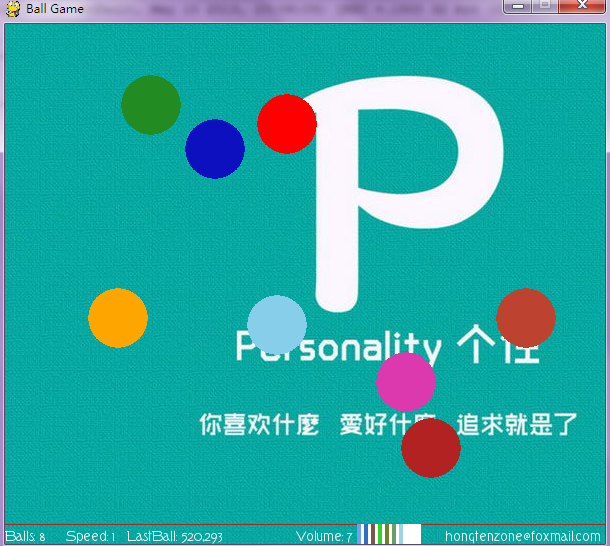
The View of the Game:
  1 #pygame draw

  2

  3 import pygame

  4 from pygame.locals import *

  5 from sys import exit

  6 from random import *

  7

  8 '''

  9     Game Name:

 10         Ball Perfectly Elastic Collision(BPEC)

 11     Rules or Description:

 12         1.There are five balls whth different color have elastic collision

 13           after the game loaded.

 14         2.The player can click the window with the LEFT mouse button

 15           and create the new ball,which with the different color,but

 16           sometimes maybe like other balls.

 17         3.The player can click teh window with RIGHT mouse button

 18           and minus a few balls.

 19         4.You can change all ball speed by pressing the UP and DOWN

 20           the keyboard direction key.

 21         5.Also you can change the background music by pressing the LEFT

 22           and RIGHT the keyboard direction key(volume:0-10).

 23         6.Maybe you want to full screen view,By pressing the F key

 24           and ESC key switch.

 25         7.Ball number,the speed,the volume,author E-mail is written

 26           in the status bar at the bottom.

 27 '''

 28 __version__ = '1.3'

 29 __author__ = {'name' : 'Hongten',

 30               'mail' : 'hongtenzone@foxmail.com',

 31               'blog' : 'http://www.cnblogs.com/hongten',

 32               'version' : __version__}

 33

 34 if not pygame.font: print('Warning, fonts disabled')

 35 if not pygame.mixer: print('Warning, sound disabled')

 36

 37 pygame.init()

 38 pygame.display.set_caption('Ball Game')

 39

 40 SCREEN_WIDTH = 600

 41 SCREEN_HEIGHT = 500

 42 SPEED = 1

 43 VOLUME = 5

 44 SCREEN_DEFAULT_SIZE = (SCREEN_WIDTH, SCREEN_HEIGHT + 20)

 45 SCREEN_DEFAULT_COLOR = (255, 255 ,255)

 46 READY = 0

 47

 48 screen = pygame.display.set_mode(SCREEN_DEFAULT_SIZE, 0, 32)

 49 screen.fill(SCREEN_DEFAULT_COLOR)

 50 bg = pygame.image.load('data\\image\\bg.jpg').convert()

 51 font = pygame.font.Font('data\\font\\TORK____.ttf', 14)

 52 new_sound = pygame.mixer.Sound('data\\sound\\new.wav')

 53 bg_sound = pygame.mixer.Sound('data\\sound\\bg.ogg')

 54 bg_sound.set_volume(0.1 * VOLUME)

 55 bg_sound.play(-1)

 56 new_sound.set_volume(0.1 * VOLUME)

 57

 58

 59 balls = []

 60 BALL_R = 30

 61 BALL_COLORS = [(255,165,0),(255,0,0),(135,206,235),(178,34,34),(34,139,34)]

 62 BALL_POINTS = [[40, 40],[40, 300],[400, 200],[150, 150],[80, 400]]

 63 BALL_VELOCITY = [[1.5, 1.2],[1.4, -1.3],[-1.5, -1.1],[-1.2, 1.5],[1.3, 1.1]]

 64

 65 VOLUME_POINTS = []

 66 VOLUME_POINTS_START = []

 67 VOLUME_RECT_COLORS = []

 68 for p in range(170, 250, 7):

 69     VOLUME_POINTS.append([SCREEN_WIDTH - p,SCREEN_HEIGHT + 20])

 70 for ps in range(175, 250, 7):

 71     VOLUME_POINTS_START.append([SCREEN_WIDTH - ps, SCREEN_HEIGHT])

 72     VOLUME_RECT_COLORS.append((randint(0, 255), randint(0, 255), randint(0, 255)))

 73

 74 for i in range(len(BALL_COLORS)):

 75     screen.fill(SCREEN_DEFAULT_COLOR)

 76     b = pygame.draw.circle(screen, BALL_COLORS[i], (int(BALL_POINTS[i][0]),int(BALL_POINTS[i][1])), BALL_R)

 77     balls.append(b)

 78

 79 while 1:

 80     for event in pygame.event.get():

 81         if event.type ==  QUIT:

 82             bg_sound.stop()

 83             exit()

 84         elif event.type == KEYDOWN:

 85             if event.key == K_UP:

 86                 SPEED += 0.1

 87             elif event.key == K_DOWN:

 88                 SPEED -= 0.1

 89             elif event.key == K_LEFT:

 90                 if VOLUME > 0:

 91                     VOLUME -= 1

 92             elif event.key == K_RIGHT:

 93                 if VOLUME <= 9:

 94                     VOLUME += 1

 95             elif event.key == K_f:

 96                 pygame.display.set_mode(SCREEN_DEFAULT_SIZE, FULLSCREEN, 32)

 97             elif event.key == 27:

 98                 pygame.display.set_mode(SCREEN_DEFAULT_SIZE, 0, 32)

 99         elif event.type == MOUSEBUTTONDOWN:

100             pressed_array = pygame.mouse.get_pressed()

101             for index in range(len(pressed_array)):

102                 if pressed_array[index]:

103                     if index == 0:

104                         new_sound.play(-1)

105                         c_color = (randint(0, 255), randint(0, 255), randint(0, 255))

106                         x, y = (BALL_R+1, BALL_R+1)

107                         c_r = randint(10, 100)

108                         c_v = [randint(11, 19)* 0.1, randint(11, 19) * 0.1]

109                         c = pygame.draw.circle(screen, c_color, (x, y), BALL_R)

110                         BALL_COLORS.append(c_color)

111                         BALL_POINTS.append([x, y])

112                         BALL_VELOCITY.append(c_v)

113                         balls.append(c)

114                     elif index == 2:

115                         if len(balls) > 1:

116                             balls.pop(0)

117                             BALL_COLORS.pop(0)

118                             BALL_POINTS.pop(0)

119                             BALL_VELOCITY.pop(0)

120         elif event.type == MOUSEBUTTONUP:

121             new_sound.stop()

122

123     #print(balls)

124     for i in range(len(balls)):

125         screen.blit(bg, (-300, -100))

126         #screen.fill(SCREEN_DEFAULT_COLOR)

127         for n in range(len(balls)):

128             pygame.draw.circle(screen, BALL_COLORS[n], (int(BALL_POINTS[n][0]),int(BALL_POINTS[n][1])), BALL_R)

129         if ((((BALL_POINTS[i][0] - BALL_R) < 0) or ((BALL_POINTS[i][0] + BALL_R) > SCREEN_WIDTH))):

130             BALL_VELOCITY[i][0] = -1 * BALL_VELOCITY[i][0]

131         if ((((BALL_POINTS[i][1] - BALL_R) < 0) or ((BALL_POINTS[i][1] + BALL_R) > SCREEN_HEIGHT))):

132             BALL_VELOCITY[i][1] = -1 * BALL_VELOCITY[i][1]

133

134     for j in range(len(balls)):

135         for k in range(len(balls)):

136             b_x = (BALL_POINTS[j][0] - BALL_POINTS[k][0])**2

137             b_y = (BALL_POINTS[j][1] - BALL_POINTS[k][1])**2

138             b_r =(BALL_R*2)**2

139             if (round((b_x + b_y), 2) <= round(b_r, 2)):

140                 temp_x = BALL_VELOCITY[j][0]

141                 temp_y = BALL_VELOCITY[j][1]

142                 BALL_VELOCITY[j][0] = BALL_VELOCITY[k][0]

143                 BALL_VELOCITY[j][1] = BALL_VELOCITY[k][1]

144                 BALL_VELOCITY[k][0] = temp_x

145                 BALL_VELOCITY[k][1] = temp_y

146

147         BALL_POINTS[j][0] += round(SPEED, 1) * BALL_VELOCITY[j][0]

148         BALL_POINTS[j][1] += round(SPEED, 1) * BALL_VELOCITY[j][1]

149

150     pygame.draw.line(screen, (165,42,42),(0, SCREEN_HEIGHT), (SCREEN_WIDTH,SCREEN_HEIGHT))

151     bg_sound.set_volume(0.1 * VOLUME)

152     new_sound.set_volume(0.1 * VOLUME)

153     pygame.draw.rect(screen,

154                      (255, 255, 255),

155                      Rect((VOLUME_POINTS_START[-1][0],

156                            VOLUME_POINTS_START[-1][1]),

157                           (VOLUME_POINTS[-10][0] - VOLUME_POINTS_START[-1][0],

158                            20)))

159     for v in range(VOLUME+1):

160         if v > 0:

161             pygame.draw.rect(screen,

162                              VOLUME_RECT_COLORS[v],

163                              Rect((VOLUME_POINTS_START[-v][0],

164                                    VOLUME_POINTS_START[-v][1]),

165                                   (VOLUME_POINTS[-v][0] - VOLUME_POINTS_START[-v][0],

166                                    20)))

167

168     game_info = 'Balls: ' + str(len(balls)) + '     Speed: ' + str(round(SPEED, 2)) + '   LastBall: ' + str(round(BALL_POINTS[-1][0])) + ',' + str(round(BALL_POINTS[-1][1]))

169     text = font.render(game_info, True, (255,255,255))

170     author_info = font.render('hongtenzone@foxmail.com', True, (255,255,255))

171     volume_text = font.render('Volume: ' + str(VOLUME), True, (255, 255, 255))

172     screen.blit(text, (0, SCREEN_HEIGHT+5))

173     screen.blit(author_info, (SCREEN_WIDTH - 160, SCREEN_HEIGHT+5))

174     screen.blit(volume_text, (SCREEN_WIDTH - 310, SCREEN_HEIGHT+5))

175     pygame.display.update()
pygame系列_小球完全弹性碰撞游戏的更多相关文章
- pygame系列_小球完全弹性碰撞游戏_源码下载
之前做了一个基于python的tkinter的小球完全碰撞游戏: python开发_tkinter_小球完全弹性碰撞游戏_源码下载 今天利用业余时间,写了一个功能要强大一些的小球完全碰撞游戏: 游戏名 ...
- pygame系列_箭刺Elephant游戏
这个游戏原名为:Chimp,我们可以到: http://www.pygame.org/docs/tut/chimp/ChimpLineByLine.html 获取到源码和详细的源码讲解 下面是我对游戏 ...
- pygame系列_箭刺Elephant游戏_源码下载
这个游戏原名为:Chimp,我们可以到: http://www.pygame.org/docs/tut/chimp/ChimpLineByLine.html 获取到源码和详细的源码讲解 下面是我对游戏 ...
- pygame系列_原创百度随心听音乐播放器_完整版
程序名:PyMusic 解释:pygame+music 之前发布了自己写的小程序:百度随心听音乐播放器的一些效果图 你可以去到这里再次看看效果: pygame系列_百度随心听_完美的UI设计 这个程序 ...
- python开发_tkinter_小球完全弹性碰撞游戏_源码下载
完成这个小球的完全弹性碰撞游戏灵感来自于: 下面是我花了一周下班时间所编写的一个小球完全弹性碰撞游戏: 游戏初始化状态: 最下面的游标和修改小球的移动速度 ====================== ...
- python开发_tkinter_小球完全弹性碰撞游戏
python开发_tkinter_小球完全弹性碰撞游戏 完成这个小球的完全弹性碰撞游戏灵感来自于: 下面是我花了一周下班时间所编写的一个小球完全弹性碰撞游戏: 游戏初始化状态: 最下面的游标和修改 ...
- pygame系列_游戏中的事件
先看一下我做的demo: 当玩家按下键盘上的:上,下,左,右键的时候,后台会打印出玩家所按键的数字值,而图形会随之移动 这是客观上面存在的现象. 那么啥是事件呢? 你叫我做出定义,我不知道,我只能举个 ...
- pygame系列_游戏窗口显示策略
在这篇blog中,我将给出一个demo演示: 当我们按下键盘的‘f’键的时候,演示的窗口会切换到全屏显示和默认显示两种显示模式 并且在后台我们可以看到相关的信息输出: 上面给出了一个简单的例子,当然在 ...
- pygame系列_弹力球
这是pygame写的弹力球 运行效果: ======================================================== 代码部分: ================= ...
随机推荐
- mysql基础: mysql列类型--字符串
mysql列类型:整型 http://blog.csdn.net/jk110333/article/details/9342283 mysql列类型--时间和日期 http://blog.csd ...
- 如何设置Java虚拟机内存以适应大程序的装载
Java虚拟机对于运行时的程序所占内存是有限制的,当我们的项目或者程序很大时,往往会照成内存溢出. 举个例子: public class SmallTest1 { public static void ...
- TPL异步并行编程之回调
Task是基于ThreadPool线程池基础上的高度异步多线程编程,如果有一天我希望一个需要长时间运行的Task,在被某些异常终止后还能回调一些代码就可以知道Task终止的原因了吧 是的,且看代码 p ...
- 解决sqlserver2008 r2 登陆时报错:provider 命名管道提供程序, error40 错误2
错误截图: 这种错误是因为无法启动sqlserver服务,进入命令行,输入 services.msc 进入服务管理,找到sqlserver服务如下图. 在这里启动该服务会报错如下图: 此服务无法启 ...
- hdu 4706 Children's Day 2013年ICPC热身赛A题 模拟
题意:按字母顺序排列成n型,简单的模拟题. 当字母排到z时从a开始重新排起. 代码: /* * Author: illuz <iilluzen[at]gmail.com> * Blog: ...
- 修改Hosts文件
Hosts文件是一个用于存储计算机网络中节点信息的文件,它可以将主机名映射到相应的IP地址,实现DNS的功能,它可以由计算机的用户进行控制. Hosts文件的存储位置在不同的操作系统中并不相同,甚至不 ...
- Struts2 Action接收表单参数
struts2 Action获取表单传值 1.通过属性驱动式 JSP: <form action="sys/login.action" method ...
- 第十七篇:实例分析(1)--初探WDDM驱动学习笔记(八)
第四篇(VidPN)中提到过MIRROR驱动. 在进入本篇的实际内容前, 带着好奇心, 想请教CSDN中的显卡驱动方面的大虾, 怎样才干把这个驱动玩起来, 这个驱动的作用是什么,等等, 敬请不吝赐教. ...
- 带有机器人框架的.NET自己主动化測试
Clayton Neal在软件測试和质量保证方面有超过13年的经验,当中有八年的Windows, web,和移动应用程序的測试自己主动化经验.他在測试领域的全部等级都工作过.近期他在Bloomberg ...
- Swift - 滑块(UISlider)的用法
1,滑块的创建 1 2 3 4 5 6 var slider=UISlider(frame:CGRectMake(0,0,300,50)) slider.center=self.view.center ...