
WPF 常用样式
TextBox
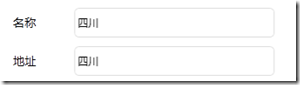
<Window x:Class="WpfDemo.ListBoxTemaple"

        xmlns="http://schemas.microsoft.com/winfx/2006/xaml/presentation"

        xmlns:x="http://schemas.microsoft.com/winfx/2006/xaml"

        Title="ListBoxTemaple" Height="" Width="" >

    <Window.Resources>

        <Style x:Key="TextBoxStyle1" BasedOn="{x:Null}" TargetType="{x:Type TextBox}">

            <Setter Property="Foreground" Value="{DynamicResource {x:Static SystemColors.ControlTextBrushKey}}"/>

            <Setter Property="Background" Value="{DynamicResource {x:Static SystemColors.WindowBrushKey}}"/>

            <Setter Property="BorderThickness" Value=""/>

            <Setter Property="Padding" Value=""/>

            <Setter Property="AllowDrop" Value="true"/>

            <Setter Property="FocusVisualStyle" Value="{x:Null}"/>

            <Setter Property="ScrollViewer.PanningMode" Value="VerticalFirst"/>

            <Setter Property="Stylus.IsFlicksEnabled" Value="False"/>

            <Setter Property="Template">

                <Setter.Value>

                    <ControlTemplate TargetType="{x:Type TextBox}">

                        <Border x:Name="Bd" SnapsToDevicePixels="true" BorderBrush="#FFDDDDDD" BorderThickness="" ClipToBounds="False" CornerRadius="">

                            <Border.Effect>

                                <DropShadowEffect Color="White" Direction="" ShadowDepth="" BlurRadius=""/>

                            </Border.Effect>

                            <!--这个Border主要用来遮挡框内的阴影,只要外阴影,如果只要内阴影不要外阴影,那么设置border的 ClipToBounds="True"  剪切外部内容,即可实现内阴影-->

                            <Border Background="White" CornerRadius="">

                                <ScrollViewer x:Name="PART_ContentHost" SnapsToDevicePixels="{TemplateBinding SnapsToDevicePixels}" Background="{x:Null}" BorderBrush="{x:Null}" Foreground="{x:Null}">

                                </ScrollViewer>

                            </Border>

                        </Border>

                        <ControlTemplate.Triggers>

                            <Trigger Property="IsMouseOver" Value="True">

                                <Setter Property="BorderBrush" TargetName="Bd" Value="#FF66AFE9"/>

                            </Trigger>

                            <Trigger Property="IsFocused" Value="True">

                                <Setter Property="Effect" TargetName="Bd">

                                    <Setter.Value>

                                        <DropShadowEffect BlurRadius="" Color="#FFE5F2FC" Direction="" ShadowDepth=""/>

                                    </Setter.Value>

                                </Setter>

                                <Setter Property="BorderBrush" TargetName="Bd" Value="#FF66AFE9"/>

                            </Trigger>

                        </ControlTemplate.Triggers>

                    </ControlTemplate>

                </Setter.Value>

            </Setter>

        </Style>

    </Window.Resources>

    <Grid>

        <TextBox Text="四川"   Grid.Column="" Grid.Row="" BorderBrush="{x:Null}" Background="{x:Null}"  SelectionBrush="#FFE237EA" HorizontalAlignment="Left" VerticalAlignment="Center" VerticalContentAlignment="Center" Style="{DynamicResource TextBoxStyle1}" Height="" Width="" Margin="4,5,0,5"  />

    </Grid>

</Window>

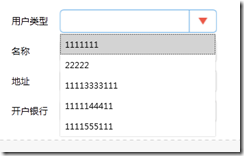
<Window x:Class="WpfFormControl.Window1"

        xmlns="http://schemas.microsoft.com/winfx/2006/xaml/presentation"

        xmlns:x="http://schemas.microsoft.com/winfx/2006/xaml"

        Title="ListBoxTemaple" Height="" Width="" >

    <Window.Resources>

        <Style x:Key="ComboBoxReadonlyToggleButton" TargetType="{x:Type ToggleButton}">

            <Setter Property="OverridesDefaultStyle" Value="true"/>

            <Setter Property="ClickMode" Value="Press"/>

            <Setter Property="Background" Value="Transparent"/>

            <Setter Property="Template">

                <Setter.Value>

                    <ControlTemplate TargetType="{x:Type ToggleButton}">

                        <Border x:Name="border1" ClipToBounds="True"  BorderBrush="{TemplateBinding BorderBrush}"  BorderThickness="" CornerRadius=""

                                Background="#01ffffff">

                            <Border.Effect>

                                <DropShadowEffect BlurRadius="" ShadowDepth="" Color="#FFF9F7F7" />

                            </Border.Effect>

                            <Grid>

                                <Grid.ColumnDefinitions>

                                    <ColumnDefinition />

                                    <ColumnDefinition Width="" />

                                </Grid.ColumnDefinitions>

                                <Border x:Name="border" Grid.Column="" BorderBrush="{TemplateBinding BorderBrush}" BorderThickness="1,0,0,0" Background="{x:Null}">

                                    <Path x:Name="Arrow" Grid.Column="" HorizontalAlignment="Center" VerticalAlignment="Center" Width="" Height="10.25" Data="M 0 0 L 4 4 L 8 0 Z"  Stretch="Fill" Fill="#FFEB5948"  />

                                </Border>

                            </Grid>

                        </Border>

                        <ControlTemplate.Triggers>

                            <Trigger Property="IsMouseOver" Value="True">

                                <Setter Property="BorderBrush" TargetName="border1"  Value="#FF66AFE9"/>

                            </Trigger>

                            <Trigger Property="IsMouseOver" Value="True">

                                <Setter Property="BorderBrush" TargetName="border1" Value="#FF66AFE9"/>

                            </Trigger>

                            <Trigger Property="IsMouseOver" Value="True" SourceName="border">

                                <Setter Property="Fill" TargetName="Arrow" Value="#FFC91E64"/>

                            </Trigger>

                            <Trigger Property="IsChecked" Value="true">

                                <!--<Setter Property="RenderPressed" TargetName="Chrome" Value="true"/>-->

                            </Trigger>

                            <Trigger Property="IsEnabled" Value="false">

                                <Setter Property="Fill" TargetName="Arrow" Value="#AFAFAF"/>

                            </Trigger>

                        </ControlTemplate.Triggers>

                    </ControlTemplate>

                </Setter.Value>

            </Setter>

        </Style>

        <Style x:Key="ComboBoxStyle1" TargetType="{x:Type ComboBox}">

            <Setter Property="BorderThickness" Value=""/>

            <Setter Property="ScrollViewer.HorizontalScrollBarVisibility" Value="Auto"/>

            <Setter Property="ScrollViewer.VerticalScrollBarVisibility" Value="Auto"/>

            <Setter Property="Padding" Value="4,3"/>

            <Setter Property="ScrollViewer.CanContentScroll" Value="true"/>

            <Setter Property="ScrollViewer.PanningMode" Value="Both"/>

            <Setter Property="Stylus.IsFlicksEnabled" Value="False"/>

            <Setter Property="ItemContainerStyle">

                <Setter.Value>

                    <!--ComBoxItem-->

                    <Style TargetType="ComboBoxItem">

                        <Setter Property="MinHeight" Value=""></Setter>

                        <Setter Property="MinWidth" Value=""></Setter>

                        <Setter Property="Template">

                            <Setter.Value>

                                <ControlTemplate TargetType="ComboBoxItem">

                                    <Border Name="Back" Background="Transparent"  BorderThickness="0,0,0,0" BorderBrush="#81D779"  Height="" >

                                        <!--<ContentPresenter ContentSource="{Binding Source}" VerticalAlignment="Center"  HorizontalAlignment="Left" Margin="5,0,0,0"></ContentPresenter>-->

                                        <ContentPresenter ContentSource="{Binding Source}" VerticalAlignment="Center"  HorizontalAlignment="Left" Margin="5,0,0,0"></ContentPresenter>

                                    </Border>

                                    <ControlTemplate.Triggers>

                                        <Trigger Property="IsMouseOver" Value="True">

                                            <Setter TargetName="Back" Property="Background" Value="LightGray"></Setter>

                                        </Trigger>

                                        <Trigger Property="IsHighlighted" Value="True">

                                            <Setter TargetName="Back" Property="Background" Value="LightGray"></Setter>

                                        </Trigger>

                                    </ControlTemplate.Triggers>

                                </ControlTemplate>

                            </Setter.Value>

                        </Setter>

                    </Style>

                </Setter.Value>

            </Setter>

            <Setter Property="Template">

                <Setter.Value>

                    <ControlTemplate TargetType="{x:Type ComboBox}">

                        <Grid x:Name="MainGrid" SnapsToDevicePixels="true" FocusVisualStyle="{x:Null}" Background="White" >

                            <Grid.ColumnDefinitions>

                                <ColumnDefinition Width="*"/>

                                <ColumnDefinition MinWidth="{DynamicResource {x:Static SystemParameters.VerticalScrollBarWidthKey}}" Width=""/>

                            </Grid.ColumnDefinitions>

                            <Popup IsOpen="{TemplateBinding IsDropDownOpen}" Placement="Bottom" x:Name="Popup" Focusable="False" AllowsTransparency="True" PopupAnimation="Slide">

                                <Border CornerRadius="" MaxHeight="{TemplateBinding MaxDropDownHeight}" MinWidth="{TemplateBinding ActualWidth}" x:Name="DropDown" SnapsToDevicePixels="True">

                                    <Border.Effect>

                                        <DropShadowEffect Color="Black" BlurRadius="" ShadowDepth="" Opacity="0.5"/>

                                    </Border.Effect>

                                    <ScrollViewer Margin="1,2,2,6"  MaxHeight="{TemplateBinding MaxDropDownHeight}" SnapsToDevicePixels="True" HorizontalScrollBarVisibility="Auto" VerticalScrollBarVisibility="Auto" CanContentScroll="True">

                                        <!-- StackPanel 用于显示子级,方法是将 IsItemsHost 设置为 True -->

                                        <StackPanel IsItemsHost="True" KeyboardNavigation.DirectionalNavigation="Contained" Background="White"/>

                                    </ScrollViewer>

                                </Border>

                            </Popup>

                            <ToggleButton x:Name="toggleButton" FocusVisualStyle="{x:Null}" BorderBrush="#FFDDDDDD"  Grid.ColumnSpan="" IsChecked="{Binding IsDropDownOpen, Mode=TwoWay, RelativeSource={RelativeSource TemplatedParent}}" Style="{StaticResource ComboBoxReadonlyToggleButton}" />

                            <TextBox Text="{TemplateBinding SelectionBoxItem}" HorizontalAlignment="Left" VerticalAlignment="Center" Margin="5,0,0,0" BorderThickness="" BorderBrush="{x:Null}" Background="Transparent" SelectionBrush="#FFFF334F" IsReadOnly="True" Cursor="Arrow" FocusVisualStyle="{x:Null}" ></TextBox>

                            <ContentPresenter ContentTemplate="{TemplateBinding SelectionBoxItemTemplate}" ContentTemplateSelector="{TemplateBinding ItemTemplateSelector}" Content="{TemplateBinding SelectionBoxItem}" ContentStringFormat="{TemplateBinding SelectionBoxItemStringFormat}" HorizontalAlignment="{TemplateBinding HorizontalContentAlignment}" IsHitTestVisible="false" Margin="{TemplateBinding Padding}" SnapsToDevicePixels="{TemplateBinding SnapsToDevicePixels}" VerticalAlignment="{TemplateBinding VerticalContentAlignment}"/>

                        </Grid>

                        <ControlTemplate.Triggers>

                            <Trigger Property="IsMouseOver" Value="True">

                                <Setter Property="BorderBrush" TargetName="toggleButton" Value="#FF66AFE9"/>

                            </Trigger>

                            <Trigger Property="IsEnabled" Value="false">

                                <Setter Property="Foreground" Value="{DynamicResource {x:Static SystemColors.GrayTextBrushKey}}"/>

                                <Setter Property="Background" Value="#FFF4F4F4"/>

                            </Trigger>

                            <Trigger Property="IsGrouping" Value="true">

                                <Setter Property="ScrollViewer.CanContentScroll" Value="false"/>

                            </Trigger>

                        </ControlTemplate.Triggers>

                    </ControlTemplate>

                </Setter.Value>

            </Setter>

            <Style.Triggers>

                <Trigger Property="IsEditable" Value="true">

                    <!--<Setter Property="BorderBrush" Value="{StaticResource TextBoxBorder}"/>-->

                    <Setter Property="Background" Value="{DynamicResource {x:Static SystemColors.WindowBrushKey}}"/>

                    <Setter Property="IsTabStop" Value="false"/>

                    <Setter Property="Padding" Value=""/>

                </Trigger>

            </Style.Triggers>

        </Style>

        <!--Combobox里ToggleButton的样式-->

    </Window.Resources>

    <Grid>

        <!--引用样式-->

        <ComboBox Height="" Width="" FocusVisualStyle="{x:Null}" Style="{DynamicResource ComboBoxStyle1}" HorizontalAlignment="Left" VerticalAlignment="Center" Margin="4,5,0,5">

            <ListBoxItem></ListBoxItem>

            <ListBoxItem></ListBoxItem>

            <ListBoxItem></ListBoxItem>

            <ListBoxItem></ListBoxItem>

            <ListBoxItem></ListBoxItem>

        </ComboBox>

    </Grid>

</Window>
WPF 常用样式的更多相关文章
- WPF常用样式总结
常用控件样式: <ResourceDictionary xmlns="http://schemas.microsoft.com/winfx/2006/xaml/presentation ...
- 记录一些WPF常用样式方便以后复用(二)(Button、CheckBox、输入账号密码框)(转)
Button (一) <Style x:Key="ButtonSaveStyle" TargetType="{x:Type Button}"> &l ...
- 记录一些WPF常用样式方便以后复用(转)
TextBox文本框 <Style x:Key="TextBoxStyle1" BasedOn="{x:Null}" TargetType="{ ...
- 【基于WPF+OneNote+Oracle的中文图片识别系统阶段总结】之篇一:WPF常用知识以及本项目设计总结
篇一:WPF常用知识以及本项目设计总结:http://www.cnblogs.com/baiboy/p/wpf.html 篇二:基于OneNote难点突破和批量识别:http://www.cnblog ...
- WPF常用控件应用demo
WPF常用控件应用demo 一.Demo 1.Demo截图如下: 2.demo实现过程 总体布局:因放大缩小窗体,控件很根据空间是否足够改变布局,故用WrapPanel布局. <ScrollVi ...
- wpf 导出Excel Wpf Button 样式 wpf简单进度条 List泛型集合对象排序 C#集合
wpf 导出Excel 1 private void Button_Click_1(object sender, RoutedEventArgs e) 2 { 3 4 ExportDataGrid ...
- WPF中样式和行为和触发器
原文:WPF中样式和行为和触发器 样式简介:样式(style)是组织和重用格式化选项的重要工具,不是使用重复的标记填充XAML,以便设置外边距.内边距.颜色以及字体等细节.而是创建一系列封装所有这些细 ...
- CSS/CSS3常用样式小结
1.强制文本单行显示: white-space:nowrap; 多行文本最后省略号: display: -webkit-box; -webkit-line-clamp:2; overflow: hid ...
- CSS常用样式及示例
CSS常用样式及示例 一.简介 层叠样式表(英文全称:Cascading Style Sheets)是一种用来表现HTML(标准通用标记语言的一个应用)或XML(标准通用标记语言的一个子集) ...
随机推荐
- Chapter 16_4 私密性
在Lua面向对象编程的基础设计当中,没有提供私密性机制.但是可以用其他方法实现,从而获得对象的访问控制. 这种实现不常用,作为兴趣爱好,只做基本了解. 基本做法是:通过两个table来表示一个对象.一 ...
- Windows文件监视器 1.0 绿色版
软件名称:软件名称: Windows文件监视器 软件语言: 简体中文 授权方式: 免费软件 运行环境: Win7 / Vista / Win2003 / WinXP / Win2008 软件大小: 1 ...
- Understanding Neural Networks Through Deep Visualization
当数据一层一层通过更多的卷积层时,你可以得到的特征图像代表的特征就会更加的复杂. 在网络的最后,你也许可以得到一个抽象的物体.如果你想通过可视化方法在卷积神经网络中看到更多的信息.这里有一个工具方便你 ...
- asp.net URL DES加密 什在URL中的使用
DES 加密 有时会有 + = 这些特殊字符串 Server.UrlDecode(Request["UserName"]) //能解决 = 号,但是 +号会变成空格 HttpUt ...
- Xib学习之(1)
刚学xib就遇到一个问题 最后还是朋友帮忙解决了 就是在设置约束时,设置的是左右约束为0,可是最后弄出来却是左右边界都空出来了16 解决办法: 具体原因应该是iOS8 之后UIView又多了个属性:l ...
- Xcode最最实用快捷键
转发:http://www.open-open.com/lib/view/open1397988745593.html 关于与mac 通用的快捷键网上太多,就不说了,下面介绍一些大家不是很熟悉但是 ...
- usbmanger android 底下USB的工作模式
Android USB开发麻烦还是比较多的. 第一种:host模式 这种模式比较不错,由Android设备提供电源,然后与外部设备通信.举个例子来说:电脑连接USB设备,都是这个模式,非常常见的模式. ...
- 2.Add Two Numbers-两个单链表相加
You are given two linked lists representing two non-negative numbers. The digits are stored in rever ...
- python多线程,多进程
线程是公用内存,进程内存相互独立 python多线程只能是一个cpu,java可以将多个线程平均分配到其他cpu上 以核为单位,所以GIL(全局锁,保证线程安全,数据被安全读取)最小只能控制一个核,很 ...
- 九、oracle 事务
一.什么是事务事务用于保证数据的一致性,它由一组相关的dml语句组成,该组的dml(数据操作语言,增删改,没有查询)语句要么全部成功,要么全部失败.如:网上转账就是典型的要用事务来处理,用于保证数据的 ...