
selenium模拟鼠标操作
Selenium提供了一个类ActionChains来处理模拟鼠标事件,如单击、双击、拖动等。
基本语法:
class ActionChains(object):

    """

    ActionChains are a way to automate low level interactions such as

    mouse movements, mouse button actions, key press, and context menu interactions.

    This is useful for doing more complex actions like hover over and drag and drop.

    Generate user actions.

       When you call methods for actions on the ActionChains object,

       the actions are stored in a queue in the ActionChains object.

       When you call perform(), the events are fired in the order they

       are queued up.

    ActionChains can be used in a chain pattern::

        menu = driver.find_element_by_css_selector(".nav")

        hidden_submenu = driver.find_element_by_css_selector(".nav #submenu1")

        ActionChains(driver).move_to_element(menu).click(hidden_submenu).perform()

    Or actions can be queued up one by one, then performed.::

        menu = driver.find_element_by_css_selector(".nav")

        hidden_submenu = driver.find_element_by_css_selector(".nav #submenu1")

        actions = ActionChains(driver)

        actions.move_to_element(menu)

        actions.click(hidden_submenu)

        actions.perform()

    Either way, the actions are performed in the order they are called, one after

    another.

    """

    def __init__(self, driver):

        """

        Creates a new ActionChains.

        :Args:

         - driver: The WebDriver instance which performs user actions.

        """

        self._driver = driver

        self._actions = []

        if self._driver.w3c:

            self.w3c_actions = ActionBuilder(driver)

    def perform(self):

        """

        Performs all stored actions.

        """

        if self._driver.w3c:

            self.w3c_actions.perform()

        else:

            for action in self._actions:

                action()

    def reset_actions(self):

        """

            Clears actions that are already stored on the remote end.

        """

        if self._driver.w3c:

            self._driver.execute(Command.W3C_CLEAR_ACTIONS)

        else:

            self._actions = []

    def click(self, on_element=None):

        """

        Clicks an element.

        :Args:

         - on_element: The element to click.

           If None, clicks on current mouse position.

        """

        if self._driver.w3c:

            self.w3c_actions.pointer_action.click(on_element)

            self.w3c_actions.key_action.pause()

            self.w3c_actions.key_action.pause()

        else:

            if on_element:

                self.move_to_element(on_element)

            self._actions.append(lambda: self._driver.execute(

                                 Command.CLICK, {'button': 0}))

        return self

    def click_and_hold(self, on_element=None):

        """

        Holds down the left mouse button on an element.

        :Args:

         - on_element: The element to mouse down.

           If None, clicks on current mouse position.

        """

        if self._driver.w3c:

            self.w3c_actions.pointer_action.click_and_hold(on_element)

            self.w3c_actions.key_action.pause()

            if on_element:

                self.w3c_actions.key_action.pause()

        else:

            if on_element:

                self.move_to_element(on_element)

            self._actions.append(lambda: self._driver.execute(

                                 Command.MOUSE_DOWN, {}))

        return self

    def context_click(self, on_element=None):

        """

        Performs a context-click (right click) on an element.

        :Args:

         - on_element: The element to context-click.

           If None, clicks on current mouse position.

        """

        if self._driver.w3c:

            self.w3c_actions.pointer_action.context_click(on_element)

            self.w3c_actions.key_action.pause()

        else:

            if on_element:

                self.move_to_element(on_element)

            self._actions.append(lambda: self._driver.execute(

                                 Command.CLICK, {'button': 2}))

        return self

    def double_click(self, on_element=None):

        """

        Double-clicks an element.

        :Args:

         - on_element: The element to double-click.

           If None, clicks on current mouse position.

        """

        if self._driver.w3c:

            self.w3c_actions.pointer_action.double_click(on_element)

            for _ in range(4):

                self.w3c_actions.key_action.pause()

        else:

            if on_element:

                self.move_to_element(on_element)

            self._actions.append(lambda: self._driver.execute(

                                 Command.DOUBLE_CLICK, {}))

        return self

    def drag_and_drop(self, source, target):

        """

        Holds down the left mouse button on the source element,

           then moves to the target element and releases the mouse button.

        :Args:

         - source: The element to mouse down.

         - target: The element to mouse up.

        """

        if self._driver.w3c:

            self.w3c_actions.pointer_action.click_and_hold(source) \

                                           .move_to(target) \

                                           .release()

            for _ in range(3):

                self.w3c_actions.key_action.pause()

        else:

            self.click_and_hold(source)

            self.release(target)

        return self

    def drag_and_drop_by_offset(self, source, xoffset, yoffset):

        """

        Holds down the left mouse button on the source element,

           then moves to the target offset and releases the mouse button.

        :Args:

         - source: The element to mouse down.

         - xoffset: X offset to move to.

         - yoffset: Y offset to move to.

        """

        if self._driver.w3c:

            self.w3c_actions.pointer_action.click_and_hold(source) \

                                           .move_to_location(xoffset, yoffset) \

                                           .release()

            for _ in range(3):

                self.w3c_actions.key_action.pause()

        else:

            self.click_and_hold(source)

            self.move_by_offset(xoffset, yoffset)

            self.release()

        return self

    def key_down(self, value, element=None):

        """

        Sends a key press only, without releasing it.

           Should only be used with modifier keys (Control, Alt and Shift).

        :Args:

         - value: The modifier key to send. Values are defined in `Keys` class.

         - element: The element to send keys.

           If None, sends a key to current focused element.

        Example, pressing ctrl+c::

            ActionChains(driver).key_down(Keys.CONTROL).send_keys('c').key_up(Keys.CONTROL).perform()

        """

        if element:

            self.click(element)

        if self._driver.w3c:

            self.w3c_actions.key_action.key_down(value)

            self.w3c_actions.pointer_action.pause()

        else:

            self._actions.append(lambda: self._driver.execute(

                Command.SEND_KEYS_TO_ACTIVE_ELEMENT,

                {"value": keys_to_typing(value)}))

        return self

    def key_up(self, value, element=None):

        """

        Releases a modifier key.

        :Args:

         - value: The modifier key to send. Values are defined in Keys class.

         - element: The element to send keys.

           If None, sends a key to current focused element.

        Example, pressing ctrl+c::

            ActionChains(driver).key_down(Keys.CONTROL).send_keys('c').key_up(Keys.CONTROL).perform()

        """

        if element:

            self.click(element)

        if self._driver.w3c:

            self.w3c_actions.key_action.key_up(value)

            self.w3c_actions.pointer_action.pause()

        else:

            self._actions.append(lambda: self._driver.execute(

                Command.SEND_KEYS_TO_ACTIVE_ELEMENT,

                {"value": keys_to_typing(value)}))

        return self

    def move_by_offset(self, xoffset, yoffset):

        """

        Moving the mouse to an offset from current mouse position.

        :Args:

         - xoffset: X offset to move to, as a positive or negative integer.

         - yoffset: Y offset to move to, as a positive or negative integer.

        """

        self._actions.append(lambda: self._driver.execute(

            Command.MOVE_TO, {

                'xoffset': int(xoffset),

                'yoffset': int(yoffset)}))

        return self

    def move_to_element(self, to_element):

        """

        Moving the mouse to the middle of an element.

        :Args:

         - to_element: The WebElement to move to.

        """

        if self._driver.w3c:

            self.w3c_actions.pointer_action.move_to(to_element)

            self.w3c_actions.key_action.pause()

        else:

            self._actions.append(lambda: self._driver.execute(

                                 Command.MOVE_TO, {'element': to_element.id}))

        return self

    def move_to_element_with_offset(self, to_element, xoffset, yoffset):

        """

        Move the mouse by an offset of the specified element.

           Offsets are relative to the top-left corner of the element.

        :Args:

         - to_element: The WebElement to move to.

         - xoffset: X offset to move to.

         - yoffset: Y offset to move to.

        """

        if self._driver.w3c:

            self.w3c_actions.pointer_action.move_to(to_element, xoffset, yoffset)

            self.w3c_actions.key_action.pause()

        else:

            self._actions.append(

                lambda: self._driver.execute(Command.MOVE_TO, {

                    'element': to_element.id,

                    'xoffset': int(xoffset),

                    'yoffset': int(yoffset)}))

        return self

    def release(self, on_element=None):

        """

        Releasing a held mouse button on an element.

        :Args:

         - on_element: The element to mouse up.

           If None, releases on current mouse position.

        """

        if self._driver.w3c:

            self.w3c_actions.pointer_action.release()

            self.w3c_actions.key_action.pause()

        else:

            if on_element:

                self.move_to_element(on_element)

            self._actions.append(lambda: self._driver.execute(Command.MOUSE_UP, {}))

        return self

    def send_keys(self, *keys_to_send):

        """

        Sends keys to current focused element.

        :Args:

         - keys_to_send: The keys to send.  Modifier keys constants can be found in the

           'Keys' class.

        """

        if self._driver.w3c:

            self.w3c_actions.key_action.send_keys(keys_to_send)

        else:

            self._actions.append(lambda: self._driver.execute(

                Command.SEND_KEYS_TO_ACTIVE_ELEMENT, {'value': keys_to_typing(keys_to_send)}))

        return self

    def send_keys_to_element(self, element, *keys_to_send):

        """

        Sends keys to an element.

        :Args:

         - element: The element to send keys.

         - keys_to_send: The keys to send.  Modifier keys constants can be found in the

           'Keys' class.

        """

        if self._driver.w3c:

            self.w3c_actions.key_action.send_keys(keys_to_send, element=element)

        else:

            self._actions.append(lambda: element.send_keys(*keys_to_send))

        return self

    # Context manager so ActionChains can be used in a 'with .. as' statements.

    def __enter__(self):

        return self  # Return created instance of self.

    def __exit__(self, _type, _value, _traceback):

        pass  # Do nothing, does not require additional cleanup.
方法列表
perform(self):        ---执行链中的所有动作

reset_actions(self):     ---清除存储在远端的动作

click(self, on_element=None):   ---鼠标左键单击

click_and_hold(self, on_element=None):    --鼠标左键单击,不松开

context_click(self, on_element=None):		---鼠标右键单击

double_click(self, on_element=None):		---鼠标左键双击

drag_and_drop(self, source, target):		---拖拽到某个元素后松开

drag_and_drop_by_offset(self, source, xoffset, yoffset):		---拖拽到某个坐标后松开

key_down(self, value, element=None):		---某个键盘键被按下

key_up(self, value, element=None):			---松开某个键

move_by_offset(self, xoffset, yoffset):		---鼠标移动到某个坐标

move_to_element(self, to_element):			---鼠标移动到某个元素

move_to_element_with_offset(self, to_element, xoffset, yoffset):		---移动到距某个元素(左上角)多少的位置

release(self, on_element=None):		---在某元素上松开鼠标

send_keys(self, *keys_to_send):		---发送某些值到当前焦点元素

send_keys_to_element(self, element, *keys_to_send):		---发送某些值到指定元素
基本用法
链式写法

ActionChains(driver).click(clk_btn).context_click(right_btn).perform()

分步写法

# 补全化action

actions = ActionChains(driver)

# 装载单击动作

actions.click()

# 装载右击动作

actions.context_click()

# 执行所有被装载的动作

actions.perform()
应用举例
#!/usr/bin/env python

# _*_ coding:utf-8 _*_

from selenium.webdriver.common.action_chains import ActionChains

from selenium import webdriver

import time

driver = webdriver.Chrome()

driver.get("https://www.baidu.com/")

driver.implicitly_wait(10)

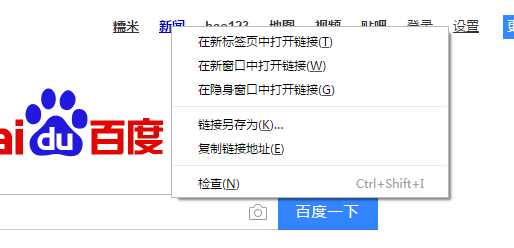
# 右击百度新闻

right_click = driver.find_element_by_xpath('//a[@name="tj_trnews"]')

ActionChains(driver).context_click(right_click).perform()
参考 文档:
http://www.jb51.net/article/92682.htm
下拉滚动条
方法一:
使用js脚本直接操作
js="var q=document.documentElement.scrollTop=10000"
driver.execute_script(js)
方法二、
将滚动条手动到指定的位置,这种方法更常用
target = driver.find_element_by_id("id_keypair")

driver.execute_script("arguments[0].scrollIntoView();", target) #拖动到可见的元素去
方法三、
发送TAB键
from selenium.webdriver.common.keys import Keys

driver.find_element_by_id("id_login_method_0").send_keys(Keys.TAB)
方法四、
前段时间使用robotframe work框架时,selenium2library里面有一个非常好用的功能Focus,会自动定位到元素,研读一下源码:
def focus(self, locator):

        """Sets focus to element identified by `locator`."""

        element = self._element_find(locator, True, True)

        self._current_browser().execute_script("arguments[0].focus();", element)
从源码中我们可以看到,此方法与我们在python自己写的方法二)一致,工具给我们做了封装。
selenium模拟鼠标操作的更多相关文章
- python+selenium模拟鼠标操作
from selenium.webdriver.common.action_chains import ActionChains #导入鼠标相关的包 ------------------------- ...
- 模拟鼠标操作(ActionChains)(转 侵删)
在日常的测试中,经常会遇到需要鼠标去操作的一些事情,比如说悬浮菜单.拖动验证码等,这一节我们来学习如何使用webdriver模拟鼠标的操作 首页模拟鼠标的操作要首先引入ActionChains的包 f ...
- Python+Selenium自动化 模拟鼠标操作
Python+Selenium自动化 模拟鼠标操作 在webdriver中,鼠标的一些操作如:双击.右击.悬停.拖动等都被封装在ActionChains类中,我们只用在需要使用的时候,导入这个类就 ...
- Java&Selenium 模拟鼠标方法封装
Java&Selenium 模拟鼠标方法封装 package util; import org.openqa.selenium.By; import org.openqa.selenium.W ...
- selenium + python(鼠标操作)
关于最近学习selenium自动化测试鼠标操作的一些总结 常见的鼠标操作
- windows7如何用键盘模拟鼠标操作
windows7如何用键盘模拟鼠标操作 https://jingyan.baidu.com/article/6dad5075104907a123e36e38.html 听语音 37453人看了这个视频 ...
- webdriver模拟鼠标操作
ActionChains 生成模拟用户操作的对象 from selenium.webdriver.common.action_chains import ActionChains ActionChai ...
- python selenium模拟滑动操作
selenium.webdriver提供了所有WebDriver的实现,目前支持FireFox.phantomjs.Chrome.Ie和Remote quit()方法会退出浏览器,而close()方法 ...
- Selenium键盘鼠标操作总结
鼠标操作 org.openqa.selenium.interactions.Actions 1.给元素设置焦点. 有时对于a标签等,为了不跳转到别的链接,但是需要设置焦点时就可使用. action.m ...
随机推荐
- 基于flex的不定个数的按钮组
<!DOCTYPE html> <html> <head> <meta charset="utf-8"> <title> ...
- golang-nsq消息队列应用
1. 安装nsq brew install nsq 2.启动nsq https://nsq.io/overview/quick_start.html 3.golang client var produ ...
- 运维甩锅神器---Jumpserver
简介jumpserver 也就是跳板机,堡垒机,主要用于免密钥登陆web终端,可以对所有操作进行记录,录像!对所有服务器进行资产管理, 给开发人员分配登陆主机的权限和sudo权限,为运维人员省了很多手 ...
- ruby 中的 module
Module是Class的父类: >> Class.superclass => Module module 没有实例变量 module 没有new不能生成实例对象 module内可以 ...
- 红色警戒3原版V1.00基址大全
127.0.0.1 servserv.generals.ea.com ===================================1.04 基址变化 00DFBD74=>DFCDF4 ...
- CSS3 transition 过度
一个元素在不同的状态之间进行平滑的交换 CSS3中使用transition属性实现过度效果 一个简单的例子: img{ background-image:url("img/1.jpg&quo ...
- datatable 转excel
public static void ExportToExcel(System.Data.DataTable dt) { if (dt == null) return; Microsoft.Offic ...
- Ubuntu下NAT模式配置静态IP
编辑文件/etc/network/interfaces: 并用下面的行来替换有关eno16777736的行: # The primary network interfaceauto eno167777 ...
- EnyimMemcached(64位)使用实例
1.安装:http://www.cnblogs.com/dudu/archive/2009/07/19/1526669.html 2.使用 using Enyim.Caching.Configurat ...
- [疑难杂症]解决实际开发中各种问题bug
我有一个习惯就是遇到问题找到解决方案后收藏网页.后来遇到问题越来越多,收藏就多得有点离谱了.我反思了一下,其实有用的信息就那么点,那我干脆还是做成网页剪报好了. 关于VS的 Problem:未能正确加 ...