
iOS开发基础篇-手写控件
一、手写控件的步骤
1)使用相应的控件类创建控件对象;
2)设置该控件的各种属性;
3)添加空间到视图中;
4)如果是 UIButton 等控件,还需考虑控件的单击事件等;
二、添加 UIButton 单击事件
[topbtn addTarget:self action:@selector(move:) forControlEvents:UIControlEventTouchUpInside];
1) addTarget:forControlEvents: 方法定义在 UIControl 类中,意味着所有继承自 UIControl 类的对象均可添加;
2)第一个参数为对象本身;
3)第二个参数为监听控件的事件。
 @interface ViewController ()

 @property (nonatomic, weak) IBOutlet UIButton *headImageView;  //被控制用于移动的按钮

 @end
 //手工添加上下左右、放大缩小按钮
 1 - (void)viewDidLoad {

     [super viewDidLoad];

     //设置按钮对象为自定义型

     UIButton *headbtn = [UIButton buttonWithType:UIButtonTypeCustom];

     //设置按钮对象普通状态下的各项属性

     headbtn.frame = CGRectMake(, , , );

     [headbtn setBackgroundImage:[UIImage imageNamed:@"beauty10"] forState:UIControlStateNormal];

     [headbtn setTitle:@"点我!" forState:UIControlStateNormal];

     [headbtn setTitleColor:[UIColor redColor] forState:UIControlStateNormal];

     //设置按钮对象高亮状态下的属性

     [headbtn setBackgroundImage:[UIImage imageNamed:@"beauty11"] forState:UIControlStateHighlighted];

     [headbtn setTitle:@"还行吧~~" forState:UIControlStateHighlighted];

     [headbtn setTitleColor:[UIColor blueColor] forState:UIControlStateHighlighted];

     //将按钮对象添加到视图中显示出来

     [self.view addSubview:headbtn];

     self.headImageView = headbtn;  //建立IBOutlet连接

     //向上移动的按钮

     UIButton *topbtn = [UIButton buttonWithType:UIButtonTypeCustom];

     topbtn.frame = CGRectMake(, , , );

     [topbtn setTitle:@"上移" forState:UIControlStateNormal];

     [topbtn setTitleColor:[UIColor blueColor] forState:UIControlStateNormal];

     [topbtn setTag:];

     [self.view addSubview:topbtn];

     //添加按钮的单击事件

     [topbtn addTarget:self action:@selector(move:) forControlEvents:UIControlEventTouchUpInside];

     //向下移动的按钮

     UIButton *downbtn = [UIButton buttonWithType:UIButtonTypeCustom];

     downbtn.frame = CGRectMake(, , , );

     [downbtn setTitle:@"下移" forState:UIControlStateNormal];

     [downbtn setTitleColor:[UIColor blueColor] forState:UIControlStateNormal];

     [downbtn setTag:];

     [self.view addSubview:downbtn];

     //添加按钮的单击事件

     [downbtn addTarget:self action:@selector(move:) forControlEvents:UIControlEventTouchUpInside];

     //向左移动的按钮

     UIButton *leftbtn = [UIButton buttonWithType:UIButtonTypeCustom];

     leftbtn.frame = CGRectMake(, , , );

     [leftbtn setTitle:@"左移" forState:UIControlStateNormal];

     [leftbtn setTitleColor:[UIColor blueColor] forState:UIControlStateNormal];

     [leftbtn setTag:];

     [self.view addSubview:leftbtn];

     //添加按钮的单击事件

     [leftbtn addTarget:self action:@selector(move:) forControlEvents:UIControlEventTouchUpInside];

     //向右移动的按钮

     UIButton *rightbtn = [UIButton buttonWithType:UIButtonTypeCustom];

     rightbtn.frame = CGRectMake(, , , );

     [rightbtn setTitle:@"右移" forState:UIControlStateNormal];

     [rightbtn setTitleColor:[UIColor blueColor] forState:UIControlStateNormal];

     [rightbtn setTag:];

     [self.view addSubview:rightbtn];

     //添加按钮的单击事件

     [rightbtn addTarget:self action:@selector(move:) forControlEvents:UIControlEventTouchUpInside];

     //放大的按钮

     UIButton *zoombtn = [UIButton buttonWithType:UIButtonTypeCustom];

     zoombtn.frame = CGRectMake(, , , );

     [zoombtn setTitle:@"放大" forState:UIControlStateNormal];

     [zoombtn setTitleColor:[UIColor blueColor] forState:UIControlStateNormal];

     [zoombtn setTag:];

     [self.view addSubview:zoombtn];

     //添加按钮的单击事件

     [zoombtn addTarget:self action:@selector(zoom:) forControlEvents:UIControlEventTouchUpInside];

     //缩小的按钮

     UIButton *minusbtn = [UIButton buttonWithType:UIButtonTypeCustom];

     minusbtn.frame = CGRectMake(, , , );

     [minusbtn setTitle:@"缩小" forState:UIControlStateNormal];

     [minusbtn setTitleColor:[UIColor blueColor] forState:UIControlStateNormal];

     [minusbtn setTag:];

     [self.view addSubview:minusbtn];

     //添加按钮的单击事件

     [minusbtn addTarget:self action:@selector(zoom:) forControlEvents:UIControlEventTouchUpInside];

 }
先声明上下左右移动的枚举类型,及移动或放大缩小的常量值:
 //ViewController.m

 typedef NS_ENUM(NSUInteger, kMovingDir)

 {

     kMovingDirTop = ,

     kMovingDirButtom,

     kMovingDirLeft,

     kMovingDirRight,

 };

 CGFloat const kMovingDelta = 50.0;      //移动系数

 CGFloat const kZoomingDelta = 50.0;     //放大缩小系数
实现按钮的事件:
 - (void)move:(id)sender {

     UIButton *button = (UIButton *)sender;

     CGPoint p = self.headImageView.center;

     switch (button.tag) {

         case kMovingDirTop: p.y -= kMovingDelta; break;  //往上移动

         case kMovingDirButtom: p.y += kMovingDelta; break;  //往下移动

         case kMovingDirLeft: p.x -= kMovingDelta; break; //往左移动

         case kMovingDirRight: p.x += kMovingDelta; break; //往右移动

     }

     [UIView beginAnimations:nil context:nil];

     [UIView setAnimationDuration:2.0];

     self.headImageView.center = p;

     [UIView commitAnimations];

 }

 - (void)zoom:(id)sender {

     UIButton *button = (UIButton *)sender;

     CGRect rect = self.headImageView.bounds;

     if (button.tag) {   //缩小

         rect.size.width -= kZoomingDelta;

         rect.size.height -= kZoomingDelta;

     } else {            //放大

         rect.size.width += kZoomingDelta;

         rect.size.height += kZoomingDelta;

     }

     [UIView beginAnimations:nil context:nil];

     [UIView setAnimationDuration:2.0];

     self.headImageView.bounds = rect;

     [UIView commitAnimations];

 }
示图如下:
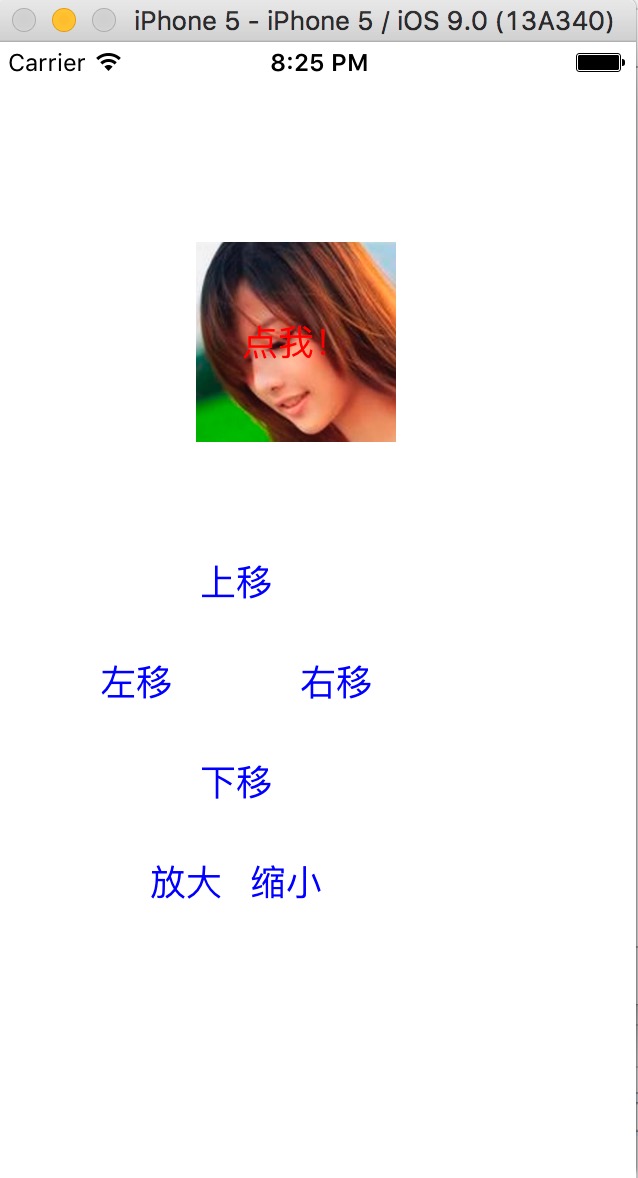
示例代码:http://pan.baidu.com/s/1i3SainN
三、简单的动画
1)开始动画;
2)设置动画相关的参数,如时间等;
3)参与动画的行动
4)提交动画。
示例代码如下:
     [UIView beginAnimations:nil context:nil];

     [UIView setAnimationDuration:2.0];

     self.headImageView.bounds = rect;

     [UIView commitAnimations];
参考博客:iOS开发UI基础—手写控件,frame,center和bounds属性
iOS开发基础篇-手写控件的更多相关文章
- iOS开发UI篇—手写控件,frame,center和bounds属性
iOS开发UI基础—手写控件,frame,center和bounds属性 一.手写控件 1.手写控件的步骤 (1)使用相应的控件类创建控件对象 (2)设置该控件的各种属性 (3)添加控件到视图中 (4 ...
- iOS开发UI基础—手写控件,frame,center和bounds属性
iOS开发UI基础—手写控件,frame,center和bounds属性 一.手写控件 1.手写控件的步骤 (1)使用相应的控件类创建控件对象 (2)设置该控件的各种属性 (3)添加控件到视图中 (4 ...
- 手写控件,frame,center和bounds属性
一.手写控件 1.手写控件的步骤 (1)使用相应的控件类创建控件对象 (2)设置该控件的各种属性 (3)添加控件到视图中 (4)如果是button等控件,还需考虑控件的单击事件等 (5)注意:View ...
- iOS开发UI篇—实现UItableview控件数据刷新
iOS开发UI篇—实现UItableview控件数据刷新 一.项目文件结构和plist文件 二.实现效果 1.说明:这是一个英雄展示界面,点击选中行,可以修改改行英雄的名称(完成数据刷新的操作). 运 ...
- iOS开发基础篇-transform属性
一. transform 属性 在OC中,通过 transform 属性可以修改对象的平移.缩放比例和旋转角度. 1)创建“基于控件初始位置”的形变 CGAffineTransformMakeRot ...
- iOS开发基础篇-Button基础
一.简单介绍 UIButton 的功能:响应用户操作.显示文字.显示图片.调整内部图片和文字的位置. 二. UIButton 的状态 UIControlStateNormal :普通状态,为默认情 ...
- iOS开发——基础篇——iOS开发 Xcode8中遇到的问题及改动
iOS开发 Xcode8中遇到的问题及改动 新版本发布总会有很多坑,也会有很多改动. 一个一个填吧... 一.遇到的问题 1.权限以及相关设置 iOS10系统下调用系统相册.相机功能,或者苹果健康 ...
- cocos2dx基础篇(10) 按钮控件CCControlButton
[3.x] (1)去掉 “CC” (2)对象类 CCObject 改为 Ref (3)按钮事件回调依旧为 cccontrol_selector ,没有使用 CC_CALLBACK_2 (4)按钮状态 ...
- C#-WebForm-WebForm开发基础、如何给控件注册事件?——事件委托写法、http无状态性、三层结构
(小知识 - xml:可扩展的标记语言 html:超文本标记语言) 一.创建WebForm:新建→网站 此时文件夹中只有一个 config 文件,打开后 二.在项目下右键添加新项 在设计页面中打开 从 ...
随机推荐
- spring boot(四) 多数据源
前言 前一篇中我们使用spring boot+mybatis创建了单一数据源,其中单一数据源不需要我们自己手动创建,spring boot自动配置在程序启动时会替我们创建好数据源. 准备工作 appl ...
- win2008R2环境配置
1)下载系统 [https://msdn.itellyou.cn/] 选择带sp1的,这个系统是08R2中较为完善的一种 2)安装之后首先不要激活和安装.net framework 先安装ii ...
- MySQL数据库性能优化(享学课堂听课笔记)
1.场景: 2张表A表 200W条数据,关联表B表3W条数据,AB有主外键关系. 案例1. 35S 使用关联子查询,查询时间35S 案例2. 19S 使用连表查询 (Left join ,Inner ...
- Sqlite操作帮助类
sqlite帮助类 using System; using System.Collections.Generic; using System.Linq; using System.Text; us ...
- Java集合类源码解析:ArrayList
目录 前言 源码解析 基本成员变量 添加元素 查询元素 修改元素 删除元素 为什么用 "transient" 修饰数组变量 总结 前言 今天学习一个Java集合类使用最多的类 Ar ...
- Node.js面试题之2017
译者按: 从ECMAScript标准,Node.js语法以及NPM模块角度来看,Node.js的发展让人目不暇接,那么面试题也得与时俱进. 原文: Node.js Interview Question ...
- 结对编程项目——C语言实现WordCount Web化
结对编程项目 代码地址 201631062219,201631011410 gitee项目地址:https://gitee.com/xxlznb/pair_programming 作业地址:https ...
- SQLServer之创建表值函数
表值函数创建注意事项 用户定义表值函数返回 table 数据类型. 对于内联表值函数,没有函数主体,表是单个 SELECT 语句的结果集. 表值函数主要用于数据计算出来返回结果集. 使用SSMS数据库 ...
- WinServer-FTP搭建
FTP服务器(File Transfer Protocol Server)是在互联网上提供文件存储和访问服务的计算机,它们依照FTP协议提供服务. FTP是File Transfer Protocol ...
- 数据库H2学习
本文转载自:https://www.cnblogs.com/xdp-gacl/p/4171024.html 一.H2数据库介绍 常用的开源数据库有:H2,Derby,HSQLDB,MySQL,Post ...