
[iOS UI进阶 - 2.2] 彩票Demo v1.2 UICollectionView基本
- 设计、实现设置界面
- cell的封装
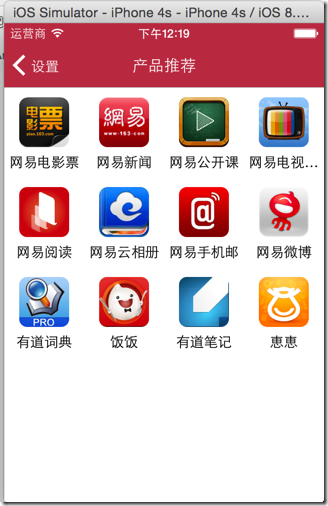
- UICollectionView的使用
- 自定义UICollectionView
- 抽取控制器父类
- “帮助”功能
- static cell(呆板,完全没有动态)
- 使用代码,条件判断逐个编写(麻烦,代码冗长)
- 使用模型、plist加载(能够动态配置跳转控制器,不能配置请求代码;由于使用字符串配置跳转控制器名,容易出现运行时错误)
- 头部标题
- 尾部标题
- items
- 图标
- 标题
- 跳转目标控制器类
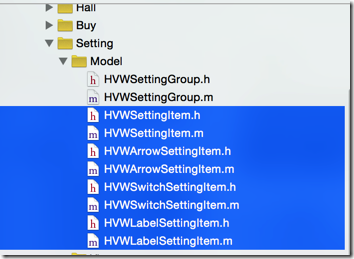
- 设置数据成员(item模型数据属性)
- 加载数据
- 提供静态初始化方法cellWithTableView,使用缓冲池重用
- 细分子类自定义“开关”item(不能点击跳转,拥有一个开关)
- 细分子类自定义“箭头”item(点击跳转,没有开关)
- 默认的请求item(不能点击跳转,没有开关,内置block成员)
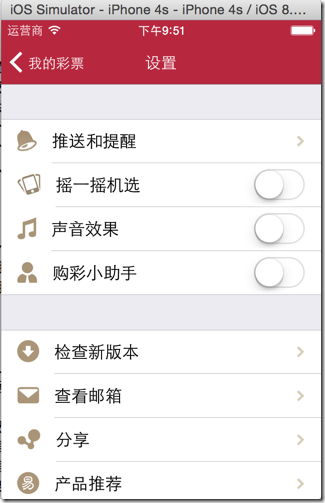
 1 /** 设置右部分控件 */

 2 - (void) setupRightView {

 3     if ([self.item isKindOfClass:[HVWArrowSettingItem class]]) { // 跳转箭头类型

 4         self.accessoryView = self.arrowView;

 5     } else if ([self.item isKindOfClass:[HVWSwitchSettingItem class]]) { // 开关类型

 6         self.accessoryView = self.switchView;

 7     } else if ([self.item isKindOfClass:[HVWLabelSettingItem class]]) { // 标签类型

 8         self.accessoryView = self.labelView;

 9     } else {

10         self.accessoryView = nil;

11     }

12 }
- 使用copy修饰
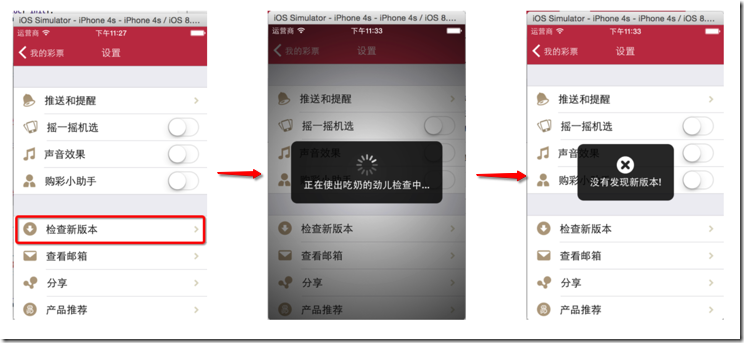
- 使用MBProgressHUD外部包进行提示信息显示,模拟交互效果
 1 //

 2 //  HVWSettingItem.h

 3 //  HelloLottery

 4 //

 5 //  Created by hellovoidworld on 15/1/6.

 6 //  Copyright (c) 2015年 hellovoidworld. All rights reserved.

 7 //

 8

 9 #import <Foundation/Foundation.h>

10

11 typedef void (^RunningBlock)();

12

13 /** item基类 */

14 @interface HVWSettingItem : NSObject

15

16 /** 图标 */

17 @property(nonatomic, copy) NSString *icon;

18

19 /** 标题 */

20 @property(nonatomic, copy) NSString *title;

21

22 /** block代码 */

23 @property(nonatomic, copy) RunningBlock runningBlock;

24

25 + (instancetype) itemWithIcon:(NSString *) icon title:(NSString *) title;

26 + (instancetype) itemWithTitle:(NSString *) title;

27

28 @end
 1    // 第1组

 2     HVWSettingItem *updateCheckItem = [HVWArrowSettingItem itemWithIcon:@"MoreUpdate" title:@"检查新版本"];

 3

 4     // 检查新版本配置一个block,模拟更新过程

 5     updateCheckItem.runningBlock = ^{

 6         // 弹窗提示

 7         [MBProgressHUD showMessage:@"正在使出吃奶的劲儿检查中..."];

 8

 9         // 模拟发送网络请求延迟

10         dispatch_after(dispatch_time(DISPATCH_TIME_NOW, (int64_t)(2.0 * NSEC_PER_SEC)), dispatch_get_main_queue(), ^{

11             // 隐藏消息框

12             [MBProgressHUD hideHUD];

13

14             // 提醒版本信息

15             [MBProgressHUD showError:@"没有发现新版本!"];

16         });

17     };
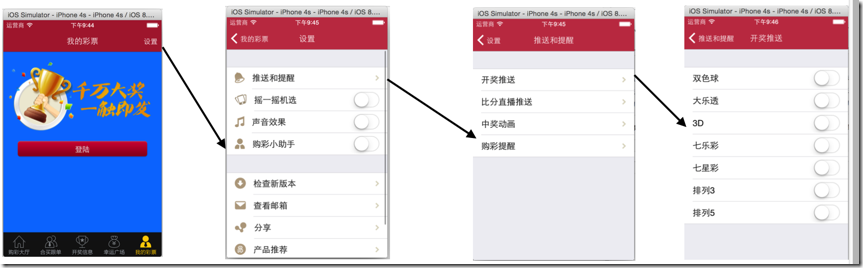
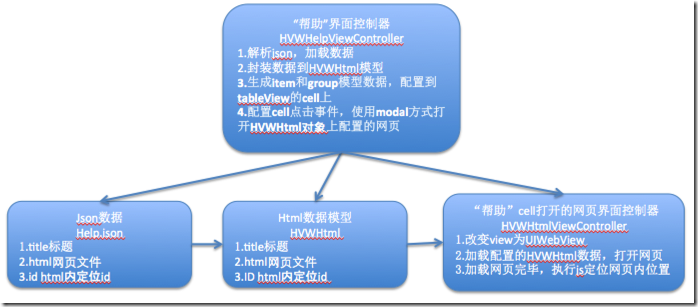
- 加载解析group和item数据
- 根据group数据创建table的样式
- 根据不同的item模型创建不同的cell外观
- 如果item类是跳转类型的,需要配置跳转目标控制器
- 如果item类是代码执行型的,需要配置block代码
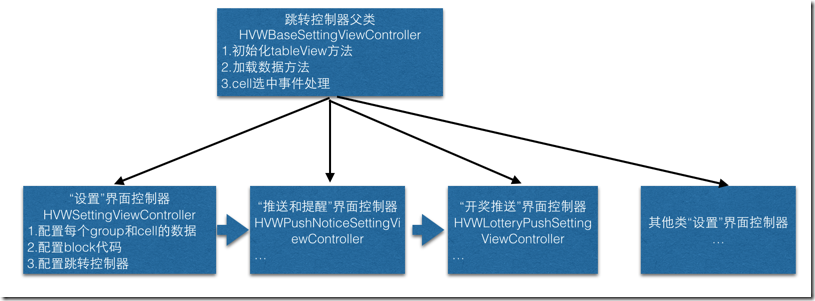
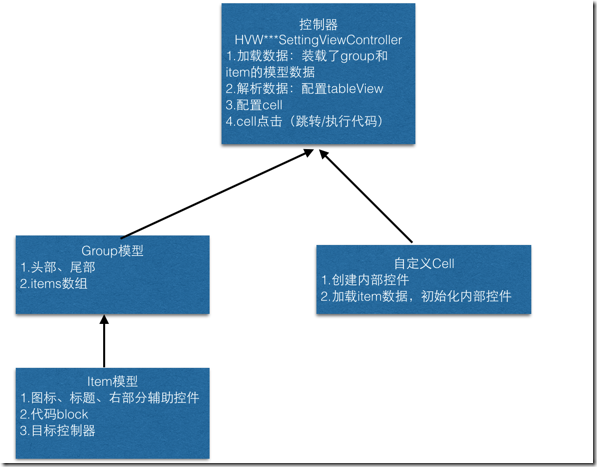
  1 //

  2 //  HVWBaseSettingViewController.m

  3 //  HelloLottery

  4 //

  5 //  Created by hellovoidworld on 15/1/6.

  6 //  Copyright (c) 2015年 hellovoidworld. All rights reserved.

  7 //

  8

  9 #import "HVWBaseSettingViewController.h"

 10 #import "HVWSettingGroup.h"

 11 #import "HVWSettingItem.h"

 12 #import "HVWSettingCell.h"

 13 #import "HVWArrowSettingItem.h"

 14

 15 @interface HVWBaseSettingViewController ()

 16

 17 @end

 18

 19 @implementation HVWBaseSettingViewController

 20

 21 - (void)viewDidLoad {

 22     [super viewDidLoad];

 23

 24

 25 }

 26

 27 - (void)didReceiveMemoryWarning {

 28     [super didReceiveMemoryWarning];

 29     // Dispose of any resources that can be recreated.

 30 }

 31

 32 /** 重写初始化方法

 33 * 一定要使用group样式

 34 */

 35 - (instancetype)init {

 36     return [super initWithStyle:UITableViewStyleGrouped];

 37 }

 38

 39 - (instancetype)initWithStyle:(UITableViewStyle)style {

 40     return [super initWithStyle:UITableViewStyleGrouped];

 41 }

 42

 43 /** 加载空数据 */

 44 - (NSMutableArray *)data {

 45     if (nil == _data) {

 46         _data = [NSMutableArray array];

 47     }

 48

 49     return _data;

 50 }

 51

 52 #pragma mark - Table view data source

 53

 54 - (NSInteger)numberOfSectionsInTableView:(UITableView *)tableView {

 55     return self.data.count;

 56 }

 57

 58 - (NSInteger)tableView:(UITableView *)tableView numberOfRowsInSection:(NSInteger)section {

 59     HVWSettingGroup *group = self.data[section];

 60     return group.items.count;

 61 }

 62

 63 - (UITableViewCell *)tableView:(UITableView *)tableView cellForRowAtIndexPath:(NSIndexPath *)indexPath {

 64     HVWSettingCell *cell = [HVWSettingCell cellWithTableView:tableView];

 65     HVWSettingGroup *group = self.data[indexPath.section];

 66     cell.item = group.items[indexPath.row];

 67     return cell;

 68 }

 69

 70 #pragma mark - 代理方法

 71 - (void)tableView:(UITableView *)tableView didSelectRowAtIndexPath:(NSIndexPath *)indexPath {

 72     // 1.取消选中,不要保持选中状态

 73     [self.tableView deselectRowAtIndexPath:indexPath animated:YES];

 74

 75     // 2.1加载点击事件

 76     HVWSettingGroup *group = self.data[indexPath.section];

 77     HVWSettingItem *item = group.items[indexPath.row];

 78

 79     // 2.2如果配置有block, 运行block

 80     if (item.runningBlock) {

 81         item.runningBlock();

 82     }

 83

 84     // 2.3配置跳转控制器

 85     if ([item isKindOfClass:[HVWArrowSettingItem class]]) { // 如果是跳转类型的item

 86         HVWArrowSettingItem *arrowItem = (HVWArrowSettingItem *) item;

 87

 88

 89         if (nil != arrowItem.destinationViewControllerClass) {

 90             UIViewController *viewController = [[arrowItem.destinationViewControllerClass alloc] init];

 91             viewController.title = arrowItem.title;

 92             [self.navigationController pushViewController:viewController animated:YES];

 93         }

 94     }

 95 }

 96

 97 /** 组头部 */

 98 - (NSString *)tableView:(UITableView *)tableView titleForHeaderInSection:(NSInteger)section {

 99     HVWSettingGroup *group = self.data[section];

100     return group.headerTitle;

101 }

102

103 /** 组尾部 */

104 - (NSString *)tableView:(UITableView *)tableView titleForFooterInSection:(NSInteger)section {

105     HVWSettingGroup *group = self.data[section];

106     return group.tailTitle;

107 }

108

109 @end
 1 //

 2 //  HVWSettingViewController.m

 3 //  HelloLottery

 4 //

 5 //  Created by hellovoidworld on 15/1/6.

 6 //  Copyright (c) 2015年 hellovoidworld. All rights reserved.

 7 //

 8

 9 #import "HVWSettingViewController.h"

10 #import "HVWSettingGroup.h"

11 #import "HVWArrowSettingItem.h"

12 #import "HVWSwitchSettingItem.h"

13 #import "HVWPushNoticeViewController.h"

14 #import "MBProgressHUD+MJ.h"

15

16 @interface HVWSettingViewController ()

17

18 @end

19

20 @implementation HVWSettingViewController

21

22 - (void)viewDidLoad {

23     [super viewDidLoad];

24     // Do any additional setup after loading the view.

25

26     // 设置标题

27     self.title = @"设置";

28

29     // 配置数据

30     [self setupGroup0];

31     [self setupGroup1];

32 }

33

34 - (void) setupGroup0 {

35     // 第0组

36     HVWSettingItem *pushItem = [HVWArrowSettingItem itemWithIcon:@"MorePush" title:@"推送和提醒" destinationViewControllerClass:[HVWPushNoticeViewController class]];

37     HVWSettingItem *shakeItem = [HVWSwitchSettingItem itemWithIcon:@"handShake" title:@"摇一摇机选"];

38     HVWSettingItem *soundItem = [HVWSwitchSettingItem itemWithIcon:@"sound_Effect" title:@"声音效果"];

39     HVWSettingItem *assistantItem = [HVWSwitchSettingItem itemWithIcon:@"IDInfo" title:@"购彩小助手"];

40

41     HVWSettingGroup *group = [[HVWSettingGroup alloc] init];

42     group.items = @[pushItem, shakeItem, soundItem, assistantItem];

43

44     [self.data addObject:group];

45 }

46

47 - (void) setupGroup1 {

48     // 第1组

49     HVWSettingItem *updateCheckItem = [HVWArrowSettingItem itemWithIcon:@"MoreUpdate" title:@"检查新版本"];

50

51     // 检查新版本配置一个block,模拟更新过程

52     updateCheckItem.runningBlock = ^{

53         // 弹窗提示

54         [MBProgressHUD showMessage:@"正在使出吃奶的劲儿检查中..."];

55

56         // 模拟发送网络请求延迟

57         dispatch_after(dispatch_time(DISPATCH_TIME_NOW, (int64_t)(2.0 * NSEC_PER_SEC)), dispatch_get_main_queue(), ^{

58             // 隐藏消息框

59             [MBProgressHUD hideHUD];

60

61             // 提醒版本信息

62             [MBProgressHUD showError:@"没有发现新版本!"];

63         });

64     };

65

66     HVWSettingItem *checkMailItem = [HVWArrowSettingItem itemWithIcon:@"MoreMessage" title:@"查看邮箱"];

67     HVWSettingItem *shareItem = [HVWArrowSettingItem itemWithIcon:@"MoreShare" title:@"分享"];

68     HVWSettingItem *productRecommandItem = [HVWArrowSettingItem itemWithIcon:@"MoreNetease" title:@"产品推荐"];

69     HVWSettingItem *aboutItem = [HVWArrowSettingItem itemWithIcon:@"MoreAbout" title:@"关于"];

70

71     HVWSettingGroup *group = [[HVWSettingGroup alloc] init];

72     group.items = @[updateCheckItem, checkMailItem, shareItem, productRecommandItem, aboutItem];

73     [self.data addObject:group];

74 }

75

76 - (void)didReceiveMemoryWarning {

77     [super didReceiveMemoryWarning];

78     // Dispose of any resources that can be recreated.

79 }

80

81 @end
1 [self.collectionView registerClass:[UICollectionViewCell class] forCellWithReuseIdentifier:@"product"];
b.从缓存池中取出cell
1 - (UICollectionViewCell *)collectionView:(UICollectionView *)collectionView cellForItemAtIndexPath:(NSIndexPath *)indexPath

2 {

3 UICollectionViewCell *cell = [collectionView dequeueReusableCellWithReuseIdentifier:@"product" forIndexPath:indexPath];

4

5     return cell;

6 }
1 - (id)init

2 {

3     // 1.流水布局

4     UICollectionViewFlowLayout *layout = [[UICollectionViewFlowLayout alloc] init];

5     // 2.每个cell的尺寸

6     layout.itemSize = CGSizeMake(100, 100);

7     return [super initWithCollectionViewLayout:layout];

8 }
常见属性
Cell的尺寸
@property (nonatomic) CGSize itemSize;
cell之间的水平间距
@property (nonatomic) CGFloat minimumInteritemSpacing;
cell之间的垂直间距
@property (nonatomic) CGFloat minimumLineSpacing;
四周的内边距
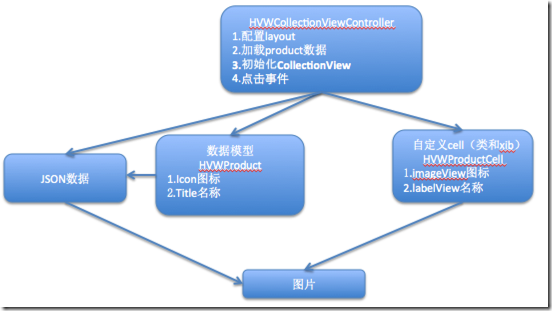
- 使用NSJSONSerialization解析JSON数据,得到装有字典数据的数组
- 字典转模型
- 自定义类
- xib设计
- 自定义类的初始化、方法设计
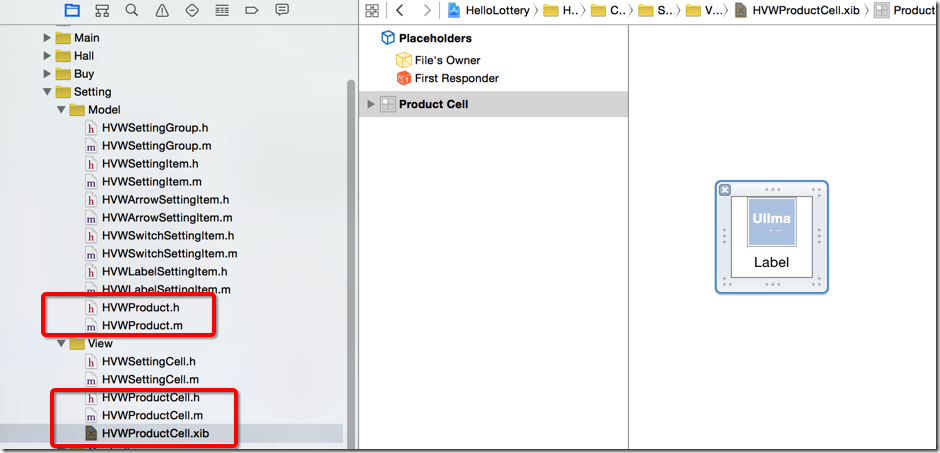
- 修改重用方法
- 在init方法中,设置cell的尺寸、水平间距、垂直间距
- 设置四周间距
  1 //

  2 //  HVWProductViewController.m

  3 //  HelloLottery

  4 //

  5 //  Created by hellovoidworld on 15/1/7.

  6 //  Copyright (c) 2015年 hellovoidworld. All rights reserved.

  7 //

  8

  9 #import "HVWProductViewController.h"

 10 #import "HVWProduct.h"

 11 #import "HVWProductCell.h"

 12

 13 @interface HVWProductViewController ()

 14

 15 /** 数据 */

 16 @property(nonatomic, strong) NSArray *products;

 17

 18 @end

 19

 20 @implementation HVWProductViewController

 21

 22 static NSString * const reuseIdentifier = @"HVWProductCell";

 23

 24 - (void)viewDidLoad {

 25     [super viewDidLoad];

 26

 27     // 1.Register cell classes 注册cell,要使用哪个CollectionViewCell

 28     UINib *nib = [UINib nibWithNibName:@"HVWProductCell" bundle:[NSBundle mainBundle]];

 29     [self.collectionView registerNib:nib forCellWithReuseIdentifier:reuseIdentifier];

 30

 31     // 2.设置背景色

 32     self.collectionView.backgroundColor = [UIColor whiteColor];

 33 }

 34

 35 - (void)didReceiveMemoryWarning {

 36     [super didReceiveMemoryWarning];

 37     // Dispose of any resources that can be recreated.

 38 }

 39

 40 /** 加载JSON数据 */

 41 - (NSArray *)products {

 42     if (nil == _products) {

 43         // 1.读取json

 44         NSString *jsonPath = [[NSBundle mainBundle] pathForResource:@"more_project.json" ofType:nil];

 45

 46         // 2.加载数据

 47         NSData *data = [NSData dataWithContentsOfFile:jsonPath];

 48

 49         // 3.将json数据转成数组、字典,使用一个json工具类

 50         NSArray *dictArray = [NSJSONSerialization JSONObjectWithData:data options:NSJSONReadingMutableContainers error:nil];

 51

 52         // 4.字典转模型

 53         NSMutableArray *productArray = [NSMutableArray array];

 54         for (NSDictionary *dict in dictArray) {

 55             HVWProduct *product = [HVWProduct productWithDictionary:dict];

 56             [productArray addObject:product];

 57         }

 58

 59         _products = productArray;

 60     }

 61     return _products;

 62 }

 63

 64 /** 初始化,配置布局 */

 65 - (instancetype)init {

 66     // 1.使用流水布局

 67     UICollectionViewFlowLayout *layout = [[UICollectionViewFlowLayout alloc] init];

 68

 69     // 2.设置cell尺寸

 70     layout.itemSize = CGSizeMake(80, 80);

 71

 72     // 3.设置cell水平间距

 73     layout.minimumInteritemSpacing = 0;

 74

 75     // 4.设置cell垂直间距

 76     layout.minimumLineSpacing = 10;

 77

 78     // 5.设置四周边距

 79     layout.sectionInset = UIEdgeInsetsMake(layout.minimumLineSpacing, 0, 0, 0);

 80

 81     // 6.配置布局方式

 82     return [super initWithCollectionViewLayout:layout];

 83 }

 84

 85

 86

 87 #pragma mark <UICollectionViewDataSource>

 88

 89 - (NSInteger)numberOfSectionsInCollectionView:(UICollectionView *)collectionView {

 90     return 1;

 91 }

 92

 93

 94 - (NSInteger)collectionView:(UICollectionView *)collectionView numberOfItemsInSection:(NSInteger)section {

 95     return self.products.count;

 96 }

 97

 98 - (UICollectionViewCell *)collectionView:(UICollectionView *)collectionView cellForItemAtIndexPath:(NSIndexPath *)indexPath {

 99

100     // 1.获得cell

101     HVWProductCell *cell = [collectionView dequeueReusableCellWithReuseIdentifier:reuseIdentifier forIndexPath:indexPath];

102

103     // 2.配置模型数据

104     cell.product = self.products[indexPath.item];

105

106     return cell;

107 }

108

109 #pragma mark <UICollectionViewDelegate>

110 /** 选择事件 */

111 - (void)collectionView:(UICollectionView *)collectionView didSelectItemAtIndexPath:(NSIndexPath *)indexPath {

112     HVWProduct *product = self.products[indexPath.item];

113     NSLog(@"选择了app: %@", product.title);

114 }

115

116 @end
// 创建URL
NSURL *url = [[NSBundle mainBundle] URLForResource:@”abc.html” withExtension:nil];
// 创建请求
NSURLRequest *request = [NSURLRequest requestWithURL:url];
// 发送请求加载网页
[webView loadRequest:request];
执行JavaScript(要等网页加载完毕才能执行)
[webView stringByEvaluatingJavaScriptFromString:js];
监听webView的加载
设置代理监听:webView.delegate = self;
 1 //

 2 //  HVWHelpViewController.m

 3 //  HelloLottery

 4 //

 5 //  Created by hellovoidworld on 15/1/7.

 6 //  Copyright (c) 2015年 hellovoidworld. All rights reserved.

 7 //

 8

 9 #import "HVWHelpViewController.h"

10 #import "HVWHtml.h"

11 #import "HVWArrowSettingItem.h"

12 #import "HVWSettingGroup.h"

13 #import "HVWHtmlViewController.h"

14 #import "HVWNavigationController.h"

15

16 @interface HVWHelpViewController ()

17

18 /** html数据 */

19 @property(nonatomic, strong) NSArray *htmls;

20

21 @end

22

23 @implementation HVWHelpViewController

24

25 - (void)viewDidLoad {

26     [super viewDidLoad];

27     // Do any additional setup after loading the view.

28

29     // 配置html数据

30     // 1.创建item

31     NSMutableArray *items = [NSMutableArray array];

32     for (HVWHtml *html in self.htmls) {

33         HVWSettingItem *item = [HVWArrowSettingItem itemWithTitle:html.title destinationViewControllerClass:nil];

34         [items addObject:item];

35     }

36

37     // 2.创建group

38     HVWSettingGroup *group = [[HVWSettingGroup alloc] init];

39     group.items = items;

40

41     // 3.配置到tableView

42     [self.data addObject:group];

43 }

44

45 /** 加载数据 */

46 - (NSArray *)htmls {

47     if (nil == _htmls) {

48         // 1.读取json

49         NSString *jsonPath = [[NSBundle mainBundle] pathForResource:@"help.json" ofType:nil];

50

51         // 2.解析json

52         NSData *jsonData = [NSData dataWithContentsOfFile:jsonPath];

53         NSArray *jsonArray = [NSJSONSerialization JSONObjectWithData:jsonData options:NSJSONReadingMutableContainers error:nil];

54

55         // 3.字典转模型

56         NSMutableArray *htmlArray = [NSMutableArray array];

57         for(NSDictionary *dict in jsonArray) {

58             HVWHtml *html = [HVWHtml htmlWithDictionary:dict];

59             [htmlArray addObject:html];

60         }

61         _htmls = htmlArray;

62

63     }

64     return _htmls;

65 }

66

67 - (void)didReceiveMemoryWarning {

68     [super didReceiveMemoryWarning];

69     // Dispose of any resources that can be recreated.

70 }

71

72

73 #pragma mark - 代理方法

74 /** cell点击跳转 */

75 - (void)tableView:(UITableView *)tableView didSelectRowAtIndexPath:(NSIndexPath *)indexPath {

76

77     HVWHtmlViewController *htmlViewController = [[HVWHtmlViewController alloc] init];

78     htmlViewController.html = self.htmls[indexPath.row];

79

80     /** 为了实现向上弹出效果,不使用push,而是用modal (present**);

81      *  使用NaviationController是为了配置一个头部导航栏

82      */

83     HVWNavigationController *nv = [[HVWNavigationController alloc] initWithRootViewController:htmlViewController];

84     [self.navigationController presentViewController:nv animated:YES completion:nil];

85 }

86

87 @end
 1 //

 2 //  HVWHtmlViewController.m

 3 //  HelloLottery

 4 //

 5 //  Created by hellovoidworld on 15/1/7.

 6 //  Copyright (c) 2015年 hellovoidworld. All rights reserved.

 7 //

 8

 9 #import "HVWHtmlViewController.h"

10 #import "HVWHtml.h"

11

12 @interface HVWHtmlViewController ()<UIWebViewDelegate>

13

14 @end

15

16 @implementation HVWHtmlViewController

17

18

19 - (void)loadView {

20     // 改变内置view为UIWebView

21     self.view = [[UIWebView alloc] init];

22 }

23

24 - (void)viewDidLoad {

25     [super viewDidLoad];

26     // Do any additional setup after loading the view.

27

28 }

29

30

31 /** 加载数据 */

32 - (void)setHtml:(HVWHtml *)html {

33     _html = html;

34

35     // 1.设置标题

36     self.title = self.html.title;

37

38     // 2.获取UIWebView

39     UIWebView *webView = (UIWebView *) self.view;

40     // 设置webView代理

41     webView.delegate = self;

42

43     // 3.创建URL

44     NSURL *url = [[NSBundle mainBundle] URLForResource:self.html.html withExtension:nil];

45

46     // 4.创建请求

47     NSURLRequest *request = [NSURLRequest requestWithURL:url];

48

49     // 5.发送请求

50     [webView loadRequest:request];

51

52     // 6.添加关闭按钮

53     self.navigationItem.leftBarButtonItem = [[UIBarButtonItem alloc] initWithTitle:@"关闭" style:UIBarButtonItemStylePlain target:self action:@selector(close)];

54 }

55

56 - (void)didReceiveMemoryWarning {

57     [super didReceiveMemoryWarning];

58     // Dispose of any resources that can be recreated.

59 }

60

61 - (void) close {

62     [self dismissViewControllerAnimated:YES completion:nil];

63 }

64

65 /** 加载html完毕,跳转到指定部分 */

66 - (void)webViewDidFinishLoad:(UIWebView *)webView {

67     // 1.合成js代码

68     NSString *js = [NSString stringWithFormat:@"window.location.href = '#%@';", self.html.ID];

69

70     // 2.执行js代码

71     [webView stringByEvaluatingJavaScriptFromString:js];

72 }

73

74 @end
[iOS UI进阶 - 2.2] 彩票Demo v1.2 UICollectionView基本的更多相关文章
- [iOS UI进阶 - 2.4] 彩票Demo v1.4 转盘动画
A.需求 幸运广场界面中有一个幸运转盘,平时能够自动缓缓转动 能够选择星座 点击“开始选号”开速旋转转盘,旋转一定周数 转盘转动速度节奏:开始-慢-块-慢-结束 设置其余的背景和按钮 code s ...
- [iOS UI进阶 - 2.0] 彩票Demo v1.0
A.需求 1.模仿“网易彩票”做出有5个导航页面和相应功能的Demo 2.v1.0 版本搭建基本框架 code source:https://github.com/hellovoidworld/H ...
- [iOS UI进阶 - 2.1] 彩票Demo v1.1
A.需求 1.优化项目设置 2.自定义导航栏标题按钮 3.多版本处理 4.iOS6和iOS7的适配 5.设置按钮背景 6.设置值UIBarButtonItem样式 code source: htt ...
- [iOS UI进阶 - 2.3] 彩票Demo v1.3
A.需求 真机调试 "关于”模块 存储开关状态 打电话.发短信 应用评分 打开其他应用 cell 在iOS6 和 iOS7的适配 block的循环引用 屏幕适配 code source: ...
- [iOS UI进阶 - 5.0] 手势解锁Demo
A.需求 1.九宫格手势解锁 2.使用了绘图和手势事件 code source: https://github.com/hellovoidworld/GestureUnlockDemo B ...
- [iOS UI进阶 - 4.0] 涂鸦app Demo
A.需求 1.超简易画图,只有一种画笔 2.清屏功能 3.回退功能 4.保存功能 5.使用了cocos2D code source: https://github.com/hellovoidwor ...
- [iOS UI进阶 - 0] Quiartz2D
A.简介 1. 需要掌握的 drawRect:方法的使用 常见图形的绘制:线条.多边形.圆 绘图状态的设置:文字颜色.线宽等 图形上下文状态的保存与恢复 图形上下文栈 1.基本图形绘制* 线段(线宽. ...
- iOS UI进阶-1.0 Quartz2D
概述 Quartz 2D是一个二维绘图引擎,同时支持iOS和Mac系统.Quartz 2D能完成的工作: 绘制图形 : 线条\三角形\矩形\圆\弧等 绘制文字 绘制\生成图片(图像) 读取\生成PDF ...
- UI进阶之--网易彩票手写plist文件,动态创建控制器与tableViewcell
点击右上角设置按钮 点击按钮后发生的事件:1. 控制器的跳转,进入新的控制器.view, 2. 跳转的时候对将要跳转的目标控制的子控件进行了布局.---通过手写plist文件的方式加载 为按钮注册单击 ...
随机推荐
- [51NOD1105]第k大的数(二分答案)
题目链接:http://www.51nod.com/onlineJudge/questionCode.html#!problemId=1105 先排序,二分上下界分别是最小的两个数和最大的两个数的乘积 ...
- bzoj3931: [CQOI2015]网络吞吐量
将最短路图找出来,跑maxflow即可.有注意到数据范围.然后输出的时候%dWA了三次QAQ... #include<cstdio> #include<cstring> #in ...
- bzoj1834: [ZJOI2010]network 网络扩容
努力看了很久样例一直过不了...然后各种输出中间过程啊巴拉巴拉弄了1h,没办法了...然后突然想到啊原来的边可以用啊为什么不用...于是A了...感人肺腑 #include<cstdio> ...
- bzoj1863: [Zjoi2006]trouble 皇帝的烦恼
白书原题.l边界又设错啦.一般都是错这里吧.注意为什么这里不能是l=0.(只是为了判断第一个和最后一个 #include<cstdio> #include<cstring> # ...
- [反汇编练习]160个CrackMe之001
[反汇编练习] 160个CrackMe之001. 本系列文章的目的是从一个没有任何经验的新手的角度(其实就是我自己),一步步尝试将160个CrackMe全部破解,如果可以,通过任何方式写出一个类似于注 ...
- apache开源项目 -- Tuscany
tuscany是Apache组织关于SOA实现的一个开放源码的工程项目,目前处于孵化期阶段. 该项目主要基于SCA,SDO,DAS等技术上实现的. SCA 的基本概念以及 SCA 规范的具体内容并不在 ...
- 对于随机变量的标准差standard deviation、样本标准差sample standard deviation、标准误差standard error的解释
参考:http://blog.csdn.net/ysuncn/article/details/1749729
- hdu 1211 RSA
// 表示题目意思我是理解了蛮久 英语太水了 //首先这是解密公式 m=c^d mod n// 给你 p q e 然后 n=p*q fn=(p-1)*(q-1)// 给你 e,根据公式 e*d mod ...
- iwpriv工具通过ioctl动态获取相应无线网卡驱动的private_args所有扩展参数
iwpriv工具通过ioctl动态获取相应无线网卡驱动的private_args所有扩展参数 iwpriv是处理下面的wlan_private_args的所有扩展命令,iwpriv的实现上,是这样的, ...
- PIG的配置
Pig是一个客户端应用程序,就算你要在Hadoop集群上运行Pig,也不需要在集群上装额外的东西.Pig的配置非常简单: 1.下载pig,网址http://pig.apache.org/ 2.在机器上 ...