
基于 HTML5 Canvas 的可交互旋钮组件
前言
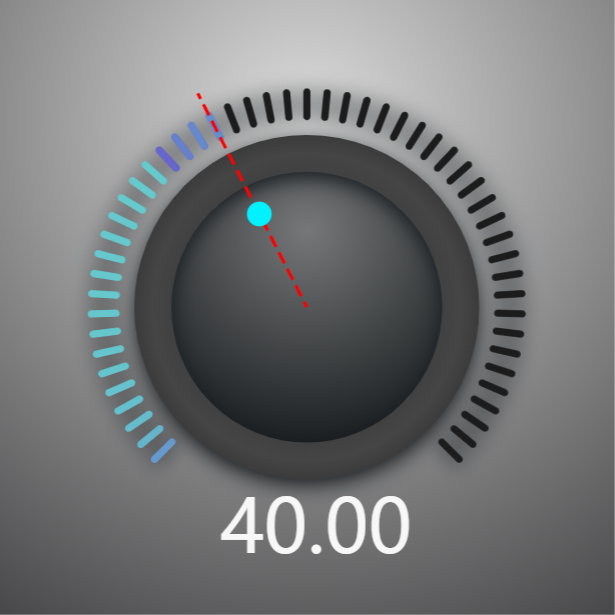
此次的 Demo 效果如下:
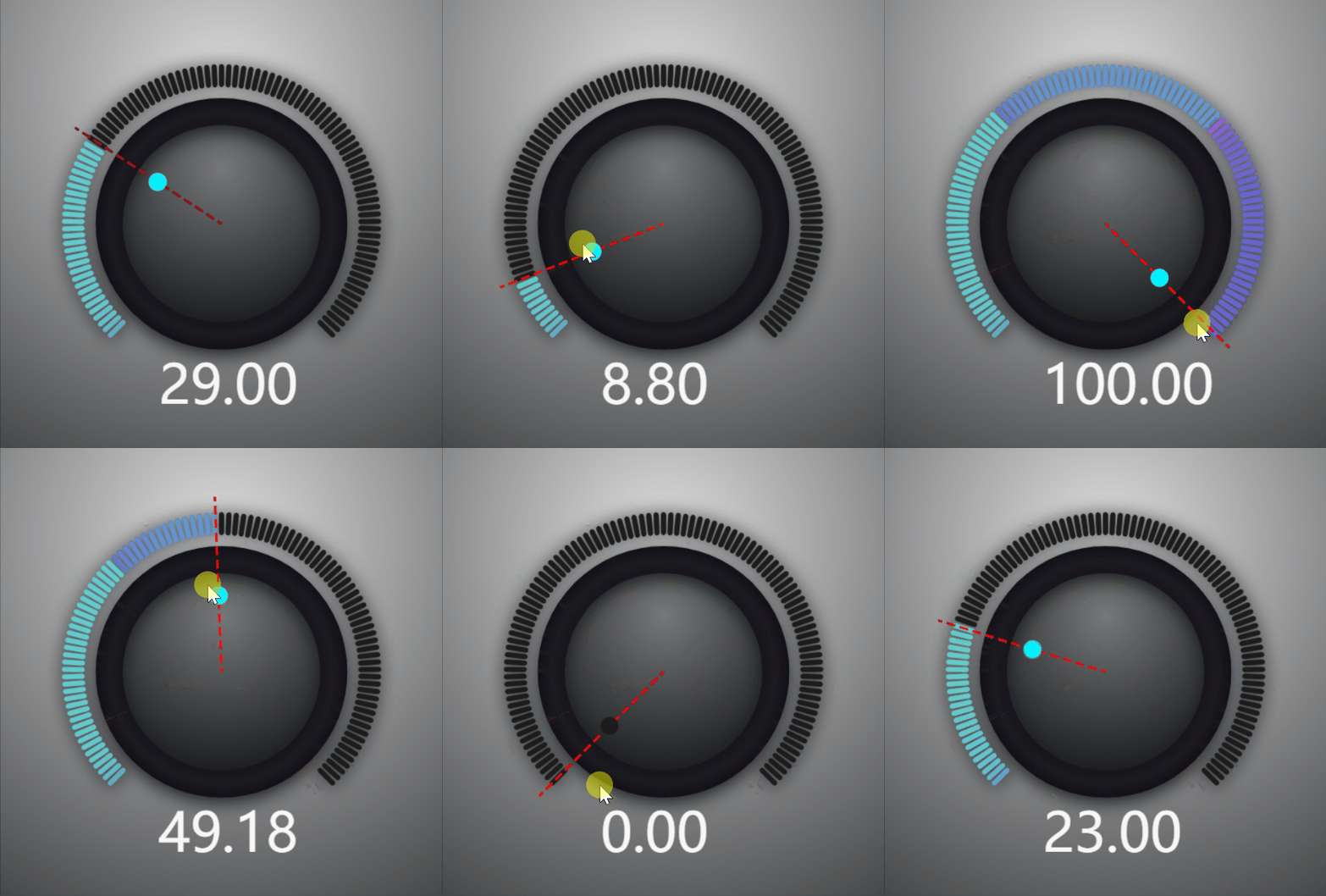
Demo 链接:https://hightopo.com/demo/comp-knob/
整体思路
- 组件参数
- 绘制旋钮
- 绘制刻度
- 绘制指针
- 绘制标尺
- 绘制文本
- 交互效果
1.组件参数
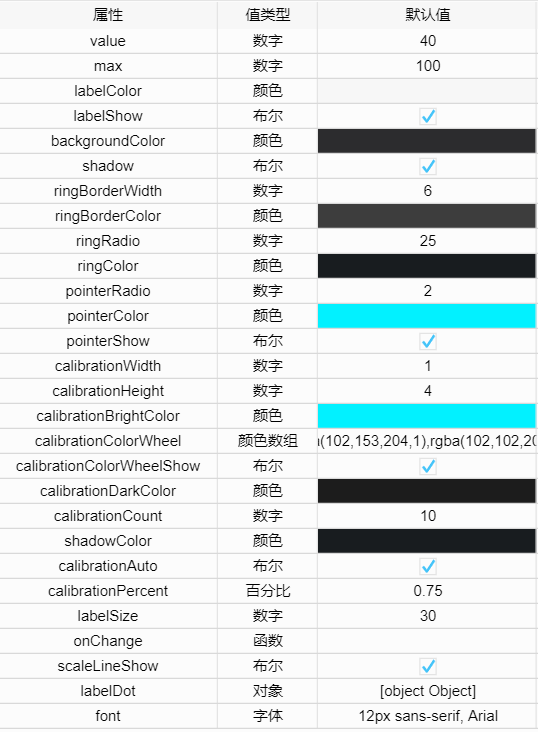
以下是下文会使用到的部分变量,在此先贴出来
var origin, // 原点

    percent, // 显示刻度占总刻度的百分比

    partAngle, // 每个刻度所占的角度

    startAngle, //刻度起始的角度

    calibrationPoints, // 每个刻度的信息

    pointer, // 指针的信息

    scaleLine, // 标尺的信息

    calibrationColors // 刻度渐变色
2.绘制旋钮
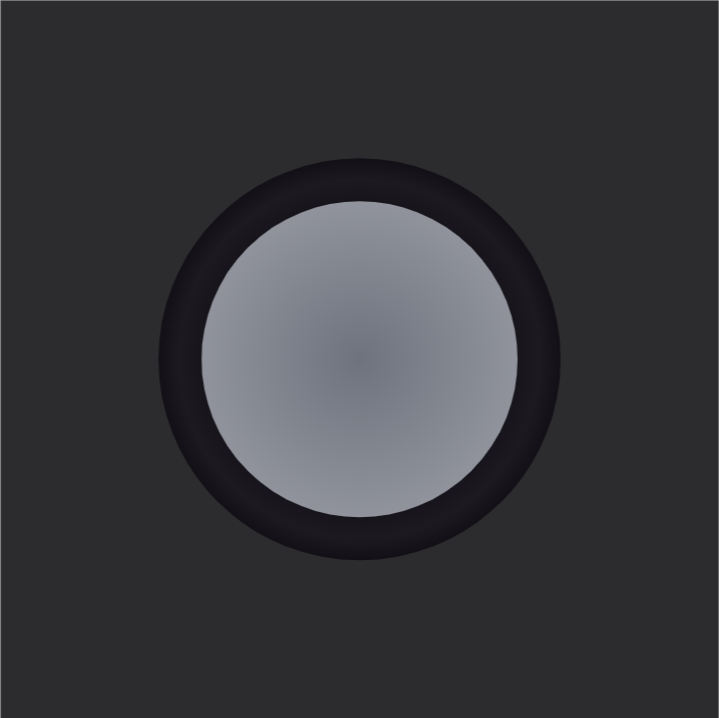
这里主要就使用了 canvas api 中的 arc() 和 createRadialGradient() 。
主要代码:
g.beginPath();

var ringRadial = g.createRadialGradient(origin.x, origin.y, , origin.x, origin.y, ringRadio);

ringRadial.addColorStop(, ht.Default.brighter(ringColor, ));

ringRadial.addColorStop(0.95, ht.Default.brighter(ringColor, ));

ringRadial.addColorStop(, ht.Default.darker(ringColor, ));

var borderRadial = g.createRadialGradient(origin.x, origin.y, ringRadio - ringBorderWidth / , origin.x, origin.y, ringRadio + ringBorderWidth / );

borderRadial.addColorStop(, ht.Default.brighter(ringBorderColor, ));

borderRadial.addColorStop(0.5, ht.Default.brighter(ringBorderColor, ));

borderRadial.addColorStop(, ht.Default.darker(ringBorderColor, ));

g.fillStyle = ringRadial;

g.lineWidth = ringBorderWidth;

g.strokeStyle = borderRadial;

g.arc(origin.x, origin.y, ringRadio, ,  * Math.PI);

g.closePath();

g.fill();

g.stroke();
效果图:
3.绘制刻度
这里绘制每个刻度采用的是绘制路径的方法,所以声明了一个变量 calibrationPoints 用来存放每个刻度的起始点坐标,根据配置的参数去计算 calibrationPoints 的信息。
首先根据参数 calibrationPercent 计算第一个刻度的起始角度 startAngle ,然后根绝 calibrationCount 的值去计算每个刻度所占用的角度 partAngle ,最后根据三角函数和相应的角度,转化为对应的坐标。
主要代码:
var calibrationPoints = [];

for (var i = ; i < calibrationCount + ; i++) {

    var point = {

        startx: origin.x + (ringRadio + ringBorderWidth +  * calibrationHeight) * Math.cos(startAngle - i * partAngle),

        starty: origin.y - (ringRadio + ringBorderWidth +  * calibrationHeight) * Math.sin(startAngle - i * partAngle),

        endx: origin.x + (ringRadio + ringBorderWidth +  * calibrationHeight) * Math.cos(startAngle - i * partAngle),

        endy: origin.y - (ringRadio + ringBorderWidth +  * calibrationHeight) * Math.sin(startAngle - i * partAngle)

    };

    if (i <= (calibrationCount * percent) && percent > ) {

        point.show = true;

    } else {

        point.show = false;

    }

    calibrationPoints.push(point);

}
有了每个刻度的信息后,接下来就开始绘制刻度。
主要代码:
calibrationPoints.forEach(function (i, index) {

    g.beginPath();

    if (calibrationColorWheelShow) {

        calibrationBrightColor = calibrationColors[index];

    }

    g.lineWidth = 1.2 * calibrationWidth;

    g.strokeStyle = i.show ? calibrationBrightColor : ht.Default.brighter(calibrationDarkColor, );

    g.moveTo(i.startx, i.starty);

    g.lineTo(i.endx, i.endy);

    g.closePath();

    g.stroke();

})

calibrationPoints.forEach(function (i, index) {

    g.beginPath();

    if (calibrationColorWheelShow) {

        calibrationBrightColor = calibrationColors[index];

    }

    g.lineWidth = calibrationWidth;

    g.strokeStyle = i.show ? calibrationBrightColor : calibrationDarkColor;

    g.moveTo(i.startx, i.starty);

    g.lineTo(i.endx, i.endy);

    g.closePath();

    g.stroke();

})
效果图:
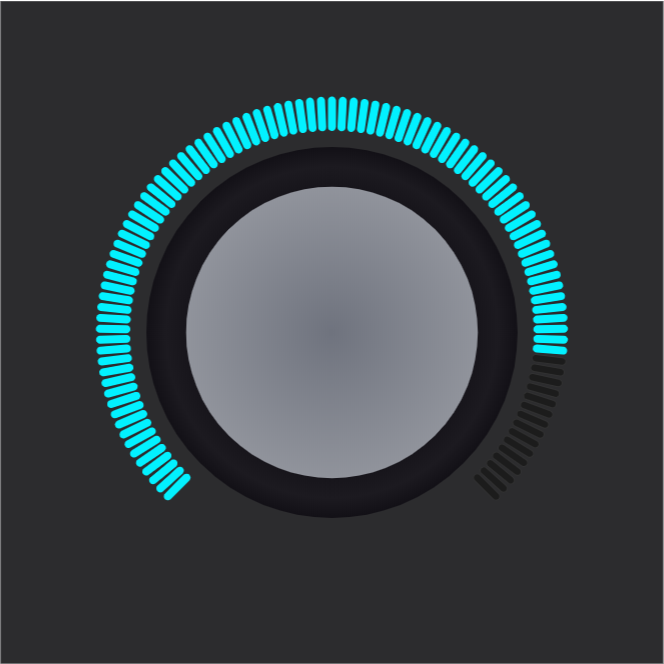
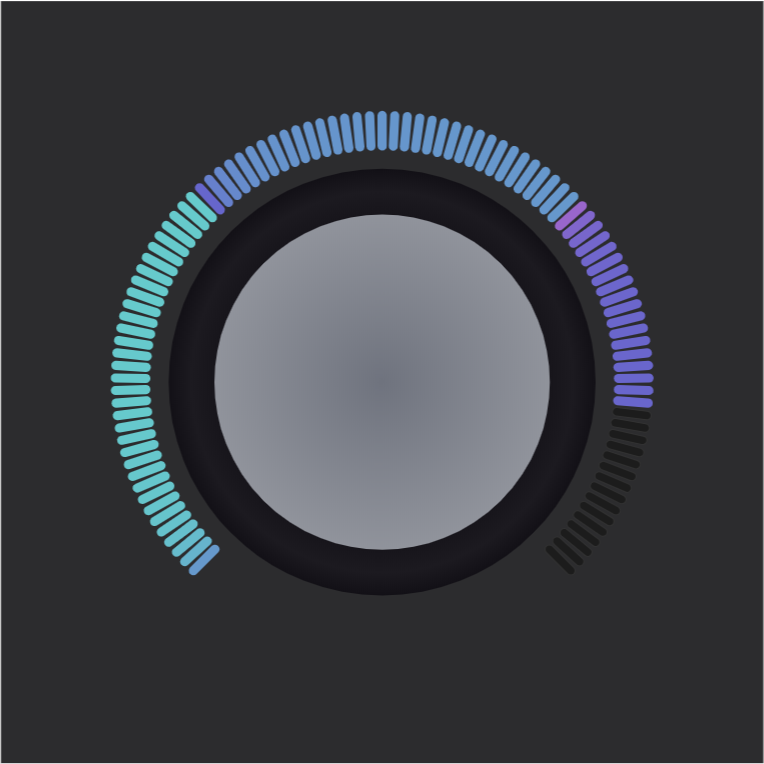
考虑到一种高亮颜色太单调,于是加了个色轮。思路:给每个刻度都添加了颜色的标识。
每个刻度的颜色计算方法:把颜色值转换成 rgb 方式,设定多少秒改变完成,每次改变多少值,计算需要多少次,比如 rba(x,y,z) 到 rgb(a,b,c),假设需要 100 次,那么每次设定 rgb((a - x) / 100 + x, (b - y) / 100 + y, (c - z) / 100 + z) 。
主要代码:
if (calibrationColorWheelShow) { // 显示刻度色轮

    var colors = [];

    calibrationColorWheel.forEach(function (i) {

        colors.push(ht.Default.toColorData(i))

    })

    // 把颜色值转换成rgb方式,设定多少秒改变完成,每次改变多少值,计算需要多少次

    // ,比如rba(x,y,z)到rgb(a,b,c),假设需要100次,那么每次设定

    // rgb((a-x)/100+x,(b-y)/100+y,(c-z)/100+z)

    var count = Math.ceil(calibrationCount / (calibrationColorWheel.length - )); // 渐变次数

    calibrationColors = [];

    for (var i = ; i < colors.length - ; i++) {

        for (var j = ; j <= count; j++) {

            var item = 'rgb('

                + Math.round((colors[i + ][] - colors[i][]) / j + colors[i][])

                + ','

                + Math.round((colors[i + ][] - colors[i][]) / j + colors[i][])

                + ','

                + Math.round((colors[i + ][] - colors[i][]) / j + colors[i][])

                + ')';

            calibrationColors.push(item)

        }

    }

}
效果图:
4.绘制指针
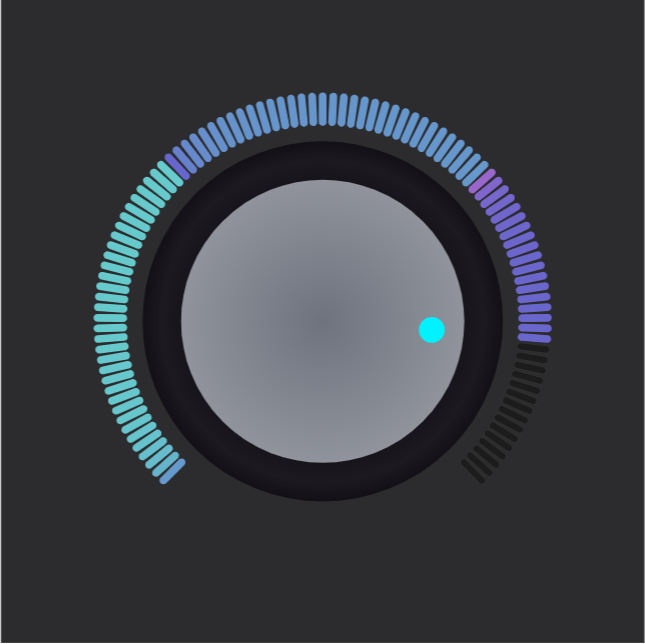
这个主要是根据三角函数去计算相对圆心的偏移角度,按照当前值和刻度最大值的比例来计算偏移量,然后换算成对应的坐标。
主要代码:
pointer = {

    x: origin.x + (ringRadio - pointerRadio - ringBorderWidth) * Math.cos(startAngle - Math.PI *  * calibrationPercent * percent),

    y: origin.y - (ringRadio - pointerRadio - ringBorderWidth) * Math.sin(startAngle - Math.PI *  * calibrationPercent * percent),

    r: pointerRadio,

    color: percent >  ? calibrationBrightColor : calibrationDarkColor,

    show: true,

}

if (pointerShow) {

    g.beginPath();

    g.fillStyle = pointer.color;

    g.arc(pointer.x, pointer.y, pointer.r, , Math.PI * );

    g.closePath();

    g.fill();

}
效果图:
5.绘制标尺
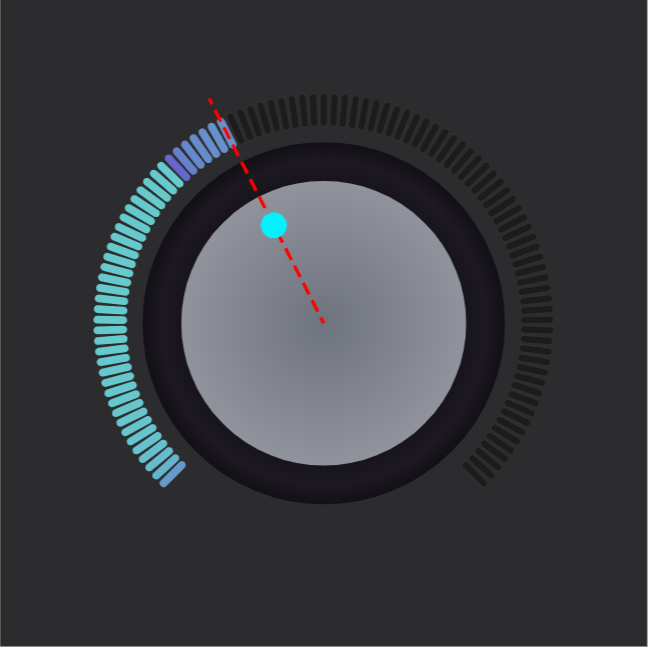
计算标尺角度的算法同指针。
主要代码:
scaleLine = {

    startx: origin.x,

    starty: origin.y,

    endx: origin.x + (ringRadio + ringBorderWidth + 2 * calibrationHeight) * Math.cos(startAngle - Math.PI * 2 * calibrationPercent * percent),

    endy: origin.y - (ringRadio + ringBorderWidth + 2 * calibrationHeight) * Math.sin(startAngle - Math.PI * 2 * calibrationPercent * percent),

    color: percent > 0 ? calibrationBrightColor : calibrationDarkColor,

    show: scaleLineShow,

}

if (scaleLine) {

    g.beginPath();

    g.strokeStyle = 'red';

    g.setLineDash([1, 2]);

    g.lineWidth = 0.5 * calibrationWidth;

    g.moveTo(scaleLine.startx, scaleLine.starty);

    g.lineTo(scaleLine.endx, scaleLine.endy);

    g.closePath();

    g.stroke();

}
效果图:
6.绘制文本
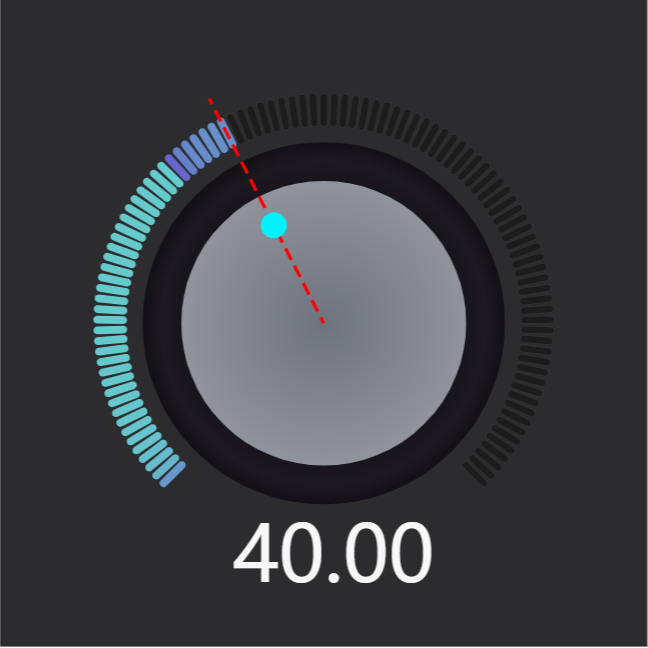
这里主要的就是确定文本所要绘制的位置,然后根据 ht.Default.getTextSize() 来获取文本长度,方便设置文本居中。
主要代码:
if (labelShow) {

    var text = ht.Default.getTextSize(font, value);

    g.fillStyle = labelColor;

    g.font = font;

    g.fillText(value.toFixed(2), labelDot.x, labelDot.y);

}
效果图:
到这就完成了基本的旋钮组件,下面继续做一些细节上的优化。
例如加一些阴影效果,颜色渐变,配色调整等。
主要代码:
var backgroundRadial = g.createRadialGradient(x + 0.5 * width, y + 0.2 * height, 0, x + 0.5 * width, y + 0.2 * height, Math.sqrt(Math.pow(width / 2, 2) + Math.pow(height, 2)));

backgroundRadial.addColorStop(0, 'rgba(220,220,220,1)');

backgroundRadial.addColorStop(1, backgroundColor);

g.fillStyle = backgroundRadial;

g.fillRect(x, y, width, height);

g.beginPath();

var ringRadial = g.createRadialGradient(origin.x, origin.y - ringRadio / 2, 0, origin.x, origin.y - ringRadio / 2, 1.5 * ringRadio);

ringRadial.addColorStop(0, ht.Default.brighter(ringColor, 40));

// ringRadial.addColorStop(0.25, ht.Default.brighter(ringColor, 40));

ringRadial.addColorStop(1, ht.Default.darker(ringColor, 20));

var borderRadial = g.createRadialGradient(origin.x, origin.y, ringRadio - ringBorderWidth / 2, origin.x, origin.y, ringRadio + ringBorderWidth / 2);

borderRadial.addColorStop(0, ht.Default.brighter(ringBorderColor, 2));

borderRadial.addColorStop(0.5, ht.Default.brighter(ringBorderColor, 4));

borderRadial.addColorStop(1, ht.Default.darker(ringBorderColor, 4));

g.fillStyle = ringRadial;

g.lineWidth = ringBorderWidth;

g.strokeStyle = borderRadial;

g.arc(origin.x, origin.y, ringRadio, 0, 2 * Math.PI);

g.closePath();

g.fill();

g.shadowBlur = 20;

g.shadowColor = shadowColor;

g.shadowOffsetY = ringBorderWidth;

g.stroke();

g.shadowBlur = 0;

g.shadowOffsetY = 0;
效果图:
7.交互效果
以上就是绘制好了一张静态图,最后就只要再加上一些交互效果就可以了。
这里我采用的是 HT for Web 的矢量来实现。可参考 → 戳这
监听 onUp 和 onDraw 事件。
onUp:
当鼠标抬起时,获取当前旋钮显示的值,然后四舍五入,取其最近的刻度校准,使用 ht.Default.startAnim() 添加动画效果。
onDraw:
根据当前鼠标停留的位置,以旋钮原点为参照点,根据三角函数来计算指针和起始刻度的夹角 A ,计算 A 占总刻度的百分比 p ,然后设置当前值为 max * p 。
最后使用 HT 实现:
var gv = new ht.graph.GraphView();

      dm = gv.dm();

      dm.a('pannable', true);

      dm.a('zoomable', true);

      dm.a('rectSelectable', true);

      ht.Default.setCompType('knob',func); //注册组件

      ht.Default.setImage('iconKnob', data); //注册图片

var node = new ht.Node();

      node.setImage('iconKnob');

      node.s('2d.movable', false);

      dm.add(node);

      gv.fitContent();

      gv.addToDOM();

      window.addEventListener(

        'resize',

        function(e) {

          gv.invalidate();

          gv.fitContent();

        },

        false

      );
基于 HTML5 Canvas 的可交互旋钮组件的更多相关文章
- 基于HTML5 Canvas实现用户交互
很多人都有这样的疑问,基于HTML5 Canvas实现的元素怎么和用户进行交互?在这里我们用到HT for Web(http://www.hightopo.com/guide/guide/core/b ...
- 基于html5 Canvas图表库 : ECharts
ECharts开源来自百度商业前端数据可视化团队,基于html5 Canvas,是一个纯Javascript图表库,提供直观,生动,可交互,可个性化定制的数据可视化图表.创新的拖拽重计算.数据视图.值 ...
- 基于 HTML5 Canvas 的智能安防 SCADA 巡逻模块
基于 HTML5 Canvas 的智能安防 SCADA 巡逻模块 前言 最近学习了 HT for Web flow 插件,除了正常的 flow 效果,其中还有两个十分好用的两个接口 getPercen ...
- 基于HTML5 Canvas和jQuery 的绘图工具的实现
简单介绍 HTML5 提供了强大的Canvas元素.使用Canvas并结合Javascript 能够实现一些很强大的功能.本文就介绍一下基于HTML5 Canvas 的绘图工具的实现.废话少说,先看成 ...
- 基于HTML5 Canvas实现的图片马赛克模糊特效
效果请点击下面网址: http://hovertree.com/texiao/html5/1.htm 一.开门见山受美国肖像画家Chuck Close的启发,此脚本通过使用HTML5 canvas元素 ...
- 基于html5 canvas和js实现的水果忍者网页版
今天爱编程小编给大家分享一款基于html5 canvas和js实现的水果忍者网页版. <水果忍者>是一款非常受喜欢的手机游戏,刚看到新闻说<水果忍者>四周年新版要上线了.网页版 ...
- 基于HTML5 Canvas的线性区域图表教程
之前我们看到过很多用jQuery实现的网页图表,有些还是比较实用的.今天我们来介绍一款基于HTML5 Canvas的线性区域图表应用,这个图表应用允许你使用多组数据来同时展示,并且将数据结果以线性图的 ...
- 基于HTML5 Canvas的网页画板实现教程
HTML5的功能非常强大,尤其是Canvas的应用更加广泛,Canvas画布上面不仅可以绘制任意的图形,而且可以实现多种多样的动画,甚至是一些交互式的应用,比如网页网版.这次我们要来看的就是一款基于H ...
- 基于html5 canvas 的客户端异步上传图片的插件,支持客户端压缩图片尺寸
/** * Created by xx on 15-05-28. * 基于html5 canvas 的客户端异步上传画片的插件 * 在实际应用中,常常要用于上传图片的功能.在现在越来越多的手机weba ...
随机推荐
- 如何打造VUCA时代的敏捷型组织?
王明兰 --原华为.微软创新与转型教练.华为云SaaS产品总监,著名精益&敏捷转型专家 VUCA最早来源于冷战时期,在现代世界意指商业世界越来越不确定性,越来越易变,越来越不可预测,我们已经进 ...
- SpringBoot实现文件上传
前言参考:快速开发第一个SpringBoot应用 这篇文章会讲解如何使用SpringBoot完成一个文件上传的过程,并且附带一些SpringBoot开发中需要注意的地方 首先我们写一个文件上传的htm ...
- Spark学习之路(一)—— Spark简介
一.简介 Spark于2009年诞生于加州大学伯克利分校AMPLab,2013年被捐赠给Apache软件基金会,2014年2月成为Apache的顶级项目.相对于MapReduce的批处理计算,Spar ...
- Python笔记【2】_列表学习
#!/usr/bin/env/python #-*-coding:utf-8-*- #Author:LingChongShi #查看源码Ctrl+左键 #字符串:通常有单引号“'”.双引号“" ...
- 配置Python虚拟环境
最小化安装的centos7中并没有安装python3 1.安装python3 1)下载安装包: wget https://www.python.org/ftp/python/3.6.2/Python- ...
- AlwaysOn 执行备份任务
备份 使用维护计划向导创建备份 启动维护计划向导 填入计划名称,选择每项任务单独计划 选择完整备份和清除任务 配置完整备份任务,选择备份数据库 设置备份文件保存位置, 指定压缩备份,设置执行计划时间为 ...
- Python入门基础(2)
如果你是博客园团队,,看到不符合您们要求的地方可否指出来?不要你不符合要求,然后我不符合哪项要求?是要我自己去找么? python条件语句 首先介绍的是if语句,python中的if语句格式如下: i ...
- 使用kubectl管理k8s集群(二十九)
前言 在搭建k8s集群之前,我们需要先了解下kubectl的使用,以便在集群部署出现问题时进行检查和处理.命令和语法记不住没有关系,但是请记住主要的语法和命令以及帮助命令的使用. 在下一篇,我们将讲述 ...
- CDQZ集训DAY1 日记
爆炸的一天…… 上午考试,然而一道题都没想出正解. T1刚看到题就想到数位DP,然后有感觉是反演,然后读完题之后又觉得是数位DP,发现最后只关注最后9位打了一个类似数位DP的爆搜.期望20分,实际10 ...
- Python重试模块retrying
Python重试模块retrying 工作中经常碰到的问题就是,某个方法出现了异常,重试几次.循环重复一个方法是很常见的.比如爬虫中的获取代理,对获取失败的情况进行重试. 刚开始搜的几个博客讲的有点问 ...