
创建Windows Service
基本参照使用C#创建Windows服务,添加了部分内容
目录
概念
创建Windows Service
可视化管理Windows Service
调试
示例代码
概念
Windows服务是运行在windows后台指定用户下(默认System)的应用程序,它没有标准的UI界面
可以设置服务是否与操作系统一起启动,一起关闭。支持三种方式:1)自动启动2)手动启动3)禁用
创建Windows Service
选择C#标签的Windows Service项目,并创建
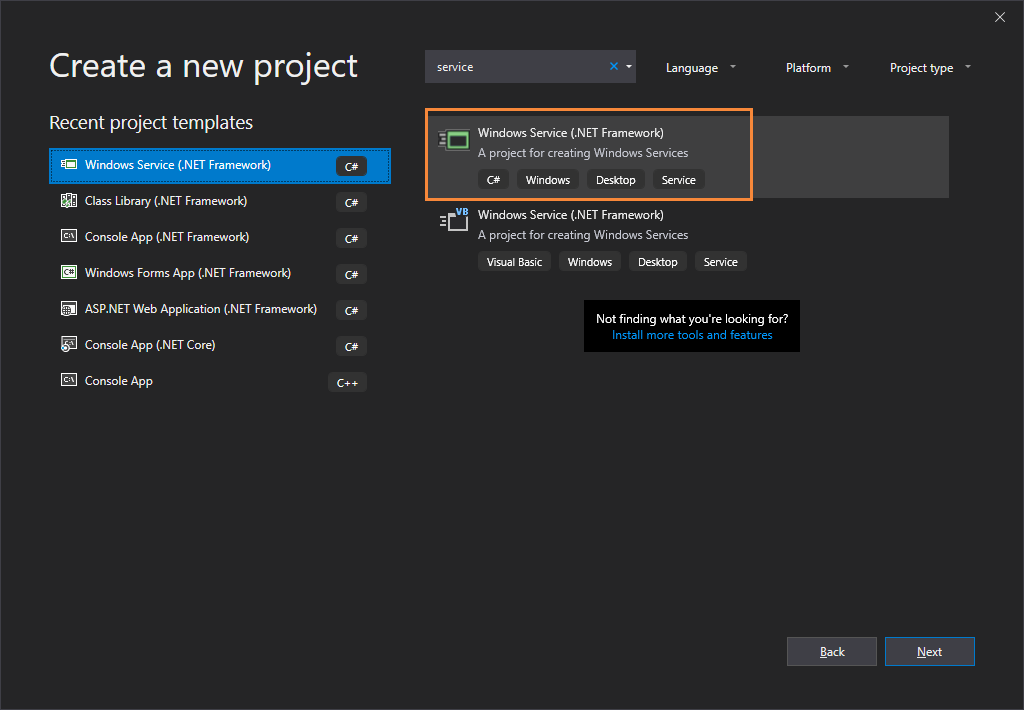

初始结构目录如下

修改Service1为TimingService
双击TimingService.cs,如图所示
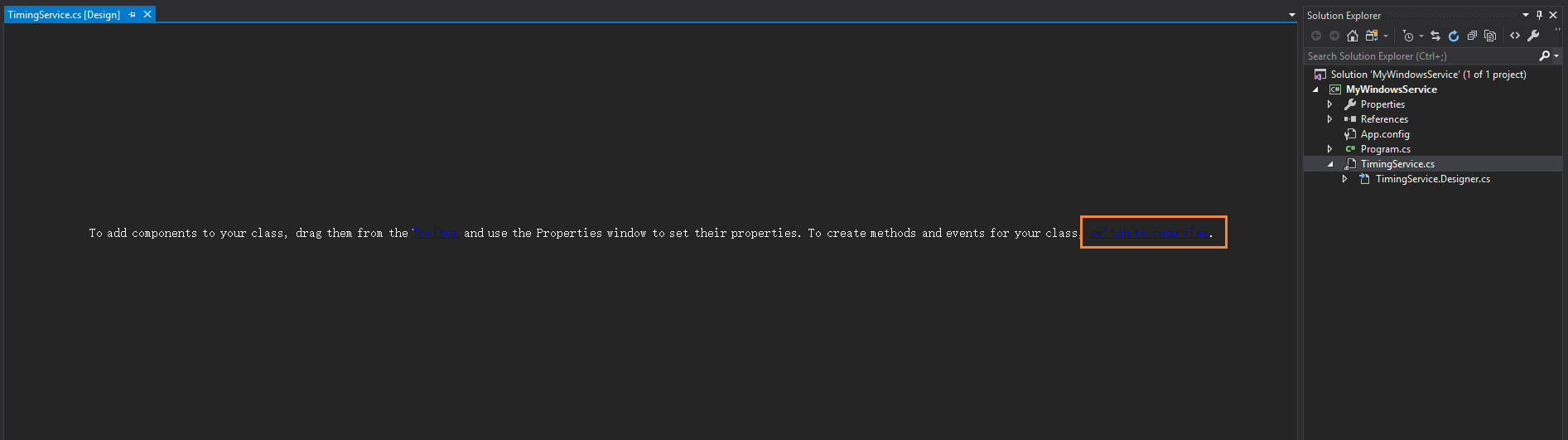
点击末尾的switch to code view进入代码编辑页面
public partial class TimingService : ServiceBase

{

	public TimingService()

	{

		InitializeComponent();

	}

	protected override void OnStart(string[] args)

	{

	}

	protected override void OnStop()

	{

	}

}
在OnStart和OnStop方法中写上服务启动、停止需要完成的工作
这里我们写一个计时器,每分钟录入一条日志,在此不赘述,可以看示例代码了解
在设计界面右键菜单栏,点击Add Installer

出现两个组件,serviceProcessInstaller1和serviceInstaller1,对它们的属性进行修改
serviceInstaller1

ServiceName改为TimingService,是在windows service列表里面的服务名称
Description改为"一个计时器",这里设置的是在windows service列表里面的服务描述
StartType默认为Manual(手动)
相关资料:
ServiceInstaller Class
serviceProcessInstaller1
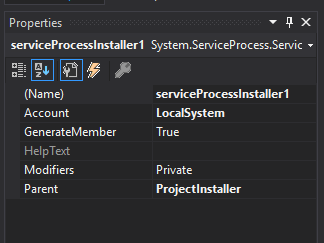
将Account改为LocalSystem
右键项目点击生成,在\bin\Debug目录下生成MyWindowsService.exe
至此,Windows Service创建完毕
相关资料:
ServiceProcessInstaller Class
可视化管理Windows Service
创建一个Windows Form项目MyWindowsService.Client

在窗体内添加四个按钮,分别为安装服务、启动服务、停止服务及卸载服务

引入System.ServiceProcess.dll和System.Configuration.Install.dll,完善相关功能
//需要引用MyWindowsService项目

string serviceFilePath = $"{Application.StartupPath}\\MyWindowsService.exe";

//这里是设置的serviceName,不是项目名称或者生成的exe的名称

string serviceName = "TimingService";

/// <summary>

/// 安装服务

/// </summary>

/// <param name="sender"></param>

/// <param name="e"></param>

private void InstallButton_Click(object sender, EventArgs e)

{

	if (this.IsServiceExisted(serviceName))

		this.UninstallService(serviceName);

	this.InstallService(serviceFilePath);

}

/// <summary>

/// 启动服务

/// </summary>

/// <param name="sender"></param>

/// <param name="e"></param>

private void StartButton_Click(object sender, EventArgs e)

{

	if (this.IsServiceExisted(serviceName))

		this.ServiceStart(serviceName);

}

/// <summary>

/// 停止服务

/// </summary>

/// <param name="sender"></param>

/// <param name="e"></param>

private void StopButton_Click(object sender, EventArgs e)

{

	if (this.IsServiceExisted(serviceName)) this.ServiceStop(serviceName);

}

/// <summary>

/// 卸载服务

/// </summary>

/// <param name="sender"></param>

/// <param name="e"></param>

private void UninstallButton_Click(object sender, EventArgs e)

{

	if (this.IsServiceExisted(serviceName))

	{

		this.ServiceStop(serviceName);

		this.UninstallService(serviceFilePath);

	}

}

//判断服务是否存在

private bool IsServiceExisted(string serviceName)

{

	ServiceController[] services = ServiceController.GetServices();

	foreach (ServiceController sc in services)

	{

		if (sc.ServiceName.ToLower() == serviceName.ToLower())

		{

			return true;

		}

	}

	return false;

}

//安装服务

private void InstallService(string serviceFilePath)

{

	using (AssemblyInstaller installer = new AssemblyInstaller())

	{

		installer.UseNewContext = true;

		installer.Path = serviceFilePath;

		IDictionary savedState = new Hashtable();

		installer.Install(savedState);

		installer.Commit(savedState);

	}

}

//卸载服务

private void UninstallService(string serviceFilePath)

{

	using (AssemblyInstaller installer = new AssemblyInstaller())

	{

		installer.UseNewContext = true;

		installer.Path = serviceFilePath;

		installer.Uninstall(null);

	}

}

//启动服务

private void ServiceStart(string serviceName)

{

	using (ServiceController control = new ServiceController(serviceName))

	{

		if (control.Status == ServiceControllerStatus.Stopped)

		{

			control.Start();

		}

	}

}

//停止服务

private void ServiceStop(string serviceName)

{

	using (ServiceController control = new ServiceController(serviceName))

	{

		if (control.Status == ServiceControllerStatus.Running)

		{

			control.Stop();

		}

	}

}
为了后续管理服务方便,在MyWindowsService.Client引用MyWindowsService
获得管理员权限
需要使用Administrator的权限才能安装服务
在MyWindowsService.Client项目中右键添加文件应用程序清单

将原来的内容
<requestedExecutionLevel level="asInvoker" uiAccess="false" />
改为下面的内容
<requestedExecutionLevel level="requireAdministrator" uiAccess="false" />
以管理员身份启动程序的相关资料:
How do I force my .NET application to run as administrator?
之后重新生成MyWindowsService.Client,在\bin\Debug文件夹下打开MyWindowsService.Client.exe
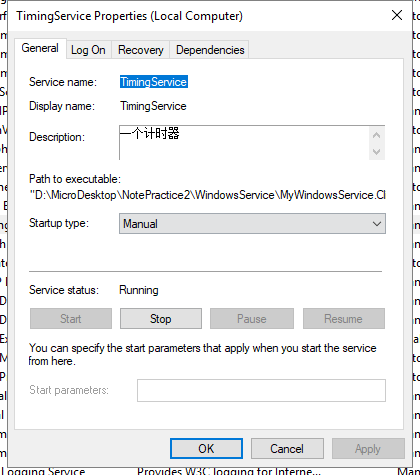
使用MyWindowsService.Client.exe安装并启动MyWindowsService.exe

可以右键服务点击属性进行管理
调试
很多种方式,
1.添加一个控制台程序调用业务方法调试
2.打日志调试
3.附加到进程调试
4.官方给的方式,很简单
如何:调试 Windows 服务应用程序
1、3、4适合跟进调试,2适合长期测试并查看问题
示例代码
参考资料
如何:创建 Windows 服务
使用C#创建Windows服务
创建Windows Service的更多相关文章
- C#创建Windows Service(Windows 服务)基础教程
Windows Service这一块并不复杂,但是注意事项太多了,网上资料也很凌乱,偶尔自己写也会丢三落四的.所以本文也就产生了,本文不会写复杂的东西,完全以基础应用的需求来写,所以不会对Window ...
- C# 创建Windows Service(Windows服务)程序
本文介绍了如何用C#创建.安装.启动.监控.卸载简单的Windows Service 的内容步骤和注意事项. 一.创建一个Windows Service 1)创建Windows Service项目 2 ...
- .NET 6学习笔记(2)——通过Worker Service创建Windows Service
通过Visual Studio中的Windows Service模板,我么可以创建.NET Framework版本的Windows Service,网络上对此已有详细且丰富的各路教程.但在我们升级到. ...
- C# 创建Windows Service
当我们需要一个程序长期运行,但是不需要界面显示时可以考虑使用Windows Service来实现.这篇博客将简单介绍一下如何创建一个Windows Service,安装/卸载Windows Servi ...
- 目前.NET Core创建Windows Service比较好的一个开源框架:DasMulli.Win32.ServiceUtils
新建一个.NET Core控制台程序,搜索并下载Nuget包:DasMulli.Win32.ServiceUtils GitHub 链接及使用指南 Write a windows service us ...
- 通过TopShelf简单创建windows service
目前很多项目都是B/S架构的,我们经常会用到webapi.MVC等框架,实际项目中可能不仅仅是一些数据的增删改查,需要对数据进行计算,但是将计算逻辑放到api层又会拖累整个项目的运行速度,从而会写一些 ...
- 使用.net 创建windows service
最近公司项目需要,写了个windows 服务,windows 服务的内容可以在VS 中新建一个"windows服务项目", (1)服务中的主要代码: public partial ...
- 【C#】C#创建Windows Service服务
目录结构: contents structure [+] 创建Windows服务 配置 安装Windows服务 在Visual Studio中调试 常见问题 最近写了一个TCP连接的程序,由于这种通信 ...
- VS2010 创建 windows service 程序
参考网上保护眼睛程序,自写程序如下. 1.创建一个名词为“CareEyeService”,类型为“WindowsService”的应用程序. 自动生成代码如下图: 2.修改ServiceCareEye ...
随机推荐
- Beta冲刺博客汇总(校园帮-追光的人)
所属课程 软件工程1916 作业要求 Beta冲刺博客汇总 团队名称 追光的人 作业目标 汇总Beta阶段的博客,方便查看 冲刺日志 Beta之前-凡事预则立(校园帮-追光的人)5-22 Beta冲刺 ...
- 22、pandas表格、文件和数据库模块
pandas官方文档:https://pandas.pydata.org/pandas-docs/stable/?v=20190307135750 pandas基于Numpy,可以看成是处理文本或者表 ...
- 关于python Tk中实时的输出.
源码如下: import time from Tkinter import * def run(): while True: txt.insert(END,'...') print '...' tim ...
- 兰伯特余弦定理(Lambert)
兰伯特余弦定理(Lambert) 1.漫反射,是投射在粗糙表面上的光向各个方向反射的现象.当一束平行的入射光线射到粗糙的表面时,表面会把光线向着四面八方反射,所以入射线虽然互相平行,由于各点的法线方向 ...
- 开发(二) ardunio批量固件上传地址
https://blog.csdn.net/Naisu_kun/article/details/84958561 批量烧录固件到模块中上面讲了如何编写上传程序,接下来讲讲如何量产.相比<Ardu ...
- [RN] React Native 使用 阿里巴巴 矢量图标库 iconfont
React Native 使用 阿里巴巴 矢量图标库 iconfont 文接上文: React Native 使用精美图标库react-native-vector-icons 本文主要讲述 如何 使用 ...
- shell习题训练
shell习题训练 求2个数之和 计算1-100的和 将一目录下所有的文件的扩展名改为bak 编译当前目录下的所有.c文件: 打印root可以使用可执行文件数,处理结果: root's bins: 2 ...
- C++中vector的使用总结
vector简单说明 vector也是一个容器,并且是个顺序容器.顺序容器有可变长数组vector.双向链表list.双端队列deque. 顺序容器的定义,是因为容器元素的位置和他们的值大小无关,也就 ...
- lintcode-720重排带整数字符串
题目描述: 给一包含大写字母和整数(从 0 到 9)的字符串, 试写一函数返回有序的字母以及数字和. 样例 给出 str = AC2BEW3, 返回 ABCEW5字母按字母表的顺序排列, 接着是整数的 ...
- 【Beta】测试报告
测试计划 一.对新增加的用户注册.登录及访问控制的测试 注册信息的填写 用户名包含纯大小写字母.数字.中文.特殊字符及几种情况的混合 密码包含大小写字母.数字和特殊字符 用户名长度不大于150个字节 ...