
转 opencv红绿灯检测
整个项目源码:GitHub
引言
前面我们讲完交通标志的识别,现在我们开始尝试来实现交通信号灯的识别
接下来我们将按照自己的思路来实现并完善整个Project.
在这个项目中,我们使用HSV色彩空间来识别交通灯,可以改善及提高的地方:
- 可以采用Faster-RCNN或SSD来实现交通灯的识别
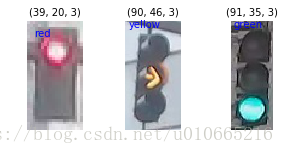
首先我们第一步是导入数据,并在RGB及HSV色彩空间可视化部分数据。这里的数据,我们采用MIT自动驾驶课程的图片,
总共三类:红绿黄,1187张图片,其中,723张红色交通灯图片,429张绿色交通灯图片,35张黄色交通灯图片。
导入库
-
# import some libs
-
import cv2
-
import os
-
import glob
-
import random
-
import numpy as np
-
import matplotlib.pyplot as plt
-
import matplotlib.image as mpimg
-
%matplotlib inline
- 1
- 2
- 3
- 4
- 5
- 6
- 7
- 8
- 9
-
# Image data directories
-
IMAGEDIR_TRAINING = "traffic_light_images/training/"
-
IMAGE_DIR_TEST = "traffic_light_images/test/"
-
-
#load data
-
def load_dataset(image_dir):
-
'''
-
This function loads in images and their labels and places them in a list
-
image_dir:directions where images stored
-
'''
-
im_list =[]
-
image_types= ['red','yellow','green']
-
-
#Iterate through each color folder
-
for im_type in image_types:
-
file_lists = glob.glob(os.path.join(image_dir,im_type,'*'))
-
print(len(file_lists))
-
for file in file_lists:
-
im = mpimg.imread(file)
-
-
if not im is None:
-
im_list.append((im,im_type))
-
return im_list
-
IMAGE_LIST = load_dataset(IMAGE_DIR_TRAINING)
- 1
- 2
- 3
- 4
- 5
- 6
- 7
- 8
- 9
- 10
- 11
- 12
- 13
- 14
- 15
- 16
- 17
- 18
- 19
- 20
- 21
- 22
- 23
- 24
-
723
-
35
-
429
- 1
- 2
- 3
- 4
Visualize the data
这里可视化主要实现:
- 显示图像
- 打印出图片的大小
- 打印出图片对应的标签
- 1
- 2
- 3
- 4
- 5
- 6
- 7
- 8
- 9
- 10
- 11
- 12
- 13
- 14
- 15
- 16
- 17
- 18
- 19
- 20
PreProcess Data
在导入了上述数据后,接下来我们需要标准化输入及输出
Input
从上图,我们可以看出,每张图片的大小并不一样,我们需要标准化输入
将每张图图片的大小resize成相同的大小,
因为对于分类任务来说,我们需要
在每张图片上应用相同的算法,因此标准化图像尤其重要
Output
这里我们的标签数据是类别数据:’red’,’yellow’,’green’,因此我们可以利用one_hot方法将类别数据转换成数值数据
-
# 标准化输入图像,这里我们resize图片大小为32x32x3,这里我们也可以对图像进行裁剪、平移、旋转
-
def standardize(image_list):
-
'''
-
This function takes a rgb image as input and return a standardized version
-
image_list: image and label
-
'''
-
standard_list = []
-
#Iterate through all the image-label pairs
-
for item in image_list:
-
image = item[0]
-
label = item[1]
-
# Standardize the input
-
standardized_im = standardize_input(image)
-
# Standardize the output(one hot)
-
one_hot_label = one_hot_encode(label)
-
# Append the image , and it's one hot encoded label to the full ,processed list of image data
-
standard_list.append((standardized_im,one_hot_label))
-
return standard_list
-
-
def standardize_input(image):
-
#Resize all images to be 32x32x3
-
standard_im = cv2.resize(image,(32,32))
-
return standard_im
-
-
def one_hot_encode(label):
-
#return the correct encoded label.
-
'''
-
# one_hot_encode("red") should return: [1, 0, 0]
-
# one_hot_encode("yellow") should return: [0, 1, 0]
-
# one_hot_encode("green") should return: [0, 0, 1]
-
'''
-
if label=='red':
-
return [1,0,0]
-
elif label=='yellow':
-
return [0,1,0]
-
else:
-
return [0,0,1]
- 1
- 2
- 3
- 4
- 5
- 6
- 7
- 8
- 9
- 10
- 11
- 12
- 13
- 14
- 15
- 16
- 17
- 18
- 19
- 20
- 21
- 22
- 23
- 24
- 25
- 26
- 27
- 28
- 29
- 30
- 31
- 32
- 33
- 34
- 35
- 36
- 37
- 38
Test your code
实现完了上述标准化代码后,我们需要进一步确定我们的代码是正确的,因此接下来我们可以实现一个函数来实现上述代码功能的检验
用Python搭建自动化测试框架,我们需要组织用例以及测试执行,这里我们推荐Python的标准库——unittest。
-
import unittest
-
from IPython.display import Markdown,display
-
-
# Helper function for printing markdown text(text in color/bold/etc)
-
def printmd(string):
-
display(Markdown(string))
-
# Print a test falied message,given an error
-
def print_fail():
-
printmd('<span style=="color: red;">Test Failed</span>')
-
def print_pass():
-
printmd('<span style="color:green;">Test Passed</span>')
-
# A class holding all tests
-
class Tests(unittest.TestCase):
-
#Tests the 'one_hot_encode' function,which is passed in as an argument
-
def test_one_hot(self,one_hot_function):
-
#test that the generate onr-hot lables match the expected one-hot label
-
#for all three cases(red,yellow,green)
-
try:
-
self.assertEqual([1,0,0],one_hot_function('red'))
-
self.assertEqual([0,1,0],one_hot_function('yellow'))
-
self.assertEqual([0,0,1],one_hot_function('green'))
-
#enter exception
-
except self.failureException as e:
-
#print out an error message
-
print_fail()
-
print('Your function did not return the excepted one-hot label')
-
print('\n'+str(e))
-
return
-
print_pass()
-
#Test if ay misclassified images are red but mistakenly classifed as green
-
def test_red_aa_green(self,misclassified_images):
-
#Loop through each misclassified image and the labels
-
for im,predicted_label,true_label in misclassified_images:
-
#check if the iamge is one of a red light
-
if(true_label==[1,0,0]):
-
try:
-
self.assertNotEqual(true_label,[0,1,0])
-
except self.failureException as e:
-
print_fail()
-
print('Warning:A red light is classified as green.')
-
print('\n'+str(e))
-
return
-
print_pass()
-
tests = Tests()
-
tests.test_one_hot(one_hot_encode)
- 1
- 2
- 3
- 4
- 5
- 6
- 7
- 8
- 9
- 10
- 11
- 12
- 13
- 14
- 15
- 16
- 17
- 18
- 19
- 20
- 21
- 22
- 23
- 24
- 25
- 26
- 27
- 28
- 29
- 30
- 31
- 32
- 33
- 34
- 35
- 36
- 37
- 38
- 39
- 40
- 41
- 42
- 43
- 44
- 45
Test Passed
Standardized_Train_List = standardize(IMAGE_LIST)
- 1
Feature Extraction
在这里我们将使用色彩空间、形状分析及特征构造
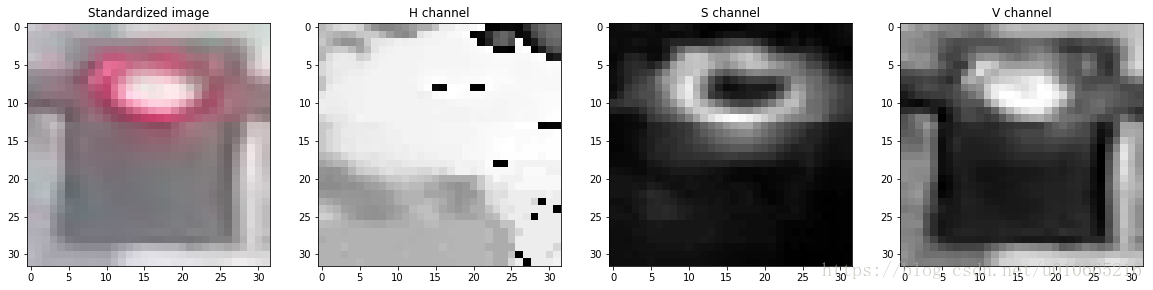
RGB to HSV
- 1
- 2
- 3
- 4
- 5
- 6
- 7
- 8
- 9
- 10
- 11
- 12
- 13
- 14
- 15
- 16
- 17
- 18
- 19
- 20
- 21
-
Label [red, yellow, green]: [1, 0, 0]
-
-
-
-
-
-
<matplotlib.image.AxesImage at 0x7fb49ad71f28>
- 1
- 2
- 3
- 4
- 5
- 6
- 7
- 8
-
# create feature
-
'''
-
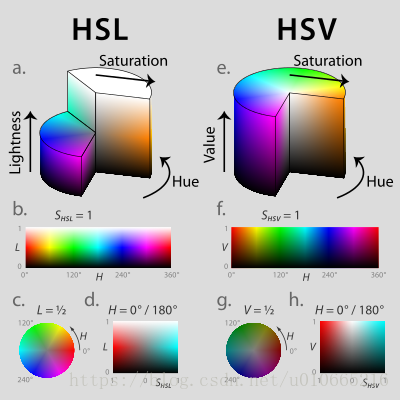
HSV即色相、饱和度、明度(英语:Hue, Saturation, Value),又称HSB,其中B即英语:Brightness。
-
-
色相(H)是色彩的基本属性,就是平常所说的颜色名称,如红色、黄色等。
-
饱和度(S)是指色彩的纯度,越高色彩越纯,低则逐渐变灰,取0-100%的数值。
-
明度(V),亮度(L),取0-100%。
-
-
'''
-
def create_feature(rgb_image):
-
'''
-
Basic brightness feature
-
rgb_image : a rgb_image
-
'''
-
hsv = cv2.cvtColor(rgb_image,cv2.COLOR_RGB2HSV)
-
-
sum_brightness = np.sum(hsv[:,:,2])
-
area = 3232
-
avg_brightness = sum_brightness / area#Find the average
-
return avg_brightness
-
-
def high_saturation_pixels(rgb_image,threshold=80):
-
'''
-
Returns average red and green content from high saturation pixels
-
Usually, the traffic light contained the highest saturation pixels in the image.
-
The threshold was experimentally determined to be 80
-
'''
-
high_sat_pixels = []
-
hsv = cv2.cvtColor(rgb,cv2.COLOR_RGB2HSV)
-
for i in range(32):
-
for j in range(32):
-
if hsv[i][j][1] > threshold:
-
high_sat_pixels.append(rgb_image[i][j])
-
if not high_sat_pixels:
-
return highest_sat_pixel(rgb_image)
-
-
sum_red = 0
-
sum_green = 0
-
for pixel in high_sat_pixels:
-
sum_red+=pixel[0]
-
sum_green+=pixel[1]
-
-
# use sum() instead of manually adding them up
-
avg_red = sum_red / len(high_sat_pixels)
-
avg_green = sum_green / len(high_sat_pixels)0.8
-
return avg_red,avg_green
-
def highest_sat_pixel(rgb_image):
-
'''
-
Finds the highest saturation pixels, and checks if it has a higher green
-
or a higher red content
-
'''
-
hsv = cv2.cvtColor(rgb_image,cv2.COLOR_RGB2HSV)
-
s = hsv[:,:,1]
-
-
x,y = (np.unravel_index(np.argmax(s),s.shape))
-
if rgb_image[x,y,0] > rgb_image[x,y,1]*0.9:
-
return 1,0 #red has a higher content
-
return 0,1
- 1
- 2
- 3
- 4
- 5
- 6
- 7
- 8
- 9
- 10
- 11
- 12
- 13
- 14
- 15
- 16
- 17
- 18
- 19
- 20
- 21
- 22
- 23
- 24
- 25
- 26
- 27
- 28
- 29
- 30
- 31
- 32
- 33
- 34
- 35
- 36
- 37
- 38
- 39
- 40
- 41
- 42
- 43
- 44
- 45
- 46
- 47
- 48
- 49
- 50
- 51
- 52
- 53
- 54
- 55
- 56
- 57
- 58
Test dataset
接下来我们导入测试集来看看,上述方法的测试精度
上述方法我们实现了:
1.求平均的brightness
2.求red及green的色彩饱和度
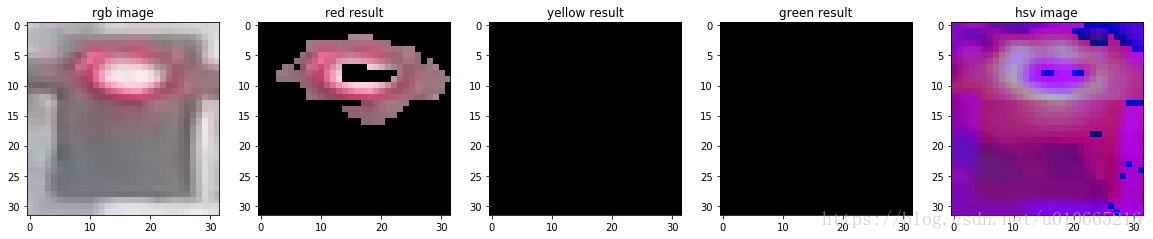
有人或许会提出疑问,为啥没有进行yellow的判断,因此我们作出以下的改善
reference url
这里部分阈值,我们直接参考WIKI上的数据:
- 1
- 2
- 3
- 4
- 5
- 6
- 7
- 8
- 9
- 10
- 11
- 12
- 13
- 14
- 15
- 16
- 17
- 18
- 19
- 20
- 21
- 22
- 23
- 24
- 25
- 26
- 27
- 28
- 29
- 30
- 31
- 32
- 33
- 34
- 35
- 36
- 37
- 38
- 39
- 40
- 41
- 42
- 43
- 44
- 45
- 46
- 47
- 48
- 49
- 50
- 51
- 52
- 53
- 54
- 55
- 56
- 57
- 58
- 59
- 60
- 61
- 62
- 63
Test
接下来我们选择三张图片来看看测试效果
img_red,img_yellow,img_green
-
img_test = [(img_red,'red'),(img_yellow,'yellow'),(img_green,'green')]
-
standardtest = standardize(img_test)
-
-
for img in standardtest:
-
predicted_label = estimate_label(img[0],display = True)
-
print('Predict label :',predicted_label)
-
print('True label:',img[1])
- 1
- 2
- 3
- 4
- 5
- 6
- 7
-
Predict label : [1, 0, 0]
-
True label: [1, 0, 0]
- 1
- 2
- 3
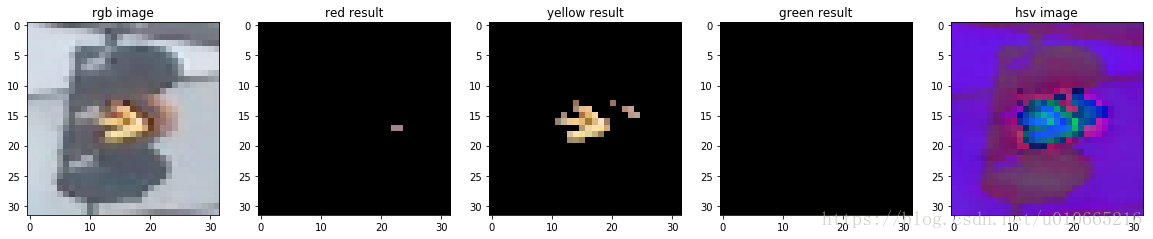
-
Predict label : [0, 1, 0]
-
True label: [0, 1, 0]
- 1
- 2
- 3
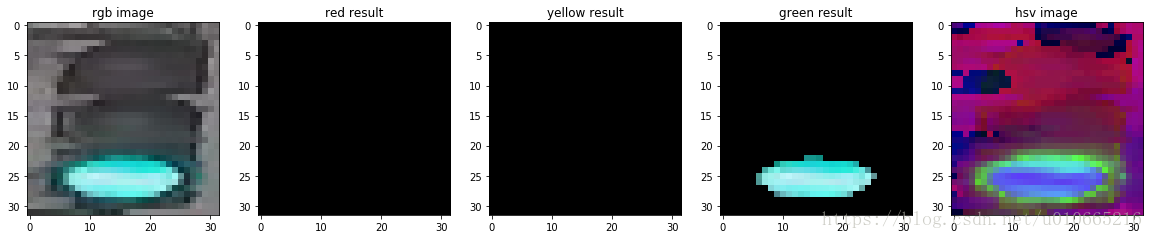
-
Predict label : [0, 0, 1]
-
True label: [0, 0, 1]
- 1
- 2
- 3
-
# Using the load_dataset function in helpers.py
-
# Load test data
-
TEST_IMAGE_LIST = load_dataset(IMAGE_DIR_TEST)
-
-
# Standardize the test data
-
STANDARDIZED_TEST_LIST = standardize(TEST_IMAGE_LIST)
-
-
# Shuffle the standardized test data
-
random.shuffle(STANDARDIZED_TEST_LIST)
- 1
- 2
- 3
- 4
- 5
- 6
- 7
- 8
- 9
-
181
-
9
-
107
- 1
- 2
- 3
- 4
Determine the Accuracy
接下来我们来看看咱们算法在测试集上的准确率。下面我们实现的代码存储所有的被错分的图片以及它们被预测的结果及真实标签。
这些数据被存储在MISCLASSIFIED.
-
# COnstructs a list of misclassfied iamges given a list of test images and their labels
-
# This will throw an assertionerror if labels are not standardized(one hot encode)
-
def get_misclassified_images(test_images,display=False):
-
misclassified_images_labels = []
-
#Iterate through all the test images
-
#Classify each image and compare to the true label
-
for image in test_images:
-
# Get true data
-
im = image[0]
-
true_label = image[1]
-
assert (len(true_label)==3),'This true_label is not the excepted length (3).'
-
-
#Get predicted label from your classifier
-
predicted_label = estimate_label(im,display=False)
-
assert(len(predicted_label)==3),'This predicted_label is not the excepted length (3).'
-
-
#compare true and predicted labels
-
if(predicted_label!=true_label):
-
#if these labels are ot equal, the image has been misclassified
-
misclassified_images_labels.append((im,predicted_label,true_label))
-
# return the list of misclassified [image,predicted_label,true_label] values
-
return misclassified_images_labels
-
# Find all misclassified images in a given test set
-
MISCLASSIFIED = get_misclassified_images(STANDARDIZED_TEST_LIST,display=False)
-
#Accuracy calcuations
-
total = len(STANDARDIZED_TEST_LIST)
-
num_correct = total-len(MISCLASSIFIED)
-
accuracy = num_correct / total
-
print('Accuracy:'+str(accuracy))
-
print('Number of misclassfied images = '+str(len(MISCLASSIFIED))+' out of '+str(total))
- 1
- 2
- 3
- 4
- 5
- 6
- 7
- 8
- 9
- 10
- 11
- 12
- 13
- 14
- 15
- 16
- 17
- 18
- 19
- 20
- 21
- 22
- 23
- 24
- 25
- 26
- 27
- 28
- 29
- 30
-
Accuracy:0.9797979797979798
-
Number of misclassfied images = 6 out of 297
- 1
- 2
- 3
转 opencv红绿灯检测的更多相关文章
- opencv直线检测在c#、Android和ios下的实现方法
opencv直线检测在c#.Android和ios下的实现方法 本文为作者原创,未经允许,不得转载 :原文由作者发表在博客园:http://www.cnblogs.com/panxiaochun/p/ ...
- OPENCV条形码检测与识别
条形码是当前超市和部分工厂使用比较普遍的物品,产品标识技术,使用摄像头检测一张图片的条形码包含有两个步骤,第一是定位条形码的位置,定位之后剪切出条形码,并且识别出条形码对应的字符串,然后就可以调用网络 ...
- OpenCV矩形检测
OpenCV矩形检测 需求:提取图像中的矩形,图像存在污染现象,即矩形区域不是完全规则的矩形. 思路一:轮廓法 OpenCV里提取目标轮廓的函数是findContours,它的输入图像是一幅二值图像, ...
- keras系列︱人脸表情分类与识别:opencv人脸检测+Keras情绪分类(四)
引自:http://blog.csdn.net/sinat_26917383/article/details/72885715 人脸识别热门,表情识别更加.但是表情识别很难,因为人脸的微表情很多,本节 ...
- OpenCV绘制检测结果
OpenCV绘制检测结果 opencv rtcp timestamp 一.介绍 由于在验证阶段,使用FPGA时我们的算法检测速度很慢,没法直接在主流上进行绘图,否则的话,主流就要等待算法很久才能 ...
- OpenCV人形检测Hog
#include "iostream" #include "queue" using namespace std; #include "opencv2 ...
- opencv人脸检测分类器训练小结
这两天在初学目标检测的算法及步骤,其中人脸检测作为最经典的算法,于是进行了重点研究.该算法最重要的是建立人脸检测分类器,因此我用了一天的时间来学习分类器的训练.这方面的资料很多,但是能按照一个资料运行 ...
- opencv行人检测里遇到的setSVMDetector()问题
参考了博客http://blog.csdn.net/carson2005/article/details/7841443 后,自己动手后发现了一些问题,博客里提到的一些问题没有解决 ,是关于为什么图像 ...
- OpenCV——肤色检测
一.RGB color space 检测代码如下: void SkinRGB(IplImage* src,IplImage* dst) { //RGB颜色空间 //均匀照明:R>95,G> ...
随机推荐
- HTTP 常见相应状态码及含义
1xx:信息 100 Continue 服务器仅接收到部分请求,但是一旦服务器并没有拒绝该请求,客户端应该继续发送其余的请求. 101 Switching Protocols 服务器转换协议:服务器将 ...
- 循环结构 :for
循环结构 :for 循环四要素: 1.初始化条件 2.循环条件 3.循环体 4.迭代条件 格式: for(初始化条件;循环条件;迭代条件){ 循环体; } 执行顺序 :1 -> 2 -> ...
- [2019上海网络赛J题]Stone game
题目链接 CSLnb! 题意是求出给定集合中有多少个合法子集,合法子集的定义为,子集和>=总和-子集和$\& \&$子集和-(子集的子集和)<=总和-子集和. 其实就是很简 ...
- Thinkphp3.2 Redis支持REDIS_AUTH验证
原有的Redis类在Library/Think/Cache/Driver/中 换成下面的: <?php // +----------------------------------------- ...
- Redis持久化存储与主从复制
4. redis持久化 Redis是一种内存型数据库,一旦服务器进程退出,数据库的数据就会丢失,为了解决这个问题,Redis提供了两种持久化的方案,将内存中的数据保存到磁盘中,避免数据的丢失. 4.1 ...
- python递归方式和普通方式实现输出和查询斐波那契数列
●斐波那契数列 斐波那契数列(Fibonacci sequence),是从1,1开始,后面每一项等于前面两项之和. 如果为了方便可以用递归实现,要是为了性能更好就用循环. ◆递归方式实现生成前30个斐 ...
- Visual Studio 2019 密钥
Visual Studio 2019 EnterpriseBF8Y8-GN2QH-T84XB-QVY3B-RC4DF Visual Studio 2019 ProfessionalNYWVH-HT4X ...
- 利用中转输出表制作HijackDll
[原创]利用中转输出表制作HijackDll(附工具源码)作 者: baixinye时 间: 2012-08-05,16:48:45链 接: http://bbs.pediy.com/showthre ...
- Apache 配置外网站点
基于域名,一般是对外网站 www.etiantian.org/var/www/html/www blog.etiantian.org /var/www/html/blog bbs.tiantian.o ...
- Centos6.6安装apache2.4
安装apr请参考: http://www.cnblogs.com/yuzhaokai0523/p/4382974.html 1安装httpd-2.4.10.tar.gz wget http://w ...