
通过TopShelf简单创建windows service
目前很多项目都是B/S架构的,我们经常会用到webapi、MVC等框架,实际项目中可能不仅仅是一些数据的增删改查,需要对数据进行计算,但是将计算逻辑放到api层又会拖累整个项目的运行速度,从而会写一些计划任务(使用quartz.net,在上一篇中已经提到)将需要计算的数据提前计算并入库,理论上api层需要做的只是增删改查,从而加快程序运行速度。
传统windows 服务需要创建一个windows service 项目,我自己没有用过,但是看过别人的整个开发流程,感觉及其繁杂并且不容易调试。
使用topshelf可以很快的创建一个服务,而我们需要做的只是创建一个控制台程序,调试成本也大大降低。
步骤如下:
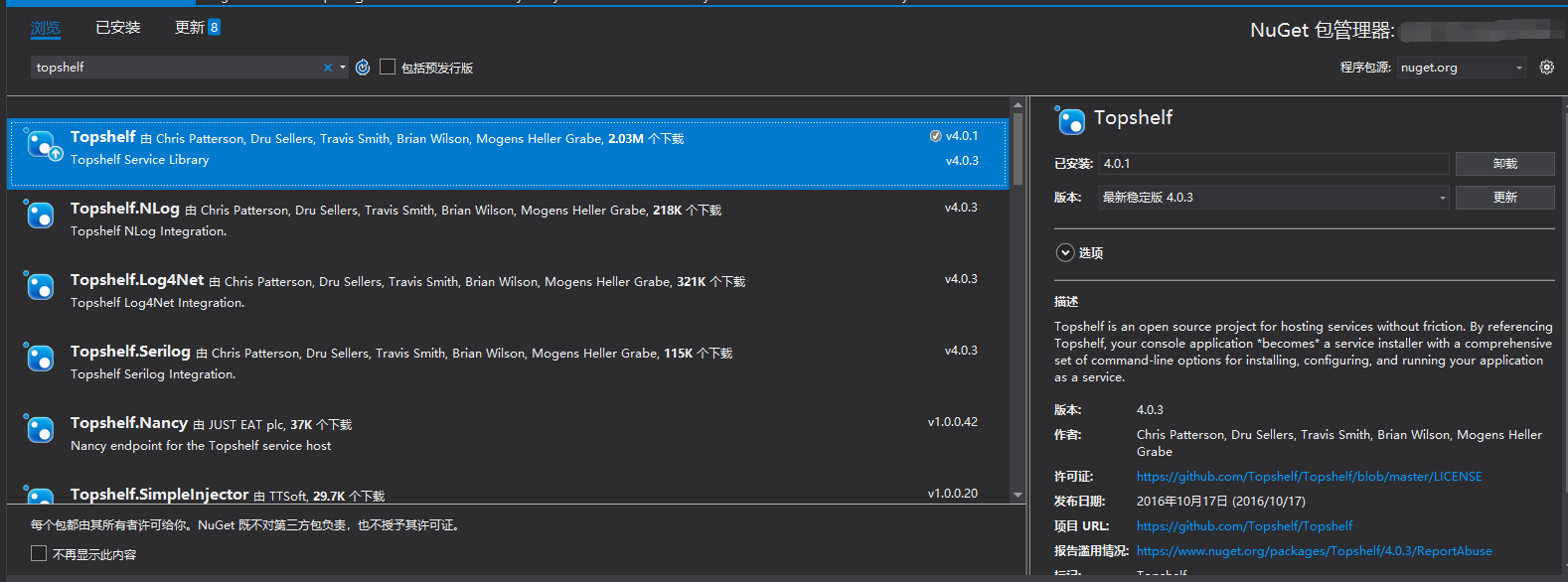
- 首先还是通过nuget添加topshelf程序集
添加ServiceRunner类,这里用Quartz做例子。当然不仅仅适用于次,也可以用于wcf等。
using Quartz;

using Quartz.Impl;

using Topshelf;

namespace KfqPointService

{

    public sealed class ServiceRunner : ServiceControl, ServiceSuspend

    {

        private readonly IScheduler scheduler;

        public ServiceRunner()

        {

            scheduler = StdSchedulerFactory.GetDefaultScheduler();

        }

        public bool Start(HostControl hostControl)

        {

            scheduler.Start();

            return true;

        }

        public bool Stop(HostControl hostControl)

        {

            scheduler.Shutdown(false);

            return true;

        }

        public bool Continue(HostControl hostControl)

        {

            scheduler.ResumeAll();

            return true;

        }

        public bool Pause(HostControl hostControl)

        {

            scheduler.PauseAll();

            return true;

        }

    }

}
在程序入口中添加代码
using System.Configuration;

using KfqPointService;

using Topshelf;

namespace LfsZqHbInterface

{

    class Program

    {

        static void Main(string[] args)

        {

            //LogWriter.Debug("Begin Service");

            HostFactory.Run(x =>

            {

                x.Service<ServiceRunner>();

                x.SetDescription(ConfigurationManager.AppSettings["Description"]);

                x.SetDisplayName(ConfigurationManager.AppSettings["DisplayName"]);

                x.SetServiceName(ConfigurationManager.AppSettings["ServiceName"]);

                x.EnablePauseAndContinue();

            });

        }

    }

}
将Windows服务安装到服务器上
(1)依次打开服务文件夹以管理员权限运行powershell,并进入服务所在文件夹。

(2)输入.\文件名.exe install 回车安装此服务,如下图所示
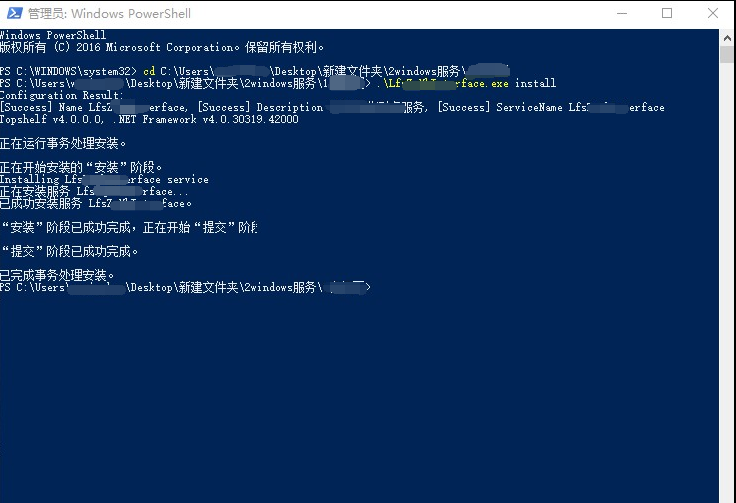
出现此场景为安装成功,此时大功告成,打开服务面板就可看到我们刚刚安装的服务。
通过TopShelf简单创建windows service的更多相关文章
- C#创建Windows Service(Windows 服务)基础教程
Windows Service这一块并不复杂,但是注意事项太多了,网上资料也很凌乱,偶尔自己写也会丢三落四的.所以本文也就产生了,本文不会写复杂的东西,完全以基础应用的需求来写,所以不会对Window ...
- .net core+topshelf+quartz创建windows定时任务服务
.net core+topshelf+quartz创建windows定时任务服务 准备工作 创建.net core 控制台应用程序,这里不做过多介绍 添加TopShelf包:TopShelf: 添加Q ...
- 创建Windows Service
基本参照使用C#创建Windows服务,添加了部分内容 目录 创建Windows Service 可视化管理Windows Service 调试 示例代码 创建Windows Service 选择C# ...
- C# 创建Windows Service(Windows服务)程序
本文介绍了如何用C#创建.安装.启动.监控.卸载简单的Windows Service 的内容步骤和注意事项. 一.创建一个Windows Service 1)创建Windows Service项目 2 ...
- .NET 6学习笔记(2)——通过Worker Service创建Windows Service
通过Visual Studio中的Windows Service模板,我么可以创建.NET Framework版本的Windows Service,网络上对此已有详细且丰富的各路教程.但在我们升级到. ...
- Windows Service 学习系列(一):建立简单的Windows service
参考:https://www.cnblogs.com/cncc/p/7170951.html 一.开发环境 操作系统:Windows 7 X64 开发环境:VS2017 编程语言:C# .NET版本: ...
- C# 创建Windows Service
当我们需要一个程序长期运行,但是不需要界面显示时可以考虑使用Windows Service来实现.这篇博客将简单介绍一下如何创建一个Windows Service,安装/卸载Windows Servi ...
- 目前.NET Core创建Windows Service比较好的一个开源框架:DasMulli.Win32.ServiceUtils
新建一个.NET Core控制台程序,搜索并下载Nuget包:DasMulli.Win32.ServiceUtils GitHub 链接及使用指南 Write a windows service us ...
- 使用.net 创建windows service
最近公司项目需要,写了个windows 服务,windows 服务的内容可以在VS 中新建一个"windows服务项目", (1)服务中的主要代码: public partial ...
随机推荐
- java语言评价--java帝国
“陛下您想想,我们有很多宝贝,” IO大臣根本不理线程大臣, 继续侃侃而谈:“ 比如IoC, AOP,反射.动态代理.泛型.注解.JDBC.JMS...... 还有我们引以为豪的JVM.这些东西,那些 ...
- 51nod1803 森林直径
[传送门] 考虑计算直径的 dp 方法. $d[u]$ 表示以 $u$ 为根的子树能 $u$ 能走到的最远距离 $dp[u]$ 表示以 $u$ 为根的子树的直径那么每次dfs一个子节点后$dp[u] ...
- 微信小程序 深拷贝的那些坑。
网上说的几种方法都不好使,包括直接使用如下: JSON.pars(JSON.stringify(this.data.answer)) ... Object.assign Object.definePr ...
- winform窗体的常用属性
- A1128 | 逻辑想象能力、简洁高效美观的代码、memset的使用情景
写了三遍才AC,这真是对智商极大的侮辱 C++代码: #include <stdio.h> #include <memory.h> #include <math.h> ...
- 【JZOJ5553】【20190625】谜
题目 给出一个\(2\times n\)个点的二分图的邻接矩阵\(M\) 以及\(m\)个行替换元,\(k\)个列替换元 \(q\)次询问:op u v 表示用第v个行/列替换元去替换矩阵的第u行/列 ...
- 【AtCoder】 ARC 098
link C-Attention 题意:一个字符队列,每个位置是\(W\)或\(E\),计算最小的修改数量,使得存在一个位置,它之前的都是\(E\),之后的都是\(F\) #include<bi ...
- Dynamic_Rankings(动态区间第k大)
ZOJ - 2112 \[ \ \] (那些说这道题是树状数组套主席树的人一定对主席树有误解!) 这里我们用树状数组套线段树来解决来写 首先 , 我们需要有n棵线段树(不是\(n^2\)空间,别慌) ...
- 【Gamma】Scrum Meeting 1
目录 写在前面 gamma阶段角色更换 进度情况 任务进度表 Gamma阶段燃尽图 遇到的困难 照片 代码Commit记录 后端 前端 写在前面 例会时间:5.25 22:30-23:00 例会地点: ...
- TypeScript in 5 minutes
https://www.typescriptlang.org/docs/handbook/typescript-in-5-minutes.html Let’s get started by build ...