
Android菜鸟成长记8 -- 布局实践(微信界面的编写)
前面我们简单的介绍了一下android的五大布局,那么现在我们来实践一下,写一个简单的微信界面
首先,我们新建一个weixin.xml的linnerlayout布局
我们日常使用的微信,从简单的方面来说我可一分成三个内容,头部标签栏,中间显示信息栏,还有一个底部。那么我们就按照这个来先建一个页面
 <?xml version="1.0" encoding="utf-8"?>

 <LinearLayout xmlns:android="http://schemas.android.com/apk/res/android"

     android:layout_width="match_parent"

     android:layout_height="match_parent"

     android:orientation="vertical" >

     <!-- head -->

     <LinearLayout

         android:layout_width="match_parent"

         android:layout_height="wrap_content" >

     </LinearLayout>

     <!-- 中间 -->

     <LinearLayout

         android:layout_width="match_parent"

         android:layout_height="wrap_content"

     </LinearLayout>

     <!-- 底部 -->

     <LinearLayout

         android:layout_width="match_parent"

         android:layout_height="wrap_content" >

     </LinearLayout>

 </LinearLayout>
效果如下:
这是完成后的显示
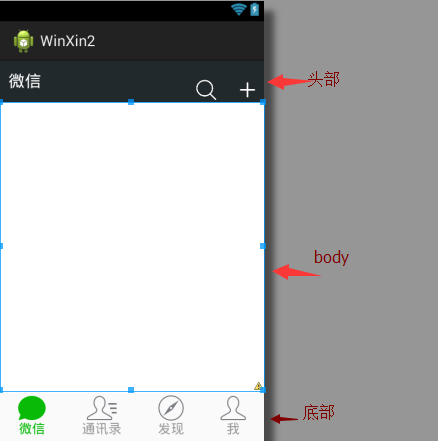
那么要怎么实现到这个效果,
1.先创建一个标题栏的layout文件
 <?xml version="1.0" encoding="utf-8"?>

 <LinearLayout xmlns:android="http://schemas.android.com/apk/res/android"

     android:layout_width="match_parent"

     android:layout_height="50dp"

     android:orientation="horizontal"

     android:background="#21292c">

     <TextView

         android:id="@+id/textView1"

         android:layout_width="wrap_content"

         android:layout_height="wrap_content"

         android:text="@string/weixin"

         android:textColor="#ffffff"

         android:textSize="20sp"

         android:layout_gravity="center"

         android:padding="10dp"/>

     <TextView

         android:layout_width="wrap_content"

         android:layout_marginTop="20dp"

         android:layout_height="30dp"

         android:layout_weight=""

         android:gravity="bottom" />

     <LinearLayout

         android:layout_width="wrap_content"

         android:layout_height="match_parent"

         android:gravity="bottom">

         <ImageView

             android:id="@+id/imageView2"

             android:layout_width="40dp"

             android:layout_height="30dp"

             android:src="@drawable/fdj"

             android:layout_marginRight="10dp"/>

         <ImageView

             android:id="@+id/imageView1"

             android:layout_width="40dp"

             android:layout_height="30dp"

             android:src="@drawable/barbuttonicon_add" />

     </LinearLayout>

 </LinearLayout>
然后我们在创建一个底部的文件的
 <?xml version="1.0" encoding="utf-8"?>

 <LinearLayout xmlns:android="http://schemas.android.com/apk/res/android"

     android:layout_width="match_parent"

     android:layout_height="match_parent"

     android:orientation="horizontal" >

     <RadioGroup

         android:id="@+id/radioGroup1"

         android:layout_width="match_parent"

         android:layout_height="60dp"

         android:orientation="horizontal"

         android:background="@drawable/group_buton_nomal"

         android:gravity="center">

         <RadioButton

             android:id="@+id/radio0"

             android:layout_width="wrap_content"

             android:layout_height="wrap_content"

             android:checked="true"

             android:text="@string/weixin"

                style="@style/radioStyle"

                android:drawableTop="@drawable/tab_weixin"/>

         <RadioButton

             android:id="@+id/radio1"

             android:layout_width="wrap_content"

             android:layout_height="wrap_content"

             android:text="@string/addressList"

                style="@style/radioStyle"

                android:drawableTop="@drawable/tab_address"/>

         <RadioButton

             android:id="@+id/radio2"

             android:layout_width="wrap_content"

             android:layout_height="wrap_content"

             android:text="@string/find"

                style="@style/radioStyle"

                android:drawableTop="@drawable/tab_find"/>

          <RadioButton

             android:id="@+id/radio3"

             android:layout_width="wrap_content"

             android:layout_height="wrap_content"

             android:text="@string/set"

                style="@style/radioStyle"

                android:drawableTop="@drawable/tab_set"/>

     </RadioGroup>

 </LinearLayout>
底部文件采用的是单选按钮组,这里我就不过多解释了,跟HTML的单选按钮类似
上面的用到的style是自己设计的一个按钮样式,放在style.xml的文件里,具体代码如下
 <style name="radioStyle">

         <item name="android:button">@null</item>

         <item name="android:layout_weight"></item>

         <item name="android:gravity">center</item>

         <item name="android:textColor">@drawable/text_color</item>

     </style>
为了让让底部的显示效果更加的接近我们日常使用的微信,我们对按钮做了一个判断,就是使用selector(不懂的请看下一章)
代码如下:
 <?xml version="1.0" encoding="utf-8"?>

 <selector xmlns:android="http://schemas.android.com/apk/res/android" >

     <item android:state_checked="true"

         android:drawable="@drawable/tabbar_contacts_hl"></item>

     <item

         android:drawable="@drawable/tabbar_contacts"></item>

 </selector>
就是通过焦点是否在该按钮上,在的化显示有颜色的图片,不在的化显示没颜色的。对其他桑按钮同样的操作,代码一样,只是把图片换一下就OK了。
还有文字也进行了相同的操作
 <?xml version="1.0" encoding="utf-8"?>

 <selector xmlns:android="http://schemas.android.com/apk/res/android" >

     <item android:state_checked="true"

         android:drawable="@drawable/tabbar_contacts_hl"></item>

     <item

         android:drawable="@drawable/tabbar_contacts"></item>

 </selector>
好了,一切准备,就绪,我们只需要将一切和起来就可以了。我们可以在weixin.xml通过include的标签把这些包含进来
<?xml version="1.0" encoding="utf-8"?>

<LinearLayout xmlns:android="http://schemas.android.com/apk/res/android"

    android:layout_width="match_parent"

    android:layout_height="match_parent"

    android:orientation="vertical" >

    <!-- head -->

    <LinearLayout

        android:layout_width="match_parent"

        android:layout_height="wrap_content" >

        <include layout="@layout/head"/>

    </LinearLayout>

    <!-- 中间 -->

    <LinearLayout

        android:layout_width="match_parent"

        android:layout_height="wrap_content"

        android:layout_weight="">

    </LinearLayout>

    <!-- 底部 -->

    <LinearLayout

        android:layout_width="match_parent"

        android:layout_height="wrap_content" >

        <include layout="@layout/bottom"/>

    </LinearLayout>

</LinearLayout>
这样一个简单的微信界面就准备h好了
但是你运行的时候是不是觉得不对劲,跟我们的实际用的微信不一样,那是因为多了一个系统默认的标题栏,我们把他去掉就可以了。
在AndroidManifest.xml的作一下的修改即可

那样一个见到你微信布局就完成了.
Android菜鸟成长记8 -- 布局实践(微信界面的编写)的更多相关文章
- Android菜鸟成长记7 -- Android的五大布局
Android五大布局,相信android的都了解过,今天我根据自己的学习整理一下五大布局,主要介绍的是线性布局(LiearLayout),因为,其他的布局使用率不是很高. Android的五大布局 ...
- Android菜鸟成长记4-button点击事件
Button 1.button按钮的创建 一般来说,在我们新建一个Android项目的时候,会有会默认有一个activity_main.xml的文件 如果你在新建项目的时候,把Create Activ ...
- Android菜鸟成长记16 -- JSON的解析
JSON的定义 一种轻量级的数据交换格式,具有良好的可读和便于快速编写的特性.业内主流技术为其提供了完整的解决方案(有点类似于正则表达式 ,获得了当今大部分语言的支持),从而可以在不同平台间进行数据 ...
- Android菜鸟成长记14 -- AsnyTask
本篇随笔将讲解一下Android的多线程的知识,以及如何通过AsyncTask机制来实现线程之间的通信. 一.Android当中的多线程 在Android当中,当一个应用程序的组件启动的时候,并且没有 ...
- Android菜鸟成长记11 -- sqlite数据库的设计和升降级
Google为Andriod的较大的数据处理提供了SQLite,他在数据存储.管理.维护等各方面都相当出色,功能也非常的强大.SQLite具备下列特点: 1.轻量级 使用 SQLite 只需要带一个动 ...
- Android菜鸟成长记10 -- ListVew
ListView在我们学习Android的过程中是非常重要得一个部分. listview主要有两个职责 1)将数据填充到布局. 2)处理用户的选择点击等操作. 一个ListView的创建需要3个元素 ...
- Android菜鸟成长记15 -- BitMap
BitMap简介 Bitmap是Android系统中的图像处理的最重要类之一.用它可以获取图像文件信息,进行图像剪切.旋转.缩放等操作,并可以指定格式保存图像文件.本文从应用的角度,着重介绍怎么用Bi ...
- Android菜鸟成长记13 -- 初识application
二.Application 简介 Application 类是用来维护应用程序全局状态.你可以提供自己的实现,并在 AndroidManifest.xml文件的 <application> ...
- Android菜鸟成长记12 -- ORMLite的简单使用
在我们的开发中,为了提高开发效率,我们一般都会使用到框架,ormilte则是我们必不可少的数据库框架. 对于ORMLite我也是今天才刚刚接触,我们先从一个简单的项目来了解它吧. ORMLite ja ...
随机推荐
- Android 对话框(Dialog)大全 建立你自己的对话框
Android 对话框(Dialog)大全 建立你自己的对话框 原文地址: http://www.cnblogs.com/salam/archive/2010/11/15/1877512.html A ...
- Audio 的一些小笔记
1.在做项目的过程中,对于volume 我们有一个volume curve,就是 0~63 step,每个step对应一个dB值,例如0step对应-90dB, 63 step对应0dB.关于这个0d ...
- C#封装好的Win32API
Kernel.cs using System; using System.Runtime.InteropServices; using System.Text; using HANDLE = Syst ...
- Django 开发投票系统
主要参考官方文档 Windows 10 Python 23.5 Django 1.9 1.创建项目(mysite)与应用(polls) D:\python>django-admin.py st ...
- linux基础1——网络配置入门
1.IP地址配置 (1)临时IP更改 sudo ifconfig eth0 down 暂停接口 sudo ifconfig eth0 192.168.1.xx sudo ifconfig eth ...
- Log4net 记录日志
配置文件 备注,需要放到根目录下面 <?xml version="1.0" encoding="utf-8"?> <configuration ...
- Scorpio-CSharp简介
Scorpio-CSharp是为了解决Unity游戏各个平台热更新的问题,纯c#实现 基于.net2.0 兼容所有c#平台 语法类似 javascript, 设计初衷是为了做一个所有人都能修改的热更新 ...
- 用ionic快速开发hybird App(已附源码,在下面+总结见解)
1.ionic简介 ionic 是用于敏捷开发APP的解决方案.核心思路是:利用成熟的前端开发技术,来写UI和业务逻辑.也就是说,就是一个H5网站,这个区别于react-native,native.即 ...
- js 中文乱码解决方法
bookManageAdd: function () { top.MainFrameJS.confirm = true; var action = getQueryS ...
- Java开发环境配置
JDK下载地址: http://www.oracle.com/technetwork/java/javase/downloads/index.html 安装:双击exe文件一直下一步就Ok了. 环境变 ...