
(二)c#Winform自定义控件-按钮
官网
前提
入行已经7,8年了,一直想做一套漂亮点的自定义控件,于是就有了本系列文章。
GitHub:https://github.com/kwwwvagaa/NetWinformControl
码云:https://gitee.com/kwwwvagaa/net_winform_custom_control.git
如果觉得写的还行,请点个 star 支持一下吧
欢迎前来交流探讨: 企鹅群568015492 
目录
https://www.cnblogs.com/bfyx/p/11364884.html
准备工作
该控件将继承基类控件UCControlBase,如果你还对UCControlBase不了解的下,
请移步 (一)c#Winform自定义控件-基类控件 查看
首先我们了解下要做的是什么,我们需要做一个可以自定义填充颜色,有圆角边框,有角标的按钮
开始
添加一个用户控件,命名为UCBtnExt ,继承 UCControlBase
先来看看我们按钮需要支持的属性吧
 #region 字段属性

         [Description("是否显示角标"), Category("自定义")]

         public bool IsShowTips

         {

             get

             {

                 return this.lblTips.Visible;

             }

             set

             {

                 this.lblTips.Visible = value;

             }

         }

         [Description("角标文字"), Category("自定义")]

         public string TipsText

         {

             get

             {

                 return this.lblTips.Text;

             }

             set

             {

                 this.lblTips.Text = value;

             }

         }

         private Color _btnBackColor = Color.White;

         [Description("按钮背景色"), Category("自定义")]

         public Color BtnBackColor

         {

             get { return _btnBackColor; }

             set

             {

                 _btnBackColor = value;

                 this.BackColor = value;

             }

         }

         private Color _btnForeColor = Color.Black;

         /// <summary>

         /// 按钮字体颜色

         /// </summary>

         [Description("按钮字体颜色"), Category("自定义")]

         public Color BtnForeColor

         {

             get { return _btnForeColor; }

             set

             {

                 _btnForeColor = value;

                 this.lbl.ForeColor = value;

             }

         }

         private Font _btnFont = new System.Drawing.Font("微软雅黑", 12F, System.Drawing.FontStyle.Regular, System.Drawing.GraphicsUnit.Point, ((byte)()));

         /// <summary>

         /// 按钮字体

         /// </summary>

         [Description("按钮字体"), Category("自定义")]

         public Font BtnFont

         {

             get { return _btnFont; }

             set

             {

                 _btnFont = value;

                 this.lbl.Font = value;

             }

         }

         /// <summary>

         /// 按钮点击事件

         /// </summary>

         [Description("按钮点击事件"), Category("自定义")]

         public event EventHandler BtnClick;

         private string _btnText;

         /// <summary>

         /// 按钮文字

         /// </summary>

         [Description("按钮文字"), Category("自定义")]

         public string BtnText

         {

             get { return _btnText; }

             set

             {

                 _btnText = value;

                 lbl.Text = value;

             }

         }

         #endregion
有了属性是不是就更明了呢
还有最后关键的一点东西,就是按钮的点击事件
         private void lbl_MouseDown(object sender, MouseEventArgs e)

         {

             if (this.BtnClick != null)

                 BtnClick(this, e);

         }
至此基本上就完工了,下面列出了完整的代码
 // 版权所有  黄正辉  交流群:568015492   QQ:623128629

 // 文件名称:UCBtnExt.cs

 // 创建日期:2019-08-15 15:57:36

 // 功能描述:按钮

 // 项目地址:https://gitee.com/kwwwvagaa/net_winform_custom_control

 using System;

 using System.Collections.Generic;

 using System.ComponentModel;

 using System.Drawing;

 using System.Data;

 using System.Linq;

 using System.Text;

 using System.Windows.Forms;

 namespace HZH_Controls.Controls

 {

     [DefaultEvent("BtnClick")]

     public partial class UCBtnExt : UCControlBase

     {

         #region 字段属性

         [Description("是否显示角标"), Category("自定义")]

         public bool IsShowTips

         {

             get

             {

                 return this.lblTips.Visible;

             }

             set

             {

                 this.lblTips.Visible = value;

             }

         }

         [Description("角标文字"), Category("自定义")]

         public string TipsText

         {

             get

             {

                 return this.lblTips.Text;

             }

             set

             {

                 this.lblTips.Text = value;

             }

         }

         private Color _btnBackColor = Color.White;

         [Description("按钮背景色"), Category("自定义")]

         public Color BtnBackColor

         {

             get { return _btnBackColor; }

             set

             {

                 _btnBackColor = value;

                 this.BackColor = value;

             }

         }

         private Color _btnForeColor = Color.Black;

         /// <summary>

         /// 按钮字体颜色

         /// </summary>

         [Description("按钮字体颜色"), Category("自定义")]

         public Color BtnForeColor

         {

             get { return _btnForeColor; }

             set

             {

                 _btnForeColor = value;

                 this.lbl.ForeColor = value;

             }

         }

         private Font _btnFont = new System.Drawing.Font("微软雅黑", 12F, System.Drawing.FontStyle.Regular, System.Drawing.GraphicsUnit.Point, ((byte)()));

         /// <summary>

         /// 按钮字体

         /// </summary>

         [Description("按钮字体"), Category("自定义")]

         public Font BtnFont

         {

             get { return _btnFont; }

             set

             {

                 _btnFont = value;

                 this.lbl.Font = value;

             }

         }

         /// <summary>

         /// 按钮点击事件

         /// </summary>

         [Description("按钮点击事件"), Category("自定义")]

         public event EventHandler BtnClick;

         private string _btnText;

         /// <summary>

         /// 按钮文字

         /// </summary>

         [Description("按钮文字"), Category("自定义")]

         public string BtnText

         {

             get { return _btnText; }

             set

             {

                 _btnText = value;

                 lbl.Text = value;

             }

         }

         #endregion

         public UCBtnExt()

         {

             InitializeComponent();

             this.TabStop = false;

         }

         private void lbl_MouseDown(object sender, MouseEventArgs e)

         {

             if (this.BtnClick != null)

                 BtnClick(this, e);

         }

     }

 }
 namespace HZH_Controls.Controls

 {

     public partial class UCBtnExt

     {

         /// <summary>

         /// 必需的设计器变量。

         /// </summary>

         private System.ComponentModel.IContainer components = null;

         /// <summary>

         /// 清理所有正在使用的资源。

         /// </summary>

         /// <param name="disposing">如果应释放托管资源,为 true;否则为 false。</param>

         protected override void Dispose(bool disposing)

         {

             if (disposing && (components != null))

             {

                 components.Dispose();

             }

             base.Dispose(disposing);

         }

         #region 组件设计器生成的代码

         /// <summary>

         /// 设计器支持所需的方法 - 不要

         /// 使用代码编辑器修改此方法的内容。

         /// </summary>

         private void InitializeComponent()

         {

             this.components = new System.ComponentModel.Container();

             System.ComponentModel.ComponentResourceManager resources = new System.ComponentModel.ComponentResourceManager(typeof(UCBtnExt));

             this.lbl = new System.Windows.Forms.Label();

             this.lblTips = new System.Windows.Forms.Label();

             this.imageList1 = new System.Windows.Forms.ImageList(this.components);

             this.SuspendLayout();

             //

             // lbl

             //

             this.lbl.BackColor = System.Drawing.Color.Transparent;

             this.lbl.Dock = System.Windows.Forms.DockStyle.Fill;

             this.lbl.Font = new System.Drawing.Font("微软雅黑", 12F, System.Drawing.FontStyle.Regular, System.Drawing.GraphicsUnit.Point, ((byte)()));

             this.lbl.ImageAlign = System.Drawing.ContentAlignment.MiddleLeft;

             this.lbl.Location = new System.Drawing.Point(, );

             this.lbl.Name = "lbl";

             this.lbl.Size = new System.Drawing.Size(, );

             this.lbl.TabIndex = ;

             this.lbl.Text = "自定义按钮";

             this.lbl.TextAlign = System.Drawing.ContentAlignment.MiddleCenter;

             this.lbl.MouseDown += new System.Windows.Forms.MouseEventHandler(this.lbl_MouseDown);

             //

             // lblTips

             //

             this.lblTips.Anchor = ((System.Windows.Forms.AnchorStyles)((System.Windows.Forms.AnchorStyles.Top | System.Windows.Forms.AnchorStyles.Right)));

             this.lblTips.BackColor = System.Drawing.Color.Transparent;

             this.lblTips.Font = new System.Drawing.Font("Arial Unicode MS", 12F, System.Drawing.FontStyle.Regular, System.Drawing.GraphicsUnit.Point, ((byte)()));

             this.lblTips.ForeColor = System.Drawing.Color.White;

             this.lblTips.ImageIndex = ;

             this.lblTips.ImageList = this.imageList1;

             this.lblTips.Location = new System.Drawing.Point(, );

             this.lblTips.Name = "lblTips";

             this.lblTips.Size = new System.Drawing.Size(, );

             this.lblTips.TabIndex = ;

             this.lblTips.TextAlign = System.Drawing.ContentAlignment.MiddleCenter;

             this.lblTips.Visible = false;

             //

             // imageList1

             //

             this.imageList1.ImageStream = ((System.Windows.Forms.ImageListStreamer)(resources.GetObject("imageList1.ImageStream")));

             this.imageList1.TransparentColor = System.Drawing.Color.Transparent;

             this.imageList1.Images.SetKeyName(, "tips.png");

             //

             // UCBtnExt

             //

             this.AutoScaleMode = System.Windows.Forms.AutoScaleMode.None;

             this.BackColor = System.Drawing.Color.Transparent;

             this.ConerRadius = ;

             this.Controls.Add(this.lblTips);

             this.Controls.Add(this.lbl);

             this.Cursor = System.Windows.Forms.Cursors.Hand;

             this.FillColor = System.Drawing.Color.FromArgb(((int)(((byte)()))), ((int)(((byte)()))), ((int)(((byte)()))));

             this.IsShowRect = true;

             this.IsRadius = true;

             this.Margin = new System.Windows.Forms.Padding();

             this.Name = "UCBtnExt";

             this.RectColor = System.Drawing.Color.FromArgb(((int)(((byte)()))), ((int)(((byte)()))), ((int)(((byte)()))));

             this.Size = new System.Drawing.Size(, );

             this.ResumeLayout(false);

         }

         #endregion

         public System.Windows.Forms.Label lbl;

         private System.Windows.Forms.Label lblTips;

         private System.Windows.Forms.ImageList imageList1;

     }

 }
用处及效果
用处:按钮有什么用,我想我不用解释了吧
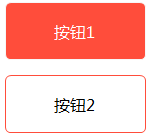
效果:
最后的话
如果你喜欢的话,请到 https://gitee.com/kwwwvagaa/net_winform_custom_control 点个星星吧
(二)c#Winform自定义控件-按钮的更多相关文章
- (三)c#Winform自定义控件-有图标的按钮
前提 入行已经7,8年了,一直想做一套漂亮点的自定义控件,于是就有了本系列文章. 开源地址:https://gitee.com/kwwwvagaa/net_winform_custom_control ...
- c#Winform自定义控件-目录
前提 入行已经7,8年了,一直想做一套漂亮点的自定义控件,于是就有了本系列文章. 开源地址:https://gitee.com/kwwwvagaa/net_winform_custom_control ...
- (四)c#Winform自定义控件-选择按钮组
前提 入行已经7,8年了,一直想做一套漂亮点的自定义控件,于是就有了本系列文章. 开源地址:https://gitee.com/kwwwvagaa/net_winform_custom_control ...
- winform 自定义控件(高手)
高手推荐:https://www.cnblogs.com/bfyx/p/11364884.html c#Winform自定义控件-目录 前提 入行已经7,8年了,一直想做一套漂亮点的自定义控件 ...
- (八十二)c#Winform自定义控件-穿梭框
前提 入行已经7,8年了,一直想做一套漂亮点的自定义控件,于是就有了本系列文章. GitHub:https://github.com/kwwwvagaa/NetWinformControl 码云:ht ...
- (三十二)c#Winform自定义控件-表格
前提 入行已经7,8年了,一直想做一套漂亮点的自定义控件,于是就有了本系列文章. 开源地址:https://gitee.com/kwwwvagaa/net_winform_custom_control ...
- (二十)c#Winform自定义控件-有后退的窗体
前提 入行已经7,8年了,一直想做一套漂亮点的自定义控件,于是就有了本系列文章. 开源地址:https://gitee.com/kwwwvagaa/net_winform_custom_control ...
- (二十五)c#Winform自定义控件-有确定取消的窗体(一)
前提 入行已经7,8年了,一直想做一套漂亮点的自定义控件,于是就有了本系列文章. 开源地址:https://gitee.com/kwwwvagaa/net_winform_custom_control ...
- (二十六)c#Winform自定义控件-有确定取消的窗体(二)
前提 入行已经7,8年了,一直想做一套漂亮点的自定义控件,于是就有了本系列文章. 开源地址:https://gitee.com/kwwwvagaa/net_winform_custom_control ...
随机推荐
- python 多个装饰器的调用顺序
python 多个装饰器的调用顺序 一般情况下,在函数中可以使用一个装饰器,但是有时也会有两个或两个以上的装饰器.多个装饰器装饰的顺序是从里到外(就近原则),而调用的顺序是从外到里(就远原则). 原代 ...
- springcloud-路由gateway
1. 场景描述 springcloud刚推出的时候用的是netflix全家桶,路由用的zuul(springcloud-路由Zull),但是据说zull1.0在大数据量访问的时候存在较大性能问题,2. ...
- STM32F072从零配置工程-自定义时钟配置详解
从自己的板子STM32F407入手,参考官方的SystemInit()函数: 核心在SetSysClock()这个函数,官方默认是采用HSE(设定为8MHz)作为PLL锁相环的输入输出168MHz的S ...
- I/O:RandomAccessFile
RandomAccessFile: /* 此类的实例支持对随机访问文件的读取和写入.随机访问文件的行为类似存储在文件系统中的一个 大型 byte 数组.存在指向该隐含数组的光标或索引,称为文件指针:输 ...
- 【题解】Unit Fraction Partition-C++
Description给出数字P,Q,A,N,代表将分数P/Q分解成至多N个分数之和,这些分数的分子全为1,且分母的乘积不超过A.例如当输入数据为2 3 120 3时,我们可以得到以下几种分法: In ...
- HelloDjango 启动!免费带你学Django全栈!
欢迎 追梦 入伙 HelloGitHub-Team,同时为我们带来了完全免费的 HelloDjango 系列教程,全网首发于 HelloGitHub 公众号.让想你的系列文章被跟多人看到,那就来加入我 ...
- C#6.0 新增功能
连载目录 [已更新最新开发文章,点击查看详细] C# 6.0 版本包含许多可提高开发人员工作效率的功能. 这些功能的总体效果是让你编写的代码更简洁.更具可读性. 该语法不像许多常见做法那样繁琐. ...
- an introduction of google breakPad for android
一.背景 众所周知,Android JNI层的Crash问题是个比较头疼的问题.相对Java层来说,由于c/c++造成的crash没有输出如同 Java的Exception Strace,所以cras ...
- 將Python打包成 exe可执行文件
利用Python寫了一個小腳本想要傳給使用Windows但沒有裝Python的朋友執行,這時候就可以利用將檔案包裝成exe檔案,讓沒有Python的朋友也可以執行.本篇將介紹利用套件「PyInstal ...
- SpringBoot Admin 使用指南
什么是 SpringBoot Admin? Spring Boot Admin 是一个管理和监控你的 Spring Boot 应用程序的应用程序.这些应用程序通过 Spring Boot Admin ...