
WPF学习10:基于MVVM Light 制作图形编辑工具(1)
图形编辑器的功能如下图所示:
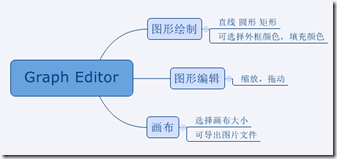
除了MVVM Light 框架是一个新东西之外,本文所涉及内容之前的WPF学习0-9基本都有相关介绍。
本节中,将搭建编辑器的界面,搭建MVVM Light 框架的使用环境。
界面
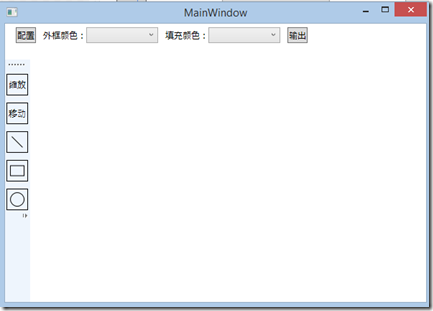
<Window x:Class="GraphEditor.MainWindow"

        xmlns="http://schemas.microsoft.com/winfx/2006/xaml/presentation"

        xmlns:x="http://schemas.microsoft.com/winfx/2006/xaml"

        Title="MainWindow" Height="350" Width="525" Background="#FFFFFF">

    <Window.Resources>

        <Style x:Key="StatusBarButton" TargetType="RadioButton">

            <Setter Property="Width" Value="30"/>

            <Setter Property="Height" Value="30"/>

            <Setter Property="Margin" Value="0 10 0 0"/>

            <Setter Property="BorderBrush" Value="Black"/>

            <Setter Property="BorderThickness" Value="1"/>

        </Style>

    </Window.Resources>

    <Grid>

        <Grid.ColumnDefinitions>

            <ColumnDefinition Width="auto"/>

            <ColumnDefinition Width="*"/>

        </Grid.ColumnDefinitions>

        <Grid.RowDefinitions>

            <RowDefinition Height="auto"/>

            <RowDefinition Height="*"/>

        </Grid.RowDefinitions>

        <!--工具栏-->

        <StackPanel Grid.Row="0" Orientation="Horizontal" Margin="5 5 5 5" Grid.ColumnSpan="2">

            <Button  Margin="10 0 10 0">配置</Button>

            <TextBlock VerticalAlignment="Center">外框颜色:</TextBlock>

            <ComboBox Width="100" Margin="0 0 10 0" ItemsSource="{Binding AvailiableColors}" SelectedItem="{Binding BorderColor}">

                <ComboBox.ItemTemplate>

                    <DataTemplate>

                        <Rectangle Width="100" Height="15" Fill="{Binding}"></Rectangle>

                    </DataTemplate>

                </ComboBox.ItemTemplate>

            </ComboBox>

            <TextBlock VerticalAlignment="Center">填充颜色:</TextBlock>

            <ComboBox Width="100" Margin="0 0 10 0"></ComboBox>

            <Button  Margin="0 0 10 0">输出</Button>

        </StackPanel>

        <!--状态选择栏-->

        <ToolBarTray Grid.Column="0" Grid.RowSpan="2" Margin="0 50 0 0" Orientation="Vertical">

            <ToolBar>

                <RadioButton Style="{StaticResource StatusBarButton}">缩放</RadioButton>

                <RadioButton Style="{StaticResource StatusBarButton}">移动</RadioButton>

                <RadioButton Style="{StaticResource StatusBarButton}">

                    <Line X1="0" Y1="0" X2="15" Y2="15" Stroke="Black" StrokeThickness="1"></Line>

                </RadioButton>

                <RadioButton Style="{StaticResource StatusBarButton}">

                    <Rectangle Width="20" Height="15" Stroke="Black" StrokeThickness="1"></Rectangle>

                </RadioButton>

                <RadioButton Style="{StaticResource StatusBarButton}">

                    <Ellipse Width="20" Height="20" Stroke="Black" StrokeThickness="1"></Ellipse>

                </RadioButton>

            </ToolBar>

        </ToolBarTray>

        <ScrollViewer HorizontalScrollBarVisibility="Auto" VerticalScrollBarVisibility="Auto" Grid.Column="1" Grid.Row="1">

            <Canvas>

                <Border>

                    <Image></Image>

                </Border>

            </Canvas>

        </ScrollViewer>

    </Grid>

</Window>
MVVM Light
首先是添加引用文件。
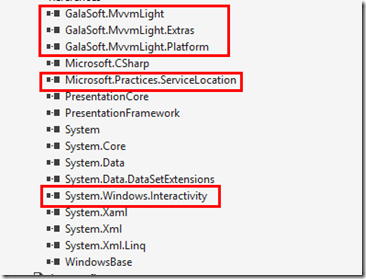
前三个为框架构成部分,ServiceLocation负责依赖反转。通过Interactivity我们可以扩展XAML,使得用前台代码就可以完成向ViewModel传参的功能。
创建ViewModel文件夹,其下创建MainViewModel ViewModelLocator两个文件。
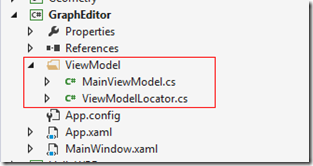
MainViewModel继承ViewModelBase即可,我们在这里写一个Command的例子。
class MainViewModel : ViewModelBase

{

    private ICommand _showPrompt;

    public ICommand ShowPrompt

    {

        get

        {

            //前一个Lambda为Excute,后一个为CanExcute

            return _showPrompt ?? (_showPrompt = new RelayCommand(() => MessageBox.Show("Hello World"), () => true));

        }

    }

}
在Locator中对ViewModel进行注册
class ViewModelLocator

{

    public ViewModelLocator()

    {

        ServiceLocator.SetLocatorProvider(() => SimpleIoc.Default);

        SimpleIoc.Default.Register<MainViewModel>();

    }

    public MainViewModel Main

    {

        get

        {

            return ServiceLocator.Current.GetInstance<MainViewModel>();

        }

    }

    public static void Cleanup()

    {

    }

}
在App.xaml中创建容器资源。
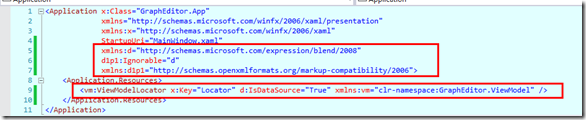
圈出的部分为需要添加的代码。
在主窗体的前台代码中配置DataContext,顺便添加Interactivity的引用。
<Window x:Class="GraphEditor.MainWindow"

        xmlns="http://schemas.microsoft.com/winfx/2006/xaml/presentation"

        xmlns:x="http://schemas.microsoft.com/winfx/2006/xaml"

        Title="MainWindow" Height="350" Width="525" Background="#FFFFFF"

        xmlns:i="clr-namespace:System.Windows.Interactivity;assembly=System.Windows.Interactivity"

        DataContext="{Binding Main, Source={StaticResource ResourceKey=Locator}}">
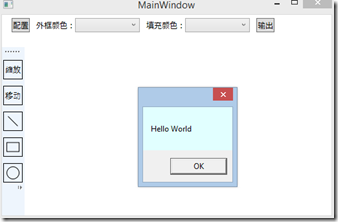
我们修改一下代码,用于测试是否成功使用了框架。
<Button Margin="0 0 10 0" Command="{Binding ShowPrompt}">输出</Button>
结果:
下一节将会完成画布的生成与三个基本形状的绘制。
WPF学习10:基于MVVM Light 制作图形编辑工具(1)的更多相关文章
- WPF学习12:基于MVVM Light 制作图形编辑工具(3)
本文是WPF学习11:基于MVVM Light 制作图形编辑工具(2)的后续 这一次的目标是完成 两个任务. 本节完成后的效果: 本文分为三个部分: 1.对之前代码不合理的地方重新设计. 2.图形可选 ...
- WPF学习11:基于MVVM Light 制作图形编辑工具(2)
本文是WPF学习10:基于MVVM Light 制作图形编辑工具(1)的后续 这一次的目标是完成 两个任务. 画布 效果: 画布上,选择的方案是:直接以Image作为画布,使用RenderTarget ...
- WPF学习笔记-用Expression Design制作矢量图然后导出为XAML
WPF学习笔记-用Expression Design制作矢量图然后导出为XAML 第一次用Windows live writer写东西,感觉不错,哈哈~~ 1.在白纸上完全凭感觉,想象来画图难度很大, ...
- WPF学习08:MVVM 预备知识之COMMAND
WPF内建的COMMAND是GOF 提出的23种设计模式中,命令模式的实现. 本文是WPF学习07:MVVM 预备知识之数据绑定的后续,将说明实现COMMAND的三个重点:ICommand Comm ...
- 【Telerik控件学习】-建立自己的图形编辑工具(Diagram)
Telerik提供了RadDiagram控件,用于图形元素的旋转,拖拽和缩放.更重要的是,它还拓展了许多绑定的命令(复制,剪切,粘贴,回退等等). 我们可以用来组织自己的图形编辑工具. Step1.定 ...
- MAPZONE GIS SDK接入Openlayers3之五——图形编辑工具
图形编辑工具提供对要素图形进行增.删.改的功能,具体包括以下几种工具类型: 浏览工具 选择工具 创建要素工具 删除命令 分割工具 合并命令 节点编辑工具 修边工具 撤销命令 重做命令 工具的实现基本上 ...
- WPF学习07:MVVM 预备知识之数据绑定
MVVM是一种模式,而WPF的数据绑定机制是一种WPF内建的功能集,两者是不相关的. 但是,借助WPF各种内建功能集,如数据绑定.命令.数据模板,我们可以高效的在WPF上实现MVVM.因此,我们需要对 ...
- WPF学习笔记-用Expression Blend制作自定义按钮
1.从Blend工具箱中添加一个Button,按住shift,将尺寸调整为125*125; 2.右键点击此按钮,选择Edit control parts(template)>Edit a cop ...
- WPF学习笔记:MVVM模式下,ViewModel如何关闭View?
原文:http://blog.csdn.net/leftfist/article/details/32349731 矫枉过正,从一个极端走向另一个极端.MVVM模式,View只负责呈现,虽然也有后台代 ...
随机推荐
- NSUserDefaults 保存自己定义对象
项目里json返回的一个model须要保存下来,这个model是固定的没必须去创建表,想到了NSUserDefaults来存储,暂不考虑安全问题. NSUserDefaults没法直接存储一个对象.在 ...
- 一起talk C栗子吧(第一百二十四回:C语言实例--内置宏)
各位看官们,大家好,上一回中咱们说的是显示变量和函数地址的样例,这一回咱们说的样例是:内置宏.闲话休提,言归正转.让我们一起talk C栗子吧! 看官们,我们在编译程序的时候,假设有语法错误,编译器就 ...
- VMware一些使用心得
这段时间VMware workstation用得较多,装了好几个虚拟机,有win2003,win2008,win7,还分32位,64位.装了这么多,要么是用于安装一些软件,比如oracle12c,因为 ...
- HDU 5044 Tree 树链剖分+区间标记
Tree Problem Description You are given a tree (an acyclic undirected connected graph) with N nodes. ...
- 【bzoj3224】Tyvj 1728 普通平衡树
交了一发pb_ds #include<ext/pb_ds/assoc_container.hpp> #include<algorithm> #include<iostre ...
- cassandra删除所有数据,重置为初始状态——删除<data dir>/data/* <data dir>/commitlog/* <data dir>/saved_caches/* 重启cassandra即可
Are you looking for a method other than drop keyspace? Okay based on your clarification... I would s ...
- BZOJ1266:上学路线route (最短路+最小割)
可可和卡卡家住合肥市的东郊,每天上学他们都要转车多次才能到达市区西端的学校.直到有一天他们两人参加了学校的信息学奥林匹克竞赛小组才发现每天上学的乘车路线不一定是最优的. 可可:“很可能我们在上学的路途 ...
- 使用x-template 定义模板
demo <script type="text/x-template" id="myFirstScriptComponent"> <p> ...
- supervisor - Python进程管理工具
经常会碰到要写一些守护进程,简单做法放入后台: shell> nohup python xxx.py & 偶尔这么做还可以接受,如果一堆这样的呢? 当然还有一个问题,就是各种服务,对应的 ...
- 06_传智播客iOS视频教程_源文件后缀名和main函数
OC与C语言的不同. 把OC程序运行起来,CPU只会找main函数.并且只会执行main函数当中的代码.当main函数的代码执行完毕之后这个程序就自动结束掉了. main函数的参数是可以让我们在运行程 ...