
WPF学习11:基于MVVM Light 制作图形编辑工具(2)
本文是WPF学习10:基于MVVM Light 制作图形编辑工具(1)的后续
这一次的目标是完成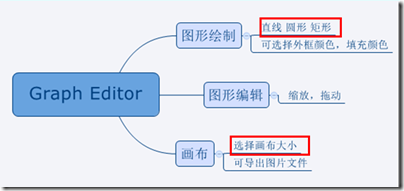
两个任务。
画布
效果:
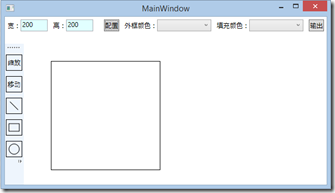

画布上,选择的方案是:直接以Image作为画布,使用RenderTargetBitmap绑定为Image的图片源,这样可以为后续的导出图片功能提供很大的便利。
对拖动栏XAML进行如下修改:
<ScrollViewer  HorizontalScrollBarVisibility="Auto" VerticalScrollBarVisibility="Auto" Grid.Column="1" Grid.Row="1">

    <Canvas  VerticalAlignment="Top" HorizontalAlignment="Left"  Width="{Binding ActualWidth,ElementName=ImageBorder}"  SnapsToDevicePixels="False" Height="{Binding Path=ActualHeight,ElementName=ImageBorder}" Margin="50 50 0 0 " ClipToBounds="True">

        <Border Name="ImageBorder" BorderBrush="Black" BorderThickness="1">

            <Image Source="{Binding DrawingBitmap}">

            </Image>

        </Border>

    </Canvas>

</ScrollViewer>
相应的,ViewModel中也要添加代码。
private RenderTargetBitmap _drawingBitmap;

public RenderTargetBitmap DrawingBitmap

{

    get { return _drawingBitmap; }

    set

    {

        _drawingBitmap = value;

        RaisePropertyChanged("DrawingBitmap");

    }

}
到这里,画布的绑定就完成了。
现在要完成调节画布大小的相关代码,首先,在XAML增加两个输入框使得长宽由界面配置:
<TextBlock VerticalAlignment="Center"><Run Text="宽:"/></TextBlock>

<TextBox Width="50" Margin="0 0 10 0" Text="{Binding DrawingAreaWidth, ValidatesOnDataErrors=True, UpdateSourceTrigger=PropertyChanged}"/>

<TextBlock VerticalAlignment="Center"><Run Text="高:"/></TextBlock>

<TextBox Width="50" Margin="0 0 10 0" Text="{Binding DrawingAreaHeight, ValidatesOnDataErrors=True, UpdateSourceTrigger=PropertyChanged}"/>

<Button  Margin="10 0 10 0" Content="配置" Command="{Binding SetDrawingAreaSize}"/>
ViewModel部分:
private Int32 _drawingAreaWidth;

public Int32 DrawingAreaWidth

{

    get { return _drawingAreaWidth; }

    set

    {

        _drawingAreaWidth = value;

        RaisePropertyChanged("DrawingAreaWidth");

    }

}

private Int32 _drawingAreaHeight;

public Int32 DrawingAreaHeight

{

    get { return _drawingAreaHeight; }

    set

    {

        _drawingAreaHeight = value;

        RaisePropertyChanged("DrawingAreaHeight");

    }

}
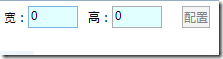

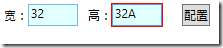
最后是Command SetDrawingAreaSize 的实现:
private ICommand _setDrawingAreaSize;

public ICommand SetDrawingAreaSize

{

    get

    {

        return _setDrawingAreaSize ?? (_setDrawingAreaSize = new RelayCommand(() =>

            {

                DrawingBitmap = new RenderTargetBitmap(DrawingAreaWidth, DrawingAreaHeight,

                    96, 96, PixelFormats.Pbgra32);

                var drawingVisual = new DrawingVisual();

                using (var context = drawingVisual.RenderOpen())

                {

                    context.DrawRectangle(Brushes.White, null,

                        new Rect(0, 0, DrawingAreaWidth, DrawingAreaHeight));

                }

                DrawingBitmap.Render(drawingVisual);

            }

            , () => (DrawingAreaWidth != 0 && DrawingAreaHeight != 0)));

    }

}
至此,本节最开始的效果就完成啦。
直线
效果如下:
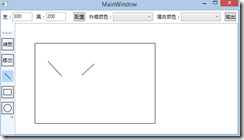

XAML中需要引入两个命名空间:
xmlns:i="clr-namespace:System.Windows.Interactivity;assembly=System.Windows.Interactivity"

xmlns:command=http://www.galasoft.ch/mvvmlight
引入后我们就可以为Image添加三个响应鼠标的命令。
<Image Source="{Binding DrawingBitmap}">

    <i:Interaction.Triggers>

        <i:EventTrigger EventName="MouseMove">

            <command:EventToCommand Command="{Binding MouseMoveCommand}" PassEventArgsToCommand="True" />

        </i:EventTrigger>

        <i:EventTrigger EventName="MouseDown" >

            <command:EventToCommand Command="{Binding MouseDownCommand}" PassEventArgsToCommand="True"/>

        </i:EventTrigger>

        <i:EventTrigger EventName="MouseUp" >

            <command:EventToCommand Command="{Binding MouseUpCommand}" PassEventArgsToCommand="True"/>

        </i:EventTrigger>

    </i:Interaction.Triggers>

</Image>
在界面上绘制Line控件,用于动态操作时的显示,操作完毕,隐藏控件,在Image上绘图。
<Line Stroke="Black" StrokeThickness="1" Visibility="{Binding LineVisibility}"

X1="{Binding PositionX1}" X2="{Binding PositionX2}"

Y1="{Binding PositionY1}" Y2="{Binding PositionY2}"/>
ViewModel添加以下属性,X2,Y1,Y2略。
private Visibility _lineVisibility = Visibility.Hidden;

public Visibility LineVisibility

{

    get { return _lineVisibility; }

    set

    {

        _lineVisibility = value;

        RaisePropertyChanged("LineVisibility");

    }

}

private Double _positionX1;

public Double PositionX1

{

    get { return _positionX1; }

    set

    {

        _positionX1 = value;

        RaisePropertyChanged("PositionX1");

    }

}
为了让ViewModel能知道当前的绘图状态(直线,圆,矩形)在加一些数据绑定:
<RadioButton Style="{StaticResource StatusBarButton}" IsChecked="{Binding LineModeEnable}">

    <Line X1="0" Y1="0" X2="15" Y2="15" Stroke="Black" StrokeThickness="1"></Line>

</RadioButton>

<RadioButton Style="{StaticResource StatusBarButton}" IsChecked="{Binding RectangleModeEnable}">

    <Rectangle Width="20" Height="15" Stroke="Black" StrokeThickness="1"></Rectangle>

</RadioButton>

<RadioButton Style="{StaticResource StatusBarButton}" IsChecked="{Binding EllipseModeEnable}">

    <Ellipse Width="20" Height="20" Stroke="Black" StrokeThickness="1"></Ellipse>

</RadioButton>
最后,我们编写三个鼠标相应的指令:
public ICommand SetDrawingAreaSize

{

    get

    {

        return _setDrawingAreaSize ?? (_setDrawingAreaSize = new RelayCommand(() =>

            {

                DrawingBitmap = new RenderTargetBitmap(DrawingAreaWidth, DrawingAreaHeight,

                    96, 96, PixelFormats.Pbgra32);

                var drawingVisual = new DrawingVisual();

                using (var context = drawingVisual.RenderOpen())

                {

                    context.DrawRectangle(Brushes.White, null,

                        new Rect(0, 0, DrawingAreaWidth, DrawingAreaHeight));

                }

                DrawingBitmap.Render(drawingVisual);

            }

            , () => (DrawingAreaWidth != 0 && DrawingAreaHeight != 0)));

    }

}

private ICommand _mouseMoveCommand;

public ICommand MouseMoveCommand

{

    get

    {

        return _mouseMoveCommand ?? (_mouseMoveCommand = new RelayCommand<MouseEventArgs>((e) =>

        {

            PositionX2 = e.GetPosition((IInputElement)e.Source).X;

            PositionY2 = e.GetPosition((IInputElement)e.Source).Y;

        }

            , (e) => true));

    }

}

private ICommand _mouseDownCommand;

public ICommand MouseDownCommand

{

    get

    {

        return _mouseDownCommand ?? (_mouseDownCommand = new RelayCommand<MouseEventArgs>((e) =>

        {

            if(LineModeEnable)

                LineVisibility = Visibility.Visible;

            PositionX1 = e.GetPosition((IInputElement)e.Source).X;

            PositionY1 = e.GetPosition((IInputElement)e.Source).Y;

        }

            , (e) => true));

    }

}

private ICommand _mouseUpCommand;

public ICommand MouseUpCommand

{

    get

    {

        return _mouseUpCommand ?? (_mouseUpCommand = new RelayCommand<MouseEventArgs>((e) =>

        {

            var drawingVisual = new DrawingVisual();

            using (var context = drawingVisual.RenderOpen())

            {

                //此处的-1用于消除画布边界带来的偏差,因为目前都是固定的,所以没有使用数据绑定。

                if(LineModeEnable)

                context.DrawLine(new Pen(Brushes.Black, 1), new Point(PositionX1 - 1, PositionY1 - 1), new Point(PositionX2 - 1, PositionY2 - 1 ));

            }

            DrawingBitmap.Render(drawingVisual);

            LineVisibility = Visibility.Hidden;

        }

            , (e) => true));

    }

}
圆形
效果:
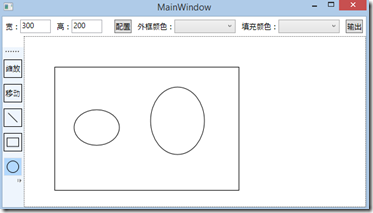
XAML代码:
<Ellipse Stroke="Black" StrokeThickness="1" Visibility="{Binding EllipseVisibility}"

        Canvas.Left="{Binding PositionX1}" Canvas.Top="{Binding PositionY1}"

        Width="{Binding ShapeWidth}" Height="{Binding ShapeHeight}"></Ellipse>
MouseDown增加:
if (EllipseModeEnable)

{

    ShapeWidth = ShapeHeight = 0;

    EllipseVisibility = Visibility.Visible;

}
Move增加:
ShapeWidth = Math.Abs(PositionX2 - PositionX1);

ShapeHeight = Math.Abs(PositionY2 - PositionY1);
Up增加:
if(EllipseModeEnable)

    context.DrawEllipse(new SolidColorBrush(Colors.White), new Pen(Brushes.Black, 1),

        new Point(PositionX1 + ShapeWidth / 2 - 1, PositionY1 + ShapeHeight / 2 - 1), ShapeWidth / 2, ShapeHeight / 2);
矩形

效果如上,代码与圆形相似,故省略。
下一节将会完成图形的放大、缩小、移动,颜色的填充。
开发环境VS2013, .NET4.5
WPF学习11:基于MVVM Light 制作图形编辑工具(2)的更多相关文章
- WPF学习12:基于MVVM Light 制作图形编辑工具(3)
本文是WPF学习11:基于MVVM Light 制作图形编辑工具(2)的后续 这一次的目标是完成 两个任务. 本节完成后的效果: 本文分为三个部分: 1.对之前代码不合理的地方重新设计. 2.图形可选 ...
- WPF学习10:基于MVVM Light 制作图形编辑工具(1)
图形编辑器的功能如下图所示: 除了MVVM Light 框架是一个新东西之外,本文所涉及内容之前的WPF学习0-9基本都有相关介绍. 本节中,将搭建编辑器的界面,搭建MVVM Light 框架的使用环 ...
- WPF学习笔记-用Expression Design制作矢量图然后导出为XAML
WPF学习笔记-用Expression Design制作矢量图然后导出为XAML 第一次用Windows live writer写东西,感觉不错,哈哈~~ 1.在白纸上完全凭感觉,想象来画图难度很大, ...
- WPF学习08:MVVM 预备知识之COMMAND
WPF内建的COMMAND是GOF 提出的23种设计模式中,命令模式的实现. 本文是WPF学习07:MVVM 预备知识之数据绑定的后续,将说明实现COMMAND的三个重点:ICommand Comm ...
- 【Telerik控件学习】-建立自己的图形编辑工具(Diagram)
Telerik提供了RadDiagram控件,用于图形元素的旋转,拖拽和缩放.更重要的是,它还拓展了许多绑定的命令(复制,剪切,粘贴,回退等等). 我们可以用来组织自己的图形编辑工具. Step1.定 ...
- MAPZONE GIS SDK接入Openlayers3之五——图形编辑工具
图形编辑工具提供对要素图形进行增.删.改的功能,具体包括以下几种工具类型: 浏览工具 选择工具 创建要素工具 删除命令 分割工具 合并命令 节点编辑工具 修边工具 撤销命令 重做命令 工具的实现基本上 ...
- WPF学习07:MVVM 预备知识之数据绑定
MVVM是一种模式,而WPF的数据绑定机制是一种WPF内建的功能集,两者是不相关的. 但是,借助WPF各种内建功能集,如数据绑定.命令.数据模板,我们可以高效的在WPF上实现MVVM.因此,我们需要对 ...
- WPF学习笔记-用Expression Blend制作自定义按钮
1.从Blend工具箱中添加一个Button,按住shift,将尺寸调整为125*125; 2.右键点击此按钮,选择Edit control parts(template)>Edit a cop ...
- WPF学习笔记:MVVM模式下,ViewModel如何关闭View?
原文:http://blog.csdn.net/leftfist/article/details/32349731 矫枉过正,从一个极端走向另一个极端.MVVM模式,View只负责呈现,虽然也有后台代 ...
随机推荐
- soapUI系列之—-04 问题解决 获取接口返回报文response报错
1. SoapUI+Groovy中"org.apache.xmlbeans.XmlException: error: Unexpected element: CDATA" 通过So ...
- C#结构类型图
C#结构类型图 分类: C#
- C++标准I/O库:iostream, fstream, sstringstream
在写代码的过程中.我们最常做的事就是io操作,不管是对控制台,还是文件.但一段时间不写代码就忘了,这里理一下C++标准I/O库的详细类和操作. C++的标准I/O库包含我们常常使用的iostream, ...
- Ctags基本配置
一般linux系统都会自带ctags,也可输入"ctags"看有木有该命令.有的话速度配置吧,没有话yum install ctags安装吧. 打开vim 配置文件,要是没该文件就 ...
- javascript闭包的应用
我印象中,javascript的闭包属于进阶的范畴,无非是用来在面试中装装逼而已.你看我身边的一个小伙子,有一天我装逼地问他什么是javascript的闭包,他居然连听都没听说过.但他做起前端的东西来 ...
- 2016/04/18 session cookie 对比 应用 <?php session_start() / setcookie()?>
①会话 huihua.php <!DOCTYPE html> <html lang="en"> <head> <meta charset= ...
- 使用变量作为js对象的属性名
<script> var test={aa:12,bb:34};//或者var test={}; var cc= "acqId" test[cc]=12; alert( ...
- python 获取代码宿主机名 ip
1.获取hostname 相同代码 不同宿主机 日志名 互异 且 可识别宿主机 分布式爬虫 https://docs.python.org/3.6/library/socket.html#socket ...
- linux下开机启动svn配置
1.在 vi /etc/rc.local文件下添加以下: /home/svn/subversion-1.8.18/bin/svnserve -d --listen-port 3690 -r /home ...
- String模块ascii_letters和digits
Python3中String模块ascii_letters和digits方法,其中ascii_letters是生成所有字母,从a-z和A-Z,digits是生成所有数字0-9. 示例如下: Pytho ...