
Harbor介绍与企业级私有Docker镜像仓库搭建
Harbor介绍与安装部署,并实现通过http和https协议【自签发SSL证书】访问,客户端如何通过Harbor镜像仓库实现镜像的上传【推送】与下载【拉取】。
Harbor介绍
Harbor,是一个英文单词,意思是港湾,港湾是干什么的呢,就是停放货物的,而货物呢,是装在集装箱中的,说到集装箱,就不得不提到Docker容器,因为docker容器的技术正是借鉴了集装箱的原理。所以,Harbor正是一个用于存储Docker镜像的企业级Registry服务。
Docker容器应用的开发和运行离不开可靠的镜像管理,虽然Docker官方也提供了公共的镜像仓库,但是从安全和效率等方面考虑,部署我们私有环境内的Registry也是非常必要的。Harbor是由VMware公司开源的企业级的Docker Registry管理项目,它包括权限管理(RBAC)、LDAP、日志审核、管理界面、自我注册、镜像复制和中文支持等功能。
机器规划
| 服务器名称(hostname) | 操作系统版本 | 内网IP | 外网IP(模拟) | 安装软件 |
|---|---|---|---|---|
| docker01 | CentOS7.7 | 172.16.1.31 | 10.0.0.31 | docker、Harbor |
| docker02 | CentOS7.7 | 172.16.1.32 | 10.0.0.32 | docker |
SSL证书创建
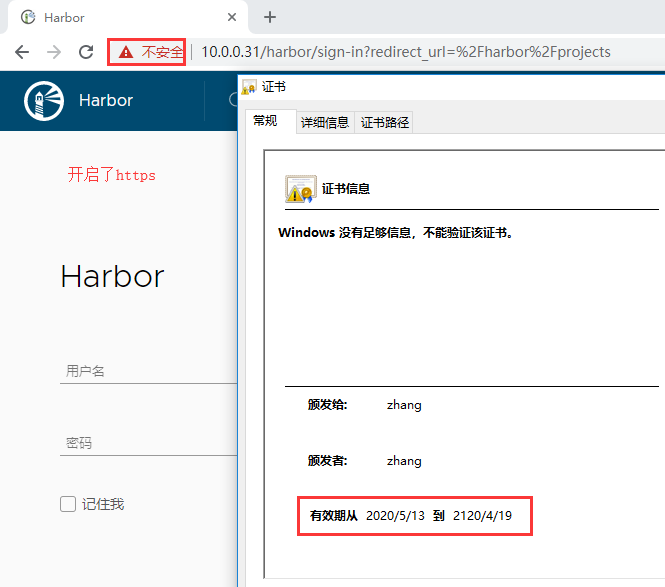
如果要使用https访问Harbor。那么请按照如下生成SSL证书。
创建根证书
1 ## 创建CA私钥

2 openssl genrsa -out ca.key 2048

3 ## 制作CA公钥

4 openssl req -new -x509 -days 36500 -key ca.key -out ca.crt -subj "/C=CN/ST=BJ/L=BeiJing/O=BTC/OU=MOST/CN=zhang/emailAddress=ca@test.com"
genrsa 生成私钥
-out filename 标准输出到filename文件
req 生成证书请求
-new 生成新证书签署请求
-x509 专用于CA生成自签证书;不自签的时候不要加该选项
-days num 证书的有效期限
-key file 生成请求时用到的私钥文件
-out filename 标准输出到filename文件
subj内容详解:
1 C             = 国家

2 ST            = 省/州

3 L             = 城市

4 O             = Organization Name

5 OU            = Organizational Unit Name

6 CN            = Common Name

7 emailAddress  = test@email.address
证书签发
1 ## 创建私钥

2 openssl genrsa -out httpd.key 1024

3 ## 生成签发请求

4 openssl req -new -key httpd.key -out httpd.csr -subj "/C=CN/ST=BJ/L=BeiJing/O=BTC/OU=OPS/CN=zhang/emailAddress=zhang@test.com"

5 ## 使用CA证书进行签发

6 openssl x509 -req -sha256 -in httpd.csr -CA ca.crt -CAkey ca.key -CAcreateserial -days 36500 -out httpd.crt

7 ## 验证签发证书是否有效

8 openssl verify -CAfile ca.crt httpd.crt
生成结果如下图:
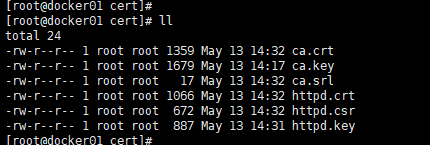
然后将httpd.key和httpd.crt,放到/etc/harbor/cert/目录下,后面会用到。
安装docker-ce
安装脚本如下
 1 [root@docker01 harbor]# pwd

 2 /root/harbor

 3 [root@docker01 harbor]# cat install_docker-ce.sh

 4 #!/bin/sh

 5

 6 # 加载环境变量

 7 . /etc/profile

 8 . /etc/bashrc

 9

10 ## 设置 docker yum repository

11 yum install -y yum-utils device-mapper-persistent-data lvm2

12 yum-config-manager --add-repo http://mirrors.aliyun.com/docker-ce/linux/centos/docker-ce.repo

13

14 ## 安装docker

15 yum install -y docker-ce

16 # yum install -y docker-ce-19.03.8

17

18 ## 启动docker服务,这样可以创建/etc/docker目录

19 systemctl start docker

20

21 ## 配置daemon

22 ## 1、修改docker Cgroup Driver为systemd;2、日志格式设定

23 ## 如果不修改,可能会碰到如下错误

24 ## [WARNING IsDockerSystemdCheck]: detected "cgroupfs" as the Docker cgroup driver. The recommended driver is "systemd".

25 ## Please follow the guide at https://kubernetes.io/docs/setup/cri/

26 cat > /etc/docker/daemon.json << EOF

27 {

28   "exec-opts": ["native.cgroupdriver=systemd"],

29   "log-driver": "json-file",

30   "log-opts": {

31     "max-size": "100m"

32   }

33 }

34 EOF

35

36 ## 开机自启动

37 systemctl stop docker && systemctl daemon-reload && systemctl enable docker && systemctl start docker
安装docker-compose
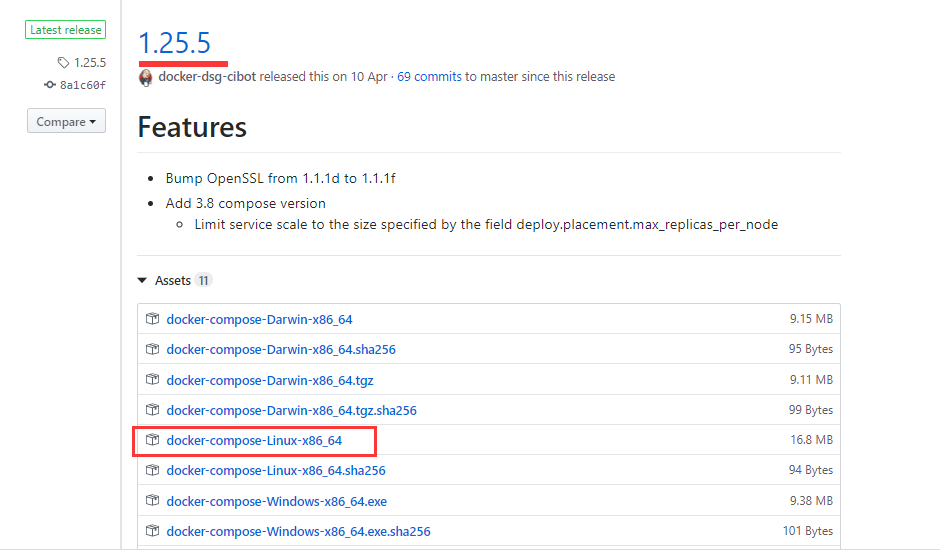
下载地址:
https://github.com/docker/compose
此次,我们使用的是 1.25.5 版本。
 1 [root@docker01 harbor]# ll

 2 total 17180

 3 -rw-r--r-- 1 root root 17586312 May 12 23:16 docker-compose-Linux-x86_64

 4 -rw-r--r-- 1 root root      958 May 12 23:00 install_docker-ce.sh

 5 [root@docker01 harbor]# chmod +x docker-compose-Linux-x86_64   # 添加执行权限

 6 [root@docker01 harbor]# mv docker-compose-Linux-x86_64  /usr/local/sbin/docker-compose   # 移到指定目录

 7 [root@docker01 harbor]# docker-compose version  # 版本查看

 8 docker-compose version 1.25.5, build 8a1c60f6

 9 docker-py version: 4.1.0

10 CPython version: 3.7.5

11 OpenSSL version: OpenSSL 1.1.0l  10 Sep 2019
安装Harbor私有仓库
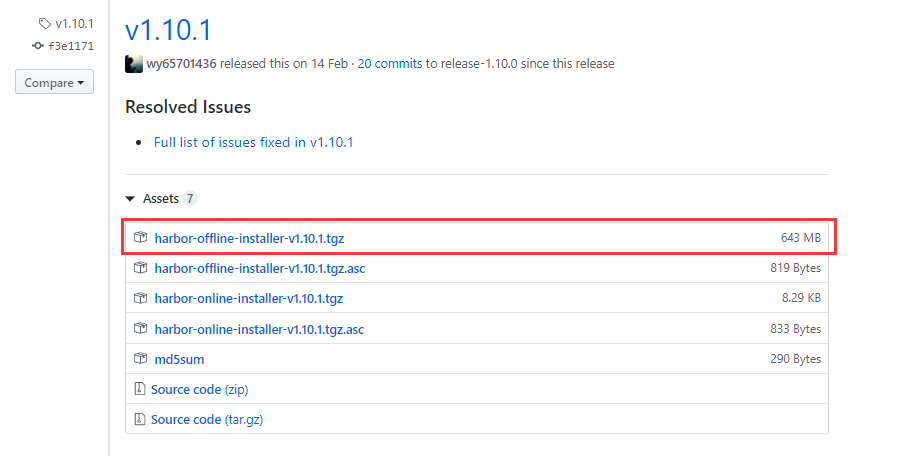
官网下载地址
https://github.com/goharbor/harbor
此次,我们使用的是 v1.10.1 版本。
 1 [root@docker01 harbor]# ll

 2 total 658284

 3 -rw-r--r-- 1 root root 674078519 May 12 17:25 harbor-offline-installer-v1.10.1.tgz

 4 -rw-r--r-- 1 root root       958 May 12 23:00 install_docker-ce.sh

 5 [root@docker01 harbor]#

 6 [root@docker01 harbor]# tar xf harbor-offline-installer-v1.10.1.tgz    # 解压包

 7 [root@docker01 harbor]# cd harbor/

 8 [root@docker01 harbor]# ll

 9 total 662120

10 -rw-r--r-- 1 root root      3398 Feb 10 14:18 common.sh

11 -rw-r--r-- 1 root root 677974489 Feb 10 14:19 harbor.v1.10.1.tar.gz

12 -rw-r--r-- 1 root root      5882 Feb 10 14:18 harbor.yml

13 -rwxr-xr-x 1 root root      2284 Feb 10 14:18 install.sh

14 -rw-r--r-- 1 root root     11347 Feb 10 14:18 LICENSE

15 -rwxr-xr-x 1 root root      1749 Feb 10 14:18 prepare
harbor.yml配置文件修改内容【http访问】
 1 # 这里的hostname怎么配置

 2 # 1、如果所有机器都在一个局域网,那么配置内网IP

 3 # 2、如果机器跨网络,只能通过公网访问,那么配置本机外网IP或域名

 4 hostname: 172.16.1.31

 5

 6 # http端口改为了5000,默认80端口

 7 http:

 8   # port for http, default is 80. If https enabled, this port will redirect to https port

 9   port: 5000

10

11 # 将https注释掉,不然会报 ERROR:root:Error: The protocol is https but attribute ssl_cert is not set

12 # https related config

13 #https:

14   # https port for harbor, default is 443

15   #port: 443

16   # The path of cert and key files for nginx

17   #certificate: /your/certificate/path

18   #private_key: /your/private/key/path

19

20 # admin用户的免密

21 harbor_admin_password: Harbor12345

22

23 # 数据存储路径

24 data_volume: /data
harbor.yml配置文件修改内容【https访问】
放开了https配置,本次证书是自签发的。
 1 # 这里的hostname怎么配置

 2 # 1、如果所有机器都在一个局域网,那么配置内网IP

 3 # 2、如果机器跨网络,只能通过公网访问,那么配置本机外网IP或域名

 4 hostname: 172.16.1.31

 5

 6 # http端口改为了5000,默认80端口

 7 http:

 8   # port for http, default is 80. If https enabled, this port will redirect to https port

 9   port: 5000

10

11 # https related config

12 https:

13   # https port for harbor, default is 443

14   port: 443

15   # The path of cert and key files for nginx

16   certificate: /etc/harbor/cert/httpd.crt

17   private_key: /etc/harbor/cert/httpd.key

18

19 # admin用户的免密

20 harbor_admin_password: Harbor12345

21

22 # 数据存储路径

23 data_volume: /data
如果使用了https协议且端口是443,那么当使用http访问时,会自动跳转到https。
部署Harbor
修改完配置文件后,在的当前目录执行./install.sh,Harbor服务就会根据当前目录下的docker-compose.yml开始下载依赖的镜像,检测并按照顺序依次启动。
 1 [root@docker01 harbor]# ll

 2 total 662120

 3 drwxr-xr-x 3 root root        20 May 12 23:47 common

 4 -rw-r--r-- 1 root root      3398 Feb 10 14:18 common.sh

 5 -rw-r--r-- 1 root root 677974489 Feb 10 14:19 harbor.v1.10.1.tar.gz

 6 -rw-r--r-- 1 root root      5921 May 12 23:54 harbor.yml

 7 drwxr-xr-x 2 root root        24 May 12 23:47 input

 8 -rwxr-xr-x 1 root root      2284 Feb 10 14:18 install.sh

 9 -rw-r--r-- 1 root root     11347 Feb 10 14:18 LICENSE

10 -rwxr-xr-x 1 root root      1749 Feb 10 14:18 prepare

11 [root@docker01 harbor]#

12 [root@docker01 harbor]# ./install.sh   # 启动harbor
启动结果如下图

停止与启动Harbor
如果修改了Harbor的配置文件harbor.yml,因为Harbor是基于docker-compose服务编排的,我们可以使用docker-compose命令重启Harbor。
未修改配置文件,重启Harbor命令:docker-compose start | stop | restart
当然个人建议:如果修改了harbor.yml文件,那么停止使用docker-compose down,启动使用 ./install.sh 。
 1 ##### 停止Harbor

 2 [root@docker01 harbor]# docker-compose down

 3 Stopping harbor-jobservice ... done

 4 Stopping nginx             ... done

 5 Stopping harbor-core       ... done

 6 Stopping registryctl       ... done

 7 Stopping redis             ... done

 8 Stopping harbor-portal     ... done

 9 Stopping harbor-db         ... done

10 Stopping registry          ... done

11 Stopping harbor-log        ... done

12 Removing harbor-jobservice ... done

13 Removing nginx             ... done

14 Removing harbor-core       ... done

15 Removing registryctl       ... done

16 Removing redis             ... done

17 Removing harbor-portal     ... done

18 Removing harbor-db         ... done

19 Removing registry          ... done

20 Removing harbor-log        ... done

21 Removing network harbor_harbor

22 ##### 启动Harbor

23 [root@docker01 harbor]# docker-compose up -d

24 Creating network "harbor_harbor" with the default driver

25 Creating harbor-log ... done

26 Creating registryctl   ... done

27 Creating harbor-db     ... done

28 Creating redis         ... done

29 Creating registry      ... done

30 Creating harbor-portal ... done

31 Creating harbor-core   ... done

32 Creating nginx             ... done

33 Creating harbor-jobservice ... done
镜像信息和容器信息
镜像信息和容器信息如下
[root@docker01 ~]# docker images

REPOSITORY                      TAG                              IMAGE ID            CREATED             SIZE

goharbor/chartmuseum-photon     v0.9.0-v1.10.1                   0245d66323de        3 months ago        128MB

goharbor/harbor-migrator        v1.10.1                          a4f99495e0b0        3 months ago        364MB

goharbor/redis-photon           v1.10.1                          550a58b0a311        3 months ago        111MB

goharbor/clair-adapter-photon   v1.0.1-v1.10.1                   2ec99537693f        3 months ago        61.6MB

goharbor/clair-photon           v2.1.1-v1.10.1                   622624e16994        3 months ago        171MB

goharbor/notary-server-photon   v0.6.1-v1.10.1                   e4ff6d1f71f9        3 months ago        143MB

goharbor/notary-signer-photon   v0.6.1-v1.10.1                   d3aae2fc17c6        3 months ago        140MB

goharbor/harbor-registryctl     v1.10.1                          ddef86de6480        3 months ago        104MB

goharbor/registry-photon        v2.7.1-patch-2819-2553-v1.10.1   1a0c5f22cfa7        3 months ago        86.5MB

goharbor/nginx-photon           v1.10.1                          01276d086ad6        3 months ago        44MB

goharbor/harbor-log             v1.10.1                          1f5c9ea164bf        3 months ago        82.3MB

goharbor/harbor-jobservice      v1.10.1                          689368d30108        3 months ago        143MB

goharbor/harbor-core            v1.10.1                          14151d58ac3f        3 months ago        130MB

goharbor/harbor-portal          v1.10.1                          8a9856c37798        3 months ago        52.1MB

goharbor/harbor-db              v1.10.1                          18548720d8ad        3 months ago        148MB

goharbor/prepare                v1.10.1                          897a4d535ced        3 months ago        192MB

[root@docker01 ~]# docker ps

CONTAINER ID        IMAGE                                                     COMMAND                  CREATED             STATUS                             PORTS                       NAMES

6f57ce1d6a27        goharbor/nginx-photon:v1.10.1                             "nginx -g 'daemon of…"   29 seconds ago      Up 28 seconds (health: starting)   0.0.0.0:5000->8080/tcp      nginx

bd441d18ae54        goharbor/harbor-jobservice:v1.10.1                        "/harbor/harbor_jobs…"   29 seconds ago      Up 28 seconds (health: starting)                               harbor-jobservice

374fad48780e        goharbor/harbor-core:v1.10.1                              "/harbor/harbor_core"    30 seconds ago      Up 29 seconds (health: starting)                               harbor-core

89f8f4312c24        goharbor/harbor-portal:v1.10.1                            "nginx -g 'daemon of…"   31 seconds ago      Up 29 seconds (health: starting)   8080/tcp                    harbor-portal

4d0b294a38c4        goharbor/redis-photon:v1.10.1                             "redis-server /etc/r…"   31 seconds ago      Up 29 seconds (health: starting)   6379/tcp                    redis

cd9fafa019f5        goharbor/harbor-registryctl:v1.10.1                       "/home/harbor/start.…"   31 seconds ago      Up 29 seconds (health: starting)                               registryctl

a62616384f6c        goharbor/registry-photon:v2.7.1-patch-2819-2553-v1.10.1   "/home/harbor/entryp…"   31 seconds ago      Up 29 seconds (health: starting)   5000/tcp                    registry

dc453165b1fb        goharbor/harbor-db:v1.10.1                                "/docker-entrypoint.…"   31 seconds ago      Up 29 seconds (health: starting)   5432/tcp                    harbor-db

8256f54e69ee        goharbor/harbor-log:v1.10.1                               "/bin/sh -c /usr/loc…"   31 seconds ago      Up 30 seconds (healthy)            127.0.0.1:1514->10514/tcp   harbor-log
浏览器访问
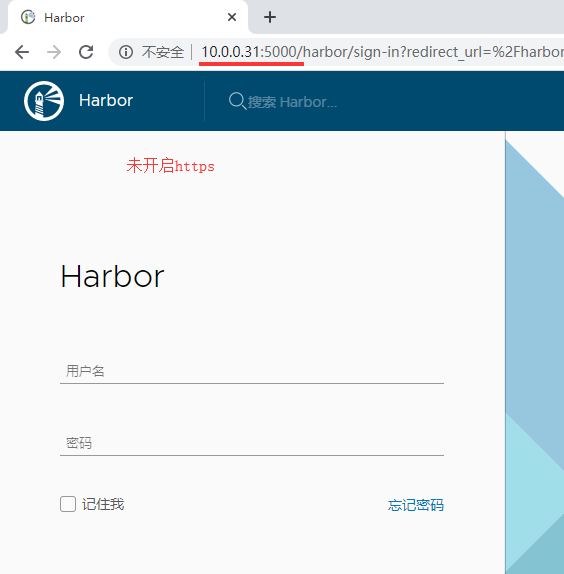
访问地址如下:
1 http 访问:http://10.0.0.31:5000/   或则  http://172.16.1.31:5000/

2 https访问:https://10.0.0.31/       或者  https://172.16.1.31/
备注:
1、由于我使用的Vmware虚拟机,因此10.0.0.0/24网段【模拟外网】和172.16.1.0/24网络【内网】都可以访问。生产环境是访问内网还是外网,视具体情况而定。
2、这里的访问地址和harbor.yml中配置的hostname值无关。
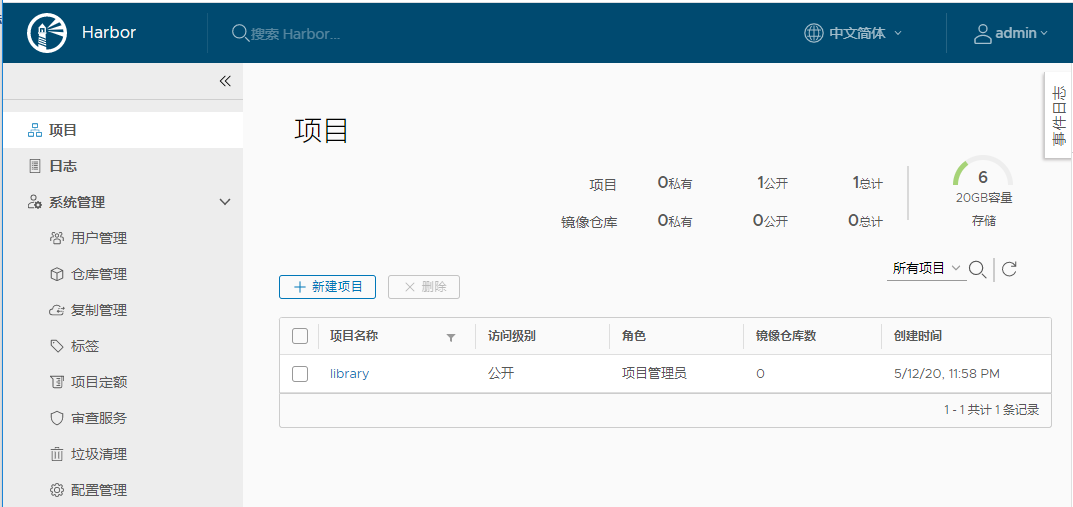
登录后页面
Harbor实现Docker镜像上传与下载
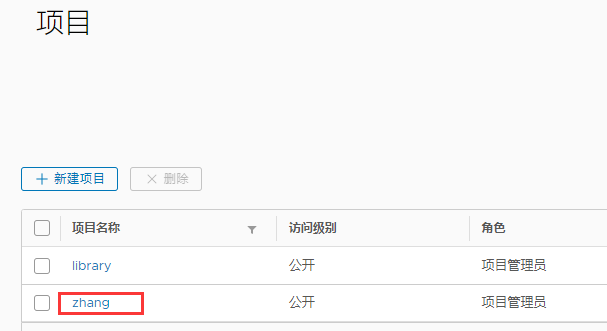
新建项目
根据你的项目名新建项目,这样才能将镜像推动到harbor镜像中心。

客户端http设置
Docker 默认不允许非 HTTPS 方式推送镜像。我们可以通过 Docker 的配置选项来取消这个限制。
如果直接【上传】或【拉取】镜像会失败,因为默认为https方式。
所有客户端都需要添加这个配置,然后重启 docker 服务。
 1 [root@docker01 ~]# vim /etc/docker/daemon.json

 2 {

 3   "exec-opts": ["native.cgroupdriver=systemd"],

 4   "log-driver": "json-file",

 5   "log-opts": {

 6     "max-size": "100m"

 7   },

 8   "insecure-registries": ["172.16.1.31:5000"]

 9 }

10 [root@docker01 ~]# systemctl restart docker   # 重启docker服务
添加了 “insecure-registries”: [“172.16.1.31:5000”] 这行,其中172.16.1.31为内网IP地址。该文件必须符合 json 规范,否则 Docker 将不能启动。
如果在Harbor所在的机器重启了docker服务,记得要重新启动Harbor。
客户端登录Harbor
客户端登录Harbor。
# docker login 172.16.1.31:5000 -u admin -p Harbor12345
查看登录信息,这样客户端就可以直接拉取或者推送镜像了。
 1 [root@docker01 ~]# cat ~/.docker/config.json

 2 {

 3     "auths": {

 4         "172.16.1.31:5000": {

 5             "auth": "YWRtaW46SGFyYm9yMTIzNDU="

 6         }

 7     },

 8     "HttpHeaders": {

 9         "User-Agent": "Docker-Client/19.03.8 (linux)"

10     }

11 }
Docker push镜像上传
1 [root@docker02 ~]# docker images

2 REPOSITORY                     TAG                 IMAGE ID            CREATED             SIZE

3 172.16.1.31:5000/zhang/nginx   1.17                ed21b7a8aee9        6 weeks ago         127MB

4 [root@docker02 ~]# docker push 172.16.1.31:5000/zhang/nginx:1.17    # 上传镜像

5 The push refers to repository [172.16.1.31:5000/zhang/nginx]

6 d37eecb5b769: Pushed

7 99134ec7f247: Pushed

8 c3a984abe8a8: Pushed

9 1.17: digest: sha256:7ac7819e1523911399b798309025935a9968b277d86d50e5255465d6592c0266 size: 948
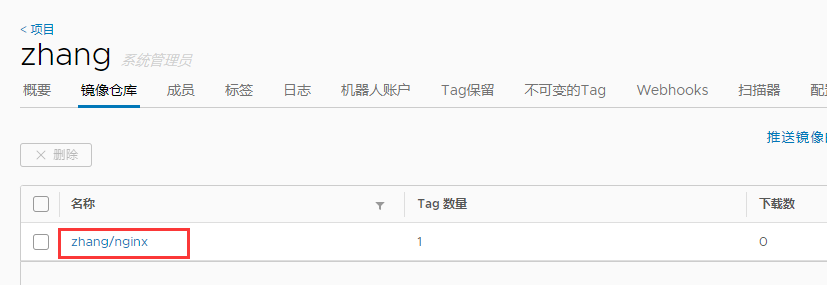
说明:注意镜像名格式
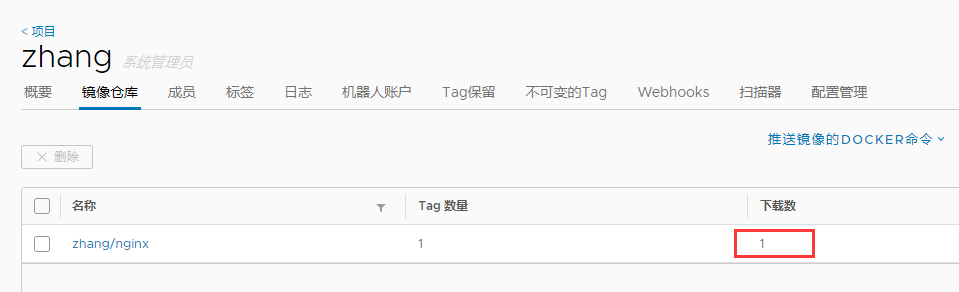
Harbor页面信息
Docker pull镜像拉取
 1 [root@docker01 ~]# docker images | grep 'zhang/nginx'

 2 [root@docker01 ~]# docker pull 172.16.1.31:5000/zhang/nginx:1.17    # 镜像拉取

 3 1.17: Pulling from zhang/nginx

 4 c499e6d256d6: Pull complete

 5 74cda408e262: Pull complete

 6 ffadbd415ab7: Pull complete

 7 Digest: sha256:7ac7819e1523911399b798309025935a9968b277d86d50e5255465d6592c0266

 8 Status: Downloaded newer image for 172.16.1.31:5000/zhang/nginx:1.17

 9 172.16.1.31:5000/zhang/nginx:1.17

10 [root@docker01 ~]# docker images | grep 'zhang/nginx'

11 172.16.1.31:5000/zhang/nginx    1.17    ed21b7a8aee9     6 weeks ago      127MB
Harbor页面信息
完毕!
———END———
如果觉得不错就关注下呗 (-^O^-) !

Harbor介绍与企业级私有Docker镜像仓库搭建的更多相关文章
- Harbor企业级私服Docker镜像仓库搭建及应用
一.简介 Docker Hub作为Docker默认官方公共镜像,如果想要自己搭建私有镜像,Harbor是企业级镜像库非常好的选择. 所谓私有仓库,也就是在本地(局域网)搭建的一个类似公共仓库的东西,搭 ...
- harobor私有docker镜像仓库
Harbor是一个用于存储和分发Docker镜像的企业级Registry服务器,由VMware开源,其通过添加一些企业必需的功能特性,例如安全.标识和管理等,扩展了开源 Docker Distribu ...
- kubernetes实战篇之nexus oss服务器部署及基于nexus的docker镜像仓库搭建
系列目录 Nexus oss仓库管理平台搭建 Nexus是一款仓库管理工具,支持Npm,bower,maven,nuget,apt,yum甚至docker,helm等各种仓库,说的通俗以下,就是私服镜 ...
- 搭建私有Docker镜像仓库
安装Docker yum install docker -y 配置阿里镜像加速网址 sudo tee /etc/docker/daemon.json << EOF { "regi ...
- 搭建docker镜像仓库(二):使用harbor搭建本地镜像仓库
目录 一.系统环境 二.前言 三.Harbor 四.使用harbor搭建私有镜像仓库 4.1 环境介绍 4.2 k8smaster节点安装配置harbor 4.2.1 安装harbor离线包 4.2. ...
- Docker镜像仓库的搭建--> Harbor篇
简介 Harbor是VMware公司开源的一个企业级Docker Registry项目,项目地址:https://github.com/goharbor/harbor Harbor作为一个企业级私有R ...
- 你必须知道的Docker镜像仓库的搭建
近期工作中发现用到的容器镜像越来越多(不多的时候没考虑过镜像仓库的问题),同一个容器镜像也存在多个版本,那么镜像仓库的搭建需求就涌现出来,本文就目前的几个常用镜像仓库的搭建进行介绍,我们可以根据需要选 ...
- Docker系列08—搭建使用私有docker registry
本文收录在容器技术学习系列文章总目录 1.了解Docker Registry 1.1 介绍 registry 用于保存docker 镜像,包括镜像的层次结构和元数据. 启动容器时,docker dae ...
- 菜鸟系列docker——docker镜像下(5)
1. docker镜像构建 该章节主要介绍2种构建docker镜像的方式.当然,当前基本上需要的基础镜像都有,直接使用即可.例如数据库.中间件之类的,只需要拿来使用即可,但是依然存在需要开发者构建镜像 ...
随机推荐
- 兄弟,你爬虫基础这么好,需要研究js逆向了,一起吧(有完整JS代码)
这几天的确有空了,看更新多快,专门研究了一下几个网站登录中密码加密方法,比起滑块验证码来说都相对简单,适合新手js逆向入门,大家可以自己试一下,试不出来了再参考我的js代码.篇幅有限,完整的js代码在 ...
- js数组Array根据动态条件过滤
数据 [{ "name": "张三", "score": 153 }, { "name": "李四" ...
- 从零开始的SpringBoot项目 ( 六 ) 整合 MybatisPlus 实现代码自动生成
1.添加依赖 <!-- MySQL数据库 --> <dependency> <groupId>mysql</groupId> <artifactI ...
- java23种设计模式——六、适配器模式
@ 目录 介绍 应用场景 优缺点 模式实现 源码在我的github和gitee中获取 介绍 适配器模式(Adapter Pattern)是作为两个不兼容的接口之间的桥梁.这种类型的设计模式属于结构型模 ...
- springboot-swagger配置
原文地址 https://www.cnblogs.com/softidea/p/6251249.html https://www.cnblogs.com/xiebq/p/9181517.html 1p ...
- Kafka入门(3):Sarama生产者是如何工作的
摘要 在这一篇的文章中,我将从Sarama的同步生产者和异步生产者怎么创建开始讲起,然后我将向你介绍生产者中的各个参数是什么,怎么使用. 然后我将从创建生产者的代码开始,按照代码的调用流程慢慢深入,直 ...
- RabbitMQ配置文件(advanced.config)
这是advanced.config配置文件示例: [ %% ------------------------------------------------ --------------------- ...
- (Android图片内存优化)Picasso加载图片 教程。。详细版
Picasso 是 Android 上一个强大的图片下载和缓存库. 示例代码: ? 1 2 3 4 5 6 7 8 9 10 11 12 13 14 15 16 17 18 Picasso.with( ...
- 使用Android的硬件缩放技术优化执行效率
Unity3D研究院之使用Android的硬件缩放技术优化执行效率 http://www.xuanyusong.com/archives/3205 Android中GLSurfaceView在横竖屏切 ...
- [PyTorch 学习笔记] 5.1 TensorBoard 介绍
本章代码: https://github.com/zhangxiann/PyTorch_Practice/blob/master/lesson5/tensorboard_methods.py http ...