
React Native 开发豆瓣评分(七)首页组件开发
首页内容拆分
看效果图,首页由热门影院、豆瓣热门、热门影视等列表组成,每个列表又由头加横向滑动的 电影海报列表构成。
所以可以先把页面的电影海报、评分、列表头做成组件,然后在使用 ScrollView 将内容包裹即可构成首页。
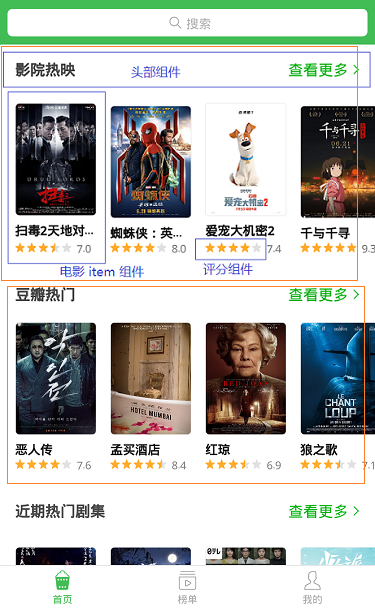
开发头部组件
头部组件结构简单,唯一需要注意的就是点击查看更多的时候需要跳转页面,所有需要一个自定义事件,供页面使用。
在 src 目录创建 itemsHeader.js,内容如下:
import { Text, View, StyleSheet, TouchableWithoutFeedback } from 'react-native';

import PropTypes from 'prop-types';

import { px } from '../utils/device';

import Icon from 'react-native-vector-icons/AntDesign';

export default class ItemsHeader extends Component {

    constructor(props) {

        super(props);

    }

    static propTypes = {

        title: PropTypes.string,

        onPress: PropTypes.func

    }

    static defaultProps = {}

    render() {

        const { title, onPress } = this.props;

        return (

            <View style={styles.header}>

                <Text style={styles.title}>{title}</Text>

                <TouchableWithoutFeedback onPress={() => onPress && onPress()}>

                    <View style={styles.getMore}>

                        <Text style={styles.moreText}>查看更多</Text>

                        <Icon name='right' size={px(30)} color='#00b600'></Icon>

                    </View>

                </TouchableWithoutFeedback>

            </View>

        )

    }

}

const styles = StyleSheet.create({

    header: {

        height: px(90),

        width: px(750),

        paddingLeft: px(30),

        paddingRight: px(30),

        backgroundColor: '#ffffff',

        flexDirection: 'row',

        alignItems: 'center',

        justifyContent: 'space-between'

    },

    title: {

        fontSize: px(32),

        color: '#333',

        fontWeight: '600'

    },

    getMore: {

        flexDirection: 'row',

        alignItems: 'center',

    },

    moreText: {

        fontSize: px(28),

        marginLeft: px(30),

        color: '#00b600',

        marginRight: px(6)

    }

});
开发评分组件
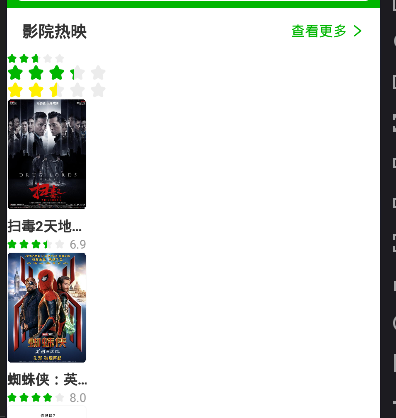
评分组件需要考虑到星星大小、间距、颜色、数量,点击星星时改变星星的选中状态,并返回自定义事件 onPress 供调用者使用。
如果使用组件时调用了onPress,那么组件的值为可以改变,如果没有,那么组件应该为只读状态。
import React, { Component } from 'react';

import { Text, View, StyleSheet } from 'react-native';

import PropTypes from 'prop-types';

import { px } from '../utils/device';

import Icon from 'react-native-vector-icons/AntDesign';

export default class Rate extends Component {

    constructor(props) {

        super(props);

        this.state = {

            value: this.props.value

        }

    }

    componentWillReceiveProps(newProps) {

        const { value } = newProps;

        if (value !== this.state.value) {

            this.setState({

                value

            });

        }

    }

    static propTypes = {//如果使用组件时调用了onPress,那么组件默认为可以改变,如果没有,那么组件应该为只读

        value: PropTypes.number,

        size: PropTypes.number,

        margin: PropTypes.number,

        max: PropTypes.number,

        color: PropTypes.string,

        onPress: PropTypes.func

    }

    static defaultProps = {

        value: 0,

        size: 20,

        margin: 5,

        max: 5,

        color: '#00b600'

    }

    bindClick = (index) => {

        const { onPress } = this.props;

        if (!onPress) {

            return;

        }

        onPress(index + 1);

        this.setState({

            value: index + 1

        })

    }

    render() {

        const { size, margin, max, color, onPress } = this.props;

        const { value } = this.state;

        const defaultStars = [], activeStars = [];

        for (let i = 0; i < max; i++) {

            defaultStars.push(<Icon name='star' key={i} size={size} color='#ececec' onPress={() => this.bindClick(i)} style={{ marginRight: margin }}></Icon>)

        }

        for (let i = 0; i < value; i++) {

            activeStars.push(<Icon name='star' key={i} size={size} color={color} onPress={() => this.bindClick(i)} style={{ marginRight: margin }}></Icon>)

        }

        // 选中状态的星星的宽度

        const activeStarsWidth = (size + margin) * Math.floor(value) + size * (value - Math.floor(value));

        return (

            <View style={styles.rate}>

                <View style={[styles.stars, styles.active, { width: activeStarsWidth }]}>

                    {activeStars.map(item => item)}

                </View>

                <View style={styles.stars}>

                    {defaultStars.map(item => item)}

                </View>

            </View>

        )

    }

}

const styles = StyleSheet.create({

    rates: {

        flexDirection: 'row',

        position: 'relative'

    },

    stars: {

        flexDirection: 'row',

        alignItems: 'center',

        overflow: 'hidden',

        flexGrow: 0

    },

    active: {

        position: 'absolute',

        zIndex: 200,

        left: 0,

        top: 0

    }

});
开发电影海报组件
海报组件开发需要注意的是:
点击电影海报,跳转详情页面,跳转逻辑都是一样的,所以可以不用自定义事件的方式跳转,直接在组件里面调用 this.props.navigation.push 进行跳转。页面在 router 里注册后可以直接使用 this.props.navigation.push,但是组件不行。在组件中,想要使用 navigation 进行跳转,要么是使用自定义属性,将 navigation 传入组件,要么使用 react-navigation 提供的 withNavigation翻翻,withNavigation(component) 返回一个 render 函数,默认将 navigation 作出自定义属性传入组件。
有些海报图片背景纯白,和页面背景融合了,看不到边界,所以需要给他设置 border,由于 Image 组件不能设置 border,所以这里需要使用 ImageBackground 组件。
title 只能为一行,产出部分省略,需要加一个 numberOfLines={1} 的属性。
import React, { Component } from 'react';

import { Text, View, StyleSheet, ImageBackground, TouchableWithoutFeedback } from 'react-native';

import PropTypes from 'prop-types';

import { withNavigation } from 'react-navigation';

import { px } from '../utils/device';

import Rate from './rate';

class MoviesItem extends Component {

    constructor(props) {

        super(props);

    }

    static propTypes = {

        data: PropTypes.object

    }

    render() {

        const { data, navigation } = this.props;

        const { id, title, cover, rating, null_rating_reason } = data;

        return (

            <TouchableWithoutFeedback onPress={() => navigation.push('Detail', { id })}>

                <View style={styles.page}>

                    <ImageBackground source={{ uri: cover.url }} style={styles.img}></ImageBackground>

                    <Text style={styles.title} numberOfLines={1}>{title}</Text>

                    {rating ? (

                        <View style={styles.rate}>

                            <Rate value={rating.value / 2} size={px(20)} margin={px(4)} />

                            <Text style={styles.rateText}>{rating.value.toFixed(1)}</Text>

                        </View>

                    ) : (

                        <Text style={styles.rate}>{null_rating_reason}</Text>

                    )}

                </View>

            </TouchableWithoutFeedback>

        )

    }

}

export default withNavigation(MoviesItem);

const styles = StyleSheet.create({

    page: {

        width: px(160)

    },

    img: {

        width: px(160),

        height: px(224),

        overflow: 'hidden',

        borderRadius: px(8),

        borderWidth: 1,

        borderStyle: 'solid',

        borderColor: '#f8f8f8'

    },

    title: {

        fontSize: px(28),

        fontWeight: '600',

        color: '#333',

        marginTop: px(12),

        lineHeight: px(40)

    },

    rate: {

        flexDirection: 'row',

        alignItems: 'center'

    },

    rateText: {

        fontSize: px(24),

        color: '#999',

        marginLeft: px(6)

    }

});
使用

React Native 开发豆瓣评分(七)首页组件开发的更多相关文章
- Facebook新框架React Native,一套搞定App开发[转]
Facebook新框架React Native,一套搞定App开发 本文来自微信公众号“给产品经理讲技术”(pm_teacher),欢迎关注. 做为一名产品经理,你是否遇到过这样的窘境,“帮我把字体调 ...
- 基于React Native的Material Design风格的组件库 MRN
基于React Native的Material Design风格的组件库.(为了平台统一体验,目前只打算支持安卓) 官方网站 http://mrn.js.org/ Github https://git ...
- [RN] React Native 好用的时间线 组件
React Native 好用的时间线 组件 效果如下: 实现方法: 一.组件封装 CustomTimeLine.js "use strict"; import React, {C ...
- React Native 开发豆瓣评分(八)首页开发
首页完成效果展示: 一.开发占位图组件 在没有数据的时候使用占位图替代 items 的位置. 在 components 目录里创建 moviesItemPlaceholder.js import Re ...
- React Native 开发豆瓣评分(三)集成 Redux
什么是 redux redux 是一个用于管理 js 应用状态(state)的容器.比如组件 A 发生了变化,组件 B 要同时做出响应.常见的应用场景就是用户的登录退出操作:未登录状态,个人中心显示登 ...
- React Native 开发豆瓣评分(五)屏幕适配方案
前言 React Native 是以实际像素 dp 为单位的,这导致在不同分辨率的屏幕会有不一样的显示情况. 在原生 Android 中,可以根据不同的分辨率添加不同的样式目录,以解决不同分辨率的问题 ...
- React Native 开发豆瓣评分(四)集中管理 fetch 数据请求
豆瓣评分的API接口 接口是从网上查找的,看样子应该是微信小程序里面扣出来的(ua 里面有 wechatdevtools) 接口都需要设置apiKey(054022eaeae0b00e0fc068c0 ...
- React Native 开发豆瓣评分(二)路由配置
路由管理使用官方推荐的 React Navigation; 配置环境 安装相关依赖 yarn add react-navigation react-native-gesture-handler Lin ...
- React Native 开发豆瓣评分(一)环境搭建&配置模拟器
详细可参考 官方文档,这里进记录一些重要过程. 安装环境 下载 Android Studio 选择 Custom 进行安装: Android SDK Android SDK Platform Perf ...
随机推荐
- vue项目 既能通过ip访问项目,又可以本地localhost访问
1.场景问题: 有时候开发过程中,vue项目需要其他同事能访问你本地进行调试,而不是需要重新拉取代码来启动很麻烦 2.解决思路: 一. package.json"dev": &qu ...
- github将本地仓库的代码上传到Github
本篇主要参考博文:https://blog.csdn.net/IT_faquir/article/details/52516214 你要先完成上一篇的操作,即将代码上传到本地仓库中,才能上传到gith ...
- 【Linux】Linux环境变量的设置和查看
Linux的变量种类 按变量的生存周期来划分,Linux变量可分为两类: 1 永久的:需要修改配置文件,变量永久生效. 2 临时的:使用export命令声明即可,变量在关闭shell时失效. 设置变量 ...
- ThinkPHP中文字段问题
转自: https://www.baidu.com/link?url=Ohc9epgQgkNYLwnHqP-jZ9RfIQWW50-iz8-ZMIPLdtCIJHnUpYwQnDLmXzi7Fa110 ...
- angular的路由例子
app.routing.module.ts里面,关键部分 const routes: Routes = [ { path: '', redirectTo : 'c3/c2/mmc', pathMatc ...
- WebGL学习笔记(十二):加载模型文件
目前为止,我们用到的模型顶点uv信息等,都是直接定义在代码中的,实际使用中,这些数据应该是由3D编辑器编辑好后按照一定的格式存储在文件中的,我们需要从文件中提取出对应的数据之后,组合成我们可以使用的信 ...
- elementUI vue this.$confirm 和el-dialog 弹出框 移动
调试了好久, 还能凑合用, 请直接看DOME 示例,复制就能用: <!DOCTYPE html> <html lang="zh"> <head> ...
- nginx http和https共存
server { listen 80 default backlog=2048; listen 443 ssl; server_name linuxyan.com; root /var/www/htm ...
- java核心技术(卷一)
一,java基本程序设计结构: 1,在网页中运行的 Java 程序称为 applet. 要使用 applet ,需要启用 Java 的 Web 浏览器执行字节码. 2,jdk安装目录下的 src.zi ...
- png8和png24的根本区别
1.png8和png24的根本区别,不是颜色位的区别,而是存储方式不同. 2.png8有1位的布尔透明通道(要么完全透明,要么完全不透明),png24则有8位(256阶)的布尔透明通道(所谓半透明). ...