
Web从入门到放弃<8>
Ref:
Cameron D. - HTML5, JavaScript and jQuery (Programmer to Programmer) - 2015
http://www.runoob.com/svg/svg-path.html
MacLees N. - jQuery for Designers Beginner’s Guide - 2012
jQuery for Designers 2014
<1> CSS Responsive box
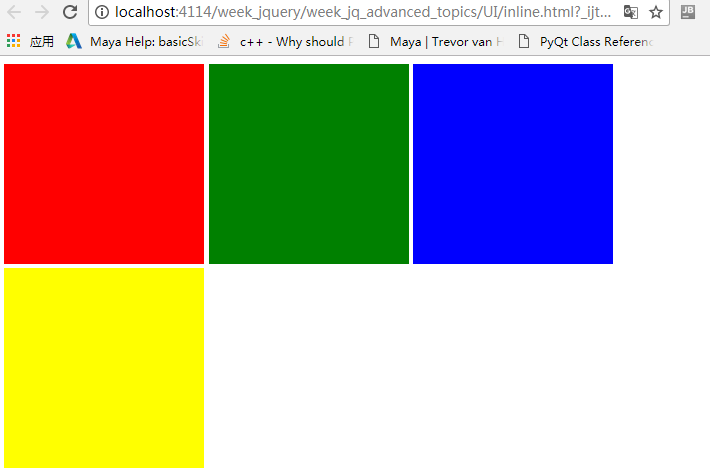
关键字:display:inline-block;
html:
<!DOCTYPE html>

<html lang="en">

<head>

    <meta charset="utf-8">

    <style>

        .box {

            height:200px;

            width:200px;

            display:inline-block;

        }

    </style>

</head>

<body>

<div class="box" style="background:red"></div>

<div id="middleBox" class="box" style="background:green"></div>

<div id="thirdBox" class="box" style="background:blue"></div>

<div id="lastBox" class="box" style="background:yellow"></div>

</body>

</html>
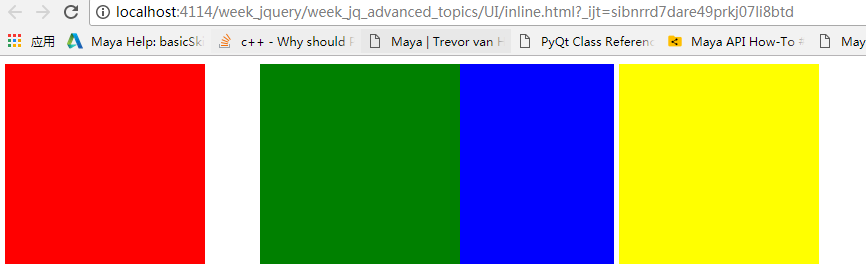
如果要把绿色的立方体移动50px,把蓝色向右推动50px,在这种静态布局是不可能的.先试试position:relative.
<!DOCTYPE html>

<html lang="en">

<head>

    <meta charset="utf-8">

    <style>

        .box {

            height:200px;

            width:200px;

            display:inline-block;

        }

        #middleBox{

            position: relative;

            left:50px;

        }

    </style>

</head>

<body>

<div class="box" style="background:red"></div>

<div id="middleBox" class="box" style="background:green"></div>

<div id="thirdBox" class="box" style="background:blue"></div>

<div id="lastBox" class="box" style="background:yellow"></div>

</body>

</html>
position设置为relative,意思就在现在的位置作为基础,然后再做移动。
position设置为absolute:
<!DOCTYPE html>

<html lang="en">

<head>

    <meta charset="utf-8">

    <style>

        .box {

            height:200px;

            width:200px;

            display:inline-block;

        }

        #middleBox{

            position: absolute;

            left:150px;

            top:150px;

        }

    </style>

</head>

<body>

<div class="box" style="background:red"></div>

<div id="middleBox" class="box" style="background:green"></div>

<div id="thirdBox" class="box" style="background:blue"></div>

<div id="fourthBox" class="box" style="background:yellow"></div>

<div id="lastBox" class="box" style="background:black"></div>

</body>

</html>
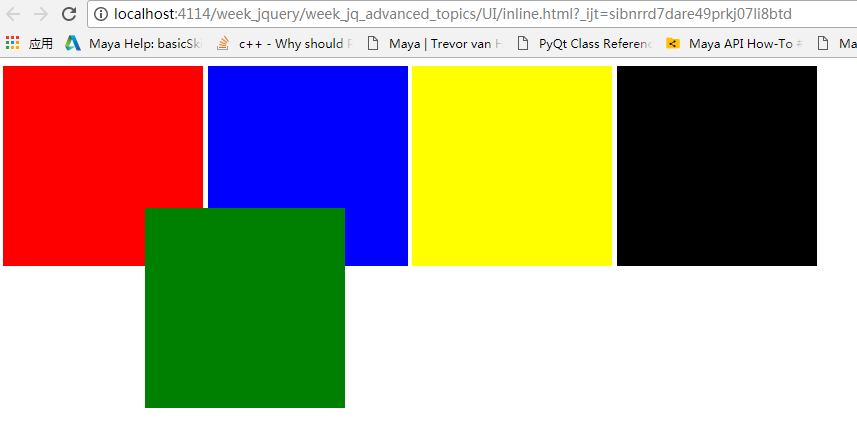
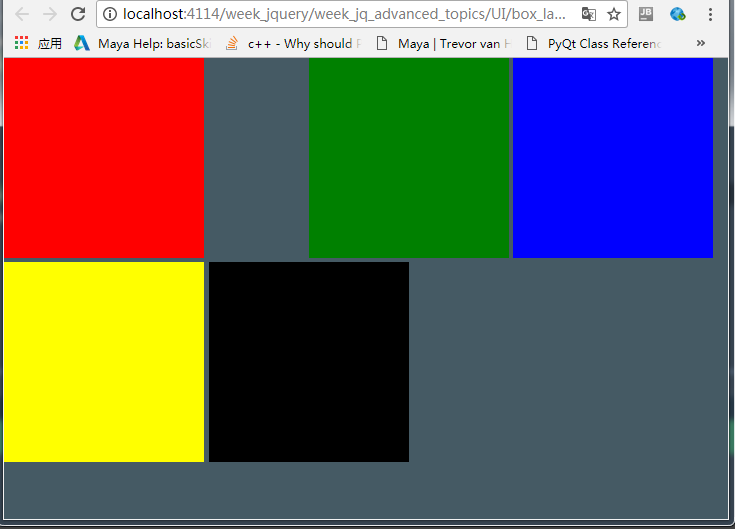
要把绿色放入下面写:z-index:-1;
margin-left:100px;
left:100px;区别就是,margin-left是会把下一个节点往右边推动.
<!DOCTYPE html>

<html lang="en">

<head>

    <meta charset="utf-8">

    <style>

        body{

            margin: 0;

            background-color: #455a64;

        }

        .box {

            height:200px;

            width:200px;

            display:inline-block;

        }

        #middleBox{

            position: relative;

            margin-left: 100px;

        }

    </style>

</head>

<body>

<div class="box" style="background:red"></div>

<div id="middleBox" class="box" style="background:green"></div>

<div id="thirdBox" class="box" style="background:blue"></div>

<div id="fourthBox" class="box" style="background:yellow"></div>

<div id="lastBox" class="box" style="background:black"></div>

</body>

</html>
<2>居中
复杂的整个元素居中方案:
<!DOCTYPE html>

<html lang="en">

<head>

    <meta charset="utf-8">

    <style>

        label {

            width:150px;

            display: inline-block;

            vertical-align: top;

        }

        #contactDetails{

            position:absolute;

            width: 400px;

            height: 200px;

            text-align: center;

            top:50%;

            left: 50%;

            margin-top: -150px;

            margin-left: -200px;

        }

    </style>

</head>

<body>

<div id="contactDetails"><h2>Contact details</h2>

    <form method="post">

        <div class="formRow">

            <label for="contactName">Contact name</label>

            <input name="contactName" id="contactName" type="text"/>

        </div>

        <div class="formRow">

            <label for="phoneNumber">Phone number</label>

            <input name="phoneNumber" id="phoneNumber" type="text"/>

        </div>

        <div class="formRow">

            <label for="emailAddress">Email address</label>

            <input name="emailAddress" id="emailAddress" type="text"/>

        </div>

    </form>

</div>

</body>

</html>
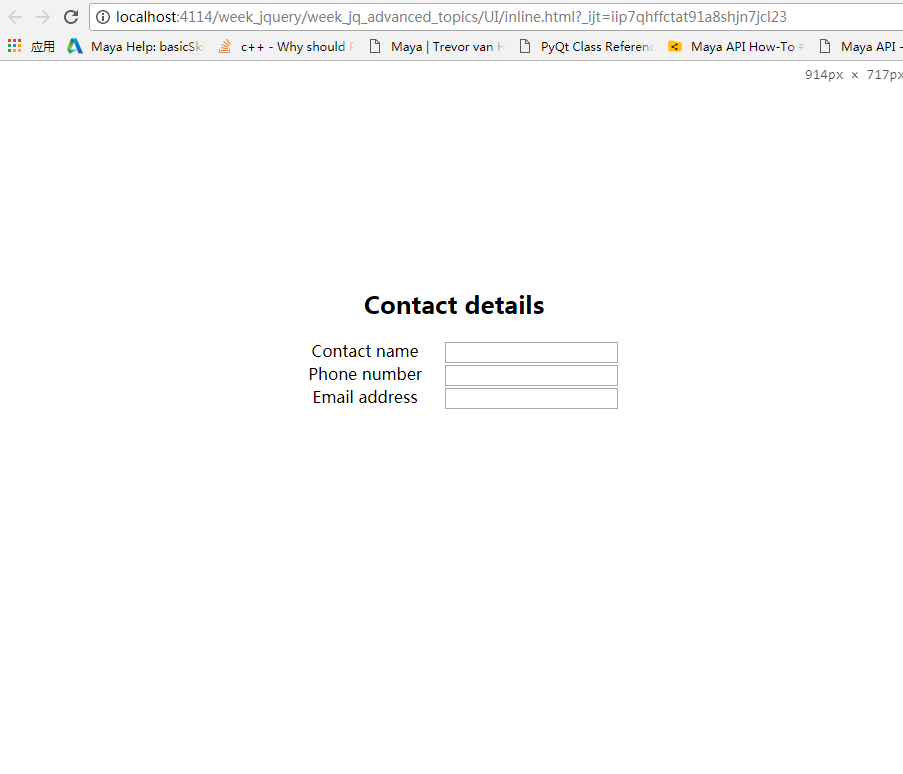
水平居中是最简单的:
.box{

    margin: 0 auto;

    width:300px;

    height:200px;

}
<3>UI/CSS
一个网页的简单构造v1:
<1>顶部为固定的:
<!DOCTYPE html>

<html lang="en">

<head>

    <meta charset="UTF-8">

    <title>Title</title>

    <style>

        body{

            min-height:100%;

            margin:0;

            padding:0;

            position:relative;

        }

        header {

            padding-top: 20px;

            padding-bottom: 20px;

            width:100%;

            background:hotpink;

            text-align:center;

            top:-10px;

            left: 0px;

            position: fixed;

            box-shadow: 5px 5px 15px #888888;

        }

        footer{

            width:100%;

            background:#B3B2CF;

            text-align:center;

        }

        header {

            font-size:22px;

        }

        aside {

            position:fixed;

            float:left;

            width:200px;

            height:100%;

            border: 1px solid black;

            padding-top: 40px;

            left: 0; !important;

            z-index: -1;

            background-color: #00bfa5;

        }

        footer {

            clear: both;

            margin-top: 100px;

            font-size:18px;

            z-index: -1;

            padding-top: 50px;

            padding-bottom: 50px;

        }

        main{

            position: absolute;

            left: 200px;

        }

        .container{

            width: 80%;

            margin: 0 auto;  /* make container objects to center*/

            top:80px;

            position: relative;

            z-index: -1;

        }

        .sidebar-nav{

            padding-top: 10px;

        }

        .sidebar-nav-ul{

            list-style: none;

            display:block;

            padding: 0;

            text-align: center;

        }

        .sidebar-nav-ul li a{

            text-decoration:none

        }

    </style>

</head>

<body>

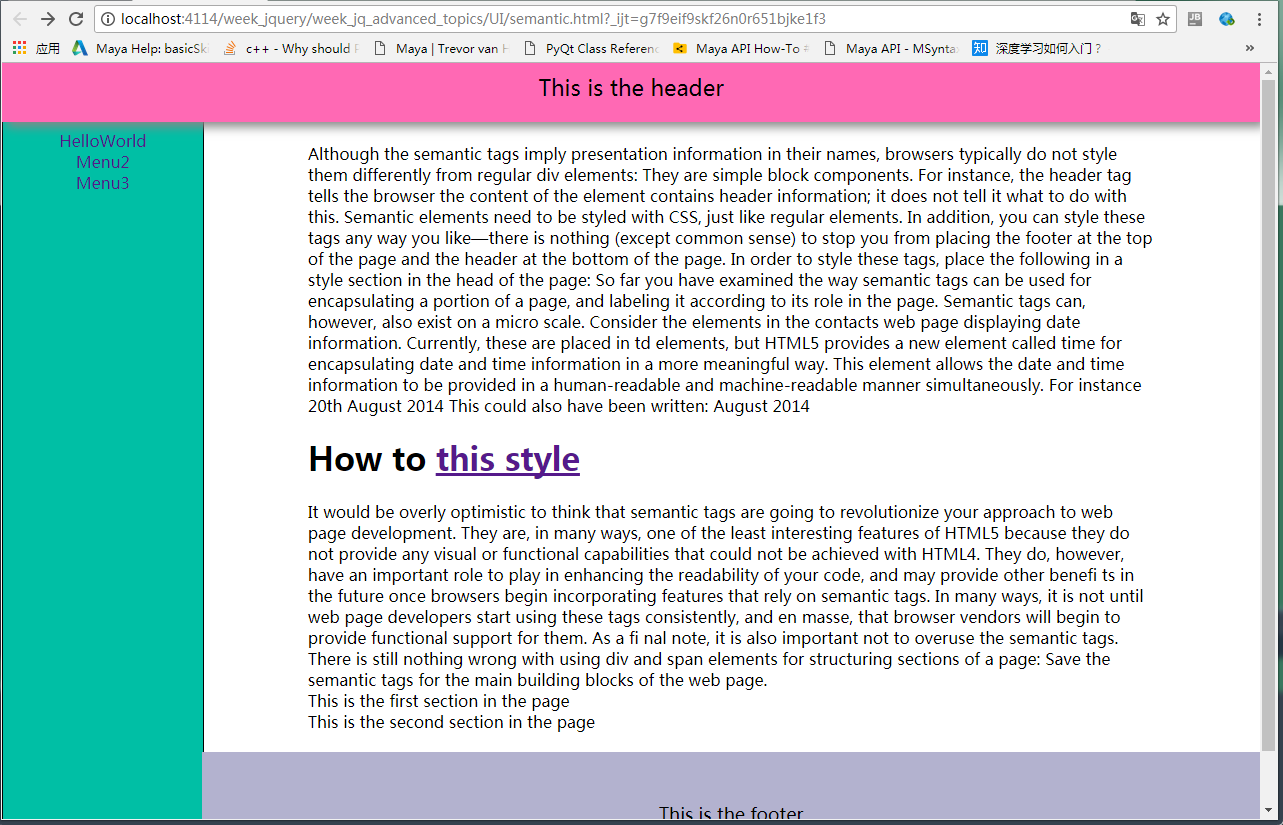
<header>This is the header</header>

<aside>

    <div class="sidebar-nav">

        <ul class="sidebar-nav-ul">

            <li><a href="">HelloWorld</a></li>

            <li><a href="">Menu2</a></li>

            <li><a href="">Menu3</a></li>

        </ul>

    </div>

</aside>

<main>

    <div class="container">

        <div class="TextArea">

            Although the semantic tags imply presentation information in their names, browsers typically

            do not style them differently from regular  div elements: They are simple  block components. For

            instance, the  header tag tells the browser the content of the element contains header information; it

            does not tell it what to do with this.

            Semantic elements need to be styled with CSS, just like regular elements. In addition, you can style

            these tags any way you like—there is nothing (except common sense) to stop you from placing the

            footer at the top of the page and the  header at the bottom of the page.

            In order to style these tags, place the following in a  style section in the  head of the page:

            So far you have examined the way semantic tags can be used for encapsulating a portion of a

            page, and labeling it according to its role in the page. Semantic tags can, however, also exist on a

            micro scale.

            Consider the elements in the contacts web page displaying date information. Currently, these are

            placed in  td elements, but HTML5 provides a new element called  time for encapsulating date and

            time information in a more meaningful way. This element allows the date and time information to

            be provided in a human-readable and machine-readable manner simultaneously. For instance

            <time datetime="2014-08-20">20th August 2014</time>

            This could also have been written:

            <time datetime="2014-08-20">August 2014</time>

        </div>

        <div>

            <h1>

                How to <a href="https://segmentfault.com/q/1010000006896298?_ea=1171298">this style</a>

            </h1>

            It would be overly optimistic to think that semantic tags are going to revolutionize your approach to

            web page development. They are, in many ways, one of the least interesting features of HTML5 because

            they do not provide any visual or functional capabilities that could not be achieved with HTML4.

            They do, however, have an important role to play in enhancing the readability of your code, and

            may provide other benefi ts in the future once browsers begin incorporating features that rely on

            semantic tags. In many ways, it is not until web page developers start using these tags consistently,

            and en masse, that browser vendors will begin to provide functional support for them.

            As a fi nal note, it is also important not to overuse the semantic tags. There is still nothing wrong

            with using  div and  span elements for structuring sections of a page: Save the semantic tags for the

            main building blocks of the web page.

        </div>

        <section>This is the first section in the page</section>

        <section>This is the second section in the page</section>

    </div>

    <footer>

        This is the footer

    </footer>

</main>

</body>

</html>
<2>Responsive imgs:
html:
<ul class="thumbs">

        <li><img src="imgs/1.png"></li>

        <li><img src="imgs/2.png"></li>

        <li><img src="imgs/3.png"></li>

        <li><img src="imgs/4.png"></li>

        <li><img src="imgs/5.png"></li>

        <li><img src="imgs/6.png"></li>

        <li><img src="imgs/6.png"></li>

</ul>
css:
.thumbs li{

    width: 25%;

    height: 140px;

    display: inline;

    padding: 10px;

}

.thumbs li img{

    width: 150px;

    height: 101px;

    padding: 3px;

    border: 1px solid #ccc;

    background-color: #fff;

    position: relative;

}
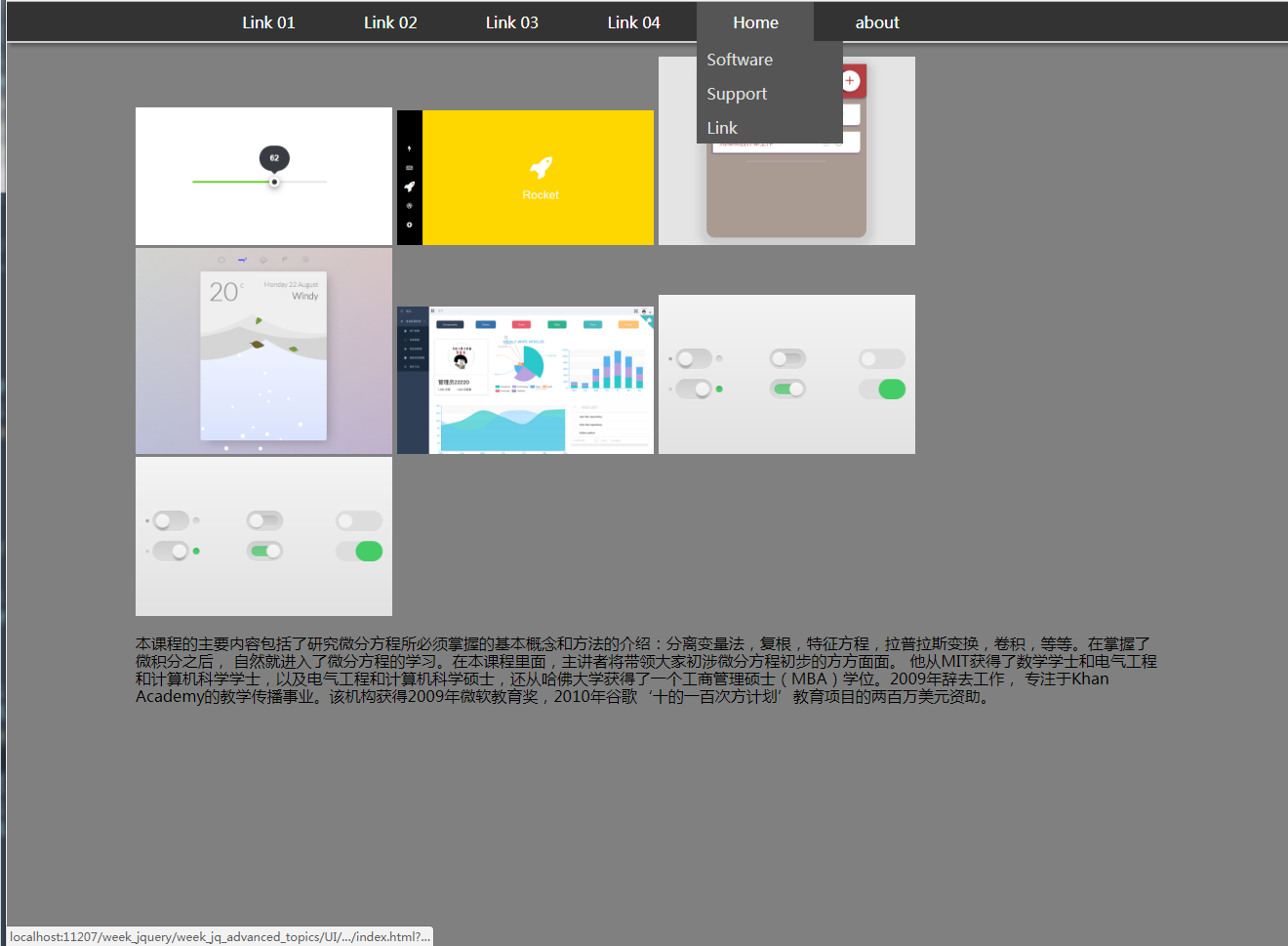
<3>: dropdown with fix header:
css:
@import url("../../../normalize.css");

body{

    background-color: gray;

}

.nav-bar{

    background-color: #333;

    border-bottom: 2px solid #cccccc;

    width: 100%;

    height: 40px;

    position: fixed;

    box-shadow: 3px 3px 5px #555555;

}

.nav-list{

    list-style: none;

    padding-left:;

    margin: 0 auto; /*hide top margin*/

    width: 900px;  /* if set to 80%, will responsive */

}

.nav-list > li {

    margin: 0 auto;

    width: 120px;

    height: 40px;

    display: inline-block;

}

.nav-list > li > a{

    text-decoration: none;

    color:white;

    position: absolute;

    width: inherit;

    height: inherit;

    text-align: center;

    /* very import */

    padding-top: 12px;

    box-sizing: border-box;

}

.nav-list >li >a:hover{

    background-color: #555;

}

.dropdown{

    display: none;

    position: absolute;

    top:40px;

    padding-left:;

    width: 150px;

    list-style: none;

    z-index:;

}

.dropdown li{

    background-color: #555;

    position: relative;

    width: 150px;

    height: 35px;

}

.dropdown li a{

    color:#ddd;

    text-decoration: none;

    position: absolute;

    width: 150px;

    height: 35px;

    padding: 10px 0 0 10px;

    box-sizing: border-box;

}

.dropdown li a:hover{

    background-color: #777;

}

.container{

    padding-top: 40px;

    width: 80%;

    margin: 0 auto;

}

/* thumbnails*/

.thumbs{

    list-style: none;

    padding-left:;

}

.thumbs li{

    width: 25%;

    height: 25%;

    display: inline;

}

.thumbs li img{

    width: 25%;

    height: 25%;

}
js:
$(document).ready(function () {

        $('li').has('.dropdown').hover(

            function () {

                $(this).find('.dropdown').slideDown(150);

            },

            function () {

                $(this).find('.dropdown').slideUp(150);

            });

   $('.thumbs > li > img').hover(

       function () {

           $(this).animate({

               width:"160px",

               height:"110px"

           },500)

       },

       function () {

           $(this).animate({

               width:"150",

               height:"101px"

           },500)

       }

   )

});
html:
<!DOCTYPE html>

<html lang="en">

<head>

    <meta charset="UTF-8">

    <title>Title</title>

    <link rel="stylesheet" href="index.css">

    <link rel="stylesheet" href="../../../normalize.css">

    <script src="../../../jquery/jquery-3.2.1.min.js"></script>

    <script src="index.js"></script>

</head>

<body>

<nav class="nav-bar">

    <ul class="nav-list">

        <li><a href="#">Link 01</a></li>

        <li><a href="#">Link 02</a></li>

        <li><a href="#">Link 03</a></li>

        <li><a href="#">Link 04</a></li>

        <li><a href="#">Home</a>

            <ul class="dropdown">

                <li><a>Software</a></li>

                <li><a>Support</a></li>

                <li><a>Link</a></li>

            </ul>

        </li>

        <li><a href="#!">about</a></li>

    </ul>

</nav>

<div class="container">

    <ul class="thumbs">

        <li><img src="imgs/1.png"></li>

        <li><img src="imgs/2.png"></li>

        <li><img src="imgs/3.png"></li>

        <li><img src="imgs/4.png"></li>

        <li><img src="imgs/5.png"></li>

        <li><img src="imgs/6.png"></li>

        <li><img src="imgs/6.png"></li>

    </ul>

    <p>

        本课程的主要内容包括了研究微分方程所必须掌握的基本概念和方法的介绍:分离变量法,复根,特征方程,拉普拉斯变换,卷积,等等。在掌握了微积分之后,

        自然就进入了微分方程的学习。在本课程里面,主讲者将带领大家初涉微分方程初步的方方面面。

        他从MIT获得了数学学士和电气工程和计算机科学学士,以及电气工程和计算机科学硕士,还从哈佛大学获得了一个工商管理硕士(MBA)学位。2009年辞去工作,

        专注于Khan Academy的教学传播事业。该机构获得2009年微软教育奖,2010年谷歌‘十的一百次方计划’教育项目的两百万美元资助。

    </p>

</div>

</body>

</html>
<4> SVG
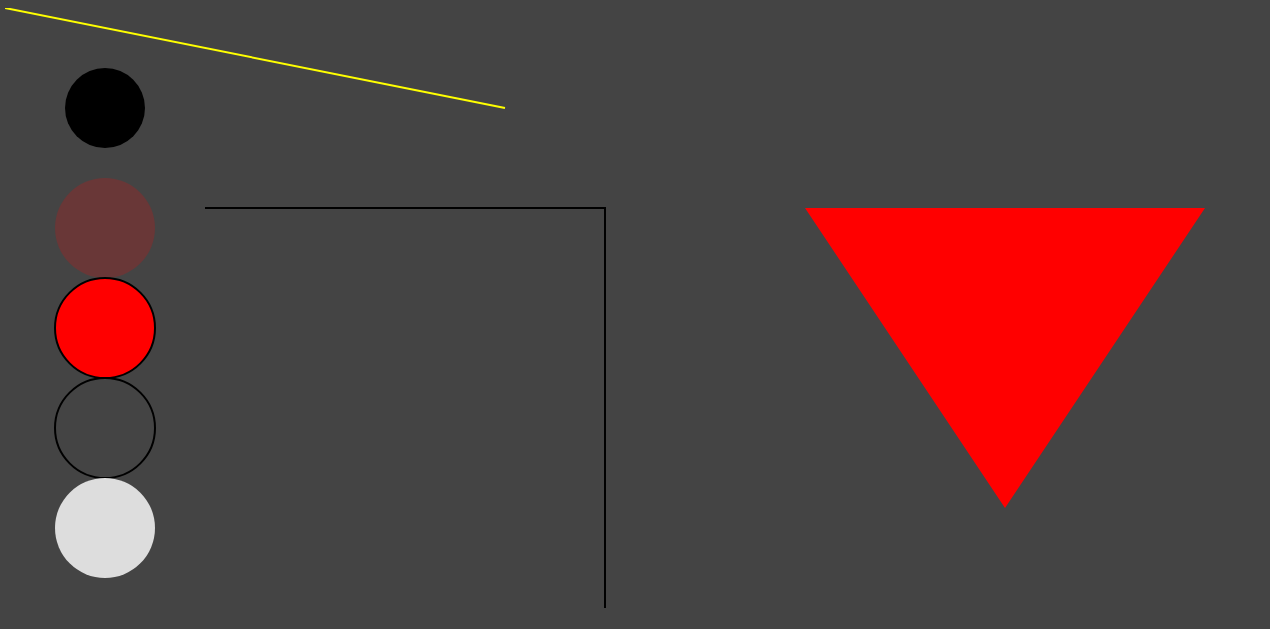
<1>基本图形1:
html:
<!DOCTYPE html>

<html lang="en">

<head>

    <meta charset="UTF-8">

    <title>Title</title>

</head>

<body style="background-color: #444444;">

<svg width="100%" height="800">

    <circle r="40" cx="100" cy="100" stroke-width="1" ></circle>

    <circle r="50" cx="100" cy="220" fill="red" fill-opacity="0.2"></circle>

    <circle r="50" cx="100" cy="320" fill="red" stroke-width="2" stroke="black"></circle>

    <circle r="50" cx="100" cy="420" fill-opacity="0" stroke-width="2" stroke="black"></circle>

    <circle r="50" cx="100" cy="520" style="fill: #dddddd;cursor: all-scroll;"></circle>

    <line x1="0" y1="0" x2="500" y2="100" style="stroke-width: 2; stroke: yellow;"> </line>

    <polygon points="800,200 1200,200 1000,500" style="fill: red;"></polygon>

    <polyline points="200,200 600,200 600,600 " style="stroke:black;stroke-width: 2; fill:none;"></polyline>

</svg>

<p>hello ssfdsfdss </p>

</body>

</html>
Web从入门到放弃<8>的更多相关文章
- Web从入门到放弃<7>
从这章开始读<javascript高级程序设计> <1>typeof 返回字符串 / 类型 未定义:undefined 布尔:boolean 字符串:string 数值:num ...
- Web从入门到放弃<5>
<1> CSS_DOM 1,structural layer 2,presentation layer 3,behavior layer style也是一个属性 <!DOCTYPE ...
- Web从入门到放弃<1>
HTML大法: <01> <!DOCTYPE html> <html lang="en"> <head> <meta char ...
- Web从入门到放弃<6>
<1> Canvas. 1,灰度图: js: function showAsGray() { var imgNode = document.getElementById('img'); ...
- Web从入门到放弃<4>
1,插入 如下html: <!DOCTYPE html> <html lang="en"> <head> <meta charset=&q ...
- Web从入门到放弃<3>
UI简单的美化全部来源于Bootstrap 知识来自<javascript dom编程艺术第二版> <1> 点击列表 页面不跳转图片刷新: 主要点: href如何点击完如何不 ...
- Web从入门到放弃<2>
<添加debug-toolbar> django现在1.11是必须这么做: pip install django-debug-toolbar 设置1: INSTALLED_APPS = [ ...
- 后端API入门到放弃指北
后端API入门学习指北 了解一下一下概念. RESTful API标准] 所有的API都遵循[RESTful API标准]. 建议大家都简单了解一下HTTP协议和RESTful API相关资料. 阮一 ...
- OpenStack从入门到放弃
OpenStack从入门到放弃 目录: 为何选择云计算/云计算之前遇到的问题 什么是云计算 云服务模式 云应用形式 传统应用与云感知应用 openstack及其相关组件介绍 flat/vlan/gre ...
随机推荐
- C# — 创建Windows服务进阶版
1.新建一个Windows服务项目:FaceService 2.将service1.cs重命名为FaceService.cs,然后在主界面右击鼠标,选择添加安装程序 3.鼠标选择serviceInst ...
- JSOI2019 Round2 极限生还
江苏省省队一共13个名额,去掉女生名额, 按1/3校内限制,我们南外只有4个名额, 在noip爆炸(占比35%),省选一轮爆炸(占比40%),(此时蒟蒻在校内排不进前10...) 总算在省选二轮(占比 ...
- Day5 Numerical simulation of optical wave propagation之通过随机介质(如大气湍流)的传播(一)
一 分步光束传播方法 到目前为止,人们已经设计出传播算法,用于模拟通过真空和通过可用光线矩阵描述的简单光学系统的传播. 其中分步光束传播方法除了描述上述传播过程,还有更复杂的应用,包括:部分时间和空间 ...
- Shell命令-线上查询及帮助之man、help
线上查询及帮助 - man.help 1.man:获取命令的帮助信息 man命令的简单介绍 man命令是Linux系统中最核心的命令之一 ,因为通过它可以查看其它Linux命令的使用信息.当然了 ,m ...
- SQL 中左连接与右链接的区别
在微信公众号中看到的sql左连接与右链接的总结,这个图总结的很好,所以单独收藏下:
- pta编译总结1
打印沙漏 (20 分) 本题要求你写个程序把给定的符号打印成沙漏的形状.例如给定17个“*”,要求按下列格式打印 ***** *** * *** ***** 所谓“沙漏形状”,是指每行输出奇数个符号: ...
- 教你如何写出高效整洁的 css 代码——css优化(转载)
css 写起来并不难,但在大型项目中,就变得难以管理,特别是不同的人在 css 书写风格上稍有不同,团队上就更加难以沟通,为此总结了一些如何实现高效整洁的 css 代码原则. css 优化的原则 1. ...
- 金融量化分析【day110】:NumPy-切片和索引
一.索引和切片 1.数组和标量之间的运算 2.同样大小的数组之间的运算 3.数组索引 4.数组切片 1.一维数组 2.多维数组 二.布尔索引 1.问题 给一个数组,选出数组中所有大于5的数 1.答案 ...
- Entity Framework入门教程(6)--- 在线场景中保存数据
在线场景中保存数据 在线场景中保存实体数据是一项相当容易的任务,因为使用的是同一个context,这个context会自动跟踪所有实体发生的更改. 下图说明了在线场景中的CUD(创建,更新,删除)操作 ...
- 2018-2019-2 实验一 Java开发环境的熟悉
实验内容 1.使用JDK编译.运行简单的Java程序: 2.使用IDEA编辑.编译.运行.调试Java程序 实验知识点 1. JVM.JRE.JDK的安装位置与区别: 2. 命令行运行javac:ja ...