
GDI+: Curved Shapes
原文 http://www.functionx.com/vcsharp2003/gdi/curves.htm
|
Curves |
|
Introduction to Curves |
A curve is a line that joins two or more points. If only two points are involved, the line would join them. If there are three points A, B, and C, the line would start on the first point A, cross the second point B, and stop at the last point C. If more than three points are involved, the line would start on the first, cross the second, cross the third and each line before stopping on the last. The points of a curve don't have to be aligned. In fact, the whole idea of drawing a curve is to have a non-straight line that joins different non-aligned points. This can be illustrated with the following three curves labeled C1, C2, and C3:

The first curve, C1, includes only two points. The second, C2 includes three points. The third, C3, includes four points. The section between two points is called a segment. This also means that a curve can be distinguished by the number of segments it has. If a curve is made of only two points, this means that it has only one segment from the first to the second, which is the last, point. If a curve includes three points, it has two segments. The first segment spans from the first point to the second point and the second segment spans from the second point to the third point. Based on this, the number of segments of a curve is equal to the number of its points - 1.
A curve can be drawn in GDI+ using the Graphics.DrawCurve() method. When drawing a curve, you must specify how many points would be involved. This means that you can first declare an array of Point or PointF values. Because it is left up to you to decide on this issue, the Graphics class provides the following syntaxes of the DrawCurve() method:
public void DrawCurve(Pen pen, Point[] points);

public void DrawCurve(Pen pen, PointF[] points);
This version of the method takes an array of Point or PointF values as arguments. The number of members of the array depends on you. Here is an example that uses four points to draw a curve with three segments:
private void Form1_DoubleClick(object sender, System.EventArgs e)

{

	Graphics graph = this.CreateGraphics();

	Pen penCurrent = new Pen(Color.Blue);

	Point[] pt     = { new Point(40,  42), new Point(188, 246),

                                          new Point(484, 192), new Point(350,  48) };

	graph.DrawCurve(penCurrent, pt);

}
This would produce:

As you can see, when the curve is draw, a bent line crosses the intermediary points between the first and the last. To make the lines non-straight, the compiler uses a value called tension used to bend the line. If you want, you can specify the bending factor that should be applied. To do this, you would use the version version of the DrawCurve()method:
public void DrawCurve(Pen pen,

                                    Point[] points,

                                    float tension);

public void DrawCurve(Pen pen,

                                     PointF[] points,

                                    float tension);
The amount of bending to apply is passed as the tension argument. It can be passed as a decimal value >= 0.00. If this value is passed as 0.00, the lines would be drawn straight. Here is an example:
private void Form1_DoubleClick(object sender, System.EventArgs e) |
 |
This means that, if you want a real curve, either you don't pass the tension argument and use the first version of the method or you pass the tension argument as a value higher than 0.00. Here is an example:
private void Form1_DoubleClick(object sender, System.EventArgs e)

{

	Graphics graph = this.CreateGraphics();

	Pen penCurrent = new Pen(Color.Blue);

	Point[] pt     = { new Point(40,  42), new Point(188, 246),

		   new Point(484, 192), new Point(350,  48) };

	graph.DrawCurve(penCurrent, pt, 2.15F);

}
This would produce:

Both versions of the DrawCurve() method that we have used allow you to start the curve on the first point. Consider the following example that draws a curve of five points resulting in four segments:
private void Form1_DoubleClick(object sender, System.EventArgs e)

{

	Graphics graph = this.CreateGraphics();

	Pen penCurrent = new Pen(Color.Blue);

	PointF[] pt     = {   new PointF(20F,  322F), new PointF(124, 24),

		              new PointF(214, 242), new PointF(275,  28),

                        	              new PointF(380F,  322F) };

	graph.DrawCurve(penCurrent, pt);

}
This would produce:

If you want, you can start the curve on any point instead of the first. To support this, the Graphics class provides the following version of the DrawCurve() method:
public void DrawCurve(Pen pen,

                                    PointF[] points,

                                    int offset,

                                    int numberOfSegments);
The offset argument allows you to specify how many points should be skipped before starting to draw. The first conclusion is that the value of the offset must be 0 or higher. If you pass this argument as 0, the curve would be drawn from the first point. If you pass this argument as 1, the first point would not be considered in the curve. This means that the drawing of the curve would start on the second point and so on. If you pass it as 2, the first and the second point would not be part of the curve, meaning that the curve would start on the third point.
After the curve has started from the point you specify using the offset argument, you can then specify how many segments of the curve would be drawn. This number must be lower than the number of available segments, that is after subtracting the offset value from the total number of segments of the array. Here is an example:
private void Form1_DoubleClick(object sender, System.EventArgs e)

{

	Graphics graph = this.CreateGraphics();

	Pen penCurrent = new Pen(Color.Blue);

	PointF[] pt     = {   new PointF(20F,  322F), new PointF(124, 24),

		              new PointF(214, 242), new PointF(275,  28),

		              new PointF(380F,  322F) };

		              graph.DrawCurve(penCurrent, pt, 1, 2);

}
This would produce:

Once again, the compiler arranges to apply a tension when drawing the curve. If you would prefer to use straight lines or to apply a different tension than the default, you can use the following version of the Graphics.DrawCurve() method:
public void DrawCurve(Pen pen,

                                    Point[] points,

                                    int offset,

                                    int numberOfSegments,

                                    float tension);

public void DrawCurve(Pen pen,

                                    PointF[] points,

                                    int offset,

                                    int numberOfSegments,

                                    float tension);
This time, you can pass the value of the tension as 0 to get straight lines:
private void Form1_DoubleClick(object sender, System.EventArgs e)

{

	Graphics graph = this.CreateGraphics();

	Pen penCurrent = new Pen(Color.Blue);

	PointF[] pt     = {   new PointF(20F,  322F), new PointF(124, 24),

			  new PointF(214, 242), new PointF(275,  28),

			  new PointF(380F,  322F) };

	graph.DrawCurve(penCurrent, pt, 0, 4, 0);

}
This would produce:

Or you can pass the tension with any positive value of your choice. Here is an example:
private void Form1_DoubleClick(object sender, System.EventArgs e)

{

	Graphics graph = this.CreateGraphics();

	Pen penCurrent = new Pen(Color.Blue);

	PointF[] pt     = {   new PointF(20F,  322F), new PointF(124, 24),

		              new PointF(214, 242), new PointF(275,  28),

		              new PointF(380F,  322F) };

	graph.DrawCurve(penCurrent, pt, 1, 3, 1.750F);

}
This would produce:

|
A B閦ier Curve |
|
A b閦ier curve is a continuous line that is drawn using four points that are not necessarily aligned. It can be illustrated as follows:
To draw this line (with four points), the compiler would draw a curve from the first point to the fourth point. Then it would bend the curve by bringing each middle (half-center) side close to the second and the third points respectively, without touching those second and third points. For example, the above b閦ier curve could have been drawn using the following four points:
To draw a b閦ier curve, the Graphics class provides the DrawBezier() method that is overloaded in three versions whose syntaxes are: public void DrawBezier(Pen pen, Based on this, to draw a b閦ier line, you can use either four Point or PointF values or the coordinates of the four points. Here is an example: |
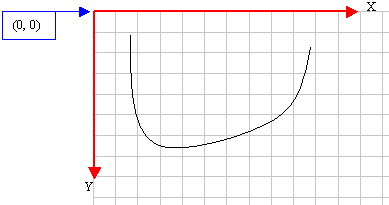
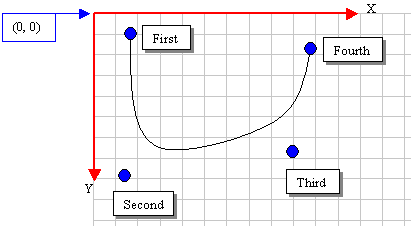
private void button1_Click(object sender, System.EventArgs e)

{

	Graphics graph = this.CreateGraphics();

	Pen penCurrent = new Pen(Color.Blue);

	Point pt1 = new Point(20,  12),

	         pt2 = new Point(88, 246),

	         pt3 = new Point(364, 192),

	         pt4 = new Point(250,  48);

	graph.DrawBezier(penCurrent, pt1, pt2, pt3, pt4);

}
This would produce:

|
A Series of B閦ier Curves |
The Graphics.DrawBezier() method is used to draw one b閦ier curve. If you want to draw many b閦ier curves, you can call the Graphics.DrawBeziers() method that is overloaded in two versions as follows:
public void DrawBeziers(Pen pen, Point[] points);

public void DrawBeziers(Pen pen, PointF[] points);
The DrawBeziers() method requires an array of Point of PointF values. When working with only four coordinates, the DrawBeziers() method works exactly like DrawBezier(), the different is that, while DrawBezier() expects four Point or four PointF values,DrawBeziers() expects an array of Point or PointF values. Using, DrawBeziers(), the above b閦ier curve can be drawn as follows and produce the same result:
private void button1_Click(object sender, System.EventArgs e)

{

	Graphics graph = this.CreateGraphics();

	Pen penCurrent = new Pen(Color.Blue);

	Point[] pt = { new Point(20,  12), new Point(88, 246),

		      new Point(364, 192), new Point(250,  48) };

	graph.DrawBeziers(penCurrent, pt);

}
The advantage of using DrawBeziers() is that it allows you to draw a b閦ier curve using 7Point or PointF values. Here is an example:
private void button1_Click(object sender, System.EventArgs e)

{

	Graphics graph = this.CreateGraphics();

	Pen penCurrent = new Pen(Color.Blue);

	Point[] pt = { new Point( 10,  5), new Point(340, 60),

                                      new Point(320, 148), new Point(150, 120),

	                      new Point(24, 220), new Point(250, 150),

	                      new Point(304, 240) };

	graph.DrawBeziers(penCurrent, pt);

}
This would produce:

|
A Closed Curve |
If you use either the DrawLines(), the DrawBezier() or the DrawBeziers() methods, you would get a continuous line or a series of lines that has a beginning and an end. Alternatively, GDI+ allows you to draw a series of lines but join the end of the last line to the beginning of the first line to have a closed shape. To draw this figure, you can call theGraphics.DrawClosedCurve() method that is overloaded in four versions. Two of them have the following syntaxes:
public void DrawClosedCurve(Pen pen,

                                               Point[] points);

public void DrawClosedCurve(Pen pen,

                                               PointF[] points);
These two versions are the easiest to use. They allow you to provide an array of fourPoint or four PointF values. When executed, each of these methods gets together draws a curve that passes through each coordinate and closes the curve by joining the end point to the first unless both points are the same. Here is an example:
private void Form1_DoubleClick(object sender, System.EventArgs e)

{

	Graphics graph  = this.CreateGraphics();

	Pen penCurrent = new Pen(Color.Red);

	Point[] pt           = { new Point(40,  42), new Point(188, 246),

		                new Point(484, 192), new Point(350,  48) };

	graph.DrawClosedCurve(penCurrent, pt);

}
This would produce:

The first two versions are used to draw the lines but curve them in order to make the shape appear smooth. If you want, you can draw the lines straight from one point to the next without curving them. Using this scenario, the above shape would appear as follows:

To draw this type of shape using the ClosedCurve() method, you can use one of the following versions of the method:
public void DrawClosedCurve(Pen pen,

                                               Point[] points,

                                               float tension,

                                               FillMode fillmode);

public void DrawClosedCurve(Pen pen,

                                               PointF[] points,

                                               float tension,

                                               FillMode fillmode);
These versions allow you to specify the tension and the fill mode. The tension factor allow you to specify how much curve would be applied. If this value is passed as 0.00, the points would be joined with straight lines. Otherwise, you can apply a tension using an appropriate decimal value.
The fillmode factor determines how the interior of the curve would be filled. It is controlled through the FillMode enumerator that is defined in the System.Drawing.Drawing2Dnamespace. The FillMode enumerator has two members: Alternate and Winding. Here is an example:
private void Form1_DoubleClick(object sender, System.EventArgs e)

{

	Graphics graph = this.CreateGraphics();

	Pen penCurrent = new Pen(Color.Red);

	Point[] pt     = { new Point(40,  42), new Point(188, 246),

		       new Point(484, 192), new Point(350,  48) };

	graph.DrawClosedCurve(penCurrent, pt, 0.75F, FillMode.Winding);

}
This would produce:

GDI+: Curved Shapes的更多相关文章
- Java性能提示(全)
http://www.onjava.com/pub/a/onjava/2001/05/30/optimization.htmlComparing the performance of LinkedLi ...
- 2016CVPR论文集
http://www.cv-foundation.org/openaccess/CVPR2016.py ORAL SESSION Image Captioning and Question Answe ...
- CVPR2016 Paper list
CVPR2016 Paper list ORAL SESSIONImage Captioning and Question Answering Monday, June 27th, 9:00AM - ...
- WPF GDI+ bitmap.save 一般性错误
做水印图片的时候,发现WPF的System.Windows.Shapes类有绘制直线,椭圆等形状.却没有绘字符串的类. 无奈之下又用回GDI+ 发生的GDI+一般性错误初步估计的线程的原因. 在loa ...
- .NET中的GDI+
GDI:Graphics Device Interface. System. Windows. Shapes 命名空间: 类 Ellipse 绘制一个椭圆. Line 在两个点之间绘制一条直线. Pa ...
- GDI+ Tutorial for Beginners
原文 GDI+ Tutorial for Beginners GDI+ is next evolution of GDI. Using GDI objects in earlier versions ...
- 【论文速读】Shangbang Long_ECCV2018_TextSnake_A Flexible Representation for Detecting Text of Arbitrary Shapes
Shangbang Long_ECCV2018_TextSnake_A Flexible Representation for Detecting Text of Arbitrary Shapes 作 ...
- WPF GDI+字符串绘制成图片(一)
原文:WPF GDI+字符串绘制成图片(一) 版权声明:本文为博主原创文章,未经博主允许不得转载. https://blog.csdn.net/BYH371256/article/details/83 ...
- 《C# GDI+ 破境之道》:第一境 GDI+基础 —— 第二节:画矩形
有了上一节画线的基础,画矩形的各种边线就特别好理解了,所以,本节在矩形边线上,就不做过多的讲解了,关注一下画“随机矩形”的具体实现就好.与画线相比较,画矩形稍微复杂的一点就是在于它多了很多填充的样式. ...
随机推荐
- objective-III 窗口应用程序
objective-III 一.创建窗口应用程序 打开xcode->create->在iso目录下选择empty-null->创建 在打开的项目文件名上右击NEW FILE,在io ...
- JQuery实现表格的相同单元格合并的三种方法
代码: <!DOCTYPE html> <html> <head> <title>merge.html</title> <meta h ...
- POJ 1692 Crossed Matchings(DP)
Description There are two rows of positive integer numbers. We can draw one line segment between any ...
- iOS弹出底部视图简单实现
- 项目基本目录 其中xib文件用来自定义需要弹出的视图. 在主控制器里设置popview的frame等信息代码如下: 底部视图(popview)初始化放在父类视图的最顶部或者说是整个屏幕的最底部,宽 ...
- Tomcat免安装版的环境变量配置以及Eclipse下的Tomcat配置和测试
Tomcat是目前比较流行的开源且免费的Web应用服务器,在我的电脑上第一次安装Tomcat,再经过网上教程和自己的摸索后,将这个过程 重新记录下来,以便以后如果忘记了可以随时查看. 注意:首先要明确 ...
- uVa 714 (二分法)
Time Limit:3000MS Memory Limit:0KB 64bit IO Format:%lld & %llu Description Before th ...
- BZOJ 1552: [Cerc2007]robotic sort( splay )
kpm大神说可以用块状链表写...但是我不会...写了个splay.... 先离散化 , 然后splay结点加个min维护最小值 , 就可以了... ( ps BZOJ 3506 题意一样 , 双倍经 ...
- USACO Barn Repair 【贪心算法】
这到题目的题意不太好理解= = 看来还是英语太弱了 实际上题目给了你M, S, C 分别代表最多不超过M 块木板, S代表牛棚总数,C代表接下来有C个牛所在牛棚的标号 然后求的是如何安排方案,可以使得 ...
- qt5_qml_Opengl_shader 第一弹----------------------openglunderqml的简化及介绍
最近得知opengl可以通过纹理贴图来渲染yuv的数据,这就免去了yuv-rgb,这个过程在arm上还是很耗时间的,于是就接触了opengl. 写这篇文章的目的是方便初学者使用qml来调用opengl ...
- Corrupted MAC on input at /usr/local/perl/lib/site_perl/5.22.1/x86_64-linux/Net/SSH/Perl/Packet.pm l
<pre name="code" class="python">[Thu May 5 11:02:27 2016] [error] Corrupte ...