
C#开发可以可视化操作的windows服务
使用C#开发自定义windows服务是一件十分简单的事。那么什么时候,我们需要自己开发windows服务呢,就是当我们需要计算机定期或者一 直执行我们开发的某些程序的时候。我经常看到许多人开发的windows服务安装卸载都是使用cmd命令来进行的,我觉得这样的话,部署起来比较麻烦,于是就考虑做了一个可视化的windows控制程序,方便,快捷。
这里我以一个WCF的监听服务为例,因为我是做一个局域聊天室,需要服务器端监听终端,所以我就开发了一个服务,以便控制此监听服务。然而,我们开发的windows服务,默认情况下是无法可视化的操作的,这里我就额外的开发一个工具来对此服务进行操作,效果图如下:

开发步骤
1、“新建项目”——“Window服务”

Program.cs代码:
    using System;

    using System.Collections.Generic;

    using System.Linq;

    using System.Text;

    using System.ServiceModel;

    using System.ServiceModel.Description;

    using System.ServiceProcess;

    namespace MSMQChatService

    {

        class Program

        {

            static void Main()

            {

                #region 服务启动入口,正式用

                ServiceBase[] ServicesToRun;

                ServicesToRun = new ServiceBase[] {  new MQChatService()  };

                ServiceBase.Run(ServicesToRun);

                #endregion

            }

        }
MQChatService.cs代码如下:
    protected override void OnStart(string[] args)

            {

                //开启服务  这里就是你想要让服务做的操作

                StartService();

            }
3、切换到MQChatService的可视化界面

4、在可视化界面,单击鼠标右键,

将会出现一个Installer为后缀的新界面,默认好像是Project Installer.cs,我这里将其重命名为ServiceInstaller.cs

分别对界面上这两个组件进行属性配置,具体的属性签名可以查看属性面板的最下面(右下角处)

好了,我们的windows服务已经开发好了,接下来就开发一个可视化的控制器,来控制服务的安装、卸载、启动和停止。
1、 新建一个windows程序,名称ServiceSetup,Form1重命名为FrmServiceSetup,

界面控件如下:
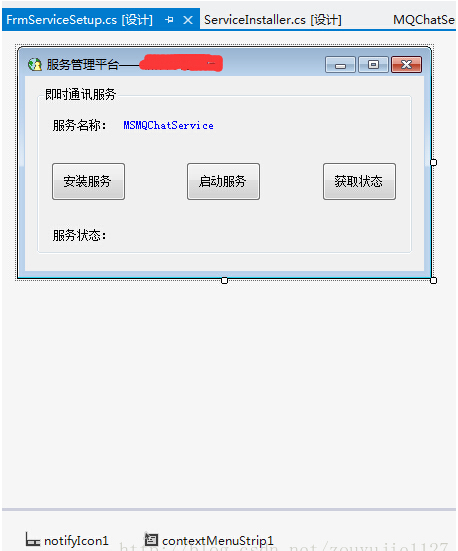
Program.cs代码如下:
    using System;

    using System.Collections.Generic;

    using System.Diagnostics;

    using System.Linq;

    using System.Threading;

    using System.Threading.Tasks;

    using System.Windows.Forms;

    namespace ServiceSetup

    {

        static class Program

        {

            /// <summary>

            /// 应用程序的主入口点。

            /// </summary>

            [STAThread]

            static void Main()

            {

                 //获取欲启动进程名

                string strProcessName = System.Diagnostics.Process.GetCurrentProcess().ProcessName;

                ////获取版本号

                //CommonData.VersionNumber = Application.ProductVersion;

                //检查进程是否已经启动,已经启动则显示报错信息退出程序。

                if (System.Diagnostics.Process.GetProcessesByName(strProcessName).Length > )

                {

                    MessageBox.Show("程序已经运行。");

                    Thread.Sleep();

                    System.Environment.Exit();

                }

                else

                {

                    Application.EnableVisualStyles();

                    Application.SetCompatibleTextRenderingDefault(false);

                    Application.Run(new FrmServiceSetup());

                }

            }

        }

    }
主界面代码:
using System;
using System.Collections.Generic;
using System.ComponentModel;
using System.Data;
using System.Drawing;
using System.Linq;
using System.Text;
using System.Threading.Tasks;
using System.Windows.Forms; namespace ServiceSetup
{
public partial class FrmServiceSetup : Form
{
string strServiceName = string.Empty;
public FrmServiceSetup()
{
InitializeComponent();
strServiceName = string.IsNullOrEmpty(lblServiceName.Text) ? "MSMQChatService" : lblServiceName.Text;
InitControlStatus(strServiceName, btnInstallOrUninstall, btnStartOrEnd, btnGetStatus, lblMsg, gbMain);
} /// <summary>
/// 初始化控件状态
/// </summary>
/// <param name="serviceName">服务名称</param>
/// <param name="btn1">安装按钮</param>
/// <param name="btn2">启动按钮</param>
/// <param name="btn3">获取状态按钮</param>
/// <param name="txt">提示信息</param>
/// <param name="gb">服务所在组合框</param>
void InitControlStatus(string serviceName, Button btn1, Button btn2, Button btn3, Label txt, GroupBox gb)
{
try
{
btn1.Enabled = true; if (ServiceAPI.isServiceIsExisted(serviceName))
{
btn3.Enabled = true;
btn2.Enabled = true;
btn1.Text = "卸载服务";
int status = ServiceAPI.GetServiceStatus(serviceName);
if (status == )
{
btn2.Text = "停止服务";
}
else
{
btn2.Text = "启动服务";
}
GetServiceStatus(serviceName, txt);
//获取服务版本
string temp = string.IsNullOrEmpty(ServiceAPI.GetServiceVersion(serviceName)) ? string.Empty : "(" + ServiceAPI.GetServiceVersion(serviceName) + ")";
gb.Text += temp;
}
else
{
btn1.Text = "安装服务";
btn2.Enabled = false;
btn3.Enabled = false;
txt.Text = "服务【" + serviceName + "】未安装!";
}
}
catch (Exception ex)
{
txt.Text = "error";
LogAPI.WriteLog(ex.Message);
}
} /// <summary>
/// 安装或卸载服务
/// </summary>
/// <param name="serviceName">服务名称</param>
/// <param name="btnSet">安装、卸载</param>
/// <param name="btnOn">启动、停止</param>
/// <param name="txtMsg">提示信息</param>
/// <param name="gb">组合框</param>
void SetServerce(string serviceName, Button btnSet, Button btnOn, Button btnShow, Label txtMsg, GroupBox gb)
{
try
{
string location = System.Reflection.Assembly.GetExecutingAssembly().Location;
string serviceFileName = location.Substring(, location.LastIndexOf('\\')) + "\\" + serviceName + ".exe"; if (btnSet.Text == "安装服务")
{
ServiceAPI.InstallmyService(null, serviceFileName);
if (ServiceAPI.isServiceIsExisted(serviceName))
{
txtMsg.Text = "服务【" + serviceName + "】安装成功!";
btnOn.Enabled = btnShow.Enabled = true;
string temp = string.IsNullOrEmpty(ServiceAPI.GetServiceVersion(serviceName)) ? string.Empty : "(" + ServiceAPI.GetServiceVersion(serviceName) + ")";
gb.Text += temp;
btnSet.Text = "卸载服务";
btnOn.Text = "启动服务";
}
else
{
txtMsg.Text = "服务【" + serviceName + "】安装失败,请检查日志!";
}
}
else
{
ServiceAPI.UnInstallmyService(serviceFileName);
if (!ServiceAPI.isServiceIsExisted(serviceName))
{
txtMsg.Text = "服务【" + serviceName + "】卸载成功!";
btnOn.Enabled = btnShow.Enabled = false;
btnSet.Text = "安装服务";
//gb.Text =strServiceName;
}
else
{
txtMsg.Text = "服务【" + serviceName + "】卸载失败,请检查日志!";
}
}
}
catch (Exception ex)
{
txtMsg.Text = "error";
LogAPI.WriteLog(ex.Message);
}
} //获取服务状态
void GetServiceStatus(string serviceName, Label txtStatus)
{
try
{
if (ServiceAPI.isServiceIsExisted(serviceName))
{
string statusStr = "";
int status = ServiceAPI.GetServiceStatus(serviceName);
switch (status)
{
case :
statusStr = "服务未运行!";
break;
case :
statusStr = "服务正在启动!";
break;
case :
statusStr = "服务正在停止!";
break;
case :
statusStr = "服务正在运行!";
break;
case :
statusStr = "服务即将继续!";
break;
case :
statusStr = "服务即将暂停!";
break;
case :
statusStr = "服务已暂停!";
break;
default:
statusStr = "未知状态!";
break;
}
txtStatus.Text = statusStr;
}
else
{
txtStatus.Text = "服务【" + serviceName + "】未安装!";
}
}
catch (Exception ex)
{
txtStatus.Text = "error";
LogAPI.WriteLog(ex.Message);
}
} //启动服务
void OnService(string serviceName, Button btn, Label txt)
{
try
{
if (btn.Text == "启动服务")
{
ServiceAPI.RunService(serviceName); int status = ServiceAPI.GetServiceStatus(serviceName);
if (status == || status == || status == )
{
txt.Text = "服务【" + serviceName + "】启动成功!";
btn.Text = "停止服务";
}
else
{
txt.Text = "服务【" + serviceName + "】启动失败!";
}
}
else
{
ServiceAPI.StopService(serviceName); int status = ServiceAPI.GetServiceStatus(serviceName);
if (status == || status == || status == || status == )
{
txt.Text = "服务【" + serviceName + "】停止成功!";
btn.Text = "启动服务";
}
else
{
txt.Text = "服务【" + serviceName + "】停止失败!";
}
}
}
catch (Exception ex)
{
txt.Text = "error";
LogAPI.WriteLog(ex.Message);
}
} //安装or卸载服务
private void btnInstallOrUninstall_Click(object sender, EventArgs e)
{
btnInstallOrUninstall.Enabled = false;
SetServerce(strServiceName, btnInstallOrUninstall, btnStartOrEnd, btnGetStatus, lblMsg, gbMain);
btnInstallOrUninstall.Enabled = true;
btnInstallOrUninstall.Focus();
} //启动or停止服务
private void btnStartOrEnd_Click(object sender, EventArgs e)
{
btnStartOrEnd.Enabled = false;
OnService(strServiceName, btnStartOrEnd, lblMsg);
btnStartOrEnd.Enabled = true;
btnStartOrEnd.Focus();
} //获取服务状态
private void btnGetStatus_Click(object sender, EventArgs e)
{
btnGetStatus.Enabled = false;
GetServiceStatus(strServiceName, lblMsg);
btnGetStatus.Enabled = true;
btnGetStatus.Focus();
} private void FrmServiceSetup_Resize(object sender, EventArgs e)
{
if (this.WindowState == FormWindowState.Minimized) //最小化到系统托盘
{
notifyIcon1.Visible = true; //显示托盘图标
this.ShowInTaskbar = false;
this.Hide(); //隐藏窗口
}
} private void FrmServiceSetup_FormClosing(object sender, FormClosingEventArgs e)
{
DialogResult result = MessageBox.Show("是缩小到托盘?", "确认", MessageBoxButtons.YesNoCancel, MessageBoxIcon.Information);
if (result== DialogResult.Yes)
{
// 取消关闭窗体
e.Cancel = true;
// 将窗体变为最小化
this.WindowState = FormWindowState.Minimized;
}
else if (result == DialogResult.No)
{
System.Environment.Exit();
}
else
{
e.Cancel = true;
}
} private void notifyIcon1_MouseClick(object sender, MouseEventArgs e)
{
if (e.Button == MouseButtons.Left&&this.WindowState == FormWindowState.Minimized)
{
this.Show();
this.WindowState = FormWindowState.Normal;
this.ShowInTaskbar = true; //显示在系统任务栏
//notifyIcon1.Visible = false; //托盘图标不可见
this.Activate();
}
} private void 打开主界面ToolStripMenuItem_Click(object sender, EventArgs e)
{
this.Show();
this.WindowState = FormWindowState.Normal;
this.ShowInTaskbar = true; //显示在系统任务栏
notifyIcon1.Visible = false; //托盘图标不可见
this.Activate();
} private void 退出ToolStripMenuItem_Click(object sender, EventArgs e)
{
System.Environment.Exit();
ExitProcess();
}
//结束进程
private void ExitProcess()
{
System.Environment.Exit();
Process[] ps = Process.GetProcesses();
foreach (Process item in ps)
{
if (item.ProcessName == "ServiceSetup")
{
item.Kill();
}
}
}
}
}
新建一个类,专门用于日志操作LogAPI.cs,这里的日志路径和名称建议从配置文件中读取
 using System;

    using System.Collections.Generic;

    using System.IO;

    using System.Linq;

    using System.Text;

    using System.Threading.Tasks;

    namespace ServiceSetup

    {

        public class LogAPI

        {

            private static string myPath = "";

            private static string myName = "";

            /// <summary>

            /// 初始化日志文件

            /// </summary>

            /// <param name="logPath"></param>

            /// <param name="logName"></param>

            public static void InitLogAPI(string logPath, string logName)

            {

                myPath = logPath;

                myName = logName;

            }

            /// <summary>

            /// 写入日志

            /// </summary>

            /// <param name="ex">日志信息</param>

            public static void WriteLog(string ex)

            {

                if (myPath == "" || myName == "")

                    return;

                string Year = DateTime.Now.Year.ToString();

                string Month = DateTime.Now.Month.ToString().PadLeft(, '');

                string Day = DateTime.Now.Day.ToString().PadLeft(, '');

                //年月日文件夹是否存在,不存在则建立

                if (!Directory.Exists(myPath + "\\LogFiles\\" + Year + "_" + Month + "\\" + Year + "_" + Month + "_" + Day))

                {

                    Directory.CreateDirectory(myPath + "\\LogFiles\\" + Year + "_" + Month + "\\" + Year + "_" + Month + "_" + Day);

                }

                //写入日志UNDO,Exception has not been handle

                string LogFile = myPath + "\\LogFiles\\" + Year + "_" + Month + "\\" + Year + "_" + Month + "_" + Day + "\\" + myName;

                if (!File.Exists(LogFile))

                {

                    System.IO.StreamWriter myFile;

                    myFile = System.IO.File.AppendText(LogFile);

                    myFile.Close();

                }

                while (true)

                {

                    try

                    {

                        StreamWriter sr = File.AppendText(LogFile);

                        sr.WriteLine(DateTime.Now.ToString("HH:mm:ss") + "  " + ex);

                        sr.Close();

                        break;

                    }

                    catch (Exception e)

                    {

                        System.Threading.Thread.Sleep();

                        continue;

                    }

                }

            }

        }

    }
Windows服务的操作类ServiceAPI.cs
    using System;

    using System.Collections;

    using System.Collections.Generic;

    using System.Configuration.Install;

    using System.IO;

    using System.Linq;

    using System.Reflection;

    using System.ServiceProcess;

    using System.Text;

    using System.Threading.Tasks;

    using Microsoft.Win32;

    namespace ServiceSetup

    {

        public class ServiceAPI

        {

            /// <summary>

            /// 检查服务存在的存在性

            /// </summary>

            /// <param name=" NameService ">服务名</param>

            /// <returns>存在返回 true,否则返回 false;</returns>

            public static bool isServiceIsExisted(string NameService)

            {

                ServiceController[] services = ServiceController.GetServices();

                foreach (ServiceController s in services)

                {

                    if (s.ServiceName.ToLower() == NameService.ToLower())

                    {

                        return true;

                    }

                }

                return false;

            }

            /// <summary>

            /// 安装Windows服务

            /// </summary>

            /// <param name="stateSaver">集合</param>

            /// <param name="filepath">程序文件路径</param>

            public static void InstallmyService(IDictionary stateSaver, string filepath)

            {

                AssemblyInstaller AssemblyInstaller1 = new AssemblyInstaller();

                AssemblyInstaller1.UseNewContext = true;

                AssemblyInstaller1.Path = filepath;

                AssemblyInstaller1.Install(stateSaver);

                AssemblyInstaller1.Commit(stateSaver);

                AssemblyInstaller1.Dispose();

            }

            /// <summary>

            /// 卸载Windows服务

            /// </summary>

            /// <param name="filepath">程序文件路径</param>

            public static void UnInstallmyService(string filepath)

            {

                AssemblyInstaller AssemblyInstaller1 = new AssemblyInstaller();

                AssemblyInstaller1.UseNewContext = true;

                AssemblyInstaller1.Path = filepath;

                AssemblyInstaller1.Uninstall(null);

                AssemblyInstaller1.Dispose();

            }

            /// <summary>

            /// 启动服务

            /// </summary>

            /// <param name=" NameService ">服务名</param>

            /// <returns>存在返回 true,否则返回 false;</returns>

            public static bool RunService(string NameService)

            {

                bool bo = true;

                try

                {

                    ServiceController sc = new ServiceController(NameService);

                    if (sc.Status.Equals(ServiceControllerStatus.Stopped) || sc.Status.Equals(ServiceControllerStatus.StopPending))

                    {

                        sc.Start();

                    }

                }

                catch (Exception ex)

                {

                    bo = false;

                    LogAPI.WriteLog(ex.Message);

                }

                return bo;

            }

            /// <summary>

            /// 停止服务

            /// </summary>

            /// <param name=" NameService ">服务名</param>

            /// <returns>存在返回 true,否则返回 false;</returns>

            public static bool StopService(string NameService)

            {

                bool bo = true;

                try

                {

                    ServiceController sc = new ServiceController(NameService);

                    if (!sc.Status.Equals(ServiceControllerStatus.Stopped))

                    {

                        sc.Stop();

                    }

                }

                catch (Exception ex)

                {

                    bo = false;

                    LogAPI.WriteLog(ex.Message);

                }

                return bo;

            }

            /// <summary>

            /// 获取服务状态

            /// </summary>

            /// <param name=" NameService ">服务名</param>

            /// <returns>返回服务状态</returns>

            public static int GetServiceStatus(string NameService)

            {

                int ret = ;

                try

                {

                    ServiceController sc = new ServiceController(NameService);

                    ret = Convert.ToInt16(sc.Status);

                }

                catch (Exception ex)

                {

                    ret = ;

                    LogAPI.WriteLog(ex.Message);

                }

                return ret;

            }

            /// <summary>

            /// 获取服务安装路径

            /// </summary>

            /// <param name="ServiceName"></param>

            /// <returns></returns>

            public static string GetWindowsServiceInstallPath(string ServiceName)

            {

                string path = "";

                try

                {

                    string key = @"SYSTEM\CurrentControlSet\Services\" + ServiceName;

                    path = Registry.LocalMachine.OpenSubKey(key).GetValue("ImagePath").ToString();

                    path = path.Replace("\"", string.Empty);//替换掉双引号

                    FileInfo fi = new FileInfo(path);

                    path = fi.Directory.ToString();

                }

                catch (Exception ex)

                {

                    path = "";

                    LogAPI.WriteLog(ex.Message);

                }

                return path;

            }

            /// <summary>

            /// 获取指定服务的版本号

            /// </summary>

            /// <param name="serviceName">服务名称</param>

            /// <returns></returns>

            public static string GetServiceVersion(string serviceName)

            {

                if (string.IsNullOrEmpty(serviceName))

                {

                    return string.Empty;

                }

                try

                {

                    string path = GetWindowsServiceInstallPath(serviceName) + "\\" + serviceName + ".exe";

                    Assembly assembly = Assembly.LoadFile(path);

                    AssemblyName assemblyName = assembly.GetName();

                    Version version = assemblyName.Version;

                    return version.ToString();

                }

                catch (Exception ex)

                {

                    LogAPI.WriteLog(ex.Message);

                    return string.Empty;

                }

            }

        }

    }
注意:记得将服务程序的dll拷贝到可视化安装程序的bin目录下面。包括配置文件。如果运行报错,尝试以管理员身份运行安装程序。
C#开发可以可视化操作的windows服务的更多相关文章
- 【C#】开发可以可视化操作的windows服务
使用C#开发自定义windows服务是一件十分简单的事.那么什么时候,我们需要自己开发windows服务呢,就是当我们需要计算机定期或者一直执行我们开发的某些程序的时候.这里我以一个WCF的监听服务为 ...
- 开发便于运维的Windows服务
过去几个月,DevOps on Windows网站推出了一系列文章,详细讲解了开发者应怎样创建便于运维的Windows服务.这一系列文章详细分析了如何克服在运维部门看来最困难的部分:Windows服务 ...
- C#开发Windows服务 附简单实例实现禁止QQ运行
本实例主要实现下面三个基本功能 1.C#开发windows服务 2.禁止QQ等程序运行 3.为windows服务创建自动安装程序 下面针对这三个基本功能进行实现 一.C#开发windows服务 Win ...
- VS2013开发Windows服务项目
这篇随笔里,我将介绍如何用VS2013开发Windows服务项目,实现的功能是定时发送电子邮件. 开发环境:VS2013,SQL Server2008,采用C#语言开发 步骤一:创建Windows服务 ...
- C#常规开发Windows服务
.Net平台下开发Windows服务的支持库很多,除了通过标准的Windows服务项目,还有一些优秀的开源架构比如:TopSelf:本文以常规项目为例 一.开发 1.新建[Windows服务] 项目: ...
- 一周一话题之三(Windows服务、批处理项目实战)
-->目录导航 一. Windows服务 1. windows service介绍 2. 使用步骤 3. 项目实例--数据上传下载服务 二. 批处理运用 1. 批处理介绍 2. 基本语法 3. ...
- Windows服务、批处理项目实战
一周一话题之三(Windows服务.批处理项目实战) -->目录导航 一. Windows服务 1. windows service介绍 2. 使用步骤 3. 项目实例--数据上传下载服务 ...
- Quartz.NET+Topshelf 创建Windows服务
由于项目开发中经常会有定时任务执行的需求,所以会第一时间就想到 windows 服务 的方式,但是做过开发的同学都知道windows服务不利于调试,安装也麻烦: 并且有开源的作业框架Quartz.NE ...
- C#开发人员能够可视化操作windows服务
使用C#开发自己的定义windows服务是一个很简单的事.因此,当.我们需要发展自己windows它的服务.这是当我们需要有定期的计算机或运行某些程序的时候,我们开发.在这里,我有WCF监听案例,因为 ...
随机推荐
- iOS-UICollectionView
1--------------------------------------------------------------------------------------------------- ...
- react3 组件
<body><!-- React 真实 DOM 将会插入到这里 --><div id="example"></div> <!- ...
- Reporting Service 没有权限登陆
在配置好Reporting Service之后,登陆Report Mananger( http://localhost/Reports/Pages/Folder.aspx)出现一个异常,本地用户没有权 ...
- Android listview addHeaderView 和 addFooterView 详解
addHeaderView()方法:主要是向listView的头部添加布局addFooterView()方法:主要是向listView的底部添加布局 需要注意的是添加布局的时候应该添加从父容器开始添加 ...
- JAVA设计模式《四》
经过前几篇的介绍相信大家对JAVA的设计模式一定有所解了,本篇我们再一起学习一下适配器模式.代理模式和工厂模式. 适配器模式使用的场景非常多,例如现实生活中,我们的笔记本电脑的充电线大部分都是三向插头 ...
- CentOS yum安装Apache + PHP + Tomcat7 + MySQL
Linux平台上用得最多的web环境就是php.java和MySQL了,会搭建这个环境,就能把很多开源程序跑起来. 作为一个程序猿,虽然并不用精通运维的活,但基本的Linux环境搭建还是要掌握比较好, ...
- office快速制作简历
毕业的一年是由学校向社会转变的一年,面临着人生的一个重大转折--找工作.在如今信息爆炸的时代,纵使力拔山兮气盖世也难免会被遗落芳草之中而不得一展宏图.对未来的憧憬,对美好生活的向往,或多或少你需要一份 ...
- tiltShift.js - CSS3 滤镜实现移轴镜头效果
tiltShift.js 是一款很棒的 jQuery 插件,使用 CSS3 图片滤镜来实现照片的移轴镜头效果.使用非常简单,使用 data 属性配置参数.温馨提示:为保证最佳的效果,请在 IE10+. ...
- 15款免费的 HTML5/CSS3 响应式网页模板
如果你想快速制作出一个优秀的网站,网站模板一定是必不可少的.网页设计师和开发人员也可以从网站模板入手,学习先进的布局方式和编码风格.下面这个列表为大家挑选了15款免费的 HTML5/CSS3 响应式网 ...
- 【Swift学习】Swift编程之旅---析构方法(十九)
在一个类的实例内存被释放之前,析构方法被立即调用.使用deinit关键字来声明析构方法,类似于构造方法用init来声明.析构方法只适用于类类型. 析构方法原理 Swift会自动释放不再需要的实例以 ...