
qml demo分析(photosurface-图片涅拉)
阅读qml示例代码已有一小段时间,也陆续的写了一些自己关于qml示例代码的理解,可能由于自己没有大量的qml开发经验,总感觉复杂的ui交互qml处理起来可能会比较棘手,但事实总是会出人意料,今天我们就来分析一个关于油耗交互的qml代码。从毕业后就一直从事qt的相关开发,一直在使用QWidget窗口做产品,看多了qml后才发现原来还有这么好的ui开发利器,完全的数据和展示分离,ui可以做到想怎么变怎么变,没有了QBoxLayout的帮助(同样是约束),ui再也不用那么死板,对于灵活、绚丽的桌面程序个人觉着qml可以逐步取代QWidget窗口。
一、效果展示
如图1所示是photosurface的效果展示,是不是觉着功能还挺强大,完成这些功能真正起作用的代码却没有几行,下边就让我们一起来分析下这个示例代码吧。
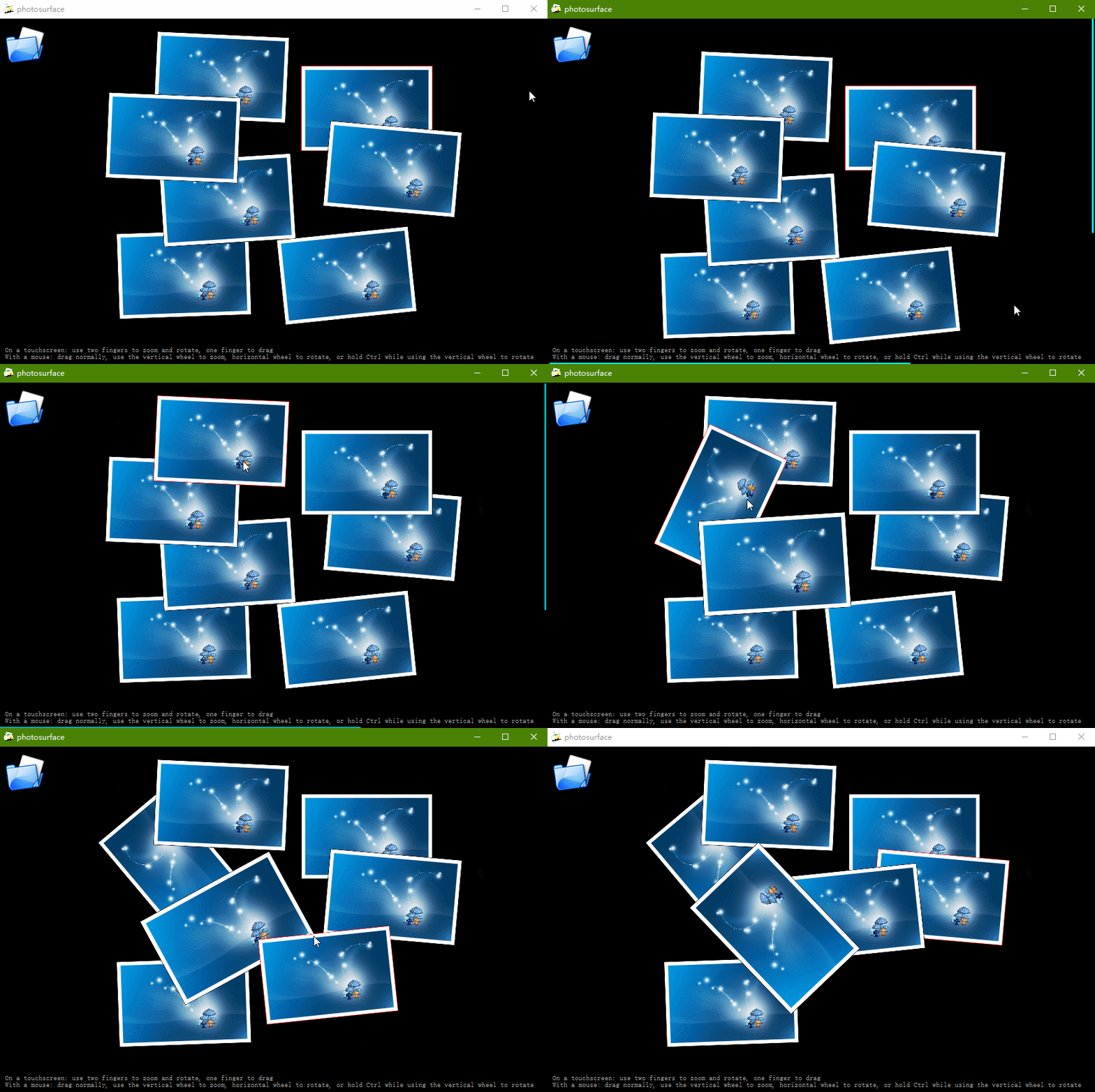
图1 photosurface效果展示
二、源码分析
图片展示窗口默认拉取的系统目录为C:\Users\Administrator\Pictures,也就是我们通常所指的系统图库目录,如图2所示即是photosurface效果展示所拉取的图片数据。

图2 系统图库目录
这个示例代码也是相对比较简单,主要的代码都是使用qml实现,C++部分提供了程序所能支持读取的图片文件格式和获取当前系统图库目录,最后使用QQmlContext的setContextProperty接口将获取到的值注册到qml上下文系统中。
1、获取支持的图片格式文件
 static QStringList imageNameFilters()

 {

     QStringList result;

     QMimeDatabase mimeDatabase;

     foreach (const QByteArray &m, QImageReader::supportedMimeTypes()) {

         foreach (const QString &suffix, mimeDatabase.mimeTypeForName(m).suffixes())

             result.append(QStringLiteral("*.") + suffix);

     }

     return result;

 }
如上代码是通过QImageReader获取当前所支持的图片格式后缀,并组装成*.suffixes字符串,例如:*.png。
2、获取当前系统目录
     QQmlApplicationEngine engine;

     QQmlContext *context = engine.rootContext();

     QUrl picturesLocationUrl = QUrl::fromLocalFile(QDir::homePath());

     const QStringList picturesLocations = QStandardPaths::standardLocations(QStandardPaths::PicturesLocation);

     if (!picturesLocations.isEmpty()) {

         picturesLocationUrl = QUrl::fromLocalFile(picturesLocations.first());

         if (initialUrl.isEmpty()

             && !QDir(picturesLocations.first()).entryInfoList(nameFilters, QDir::Files).isEmpty()) {

             initialUrl = picturesLocationUrl;

         }

     }

     context->setContextProperty(QStringLiteral("contextPicturesLocation"), picturesLocationUrl);

     context->setContextProperty(QStringLiteral("contextInitialUrl"), initialUrl);

     context->setContextProperty(QStringLiteral("contextImageNameFilters"), nameFilters);
qt5之后获取系统路径的类变为QStandardPaths,通过该类可以获取到系统图库目录、系统音乐目录等,具体参见StandardLocation参数,如图3所示
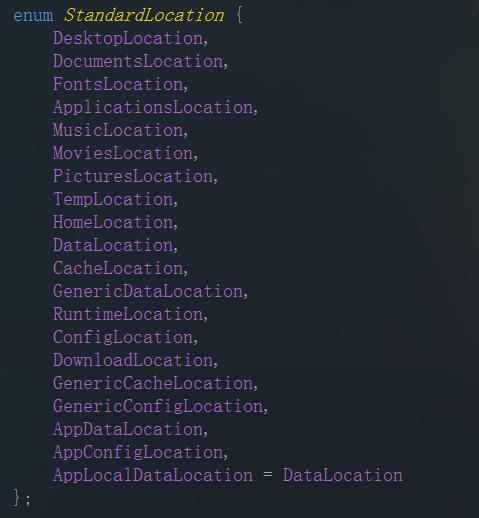
图3 支持系统目录
3、qml部分
开篇我就感慨了下,就因为qml写ui时可以随意写,接下来就让我们一起看看有多么的随意
3.1打开目录选择对话框
 FileDialog {//打开文件夹

         id: fileDialog

         title: "Choose a folder with some images"

         selectFolder: true

         folder: picturesLocation

         onAccepted: folderModel.folder = fileUrl + "/"

     }
picturesLocation是通过C++程序获取的变量并注册到qml上下文系统中,该变量指明了当前对话框打开时默认选中的目录
3.2窗口底部文字说明
     //窗口最底下说明

     Text {

         anchors.bottom: parent.bottom

         anchors.left: parent.left

         anchors.right: parent.right

         anchors.margins:

         color: "darkgrey"

         wrapMode: Text.WordWrap

         font.pointSize:

         text: "On a touchscreen: use two fingers to zoom and rotate, one finger to drag\n" +

               "With a mouse: drag normally, use the vertical wheel to zoom, horizontal wheel to rotate, or hold Ctrl while using the vertical wheel to rotate"

     }
该组件使用了anchors锚点,可以始终停留在主窗口底部
3.3组件加载完毕动作
     Component.onCompleted: {

         if (typeof contextInitialUrl !== 'undefined') {

             // Launched from C++ with context properties set.

             imageNameFilters = contextImageNameFilters;//QImageReader支持的图片格式

             picturesLocation = contextPicturesLocation;//组件加载完毕时  初始化打开图片路径

             if (contextInitialUrl == "")

                 fileDialog.open();//没有获取到系统图片路径 直接打开

             else

                 folderModel.folder = contextInitialUrl + "/";//指定对话框默认打开文件夹路径

         } else {

             // Launched via QML viewer without context properties set. 当没有使用C++代码设置context值时

             fileDialog.open();

         }

     }
3.4左上角文件夹图标
 //左上角文件夹图标  点击弹出系统文件夹选择框

     Image {

         anchors.top: parent.top

         anchors.left: parent.left

         anchors.margins:

         source: "resources/folder.png"

         MouseArea {

             anchors.fill: parent

             anchors.margins: -

             onClicked: fileDialog.open()//点击打开文件夹对话框

             hoverEnabled: true

             onPositionChanged: {

                 tooltip.visible = false//位置改变时 隐藏提示框

                 hoverTimer.start()

             }

             onExited: {

                 tooltip.visible = false//鼠标离开时 隐藏提示框

                 hoverTimer.stop()

             }

             Timer {

                 id: hoverTimer

                 interval:

                 onTriggered: {

                     tooltip.x = parent.mouseX

                     tooltip.y = parent.mouseY

                     tooltip.visible = true

                 }

             }

             Rectangle {//提示框

                 id: tooltip

                 border.color: "black"

                 color: "beige"

                 width: tooltipText.implicitWidth +

                 height: tooltipText.implicitHeight +

                 visible: false

                 Text {

                     id: tooltipText

                     anchors.centerIn: parent

                     text: "Open an image directory (" + openShortcut.sequenceString + ")"

                 }

             }

         }

         Shortcut {

             id: openShortcut

             sequence: StandardKey.Open

             onActivated: fileDialog.open()

         }

     }
习惯了C++这种编译性语言,qml这种声明性语言用起来感觉好简单,就拿这段代码中的提示框来说,不管数据怎么样,提示框的行为和效果展示我们都可以随意定制,这在使用QWidget来实现时就没有这么容易。提示框的显示和隐藏只需要在交互合适的时机通过id来设置visible属性即可。
3.5滚动条
 //右侧垂直滚动条

 Rectangle {

     id: verticalScrollDecorator

     anchors.right: parent.right//锚定父窗口右侧

     anchors.margins: //距离边界2px

     color: "cyan"

     border.color: "black"//滚动条边框颜色

     border.width: //滚动条边框宽度

     width: //滚动条宽度

     radius: //四角圆角半径

     antialiasing: true//反锯齿

     height: flick.height * (flick.height / flick.contentHeight) - (width - anchors.margins) * //滚动条高度

     y:  flick.contentY * (flick.height / flick.contentHeight)//滚动条y值

     NumberAnimation on opacity { id: vfade; to: ; duration:  }//使用动画将滚动条透明度设置为0,即不可见

     onYChanged: { opacity = 1.0; scrollFadeTimer.restart() }//启动滚动条小时定时器->调用水平和垂直透明度渐变动画,知道滚动条消失

 }
水平滚动条和垂直滚动条一样
 //水平底部滚动条

 Rectangle {

     id: horizontalScrollDecorator

     anchors.bottom: parent.bottom

     anchors.margins:

     color: "cyan"

     border.color: "black"

     border.width:

     height:

     radius:

     antialiasing: true

     width: flick.width * (flick.width / flick.contentWidth) - (height - anchors.margins) *

     x:  flick.contentX * (flick.width / flick.contentWidth)

     NumberAnimation on opacity { id: hfade; to: ; duration:  }

     onXChanged: { opacity = 1.0; scrollFadeTimer.restart() }

 }
3.6 可滑动区域
最后一个,也是最重要的一个滑动区域
 Flickable {

     id: flick

     anchors.fill: parent

     contentWidth: width * surfaceViewportRatio//可展示组件区域宽度

     contentHeight: height * surfaceViewportRatio//可展示组件区域高度

     Repeater {

         model: FolderListModel {//FolderListModel:文件夹系统model

             id: folderModel

             objectName: "folderModel"

             showDirs: false

             nameFilters: imageNameFilters//过滤文件夹格式"*.png", "*.jpg", "*.gif"

         }

         Rectangle {

             id: photoFrame

             width: image.width * ( + 0.10 * image.height / image.width)

             height: image.height * 1.10

             scale: defaultSize / Math.max(image.sourceSize.width, image.sourceSize.height)

             Behavior on scale { NumberAnimation { duration:  } }//缩放、x坐标和y坐标发生变化时都使用动画在200ms完成

             Behavior on x { NumberAnimation { duration:  } }

             Behavior on y { NumberAnimation { duration:  } }

             border.color: "black"//图片边框别景色

             border.width:

             smooth: true//平滑

             antialiasing: true//反锯齿

             Component.onCompleted: {

                 x = Math.random() * root.width - width /

                 y = Math.random() * root.height - height /

                 rotation = Math.random() *  - //随机一个角度

             }

             Image {

                 id: image

                 anchors.centerIn: parent

                 fillMode: Image.PreserveAspectFit//图片均匀缩放 不剪裁

                 source: folderModel.folder + fileName//filename是FolderListModel提供的属性

                 antialiasing: true

             }

             //通常和一个可见的 Item 配合使用来处理捏拉手势

             PinchArea {//http://blog.csdn.net/foruok/article/details/32078761

                 anchors.fill: parent

                 pinch.target: photoFrame//pinch 属性知名与捏拉手势的详情

                 pinch.minimumRotation: -//涅拉逆向旋转最大360°

                 pinch.maximumRotation: //涅拉顺时旋转最大360°

                 pinch.minimumScale: 0.1//涅拉最小缩放到原始大小10%

                 pinch.maximumScale: //涅拉最大缩放到原始大小10倍

                 pinch.dragAxis: Pinch.XAndYAxis//拖拽x轴和y轴都可以

                 onPinchStarted: setFrameColor();//第一次识别到捏拉手势时发出 修改当前图片

                 property real zRestore:

                 onSmartZoom: {

                     if (pinch.scale > ) {//放大

                         photoFrame.rotation = ;

                         photoFrame.scale = Math.min(root.width, root.height) / Math.max(image.sourceSize.width, image.sourceSize.height) * 0.85

                         photoFrame.x = flick.contentX + (flick.width - photoFrame.width) /

                         photoFrame.y = flick.contentY + (flick.height - photoFrame.height) /

                         zRestore = photoFrame.z

                         photoFrame.z = ++root.highestZ;//涅拉时z值增大

                     } else {

                         photoFrame.rotation = pinch.previousAngle

                         photoFrame.scale = pinch.previousScale

                         photoFrame.x = pinch.previousCenter.x - photoFrame.width /

                         photoFrame.y = pinch.previousCenter.y - photoFrame.height /

                         photoFrame.z = zRestore//缩小时还原z值

                         --root.highestZ

                     }

                 }

                 MouseArea {

                     id: dragArea

                     hoverEnabled: true

                     anchors.fill: parent

                     drag.target: photoFrame//拖拽对象  为Flickable中Model数据的绘制代理

                     scrollGestureEnabled: false  // 2-finger-flick gesture should pass through to the Flickable

                     onPressed: {

                         photoFrame.z = ++root.highestZ;

                         parent.setFrameColor();//鼠标按下图片区域时 重置当前图片currentFrame  主要重置属性z  代表图片显示层

                     }

                     onEntered: parent.setFrameColor();//鼠标进入图片区域时 重置当前图片currentFrame

                     onWheel: {//鼠标滚轮滚动时 如果按下contrl键 则当前图片进行旋转  否则进行缩放

                         if (wheel.modifiers & Qt.ControlModifier) {

                             photoFrame.rotation += wheel.angleDelta.y /  * ;

                             if (Math.abs(photoFrame.rotation) < )

                                 photoFrame.rotation = ;

                         } else {

                             photoFrame.rotation += wheel.angleDelta.x / ;

                             if (Math.abs(photoFrame.rotation) < 0.6)

                                 photoFrame.rotation = ;

                             var scaleBefore = photoFrame.scale;

                             photoFrame.scale += photoFrame.scale * wheel.angleDelta.y /  / ;

                         }

                     }

                 }

                 function setFrameColor() {

                     if (currentFrame)

                         currentFrame.border.color = "black";//设置上一张图片边框颜色为黑色

                     currentFrame = photoFrame;

                     currentFrame.border.color = "red";//设置当前图片边框颜色为红色

                 }

             }

         }

     }

 }
源码中有大量的注释,针对大多数代码都有了注释,应该不难理解。
这个滑动区域使用了Repeater元素来生成多个对象,对象来自模型FolderListModel,id为photoFrame的Rectangle为绘制代理,在绘制代理中有两个事件响应组件PinchArea和MouseArea,这两个事件所针对的情况不一样,MouseArea是鼠标事件,PinchArea是涅拉事件主要针对触屏操作。PinchArea细节
qml demo分析(photosurface-图片涅拉)的更多相关文章
- qml demo分析(threadedanimation-线程动画)
一.效果预览 使用过qml的同学都知道,使用qml做动画效果是非常简单的,再也不需要像QWidget那样,自己模拟一个动画,费时又费力,往往还达不到效果.今天我们就来分析下qml的两种动画实现方式,如 ...
- qml demo分析(maskedmousearea-异形窗口)
一.效果展示 如本文的标题所示,这篇文章分析的demo是一个异形窗口,主要展示鼠标在和异形区域交互的使用,效果如图1所示,当鼠标移动到白云或者月亮上时,相应的物体会高亮,当鼠标按下时,物体会有一个放大 ...
- qml demo分析(rssnews-常见新闻布局)
一.效果展示 今儿来分析一篇常见的ui布局,完全使用qml编写,ui交互效果友好,如图1所示,是一个常见的客户端新闻展示效果,左侧是一个列表,右侧是新闻详情. 图1 新闻效果图 二.源码分析 首先先来 ...
- qml demo分析(maroon-小游戏)
1.效果展示 这篇文章我还是分析一个qt源码中的qml程序,程序运行效果如下图所示. 图1 游戏开始 图2 游戏中 2.源码分析 这个游戏的源码文件比较多,为了能更清楚的了解整个代码,我先整体分析 ...
- qml demo分析(text-字体展示)
上一篇文章分析了一个小游戏,使用qml编写界面+js进行复杂逻辑控制,算是一个比较完整的qml示例代码了,今天就不那么继续变态啦,来看一个简单的字体示例程序吧,该示例代码比较简单,主要是展示了几个简单 ...
- qml demo分析(samegame-拼图游戏)
一.效果展示 相信大家都玩儿过连连看游戏,而且此款游戏也是闲时一款打发时间的趣事,那么接下来我将分析一款类似的游戏,完全使用qml编写界面,复杂逻辑使用js完成.由于此游戏包含4种游戏模式,因此本篇文 ...
- qml demo分析(abstractitemmodel-数据分离)
一.概述 qt5之后qml也可以被用于桌面程序开发,今天我就拿出qt demo中的一个qml示例程序进行分析.这个demo主要是展示了qml数据和展示分离的使用方式,qml只专注于快速高效的绘制界面, ...
- qml demo分析(externaldraganddrop-拖拽)
一.效果展示 客户端程序拖拽是一个很常见的需求,对于QWidget程序来说,需要重写如图1这么几个方法,通过重写这几个方法的逻辑,我们就可以控制鼠标拖拽的逻辑,糟糕的是QDrag执行exec后是一个阻 ...
- qml demo分析(threading-线程任务)
一.关键类说明 qml内置了WorkerScript组件,该组件有一个source属性,可以加载js文件,含有一个名为message的信号,意味着他有一个默认的onMessage槽函数,除此之外他还有 ...
随机推荐
- scrapy分布式爬虫scrapy_redis一篇
分布式爬虫原理 首先我们来看一下scrapy的单机架构: 可以看到,scrapy单机模式,通过一个scrapy引擎通过一个调度器,将Requests队列中的request请求发给下载器,进行页 ...
- [Python]range与xrange用法对比
[整理内容]具体如下: 先来看如下示例:>>>x=xrange(0,8)>>> print xxrange(8)>>>print x[0]0> ...
- segmenter.go
; ;; ].minDistance ; ].text),, ;; ;; ;,) { output = append(output, toLower(text[alphanum ...
- 深入讨论channel timeout
深入讨论channel timeout Go 语言的 channel 本身是不支持 timeout 的,所以一般实现 channel 的读写超时都采用 select,如下: select { case ...
- MFC中List box的用法
首先在头文件中创建对象,CSGrid m_proViewList;//创建表头#pragma region 建立grid表的标题 m_proViewList.AppendColumn(_T(" ...
- 约会 倍增lca
题意:一棵树,给两个点,求树上有多少点到他俩距离相等 倍增lca,分好多情况讨论.. #include<cstdio> #include<cstring> #include&l ...
- BZOJ_3129_[Sdoi2013]方程_组合数学+容斥原理
BZOJ_3129_[Sdoi2013]方程_组合数学+容斥原理 Description 给定方程 X1+X2+. +Xn=M 我们对第l..N1个变量进行一些限制: Xl < = A ...
- layer使用总结
1.询问框的使用 主要体现在删除等重要操作 让用户进行二次确认的场景 //询问框 layer.confirm('您是如何看待前端开发?', { btn: ['重要','奇葩'] //按钮 }, fun ...
- Spring AOP就是这么简单啦
前言 只有光头才能变强 上一篇已经讲解了Spring IOC知识点一网打尽!,这篇主要是讲解Spring的AOP模块~ 之前我已经写过一篇关于AOP的文章了,那篇把比较重要的知识点都讲解过了一篇啦:S ...
- 深入浅出java常量池
理论 jvm虚拟内存分布: 程序计数器是jvm执行程序的流水线,存放一些跳转指令. 本地方法栈是jvm调用操作系统方法所使用的栈. 虚拟机栈是jvm执行java代码所使用 ...